 Agencies and studios
 Photographers
 Podcasters
 Video and social creators
 Marketers and content teams
What does HTML to PDF do?
HTML to PDF turns HTML documents, such as invoices, reports, newsletters and résumés, into PDF files with real pages, on your own computer. It takes .html and .htm files, or HTML you paste in, and gives back one PDF for each.
Hangar prints the page the way a browser does, not as a screenshot, so the text stays selectable and searchable and links stay clickable. You see the actual PDF pages in a preview before you convert. Nothing is fetched from the internet: images, fonts and stylesheets load only from your computer.
Step 1: Add HTML files or paste HTML
Click Tools in the sidebar, open the Web & Ebook tab and click HTML to PDF. You can also type "html to pdf" in the search box at the top.
Drop your HTML files on the queue, or click it to pick them. Keep each file in its original folder, so Hangar can find the images, fonts and stylesheets next to it. To use HTML that is not saved as a file, click Paste HTML in the queue header, paste the whole document into HTML source and click Add HTML. Pasted HTML has no folder, so it must be self-contained: styles inside the page and images embedded in it.
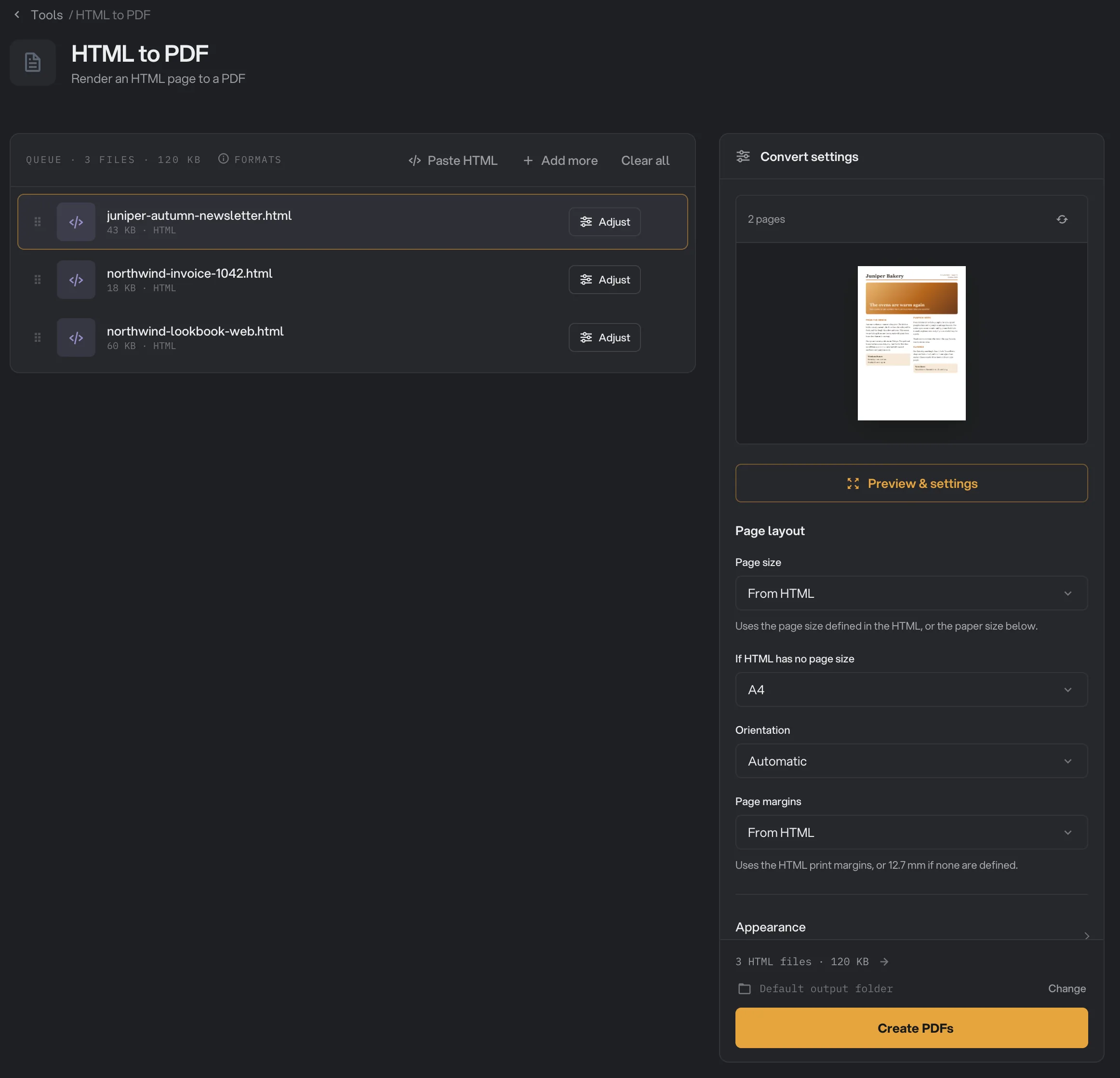
- Paste HTML
- Adjust
- Page count
- Preview & settings
- Page size
- Create PDFs
Step 2: Check the preview
Hangar makes a real PDF of the selected file and shows its first page in the settings panel, with the page count above it. Click another file in the queue to preview that one. Every change you make to the settings updates the preview after a moment.
Click Preview & settings, or Adjust on a file, to open a larger window with every page, zoom buttons and all the settings. The arrows at the top step through the files in the queue. Click Done to go back.
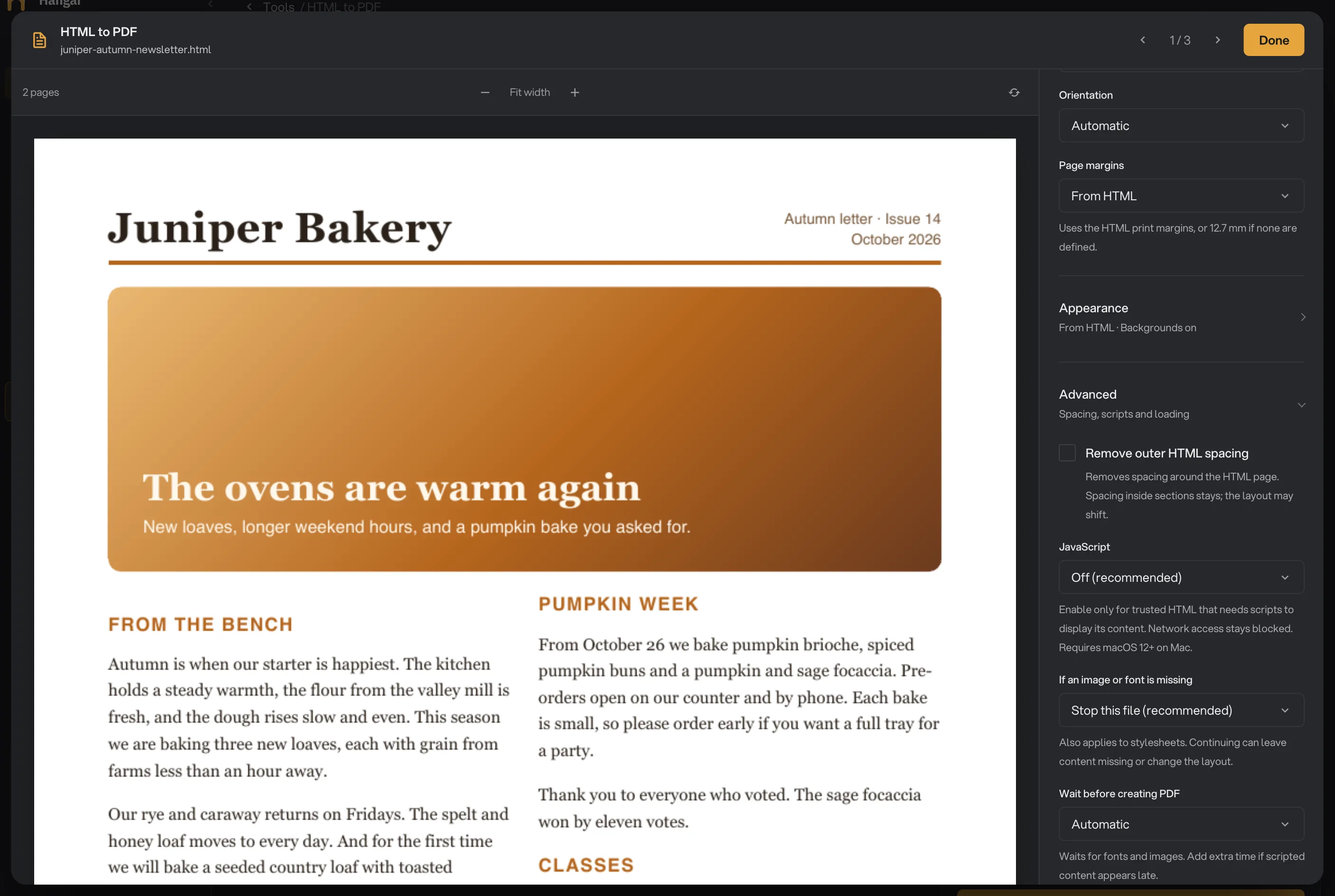
- Switch files
- Zoom
- Refresh
- Advanced
- If an image or font is missing
- Done
Create PDFs (Create PDF for a single file) stays unavailable until the selected file has an up-to-date preview. If the preview cannot be made, the reason appears in red under it: see why a file stops.
Step 3: Adjust the page (optional)
Out of the box, Hangar follows the HTML: Page size and Page margins are set to From HTML, which uses the size and margins in the page's print styles. When the page does not set a size, the paper under If HTML has no page size is used: A4, or Letter in the US, Canada, Mexico and the Philippines. Pages with no margins of their own get 12.7 mm.
To force a layout, pick a paper size such as Letter or A4, an Orientation, and a margin. Choose Continuous page to get one long page with no breaks, which suits receipts and web-style layouts. The Appearance section holds the background and scaling options. The settings apply to every file in the batch, and Hangar keeps them until you quit the app.
Step 4: Create the PDFs, then check them
Check where the files will go: Default output folder saves them in your workspace's output folder, in a to_pdf folder with a subfolder for today's date, such as 10-15. Click Change to pick another folder for this run. Then click Create PDF, or Create PDFs when there is more than one file.
Hangar converts the files one at a time. When the run ends, each file shows Done and the size of its PDF, and View lets you page through it. Only the selected file was previewed, so a file that needs something Hangar cannot load shows Failed with the reason, and the panel lists it under What failed. Open folder takes you to the PDFs.
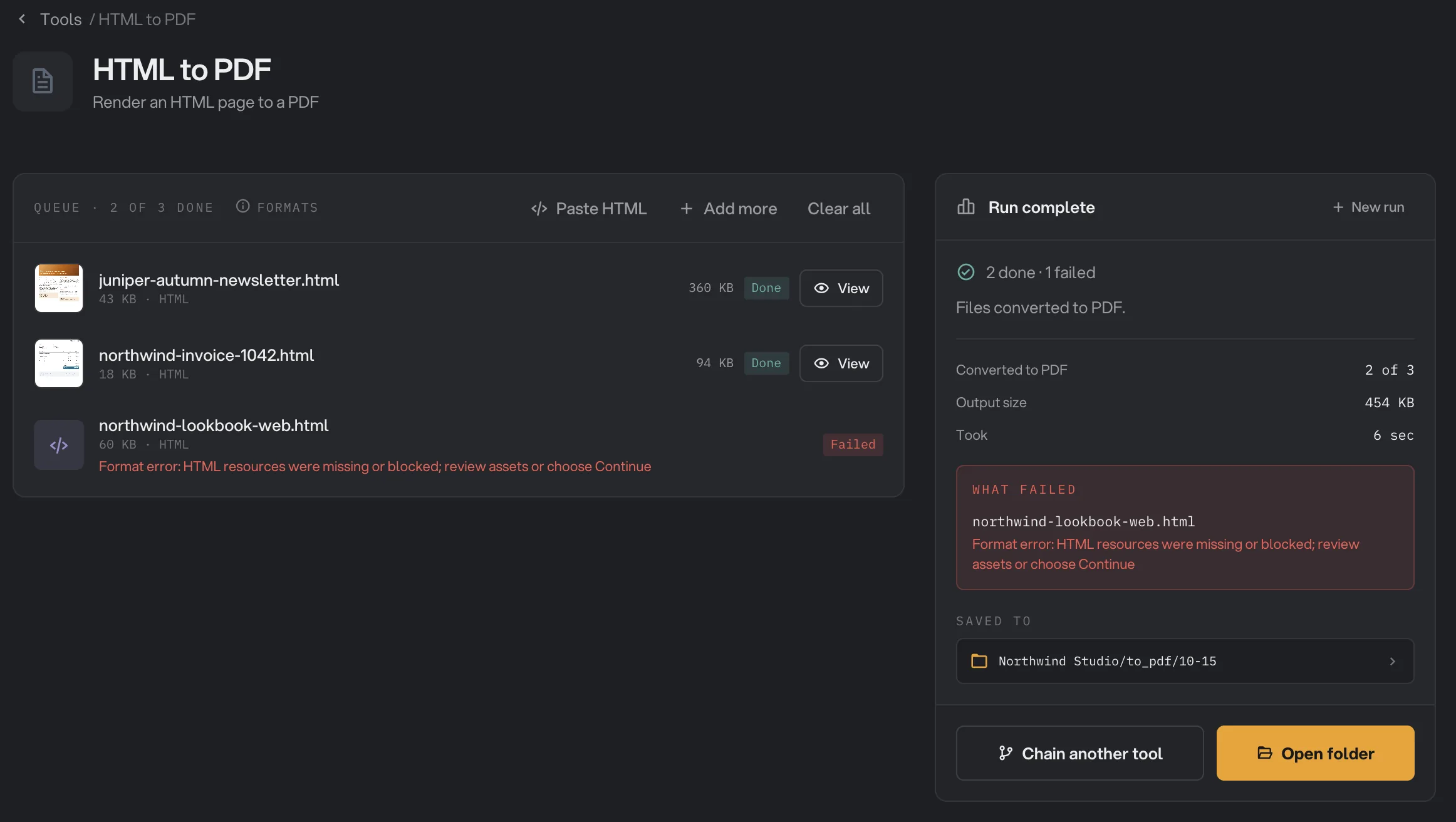
- View
- Failed
- What failed
- Saved to
- Open folder
Each PDF has the same name as its HTML file, for example invoice-1042.html becomes invoice-1042.pdf. Pasted HTML is saved as html-snippet.pdf, then html-snippet (2).pdf and so on. For more on reading results, see See and compare your results.
Every setting, and when to change it
The settings are in three groups. Page layout and Appearance are in the settings panel. Advanced only appears in the Preview & settings window. Some settings only show up after you pick an option that needs them.
Page layout
- Page size
The paper size. From HTML uses the size set in the page's print styles. A fixed size splits the document into pages of that size. Continuous page makes one long page that fits the content, up to 2000 mm tall.
- RangeFrom HTML, A4, Letter, Legal, A3, Continuous page, Custom
- DefaultFrom HTML
- If HTML has no page size
Shown with From HTML. The paper to use when the page does not set one.
- RangeA4, Letter, Legal, A3
- DefaultA4 (Letter in the US, Canada, Mexico and the Philippines)
- Paper width, Paper height
Shown with Custom. Any paper size you need, such as a ticket or a slide.
- Range25 to 2000 mm
- Default210 × 297 mm
- Page width
Shown with Continuous page. The width of the single long page.
- Range25 to 2000 mm
- DefaultThe width of the paper you had before
- Orientation
Automatic keeps the paper as the size defines it. Portrait or Landscape turns the paper. Hidden for Continuous page.
- RangeAutomatic, Portrait, Landscape
- DefaultAutomatic
- Page margins
The space between the edge of the paper and the document. From HTML uses the page's print margins, or 12.7 mm if it has none. None adds no margin, but the HTML may have spacing of its own.
- RangeFrom HTML, None (0 mm), Narrow (6.35 mm), Normal (12.7 mm), Wide (25.4 mm), Custom
- DefaultFrom HTML
- Link all sides
Shown with Custom margins. Changing one margin changes all four.
- DefaultOn when all four margins match
- Top, Right, Bottom, Left
Shown with Custom margins. They must leave at least 10 mm of printable space across and down the page.
- Range0 to 100 mm
- DefaultThe margins you had before
Appearance
- Page background
From HTML keeps the document's own page background. White or Custom color replaces it on every page, margins included. Text and artwork keep their colors.
- RangeFrom HTML, White, Custom color
- DefaultFrom HTML
- Page color
Shown with Custom color. Pick it with the color picker or type the code.
- RangeAny color, as #RRGGBB
- Default#ffffff
- Include HTML backgrounds
Keeps background colors, gradients and images inside the document. Turn it off to save ink.
- DefaultOn
- Document styles
Print layout uses the page's print styles. Choose Screen layout if parts of the page disappear in the PDF, or to get it the way it looks in a browser.
- RangePrint layout, Screen layout
- DefaultPrint layout
- Content size
Scales the content on the page. Lower values fit more on each page. Hidden for Continuous page, which always uses 100%.
- Range50 to 200%
- Default100%
Advanced (in Preview & settings)
- Remove outer HTML spacing
Removes the space around the whole page that browsers add. Spacing inside sections stays, but the layout may shift.
- DefaultOff
- JavaScript
Lets scripts in the page, or saved next to it, run. Use it only for HTML you trust that needs scripts to show its content. Scripts still cannot reach the internet. Needs macOS 12 or later on a Mac.
- RangeOff (recommended), Allow local scripts
- DefaultOff (recommended)
- If an image or font is missing
What to do when an image, font or stylesheet cannot be loaded. Stopping makes sure nothing goes missing without you noticing. Create PDF anyway converts the file without the missing parts, which can change the layout.
- RangeStop this file (recommended), Create PDF anyway
- DefaultStop this file (recommended)
- Wait before creating PDF
Automatic waits until the page, its fonts and its images have loaded. Add extra time if content drawn by scripts appears late.
- RangeAutomatic, Add extra time
- DefaultAutomatic
- Extra wait
Shown with Add extra time. How long to wait before printing, in milliseconds. 15,000 ms is 15 seconds.
- Range0 to 15,000 ms
- Default500 ms
What loads, and what doesn't
HTML to PDF works offline on purpose: a page can never send your document anywhere or track that it was opened. That shapes what can appear in the PDF:
- Files next to the HTML file load. Images, fonts, stylesheets and scripts in the same folder as the HTML file, or in a folder inside it, are used when the HTML links to them with a relative path such as
images/logo.png. The file types are CSS, JavaScript, PNG, JPEG, GIF, WebP, AVIF, SVG, ICO, WOFF, WOFF2, TTF and OTF. - Files elsewhere do not. Links that start with
../(the folder above) or with/, and anything on the internet, such as web fonts, photos on a website or a stylesheet loaded from another site, are blocked. - Embedded content works everywhere. Styles inside the page and images or fonts written into the HTML file itself always work, including in pasted HTML.
- Fonts installed on your computer work when the page asks for them by name. A computer without that font uses a fallback, so the same file can look different on another machine.
- Videos, audio, embedded frames such as maps and video players, and pop-up windows are blocked and come out blank.
How do I get the best result?
- If you write the HTML yourself, give it print styles. An
@pagerule such as@page { size: A4; margin: 15mm }sets the paper and margins, andbreak-before: pageandbreak-inside: avoidcontrol where pages break. Use millimeters, centimeters, inches, points or pixels in@page, not em or vw. - Leave Page size and Page margins on From HTML for pages that already have print styles, such as invoices from billing software. For other pages, pick the paper and margins yourself.
- If text is cut off at the right edge, lower Content size, for example to 80%, or switch Orientation to Landscape.
- If a page looks bare or parts are missing, try Document styles set to Screen layout. Many websites hide menus, pictures or whole sections when printed.
- Page through the whole document in Preview & settings before you convert a large batch, then check one finished PDF with View.
Why did my file stop or look wrong?
When the preview cannot be made, the reason appears in red under it. When a file fails during a run, the reason is under its name. The common ones:
- Resources were missing or blocked. The page needs an image, font or stylesheet that Hangar could not load: it is on the internet, outside the HTML file's folder, or the file is gone. The message mentions choosing Continue: the setting for that is If an image or font is missing, set to Create PDF anyway, under Advanced in Preview & settings.
- The page layout is unsupported. The page's print styles use a page size or margin Hangar cannot measure, such as em or vw units, or ask for several different paper sizes. Choose a Page size and Page margins other than From HTML.
- The continuous page is too tall. A continuous page can be up to 2000 mm long. Choose a normal paper size for longer documents.
- Rendering timed out. The page did not finish loading in time, often because a script keeps it busy. Each file gets about 45 seconds. Turn JavaScript off, or remove the part of the page that never finishes.
- The HTML is not UTF-8. Older pages are sometimes saved in another text encoding. Open the file in a code editor, save it as UTF-8, and add it again.
- Printing stalled. If Hangar asks you to restart before retrying, quit and reopen Hangar, then run the file again.
- Parts of the page are blank. Content drawn by scripts needs JavaScript set to Allow local scripts, and sometimes Add extra time. Content that comes from the internet cannot appear.
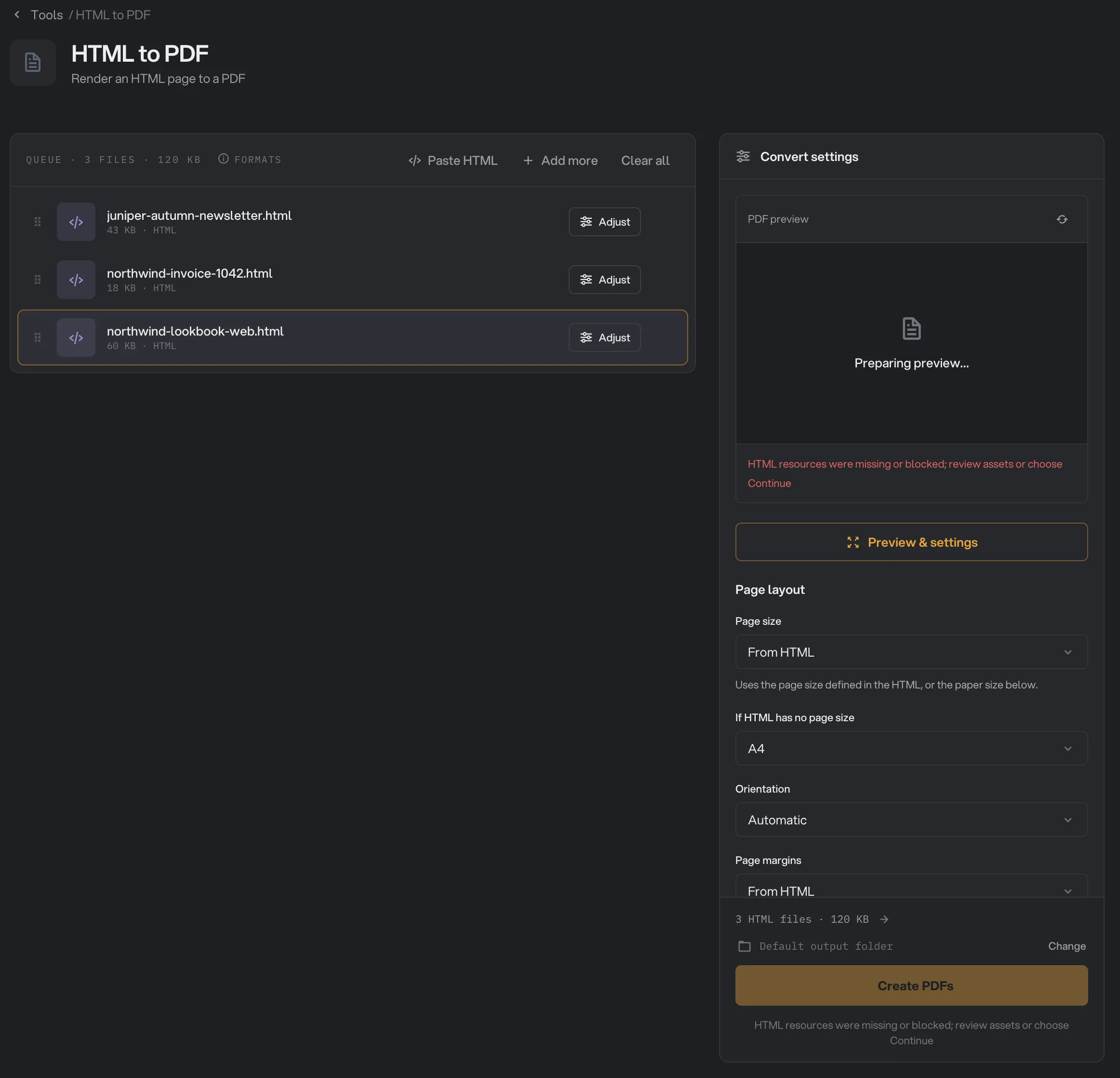
- The message
- Create PDFs, unavailable
More general fixes are in A file failed: what to check.
Limits
- HTML to PDF accepts
.htmland.htmfiles and pasted HTML. Web addresses, MHTML files and Safari web archives are not supported. - Nothing is loaded from the internet, and this cannot be turned on.
- The HTML must be UTF-8 text and at most 16 MB. Each linked file can be up to 64 MB.
- Hangar does not add headers or footers. To number the pages, add Page numbers afterwards, for example in a chain.
- The whole document is always converted. There is no page range setting.
- Form fields print as they look on the page. The PDF does not have fillable fields.
- Hangar prints with the browser technology built into your computer, so the same file can paginate slightly differently on a Mac and on Windows. HTML to PDF is newer on Windows: check the preview there before converting a batch.
- Files are converted one at a time, and each file gets about 45 seconds.
To capture an HTML page as an image instead of pages, use HTML to Image.
Use HTML to PDF in a chain
HTML to PDF is available as a step in chains, under the PDF steps, with the same settings as the tool, including the Advanced ones. A chain step has no preview, so try the settings on one file in the tool first. It has to be the first step, and it works with HTML files, not pasted HTML.
After it you can add Page Numbers, Compress, Encrypt and Batch Rename. A common chain turns a folder of HTML invoices into numbered, compressed, password-protected PDFs in one run. To run it on new files each month, see Run a chain on many files.
Common questions
Can I convert a web page by typing its address?
No. HTML to PDF converts HTML files and pasted HTML, and it never goes online. To convert a page from the web, save it from your browser first with Save Page As and Web Page, Complete, then add the saved HTML file.
Why did my file stop with a message about missing or blocked resources?
The page needs an image, font or stylesheet that Hangar could not load, usually because it lives on the internet, which Hangar never contacts, or in a folder outside the HTML file's folder. Put the files next to the HTML file, or open Preview & settings, then Advanced, and set If an image or font is missing to Create PDF anyway.
Does HTML to PDF run JavaScript?
Not by default. If a trusted page needs its scripts to show its content, open Preview & settings, then Advanced, and set JavaScript to Allow local scripts. Scripts still cannot reach the internet. On a Mac this needs macOS 12 or later.
How do I control where pages break?
With the print styles in your HTML. Hangar follows CSS rules such as break-before: page and break-inside: avoid, and reads the page size and margins from an @page rule when Page size and Page margins are set to From HTML. Check the result in the preview.
Does it work on Windows?
Yes. On Windows, Hangar prints with the browser technology built into Windows, so page breaks can differ slightly from the same file on a Mac. HTML to PDF is newer on Windows, so always check the preview before you create the PDFs.
Still stuck?
One person reads every message, usually with a reply within a day.