 Agencies and studios
 Photographers
 Podcasters
 Video and social creators
 Marketers and content teams
What does Carousel do?
Carousel is a studio for multi-slide posts, the kind people swipe through on Instagram and LinkedIn. You start from a template chosen by what you want to publish, such as a case study, a how-to guide or a product launch, then write your own text, add your photos and export every slide as a PNG.
Each template is a complete visual system: type, colors and a set of slide designs that work together. You can change the text right on the slide, and Hangar saves your work as you go.
Step 1: Open Carousel
Click Tools in the sidebar, open the Create tab and click Carousel in the From scratch section. You can also type "carousel" in the search box at the top. The Carousel Studio fills the window.
The first time, a sample carousel opens so you can see how it works. After that, Hangar reopens your latest carousel in this workspace. The name at the top is your carousel’s name. Click it to rename it.
The Studio has three parts: your slides on the left, the selected slide in the middle, and settings on the right in four tabs: Content, Layout, Style and Publish. Slide and Sequence at the top switch between one slide and all slides side by side.
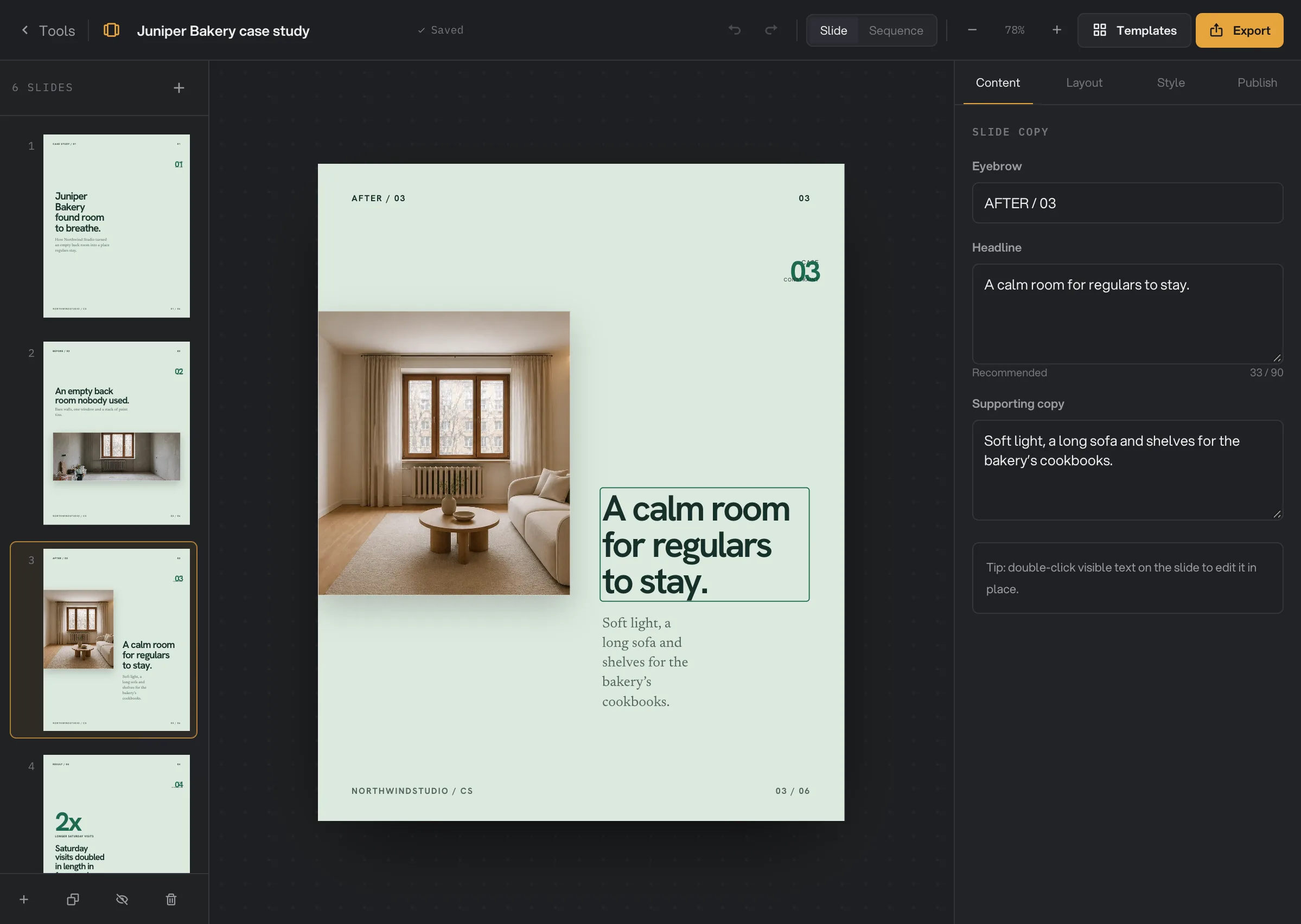
- Slide 3
- Templates
- Headline
- Recommended length
Step 2: Pick a template
Click Templates at the top. The Template library asks What are you publishing? Filter by Product, Educate, Authority, Story, Proof or Report, or search for what you want to achieve. Click a template to see its slide sequence and the kind of photos it works best with.
- Start with this sequence replaces your slides with the template’s complete example, ready for your own text and photos.
- Apply style only keeps your text, photos and slide order and changes the look.
Both set the accent color and type pairing to the template’s own. If you change your mind, click Undo at the top.
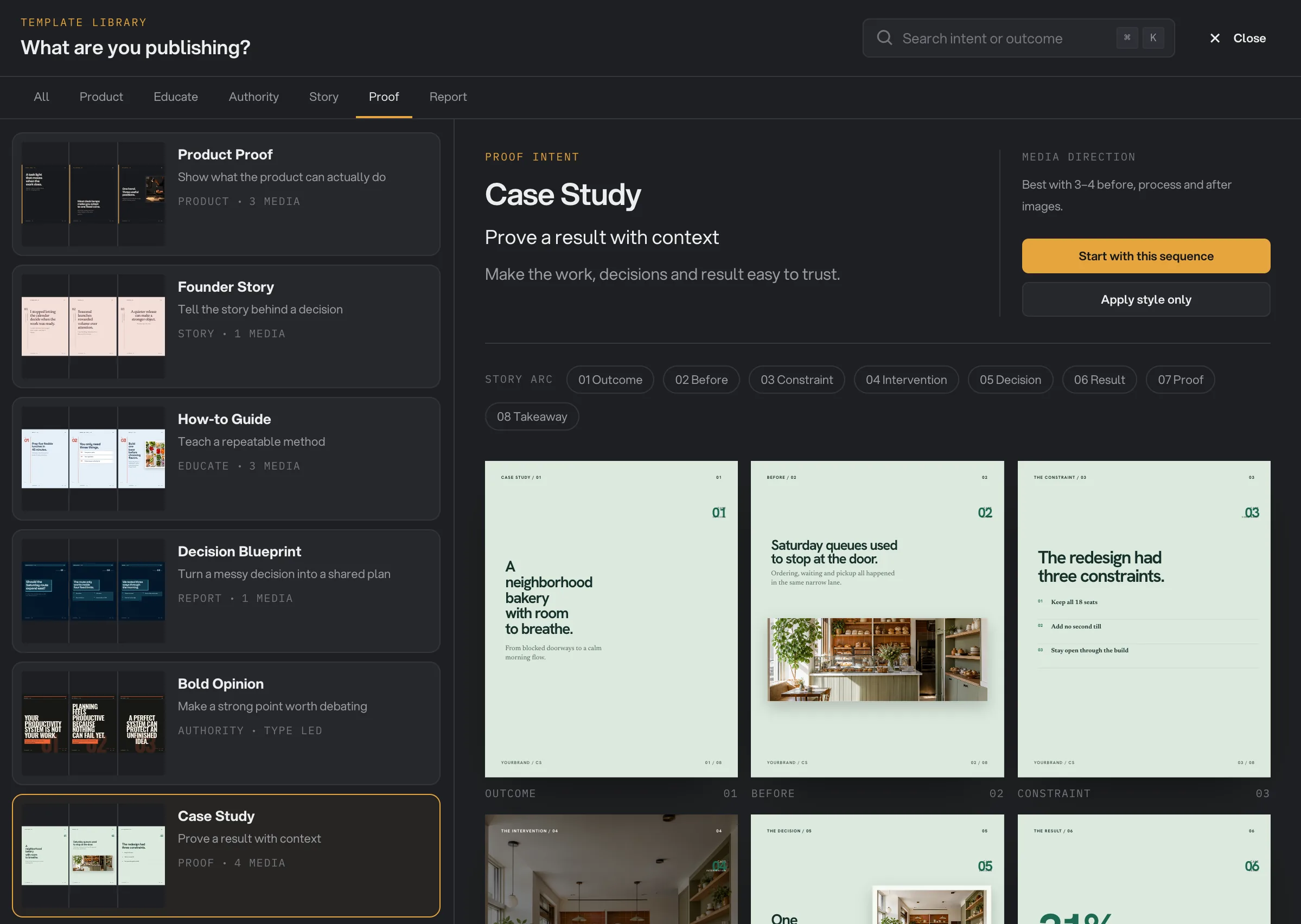
- Proof
- Case Study
- Start with this sequence
- Apply style only
Step 3: Write your slides
Select a slide and open the Content tab. Fill in the Eyebrow (a short label above the headline), the Headline and the Supporting copy. Depending on the slide, you also get Items (one per line, up to 8), a Value and Label for a number, or a Call to action on the last slide.
You can also double-click any text on the slide to edit it there. Your typing shows on the slide right away. Press Command+Enter (Ctrl+Enter on Windows) or Esc, or click elsewhere, to finish.
Under the headline, Recommended counts the characters. It turns red past 90: the headline still works, but shorter is easier to read in a feed.
Step 4: Add, hide and arrange slides
Click + next to the slide count to add a slide. Hangar shows the slide designs of your template, grouped by Open, Explain, Prove and Close. Click one to add it after the selected slide. A carousel can have up to 30 slides.
The buttons under the slide list duplicate, hide or delete the selected slide. Hidden slides stay in the Studio but are left out of the export. To move a slide, select it and press Option (Alt on Windows) with the up or down arrow.
Step 5: Add photos and adjust the layout
Open the Layout tab. Under Visual variant, pick another design for the slide. Slide type changes what the slide holds, such as a list, a quote or a number, and Layout changes how the text sits.
Under Media, click Add image or Replace to choose a photo or screenshot. PNG, JPG, WebP, BMP and SVG work. + Add image slot adds a second and third photo to the slide. Then:
- Placement sets where the photo goes: Inset, Lower stage, Split left, Split right, Spotlight card, Wide band or Full bleed.
- Fill crops the photo to fill its area; Fit shows the whole photo.
- With Fill, drag the photo in the preview, or on the slide, to choose what stays in view. Zoom enlarges it, and Fine tune position has exact sliders.
- Presentation frames the photo: Edge, Matte, App window or Print.
Reset composition undoes your crop and placement changes.
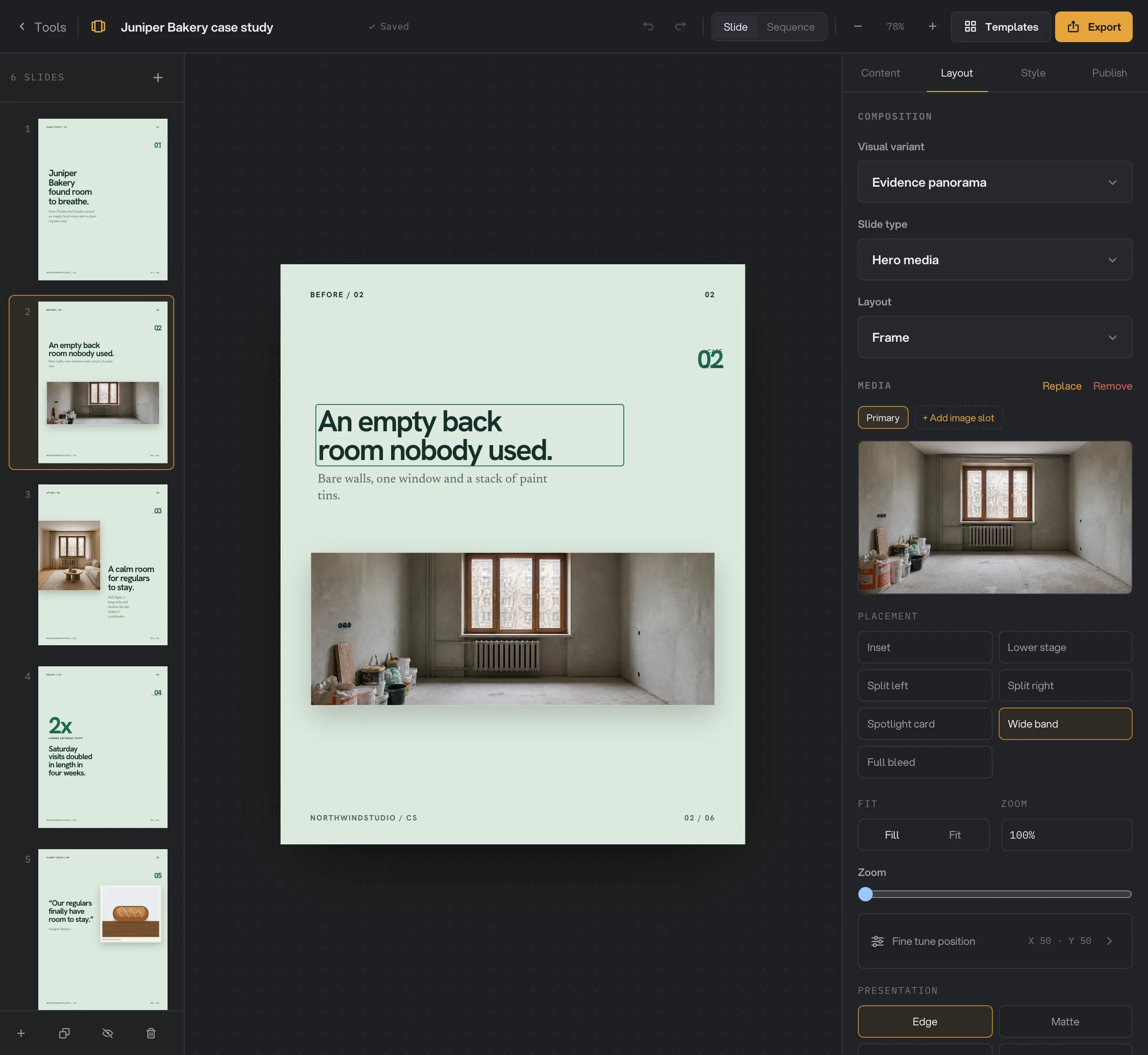
- Visual variant
- Replace
- Crop preview
- Wide band
- Fill
- Presentation
Step 6: Set the size and style
The Style tab applies to every slide.
- Canvas: Portrait 1080 × 1350 for Instagram and LinkedIn feeds, Square 1080 × 1080, Story 1080 × 1920 for stories, reels and TikTok, or Landscape 1600 × 900 for X and LinkedIn. The slides rearrange themselves for the new shape.
- Type pairing picks the fonts, and Accent the highlight color. Type a hex code such as #1E6A52 to match your brand.
- Footer holds your handle or brand name. It appears in capital letters, without the @. Show page numbers adds 01, 02 and so on to the exported slides.
Step 7: Export the slides
Click Export at the top, or Export PNG set in the Publish tab, and choose a folder. Hangar saves one PNG per visible slide at the exact canvas size, named after Export name and numbered in order, such as juniper-bakery-case-study-01.png. A message tells you how many slides were exported.
Export name comes from the template’s example. Renaming the carousel does not change it, so set it in the Publish tab.
Open the PNGs before you post them, to check every slide.
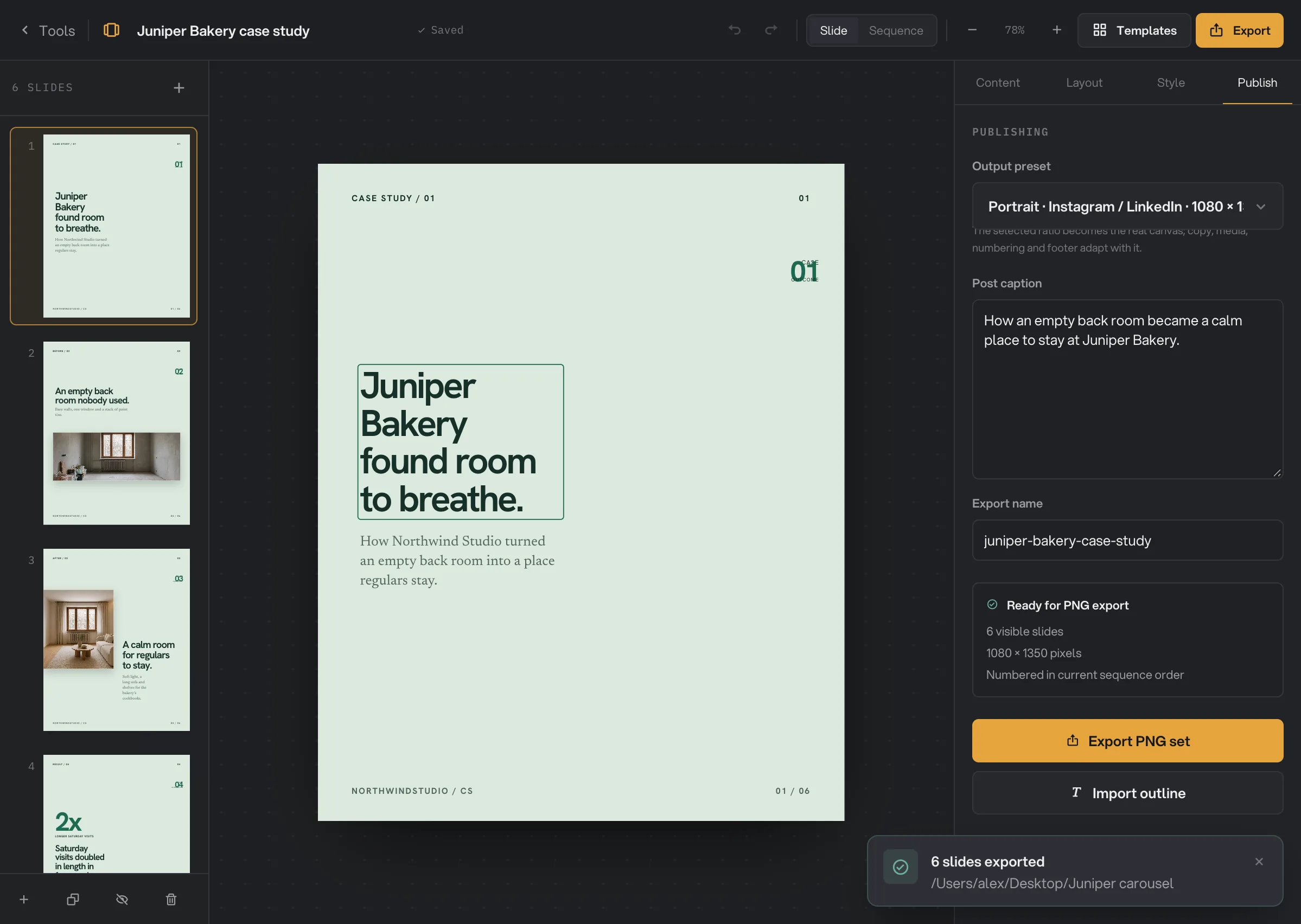
- Export name
- Ready for PNG export
- Export PNG set
- Slides exported
Every setting, and when to change it
The template sets a starting point for all of these. Settings marked "each slide" apply to the selected slide only.
- Template
The visual system: fonts, colors and slide designs.
- Range26 templates in 6 groups
- DefaultProduct Proof (sample)
- Eyebrow, Headline, Supporting copy (each slide)
The words on the slide. Every exported slide needs a headline.
- RangeAny text; headline 90 characters recommended
- DefaultThe template’s example
- Items (each slide)
List, step, feature and comparison points.
- RangeUp to 8 lines
- DefaultNone
- Value and Label (each slide)
The number and its caption on a metrics slide.
- RangeAny text
- DefaultNone
- Call to action (each slide)
What you ask readers to do, on a closing slide.
- RangeAny text
- DefaultNone
- Visual variant (each slide)
The design of the slide within the template.
- Range22 designs per template
- DefaultSet by the slide type
- Slide type (each slide)
What the slide holds.
- RangeHook, Statement, Hero media, Split media, List, Steps, Metrics, Comparison, Quote, Feature grid, Closing
- DefaultSet by the design
- Layout (each slide)
How the text is arranged.
- RangeMonument, Split, Frame, Margin, Full bleed
- DefaultSet by the slide type
- Images (each slide)
Your photos or screenshots.
- RangeUp to 3; PNG, JPG, WebP, BMP, SVG
- DefaultNone
- Placement (each slide)
Where the photo sits.
- RangeInset, Lower stage, Split left, Split right, Spotlight card, Wide band, Full bleed
- DefaultSet by the design
- Fit (each image)
Crop to fill the area, or show the whole image.
- RangeFill, Fit
- DefaultFill
- Zoom (each image)
Enlarges the photo inside its area.
- Range100% to 240%
- Default100%
- Horizontal and Vertical (each image)
Which part of the photo stays in view. Center image resets it.
- Range0 to 100
- Default50 (centered)
- Presentation (each slide)
The frame around the photo.
- RangeEdge, Matte, App window, Print
- DefaultSet by the design
- Canvas (Output preset)
The size of every slide. The layout reflows to fit.
- RangePortrait 1080 × 1350, Square 1080 × 1080, Story 1080 × 1920, Landscape 1600 × 900
- DefaultPortrait
- Type pairing
The heading and body fonts.
- Range26 pairings
- DefaultThe template’s
- Accent
The highlight color.
- RangeAny color
- DefaultThe template’s
- Footer
Your handle or brand at the bottom of each slide, in capital letters without the @.
- RangeAny text
- Default@yourbrand
- Show page numbers
Numbers the exported slides 01, 02 and so on.
- RangeOn or off
- DefaultOn
- Post caption
Notes for the post text. Not exported.
- RangeAny text
- DefaultThe template’s example
- Export name
The start of each PNG file name. Renaming the carousel does not change it.
- RangeLetters, numbers and dashes
- DefaultFrom the template’s example
How do I get the best results?
- Pick the template by goal. A case study proves a result, a how-to guide teaches, a bold opinion argues. Read the template’s sequence and follow it.
- Make the first slide a hook. One short, bold headline gives people a reason to swipe.
- One idea per slide. Keep headlines under 90 characters and move details to the supporting copy or the next slide.
- Use your own photos everywhere. Follow the template’s photo advice, and replace every example photo.
- Choose the canvas first. Portrait 1080 × 1350 takes the most room in Instagram and LinkedIn feeds. Check each slide again after changing it.
- End with a clear call to action, such as visiting your site or saving the post.
Why does a result disappoint?
- A slide exported without its photo. It still had the template’s example photo, which is not exported. Click Replace in the Layout tab and choose your own.
- The export stopped with a message that every slide needs a headline. A visible slide has an empty headline. Write one, or hide the slide. Slides exported before it are already in the folder.
- A slide shows a word I didn’t write above the headline. Its Eyebrow was empty, so Hangar filled in the template’s label, or it still has New carousel or Idea 2 from an outline import. Write your own eyebrow.
- My earlier PNGs are gone. A new export with the same Export name in the same folder replaced them. Use a new export name or folder for each version.
- My slides were replaced. Start with this sequence and Import outline replace all slides. Click Undo at the top to get them back.
- A slide is missing from the export. It is hidden. Select it and click the eye button under the slide list.
- The text looks crowded. The headline is long, or the canvas is wide or short. Shorten it, pick another Visual variant, or try a taller canvas.
For other problems, see A file failed: what to check.
Limits
- Up to 30 slides per carousel, and up to 3 photos per slide.
- Exports PNG files only, one per visible slide.
- One carousel per workspace. Starting a new one replaces the current slides.
- Slides can be moved only with the keyboard (Option or Alt with the arrow keys).
- Export asks for a folder each time and replaces files with the same names there.
- Everything runs on your computer. Nothing is uploaded.
Common questions
Is my carousel saved?
Yes. Hangar saves every change as you work, and the header shows Saved. When you open Carousel again, your latest carousel in this workspace comes back.
How do I start a new carousel?
Carousel keeps one carousel per workspace. To start over, open Templates and click Start with this sequence, or use Import outline. Both replace the current slides. Export the old set first if you need it, or use another workspace for a second carousel.
Can I get a PDF for LinkedIn?
Carousel exports PNG slides. To post a LinkedIn document, combine the PNGs into one PDF with the Images to PDF tool.
How many slides can a carousel have?
Up to 30. Hide a slide to leave it out of the export without deleting it.
Can I start from text I have already written?
Yes. Click Import outline in the Publish tab and paste your outline, with --- between slides. Headings become headlines and bullet points become list items. The import replaces your current slides; Undo brings them back.
Does the post caption get exported?
No. Post caption is a place to keep the text you will paste with the post. Only the slides are exported.
Still stuck?
One person reads every message, usually with a reply within a day.