 Agencies and studios
 Photographers
 Podcasters
 Video and social creators
 Marketers and content teams
What does Audiogram do?
Audiogram turns a podcast clip, voice note or song into a short video for social media. The video shows a moving waveform that follows your sound, your text, your logo and, if you like, a cover photo and captions. It is a simple way to share audio on feeds that only play video.
You pick one of 14 ready-made templates, set your brand once, write the text for each clip and export. Each audio file you add gives back its own MP4 video.
Step 1: Open Audiogram and add your audio
Click Tools in the sidebar, open the Create tab and click Audiogram in the From your media section. You can also type "audiogram" in the search box at the top. The Audiogram Studio fills the window.
Drop your audio files on it, or click Drop audio here to pick them. MP3, WAV, M4A, AAC, FLAC, OGG, Opus and AIFF all work. Each file becomes a clip in the strip at the bottom. Click a clip to work on it. To add more later, drop them on the window.
Press the play button under the card, or the Space bar, to hear the clip and watch the design move. The arrows jump back or forward 5 seconds.
Step 2: Choose a template
The Template library on the left shows every template moving with sample text. Click one to use it. Templates at the top shows or hides the library.
- Animated collection has ten designs, such as Transcript (a big line of text over voice bars, the default), Portrait and Remote Interview (a photo above the waveform), Journal (a serif quote), Dialogue (two speakers), Question, Chapter and List.
- Classics, refined has four familiar ideas: Spotlight, Bold Pulse, Now Playing and Duotone.
Hold the pointer over a template to read what it is for. The template, like the brand and waveform, applies to every clip in the export.
- Templates
- Transcript template
- Preview
- Aspect ratio
- Replace brand logo
- Export 2
Step 3: Set the size and your brand
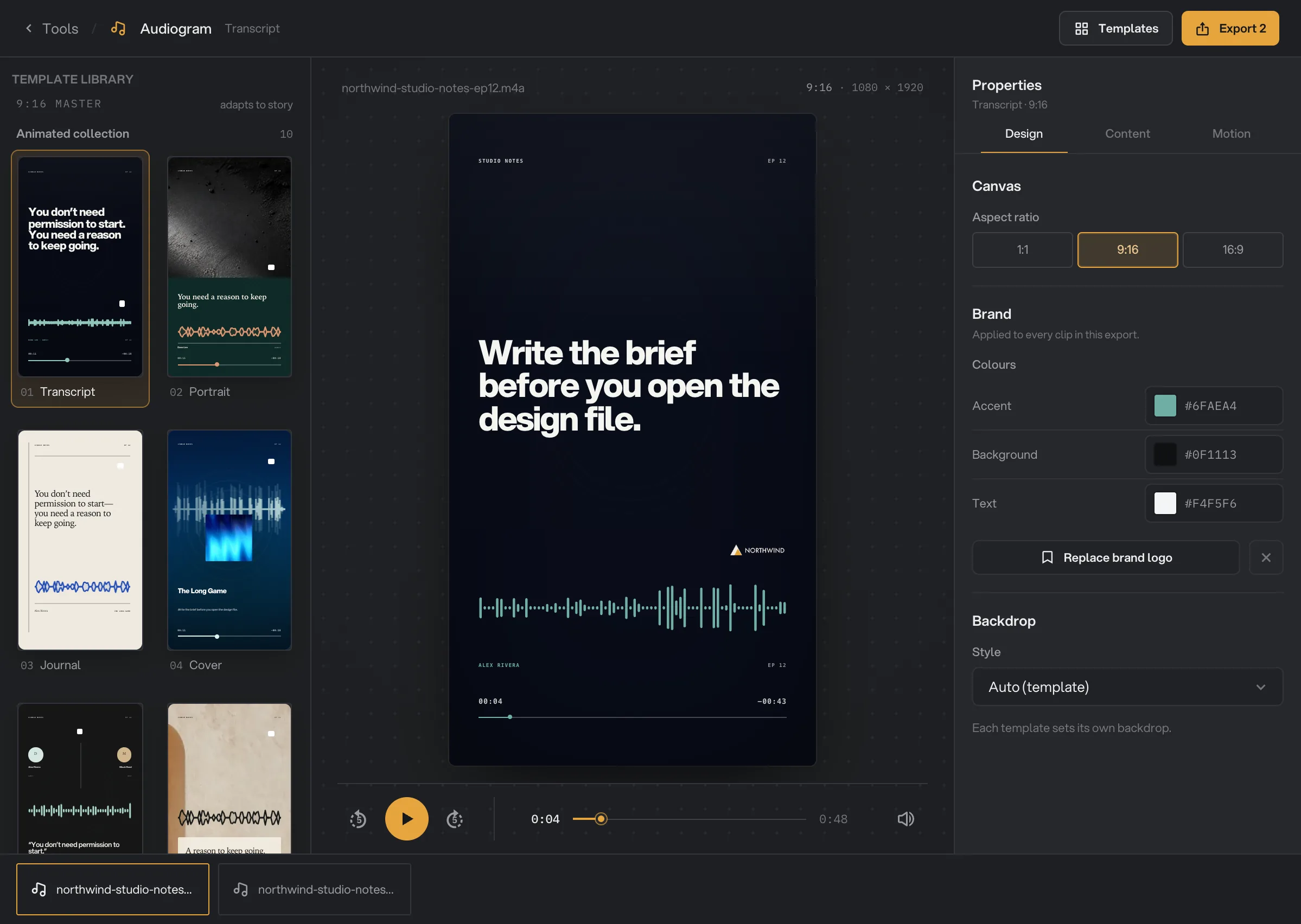
The Design tab on the right holds the settings for the whole export.
- Aspect ratio: 9:16 for stories and reels (the default), 1:1 for feeds, or 16:9 for wide players.
- Colours: Accent colors the waveform and small details in most templates. Background and Text are used where the template allows it.
- Add brand logo puts your logo on every clip. Drag it on the card to move it in the clip you are viewing. The x next to Replace brand logo removes it.
- Backdrop: Auto (template) keeps the template’s own background. Pick Solid colour to use your Background color, Gradient to blend Accent into Background at the Gradient angle you choose, or Background image to use a photo. Hangar darkens the photo slightly so the text stays easy to read.
Step 4: Write the text for each clip
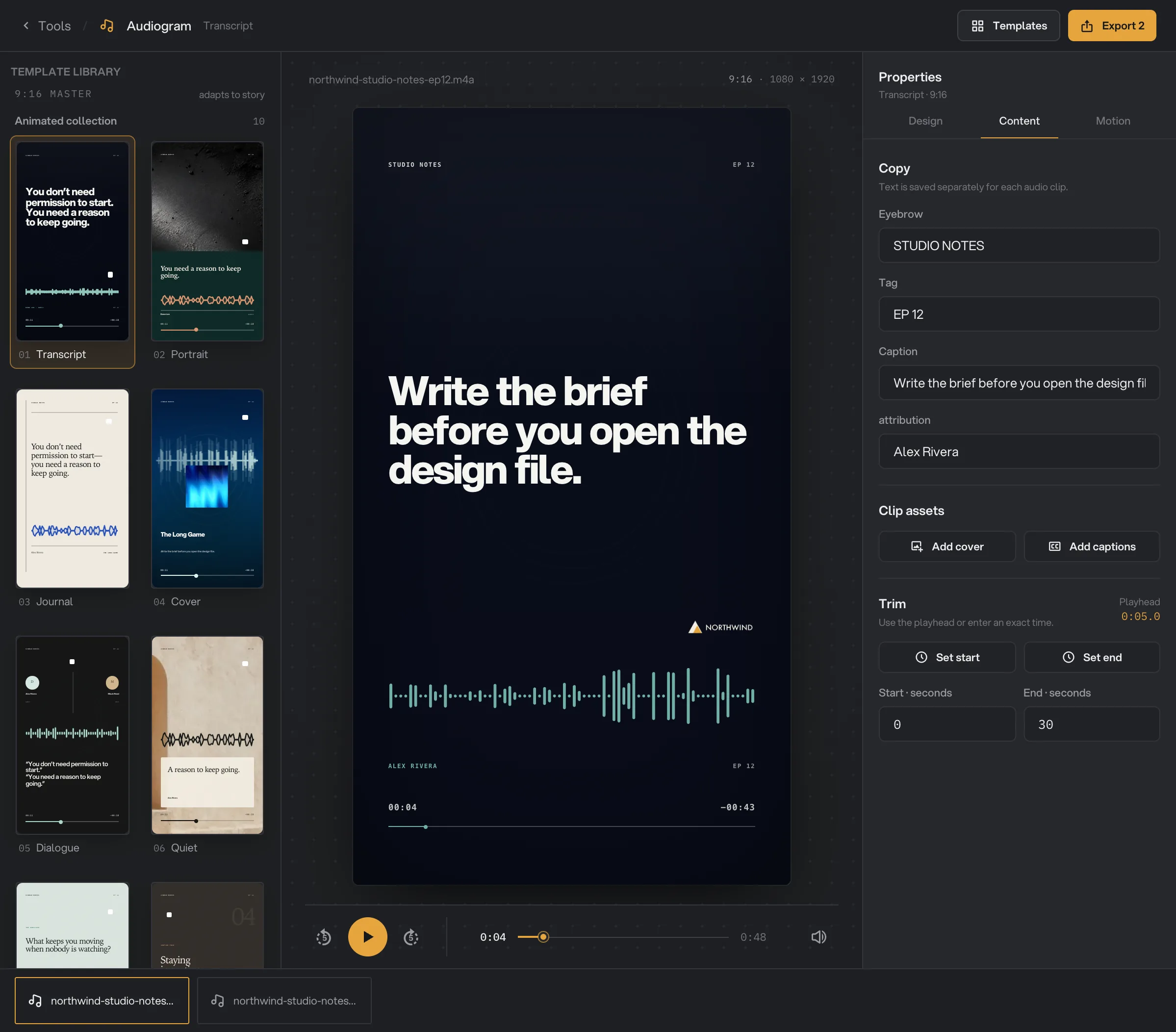
Open the Content tab. Under Copy you get one field for each piece of text in the template, such as Eyebrow, Tag, Caption or Quote, and a field for the speaker’s name. Click a field to see which text it changes on the card.
Text is saved separately for each clip, so click each clip in the strip and write its own text. Every new clip starts with sample text, such as "The Long Game".
- Copy
- Add cover
- Add captions
- Set start
- End time
Step 5: Add a cover and captions, and pick the part to export
Still in the Content tab, for the clip on the card:
- Add cover adds artwork or a guest photo. Portrait, Cover, Quiet, Remote Interview, Spotlight, Bold Pulse and Now Playing use it. Without one, they show a plain background, and Cover, Bold Pulse and Now Playing show a dashed + Cover box on the card.
- Add captions adds an SRT or VTT subtitle file. Hangar writes the lines on the video in white on a dark box near the bottom. Captions do not show on the card in the Studio. You see them in the exported video.
- Trim sets the part of the clip to export. Play or scrub to a moment and click Set start or Set end, or type the time in Start · seconds and End · seconds. End starts at 30, so if you move the start past 30 seconds, set a new end too.
Step 6: Choose the waveform and motion
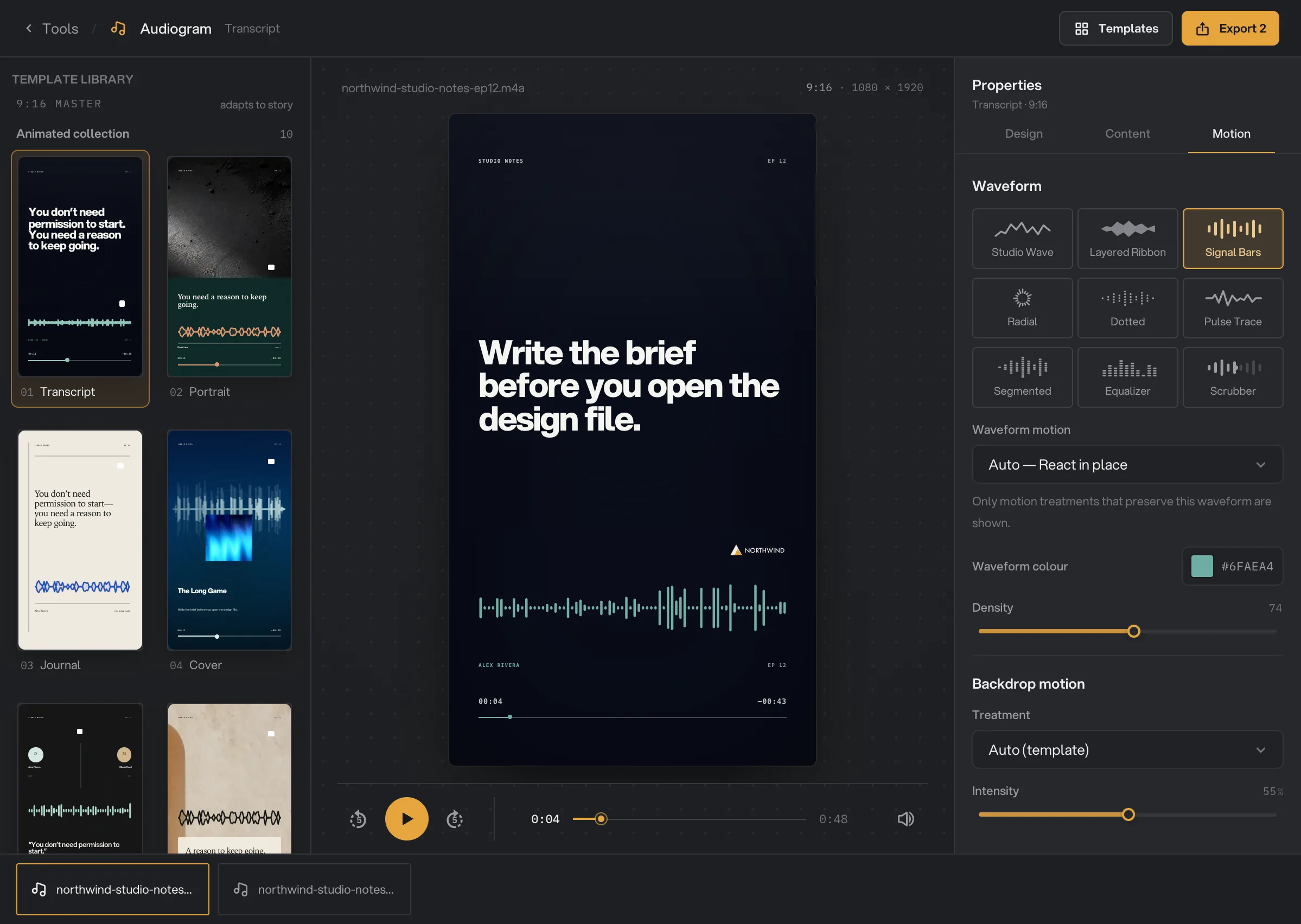
The Motion tab changes how the sound looks, for every clip.
- Waveform: nine styles, from Studio wave and Signal bars to Radial, Equalizer and Scrubber. Until you pick one, each template uses the one it was designed for.
- Waveform motion: Travel horizontally, React in place or Moving playhead. The list only offers the motions that suit the style, and Auto uses the one recommended for it.
- Waveform colour and, for bars, Density: how many bars are drawn.
- Backdrop motion: a Treatment that moves the background with the sound (Aura, Contour ripple or Grain pulse), and its Intensity.
- Signal Bars
- Waveform motion
- Density
- Treatment
- Intensity
Step 7: Fine-tune any element
Click any part of the card, such as the title, the logo or the waveform. The Element tab opens for it.
- For text: Text, Font (Sans, Serif or Mono), Colour, Weight, Text size and Align.
- For the logo: Logo size, and Add logo to give this clip its own logo. Drag the logo on the card to move it.
- For every element: the eye button hides or shows it, and Reset undoes your styling.
These changes apply to the clip on the card only.
Step 8: Export the videos
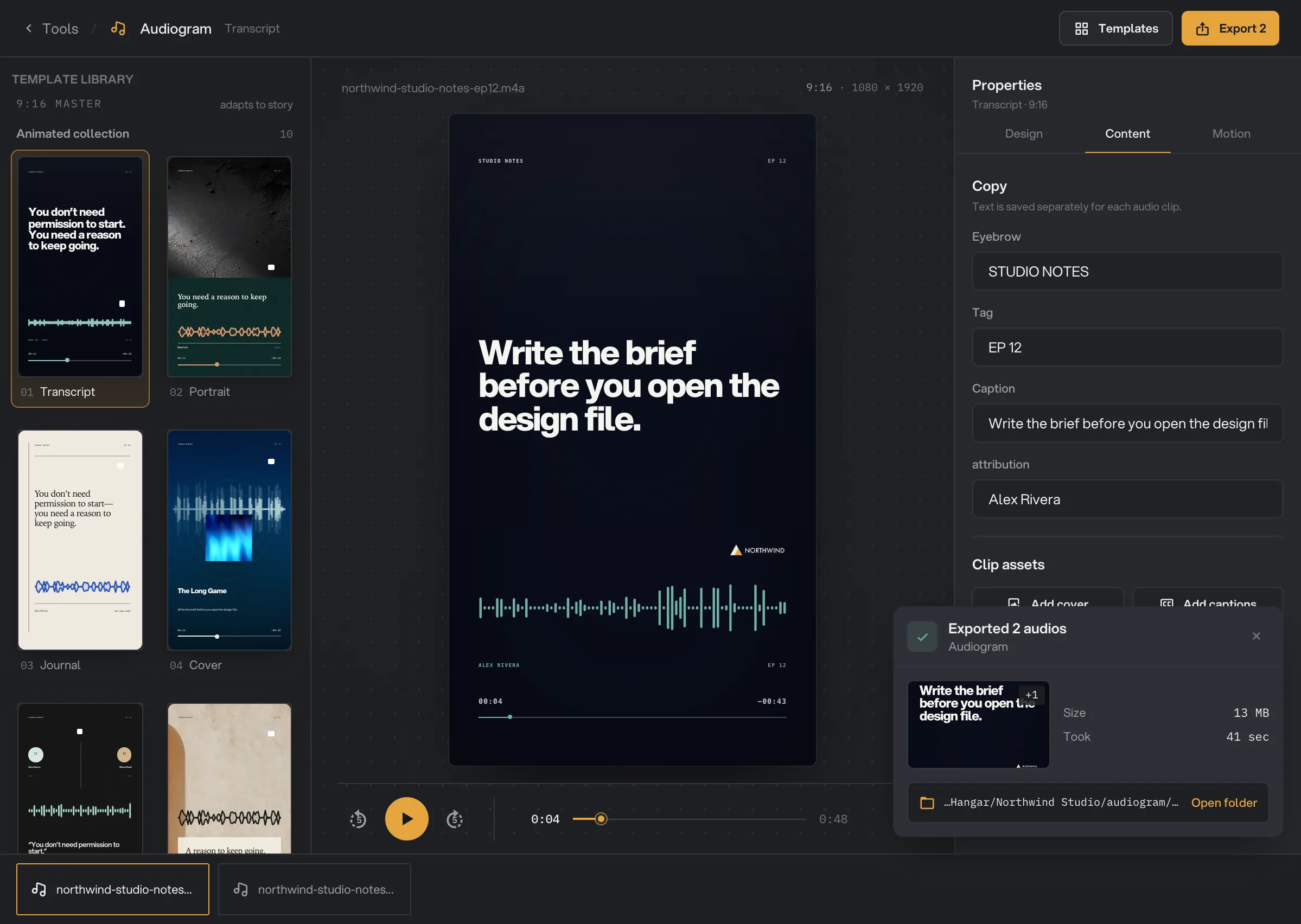
Click Export in the top right. The number on it is how many clips will be exported. Hangar saves each one as an MP4 with -audiogram added to its name, such as northwind-studio-notes-ep12-audiogram.mp4, in your workspace’s output folder, in an audiogram folder with a subfolder for today’s date, such as 10-15.
A card then shows how many clips were exported, their size and the time it took. Click Open folder to go to them. Play one video before you post it, to check the text and the captions. See Where your files are saved.
- Export done
- Open folder
Every setting, and when to change it
The template sets a starting point for all of these. Settings marked "each clip" can be different for every clip in the export.
- Template
The layout: which text, photo and waveform the video shows, and its look.
- Range14 templates
- DefaultTranscript
- Aspect ratio
The shape and size of the video: 1080 × 1080, 1080 × 1920 or 1920 × 1080.
- Range1:1, 9:16, 16:9
- Default9:16
- Colours (Accent, Background, Text)
Accent colors the waveform and details. Background is used with a solid or gradient backdrop.
- RangeAny color
- DefaultTeal accent, near-black background, off-white text
- Brand logo
A logo on every clip. Drag it on the card to move it in that clip.
- RangePNG, JPG, WebP, BMP or SVG
- DefaultNone
- Backdrop Style
What fills the background behind the design.
- RangeAuto (template), Solid colour, Gradient, Background image
- DefaultAuto (template)
- Gradient angle
The direction of the gradient. Shown with Gradient.
- Range0° to 360°
- Default140°
- Copy (each clip)
The words on the card, such as an eyebrow, a tag, a quote and a name.
- RangeDepends on the template
- DefaultSample text
- Cover (each clip)
Artwork or a photo, for templates that show one.
- RangePNG, JPG, WebP, BMP or SVG
- DefaultNone
- Captions (each clip)
Subtitles written on the exported video, up to three lines at a time.
- RangeSRT or VTT file
- DefaultNone
- Trim Start and End (each clip)
The part of the audio that becomes the video.
- RangeAny time in the clip, in tenths of a second
- Default0 and 30 seconds
- Waveform
How the sound is drawn, for every clip.
- RangeStudio wave, Layered ribbon, Signal bars, Radial, Dotted, Pulse trace, Segmented, Equalizer, Scrubber
- DefaultThe template’s style
- Waveform motion
How the waveform moves as the audio plays.
- RangeTravel horizontally, React in place, Moving playhead (as the style allows)
- DefaultAuto
- Waveform colour
The color of the waveform.
- RangeAny color
- DefaultThe template’s color
- Density
How many bars are drawn. For Signal bars, Equalizer and Scrubber.
- Range24 to 120
- DefaultThe template’s value, often 52
- Backdrop motion Treatment
A background effect that moves with the sound, in the accent color.
- RangeAuto (template), None, Aura, Contour ripple, Grain pulse
- DefaultAuto (template)
- Intensity
How strong the background effect is. Used when you pick a Treatment yourself.
- Range10% to 100%
- Default55%
- Element styling (each clip)
Restyles or hides one part of the card.
- RangeFont, color, weight, size 1.2% to 11%, alignment; logo size 50% to 200%
- DefaultThe template’s styling
How do I get the best results?
- Pick your best 15 to 30 seconds. Short clips with one clear idea do best in feeds. Use Set start and Set end while you listen.
- Write a short hook. One sentence that makes people want to listen reads well at phone size.
- Edit every clip. Text is per clip, so click each clip in the strip and replace the sample text before you export.
- Add captions. Many people watch with the sound off. Make subtitles for the same part of the audio with Transcribe.
- Use a logo made for the background. A light logo on dark templates and a dark logo on light ones. A PNG with a transparent background looks cleanest.
- Choose 9:16 for stories and reels, and 1:1 for most feeds.
Why does a result disappoint?
- The video shows "The Long Game" or other sample text. That clip still has the sample copy, or a field was left empty. Write your own text for every clip, and hide anything you don’t want.
- A name I didn’t write appears, such as Micah Reed or HOST. Some templates, like Dialogue, Remote Interview, Question, Chapter and Portrait, include fixed labels. Click the label and hide it with the eye button, or pick another template.
- The video is only 30 seconds long. End · seconds is 30 until you change it. Type a later end, or click Set end at the right moment.
- The captions are out of sync. Caption times count from your start point. Make the subtitle file for the trimmed part, not the whole recording.
- I don’t see my captions in the Studio. That is expected. Captions only appear in the exported video.
- My Background color does nothing. With Auto (template), the template keeps its own background. Set Style to Solid colour or Gradient.
- The Intensity slider does nothing. With Treatment on Auto (template), every template uses its own strength. Pick Aura, Contour ripple or Grain pulse to control it.
- Export is grayed out. Read the red line under the settings. A start that is not before the end (for example a start past 30 seconds while End still reads 30), or a color that is not a full hex code like #1F6F78, blocks the export.
- A video won’t play in another app. Hangar saves H.264 when it finds video encoding hardware: the encoder built into a Mac, or NVIDIA, Intel or AMD graphics on Windows. Without it, the MP4 uses AV1, which some older players and apps cannot open.
For other errors, see A file failed: what to check.
Limits
- Videos are MP4 at 30 frames per second, in 1080 × 1080, 1080 × 1920 or 1920 × 1080.
- By default, each video is the first 30 seconds of the clip. A shorter clip is exported whole.
- Captions come from an SRT or VTT file that you add. Audiogram does not write them from the audio.
- The template, size, brand, backdrop and waveform are the same for every clip in one export.
- Export always saves to your workspace’s default output folder.
- Your workspace brand kit is not applied automatically. Set the colors and logo in the Design tab.
- Everything runs on your computer. Nothing is uploaded.
Common questions
Does my audio leave my computer?
No. Audiogram draws every frame and saves the video on your own computer. Nothing is uploaded.
Can I make clips for several episodes at once?
Yes. Add several audio files. They share one template, size, brand colors, logo and waveform. Each clip keeps its own text, cover, captions and start and end times. Export makes one video per clip.
How long is the video?
By default, the first 30 seconds of each clip, or the whole clip if it is shorter. To choose another part, open the Content tab and set Start and End under Trim.
Can Audiogram write the captions for me?
Audiogram does not listen to the words. To show them, add a subtitle file (SRT or VTT) with Add captions. You can make one with the Transcribe tool.
Which sizes can I export?
Square 1:1 (1080 × 1080), vertical 9:16 (1080 × 1920) for stories and reels, and wide 16:9 (1920 × 1080).
Is my original audio changed?
No. Hangar saves a new MP4 with -audiogram at the end of its name and leaves your audio file where it was.
Still stuck?
One person reads every message, usually with a reply within a day.