 Agencies and studios
 Photographers
 Podcasters
 Video and social creators
 Marketers and content teams
What does HTML to Image do?
HTML to Image turns a web page saved on your computer into a sharp PNG image. It is made for social cards, link previews and launch images that you design in HTML. Every heading, picture and button on the page becomes a layer you can move, resize, turn or fade before you export, so you can fit the page to a square post or a story without editing the code.
It works one file at a time in a Studio. The original HTML file is never changed, and nothing leaves your computer.
Step 1: Open the tool and add your HTML files
Click Tools in the sidebar, open the Web & Ebook tab and click HTML to Image in the Convert section. You can also type "html to image" in the search box at the top.
Drop your .html or .htm files on the queue, or click it to pick them. Keep the page’s images, fonts and stylesheets in the same folder as the HTML file, or in a folder inside it, so Hangar can find them.
The panel on the right has no settings. HTML to Image works on one file at a time in its Studio, and you export from there: Open Studio at the bottom of the panel opens it, just like Open selected file in Studio.
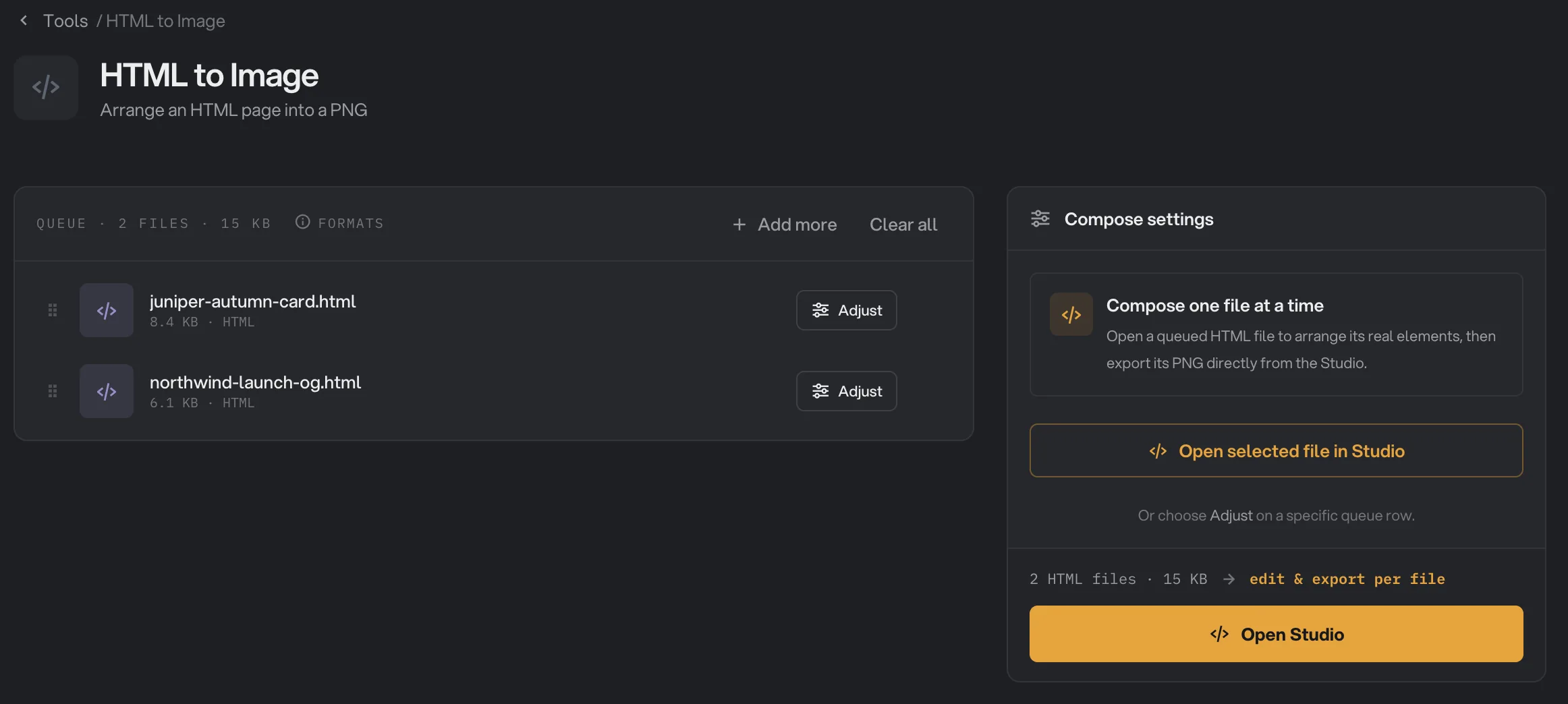
- Adjust
- One file at a time
- Open selected file in Studio
- Edit & export per file
Step 2: Open a file in the Studio
Click Open selected file in Studio to open the file you selected in the queue, or the first one if none is selected. You can also click Adjust on any file in the queue to open that one.
The Studio shows the page on an artboard in the middle, a Layers list on the left and the settings on the right. If Hangar could not find an image, font or stylesheet the page points to, an amber message at the top names the first missing file. See Why a result disappoints.
Step 3: Choose the size and background
Under Artboard, pick the size of the image:
- OG (1200 × 630, the default): the link preview size used by most social networks and chat apps.
- Square (1080 × 1080) for feed posts, and Story (1080 × 1920) for stories and reels.
- Custom: type any W and H from 1 to 8192.
- Fit content: makes the artboard just big enough to hold everything on the page.
The page is laid out at the artboard’s width, as if the browser window had that size. Anything outside the artboard is cut off, except with Fit content.
Background is off at first, and the Studio shows a checkerboard behind the page. Turn it on to fill the artboard with a color, then click the color swatch to pick one. Either way, this setting replaces the page’s own main background color, so turn it on and pick that color to keep it.
Step 4: Arrange the page
Click an element on the artboard, or its row in Layers, to select it. Hold ⌘ while you click to select the group that holds it, or click Parent when it shows above the selection.
- Move: drag it. It snaps to the edges and the center of the artboard. Hold Option to move it freely. The arrow keys move it 1 pixel, or 10 with Shift.
- Resize: drag a corner to keep its proportions, or hold Shift to stretch it. The side handles stretch it in one direction.
- Turn: drag the rotate handle, the small curved arrow on the selection. Hold Shift to turn in 15° steps.
- Exact values: under Transform, type X, Y, W, H, Rotation and Opacity. Click Reset to put the element back where it was.
Resizing scales the element like a picture: text gets bigger or smaller, but it does not wrap onto new lines, and the rest of the page does not move around it. Use the Undo and Redo arrows at the top, or ⌘+Z and Shift+⌘+Z.
To look closer, use the zoom buttons at the bottom, ⌘ with the scroll wheel, or ⌘++ and ⌘+-. Click Fit or press ⌘+0 to see the whole artboard. Hold Space and drag to move around.
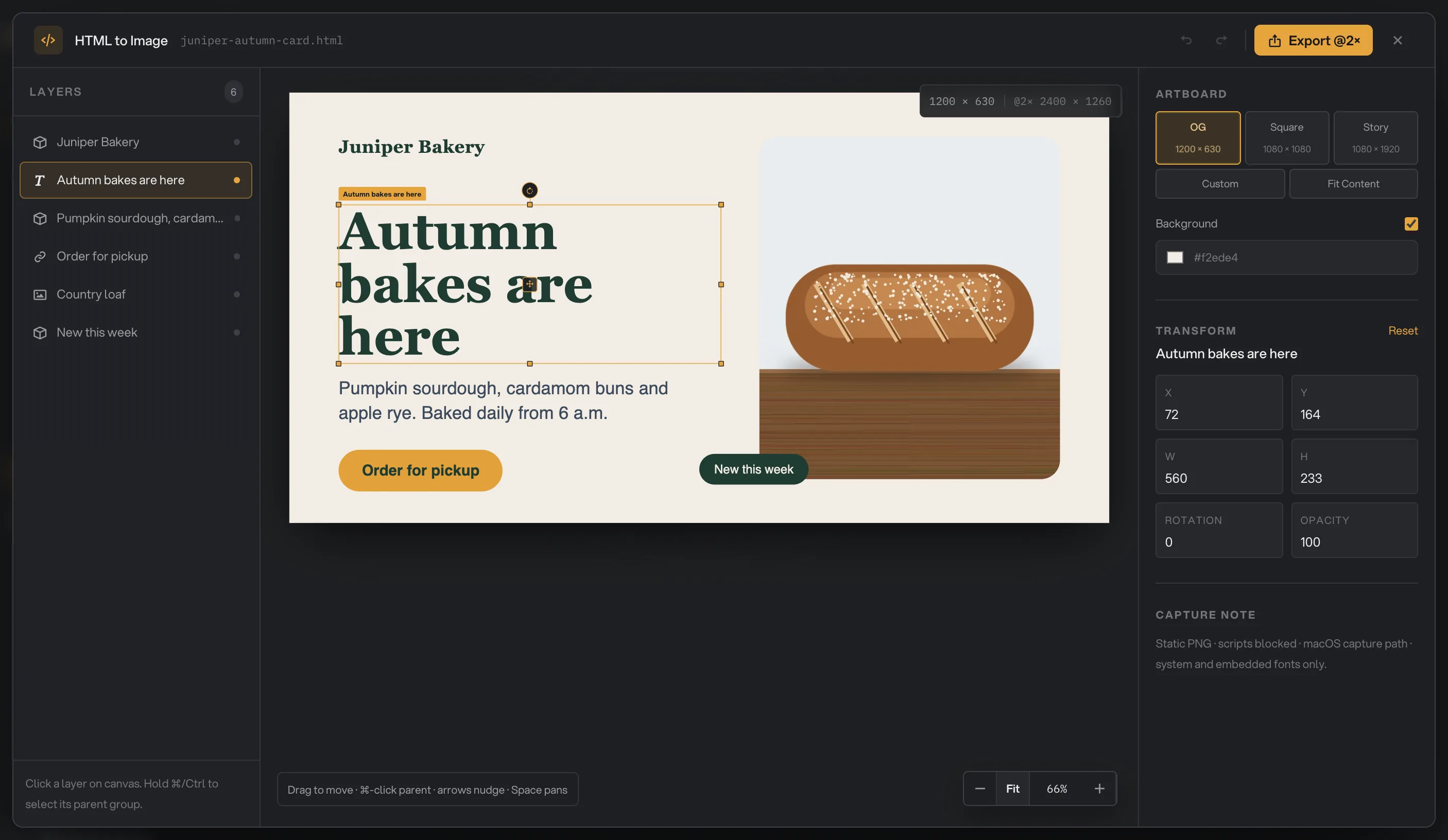
- Selected layer
- Artboard
- Background
- Transform
- Export @2×
- Size and export size
Step 5: Export, then check the result
Click Export @2× at the top. The button reads Capturing… while Hangar makes the image. The PNG is twice the artboard size; the line at the bottom left of the artboard shows both, for example "1200 × 630" and "@2× 2400 × 1260".
When it is done, a card shows "Exported 1 image" with the file Size. Click Open folder to see it. The image is saved in your workspace’s output folder, in an html-shot folder with a subfolder for today’s date, such as 10-15. Its name starts with the HTML file’s name, followed by a long code, for example juniper-autumn-card-019a3f2c-….png. Each export makes a new file, so nothing is overwritten. See Where your files are saved.
The Studio stays open, so you can change the size or the layout and export again. When you close it, with the x, by pressing Esc or by clicking outside it, all your moves and edits for that file are gone. Export first.
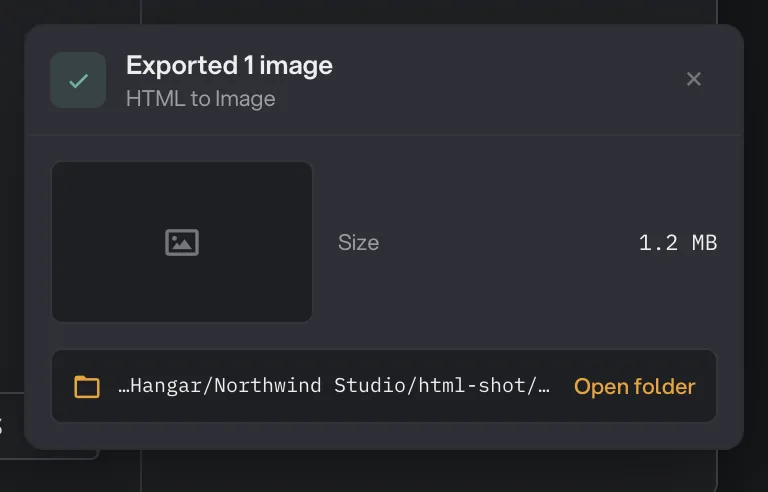
- Exported 1 image
- Size
- Open folder
- Dismiss
Every setting, and when to change it
All settings are in the Studio. They apply to the file that is open and are not kept after you close it.
- Artboard
The size of the image. The PNG is twice this size.
- RangeOG, Square, Story, Custom, Fit content
- DefaultOG (1200 × 630)
- W and H (Custom)
Any width and height you need. The artboard changes as you type.
- Range1 to 8192
- Default1200 × 630 at first
- Fit content
Sizes the artboard to everything on the page, so nothing is cut off.
- DefaultOff
- Background
Off shows a checkerboard behind the page in the Studio. On fills the artboard with the color you pick. Either way it replaces the page’s own main background color.
- DefaultOff
- Background color
The fill color when Background is on.
- RangeAny color
- DefaultNear black (#16181d)
- X and Y
The position of the selected element’s top left corner on the artboard.
- RangePixels
- DefaultWhere the element sits on the page
- W and H (Transform)
Scales the selected element. Text is scaled, not rewrapped.
- RangePixels
- DefaultThe element’s own size
- Rotation
Turns the selected element.
- RangeDegrees
- Default0
- Opacity
Fades the selected element.
- Range0 to 100
- Default100
- Reset
Puts the selected element back where it was on the page.
How do I get the best results?
- Design the page for the size you export. The page is laid out at the artboard’s width. A page built for a wide screen can look cramped on Square or Story, so check it there and move or resize elements as needed.
- Keep everything next to the HTML file. Put images, stylesheets and font files in the same folder as the page, or a folder inside it, and point to them with a relative path such as
images/loaf.jpg. - Use fonts you have. Fonts installed on your Mac and font files saved next to the page work. Fonts linked from the web do not load.
- Make it work without scripts. Scripts never run, so the page should look finished on its own.
- Set the background yourself. Turn Background on and pick your page’s color, so the image has the color you expect. Elements with their own background color, such as a button or a card, keep it.
- Check the size line at the bottom left of the artboard before you export, so the PNG is the size you expect.
Why a result disappoints
- An amber message says Hangar couldn’t find a referenced asset or stylesheet. The page points to a file that is not at that path on your computer. Check the name and the folder, then close the Studio and open the file again. The message shows only the first missing file.
- Images, fonts or styles from a website are missing. HTML to Image never loads anything from the web, and it does not warn about it. Download those files next to the page and point to them there.
- Images or fonts named in a stylesheet are missing, even though they are on your computer. When a stylesheet sits in a subfolder, the paths inside it are read from the HTML file’s folder, not the stylesheet’s. Move the stylesheet next to the HTML file, or write the paths as seen from the HTML file.
- The page’s background color is gone. The Background setting replaces the page’s main background. Turn it on and pick the same color.
- Part of the page is cut off. Only what is on the artboard is exported. Choose Fit content, a larger size, or move and resize the elements to fit.
- Something that a script draws is missing. Scripts never run. Save the page with that content already in the HTML.
- The file would not open and Hangar said it could not load the HTML. The file must be a text file saved as UTF-8, the standard for web pages, and it must still be in the queue. Save it again as UTF-8 from your editor.
- The export failed because the workspace has no output folder. Set one for your workspace, then export again. See Workspaces.
For other errors, see A file failed: what to check.
Limits
- HTML to Image works on a Mac only.
- HTML to Image accepts
.htmland.htmfiles, one file at a time. There is no batch export. - The artboard can be 1 to 8192 pixels on each side. The PNG is always twice the artboard size.
- The output is a still PNG. Animations and video in the page are not captured.
- Scripts never run, and nothing is loaded from the web.
- The Layers list shows up to 120 elements.
- Edits in the Studio are not saved. Closing the Studio clears them, and the HTML file is never changed.
- Everything runs on your computer. Nothing is uploaded.
Common questions
Does HTML to Image work on Windows?
No. HTML to Image works on a Mac only. On a Windows PC the tool shows as unavailable.
Does it run the JavaScript in my page?
No. Scripts never run. The image shows the page as it looks without them, so anything a script would add, such as a slider or text loaded later, does not appear.
Can I use web fonts or images from a website?
No. Hangar only uses files on your computer. Save the images, fonts and stylesheets in the same folder as the HTML file, or a folder inside it, and point to them from the page. Anything linked from the web is left out.
Can I paste HTML instead of opening a file?
Not in this version. Save the markup as an .html file, then add it to the queue.
Is my HTML file changed?
No. Your moves and edits stay in the Studio and only shape the image. The HTML file is never changed, and the edits are gone when you close the Studio.
How big is the PNG?
Twice the artboard size, so it looks sharp on high-resolution screens. The OG artboard, 1200 × 630, gives a 2400 × 1260 PNG.
Still stuck?
One person reads every message, usually with a reply within a day.