 Agencies and studios
 Photographers
 Podcasters
 Video and social creators
 Marketers and content teams
What does Shaders do?
Shaders makes generated patterns and textures from scratch: flowing ink, silk folds, waves, glass, liquid metal, halftone dots and more. Use them as wallpapers, slide and video backgrounds, website headers or social posts. You start from a designed preset, change the colors and the pattern, add a finish, and export a PNG image or a looping MP4 or WebM video. Everything happens on your own computer.
Shaders opens as a Studio. In a wide window you see the presets on the left, a large live preview in the middle and all the settings on the right. You do not add any files.
Step 1: Open Shaders and pick a preset
Click Tools in the sidebar, open the Create tab and click Shaders in the From scratch section. You can also type "shader" in the search box at the top.
The Studio opens on the preset Tidal Ink. The menu next to Presets starts on Selected collection, a short pick of favorites. Choose Glass, Gradients, Abstract, Patterns or All presets in that menu to see more. Click a preset to load it. Most presets show a short description when you hover them, and the one you picked shows it under the preview.
A preset sets the pattern, colors, position and finish. It keeps your canvas size and video settings.
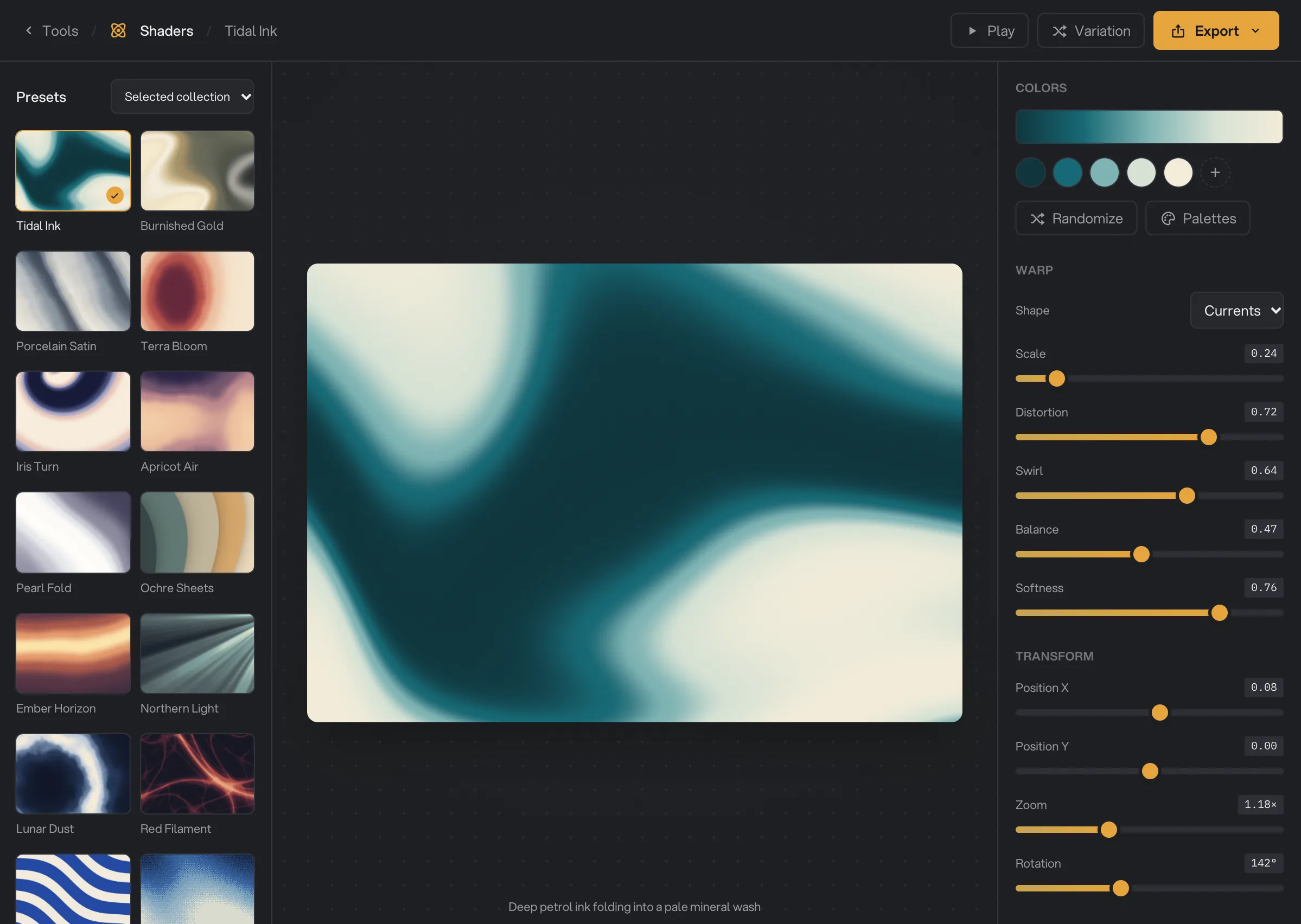
- Preset collection
- Tidal Ink
- Randomize
- Variation
- Export
Step 2: Try other patterns
Click Browse shader families below the presets to see all 22 pattern types, such as Silk, Waves, Warp, Liquid Metal, Optical Glass and Halftone. The first time you pick one, its first preset loads. If you go back to a pattern you used before, your settings for it are still there.
Click Variation at the top for a new arrangement of the same pattern, with the same colors and finish.
Step 3: Change the colors
Under Colors, the strip shows the pattern's colors in order, and each round swatch below it is one of them. Click a swatch to change its color. Click the plus button to add a color, up to 8. Hover a swatch and click its x to remove it. At least 2 colors stay.
Click Palettes to choose from 24 ready-made color sets, such as Sunset, Aurora and Ocean. Randomize picks a random palette and a new arrangement in one click.
Step 4: Shape the pattern
The next section is named after the pattern, for example Warp. Its sliders are different for each pattern. Warp has Shape, Scale, Distortion, Swirl, Balance and Softness.
Under Transform in the same section, Position X and Position Y move the pattern, Zoom makes it larger or smaller, and Rotation turns it.
Step 5: Set the motion, finish and size
Click Play at the top to watch the pattern move. Under Motion:
- Preview speed changes how fast the preview plays. It does not change the video.
- Loop duration sets the length of the video, from 2 to 15 seconds. The pattern makes one full cycle in that time, so the video loops seamlessly.
- Frame rate is 24 fps or 30 fps.
Under Finish, turn on Dithering for a printed, stepped look, Grain for film grain, or Vignette to darken the edges. Contrast, Brightness, Hue and Vibrance adjust the tone.
Under Canvas size, pick a ratio such as 16:9, 9:16 or 1:1, or type a width and height. 0.5×, 1× and 2× set how large the exported file is compared with that size.
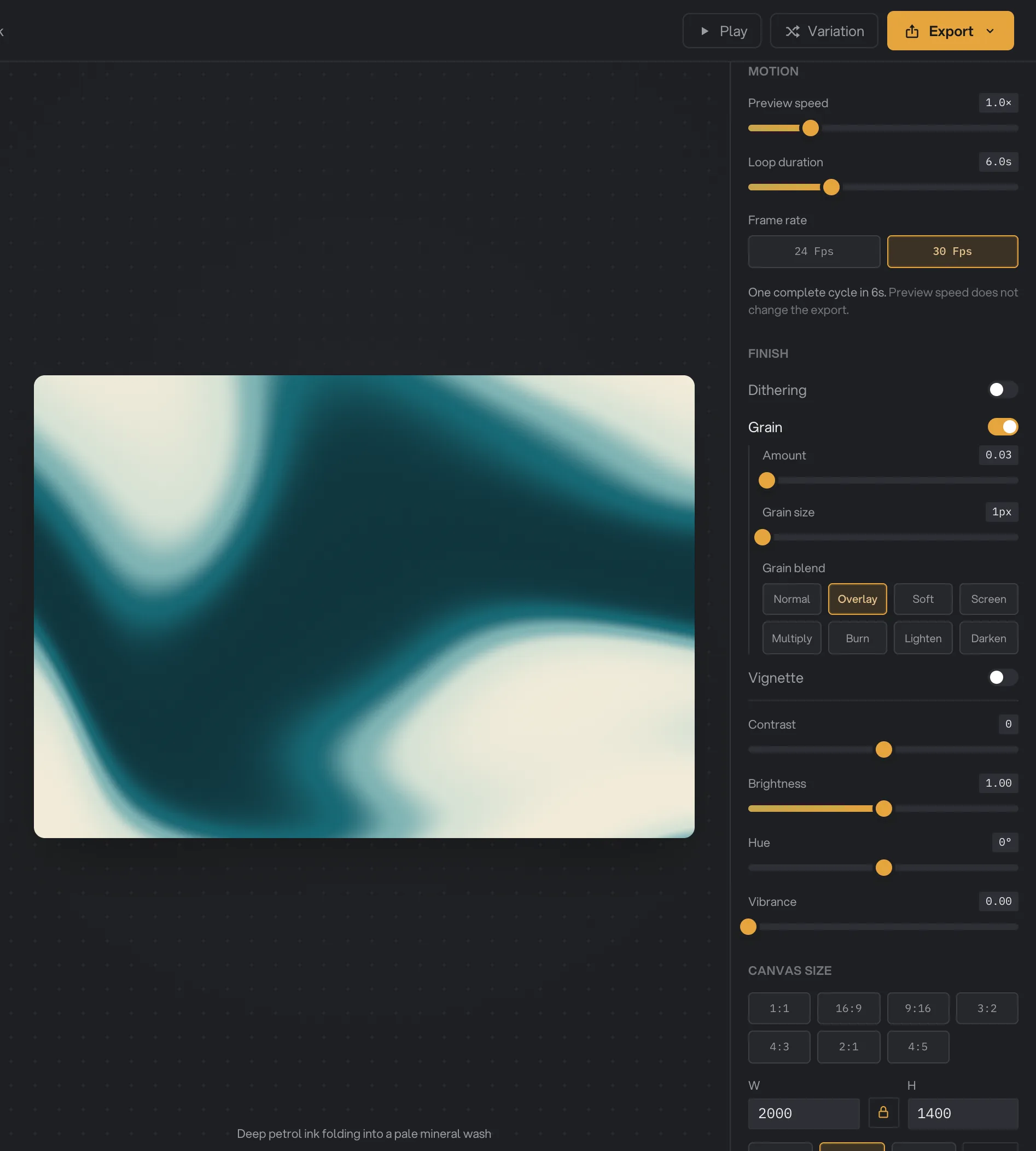
- Preview speed
- Loop duration
- Frame rate
- Grain
- Vibrance
- Aspect ratio
Step 6: Export a PNG or a video
Click Export at the top right and pick PNG image, MP4 video or WebM video. Then choose a folder. Shaders asks for a folder on every export.
- PNG image saves the pattern as it looks in the preview right now, at full size.
- MP4 video and WebM video save one full loop. The preview pauses, and a progress bar shows the frames being made, then the video being saved. Click Cancel to stop. Larger sizes and longer loops take longer.
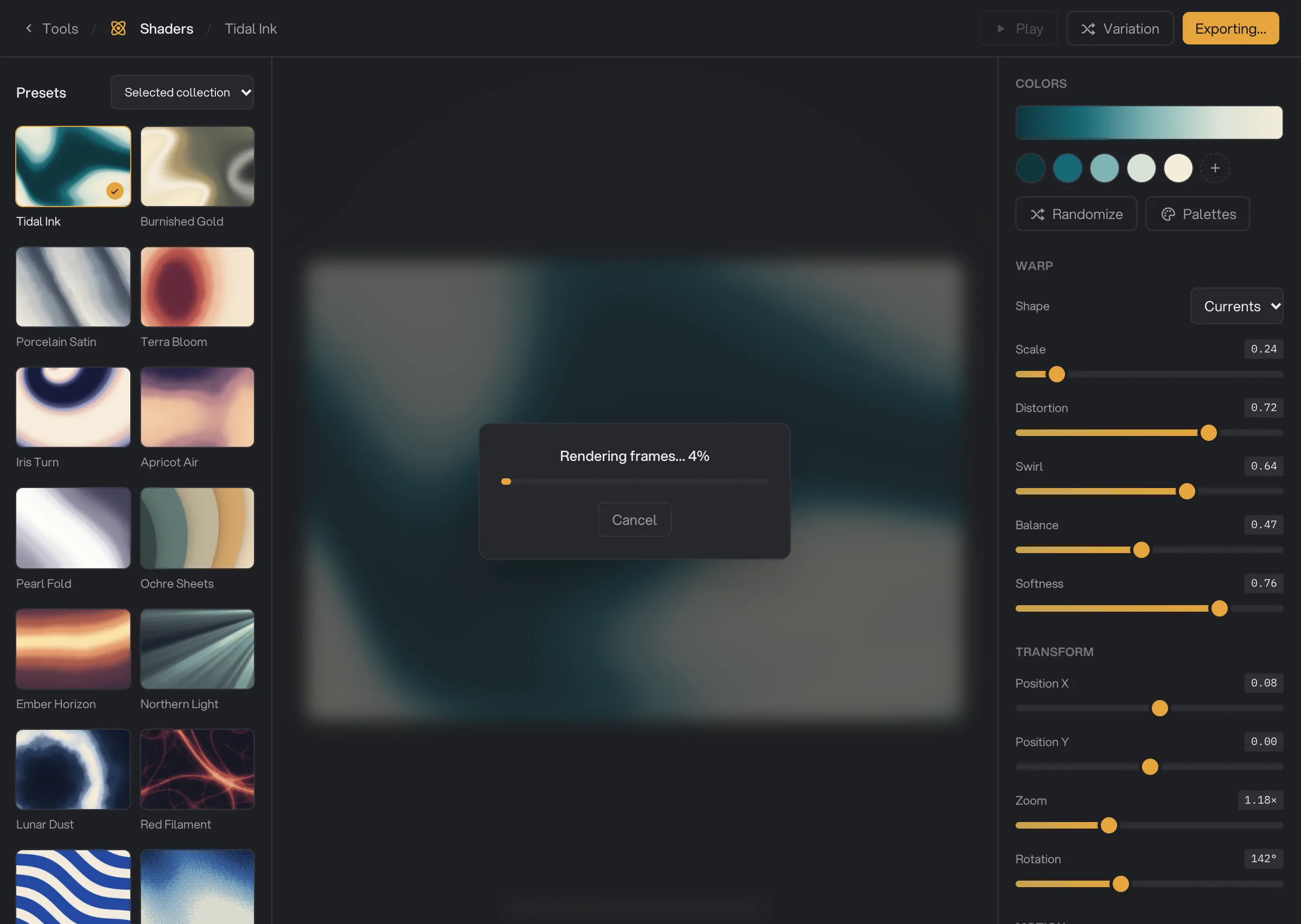
- Progress
- Cancel
- Exporting
When it is done, a message such as Exported shader-warp-24-1.png appears at the bottom right, and an Open folder button appears at the top. File names start with shader-, then the pattern and its variation number.
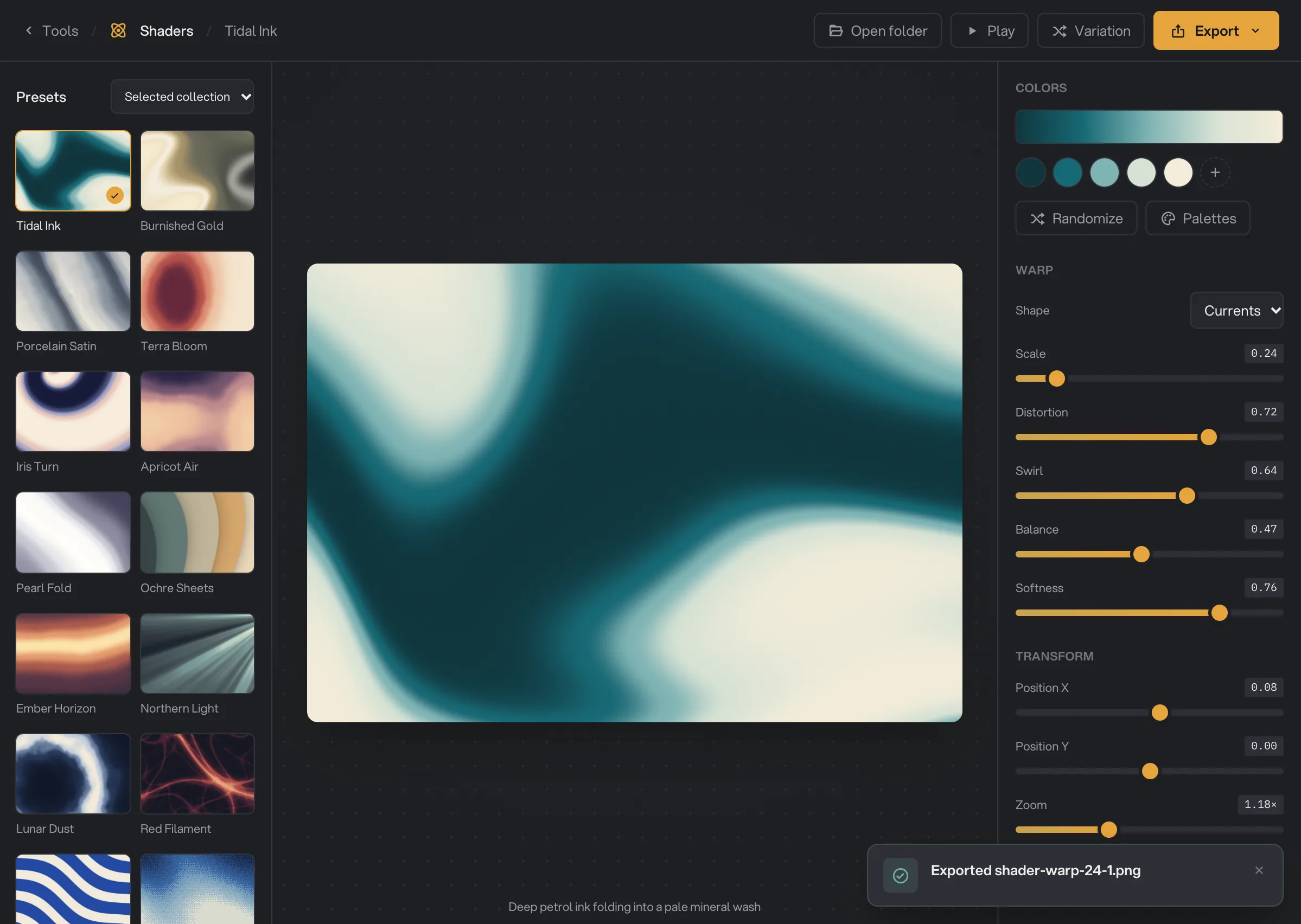
- Exported
- Open folder
Every setting, and when to change it
Presets set most of these values. The pattern settings change with the pattern you pick.
- Presets
A complete look: pattern, colors, position and finish. Your size and video settings stay.
- RangeSelected collection, Glass, Gradients, Abstract, Patterns, All presets
- DefaultTidal Ink
- Browse shader families
Pick a pattern type directly, such as Silk, Waves or Liquid Metal.
- Range22 patterns
- Variation
A new arrangement of the same pattern, with the same colors and finish.
- Colors
The color ramp used across the pattern.
- Range2 to 8
- DefaultSet by the preset
- Palettes
Replaces the ramp with a ready-made set of colors.
- Range24 color sets
- Randomize
A random palette and a new arrangement.
- Pattern settings
Shape the pattern. For Warp: Shape, Scale, Distortion, Swirl, Balance and Softness.
- RangeDifferent for each pattern
- DefaultSet by the preset
- Position X, Position Y
Moves the pattern sideways or up and down.
- Range-1 to 1
- DefaultSet by the preset
- Zoom
Makes the pattern larger or smaller.
- Range0.2× to 3×
- DefaultSet by the preset
- Rotation
Turns the pattern.
- Range0° to 360°
- DefaultSet by the preset
- Preview speed
How fast the preview plays. It does not change the video.
- Range0.1× to 4×
- Default1×
- Loop duration
The length of the video and of one seamless loop.
- Range2 to 15 s
- Default6 s
- Frame rate
Frames per second in the video.
- Range24 fps, 30 fps
- Default30 fps
- Dithering
A printed look with stepped tones. Levels (2 to 32) and Pattern size (1 to 16 px) set it.
- DefaultSet by the preset
- Grain
Film grain. Amount, Grain size (1 to 6 px) and Grain blend change how it looks.
- DefaultSet by the preset
- Vignette
Darkens the edges. Intensity and Radius set how much and how far.
- DefaultSet by the preset
- Contrast, Brightness, Hue, Vibrance
Tone controls for the whole image. Brightness 1 means unchanged.
- Range-50 to +50, 0 to 2, -180° to 180°, 0 to 1
- Canvas size
The width and height. Ratio buttons set the shape quickly.
- Range16 to 8192 px per side
- Default2000 × 1400
- Scale
Multiplies the canvas size for the exported file.
- Range0.5×, 1×, 2×
- Default1×
How to get the best results
- Start from a preset, not a blank pattern. Presets are tuned looks. Change their colors first, then adjust the pattern.
- Use Palettes for quick color ideas. Try a few, then fine-tune single swatches to match your brand.
- Leave space for text. Use Position and Zoom to move the busiest part of the pattern away from where a headline will go.
- Set the size for where it goes. For example 1920 × 1080 for slides and video, 1080 × 1920 for stories, or 2× for very sharp wallpapers.
- Keep video backgrounds calm. A longer Loop duration gives slower motion that does not pull attention from text on top.
- Check a full loop before exporting video. Click Play and watch one cycle at Preview speed 1×.
Why a result disappoints
- Export failed when I exported again. The file name comes from the pattern and the variation, so the same look exported twice gets the same name, and Shaders never replaces a file. Choose another folder, rename or move the earlier file, or click Variation first.
- The video is slower than the preview. Preview speed only changes the preview. Make the Loop duration shorter for faster motion.
- The video does not move, and Play is grayed out. Dot Grid is a still pattern. Its video is a still image for the whole Loop duration. Pick another pattern for motion.
- The PNG shows a different moment than I expected. PNG saves the preview as it is right now. Click Play, then Pause on the moment you like before you export.
- An MP4 is 1 pixel smaller than I set. MP4 needs even numbers for width and height, so an odd size loses one pixel. Use even numbers.
- The preview says it is unavailable. Go back to Tools and open Shaders again. If it keeps happening, quit and reopen Hangar.
- My settings are gone. Settings last while Hangar is open. They reset after you quit.
Limits
- 54 presets and 22 pattern types. For soft mesh gradients with colors you place yourself, use Gradients.
- 2 to 8 colors per ramp.
- Canvas size is 16 to 8192 pixels per side, times 0.5, 1 or 2 for the export. Very large exports may be reduced to fit your computer’s graphics.
- Images are PNG. Videos are MP4 or WebM, 2 to 15 seconds long, at 24 or 30 fps, with no sound. Add music with Add Audio.
- No transparent background.
- Your brand kit is not used. Set brand colors by hand.
- Settings are not saved after you quit Hangar.
- Shaders cannot be added as a step in a chain.
- Everything runs on your computer. Nothing is uploaded.
Common questions
What is the difference between Shaders and Gradients?
Gradients makes soft mesh gradients from colors you place yourself. Shaders makes generated patterns, such as silk, waves, liquid metal, glass and halftone dots, from a color ramp. Both export PNG images and looping videos.
Will my video loop without a jump?
Yes, for every pattern except Dot Grid, which is a still image. The export fits exactly one full cycle into the Loop duration, so the last frame leads straight back to the first.
Why does Preview speed not change my video?
Preview speed only changes how fast the preview plays. The video always holds one full cycle in the Loop duration. For faster motion, make the Loop duration shorter.
Does the video have sound?
No. Shaders exports silent MP4 and WebM videos. To add music, run the exported video through the Add Audio tool.
Can I use my brand colors?
Yes. Click each swatch in the Colors section and pick your brand color. Shaders does not read your workspace brand kit, so the colors are set by hand.
Can I get the same look again later?
Your settings stay while Hangar is open, so you can leave Shaders and come back. They reset when you quit Hangar. Export the looks you want to keep.
Still stuck?
One person reads every message, usually with a reply within a day.