 Agencies and studios
 Photographers
 Podcasters
 Video and social creators
 Marketers and content teams
What does Add audio do?
Add audio puts music, narration or a sound effect on a batch of videos, on your own computer. In the app the tool is called Add Audio. Use it to lay a music bed under silent clips, add a voiceover to a screen recording, or swap a noisy soundtrack for a clean one.
The new track can replace the original sound or play together with it. The picture is copied exactly as it was, so there is no quality loss, and each video keeps its format and name. You can fine-tune the timing of each video in the Add Audio studio.
Step 1: Open Add Audio and add your videos
Click Tools in the sidebar, open the Video tab and click Add Audio in the Enhance section. You can also type "add audio" in the search box at the top.
Drop your videos on the queue, or click it to pick files. MP4, MOV and MKV videos work. WebM videos do not; see Limits.
Step 2: Choose the audio track
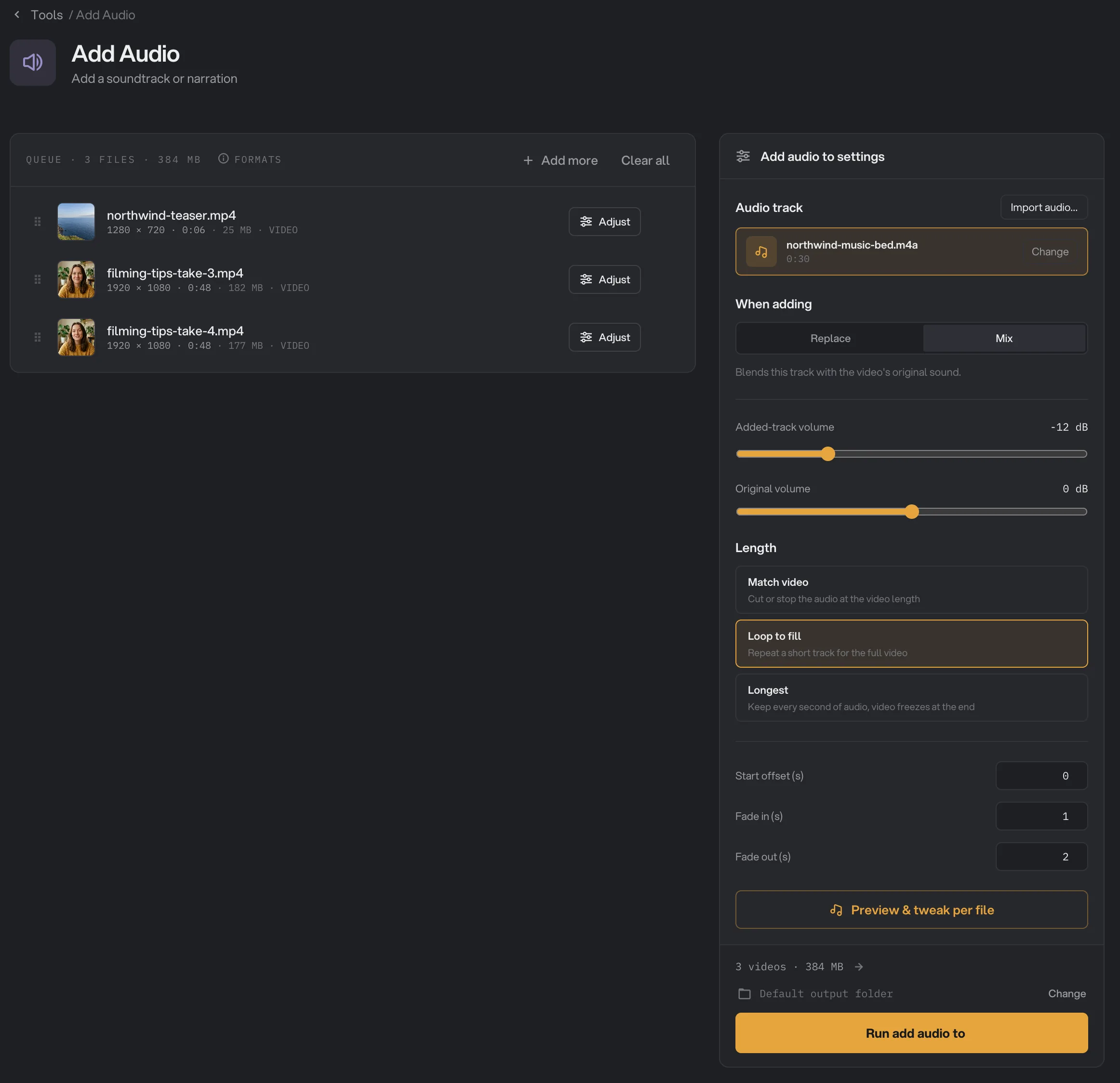
Under Audio track, click Import audio… and pick your music or narration. MP3, M4A, AAC, WAV, FLAC, OGG and Opus files work. The new track is picked right away, and it stays in the list for next time.
To use a track you imported before, click Choose an audio file to add, or Change once a track is picked, and click it in the list. The list shows each track’s length. To remove one, click the × next to it.
The run button stays grayed out with "Choose an audio file to add first." until a track is picked.
Step 3: Choose how the track is added
- When adding: Replace swaps the video’s own sound for your track. Mix plays both together. A video with no sound of its own simply gets your track.
- Added-track volume turns your track up or down, from -24 dB to +24 dB. 0 dB leaves it as it is. With Mix, Original volume does the same for the video’s own sound.
- Length decides what happens when the track and the video are not the same length:
- Match video stops the track when the video ends. Use it when the track is at least as long as the video. If the track is shorter, the copy stops when the track ends and the rest of the video is lost.
- Loop to fill repeats the track until the video ends. Best for short music beds.
- Longest keeps every second of the track. If the track is longer, the last frame of the video stays on screen until the sound ends.
- Start offset (s) waits that many seconds before the track starts, for example to let an intro play first.
- Fade in (s) fades the track in from the start of the video, and Fade out (s) fades it out so it ends with the video. 1 to 2 seconds sounds natural. Both are timed from the video, not from the track. If Start offset (s) is as long as the fade in or longer, the fade is over before the track starts and you do not hear it.
- Audio track
- When adding
- Added-track volume
- Loop to fill
- Fade out (s)
- Preview & tweak per file
- Run add audio to
Step 4: Fine-tune each video in the Add Audio studio
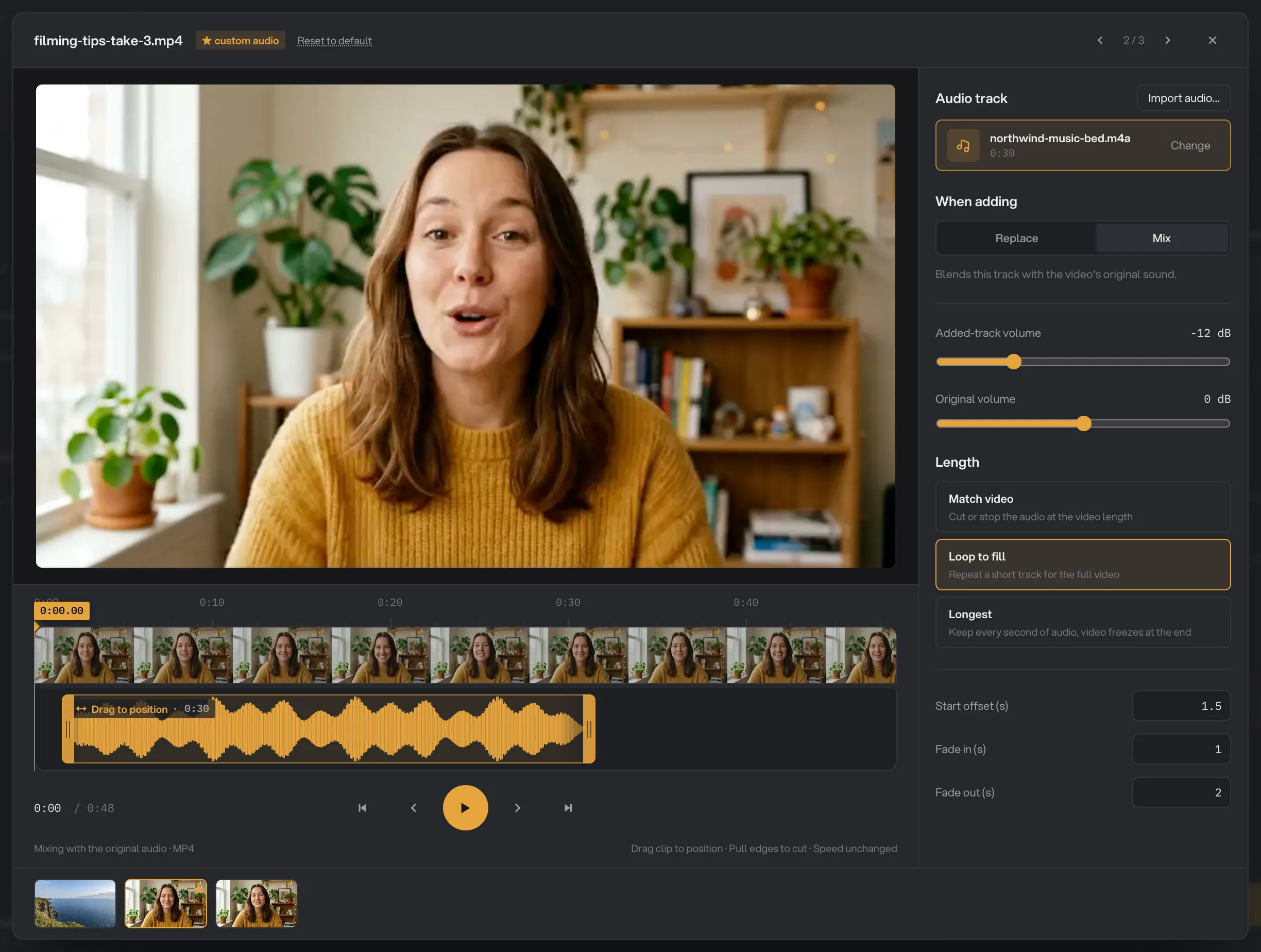
Click Preview & tweak per file, or click Adjust on a video in the queue. The Add Audio studio plays the video with your track mixed in, so you can hear the result before you run.
- The timeline shows the video and, below it, your track as a waveform. Drag the track to move it later in the video. Pull its left or right edge to cut the start or end of the track. When you cut the start, the rest of the track stays where it was, so it now starts later in the video.
- Press Space or use the play button to play and pause. The arrows at the top switch between videos.
- The panel on the right has the same settings as the main panel, for this video only. You can even pick a different track.
Any change you make here gives the video its own settings: it gets ★ custom audio, and Adjust shows a ★ in the queue. Reset to default puts it back on the shared settings. There is no Done button; changes are kept as you make them. Press Esc or click × to close.
- 2 / 3
- Reset to default
- Audio clip
- Drag clip to position
- Start offset (s)
Step 5: Run, then check the result
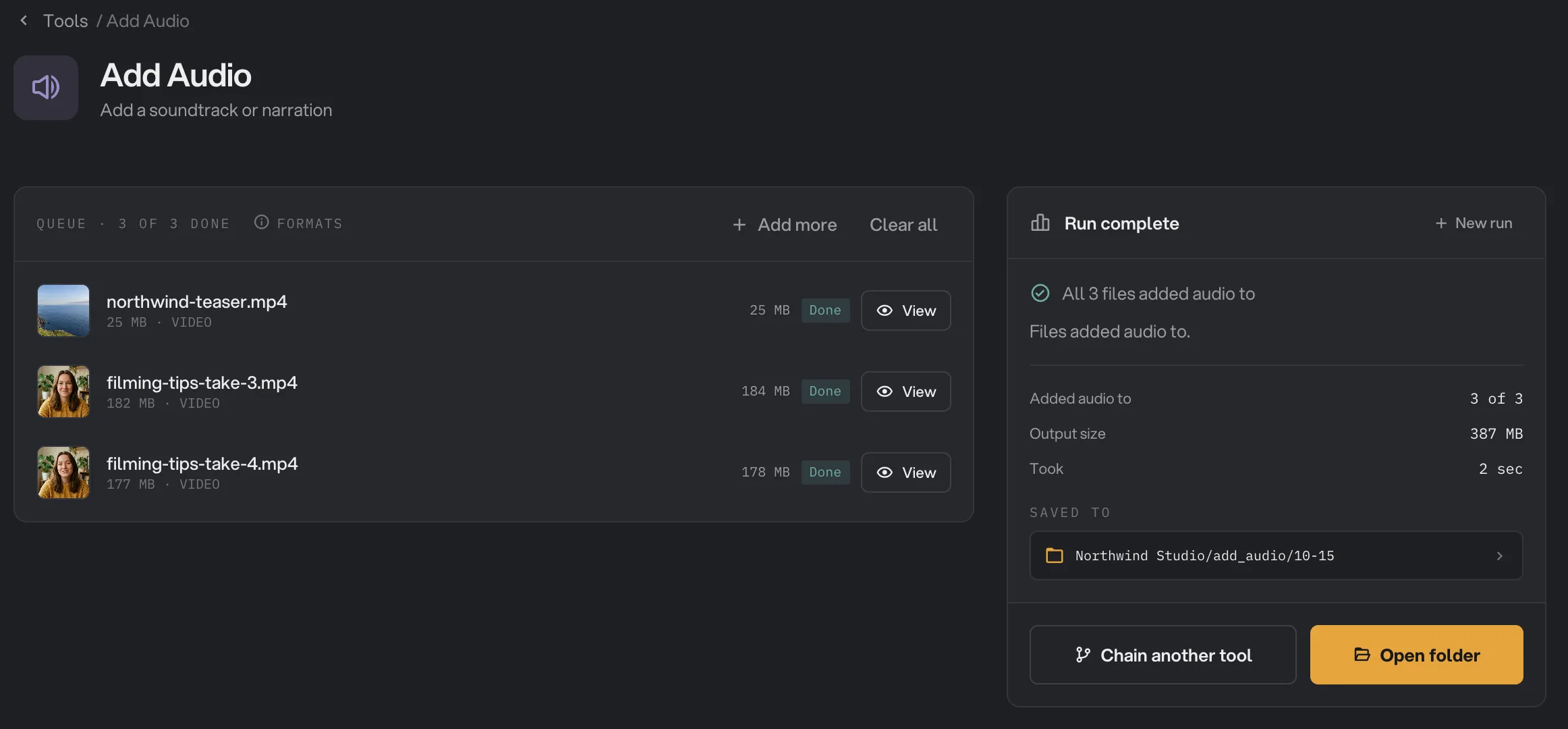
Check where the files will go: Default output folder saves them in your workspace’s output folder, in an add_audio folder with a subfolder for today’s date, such as 10-15. Click Change to pick another folder for this run. Then click Run add audio to.
Each video shows Done when it is ready. Click View to check a result, and Open folder to go to the copies. They keep their original names and formats. See See and compare your results and Where your files are saved.
- Done
- View
- Saved to
- Open folder
Every setting, and when to change it
The panel and the Add Audio studio show the same settings. Original volume appears only for Mix. Cutting the start or end of the track is done in the studio, by pulling the edges of the waveform.
- Audio track
The music, narration or sound effect to add. Import audio… adds one; tracks are kept for next time.
- DefaultNone
- When adding
Replace swaps the original sound for your track. Mix plays both together.
- RangeReplace, Mix
- DefaultReplace
- Added-track volume
How loud your track is. Lower numbers are quieter.
- Range-24 dB to +24 dB
- Default0 dB
- Original volume
With Mix, how loud the video’s own sound is.
- Range-24 dB to +24 dB
- Default0 dB
- Length
What happens when the track and the video differ in length. Match video stops at whichever ends first; Loop to fill repeats the track to the end of the video; Longest keeps all of the track.
- RangeMatch video, Loop to fill, Longest
- DefaultMatch video
- Start offset (s)
Seconds of silence before the track starts.
- Range0 and up, in steps of 0.1
- Default0
- Fade in (s)
Fades the track in from the start of the video. With a start offset as long as the fade or longer, the fade is over before the track begins.
- Range0 and up
- Default0
- Fade out (s)
Fades the track out so it ends with the video.
- Range0 and up
- Default0
How do I get a good result?
- For a music bed under talking, use Mix, Added-track volume -12 dB to -18 dB, Loop to fill, Fade in (s) 1 and Fade out (s) 2.
- For a voiceover on a screen recording, use Replace and Match video, with a narration that is at least as long as the video.
- For silent b-roll, either mode works: a video with no sound simply gets your track.
- Listen to one video in the studio first. Volume is easier to judge by ear than by number.
- Change the speed before adding music. If you speed a video up after adding a track, the music is sped up too.
Why does a result disappoint?
- The video got shorter. The track is shorter than the video and Length is Match video, so the copy stopped when the track ended. Choose Loop to fill, or Longest with a longer track.
- The music covers the voice. Lower Added-track volume, or raise Original volume.
- The last frame stays on screen. Length is Longest and the track is longer than the video. Choose Match video to stop at the end of the video.
- The fade in is missing. The fade starts at the beginning of the video, not when the track starts. With a Start offset (s), or after you drag the track later or cut its start in the studio, the fade is over before the track begins. Set Start offset (s) to 0, or drag the track back to the start of the video.
- The end of the track is silent. With Longest and a Fade out (s), the fade ends when the video ends, so any sound after that is silent. Set Fade out (s) to 0 when you use Longest.
- The fade out is missing. The fade is timed to the end of the video. If the track stops earlier, the fade never plays. Use Loop to fill.
- A video failed because the selected audio is no longer available. The track was removed from the list. Import it again and pick it.
- A WebM video failed. WebM files can’t take the new sound track. Convert the video to MP4 with Convert video first.
For other errors, see A file failed: what to check.
Limits
- One added track per video.
- WebM videos are not supported. Convert them to MP4 first.
- The sound in the copy is saved again in a widely supported format, including the original sound with Mix. The picture is not touched.
- Subtitle tracks and extra audio tracks, such as a second language, are not carried over to the copy.
- Cutting the start or end of the track is only possible in the Add Audio studio.
- Everything runs on your computer. Nothing is uploaded.
Use Add audio in a chain
Add Audio is available as a step in chains, under the Video steps, with the same settings as the main panel. The step has no studio, so the track can’t be moved or cut by dragging; use Start offset (s) and the fades instead. Every video in a chain gets the same track.
Put Add Audio after Change speed, so the music plays at its normal speed. A common chain speeds up tutorial clips, adds a music bed and then compresses them. A chain also remembers your settings; see Run a chain on many files.
Common questions
Can I keep the original sound and add music under it?
Yes. Choose Mix. The music plays together with the original sound, and you set the volume of each one. Turn the music down to about -12 dB so voices stay clear.
What if my music is shorter than the video?
Choose Loop to fill. The track repeats until the video ends. With Match video, the copy stops when the track ends, so the end of the video is lost.
Does adding audio lower the picture quality?
No. The picture is copied exactly as it was. Only the sound is new.
Can I use a different track for one video?
Yes. Click Adjust on that video and choose another track in the panel on the right. That video then keeps its own settings.
Which audio files can I add?
MP3, M4A, AAC, WAV, FLAC, OGG and Opus files. Imported tracks stay in the list for next time.
Is my original video changed?
No. Hangar saves a copy with the new sound in your output folder and leaves the original where it was.
Still stuck?
One person reads every message, usually with a reply within a day.