 Agencies and studios
 Photographers
 Podcasters
 Video and social creators
 Marketers and content teams
What does Organize pages do?
Organize pages puts the pages of a PDF in the order you want, on your own computer. You can move pages, turn them the right way up, delete the ones you do not need, duplicate a page and add blank pages. In the app the tool is called Organize Pages.
It works in two ways. Quick settings in the side panel apply to every PDF in the queue, for example "keep only the odd pages" or "delete page 1". For anything more precise, the Page studio shows every page of a file as a thumbnail you can drag, rotate and delete. You get one new PDF for each file you add.
Step 1: Add your PDFs
Click Tools in the sidebar, open the PDF tab and click Organize Pages. You can also type "organize pages" in the search box at the top.
Drop your PDFs on the queue, or click it to pick files. To add more later, use Add more. Folders are not accepted, so select the files inside a folder instead.
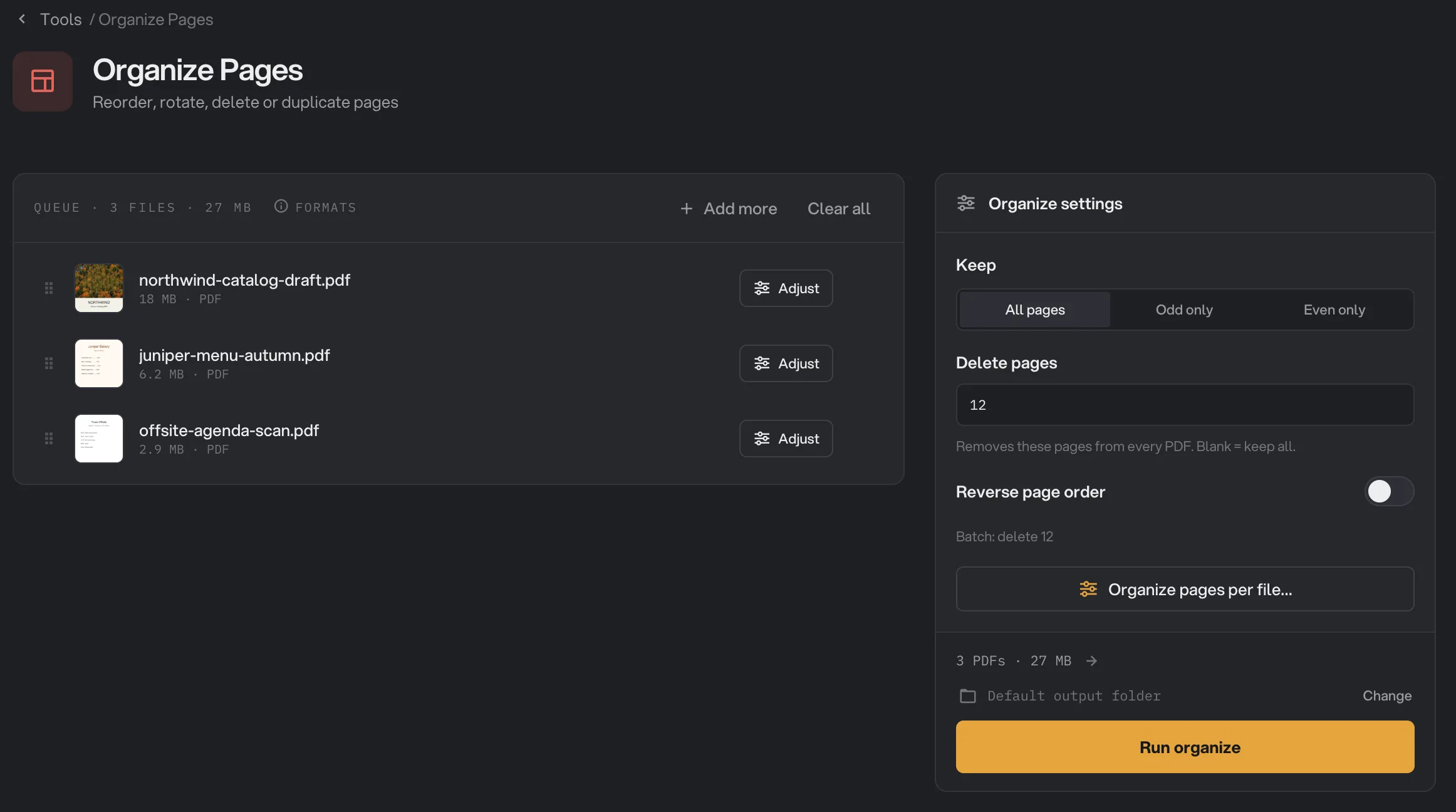
- Add more
- Keep
- Delete pages
- Reverse page order
- Organize pages per file
- Run organize
Step 2: Set the changes for every file
The panel on the right applies the same change to every PDF in the queue. It always uses each file's original page numbers.
- Keep: All pages, Odd only or Even only.
- Delete pages: the pages to remove, such as
1, 5-7. Leave it empty to keep every page. - Reverse page order: turns the whole document back to front. Hangar reverses last, after removing pages.
The line under the settings sums up what will happen, for example "Batch: keep odd pages · delete 3". If you only need to fix one file, skip this step and go straight to the Page studio.
Step 3: Arrange pages by hand in the Page studio
Click Organize pages per file…, or the Adjust button on a file in the queue. The Page studio shows every page of that file as a numbered thumbnail. The number is the page's position in the original file, so you can always tell which page is which.
- Move a page: drag it. An amber line shows where it will land.
- Select pages: click a page. Hold Shift (or Command on a Mac) and click to add another page to the selection, or to take one out.
- Rotate L and Rotate R: turn the selected pages a quarter turn. Blank pages cannot be turned.
- Duplicate: adds a copy right after each selected page.
- Delete: removes the selected pages. A file always keeps at least one page.
- Add a blank page: hover the gap between two pages and click the +, or click the blank tile at the end. A blank page takes the size of the page before it.
Use the arrows at the top, or the left and right arrow keys, to move to the next file. Click Done or press Esc when you are finished.
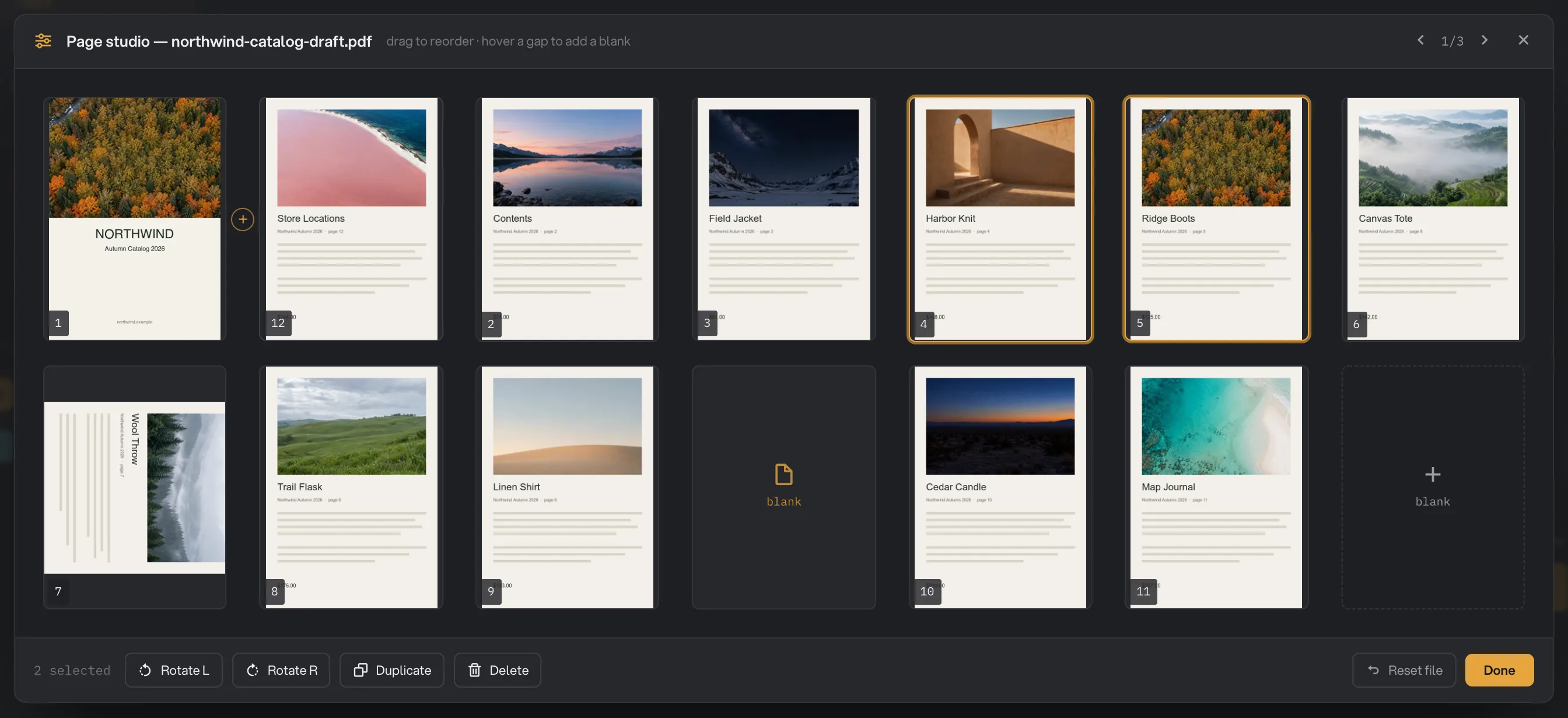
- Page 12, dragged to second place
- Add a blank page in this gap
- A page turned with Rotate R
- Selected pages
- Rotate L and Rotate R
- Duplicate
- Delete
- Reset file
- Done
Step 4: Run, then check the result
Check where the files will go: Default output folder saves them in your workspace's output folder, in an organize folder with a subfolder for today's date, such as 10-15. Click Change to pick another folder for this run. Then click Run organize.
Each file is saved as a new PDF with -organized added to its name. When the run ends, each file shows Done. Click View to page through a result, and Open folder to go to the files. For more on reading results, see See and compare your results.
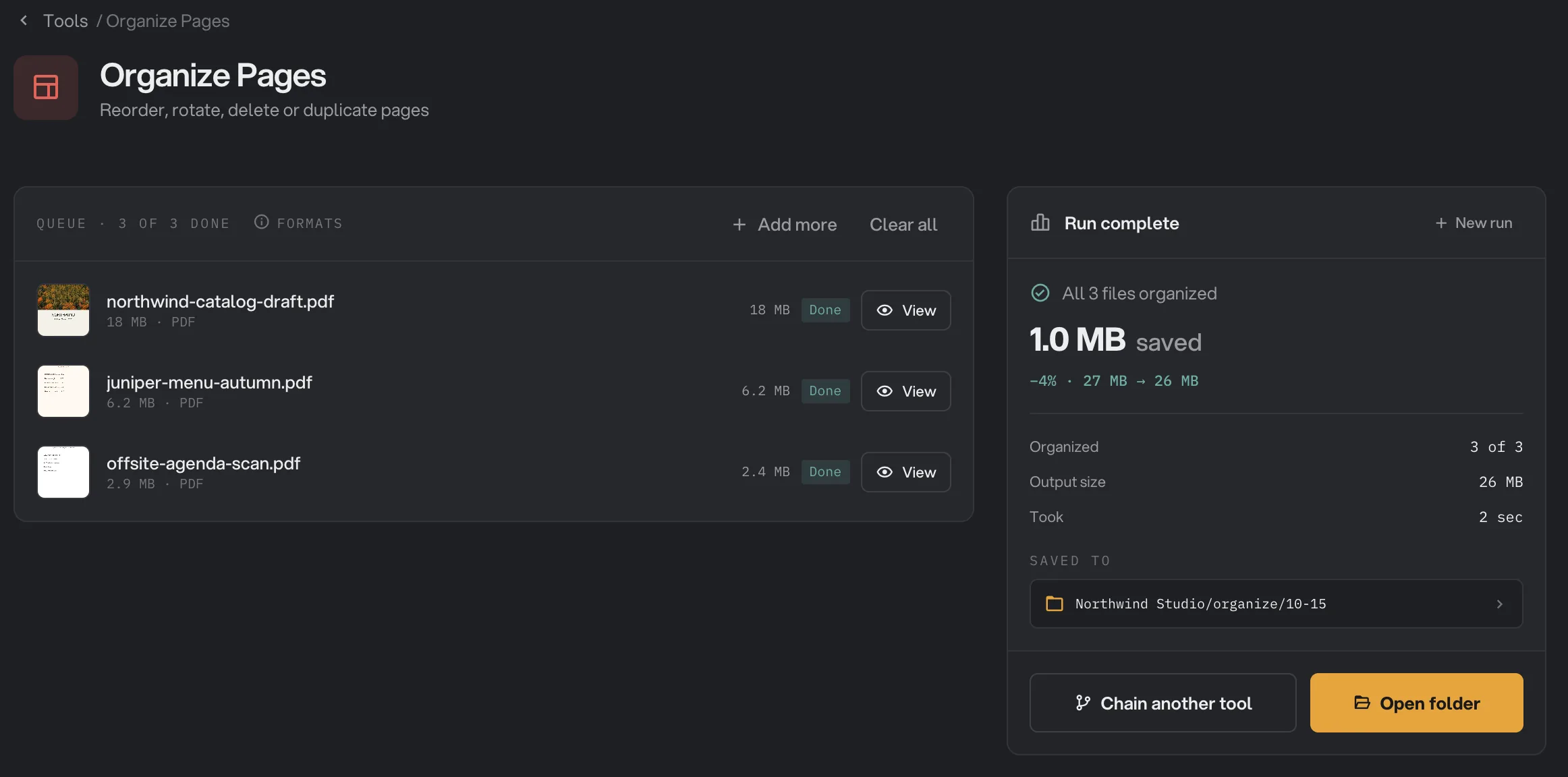
- Done
- View
- Saved to
- Open folder
Every setting
These are the settings in the side panel. They apply to every file that you have not arranged in the Page studio.
- Keep
Keeps every page, or only the pages with odd or even numbers in the original file.
- RangeAll pages, Odd only, Even only
- DefaultAll pages
- Delete pages
Removes these pages from every PDF. A page number past the end of a shorter file is simply skipped.
- RangePage numbers and ranges, such as 1, 5-7
- DefaultEmpty (keep all)
- Reverse page order
Puts the pages back to front. It is applied after Keep and Delete pages.
- RangeOn or off
- DefaultOff
In Delete pages, separate entries with commas and write ranges with a dash, smallest number first. If the field turns red, the message under it says what to fix, such as a stray comma or a range written backwards. Run organize stays off until it is fixed.
Common jobs, step by step
- Remove a cover page from many PDFs: type
1in Delete pages and run. - Fix a two-sided scan with blank backs: set Keep to Odd only.
- Fix a scan that came out back to front: turn on Reverse page order.
- Turn sideways pages upright: open the Page studio, select the sideways pages and click Rotate R or Rotate L.
- Add a divider page between sections: in the Page studio, click the + in the gap where the section starts.
To take a few pages out into a separate file instead, use Extract pages. To cut one PDF into several, use Split PDF.
Why does my result look different than expected?
- The panel settings did nothing to one file. That file has its own plan from the Page studio, which takes priority. Open it and click Reset file, or make the change in the studio.
- The wrong pages were removed. Delete pages and Keep always use the page numbers of the original file, not the order you see after reversing. For example, with Reverse page order on,
1still deletes the original first page. - The bookmarks are gone. The organized copy is built fresh from the pages you keep and does not carry over bookmarks, attached files or page labels. Links that jump to another page of the same document stop working. Web links and comments on the pages are kept.
- A form can no longer be filled in. The form setup of a fillable PDF is not carried over, so its fields may stop working. Organize the pages before you fill in a form, or keep the original for filling.
- A rotated page is still not right. Each click turns the page a quarter turn from where it already was. Click Rotate R or Rotate L again until it is upright.
Limits
- Organize Pages accepts PDF files only.
- Password-protected PDFs, including ones that open freely but block printing or editing, stop with a message that the file is password-protected. Remove the password with Unlock PDF first.
- Every page cannot be removed. If your settings would leave a file with no pages, that file fails with a message saying every page was removed. Check Keep and Delete pages together.
- Blank pages always take the size of the page before them. A blank page at the very start takes the size of the first page.
- Page studio plans last until you close Hangar. They are not saved with a run or a chain.
- Bookmarks, attached files, page labels, fillable form setup and the tags that screen readers use are not carried over to the organized copy.
- Damaged PDFs are repaired automatically when possible. If a file cannot be read at all, it fails with a message that it may be damaged or not a real PDF.
If a file fails, its row shows the reason. A file failed: what to check lists the common causes and fixes. For working with many files at once, see Process many files at once, and for more on hands-on editors, Studios.
Common questions
Can I organize several PDFs at once?
Yes. The settings in the panel, such as Keep odd pages or Delete pages, apply to every PDF in the queue. When one file needs its own order, open it in the Page studio. That file then follows the plan you made for it, and the others keep following the panel.
How do I remove the blank backs from a two-sided scan?
Set Keep to Odd only. Pages 1, 3, 5 and so on stay, and the backs on pages 2, 4, 6 are removed. This works when every back page is blank.
Can I rotate just one page?
Yes. Open the Page studio, click the page, then click Rotate L or Rotate R. Each click turns it a quarter turn, on top of any rotation the page already had.
Why are the bookmarks gone from my organized PDF?
Organize Pages builds a fresh copy of the document from the pages you keep, and that copy does not carry over bookmarks. Your original PDF still has them.
Is my original PDF changed?
No. Hangar saves a new copy with -organized at the end of the name and leaves your original untouched.
Still stuck?
One person reads every message, usually with a reply within a day.