 Agencies and studios
 Photographers
 Podcasters
 Video and social creators
 Marketers and content teams
What does Sign PDF do?
Sign PDF puts your handwritten signature or initials on PDF pages, on your own computer. You draw, type or upload your signature once, and Hangar keeps it for next time. Then you can sign a whole batch in one run, or place signatures by hand on any page in the Sign Studio. In the app the tool is called Sign.
It takes PDF files and gives back one signed PDF for each file you add. The original pages are not changed: the signature is added on top of them.
What kind of signature is this?
Sign PDF adds a picture of your signature, the same result as signing a paper copy and scanning it. It is what most people need for contracts, forms, quotes and letters that ask you to "sign and return".
It is not a certificate-based digital signature. It does not prove who signed, it does not lock the document, and PDF readers will not list it in a signature panel. If the recipient asks for a "digital signature" or a "certified signature", ask them which service they accept.
Step 1: Add your PDFs
Click Tools in the sidebar, open the PDF tab and click Sign in the Sign & finalize section. You can also type "sign" in the search box at the top.
Drop your PDFs on the queue, or click it to pick files. To add more later, use Add more.
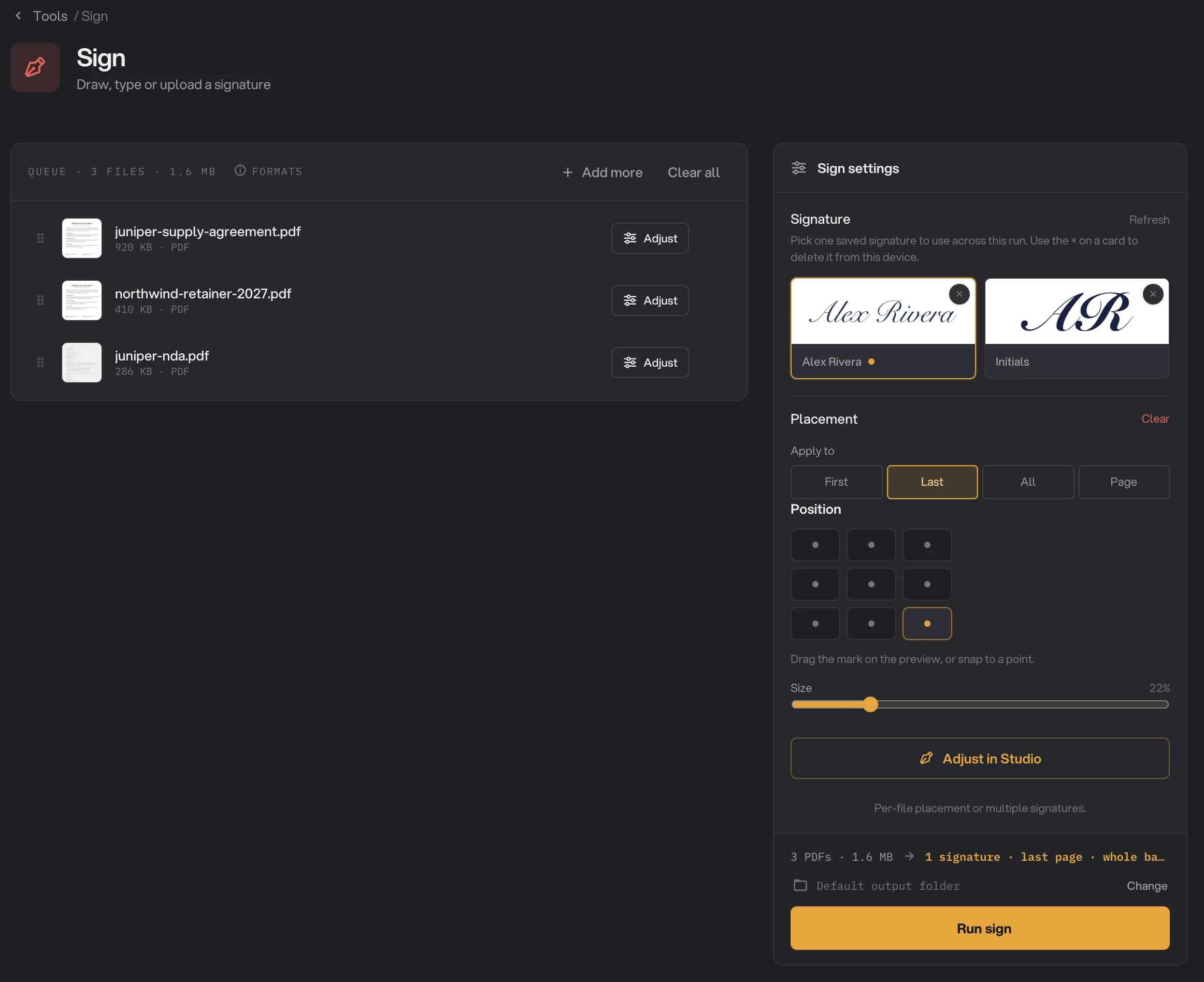
- Signature
- Apply to
- Position
- Size
- Adjust in Studio
- Run sign
Step 2: Create your signature
The first time, you need to save a signature. Click Adjust in Studio, then Create in the Signatures list on the right. Choose one of three ways:
- Draw: sign in the white box with your trackpad, mouse or touchscreen. Clear starts over.
- Type: type your name and Hangar writes it in a handwriting-style font from your computer. The font differs between Mac and Windows.
- Upload: click Choose file and pick a photo or scan of your signature. PNG, JPG, WebP and BMP files work. Use a PNG with a transparent background if you have one.
For Draw and Type, give it a name in the Label box, such as "Full signature" or "Initials", and click Save. An uploaded signature keeps the name of its image file. It appears as a card in the list and stays there for every future PDF.
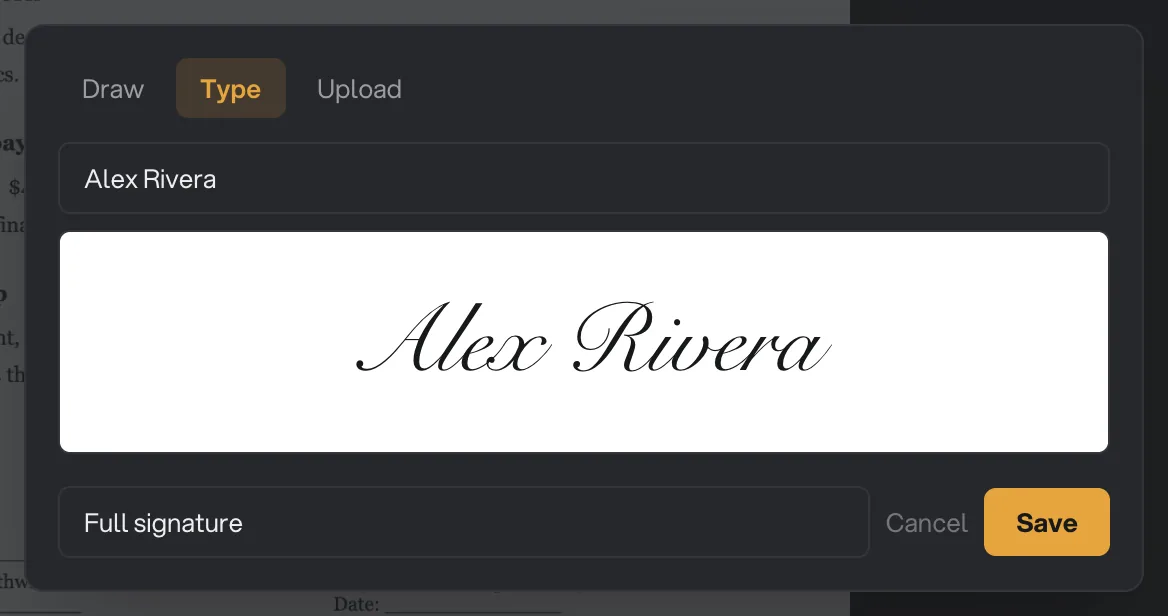
- Type
- Your name
- Preview
- Label
- Save
Step 3: Sign every PDF the same way
Back in the settings panel, click the signature you want under Signature. A Placement section appears:
- Apply to: First, Last or All pages, or Page with a page number. Each PDF uses its own page count, so Last signs the last page of every file, however long it is.
- Position: one of nine spots, such as Bottom right.
- Size: how wide the signature is, measured against the longest side of the page.
The line above the button sums it up, for example "1 signature · last page · whole batch". This is the fastest way to sign a stack of identical forms or letters.
Step 4: Place signatures by hand in the Studio
When the signature line is in a different place in each file, or you need more than one signature, use the Studio. Click Adjust in Studio, or Adjust on a file in the queue.
- Go to the page with the arrows next to Page, and to the next file with the arrows at the top right.
- Click a signature card, then click the page where it should go.
- Drag the signature to move it, and drag its corner handle to resize it. Under Selected placement you can also set Size, Rotation and Opacity.
- To take one off, click the red × on it, press Backspace, or click Remove this signature.
- Click Done when every file looks right.
The page you see is the real result, with the signature already on it. Placements you make in the Studio belong to that one file, and the button in the panel shows how many files you adjusted. All the other files use the signature picked in the panel.

- Create a signature
- Drag the signature
- Resize handle
- Rotation
Step 5: Run, then check the result
Check where the files will go: Default output folder saves them in your workspace’s output folder, in a sign folder with a subfolder for today’s date, such as 10-15. Click Change to pick another folder for this run. Then click Run sign.
Signed files show Done. Click View on a file to check each signature, and Open folder to go to the signed copies. Each one has -signed added to its name, for example agreement-signed.pdf. See See and compare your results and Where your files are saved.
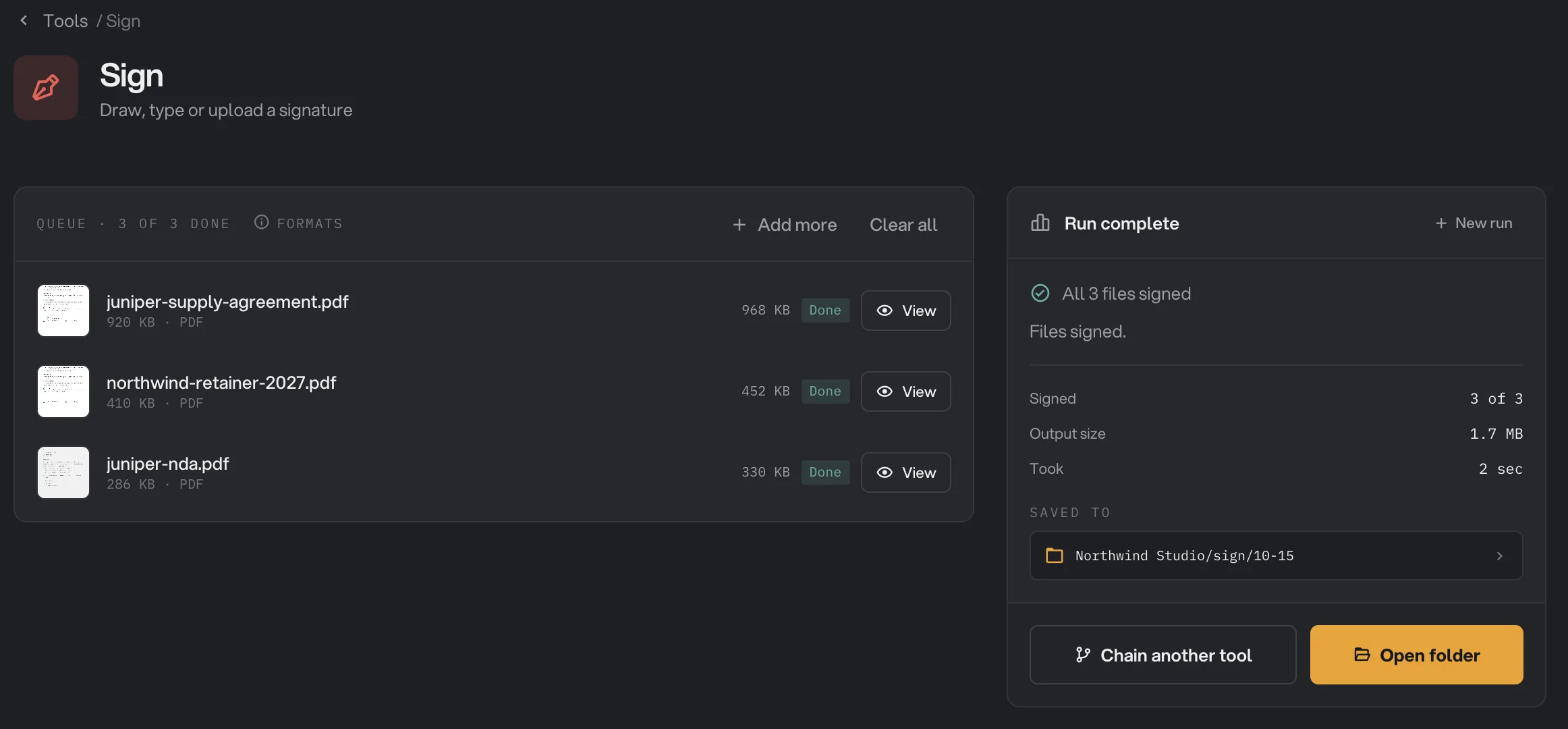
- Done
- View
- Saved to
- Open folder
Every setting, and when to change it
The settings panel signs every PDF the same way. The Studio adds rotation and opacity for each signature you place by hand.
- Signature
The saved signature to use for the whole batch. The amber dot marks your workspace signature.
- DefaultNone picked
- Apply to
Which page of each PDF gets the signature in the panel.
- RangeFirst, Last, All, Page
- DefaultFirst
- Page number
With Page, the page to sign. PDFs with fewer pages are not signed.
- Range1 and up
- Default1
- Position
Where the signature sits. It always stays fully on the page.
- Range9 positions, or anywhere in the Studio
- DefaultBottom
- Size
How wide the signature is, measured against the longest side of the page. 15% to 25% suits most signature lines.
- Range3% to 100% in the panel, up to 150% in the Studio
- Default22%
- Rotation (Studio)
Tilts a placed signature.
- Range-180° to 180°, in 5° steps
- Default0°
- Opacity (Studio)
Fades a placed signature. Keep it at 100% for a signature that looks like real ink.
- Range10% to 100%
- Default100%
How do I get a natural-looking signature?
- Draw large. Fill most of the white box. Hangar saves the whole box, including the empty space around your signature, so a small signature comes out small on the page with a wide empty frame around it.
- Check typed names in the Studio. A typed name starts at the left of its box, so a short name has empty space on its right. Drag it until the ink sits on the line.
- Upload a transparent PNG if you have a scan of your signature. A JPG or a photo keeps its white or gray background, which shows as a box over the signature line.
- Size it to the line. Start around 20% and check in the Studio that the signature is about as wide as the line it sits on.
- Save initials separately. Then you can pick them for All pages and keep your full signature for the last page.
Where your saved signatures are kept
Saved signatures are stored only on this computer, in Hangar’s own app folder. They are not uploaded and not synced to your other devices. On another computer, create them again.
To delete a signature, click the × on its card in the panel or in the Studio. It is removed from this device and from any placements that used it.
Why is a file marked Kept?
Kept means no signature landed on that file, so Hangar saved an exact copy of the original in the output folder. It happens when:
- Apply to is Page and the file has fewer pages than the number you typed.
- You adjusted other files in the Studio but picked no signature in the panel, so this file had nothing to sign.
- You removed every signature from this file in the Studio.
- The signature it used was deleted before the run.
Troubleshooting
- Run sign is grayed out and the panel says "Add and place a signature first." Pick a signature card in the panel, or place one in the Studio.
- The panel says there are no saved signatures yet. Create one in the Studio first, then come back to the panel.
- The signature has a white box around it. The uploaded image has a solid background. Upload a transparent PNG, or use Draw or Type.
- A file failed with a message that it is password-protected. Remove the password with Unlock PDF, then sign the unlocked copy.
- A file failed because Hangar couldn’t read it. Hangar already tries to repair damaged PDFs. If it still fails, open it in another app and save or export it as a new PDF.
- The signature hides behind a box in a fillable form. Some forms draw a field on top of the page. Place the signature just beside the field instead.
For other errors, see A file failed: what to check.
Limits
- Sign PDF accepts PDF files only.
- It places a picture of a signature. It does not add a certificate-based digital signature, send documents to other people for signing, or fill in signature fields.
- The signature is an added layer on top of the page. Someone with a PDF editor could move or remove it. To stop casual changes, protect the signed copy with Encrypt PDF.
- Typed signatures use a handwriting font that comes with your computer, so they look different on Mac and Windows.
- Each placed signature makes the file a little bigger. Signing every page of a long PDF adds more than one signature on the last page.
- PDFs that need a password to open must be unlocked first.
- Everything runs on your computer. Neither your PDFs nor your signatures are uploaded.
Common questions
Is this a digital signature?
No. Sign PDF places a picture of your signature on the page, like signing a printout and scanning it. It does not add a certificate-based digital signature, so PDF readers do not show the file as digitally signed. Check what the person or office you send it to accepts.
Where is my saved signature kept?
Only on your computer, in Hangar’s own app folder. It is never uploaded or synced. You can delete it at any time with the × on its card.
Can I sign a whole stack of PDFs at once?
Yes. Add all the PDFs, pick your signature in the settings panel, choose the page and position, and click Run sign. Every PDF gets the signature in the same spot.
Can I add my initials to every page?
Yes. Save your initials as a separate signature, pick them in the settings panel and choose All under Apply to. To combine a full signature on the last page with initials on every page, place them in the Studio.
Is my original PDF changed?
No. Hangar saves a signed copy in your output folder, with -signed added to the name, and leaves the original where it was.
Still stuck?
One person reads every message, usually with a reply within a day.