 Agencies and studios
 Photographers
 Podcasters
 Video and social creators
 Marketers and content teams
What does Images to PDF do?
Images to PDF turns photos and scans into PDF documents, on your own computer. You choose how the images are bundled: one PDF for each image, a new PDF every few images, or one PDF that holds them all. Each image becomes a page, in the order of your queue.
You also choose the page shape. Auto makes each page the shape of its image. A4 and Letter put every image on a standard page, ready to print or send. Either way, Hangar reads the text on each page, so the finished PDF can be searched and the words selected and copied.
Images to PDF sits in the Convert section of the Image tab. It is not the same as Image to PDF, called Image OCR in the app, which makes one searchable PDF per image and can also save the text as a file.
Step 1: Open Images to PDF and add your images
Click Tools in the sidebar, open the Image tab and click Images to PDF in the Convert section. You can also type "images to pdf" in the search box at the top.
Drop your images on the queue, or click it to pick files. JPG, PNG, WebP, AVIF, HEIC, HEIF, TIFF, GIF and BMP files work. To add more later, use Add more.
The queue order is the page order: the first image in the queue becomes the first page. To move an image, drag it by the grip handle at the left of its row. You can also move to the handle with the Tab key and press the up or down arrow key.
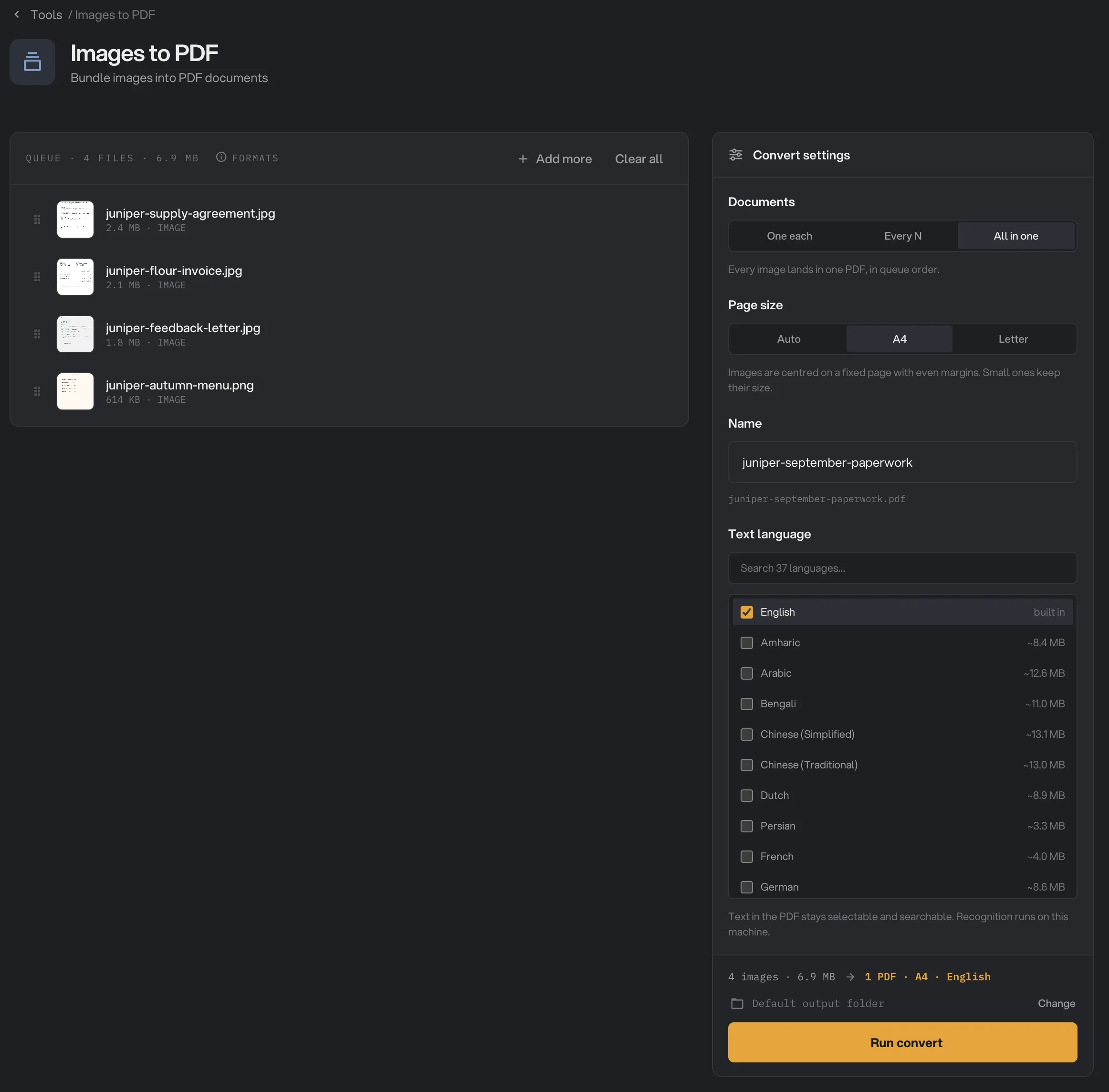
- First page in the PDF
- All in one
- Page size
- Output file name
- Text language
- Run convert
Step 2: Choose how many PDFs you get
Under Documents, pick one of three options:
- One each makes a one-page PDF for every image, named after the image. It is the default.
- Every N starts a new PDF every so many images. Click the minus or plus button to set the number, from 2 to 500. It starts at 10. The line under it confirms the choice, for example "A new PDF starts every 2 images." The last PDF takes whatever is left.
- All in one puts every image in a single PDF.
With Every N or All in one, a Name field appears. Type the name for your PDFs, such as juniper-september-paperwork. The line under it shows the exact file names the run will write. A single PDF keeps the plain name. Several PDFs get numbers, such as juniper-september-paperwork-1.pdf and juniper-september-paperwork-2.pdf, and the numbers get a leading zero when there are 10 or more, so they sort in order.
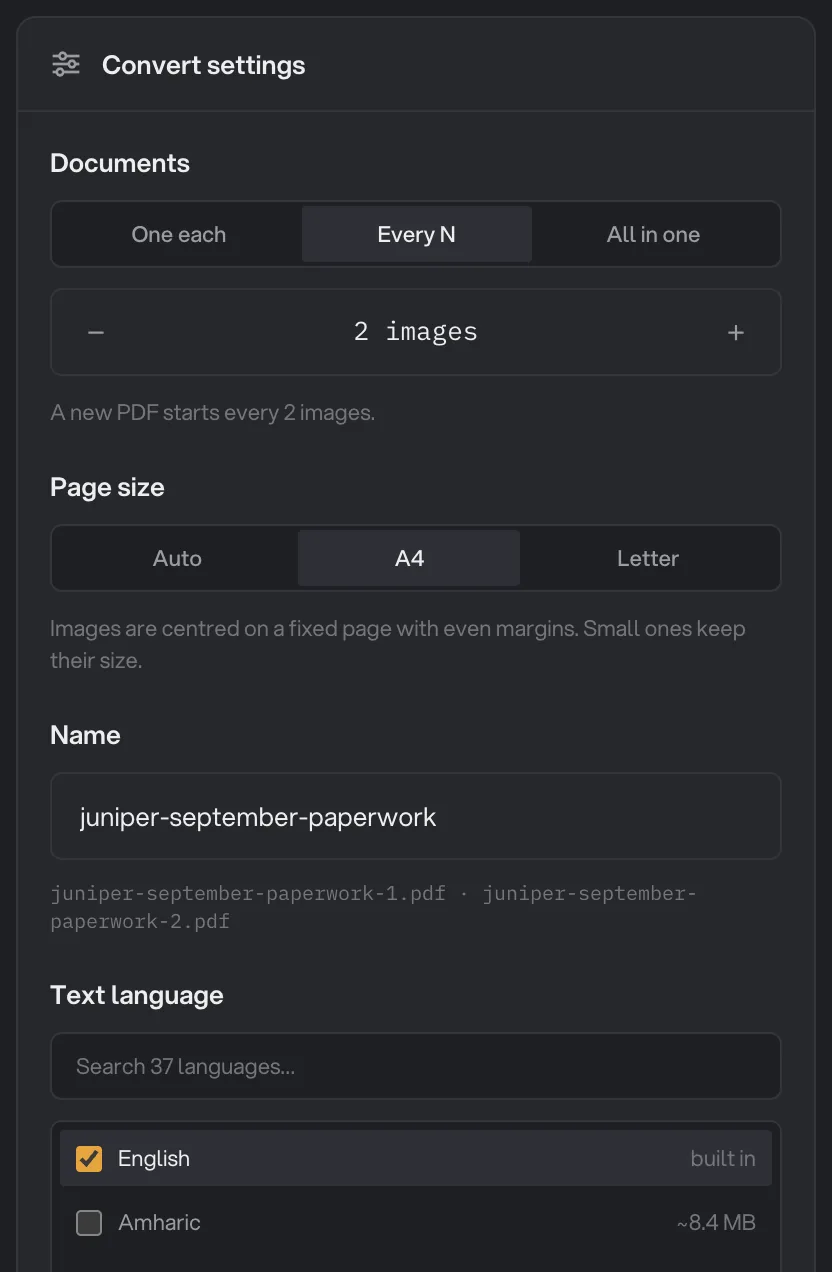
- Documents
- Increase
- How the split works
- The output names
Step 3: Choose the page size
Under Page size, pick Auto, A4 or Letter.
- Auto makes each page the shape of its image. Nothing is cropped or padded. Pages can have different sizes in the same PDF.
- A4 and Letter center each image on a white page with a margin of about 5 mm on every side. Large images are scaled down to fit. Small images keep their size, so they sit small in the middle of the page. A page turns sideways when its image is wider than it is tall. See-through areas become white.
Step 4: Pick the language of the text
Under Text language, tick the languages written on your pages. English is ticked when you open the tool and is built in. Type in the search box to find a language among the 37.
Other languages need a one-time download. Tick the language, then click Download next to it. Each is about 3 to 15 MB, and the row shows ready when it is done. Until then, Run convert stays off and the panel says which language to download. See AI models: what downloads and when for more on downloads.
Step 5: Run, then check the PDF
The line above the button sums up the run, for example 1 PDF · A4 · English. Check where the files will go: Default output folder saves them in your workspace's output folder, in a to_pdf folder with a subfolder for today's date, such as 10-15. Click Change to pick another folder for this run. Then click Run convert.
When the run ends, the first image of each PDF shows Done with the size of the PDF, such as 3.1 MB, and a View button for a quick look. The other images in that PDF show Merged, because they are pages of it rather than files of their own. Open folder takes you to the PDFs. Open them in your usual PDF app to check every page.
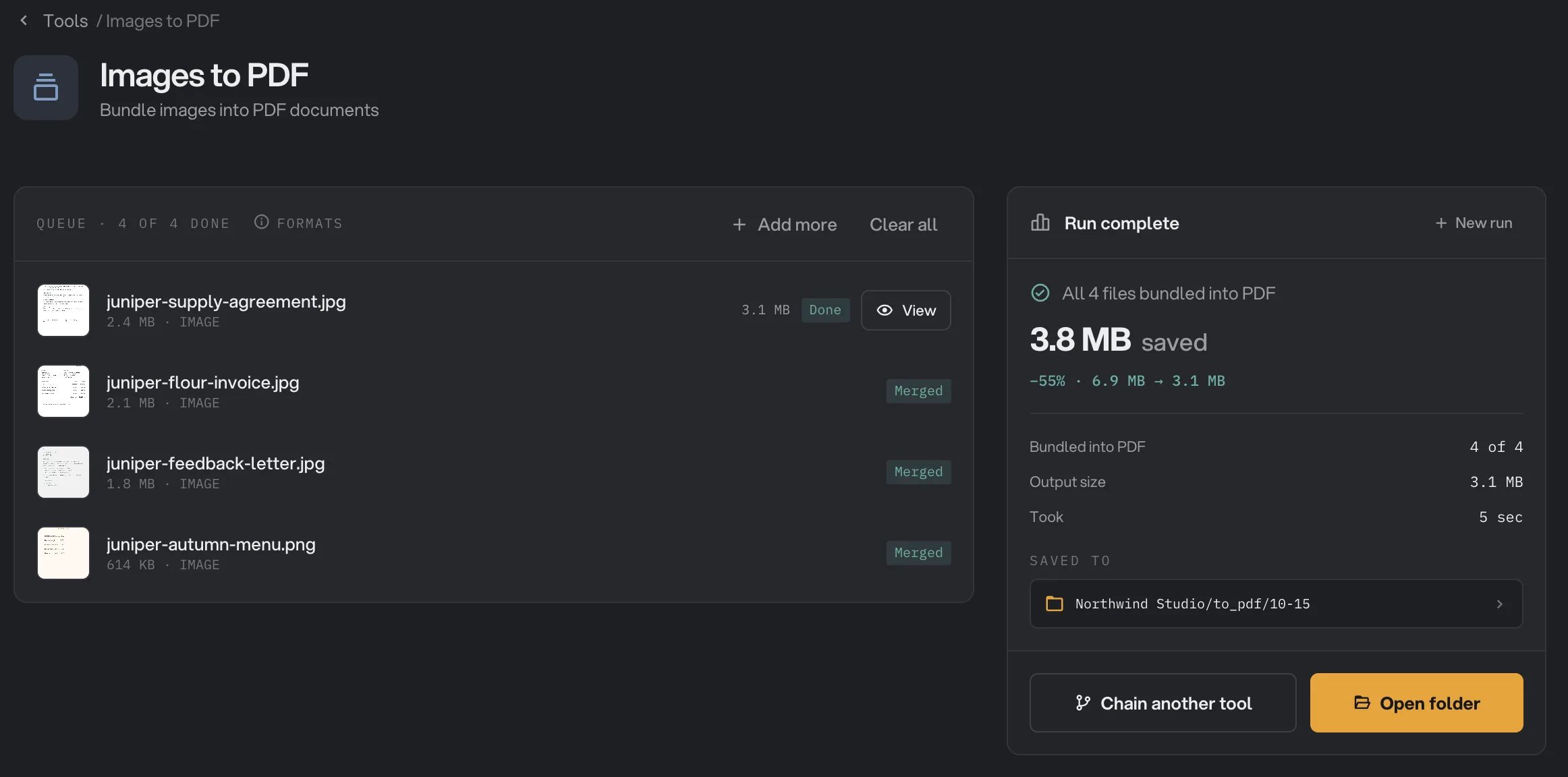
- Size of the PDF
- Merged
- Saved to
- Open folder
To keep going with the PDF, click Chain another tool and pick a next step, for example Compress to make it smaller. For more on the results window, see See and compare your results.
Every setting, and when to change it
Images to PDF has no presets. The same settings apply to the whole queue.
- Documents
How the images are bundled: one PDF per image, a new PDF every N images, or one PDF for all. With Every N, the last PDF takes the rest.
- RangeOne each, Every N (2 to 500 images, starts at 10), All in one
- DefaultOne each
- Page size
Auto makes each page the shape of its image. A4 and Letter center each image on a standard white page with even margins.
- RangeAuto, A4, Letter
- DefaultAuto
- Name
Shown with Every N and All in one. The name of the PDFs, numbered when there are several. With One each, every PDF is named after its image.
- RangeAny file name
- Defaultdocument
- Text language
The language of the text on the pages, so it can be searched and copied. English is built in; every other language is a one-time download.
- Range37 languages, several at once
- DefaultEnglish
How do I get a good-looking PDF?
- Put the images in order first. Drag the rows in the queue until the pages read the way you want.
- Crop away the table or desk around photographed pages, for example with Crop image. Sideways phone photos are fine: Hangar turns them upright using the orientation your camera saved.
- Use the full-size photos or scans. Small images look small on A4 or Letter pages, because they are never enlarged.
- Pick the page size for where the PDF is going: A4 or Letter to print or send, Auto to keep the images as they are.
- Tick the language of the text so search and copy work well.
Why does my PDF look wrong?
- The pages are in the wrong order. Pages follow the queue order. Drag the rows into place and run again, or reorder the pages afterwards with Organize pages.
- The pages are huge, or all different sizes. With Auto, each page takes the size of its image, counted at 300 DPI, so a 12-megapixel phone photo makes a page of about 10 × 13.4 inches. Choose A4 or Letter for even pages.
- An image is tiny in the middle of the page. On A4 and Letter, small images keep their size. Use a larger version of the image.
- A page is sideways. The photo was saved without the information that says which way is up. Turn it with Rotate and flip first.
- I got one PDF per image. Documents was on One each. Choose All in one or Every N.
- Search finds the wrong words, or none. The photo is blurry, small or at an angle, or the wrong language is ticked. Retake the photo straight on, or tick the right language and run again.
Troubleshooting
- Run convert is grayed out and the panel asks you to download a language. A ticked language is not downloaded yet. Click Download next to it, or untick it.
- Several rows failed with the same message. One image could not be used, so the whole PDF it belongs to was skipped. When the image could not be read or is too large, the message names it. Fix or remove it and run again. The other PDFs in the run are still made.
- An image is too large. Images over 80 megapixels are not accepted. Make it smaller first with Resize images.
- Hangar couldn't read an image. The file may be damaged or not really an image. Open it in another app and save it again as JPG or PNG.
- The run failed with an invalid output name. The Name has a character that file names cannot use, such as
/,:or?, or it is a name Windows keeps for itself, such asCON. Change the name and run again.
For other errors, see A file failed: what to check.
Limits
- Image files only. SVG and camera RAW files are not accepted.
- Images over 80 megapixels are not accepted.
- An animated GIF or WebP becomes a single still page.
- Page sizes are Auto, A4 and Letter. Margins are fixed at about 5 mm on A4 and Letter.
- Every N goes up to 500 images per PDF.
- There is no quality or compression setting. To make the PDF smaller, use Compress PDF afterwards.
- To get a separate text file of the words, use Image to PDF (called Image OCR in the app) or Extract text.
- Languages other than English need a one-time download before the first run. After that, everything runs on your computer and nothing is uploaded.
Common questions
Can I put all my images in one PDF?
Yes. Under Documents, choose All in one. Every image becomes a page, in the order of the queue. Drag the rows to change the order before you run.
Is the text in the PDF searchable?
Yes. Hangar reads the text on every image and adds it as an invisible layer, so you can search the PDF and select and copy the words. Pick the language of the text under Text language.
What is the difference between Images to PDF and Image to PDF?
Images to PDF bundles images into PDFs: one each, a set number per PDF, or all in one, on Auto, A4 or Letter pages. Image to PDF (called Image OCR in the app) makes one searchable PDF per image and can also save the text as a .txt file.
Will my photos be cropped or stretched?
No. With Auto, each page takes the exact shape of its image. With A4 or Letter, large images are scaled down to fit inside the margins and small ones keep their size. Nothing is cropped or enlarged.
What happens if one image cannot be read?
The PDF that image belongs to is not made, and its rows say why. The other PDFs in the run are still made. Fix or remove the image and run again.
Still stuck?
One person reads every message, usually with a reply within a day.