 Agencies and studios
 Photographers
 Podcasters
 Video and social creators
 Marketers and content teams
What does Trim audio do?
Trim audio cuts the parts of a recording you don’t want, on your own computer. Cut the start and end off a batch of voice memos, take the dead air out of a podcast take, add a smooth fade in and out, or cut words from a transcript. In the app the tool is called Trim Audio.
You can trim every file the same way with a start and end time, remove the silences from all of them at once, or open each file in the Studio and choose exactly what to keep. Each file gives one new file, in the same format where possible.
Step 1: Add your audio files
Click Tools in the sidebar, open the Audio tab and click Trim Audio in the Cut & join section. You can also type "trim" in the search box at the top.
Drop your audio files on the queue, or click it to pick files. Each row shows a small waveform and the file’s length. Use Add more to add files later.
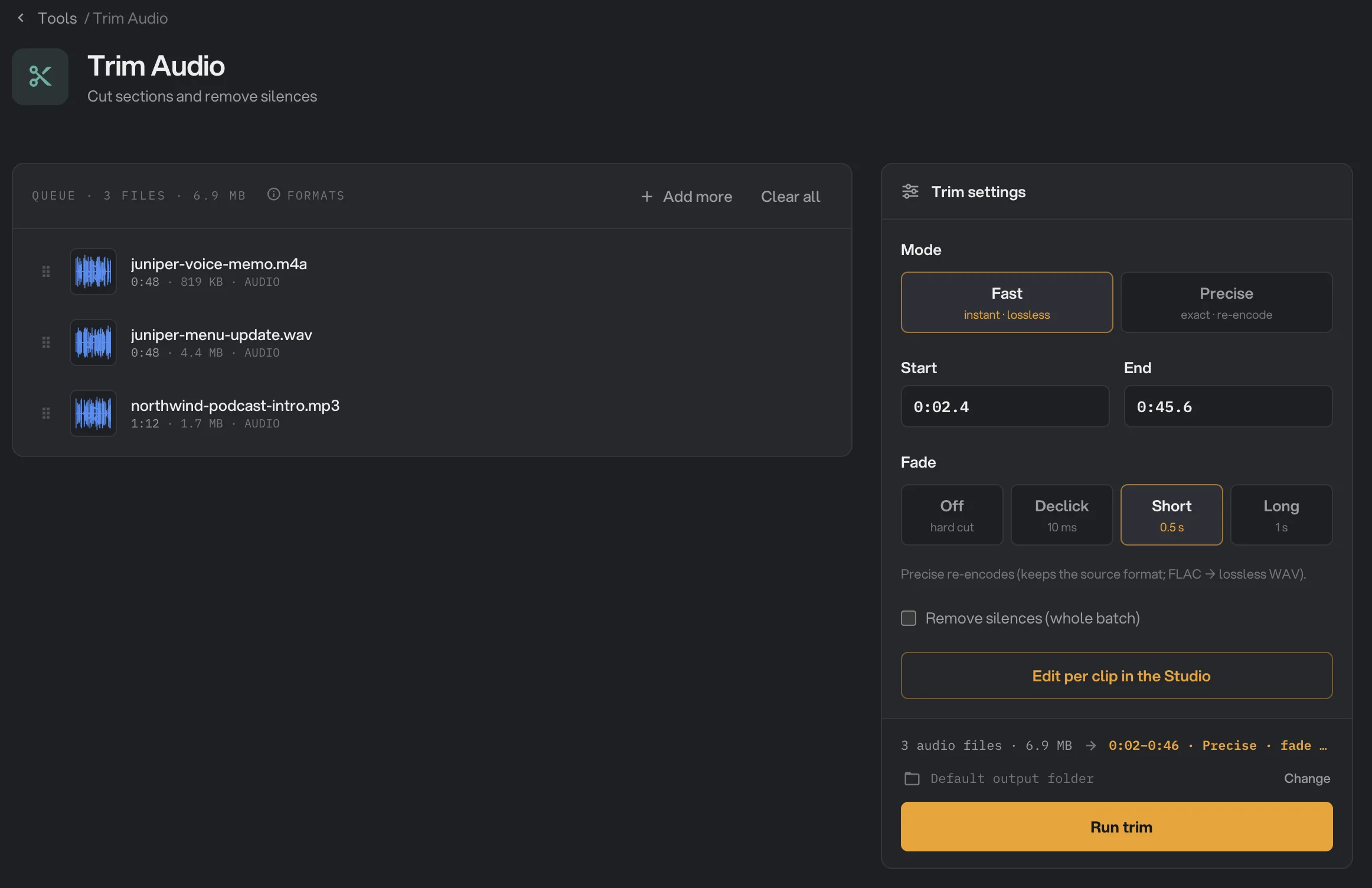
- Mode
- Start
- Fade
- Remove silences (whole batch)
- Edit per clip in the Studio
- Run trim
Step 2: Set the start, end and fade
These settings apply to every file in the queue.
- Type the Start and End as minutes and seconds (0:05), hours, minutes and seconds (1:02:30) or plain seconds (90). Leave Start empty to begin at the start, and End empty to go to the end. A box turns red when Hangar can’t read the time.
- Mode: Fast copies the part you keep with no quality loss. Precise re-encodes it in the same format.
- Fade fades the sound in at the start and out at the end: Declick (10 ms, just enough to remove a click), Short (0.5 seconds) or Long (1 second). Off is a hard cut. Any fade re-encodes the file, even with Fast selected; the line under the settings tells you which will happen.
Step 3: Remove the silences
Tick Remove silences (whole batch) to cut the quiet parts out of every file. Three settings appear:
- Sensitivity: Auto listens for speech and adapts to each file’s background noise. Gentle removes only clear silence, and Tight removes the most.
- Minimum pause is the shortest pause to remove. Shorter pauses stay.
- Edge padding keeps a little quiet around speech so words are not clipped.
With this box ticked, the Start and End boxes are ignored: Hangar looks at each whole file. The fade still applies. A file that is silent all through is kept whole.
Step 4: Fine-tune each file in the Studio
Click Edit per clip in the Studio. The Studio plays the file and shows its waveform on a timeline. Amber parts are kept and striped parts are removed. Use the arrows at the top to move between files.
- Drag the edges of an amber section to change where it starts or ends. Drag across a striped part to keep it too, and select a section and press Delete to remove it.
- In the Silence tab, turn on Remove silence to cut the pauses from this file only. Its own Sensitivity, Minimum pause and Edge padding start at Auto, 0.5 s and 0.12 s and don’t follow the panel. Each removed pause shows its length on the timeline: point at it and click + Keep to put it back.
- Under Fade, pick the fade for this file.
- In the Transcript tab, click Transcribe, then delete words or click Fillers to remove ums and repeated words. The first time, Hangar downloads its speech model (574 MB) and then runs it on your computer. See AI models.
Switch between Result and Source to hear the trimmed file or the original. Your changes are saved as you go; close the Studio when you are done.
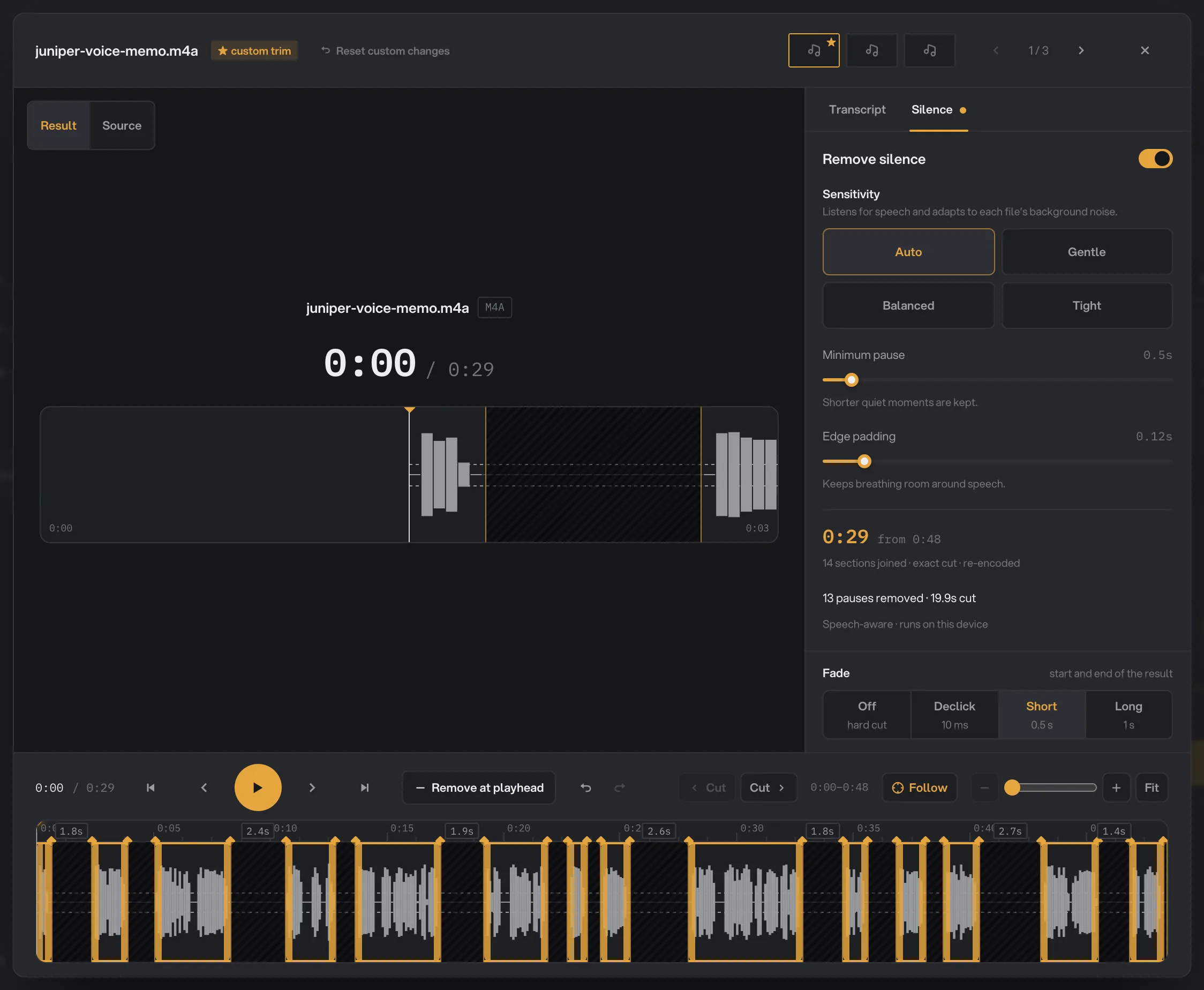
- juniper-voice-memo.m4a
- Silence
- Remove silence switch
- 14 sections joined
- Fade
- Close
A file you change in the Studio gets a ★ and keeps its own trim, even if you change the batch settings later. Click Reset custom changes to put it back on the batch settings. Studio changes last until you close Hangar. One kept part with no fade is copied with no quality loss. Anything else is re-encoded, in the same format where possible.
Step 5: Run, then check the result
Check where the files will go: Default output folder saves them in your workspace’s output folder, in a trim folder with a subfolder for today’s date, such as 10-15. Click Change to pick another folder for this run. Then click Run trim.
When the run ends, each file shows Done. Each new file keeps its name with -trim added, such as juniper-voice-memo-trim.m4a. Click View on a file to play it, and Open folder to go to the trimmed copies. See See and compare your results and Where your files are saved.
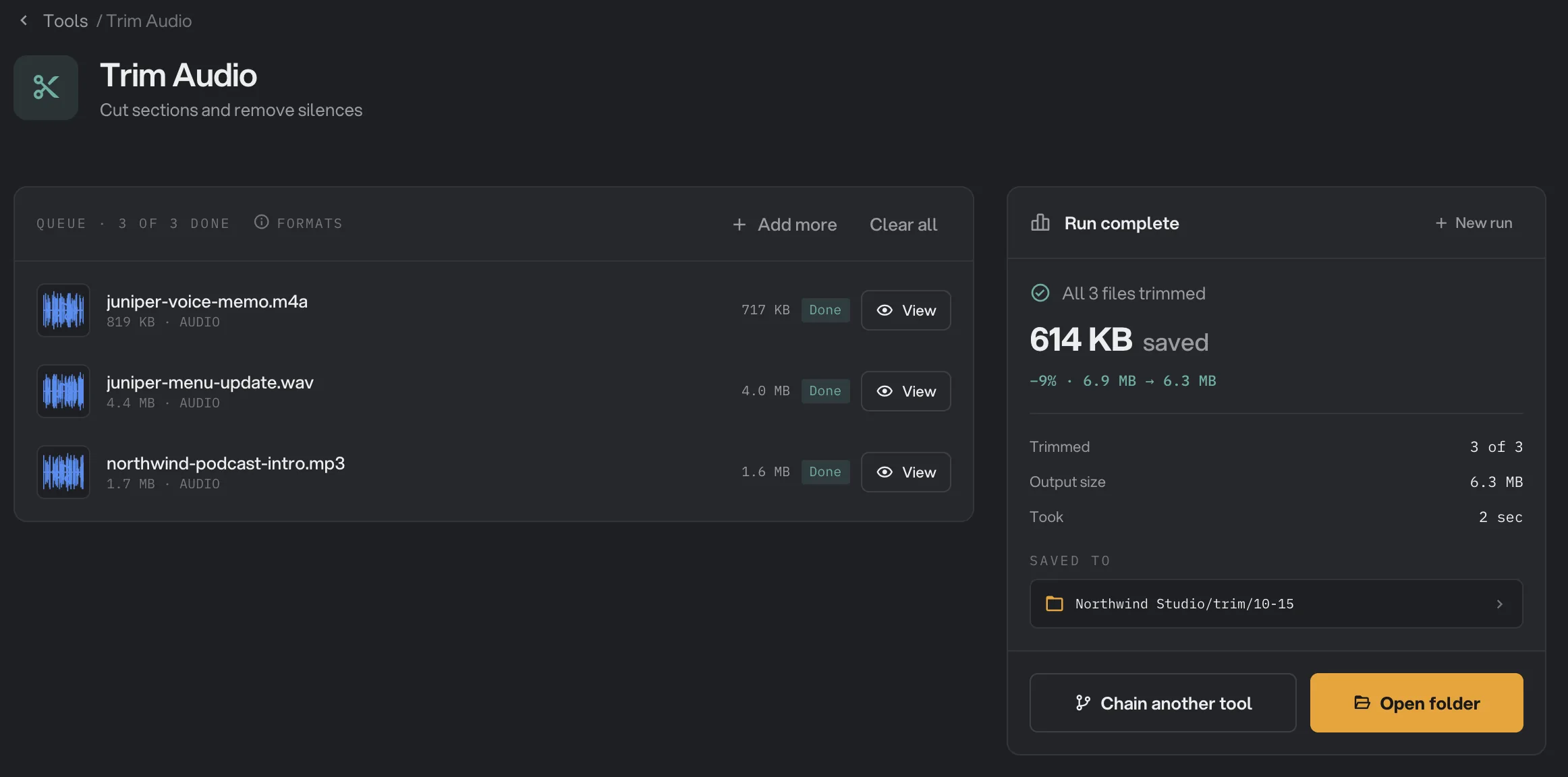
- Done
- View
- Saved to
- Open folder
Every setting, and when to change it
The silence settings appear only when Remove silences (whole batch) is ticked. The Studio has its own silence and fade settings for each file.
- Mode
Fast copies the kept part with no quality loss. Precise re-encodes it in the same format. A fade or silence removal always re-encodes.
- RangeFast, Precise
- DefaultFast
- Start
Where the kept part begins. Decimals work, such as 0:02.5.
- Rangem:ss, h:mm:ss or seconds
- DefaultEmpty (the start of the file)
- End
Where the kept part ends.
- Rangem:ss, h:mm:ss or seconds
- DefaultEmpty (the end of the file)
- Fade
Fades the sound in at the start and out at the end of the result, by the same amount.
- RangeOff, Declick (10 ms), Short (0.5 s), Long (1 s)
- DefaultOff
- Remove silences (whole batch)
Cuts the quiet parts out of every file that has no Studio changes. Start and End are ignored while it is on.
- DefaultOff
- Sensitivity
How quiet a part must be to count as silence. Auto listens for speech. Tight removes the most.
- RangeAuto, Gentle, Balanced, Tight
- DefaultAuto
- Minimum pause
The shortest quiet moment that is removed.
- Range0.1 to 5 seconds
- Default0.5 seconds
- Edge padding
Quiet time kept before and after each bit of speech.
- Range0 to 1 second
- Default0.12 seconds
How do I get the best results?
- To keep full quality, use Fast with Fade Off. The file is copied, not re-encoded, so nothing changes in the sound.
- For music or anything played back to back, use Declick or Short so the start and end don’t pop.
- For voice recordings, start with Remove silences on Auto. If words get clipped, raise Edge padding. If the result feels rushed, raise Minimum pause.
- Check one file first. Open it in the Studio, turn on Remove silence and listen to the Result before you run the batch.
- Keep FLAC files lossless. With Fast and no fade they stay FLAC. When they are re-encoded, they become lossless WAV files, which are larger.
Why does a result sound wrong?
- My Start and End were ignored. Remove silences (whole batch) was ticked. Untick it to trim by time.
- The whole file was kept. If the Start or End box was red, Hangar could not read the time and used the start or end of the file. With silence removal, the file may be silent all through, or have no pause that matches the settings.
- There is a click at the start or end. Use Fade Declick.
- Words are clipped. Raise Edge padding, or choose a gentler Sensitivity.
- My FLAC or AIFF file came out as WAV, or my OGG or WMA file as M4A. A fade, silence removal or Precise re-encodes the file, and these formats are saved as WAV or M4A. Use Fast with no fade to keep the original format.
- A file failed saying it has no audio track. Hangar found no sound it can read in that file. Check that it plays in another app.
For other errors, see A file failed: what to check.
Limits
- Trim Audio takes MP3, WAV, FLAC, AAC, OGG, Opus, M4A, AIFF, AIF and WMA files.
- Each file gives one file. Files with several kept parts are joined with a tiny fade at each join so they don’t click.
- When it re-encodes, MP3 stays MP3, AAC and M4A files are saved as M4A, Opus stays Opus, and FLAC, WAV and AIFF are saved as WAV. Most other formats, such as WMA, become M4A.
- Audio files open in the Studio from the panel button. There is no Adjust button on audio rows.
- Changes made in the Studio last until you close Hangar.
- Add audio files, not folders.
- Everything runs on your computer. Nothing is uploaded.
Common questions
Does trimming lower the sound quality?
Not with Fast and no fade. Fast copies the part you keep exactly as it is. A fade, silence removal, Precise, or a clip with several kept parts is re-encoded, in the same format where possible. FLAC becomes lossless WAV.
Can I remove the pauses from a voice recording?
Yes. Tick Remove silences (whole batch) and run, and Hangar cuts the quiet parts out of every file. To check one file first, open the Studio and turn on Remove silence in its Silence tab.
Why was my Start and End ignored?
Remove silences (whole batch) was ticked. It looks at the whole file and keeps every part with sound, so the Start and End boxes do not apply. Untick it, or trim that file in the Studio.
How do I avoid a click at the start or end?
Choose Declick under Fade. It adds a 10 millisecond fade at both ends, too short to hear but enough to remove the click. Short and Long fade in and out over half a second or one second.
Can I cut ums and repeated words out of a recording?
Yes, in the Studio. Open the Transcript tab, click Transcribe, then Fillers. The first time, Hangar downloads its speech model (574 MB). It runs on your computer, and nothing is uploaded.
Is my original file changed?
No. Hangar saves a new file with -trim added to the name, in your output folder, and leaves the original where it was.
Still stuck?
One person reads every message, usually with a reply within a day.