 Agencies and studios
 Photographers
 Podcasters
 Video and social creators
 Marketers and content teams
What does Transcribe do?
Transcribe turns speech in audio and video files into text, on your own computer. Make subtitle files for a video, a written record of an interview or a call, or text for show notes. It can also translate speech into English.
Transcribe uses a speech recognition model that you set up once for each mode. After that it works offline, and your recordings never leave your computer. Each file you add gives back one transcript with the same name.
Step 1: Add your recordings
Click Tools in the sidebar, open the Audio tab and click Transcribe in the Text section. You can also type "transcribe" in the search box at the top.
Drop your files on the queue, or click it to pick them. Transcribe takes audio files, such as MP3, WAV, FLAC, AAC, M4A, OGG, Opus, AIFF and WMA, and video files, such as MP4, MOV, MKV and WebM. For a video, it uses the sound. Each row shows the file’s length. Use Add more to add files later.
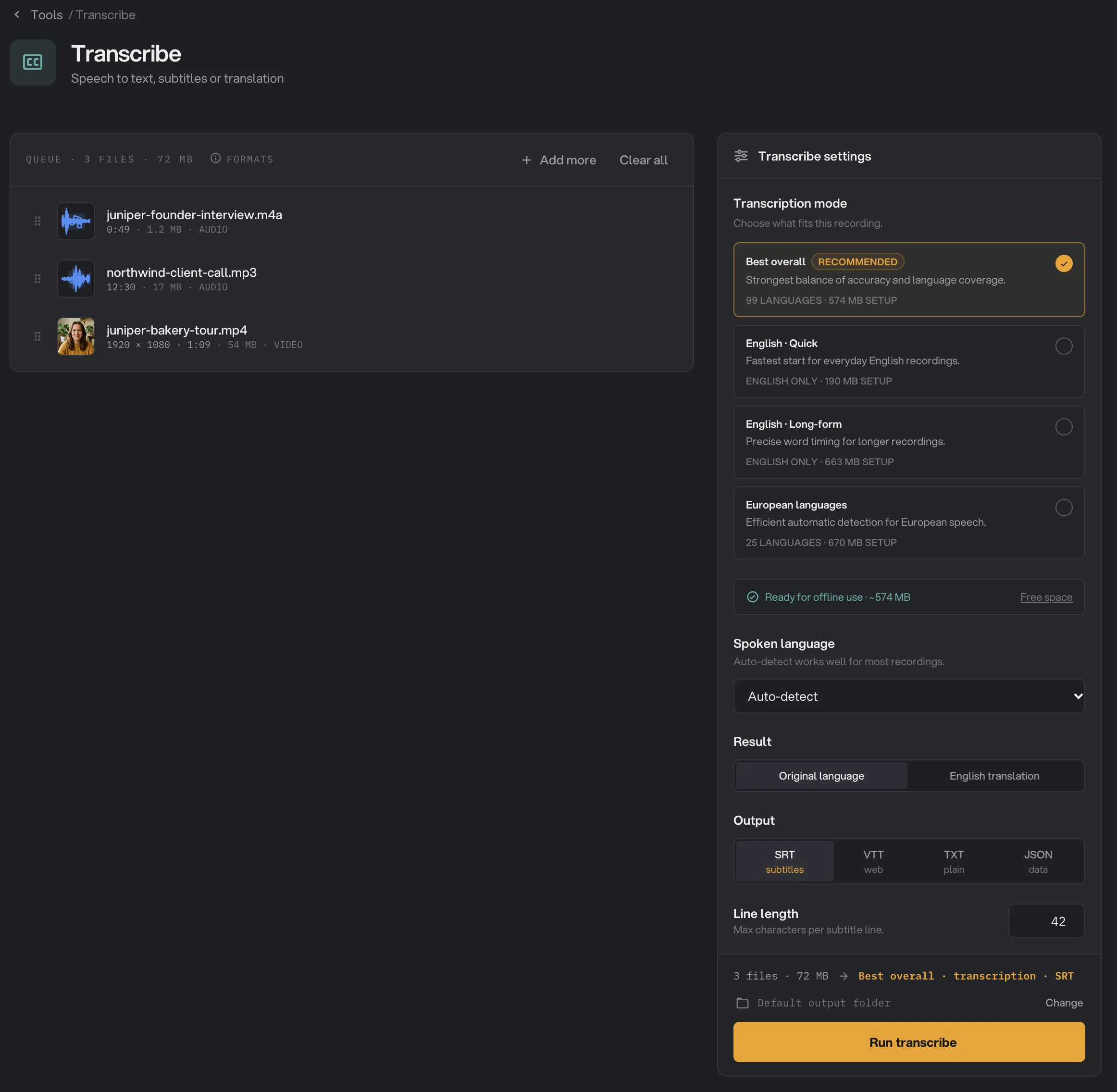
- Transcription mode
- Ready for offline use
- Spoken language
- Result
- Output
- Run transcribe
Step 2: Choose a transcription mode
Under Transcription mode, pick the card that fits the recording. Each card shows the languages it covers and the size of its one-time setup.
- Best overall is the recommended mode. It balances accuracy and language coverage, with 99 languages, and is the only mode that can translate. Setup is about 574 MB.
- English · Quick starts fastest and suits everyday English recordings. Setup is about 190 MB.
- English · Long-form gives precise word timing for longer English recordings, such as talks and interviews. Setup is about 663 MB.
- European languages detects and transcribes 25 European languages on its own. Setup is about 670 MB.
Step 3: Set up the mode once
The box under the cards shows whether the selected mode is ready. If it says One-time setup, click the Set up button, for example Set up English · Quick. Hangar downloads the mode’s speech recognition files and shows the progress. You can click Cancel to stop. When it reads Ready for offline use, the mode works without an internet connection.
Set up the mode before you run. Hangar will not start a run with a mode that is not set up yet. Each mode is set up separately. Video Captions uses the same setup, so a mode you set up here is ready there too. For more about downloads, see AI models: what downloads and when.
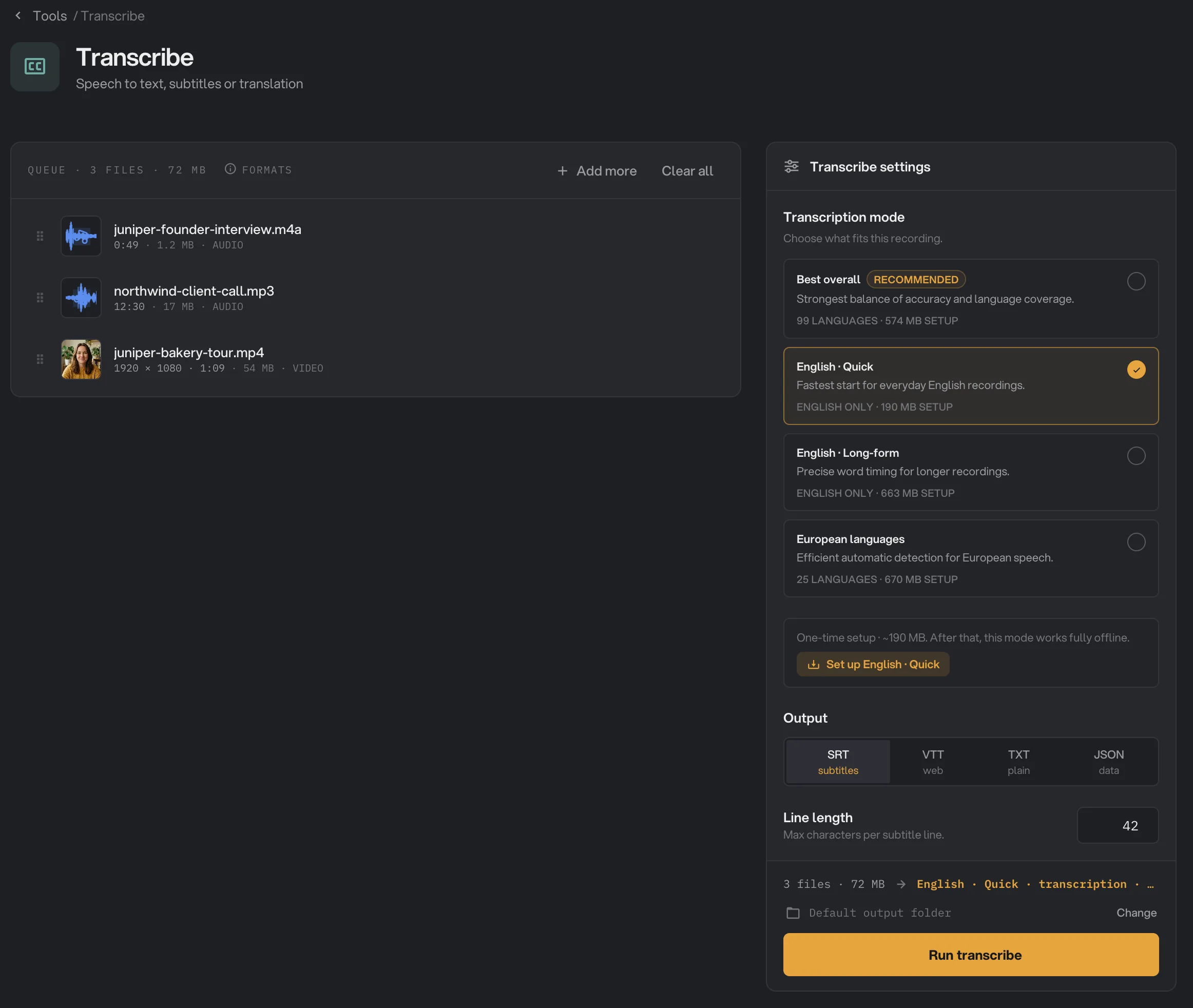
- English · Quick
- One-time setup
- Set up English · Quick
Step 4: Pick the language and output
With Best overall, two more choices appear:
- Spoken language: leave it on Auto-detect, which works well for most recordings, or pick English, Spanish, French, German, Italian, Portuguese, Dutch or Polish if you know the language.
- Result: Original language writes what is said. English translation writes it in English.
Then pick the Output:
- SRT is a subtitle file that most video players and editors accept. It is the default.
- VTT is a subtitle file for video on the web.
- TXT is plain text, one line per phrase, with no times. Use it for notes and articles.
- JSON holds every phrase and word with its timing, for your own tools.
For SRT and VTT, Line length sets the most characters on one subtitle line, from 20 to 120. The default is 42.
Step 5: Run, then check the result
Check where the files will go: Default output folder saves them in your workspace’s output folder, in a transcribe folder with a subfolder for today’s date, such as 10-15. Click Change to pick another folder for this run. Then click Run transcribe.
Transcription takes a while for long recordings. When the run ends, each file shows Done. Click View on a row to read the transcript, and Open folder to go to the files. Each transcript has the recording’s name with a new extension, such as .srt. The panel reports a large amount saved, because a transcript is a small text file. Your recordings are not changed or deleted. See Where your files are saved.
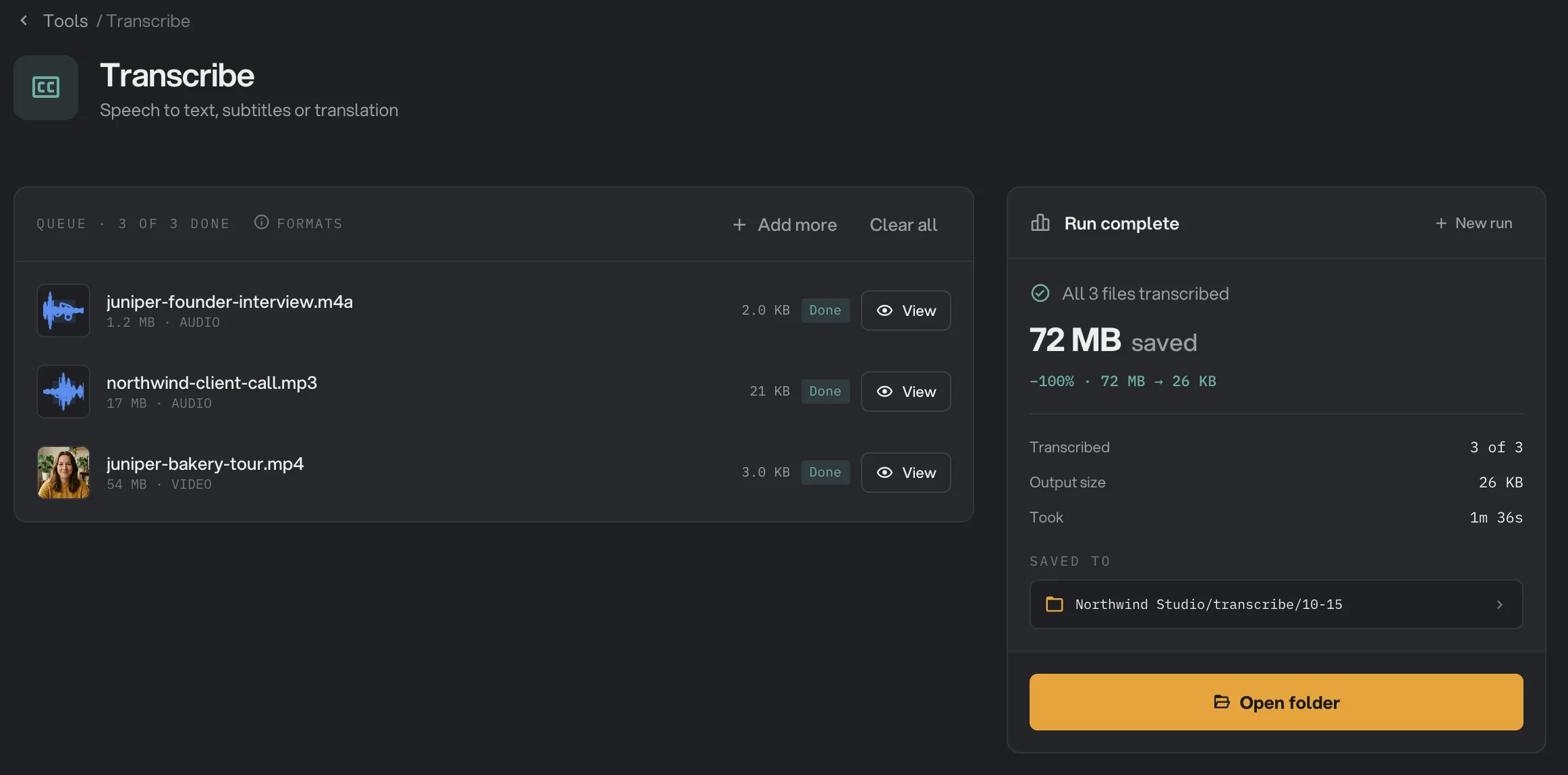
- Done
- View
- Saved to
- Open folder
Every setting, and when to change it
Spoken language and Result only appear with Best overall. Line length only appears for SRT and VTT. Choosing a mode sets Result back to Original language.
- Transcription mode
Which speech recognition to use. Each mode needs a one-time setup, from about 190 MB to 670 MB.
- RangeBest overall, English · Quick, English · Long-form, European languages
- DefaultBest overall
- Spoken language
The language spoken in the recording. Picking it can help when detection guesses wrong. Best overall only.
- RangeAuto-detect, English, Spanish, French, German, Italian, Portuguese, Dutch, Polish
- DefaultAuto-detect
- Result
Write what is said, or translate it into English. Best overall only.
- RangeOriginal language, English translation
- DefaultOriginal language
- Output
The kind of file to make: subtitles, web subtitles, plain text or data with word timing.
- RangeSRT, VTT, TXT, JSON
- DefaultSRT
- Line length
The most characters on one subtitle line. SRT and VTT only.
- Range20 to 120 characters
- Default42
How do I get the best results?
- Start with clear sound. A close microphone and little background noise or music give the best text.
- Pick the right mode. Use Best overall unless the recording is all English and you want speed (English · Quick) or precise timing on a long recording (English · Long-form).
- Set the language if Auto-detect picks the wrong one, for example for a short clip or a strong accent.
- For subtitles on a phone screen, lower Line length to about 32 so lines stay short.
- To put the words on a video, use Video Captions, which transcribes the video and burns animated captions into it.
Why does a result disappoint?
- The run will not start and says the mode needs a download. The selected mode is not set up yet. Click its Set up button, wait until it is ready, then run again.
- The text is in the wrong language or garbled. Set Spoken language instead of Auto-detect, or try Best overall if you used another mode. English modes always write English.
- Words are missing or wrong. Noise, music or several people talking at once make speech harder to recognize. Try Best overall, or clean up the sound first.
- A file failed with a message that it has no audio track. The file has no sound to transcribe.
- A run with Best overall failed with a message about graphics acceleration. Follow the message: for English, choose English · Quick and run again. For other languages, restart Hangar and try again. If it still fails, open Help and send your diagnostics.
- Setup did not finish. Check your internet connection and free disk space, then click Try again.
For other errors, see A file failed: what to check.
Limits
- Each mode needs a one-time download before its first run. After that it works offline.
- Translation goes into English only, and only with Best overall.
- Speakers are not labeled.
- Add audio or video files, not folders.
- Everything runs on your computer. Nothing is uploaded.
Common questions
Does my recording leave my computer?
No. Transcribe runs on your own computer. Only the one-time setup for a mode downloads files. After that, the mode works offline and your recordings are never uploaded.
Which mode should I choose?
Best overall suits most recordings and covers 99 languages. Pick English · Quick for fast results on everyday English, English · Long-form for long English talks and interviews, and European languages for speech in European languages.
Can it translate a recording into English?
Yes. With Best overall, set Result to English translation. The transcript is written in English whatever language is spoken. Translation is only offered with Best overall.
Can I transcribe a video?
Yes. Add the video file. Transcribe uses its sound and writes the transcript, for example an SRT subtitle file for the video. To put the words on the picture, use Video Captions.
Does it label who is speaking?
No. Transcribe writes what is said with timing, but it does not tell speakers apart.
How do I free up disk space?
Select the mode and click Free space in its setup box. That removes the mode’s files from your computer. You can set it up again later.
Still stuck?
One person reads every message, usually with a reply within a day.