 Agencies and studios
 Photographers
 Podcasters
 Video and social creators
 Marketers and content teams
What does Fonts do?
Fonts lets you look at a font properly before you commit to it. Every family is drawn in its own letters, in your own words, so you can choose without installing anything. You can compare up to six families side by side, try a heading font over a body font, look through every glyph, read the font’s license, convert it to WOFF2, WOFF, TTF or OTF, and save a specimen PDF to share or print.
Everything runs on your computer, and the only part that downloads anything is the optional Google Fonts tab, which stays off until you turn it on.
Step 1: Open Fonts and add your fonts
Click Tools in the sidebar, open the Create tab and click Fonts in the From scratch section. You can also type "fonts" in the search box at the top.
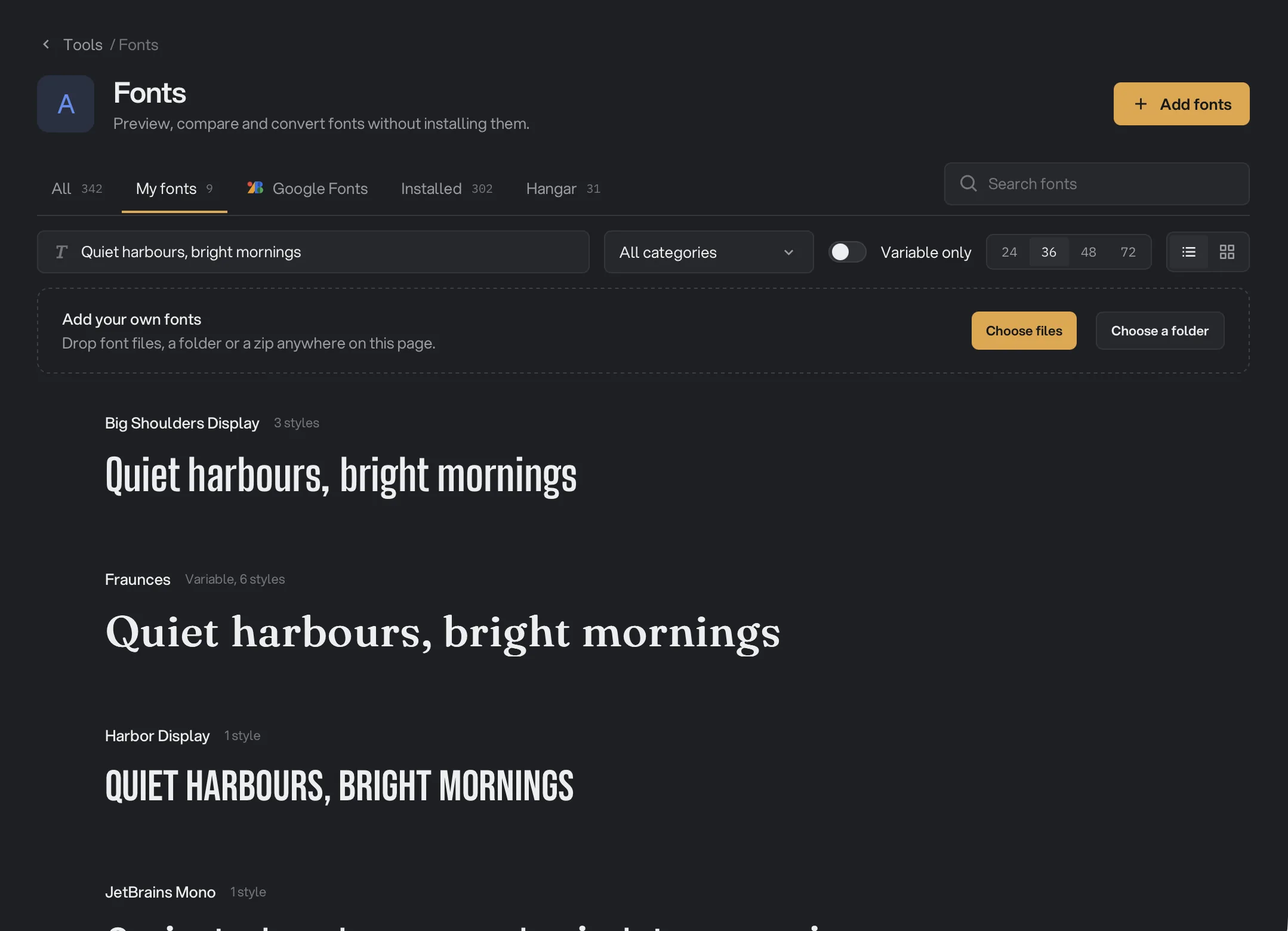
- Add fonts
- Tabs by source
- Search fonts
- Sample text
- Variable only
- List or Grid
The fonts already on your computer are listed for you. To add your own, click Add fonts at the top right and pick Choose files… or Choose a folder…, or drop font files, a folder or a zip anywhere on the page. While your library is empty, the All and My fonts tabs also show both choices at the top of the list. Font files you drop on the Tools screen go to Fonts too.
Fonts reads TTF, OTF, TTC, OTC, WOFF and WOFF2 files, and any zip you choose or drop, including the zip you get from the Google Fonts website. Hangar copies each font into its own library, so moving or deleting the original later does no harm.
A banner says what happened: how many styles were added, how many files were already in your library, which could not be read and why, and how many other files were ignored. It names the first four files that could not be read, then counts the rest. To end an import early, click Stop. Anything already added stays. New fonts are marked New and come in selected, ready to compare.
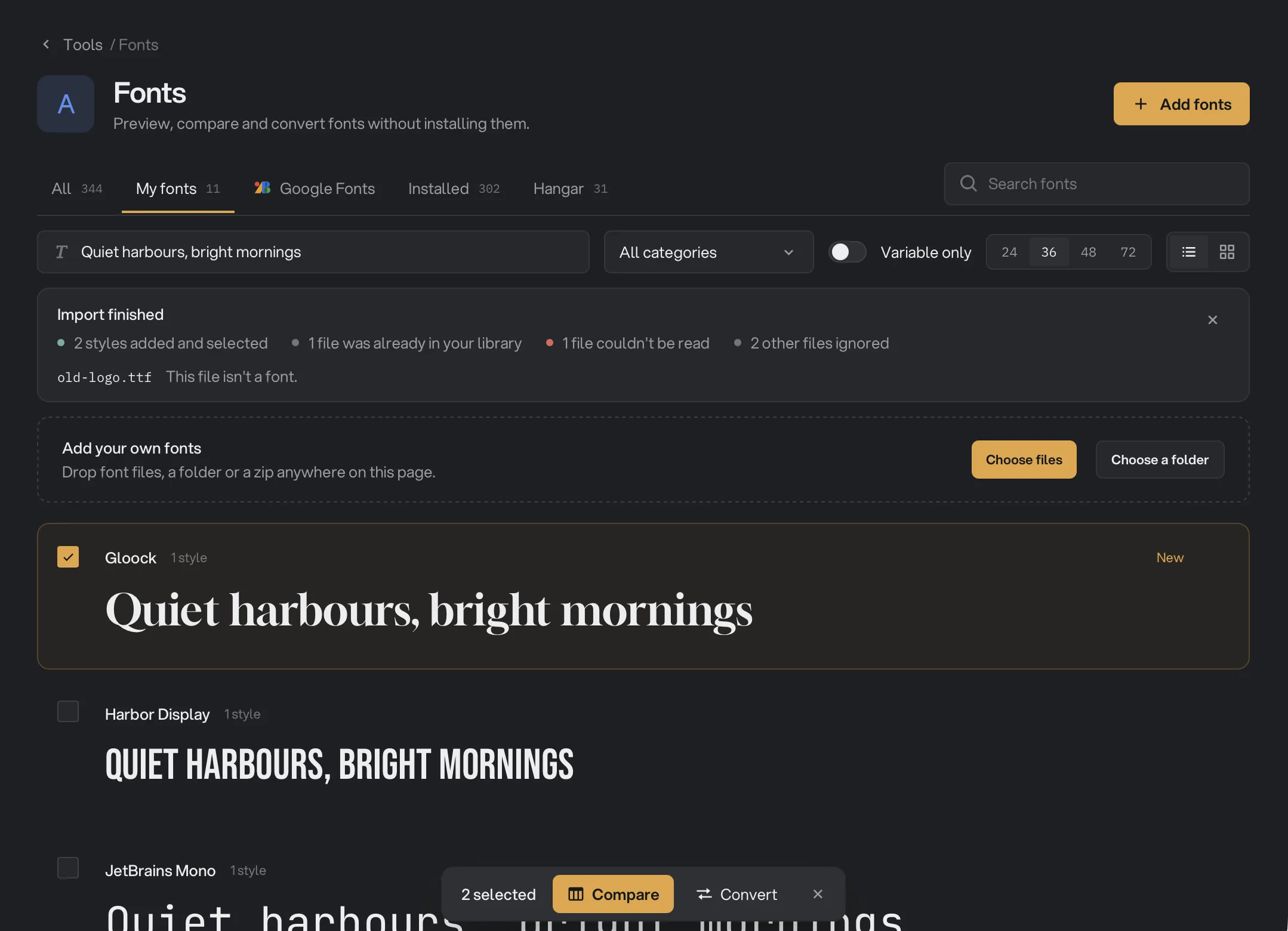
- What the import did
- New fonts
Step 2: Browse and search
Five tabs sort your fonts by where they come from:
- All: every font on this computer. Google’s full list stays on its own tab, so a search here only finds what you have.
- My fonts: the fonts you added to Hangar.
- Google Fonts: the optional free font list. See Google Fonts.
- Installed: the fonts installed on your computer. Hangar reads them the first time you open Fonts.
- Hangar: the fonts that come with Hangar.
Each row shows a short sample in the font. A font made for another script, such as Amharic, Arabic, Thai or Khmer, shows its sample in that script, so the row only shows letters the font really has. A font of icons or symbols shows a few of its own characters.
Above the list, type in the sample text box to see every family in your own words. Search fonts filters by name. The category menu narrows the list to Serif, Sans serif, Monospace, Display or Handwriting, and Variable only keeps fonts with adjustable axes, such as weight or width. Set the preview size to 24, 36, 48 or 72, and switch between a List and a Grid.
Click a family’s name or double-click its row to inspect it. Click anywhere else on the row to select it, or tick the box that appears when you hover over it. A bar appears at the bottom with Compare, Convert and Specimen PDF. The ⋯ button on a row or card has Inspect, Add to compare, Convert… and Export specimen PDF…. Installed fonts and your own fonts also have Show in Finder (Show in Explorer on Windows). For your own fonts, that opens Hangar’s copy, not your original. Your own fonts also have Remove from library.
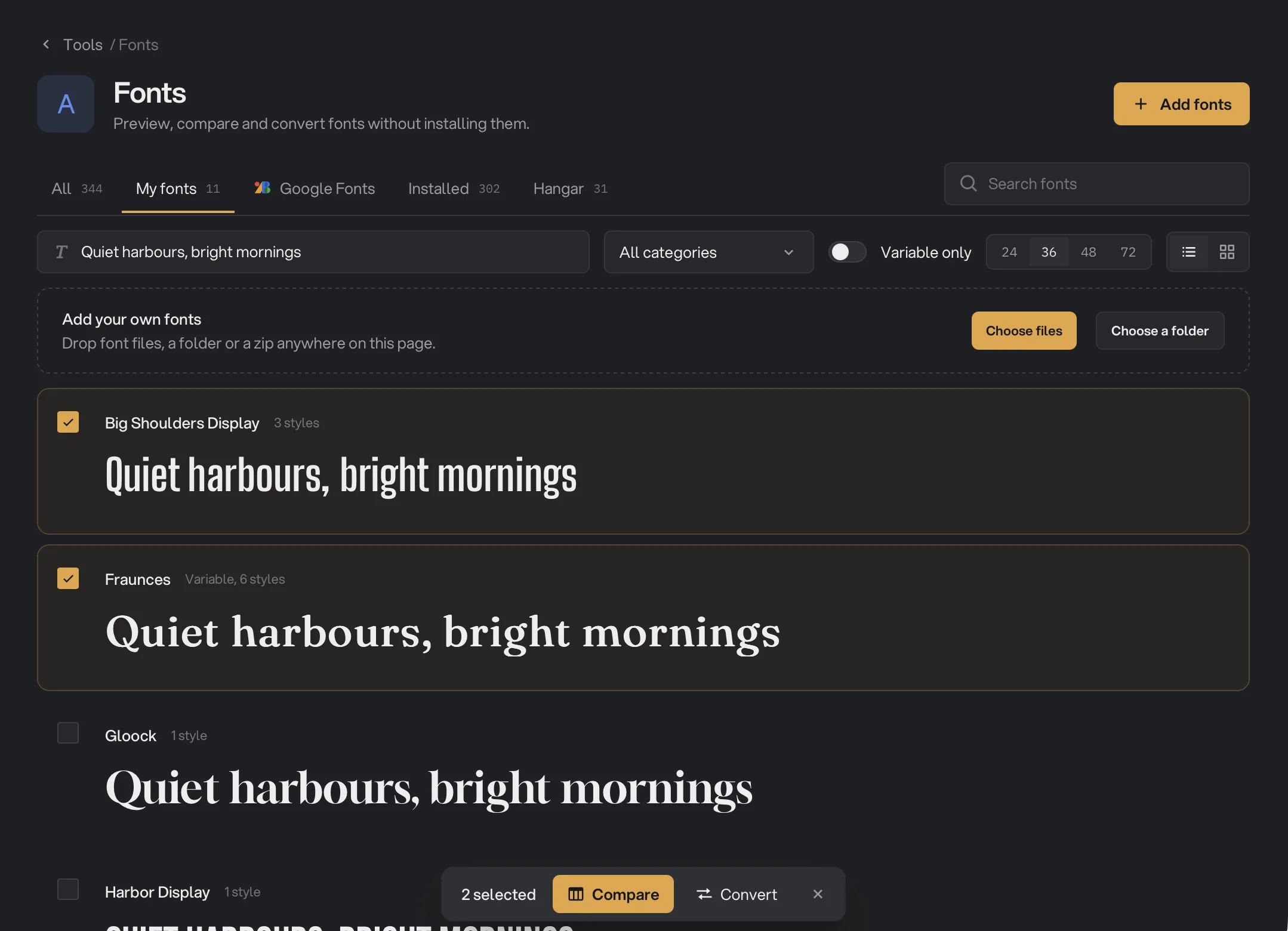
- Selected families
- Compare and Convert
If a search finds nothing on this computer, Fonts tells you how many Google families match and offers to show them. If Google Fonts is off, the button reads Turn on Google Fonts, and clicking it turns the tab on. That count comes from a list inside the app, so it does not go online.
Fonts remembers the Browse and Compare views for each workspace. Your search and anything open in Inspect start fresh.
Step 3: Compare fonts side by side
Select 2 to 6 families and click Compare, or use Add to compare on one family at a time. Pick a layout at the top right:
- Grid: one card per family. Type in any card to change the text in all of them.
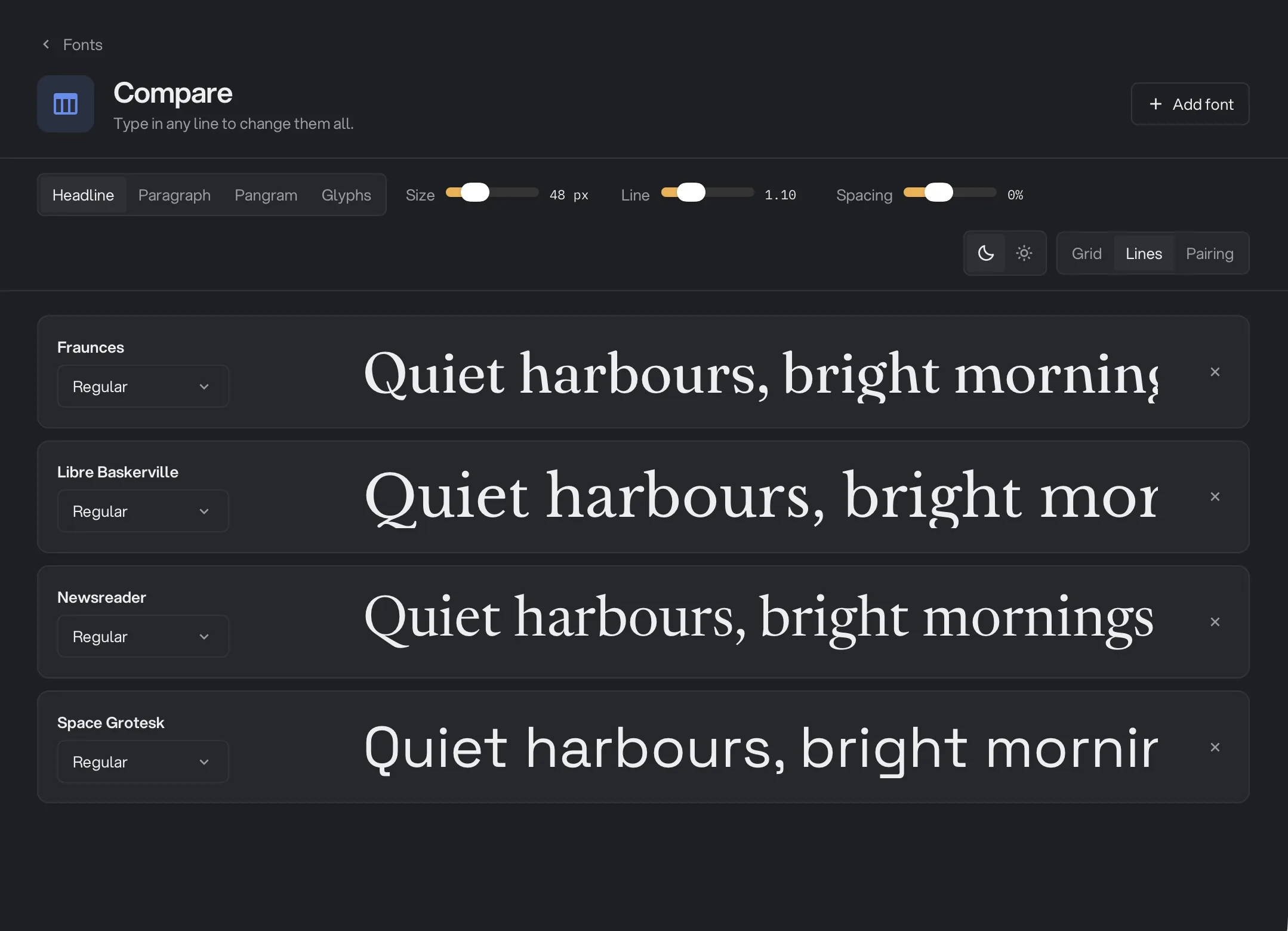
- Lines: one line per family, for judging the same words stacked up. Type in any line to change them all.
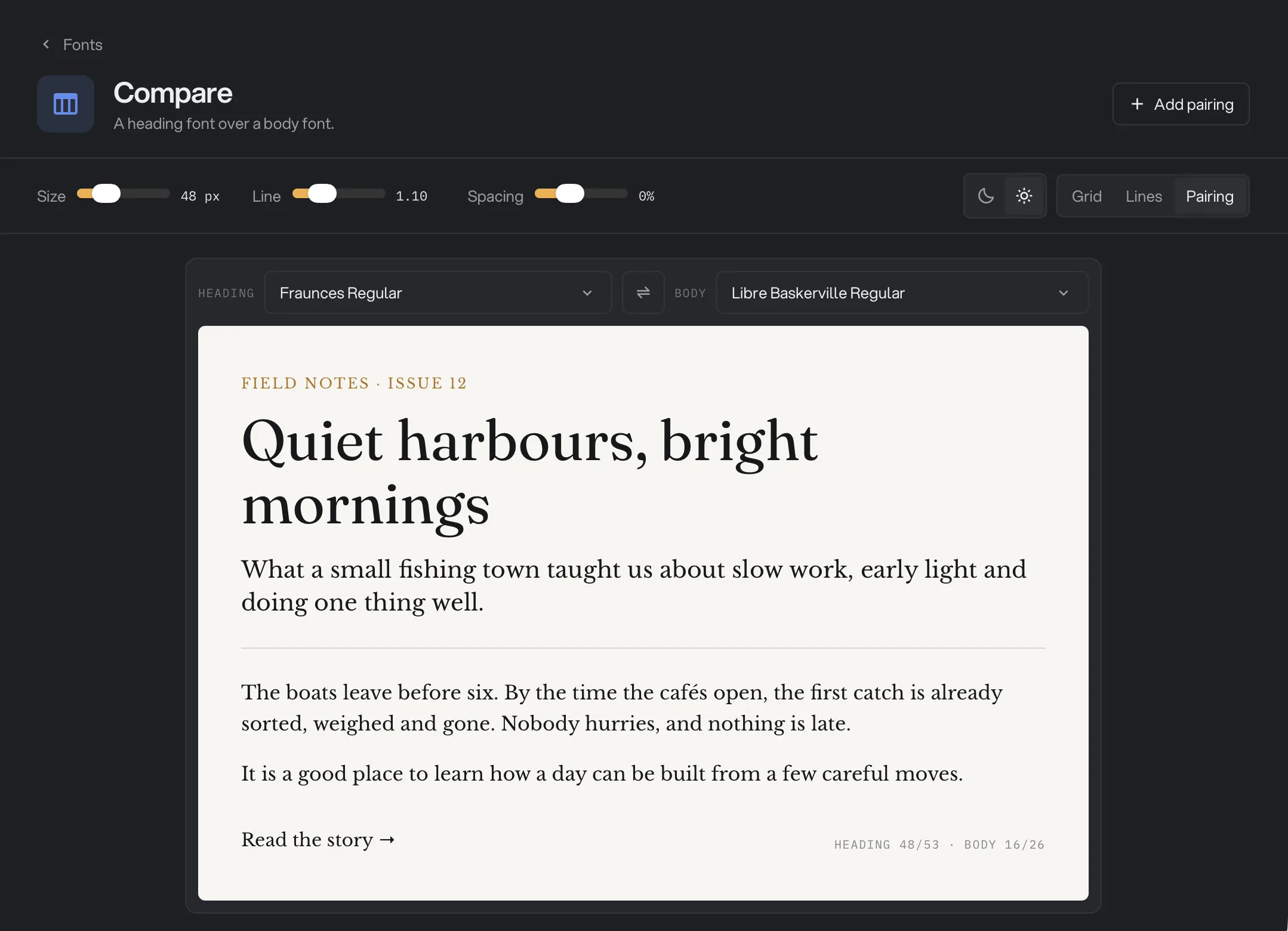
- Pairing: a heading font over a body font on a sample article page. Choose each font from its menu, or use the swap button to trade them. Add pairing sets another pair beside it, and each extra pairing has its own remove button. Pairing opens on a light page, like a printed article.
In Grid and Lines, the text buttons give you a Headline, a Paragraph, a Pangram (a sentence that uses every letter) or Glyphs. Size, Line and Spacing apply to every font at once. In Pairing they change the heading only, and the body stays at a fixed size. The sun and moon buttons set a light or dark page.
Every family has its own style menu. In Grid, each card also has any axis sliders a variable font has, and buttons for features the font offers, such as Ligatures. Pairing uses each family’s style and features, but not its moved sliders. In Grid and Lines, × removes a family, and Add font searches My fonts, Installed and Hangar, plus any Google family you have opened. It stops at six families, so remove one to make room. Click a family’s name to inspect it.
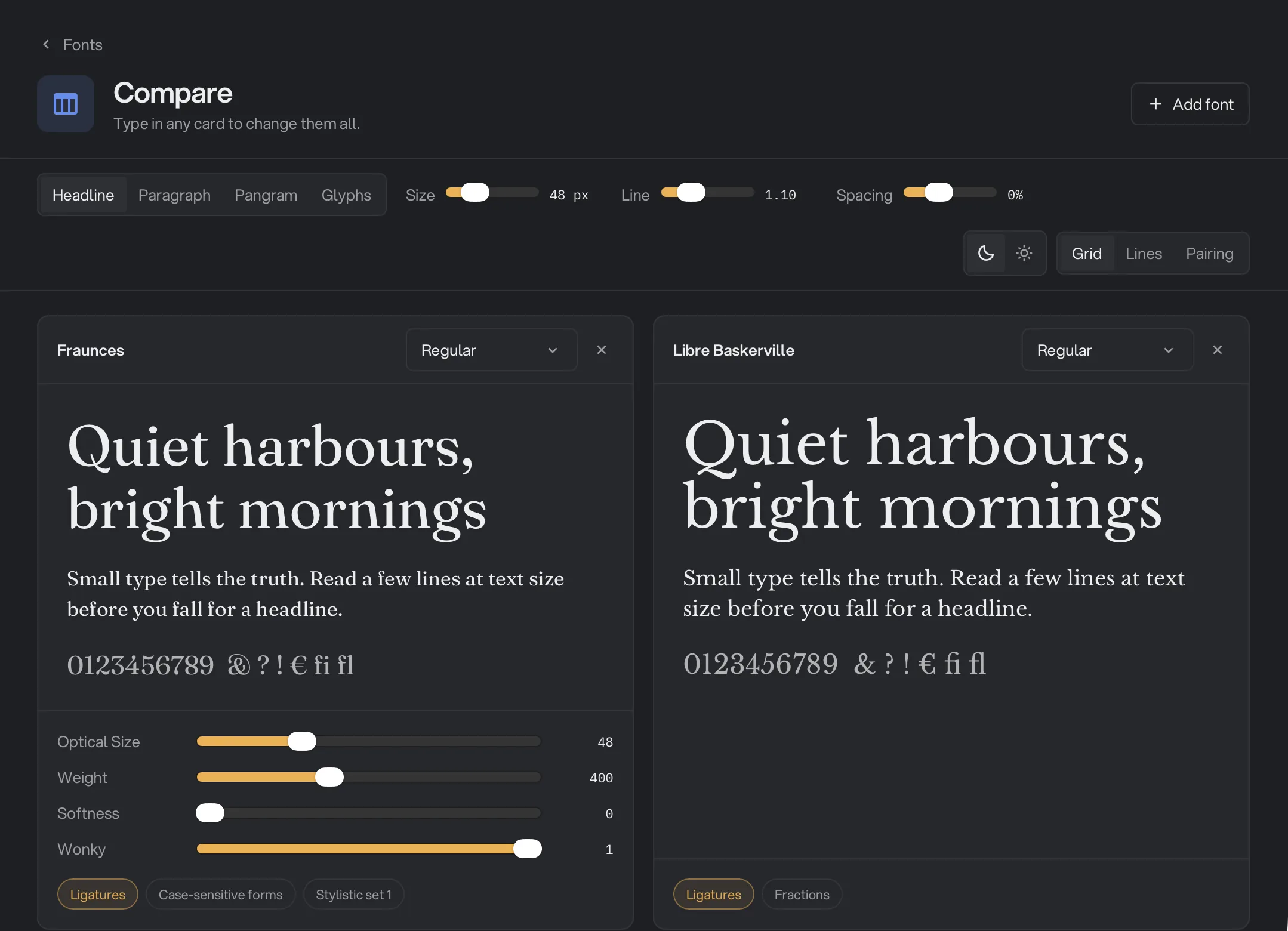
- Add font
- Text buttons
- Layout
- Axis sliders for this family
- Features for this family
- Add pairing
- Heading font
- Body font
Step 4: Inspect one family
Click a family’s name to open it. If you came from Browse, previous and next buttons at the top right walk through that list, or press ⌘[ and ⌘] (Ctrl+[ and Ctrl+] on Windows). Press Esc to go back. Four tabs show the font in different ways:
- The four tabs
- Metrics
- Style and sizes
- Axes
- Copy CSS
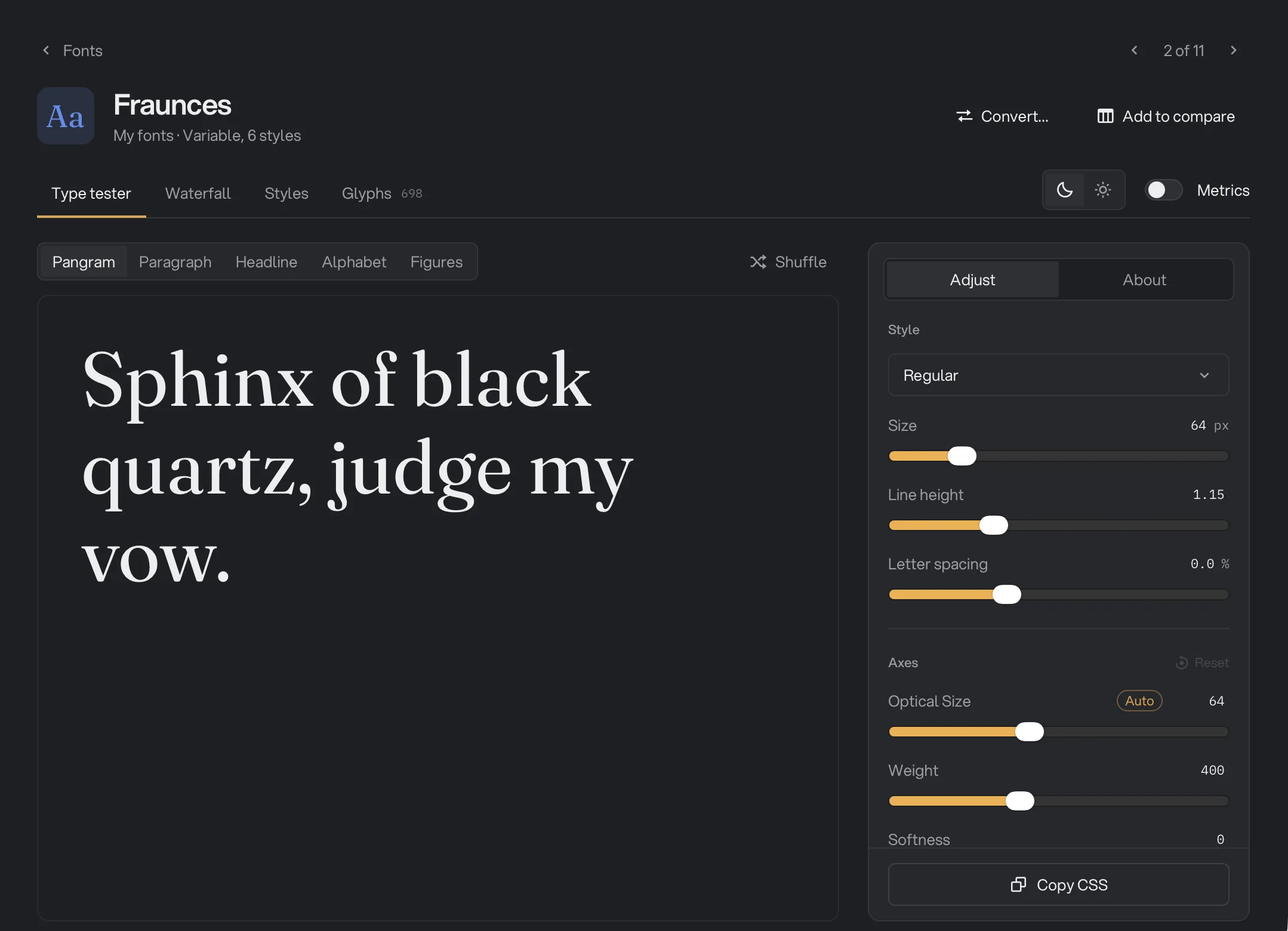
- Type tester: click the text and type your own, or start from Pangram, Paragraph, Headline, Alphabet or Figures. It opens on Pangram. Headline shows the font at the lengths a heading comes in, in four rows you can edit: One word, A title, A long title and In capitals. If you typed your own sample text on the Browse screen, the first family you open starts on Headline with your words in the A title row. Shuffle swaps in another sentence that uses every letter on Pangram, and all four rows on Headline. Turn on Metrics to draw the baseline, x-height, cap height, ascender and descender over the first line.
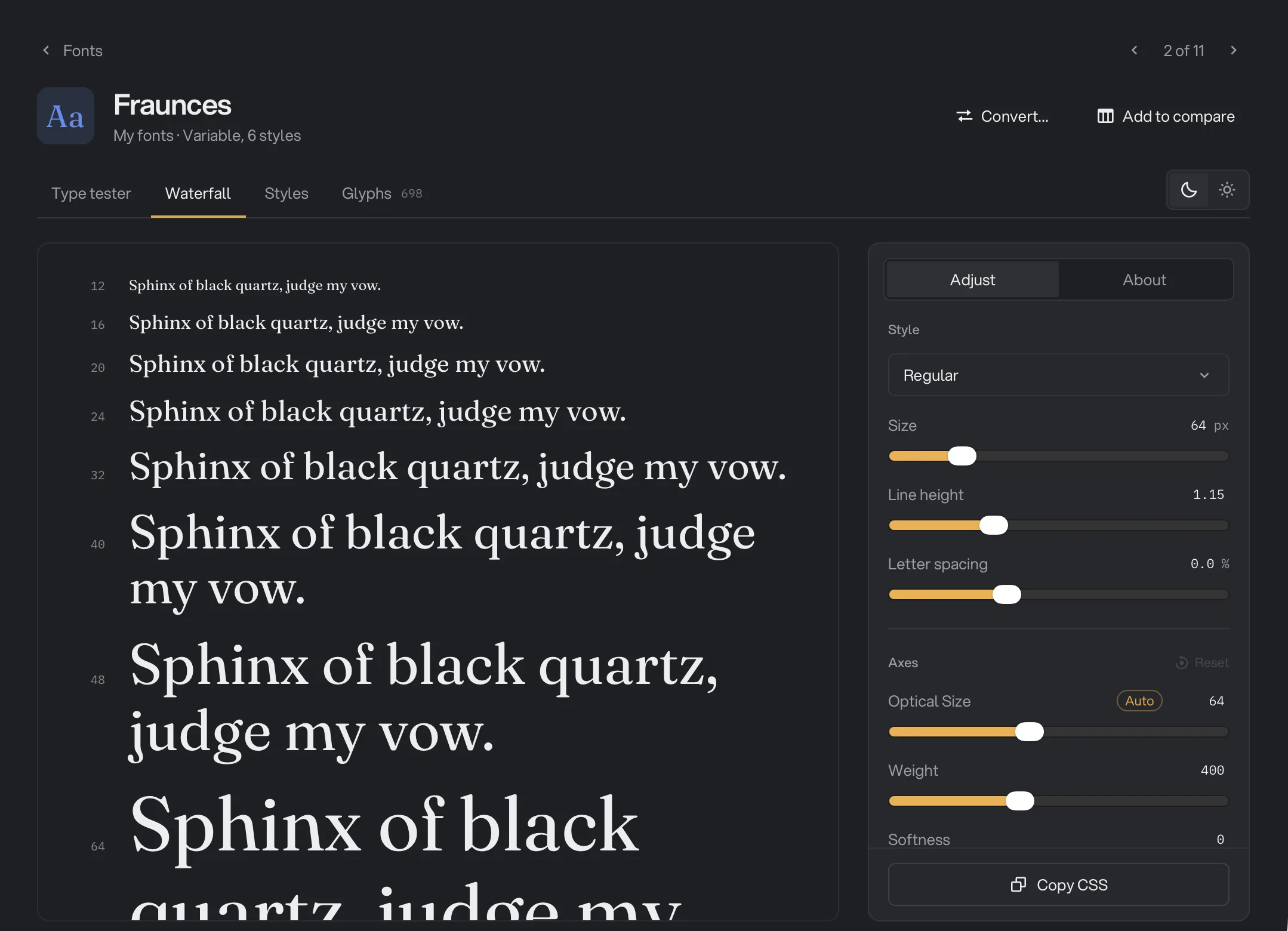
- Waterfall: the first paragraph of your text, or the A title row on Headline, at ten sizes, from 12 to 96 px, so you can see where it stops reading well.
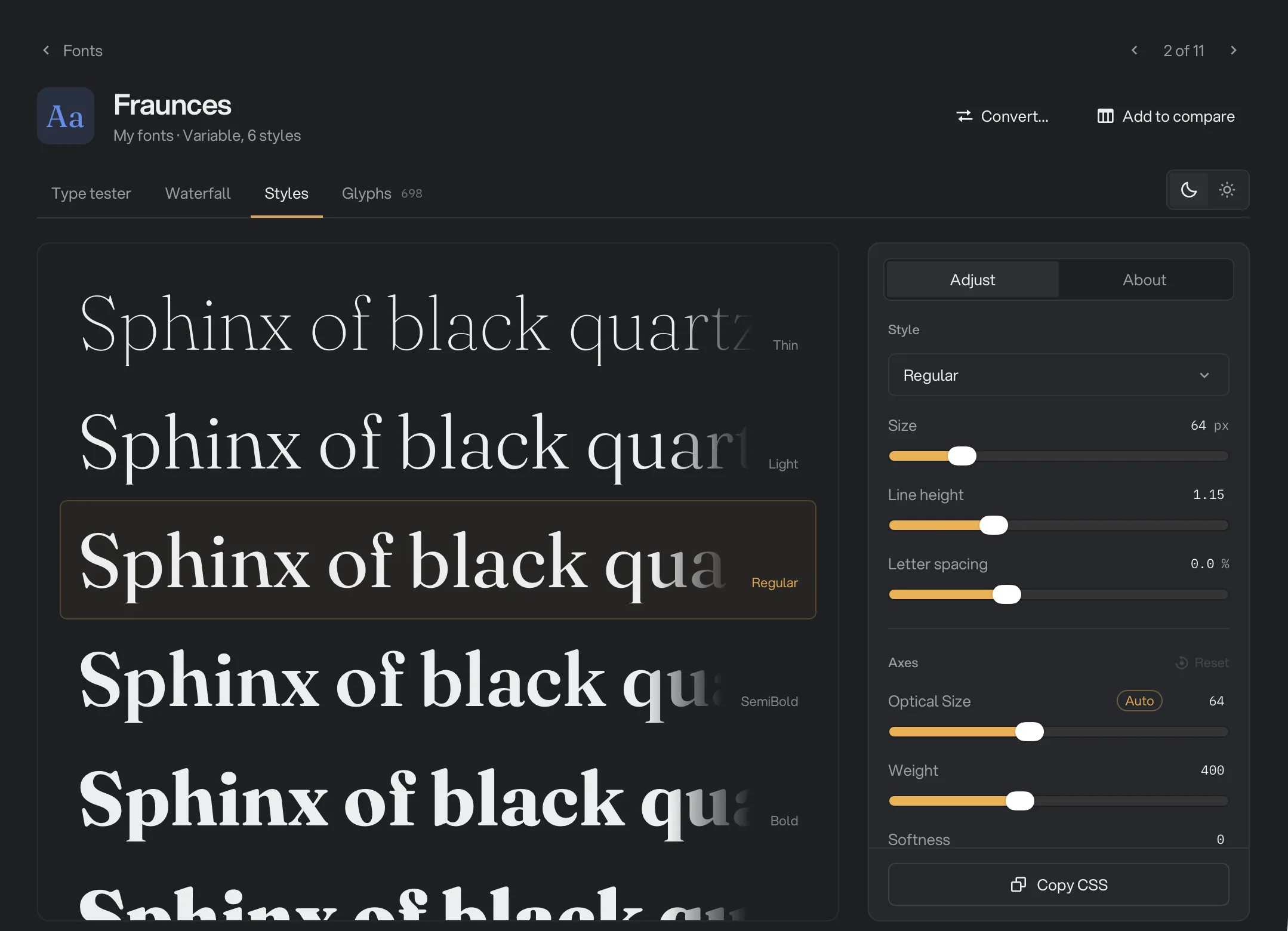
- Styles: every style of the family in your text, or in the A title row on Headline. Click one to make it the current style.
- Glyphs: every character the font draws, in groups such as Basic Latin. Search by name or type a character, and filter by Letters, Numbers, Punctuation or Symbols. Glyphs that draw nothing, such as spaces, stay hidden until you search for one. Click a glyph to see it large in the panel on the right, with its name, code, width, the styles that have it and any alternates. Copy character puts it on your clipboard.
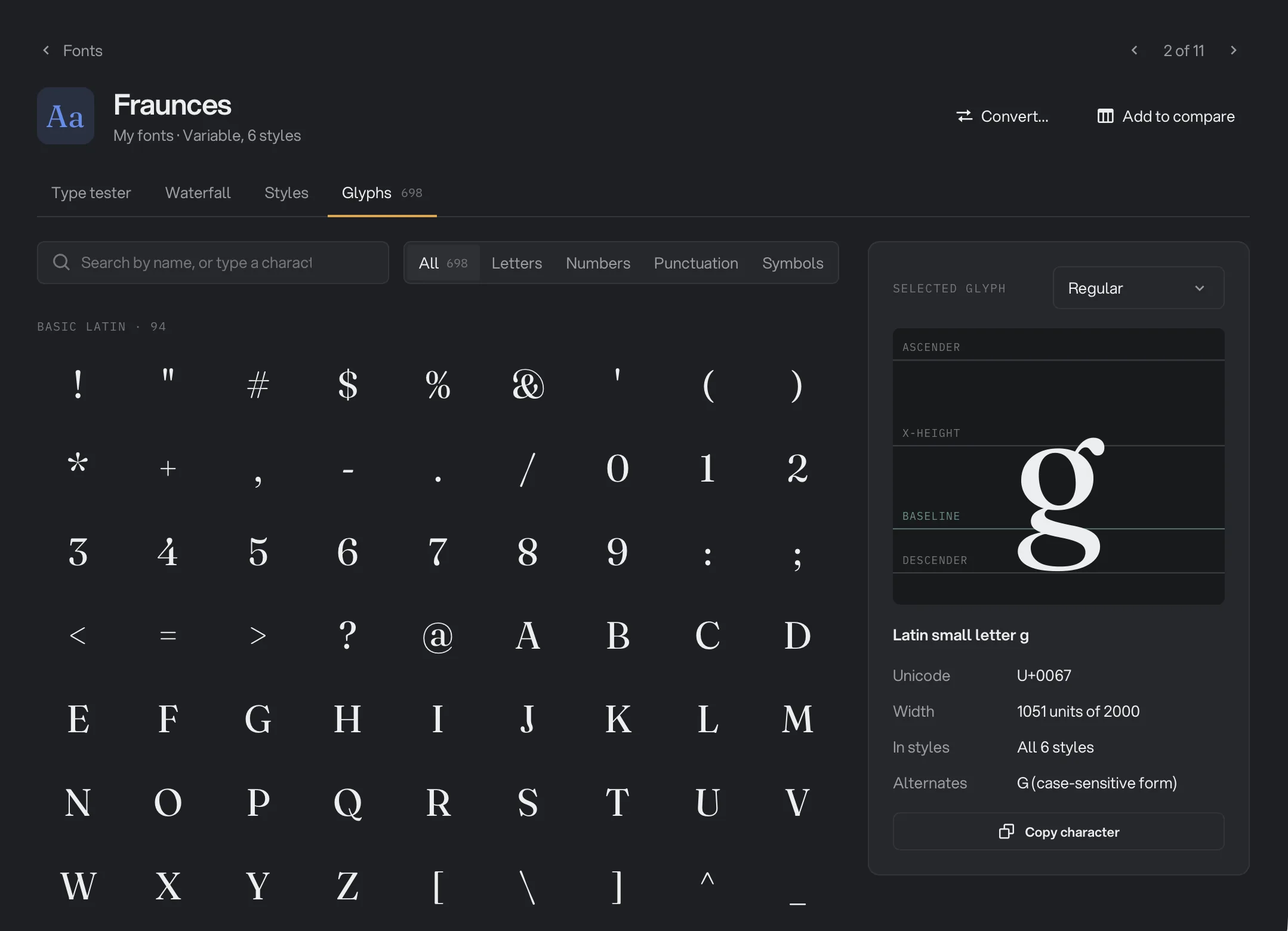
- Search glyphs
- Filter by kind
- The glyph you clicked
- Copy character
On the other three tabs, the panel on the right has two views. Adjust sets the Style, Size, Line height and Letter spacing, plus a variable font’s Axes and the font’s optional Features. Each feature shows a before and after, drawn by the font itself, and hovering over it marks the letters it changes in the Type tester. Reset puts the axes back. Optical size has an Auto button that makes it follow the text size, and you can type an exact value beside any slider. The Type tester uses every setting. Waterfall keeps its own sizes, and Styles keeps its own line height. Glyphs uses the same style, axes and features, and has its own style menu in the panel beside the grid. Copy CSS at the bottom copies them for a web page.
About shows the font’s license, with common licenses named in plain words and Show full licence for the whole text, and what the font says about embedding. Below that are its format, axes, version and file. Languages lists the writing systems it covers, such as Latin, Cyrillic or Arabic, and says if Latin Extended, Vietnamese, Greek or Cyrillic is missing.
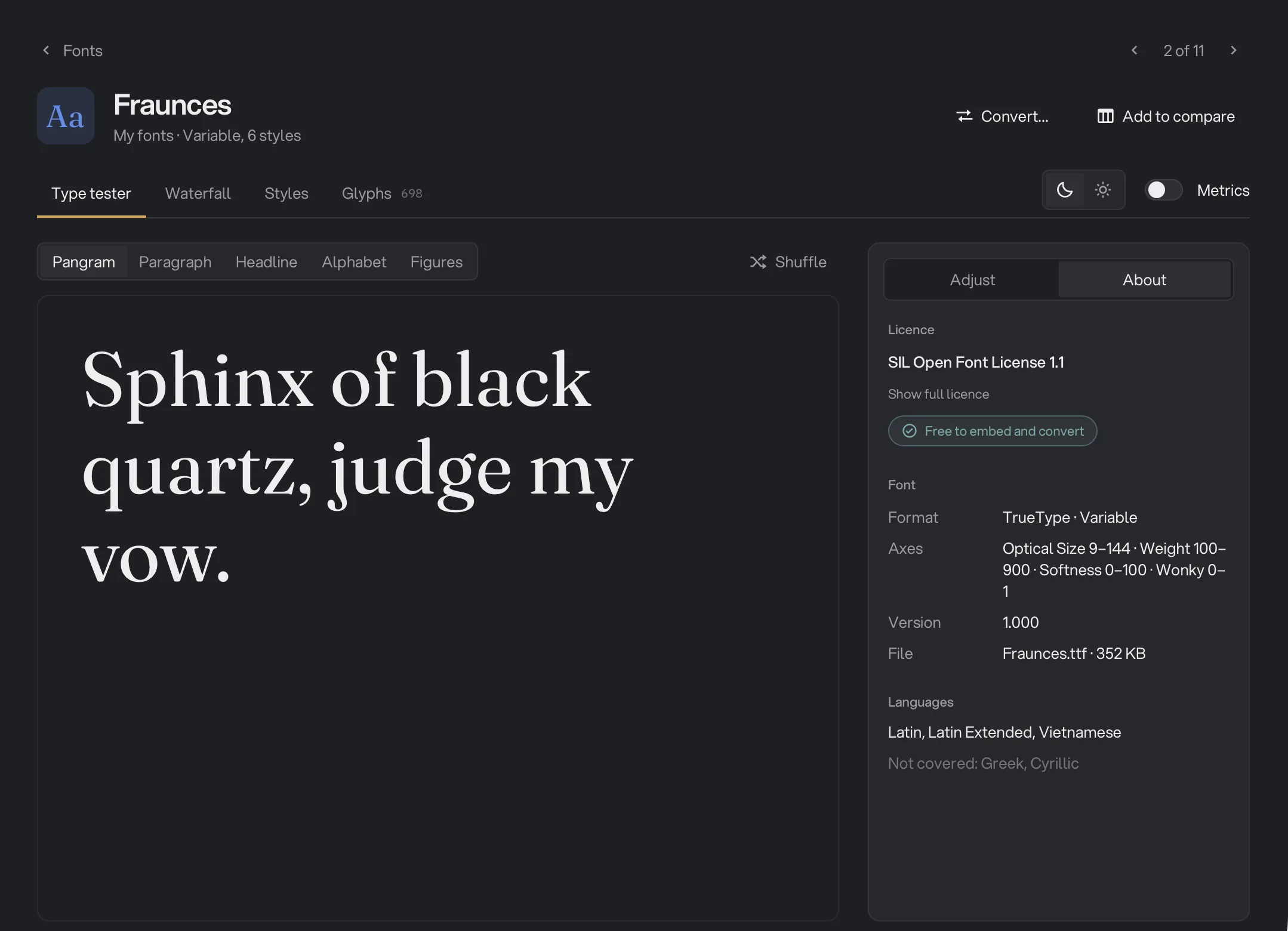
- License in plain words
- What the font says about embedding
- Languages
At the top, Add to compare carries your chosen style, axes and features into Compare, and Convert… opens the Convert panel for this family.
Step 5: Convert fonts
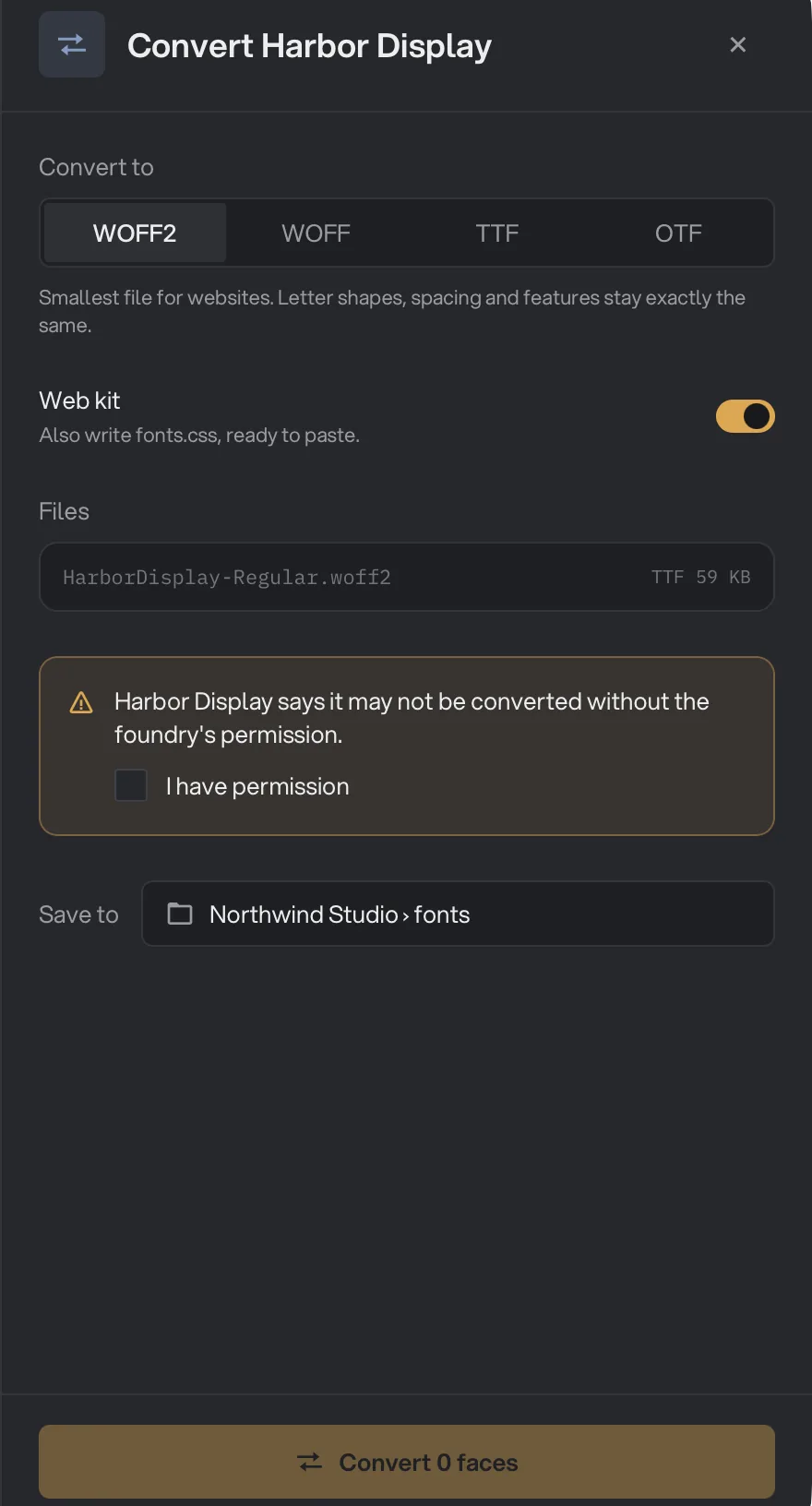
Select families and click Convert, or pick Convert… from a row’s ⋯ menu or from Inspect. A panel slides in. Under Convert to, choose a format:
- WOFF2 (the default): the smallest file for websites. Letter shapes, spacing and features stay exactly the same.
- WOFF: for old browsers. It is larger than WOFF2, and letter shapes, spacing and features stay exactly the same.
- TTF: a desktop font. A TTF stays exactly as it is. An OTF is redrawn as a very close copy, without its hinting.
- OTF: a desktop font. An OTF stays exactly as it is. A TTF is redrawn as a very close copy, without its hinting.
A web font that already holds the right kind of letters is unpacked exactly, not redrawn. A TTF or OTF already in the format you chose is saved as it is. A WOFF or WOFF2 is packed again, with the same letter shapes, spacing and features.
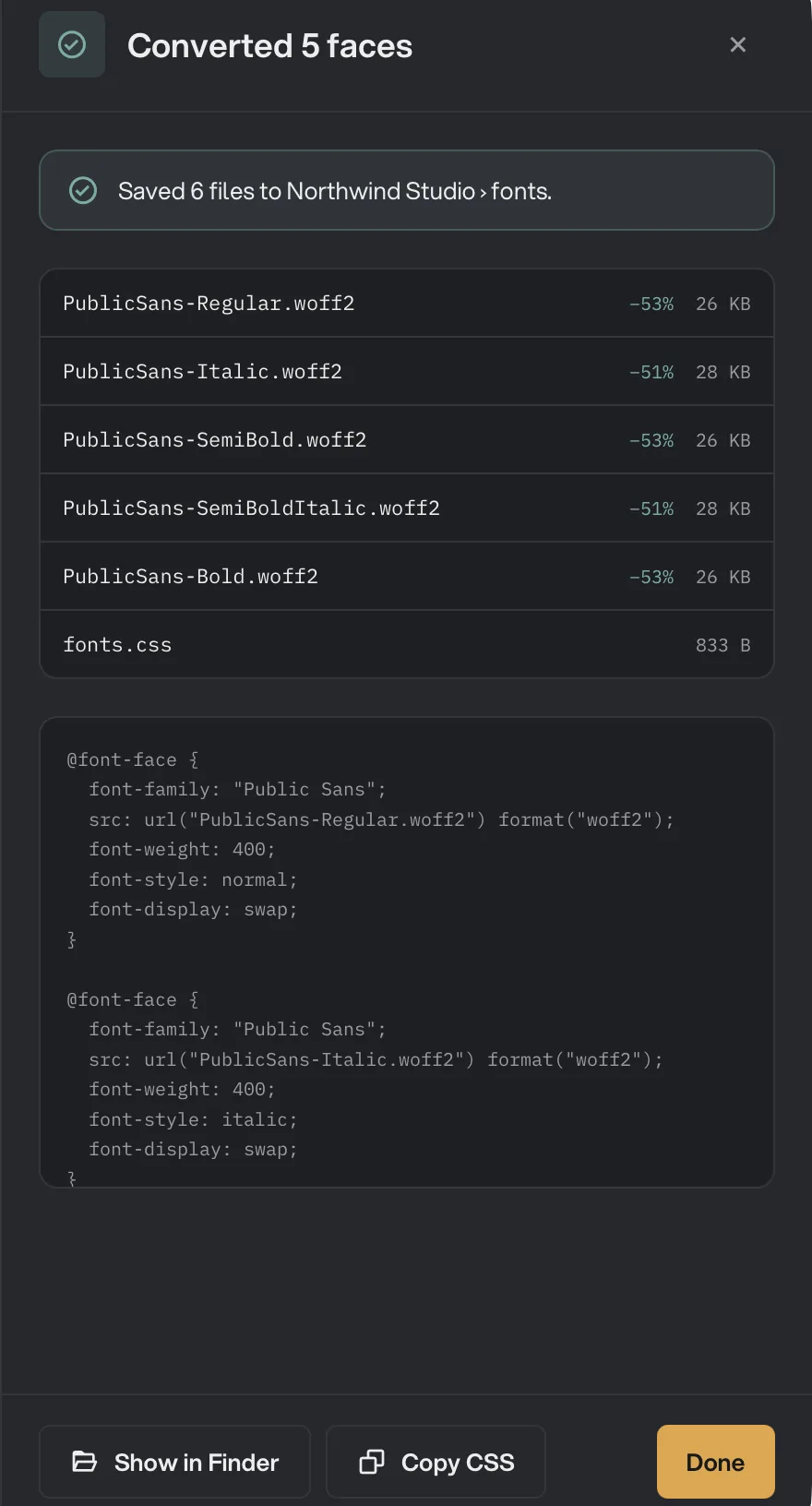
For WOFF2 and WOFF, leave Web kit on to also write fonts.css, with one rule for each style, ready to paste into a site. A variable font gets one rule that covers its range of weights. If a family has a variable font and static copies of it, only the variable font is written, so the CSS stays short.
Files lists what will be written: one file per style, or one file for a variable font. Fonts calls each one a face, so the button reads, for example, Convert 5 faces. A row that cannot be converted says why.
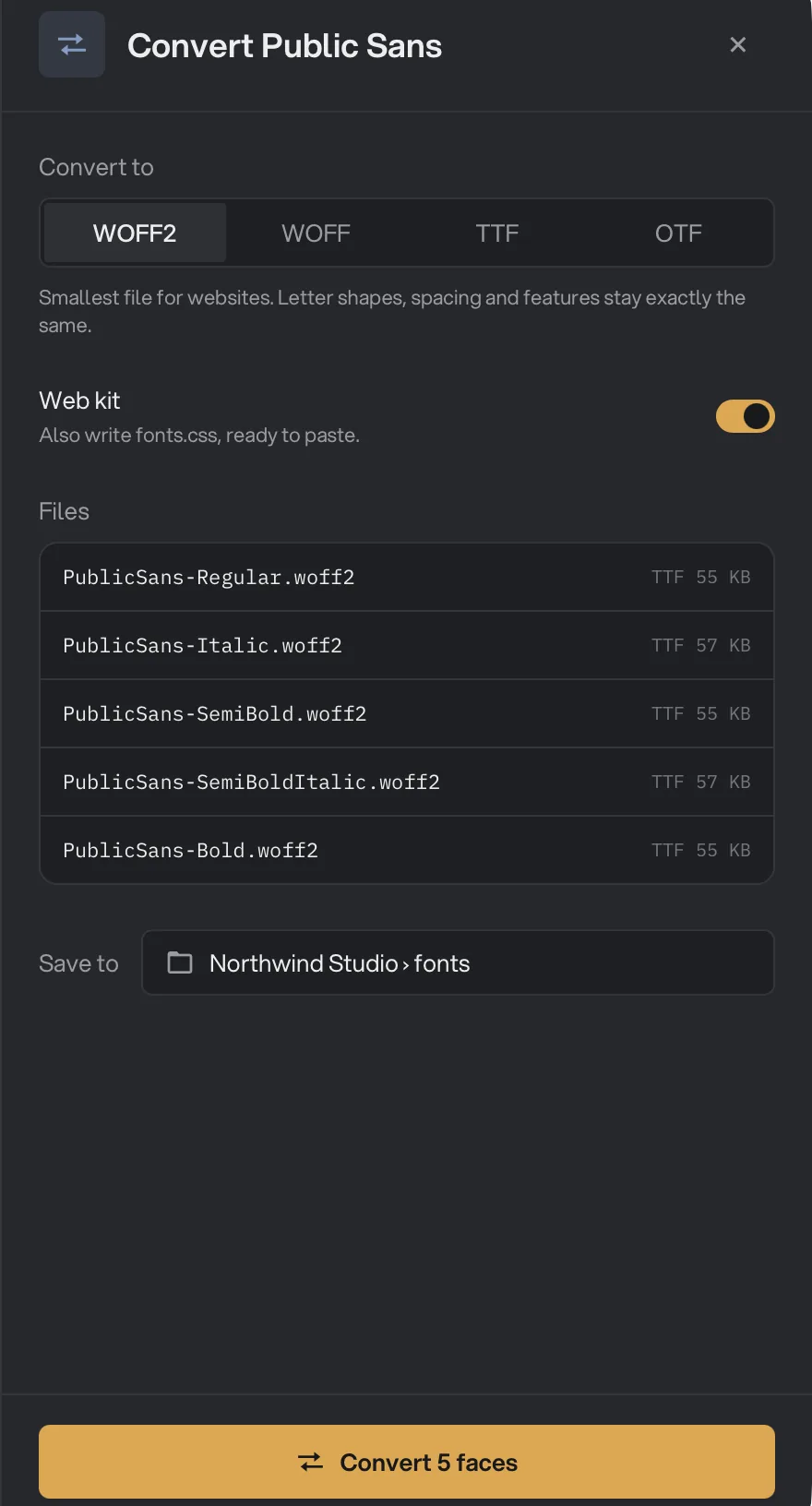
- Convert to
- Web kit
- Files to write
- Save to
- Convert
If a font says it may not be converted without the foundry’s permission, Convert shows that message with an I have permission box, and that family waits until you tick it. Other fonts with a limited license get a short reminder to check the license before you use them on a website.
- I have permission
Pick a folder under Save to. It starts on the last folder you used. The first time, it starts on a fonts folder inside your workspace’s output folder, which Hangar creates when it saves, or asks you to choose if the workspace has no output folder. Everything goes in one folder, so fonts.css can find the files. If a name is already taken, the new file gets a number, such as Inter-Bold (2).woff2.
Click the Convert button at the bottom. Stop lets the current file finish and keeps everything already written. When it is done, the panel lists each file with its size and how much it changed, shows the fonts.css, and names anything that was skipped or failed, with the reason. One failed file does not stop the rest. Use Show in Finder (Show in Explorer on Windows) or Copy CSS, then Done.
- fonts.css
- Copy CSS
A static font is named after its PostScript name, such as Inter-Bold.woff2. A variable font uses its family name and axes, such as Inter[opsz,wght].woff2. Each font in a TTC or OTC collection becomes its own file.
Step 6: Save a specimen PDF
A specimen is a PDF that shows a font family at its best, to send to a client or print for a meeting. Select one or more families and click Specimen PDF in the bar at the bottom. You can also choose Export specimen PDF… from a row’s ⋯ menu, or click Specimen PDF… in Inspect.
A panel opens with your choices:
- Fonts: each family you picked, written in its own font. Every family gets its own PDF.
- Template: Proof, Poster or Book. The pictures are the real first pages of your fonts. Every template has the same six pages: a cover, the styles, sizes, a page of text, the characters, and the features and languages. A font with many characters gets more character pages.
- Paper: A4 or Letter. Fonts picks the paper used where you live, and remembers your last template and paper.
- Files: each PDF it will save, with its name and page count, such as "Newsreader specimen.pdf · 6 pages".
Click Export PDF (Export 3 PDFs for three families) and choose where to save. For one family you can also change the file name. Several PDFs are saved in the folder you choose, each named after its family. A file with the same name is never replaced: the new one gets a number, such as "Newsreader specimen (2).pdf".
While it works, the panel says which family it is setting. Click Stop to end early; the PDFs already saved stay. When it is done, the panel shows the first page of each PDF with Open, the folder, and Show in Finder (Show in Explorer on Windows). Click Done to close it.
Use Google Fonts
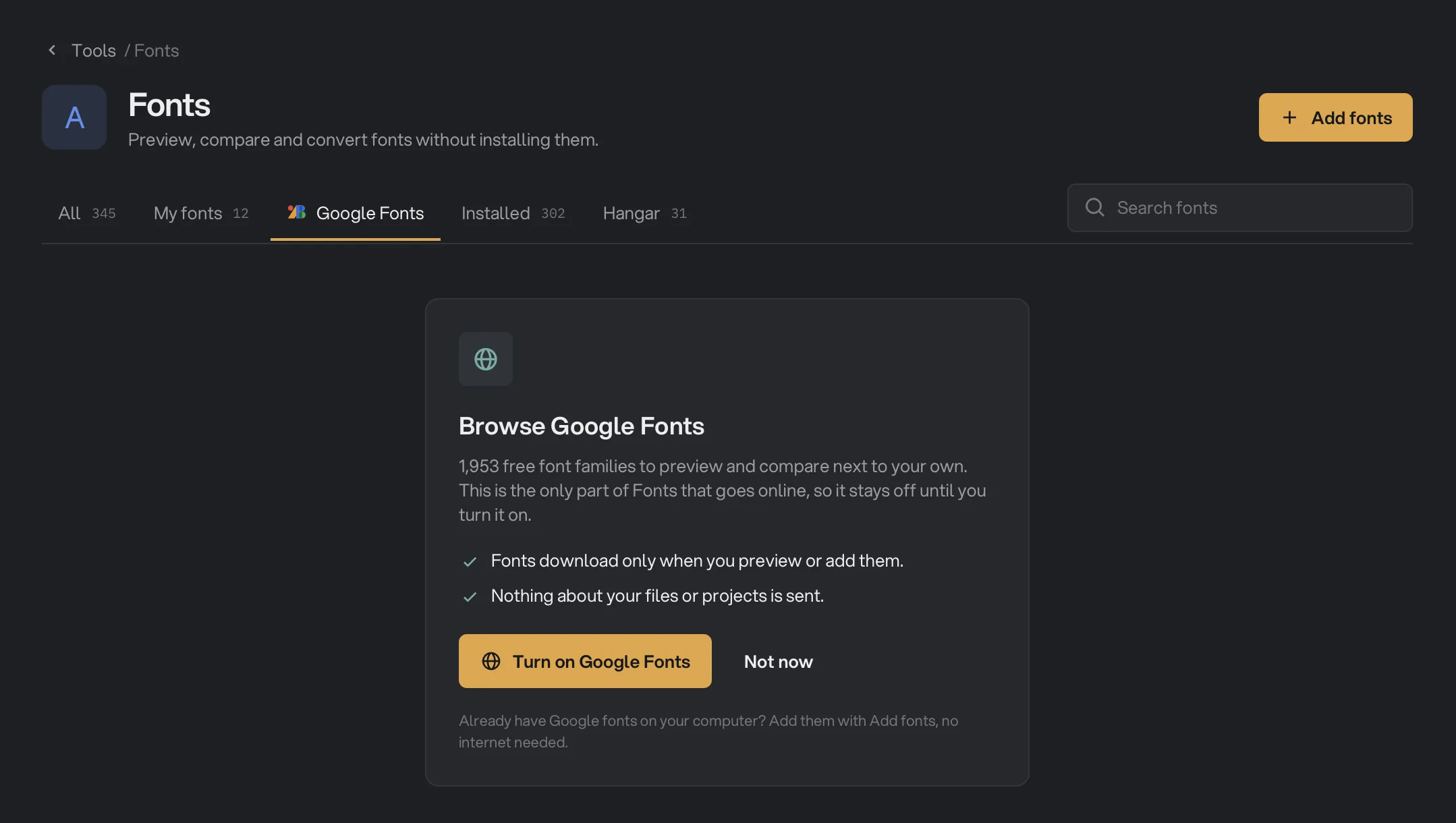
The Google Fonts tab lists more than 1,900 free font families to preview and compare next to your own. It is the only part of Fonts that downloads anything, so it stays off until you turn it on.
Open the tab and click Turn on Google Fonts, or choose Not now to stay offline. You can also turn it on in Settings under Fonts. Here is what happens once it is on:
- Hangar downloads the font list. While Google Fonts is on, it checks for a newer list at most once a week, when you open Fonts or its section in Settings.
- A font downloads only when you preview or add it. Each row draws as you scroll to it. Fonts you add stay in your library. Previews stay on this computer too, until they pass the 500 MB limit.
- Nothing about your files or projects is sent.
- Turn on Google Fonts
- Stay offline
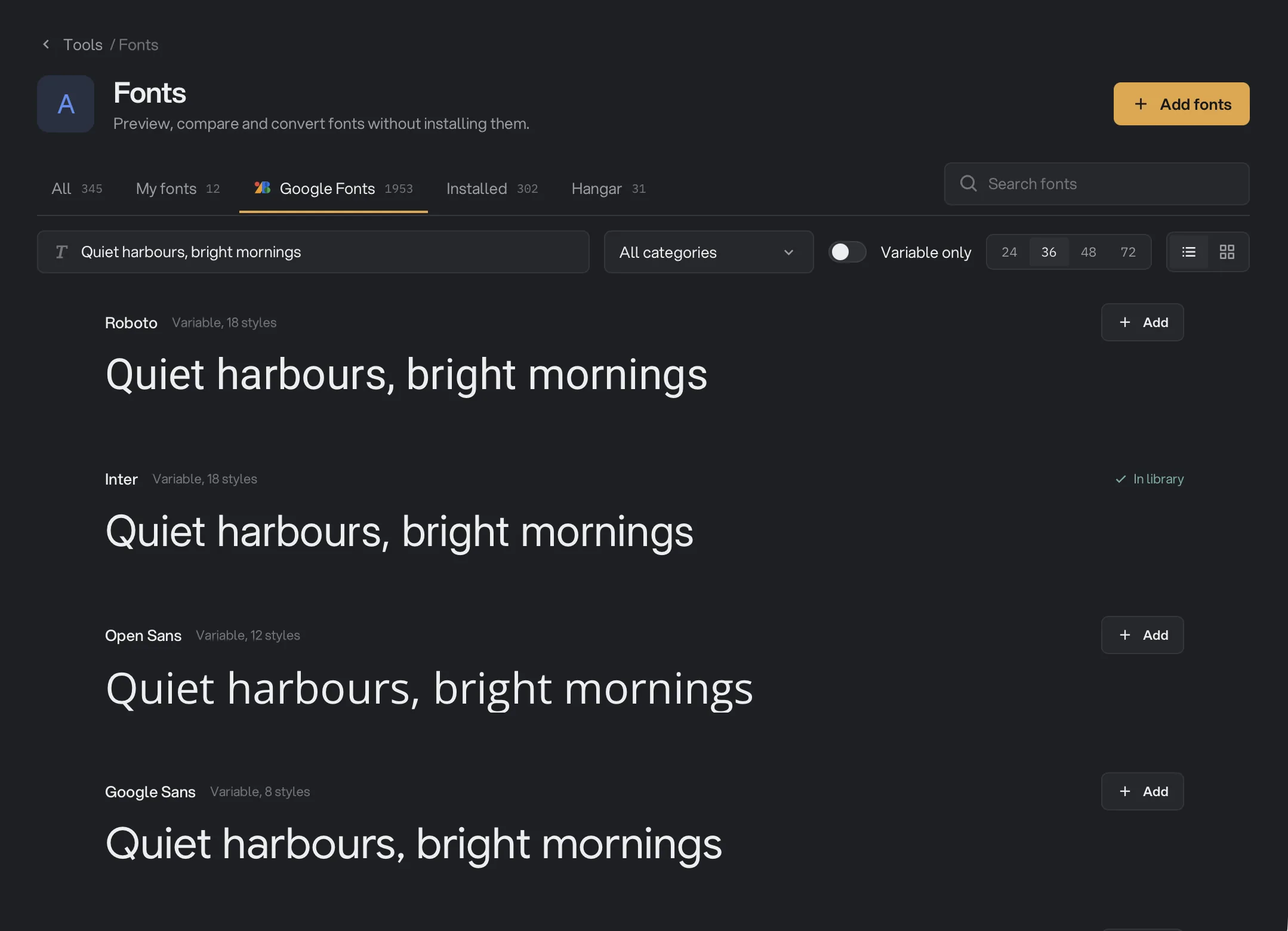
The list starts with the most popular families. Search here also finds designers, and the sample text, category and Variable only controls work as they do on the other tabs.
Click Add on a row to put the family in My fonts, where it works offline. The button becomes a progress bar with a stop button, then In library. You do not have to add a family to try it: Inspect and Compare download it for you and work the same way. Convert needs the family added first. To add it while you inspect it, click Add to My fonts in Inspect, next to Convert…; once it is added, Convert and Specimen PDF in Inspect use that copy.
- Add
- Already in My fonts
If you lose your connection, a line at the top says you are offline and that fonts you have added still work. Rows that have not loaded show Preview needs internet, and a running download shows Paused, resumes when online and carries on by itself.
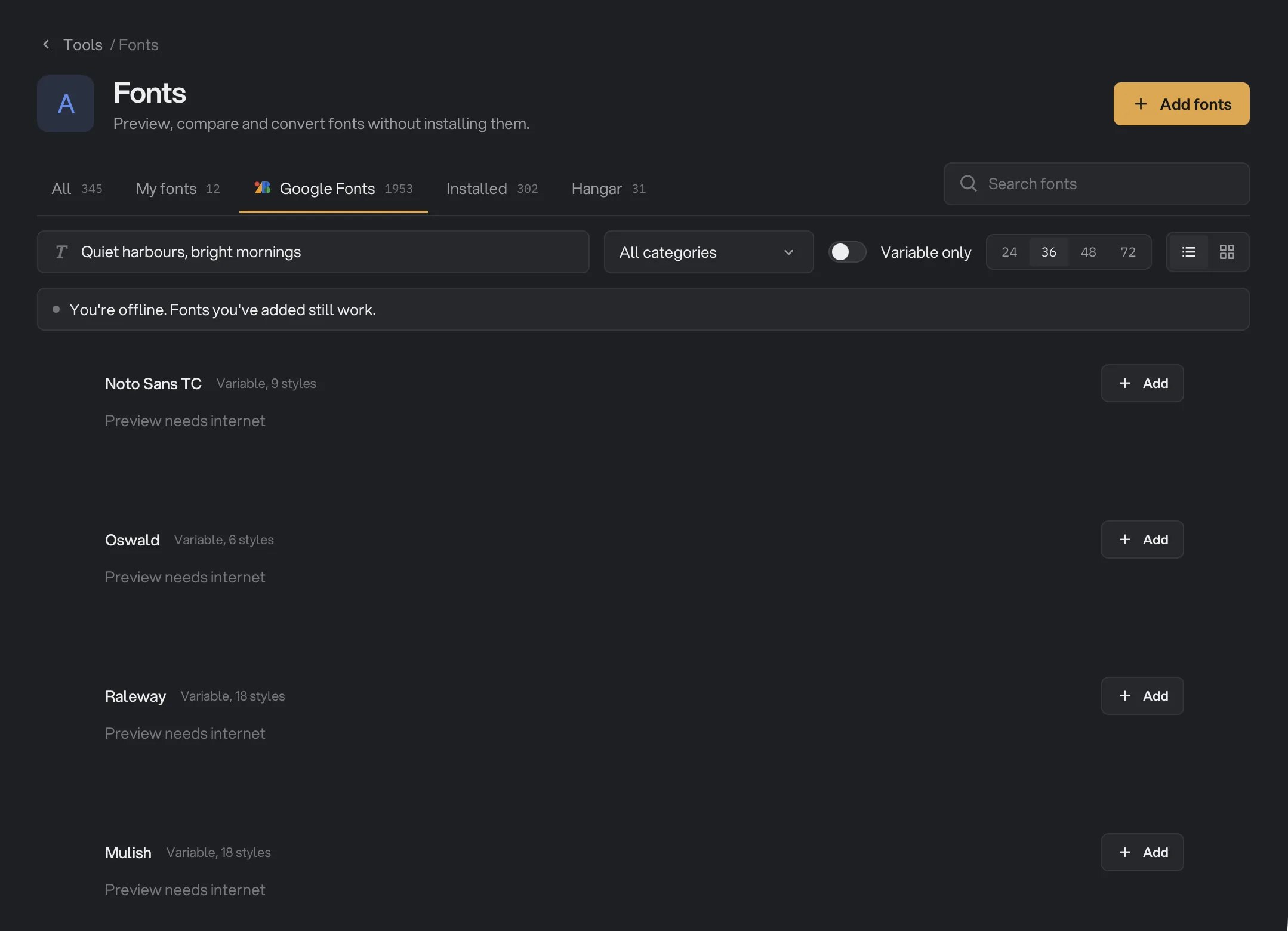
To stop, turn off the switch in Settings under Fonts. Hangar stops going online for fonts, and any running download stops. Fonts you added stay in your library. Hangar asks whether to clear the downloaded previews, which use up to 500 MB. Older ones are cleared on their own to stay within that limit. To free the space and keep Google Fonts on, click Clear cache in the same place.
Every setting, and when to change it
- Sample text
The words every family is drawn in on the Browse screen.
- DefaultQuiet harbours, bright mornings
- Category
Narrows the list to one kind of font.
- RangeAll categories, Serif, Sans serif, Monospace, Display, Handwriting
- DefaultAll categories
- Variable only
Keeps only fonts with adjustable axes, such as weight or width.
- DefaultOff
- Preview size
How large each family is drawn on the Browse screen.
- Range24, 36, 48, 72
- Default36
- Layout (Browse)
One family per row, or cards.
- RangeList, Grid
- DefaultList
- Layout (Compare)
Cards, stacked lines, or a heading font over a body font.
- RangeGrid, Lines, Pairing
- DefaultGrid
- Text (Compare)
Sample text that also sets a matching size and line height. Edit it in place.
- RangeHeadline, Paragraph, Pangram, Glyphs
- DefaultHeadline
- Size (Compare)
The size of every font being compared, or of the heading in Pairing.
- Range12 to 160 px
- Default48 px
- Line
The line height of every font being compared, or of the heading in Pairing.
- Range0.80 to 2.00
- Default1.10
- Spacing
The space between letters of every font being compared, or of the heading in Pairing.
- Range-10% to 20%
- Default0%
- Page
The page color behind the text in Compare and Inspect.
- RangeDark page, Light page
- DefaultDark page, or Light page in Pairing
- Text (Type tester)
Sample text that also sets a matching size and line height. Edit it in place.
- RangePangram, Paragraph, Headline, Alphabet, Figures
- DefaultPangram
- Metrics
Draws the font’s baseline, x-height, cap height, ascender and descender over the first line.
- DefaultOff
- Style
The style drawn in Inspect, or in one card in Compare.
- RangeThe family’s styles
- Size (Adjust)
The text size in the Type tester and Styles. Waterfall keeps its own ten sizes.
- Range8 to 300 px
- Default64 px
- Line height
The space between lines in the Type tester and Waterfall.
- Range0.80 to 2.00
- Default1.15
- Letter spacing
The space between letters in the Type tester, Waterfall and Styles.
- Range-10% to 20%
- Default0%
- Axes
A variable font’s sliders, such as weight or width. Optical size follows the text size until you move it.
- RangeSet by the font
- Features
Optional letterforms the font offers, such as ligatures or alternates. Each is a switch.
- RangeSet by the font
- Convert to
The format to write.
- RangeWOFF2, WOFF, TTF, OTF
- DefaultWOFF2
- Web kit
Also writes fonts.css. Shown for WOFF2 and WOFF.
- DefaultOn
- Save to
The one folder every file goes into. The first time, it is a fonts folder inside your workspace’s output folder.
- DefaultThe last folder used
- Google Fonts
In Settings under Fonts. Lets Fonts go online for the font list and the fonts you preview or add.
- DefaultOff
How to get the best results
- Test your real words. Use the headline or product name the font will carry. Sample text hides problems with the letters you actually use.
- Judge body fonts at body size. A font can win as a headline and fail at 16 px. Use Paragraph in Compare, or Waterfall in Inspect, before you decide.
- Check both pages. Switch between the dark and light page. Thin styles that look fine on one can break up on the other.
- Narrow it down, then pair. Compare a few candidates in Grid, then keep two or more and try them in Pairing.
- Check languages early. Open About in Inspect before you settle on a font for a multilingual project. It lists the writing systems the font covers, so check that yours is there.
- Read the license before you publish. About shows what the font says about embedding. For a paid font, your purchase agreement has the final word.
- Use WOFF2 for websites. Keep the variable font if you have one, because one file covers every weight.
- Keep the original. Converting writes a new file, so your source font stays as it was. Go back to the original rather than converting a redrawn copy again.
When something goes wrong
- A file was not added. The banner names up to four files and the reason, then counts the rest. A file that is badly damaged or is not really a font, or an old bitmap-only font, cannot be read. A font already in your library is counted as a duplicate.
- A zip in a folder was ignored. Fonts reads a zip you choose or drop, but not a zip inside a folder you add. Add that zip on its own.
- "This font couldn't be previewed" or "Can't preview on this computer". This computer’s preview engine refused the file. You can still inspect the font, read its details and see its glyphs.
- Compare is grayed out. Select 2 to 6 families. With more than six, the button reads Compare up to 6.
- Convert is grayed out. The selected families are from the Installed tab, or are Google families you have not added. For a family you have added, convert it from My fonts. See the note under Convert fonts.
- The button in the Convert panel is grayed out. If it says Convert 0 faces, nothing can be written yet: tick I have permission if a font is waiting for it, or read the reason on each row. If it shows a number, choose a folder under Save to.
- "Variable OTF can't become TTF yet" or "Variable TTF can't become OTF yet". Redrawing a variable font is not supported. A variable TTF still converts to WOFF2 and WOFF.
- My converted file is larger. TTF to OTF usually adds about a quarter, and OTF to TTF a smaller amount, because every letter is written out in full. Fonts with many accented letters grow the most.
- Small text looks softer after going between TTF and OTF. Redrawn fonts lose their hinting. Mac and high-resolution screens show no change, but small text on low-resolution Windows screens may look a little softer. Keep the original for those screens.
- "The font list couldn't be downloaded." Check your connection and click Try again. Fonts you have added still work.
- A Google family shows up as several families in My fonts. A few families store different names inside their files, and Hangar keeps those names as they are. The same thing happens if you add those files by hand.
- A color font from Google Fonts has no color on a Mac. Some color fonts only draw in one color on a Mac. The row tells you before you add the font.
- A large Google family shows only Latin letters on its row. Very large fonts use a smaller preview to keep the list fast. Open the family to see all of it.
Limits
- Adding a font does not install it. Your other apps, and most Hangar tools, will not list it. Install the font file to use it elsewhere.
- Fonts reads TTF, OTF, TTC, OTC, WOFF, WOFF2 and zip files. A font file can be up to 256 MB. A zip can be up to 1 GB and hold up to 10,000 items.
- Compare takes up to six families at a time.
- Convert writes WOFF2, WOFF, TTF and OTF. It does not rename fonts, subset them or fix them.
- A WOFF2 made from a TrueType font can come out somewhat larger than one from a specialist web font tool. The letters are the same.
- Variable fonts cannot go between TTF and OTF.
- Fonts from the Installed tab cannot be converted.
- A specimen shows up to 36 styles and 1,500 characters, and says how many more the font has. Its sample text is English; a font without Latin letters shows its own characters instead.
- Fonts does not export a comparison of several families.
- Conversions do not appear in Runs, and Fonts cannot be added as a step in a chain.
- Google Fonts needs an internet connection to preview or add a font, and a Google family must be added before you can convert it.
- Everything else runs on your computer. Nothing is uploaded.
Common questions
Does Fonts install anything on my computer?
No. Adding a font copies it into Hangar’s own library, so you can preview it without installing it. Your other apps will not see it. To use a font in another app, install the font file as you normally would.
Does Fonts go online?
Only the Google Fonts tab, and only after you turn it on. It downloads the font list and the fonts you preview or add. Nothing about your files or projects is sent. With it off, Fonts downloads nothing. Hangar’s anonymous usage sharing is separate: it counts that you opened the tool, never anything about your fonts, and you can turn it off in Settings under Privacy.
Can I use a Google font offline?
Yes, once you add it. Click Add on its row and it joins My fonts, where it works with no internet.
Does removing a font delete my file?
No. Remove from library takes the font out of Hangar only. The original file on your computer is not touched, and you can add it again at any time.
Will converting change how my font looks?
WOFF2 and WOFF keep the letter shapes, spacing and features exactly the same. Going between OTF and TTF redraws each letter as a very close copy and drops the font’s hinting.
Am I allowed to convert a font?
That depends on its license, and converting does not change the license. Fonts shows what the font says about embedding in Inspect. If a font is marked as restricted, Convert waits until you tick I have permission.
Can I export a specimen sheet or a comparison?
A specimen, yes. Select one or more families and click Specimen PDF to save one PDF per family, to share or print. A comparison of several families stays on screen.
Still stuck?
One person reads every message, usually with a reply within a day.