 Agencies and studios
 Photographers
 Podcasters
 Video and social creators
 Marketers and content teams
What does OCR PDF do?
OCR PDF makes scanned PDFs searchable on your own computer. It reads the text in each scanned page and adds it as an invisible layer on top, so you can search the document, select words and copy them, while the page looks exactly the same. It takes PDF files and gives back PDF files, one for each file you add.
It is made for mixed files too. Pages that already have real text are left as they are, and only the scanned pages are read. If you want the words on their own, it can also save a plain text file next to each PDF. Nothing is uploaded: recognition runs on your computer, even for the languages you download.
Step 1: Add your scanned PDFs
Click Tools in the sidebar, open the PDF tab and click OCR PDF. You can also type "ocr" in the search box at the top.
Drop your PDFs on the queue, or click it to pick files. Add as many as you like: every file is read with the same settings, one after another. To add more later, use Add more. Folders are not accepted, so select the files inside a folder instead.
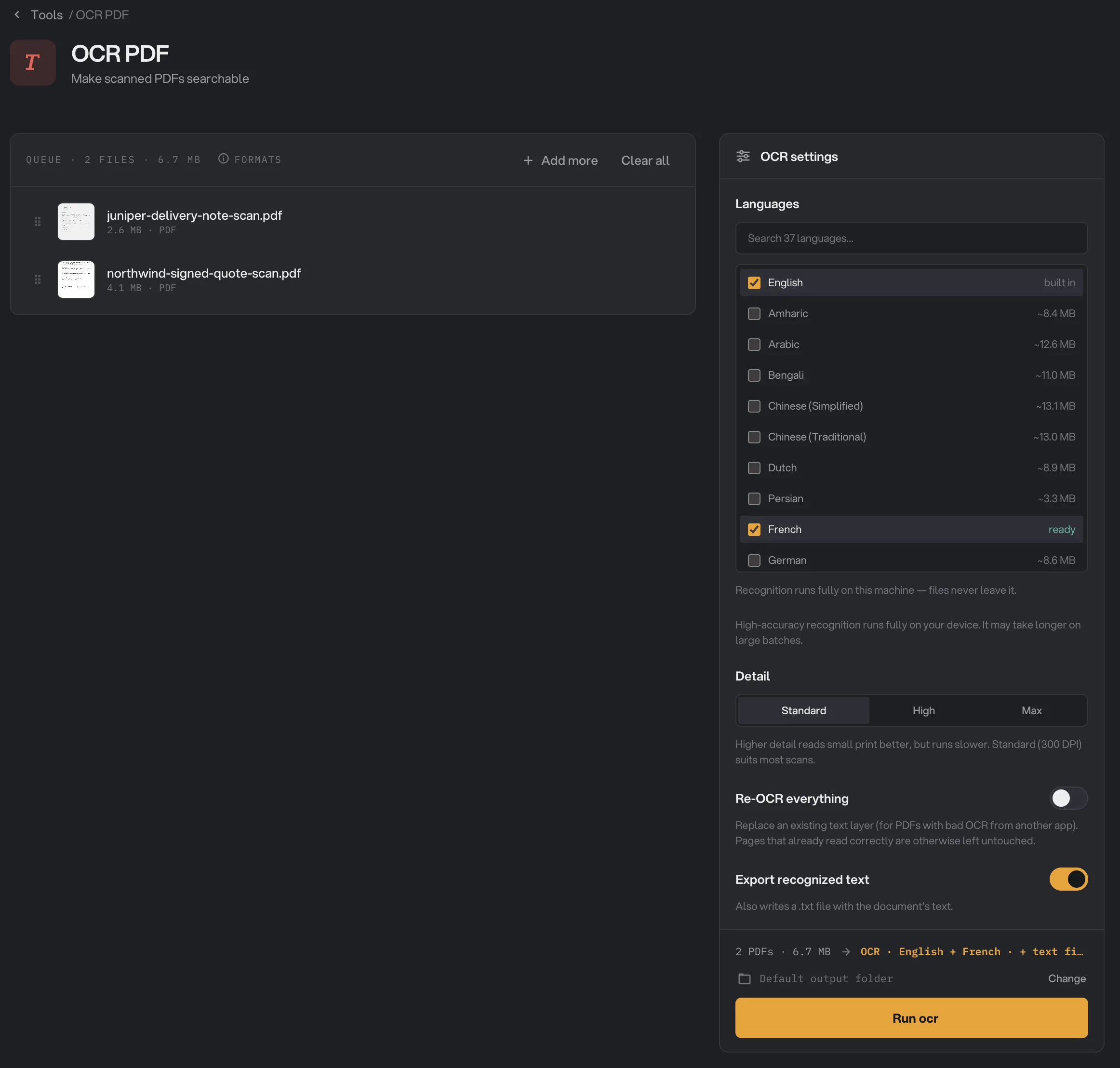
- Search languages
- A ready language
- Detail
- Re-OCR everything
- Export recognized text
- Run
Step 2: Pick the languages on the page
Under Languages, tick every language that appears in your documents. English is ticked when you open the tool and is built in. Type in the search box to find a language among the 37.
Other languages need a one-time download. Tick the language, then click Download next to it. Downloads are small, about 3 to 15 MB each, and the row shows ready when it is done. Until then, Run ocr stays off and the panel says which language to download. See AI models: what downloads and when for more on downloads.
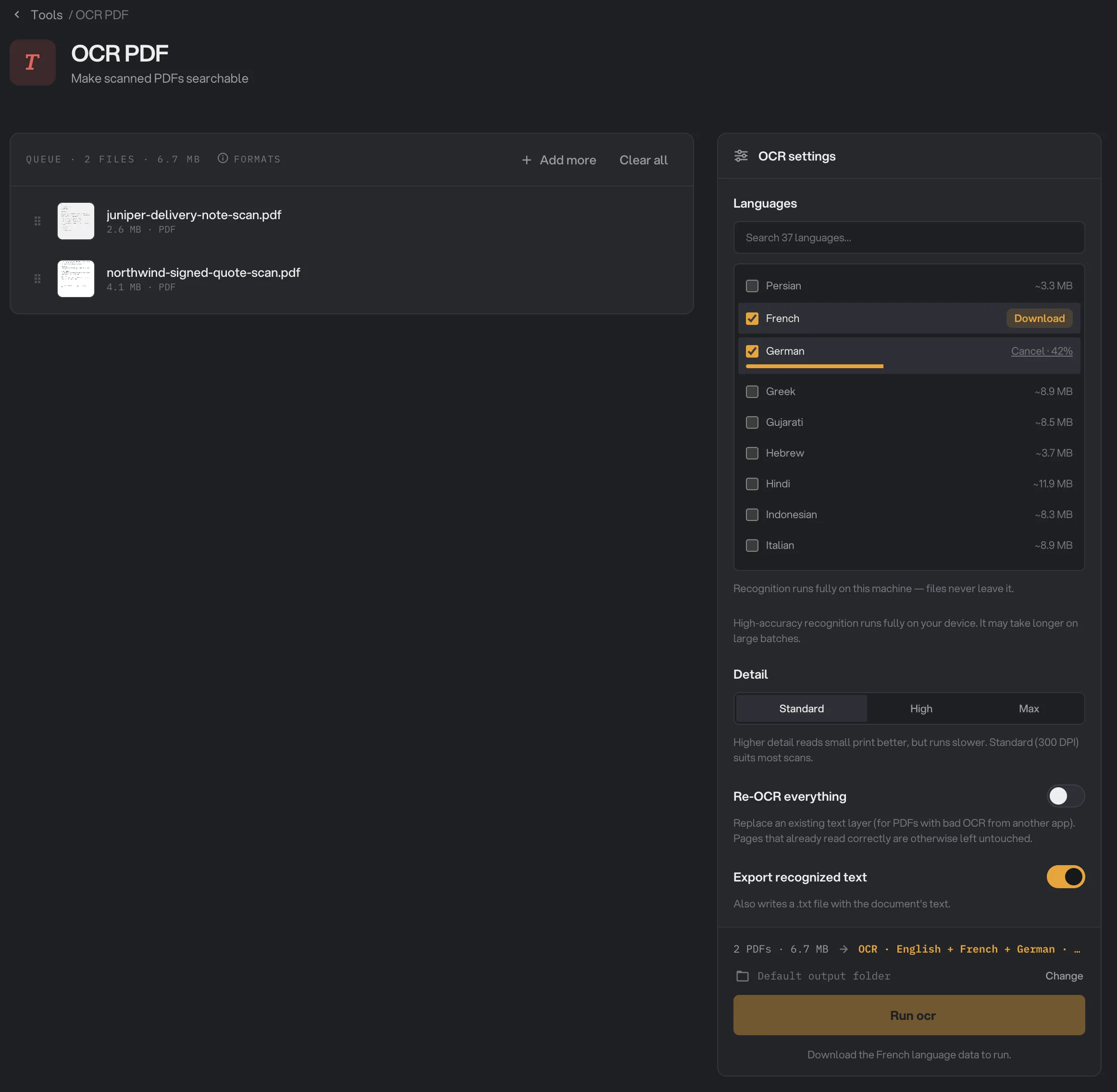
- Download
- Cancel while downloading
- A language that still needs its data
Step 3: Choose the detail and the extras
Detail sets how closely each page is read. Standard is selected when you open the tool and suits most scans. Choose High or Max for small print, such as footnotes, receipts or dense tables. They take longer.
Turn on Export recognized text to also get a .txt file with the whole document's text. Leave Re-OCR everything off unless your PDF already has bad text from another app: see when to use Re-OCR everything.
Step 4: Run, then check the text
The line above the button sums up the run, for example OCR · English + French · + text file. Check where the files will go: Default output folder saves them in your workspace's output folder, in an ocr folder with a subfolder for today's date, such as 10-15. Click Change to pick another folder for this run. Then click Run ocr.
When the run ends, each file shows Done. Click View to open the searchable PDF. Select text is on, so you can drag across the scan to select words, just like in a PDF viewer. Copy all copies the text of the page, and Text shows the text of the whole document at once.
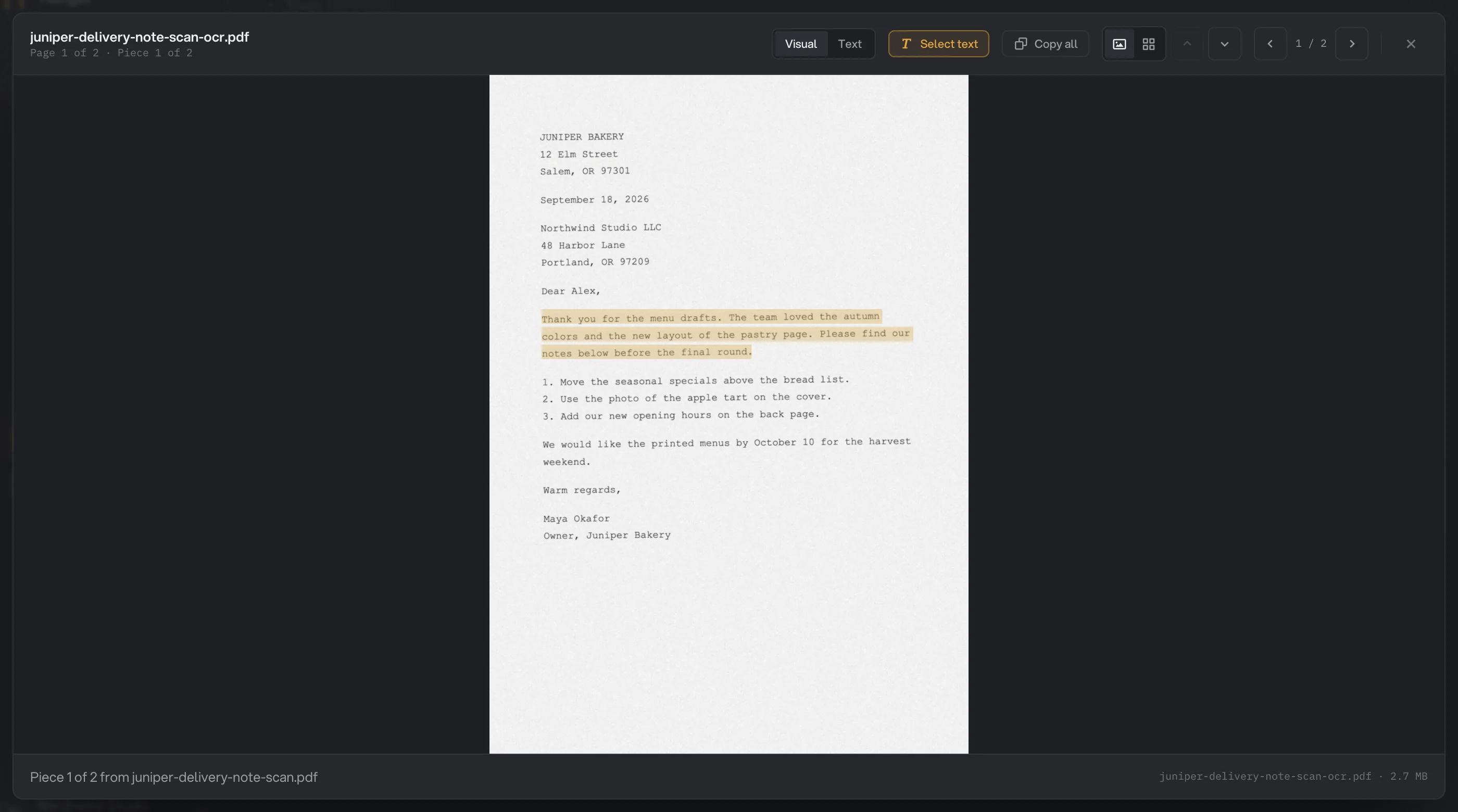
- Visual
- Select text
- Copy all
- Selected recognized text
Each searchable PDF has -ocr added to its name, such as juniper-delivery-note-scan-ocr.pdf. With Export recognized text on, a .txt file with the same name sits next to it, and the row shows 2 files. Open folder takes you to the files. For more on reading results, see See and compare your results.
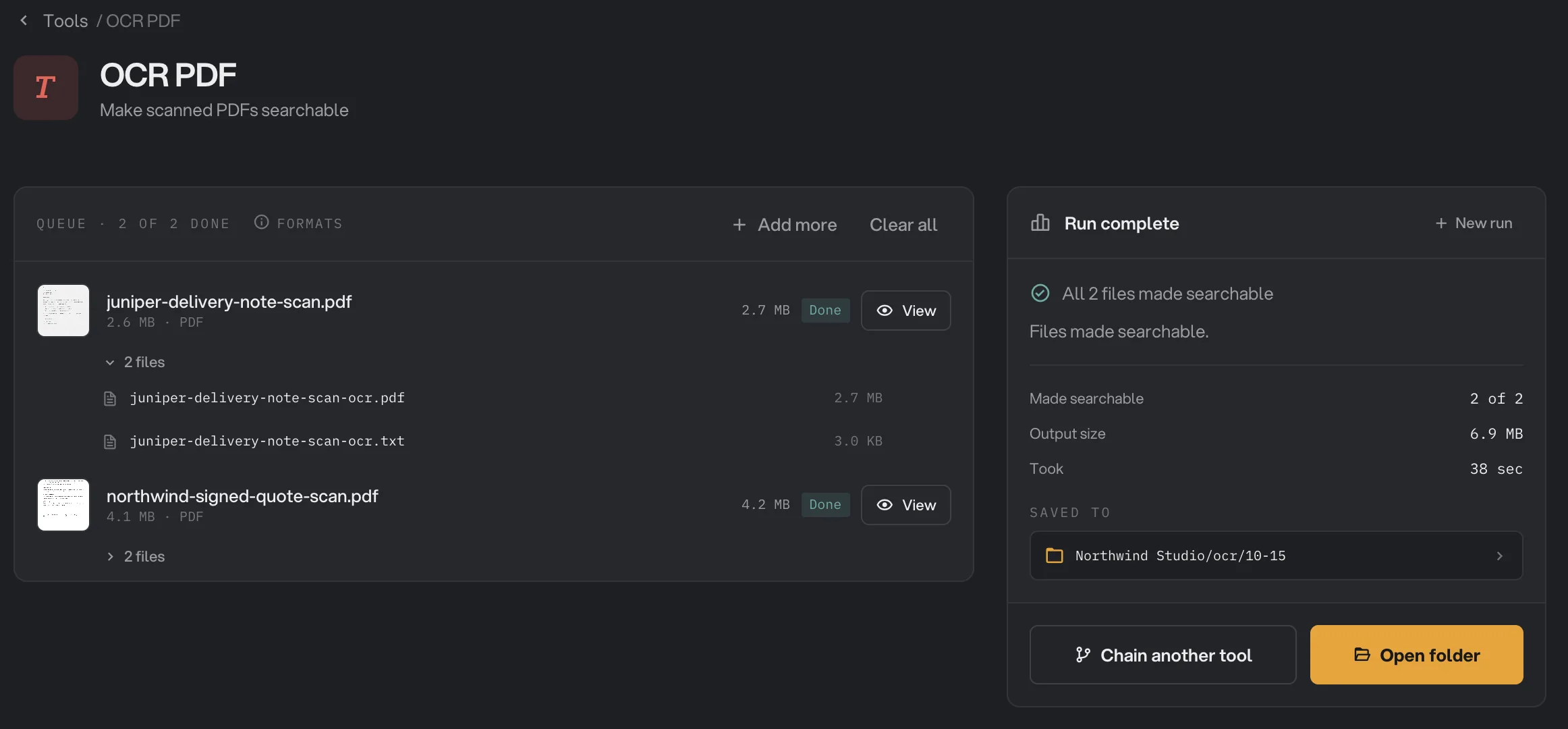
- 2 files
- The text file
- Saved to
- Open folder
Every setting, and when to change it
OCR PDF has no presets. The defaults suit an English scan at a normal size.
- Languages
The languages the text is written in. English is built in; every other language is a one-time download.
- Range37 languages, several at once
- DefaultEnglish
- Detail
How closely each page is read. Standard reads at 300 DPI, High at 400 DPI and Max at 600 DPI. Higher reads small print better and takes longer.
- RangeStandard, High, Max
- DefaultStandard
- Re-OCR everything
Reads every page again, including pages that already have text, and replaces that text with the new result. For scans that came with bad text from another app.
- RangeOn or off
- DefaultOff
- Export recognized text
Also saves a .txt file with the text of every page, in page order, next to the searchable PDF.
- RangeOn or off
- DefaultOff
How do I get the most accurate text?
- Start from a good scan. Pages scanned at 300 DPI or more, straight and evenly lit, give the best text. Raising Detail cannot bring back detail that is not in the scan.
- Tick the right languages, and only those. Accents and special letters are read correctly only when their language is ticked.
- Use High or Max for small print, then compare with Standard on one file before running a large batch.
- Check the result with View. Select a few lines, or open Text, and read them against the page.
Why is the recognized text wrong or missing?
- The scan is low resolution or blurry. Small or fuzzy letters are guessed. Scan again at 300 DPI or more if you can.
- The page is crooked, or a photo of a page. OCR PDF does not straighten or clean up pages. Straighten crooked scans in your scanner app first, and avoid photos taken at an angle.
- The wrong language is ticked. A French page read as English loses its accents and some words. Tick the language and run again.
- It is handwriting. Handwritten text is not read reliably.
- The text is vertical. Chinese, Japanese and Korean are read when the text runs across the page, not in vertical columns.
- Nothing seems to have changed. If every page already had text, Hangar saves an exact copy, because there was nothing to read. A PDF exported from Word or a similar app already has its text and does not need OCR.
- Search finds odd words in a PDF that was already searchable. The PDF came with bad text from another scanner app. Run it again with Re-OCR everything on.
When should I use Re-OCR everything?
Use it for scanned PDFs that already have a text layer from another app, when that text is wrong: search misses words that are clearly on the page, or copied text comes out garbled. Re-OCR everything removes the old text from every page and adds the new recognized text in its place, while the scan itself stays the same.
Limits
- OCR PDF accepts PDF files only. To make scanned images into a searchable PDF, use Image OCR, and to get the text out of a picture, Extract Text.
- PDFs that need a password to open stop with a message that the file is password-protected. Remove the password with Unlock PDF first.
- The text layer is invisible. OCR PDF does not fix, sharpen or straighten the scan itself.
- Handwriting and vertical Chinese, Japanese or Korean text are not supported.
- Languages other than English need a one-time download before the first run.
- Everything runs on your computer, so a long scan at High or Max detail takes as long as your computer needs. Nothing is uploaded.
If a file fails, its row shows the reason. A file failed: what to check lists the common causes and fixes. For long documents with many pages, Process many files at once explains how a batch runs.
Common questions
Does OCR change how my pages look?
No. The recognized text is added as an invisible layer on top of each scanned page, so the page looks exactly as before while you can now search, select and copy its text. The one exception is Re-OCR everything used on a PDF with typed text, explained in this guide.
Which languages can it read?
37 languages. English is built in. Every other language is a one-time download of about 3 to 15 MB, started from the Languages list, and works offline after that. You can tick several languages for documents that mix them.
Why did nothing change in my PDF?
Every page already had text, so there was nothing to recognize. Hangar saves an exact copy with -ocr in its name and marks it Done. If the existing text is wrong, turn on Re-OCR everything, but only for scanned PDFs.
Can it read handwriting?
Not reliably. OCR PDF is made for printed and typed text. Handwritten notes usually come out as gibberish or are skipped.
Is my original PDF replaced?
No. Hangar saves the searchable copy in your output folder, with -ocr added to its name, and leaves the original where it was, untouched.
Still stuck?
One person reads every message, usually with a reply within a day.