 Agencies and studios
 Photographers
 Podcasters
 Video and social creators
 Marketers and content teams
What does Merge PDF do?
Merge PDF joins several PDFs into one file on your own computer, in the order you choose. Use it to turn a cover, a proposal and its terms into one document you can send, or to gather a stack of one-page exports into a single file.
The same tool has a second mode, Attach a file to each. Instead of making one file, it adds the same pages, such as a cover sheet or a terms page, to every PDF in the queue and saves a new copy of each. That mode is explained in Attach a cover or terms page to each PDF.
Step 1: Add your PDFs and put them in order
Click Tools in the sidebar, open the PDF tab and click Merge PDF. You can also type "merge pdf" in the search box at the top.
Drop your PDFs on the queue, or click it to pick files. You need at least two. The files are joined from the top of the queue to the bottom, so put them in the order you want: drag a file by the handle at the left of its row. To add more later, use Add more.
Files that are not PDFs are set aside under Not applicable and left out. Folders are not accepted, so select the files inside a folder instead.
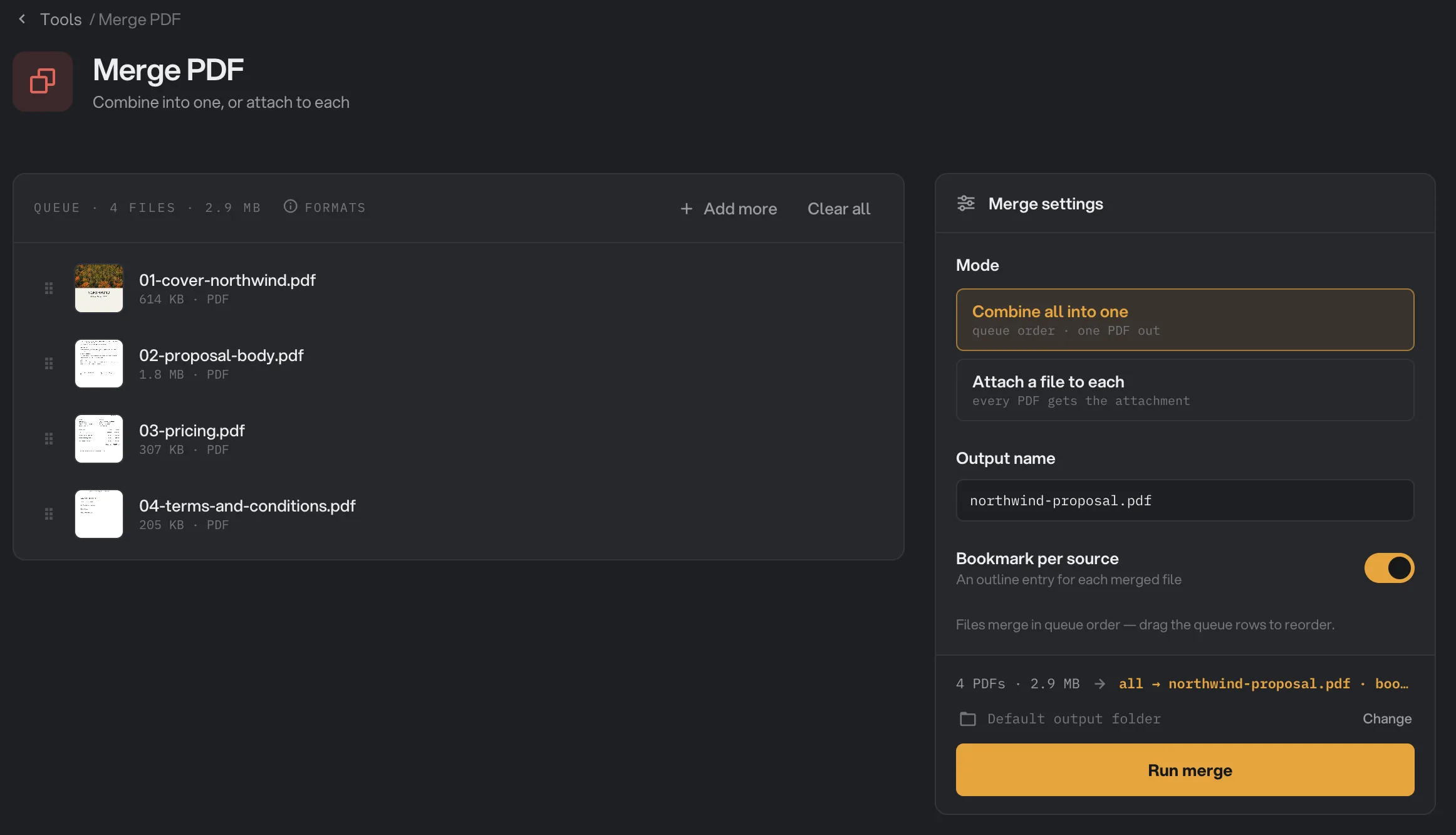
- First file in the queue: drag rows to reorder
- Combine all into one
- Output name
- Bookmark per source
- Run merge
Step 2: Name the file and choose bookmarks
Under Mode, keep Combine all into one, which is selected when you open the tool.
- Output name is the name of the merged file. It starts as
merged.pdf. Type your own name and keep.pdfat the end: a name without it is saved with a different ending and won't open as a PDF. - Bookmark per source adds one bookmark for each file you merge, named after that file. The merged PDF opens with its bookmarks showing, so readers can jump straight to the pricing or the terms. It is on by default.
The line above Run merge sums up what will happen, for example "all → northwind-proposal.pdf · bookmarks".
Step 3: Run, then check the result
Check where the file will go: Default output folder saves it in your workspace's output folder, in a merge folder with a subfolder for today's date, such as 10-15. Click Change to pick another folder for this run. Then click Run merge.
When the run ends, every file in the queue is marked Merged and the panel on the right shows the new file, its size and how many files went into it. Click View to page through the merged PDF and check the order. Open folder takes you to it.
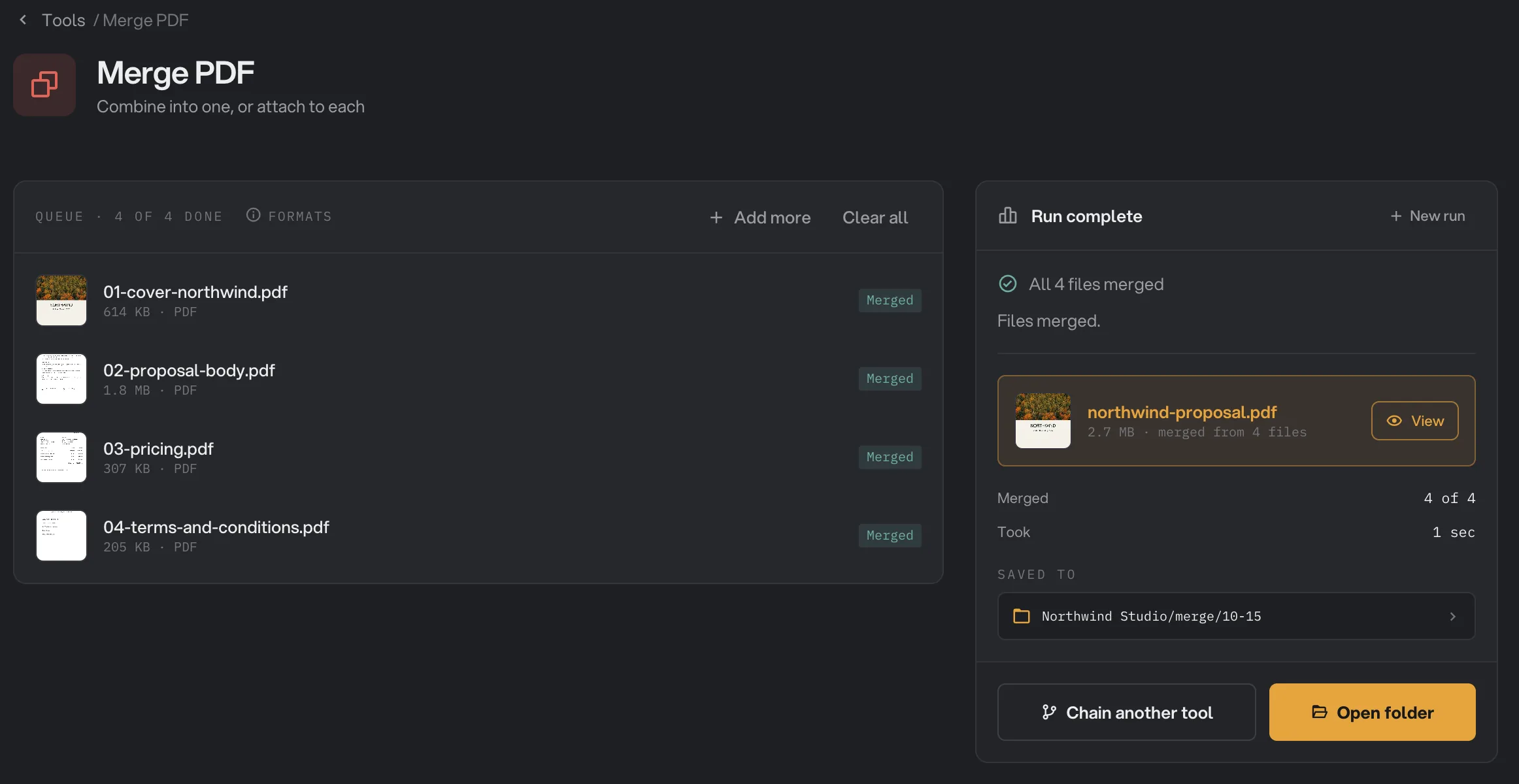
- Merged
- The merged file
- View
- Saved to
- Open folder
Your original PDFs are not changed. For more on reading results, see See and compare your results.
Attach a cover or terms page to each PDF
Choose Attach a file to each under Mode when every PDF in a batch needs the same extra pages: a cover sheet on each report, your terms behind each quote, or a back page on each certificate. You get one new file per PDF, not one combined file.
- Add the PDFs that should receive the pages to the queue.
- Under Attachments, click Import PDF… and pick the cover or terms PDF. You can pick several. Imported PDFs are selected right away.
- Click a PDF in the list to select or unselect it. When several are selected, they are added in the order you selected them.
- Under Position, choose After each file (the default) or Before each file.
- Click Run merge.
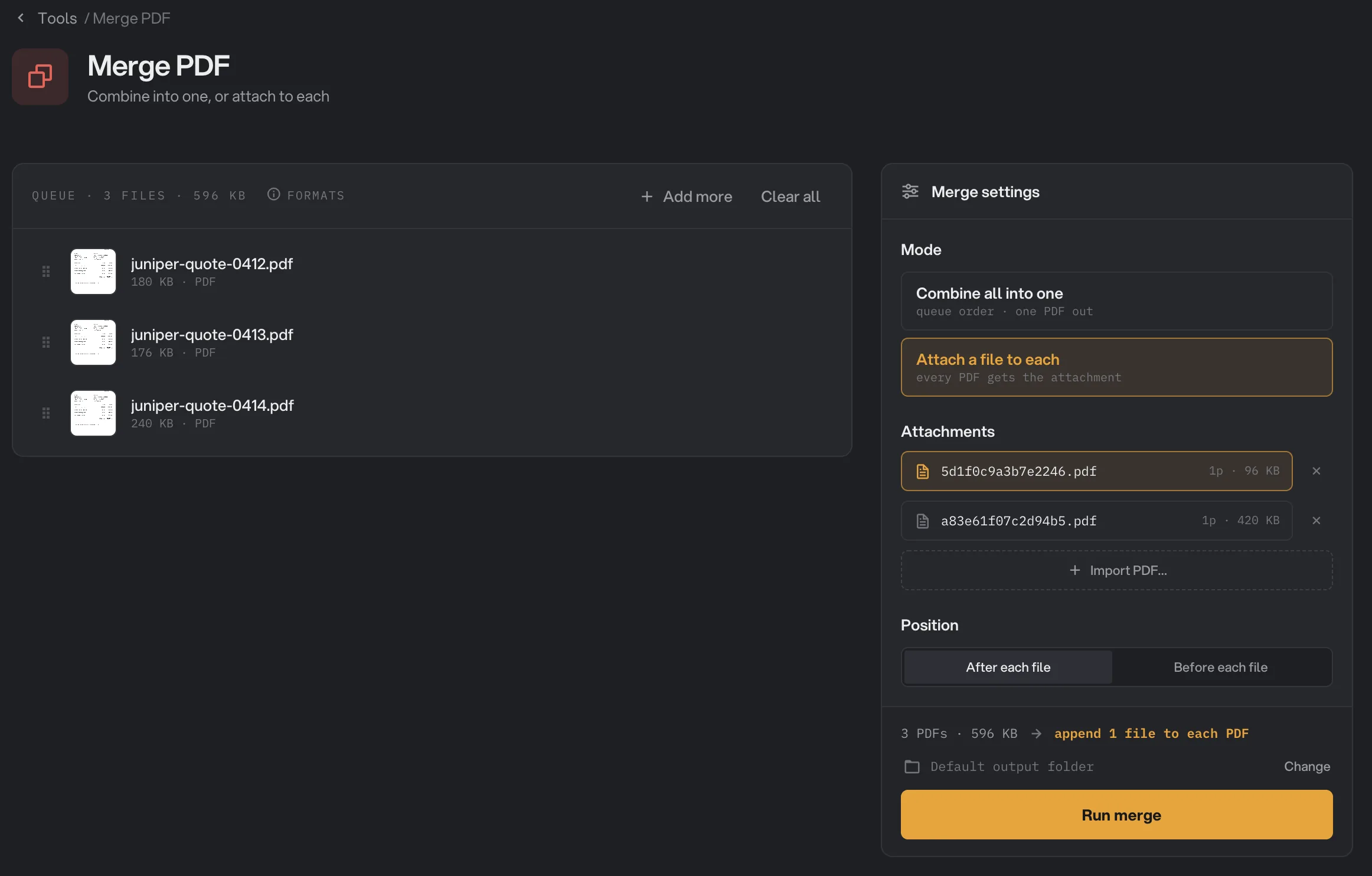
- Attach a file to each
- The attached file
- Import PDF
- Position
- Run merge
Each new file keeps its original name with -merged added, such as juniper-quote-0412-merged.pdf, and is saved in an append folder with a subfolder for today's date. No bookmarks are added in this mode.
Imported PDFs stay in the list for next time, in every workspace, so you only import your terms page once. To remove one from Hangar, click the cross next to it.
If a PDF does not appear in the list after you import it, Hangar could not read it. Try exporting it again from the app that made it.
Every setting
- Mode
Combine all into one joins every PDF in the queue into one file. Attach a file to each adds the same pages to every PDF and saves a new copy of each.
- RangeCombine all into one, Attach a file to each
- DefaultCombine all into one
- Output name
Combine mode only. The name of the merged file. If the folder already has a file with this name, Hangar adds (2), (3) and so on.
- RangeAny file name ending in .pdf
- Defaultmerged.pdf
- Bookmark per source
Combine mode only. Adds one bookmark per original file, named after it, so readers can jump to each part.
- RangeOn or off
- DefaultOn
- Attachments
Attach mode only. The PDFs added to every file in the queue, in the order you select them.
- RangeAny PDFs you import
- DefaultNone selected
- Position
Attach mode only. Whether the attached pages go behind or in front of each PDF.
- RangeAfter each file, Before each file
- DefaultAfter each file
Tips for a clean merged file
- Give your files clear names. Bookmark per source names each bookmark after its file, so
pricing.pdfbecomes a bookmark that reads "pricing", whilescan_0032.pdfdoes not help anyone. - Fill in forms before merging. If several of your PDFs are fillable forms, the merged file may keep only one of them fillable. What is already typed in stays visible.
- Remove or reorder single pages first with Organize Pages, or take just the pages you need with Extract Pages, then merge the results.
- Shrink the result last. Merging does not make a file smaller. To fit an email limit, run Compress PDF on the merged file.
Why did my merge fail or look wrong?
A merge is all or nothing: if one file can't be read, Hangar stops and saves nothing, so you never get a merged file with a part missing. The panel shows Run failed, and the files from the problem file to the end of the queue are marked Failed with the reason. The first file marked Failed is the one to fix; the files after it only stopped because the merge stopped. Then run the merge again.
- "This file is password-protected": the PDF needs a password to open. Remove the password with the Unlock tool, then merge the unlocked copy.
- "Couldn't read this PDF": Hangar already tried to repair the file and could not. Open it in another app and export it again as PDF.
- "Invalid output name": the name in Output name uses a character that is not allowed in file names, such as
/or:, or ends with a space or a period. Change the name and run again.
If the merged file looks wrong, check these:
- Pages are in the wrong order: the order comes from the queue. Drag the files into place and run again.
- The original bookmarks are gone: bookmarks inside the original PDFs are not kept. Turn on Bookmark per source for one bookmark per file.
- The title or author shown by your PDF reader is missing: document details are not copied into the merged file.
- The file has an odd ending such as .bin: the name in Output name did not end with
.pdf. Rename the file to end in .pdf, or run again with a corrected name.
For other errors, see A file failed: what to check.
Limits
- Merge PDF accepts PDF files only. To turn photos or scanned images into a PDF, use Images to PDF first.
- Combine mode needs at least two PDFs, and makes one merged file per run. To make several merged files, run it once for each set.
- The same file can only be in the queue once, so you can't repeat a page, such as a separator, by adding its file twice.
- PDFs that need a password to open can't be merged until the password is removed.
- Bookmarks and document details from the original files are not carried over.
- Everything runs on your computer and nothing is uploaded. Very large merges take as long as your computer needs.
Keep going after a merge
Merge PDF is not a chain step. When a merge finishes, click Chain another tool and pick the next tool, for example Compress, Page Numbers or Encrypt. Hangar loads the merged file into the queue and opens that tool. See How to run a tool in Hangar for how the queue works.
Common questions
How do I change the order of the files?
Drag a file by the handle at the left of its row. Merge PDF joins the files in the order they appear in the queue, from top to bottom.
Are the bookmarks from my original PDFs kept?
No. Bookmarks inside the original files are not carried into the merged file. Leave Bookmark per source on and the merged file gets one bookmark per original file instead, named after it.
Why is my merged file called merged (2).pdf or output.pdf?
Hangar never overwrites a file. If a file with the same name is already in the folder, it adds (2), (3) and so on. If you leave Output name empty, the file is called output.pdf.
Can I merge a password-protected PDF?
Not if it needs a password to open. The merge stops with a message that the file is password-protected, and nothing is saved. Remove the password with the Unlock tool first, then merge the unlocked copy.
How do I add the same cover or terms page to many PDFs?
Use the second mode of Merge PDF, Attach a file to each. Import your cover or terms PDF once, pick it, and every PDF in the queue gets its own copy with those pages added before or after it.
Still stuck?
One person reads every message, usually with a reply within a day.