 Agencies and studios
 Photographers
 Podcasters
 Video and social creators
 Marketers and content teams
What does PDF to Markdown do?
PDF to Markdown turns a PDF into a Markdown or plain text file on your own computer, ready to paste into notes, a wiki, a website or an AI tool. It keeps the structure of the document: headings, lists, quotes, captions and clear tables come out as Markdown, in the order a person would read them, even across two columns.
Pages that are scans are read with text recognition, so a document that mixes typed and scanned pages comes out as one file. Pictures can be saved next to the text and linked from it. Before you run, you can open any PDF in a Studio that shows what was detected on each page.
Step 1: Add your PDFs
Click Tools in the sidebar, open the PDF tab and click PDF to Markdown. You can also type "pdf to markdown" in the search box at the top.
Drop your PDFs on the queue, or click it to pick files. Every PDF becomes its own Markdown file, converted one after another. To add more later, use Add more. Folders are not accepted, so select the files inside a folder instead.
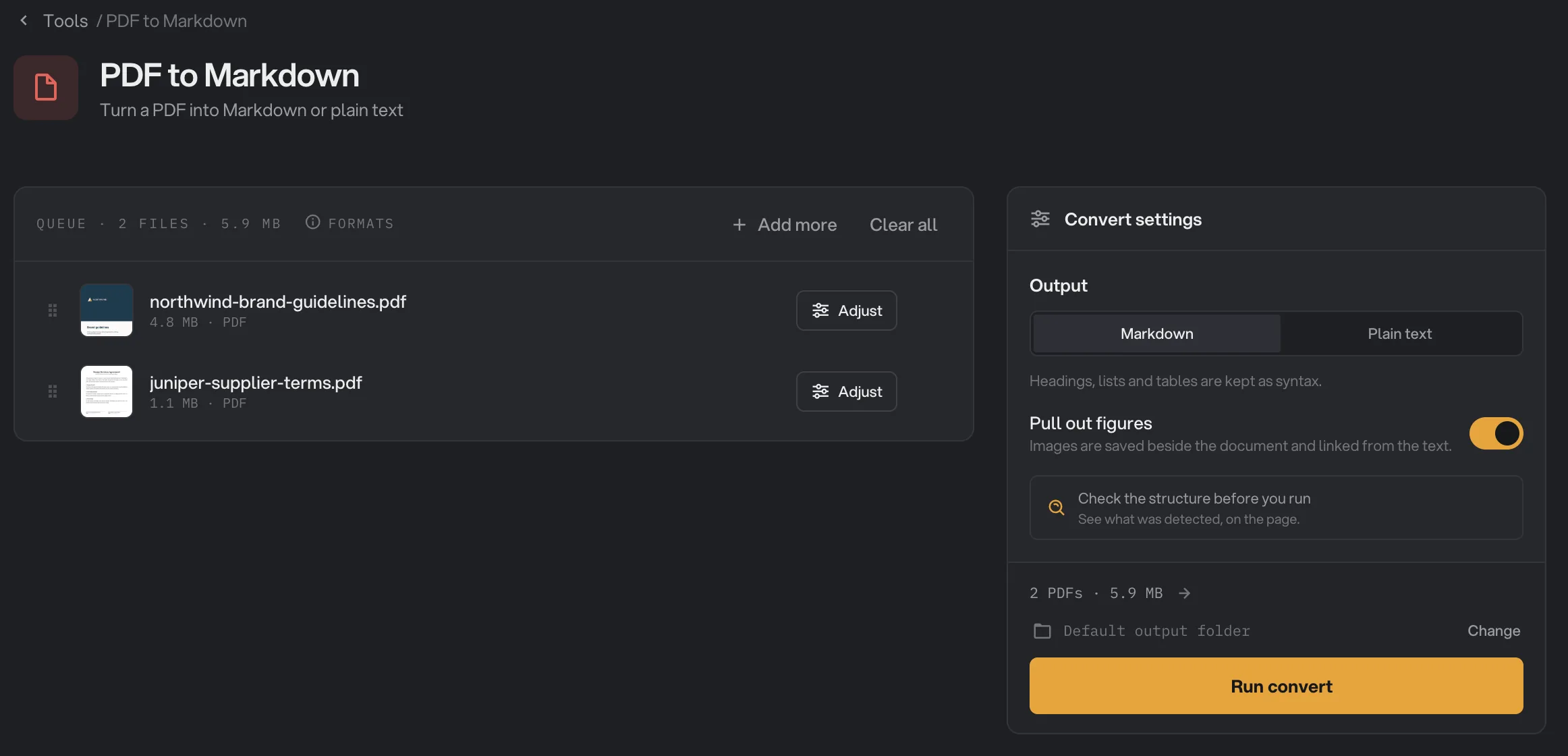
- Output
- Pull out figures
- Open the Studio
- Run convert
Step 2: Choose the output
Under Output, pick Markdown to keep headings, lists and tables as Markdown, or Plain text for just the words in the right order. Markdown is selected when you open the tool.
Pull out figures is on when you open the tool. It saves the pictures in the PDF as PNG files in a folder next to the document, and links each one from the text where it appeared. Turn it off when you only want the words, and always for scanned PDFs: a scanned page is one big picture, so each page would also be saved as an image.
Step 3: Check the structure in the Studio (optional)
Click Check the structure before you run, or click a PDF's thumbnail in the queue, to open that document in the Studio. The page is on the left with a numbered box around every block of text, in reading order. The text it produces is on the right. Click a box to see its line in the text, or a line to see its box on the page.
Pages with an amber dot in the page list need a look. The line Worth a look on this page above the page says why, for example that a table could not be rebuilt or that the page was a scan and was read with text recognition. Click a block to fix it:
- Change what it is with H1, H2, H3, Body, List, Quote, Caption or Ignore. The keys 1 to 8 do the same.
- Move it earlier or later in the reading order with the arrows next to its number.
- Use Join above to merge a paragraph that was split in two, and Leave out to drop a block from the text.
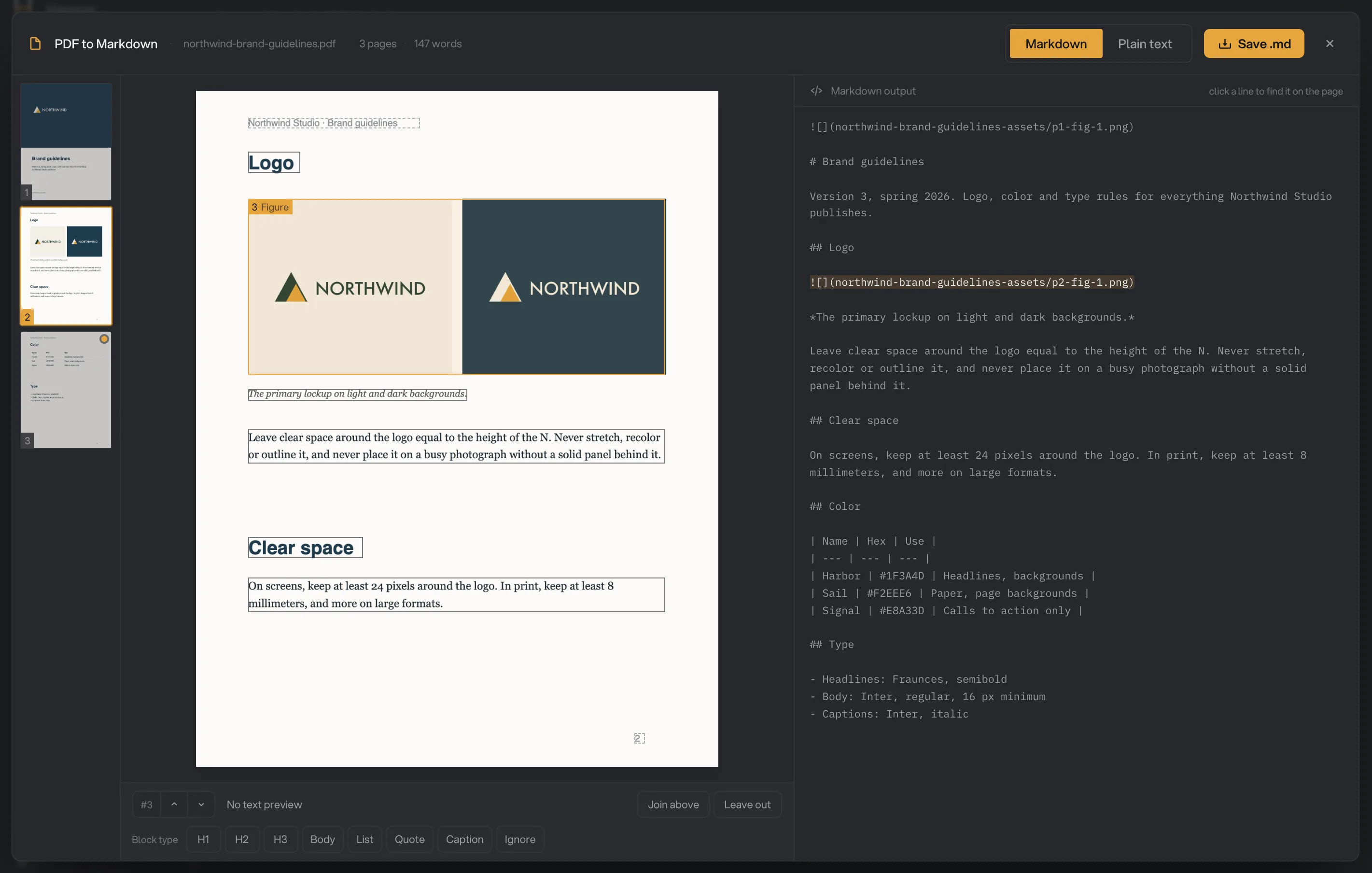
- A page that needs review
- A detected block
- Ignore
- Leave out
- Markdown output
- Save .md
When it looks right, click Save .md (or Save .txt with Plain text) to save that one document. Hangar saves it in the folder you picked with Change, or asks you for a folder. It uses the PDF's name and replaces a file with the same name in that folder. Pictures are not saved from the Studio.
Step 4: Run, then read the result
Check where the files will go: Default output folder saves them in your workspace's output folder, in a to_markdown folder with a subfolder for today's date, such as 10-15. Click Change to pick another folder for this run. Then click Run convert.
When the run ends, each PDF shows Done. Click View to read the result. Formatted shows the document the way Markdown will display it, with an outline of its headings to jump around. Raw shows the Markdown itself. Copy copies the whole text. Each picture shows as a box with its file name.
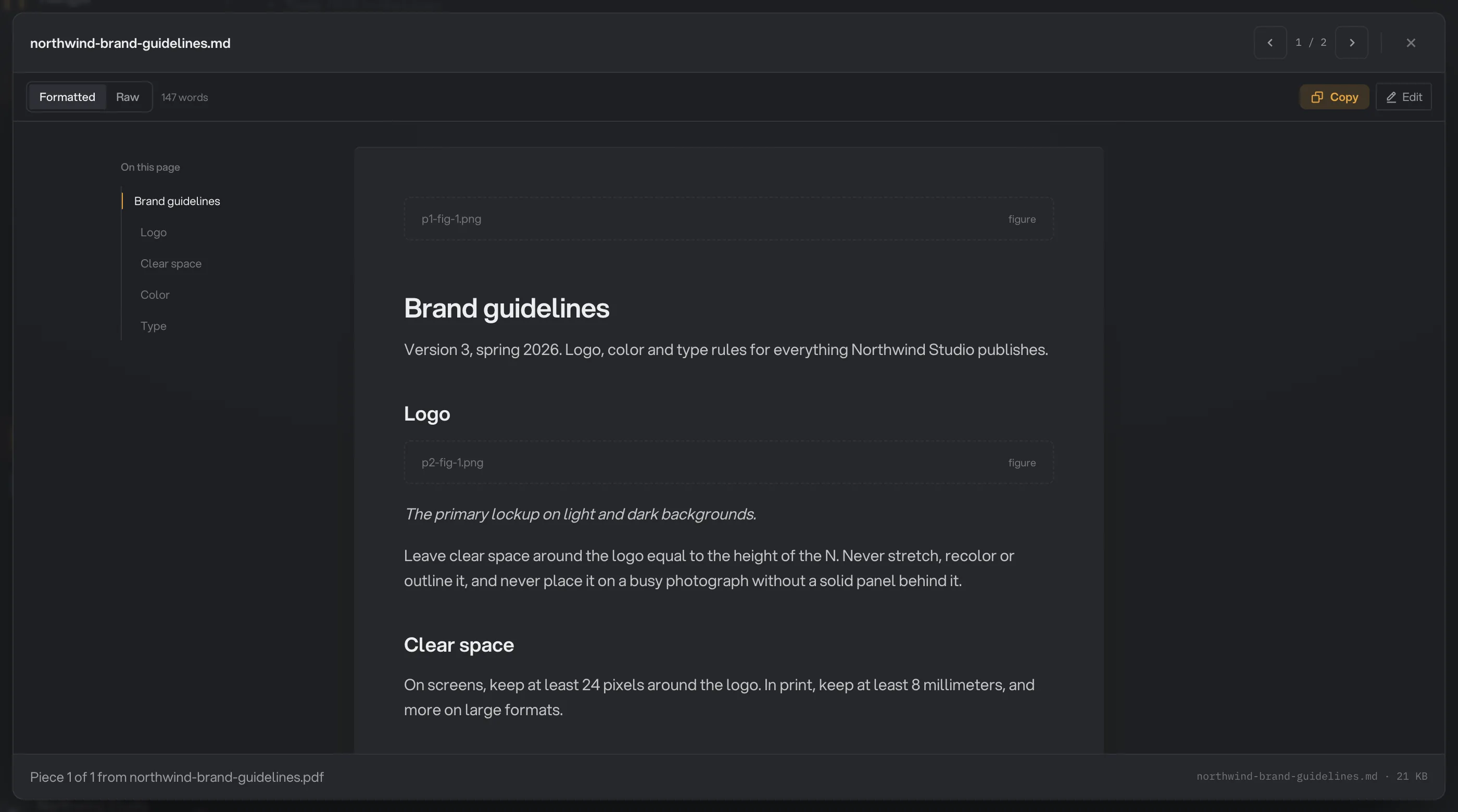
- Formatted
- On this page
- Copy
- Edit
Spotted a wrong word? Click Edit, fix it and click Save. The change is written to the file in your output folder. Open folder takes you to the files. For more on reading results, see See and compare your results.
Every setting, and when to change it
PDF to Markdown has two settings. The defaults give a full Markdown file with its pictures, so most documents need no changes.
- Output
Markdown keeps headings, lists, quotes and tables as Markdown and saves a .md file. Plain text keeps only the words, in reading order, and saves a .txt file.
- RangeMarkdown or Plain text
- DefaultMarkdown
- Pull out figures
Saves the pictures in the PDF as PNG files in a folder named after the PDF, and links them from the Markdown. With Plain text, the pictures are still saved but the text has no links to them.
- RangeOn or off
- DefaultOn
Text recognition for scanned pages always reads English, at a fixed level of detail. There is no setting for it in this tool.
How do I get clean Markdown?
- Start from the original PDF when you can: one exported from Word, Google Docs, Pages or a design app. Its text is exact, so headings, lists and tables come out best.
- Before converting a long or complex document, open it in the Studio and look at the pages with an amber dot first. They tell you where the result may need a hand.
- For scanned PDFs, turn off Pull out figures. If you also need the scan to stay searchable as a PDF, run OCR PDF instead.
- For a document you need perfect, fix it in the Studio and save it from there, or run it and touch up the words with Edit.
Why does my Markdown look wrong?
- A table came out as plain text. Hangar only rebuilds a table when its grid is clear: ruled lines, or neat columns of data with at least three columns. When it is not sure, it keeps the text as paragraphs rather than risk putting numbers in the wrong cells. Tables in scanned pages rarely come out as tables.
- The heading levels are off. Levels come from the font sizes used across the whole document. A document that uses one size for everything, or many similar sizes, gets flat or uneven levels. Fix them in the Studio with H1, H2 and H3.
- Text from two columns is mixed up. Unusual layouts, such as text boxes, sidebars or magazine pages, can confuse the reading order. The Studio shows the order with numbers; move blocks earlier or later to fix it.
- A chart or diagram is missing. Only pictures are saved as figures. Charts drawn as shapes in the PDF, rather than placed as an image, are not saved, and their labels may come through as loose text.
- The text has strange characters. Some PDFs store their text in a way that does not match the letters you see. Hangar notices many of these pages and reads them with text recognition instead, but not all of them.
- A scanned page is full of mistakes. Recognition reads English only in this tool, and works best on clean, straight, typed pages. Handwriting, low-resolution scans, photos of pages and other languages give poor text.
- A page came out almost empty. If a page is a picture with no readable text, there is nothing to convert. The Studio marks such pages with a note.
Limits
- PDF to Markdown accepts PDF files only.
- PDFs that need a password to open cannot be read. Remove the password with Unlock PDF first.
- Scanned pages are read in English only.
- Fixes made in the Studio apply only to the file you save from the Studio, not to Run convert.
- Pictures are saved only when you run the tool, not from the Studio.
- Everything runs on your computer, and scanned pages take longer than text pages. Nothing is uploaded.
If a file fails, its row shows the reason. A file failed: what to check lists the common causes and fixes.
Common questions
Does PDF to Markdown work on scanned PDFs?
Yes. Pages with no usable text are read with text recognition, on your computer. Recognition reads English only in this tool, so scans in other languages come out with mistakes. Turn off Pull out figures for scans, or every page is also saved as a picture.
Why are the headers, footers and page numbers missing?
On purpose. Text that repeats at the top or bottom of many pages, such as a running title or "Page 3 of 12", is left out so it does not interrupt the text over and over. You can bring a line back for one document in the Studio.
Are my fixes in the Studio used when I click Run convert?
No. Run convert reads every PDF again from the start. To keep your fixes, save that document from the Studio with Save .md. Or run first, then fix the words in the finished file with View and Edit.
Where are the pictures saved?
In a folder next to the Markdown file, named after the PDF with -assets at the end, such as report-assets. The Markdown links to each picture there, so keep the file and the folder together when you move them.
Can I get plain text instead of Markdown?
Yes. Set Output to Plain text. You get the words in reading order with no headings, list marks or table syntax, saved as a .txt file.
Still stuck?
One person reads every message, usually with a reply within a day.