 Agencies and studios
 Photographers
 Podcasters
 Video and social creators
 Marketers and content teams
What does Crop PDF do?
Crop PDF trims the edges off the pages of a PDF, on your own computer. Use it to cut away white borders from scans, wide margins around slides, or a scanner bed around a small document. You set how much to take off each side, or draw the crop on the page in the Crop Studio, and Hangar applies it to every page of every file you add.
It takes PDF files and gives back PDF files, one for each file you add.
Step 1: Add your PDFs
Click Tools in the sidebar, open the PDF tab and click Crop PDF. You can also type "crop pdf" in the search box at the top.
Drop your PDFs on the queue, or click it to pick files. To add more later, use Add more. Folders are not accepted, so select the files inside a folder instead.
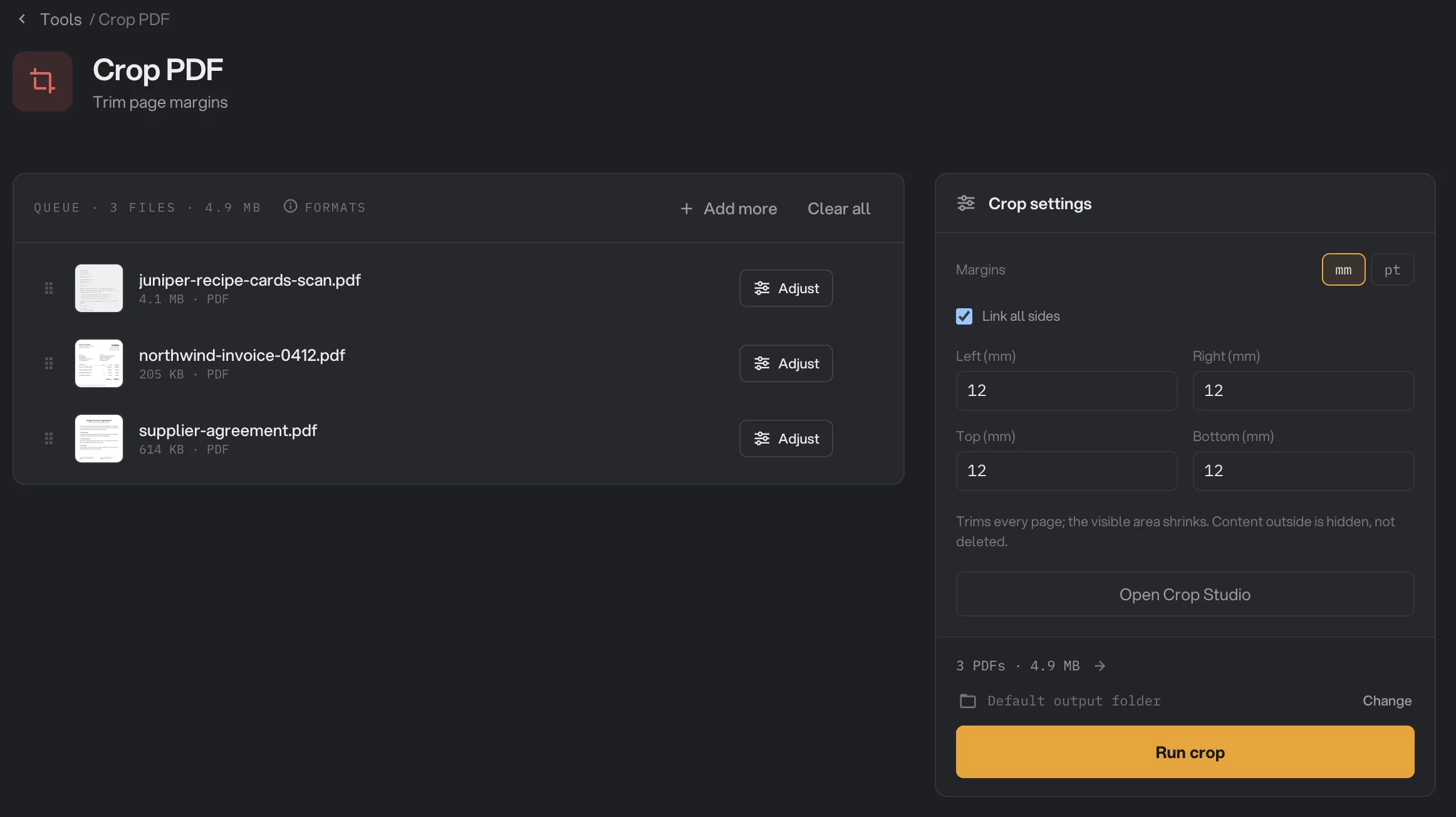
- mm or pt
- Link all sides
- Margin fields
- Open Crop Studio
- Run crop
Step 2: Set the margins
Type how much to trim from each edge in Left, Right, Top and Bottom. The fields use millimeters until you switch to pt (points) with the toggle above them. Tick Link all sides to set all four to the same value as you type.
The line under the fields confirms what will happen. When every margin is 0, it says there is no crop yet.
Each margin is a fixed distance measured from the edge of the page as you see it, so a page that displays sideways is cropped from the edges you see. The same distances are used on every page. If your PDF mixes page sizes, check a few pages in the Crop Studio.
Step 3: Draw the crop in the Crop Studio (optional)
Click Open Crop Studio, or the Adjust button on a file in the queue. The page appears with the area outside the crop dimmed.
- Drag inside the frame to move it, and drag a round handle to resize it. The margin fields on the right follow along.
- Use the arrows next to Page 1 / 3 to check other pages, and the arrows on the right to switch files.
- All pages sets the crop for every page that does not have its own. It is the same crop as the fields in the side panel.
- This page gives only the current page its own crop. An amber dot appears next to the page number, and the sidebar lists your Custom pages. Click Reset this page to the global crop to undo it.
Click Done to go back. For more on hands-on editors, see Studios.
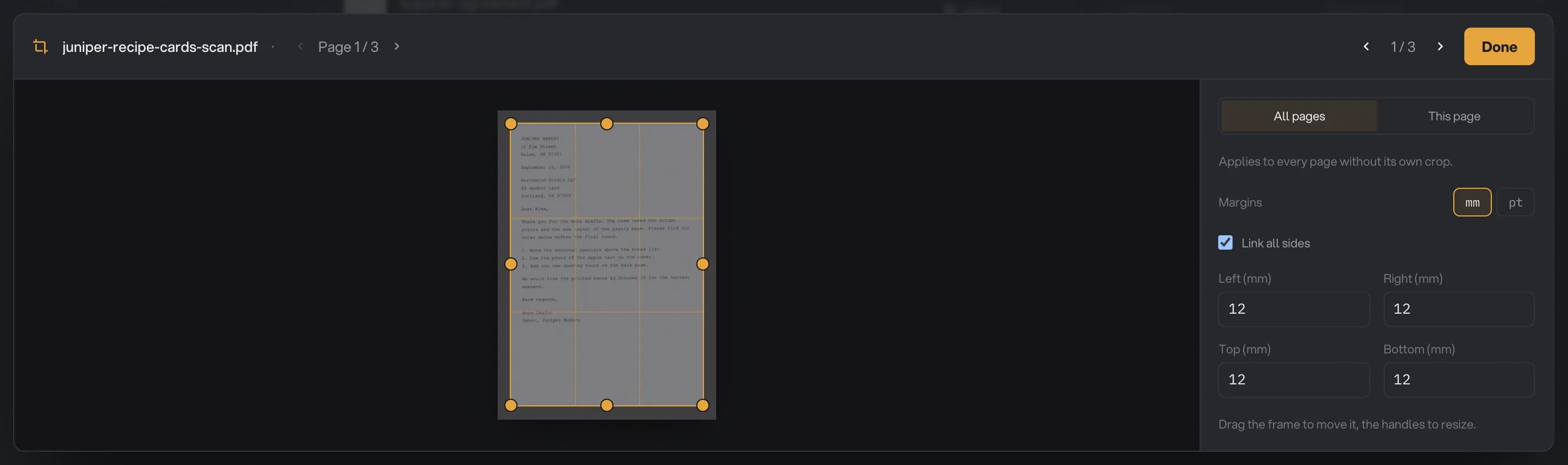
- Crop frame: drag to move
- Handle: drag to resize
- Page arrows
- All pages or This page
- Margin fields
- Switch files
Step 4: Run, then check the result
Check where the files will go: Default output folder saves them in your workspace's output folder, in a crop folder with a subfolder for today's date, such as 10-15. Click Change to pick another folder for this run. Then click Run crop.
Each file is saved as a new PDF with -cropped added to its name. When the run ends, each file shows Done. Click View to page through a result and check that nothing you need was cut off. Open folder takes you to the files.
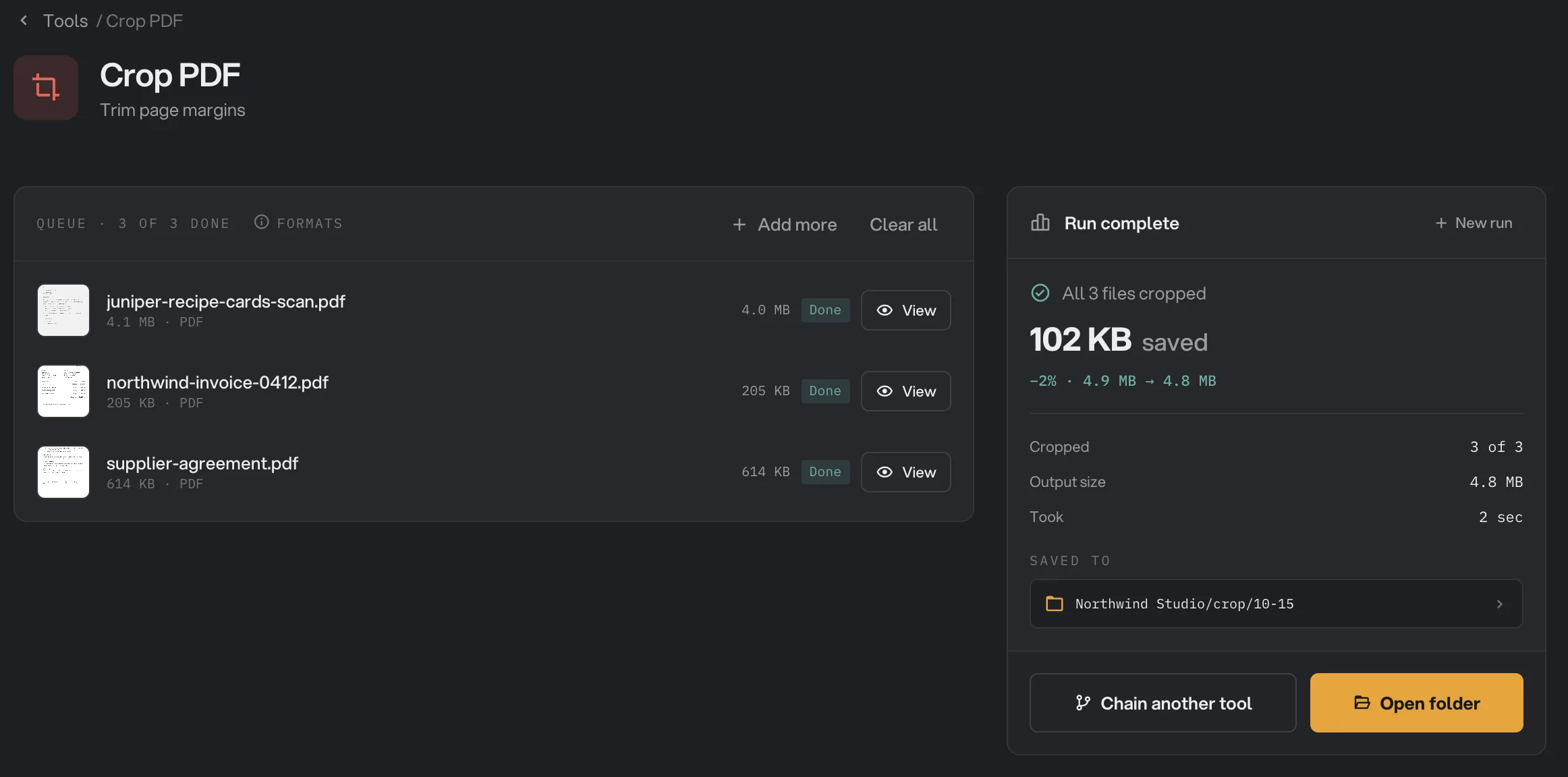
- Done
- View
- Saved to
- Open folder
Every setting
- Margins (mm or pt)
The unit for the four margin fields. Switching only changes how the numbers are shown.
- RangeMillimeters or points
- Defaultmm
- Link all sides
When on, typing in any margin field sets all four sides to that value.
- RangeOn or off
- DefaultOff
- Left, Right, Top, Bottom
How much to trim from that edge of every page, measured from the edge as the page is shown.
- Range0 or more
- Default0
- All pages or This page
Whether the frame you draw applies to every page, or only to the page on screen.
- RangeIn the Crop Studio
- DefaultAll pages
Hangar remembers your margins until you close the app. Before you crop a new batch, check that the numbers are still the ones you want.
How do I get a clean crop?
- Open the Crop Studio on the file with the most margin to remove, and draw the frame around the content you want to keep.
- Step through a few pages with the page arrows. On a long document, a header, footer or page number near the edge is easy to cut off.
- If one page is different, such as a wide table or a sideways page, give it its own crop with This page.
- Run, then check the result with View before you send it.
For a batch of different documents, such as scans from different scanners, crop each kind in its own run. The same margins on every file only work well when the files have the same layout.
Why does my result look wrong?
- Every file is marked Kept. All four margins were 0, so there was nothing to crop. Hangar saved an unchanged copy of each file. Set a margin and run again.
- Content was cut off on some pages. The same distances are trimmed from every page. On a page that is smaller, or laid out differently, they can reach the content. Give that page its own crop in the Crop Studio.
- The crop is much smaller than expected. Check the unit. 12 points is about 4 millimeters, while 12 millimeters is about 34 points.
- A cropped file got cropped again. Margins are measured from the page as it is now, so cropping an already cropped file trims further. Start from your original file instead.
- Margins larger than the page. If the left and right margins, or the top and bottom margins, add up to more than the page, Hangar shrinks them both so a sliver of the page remains. Lower the numbers.
Limits
- Crop PDF accepts PDF files only. To crop photos, use Crop image.
- Cropping hides content, it does not remove it, and it does not make the file smaller.
- Crop PDF cannot widen a crop or restore a cropped area. Keep your original.
- Settings for professional printing, such as bleed, are removed from cropped pages. If a print shop needs bleed, crop in the app that made the file instead.
- Password-protected PDFs, including ones that open freely but block printing or editing, stop with a message that the file is password-protected. Remove the password with Unlock PDF first.
- Damaged PDFs are repaired automatically when possible. If a file cannot be read at all, it fails with a message that it may be damaged or not a real PDF.
If a file fails, its row shows the reason. A file failed: what to check lists the common causes and fixes. For where your files are saved, see Where Hangar saves your files.
Common questions
Does cropping remove the content outside the crop?
No. Crop PDF hides that area but keeps it in the file. Apps that pull text out of a PDF can still read hidden text, and someone with a PDF editor can show the area again. To remove private information for good, use Redact PDF.
Can I crop pages differently in the same PDF?
Yes. Open the Crop Studio, go to the page, click This page and draw its crop. That page keeps its own crop, and every other page follows the crop for all pages.
Can I undo a crop or make it wider later?
Not with Crop PDF. Running it again on a cropped file trims further from the new edges. Your original file is never changed, so crop the original again with new margins.
Why is the cropped file the same size?
Because nothing is deleted. The content outside the crop stays in the file, so the size barely changes. To make the file smaller, use Compress PDF.
Should I use millimeters or points?
Either. Millimeters is the default. Points are the unit many print shops use: 72 points make an inch, and 1 millimeter is about 2.83 points. Switching the unit only changes how the numbers are shown.
Still stuck?
One person reads every message, usually with a reply within a day.