 Agencies and studios
 Photographers
 Podcasters
 Video and social creators
 Marketers and content teams
What does Stamp do?
Stamp adds the same mark to the pages of your PDFs, on your own computer: a word such as DRAFT or CONFIDENTIAL, your logo, or both together. Use it for status marks, a logo on every page of a proposal, a page footer, or a faded watermark repeated across the page. It takes PDF files and gives back one stamped PDF for each file you add.
You can set the stamp once for a whole batch in the settings panel, or place it by eye in the Stamp Studio, which shows each page with the stamp already on it.
Step 1: Add your PDFs
Click Tools in the sidebar, open the PDF tab and click Stamp in the Sign & finalize section. You can also type "stamp" in the search box at the top.
Drop your PDFs on the queue, or click it to pick files. Every file gets the same stamp unless you customize one in the Studio. To add more later, use Add more.
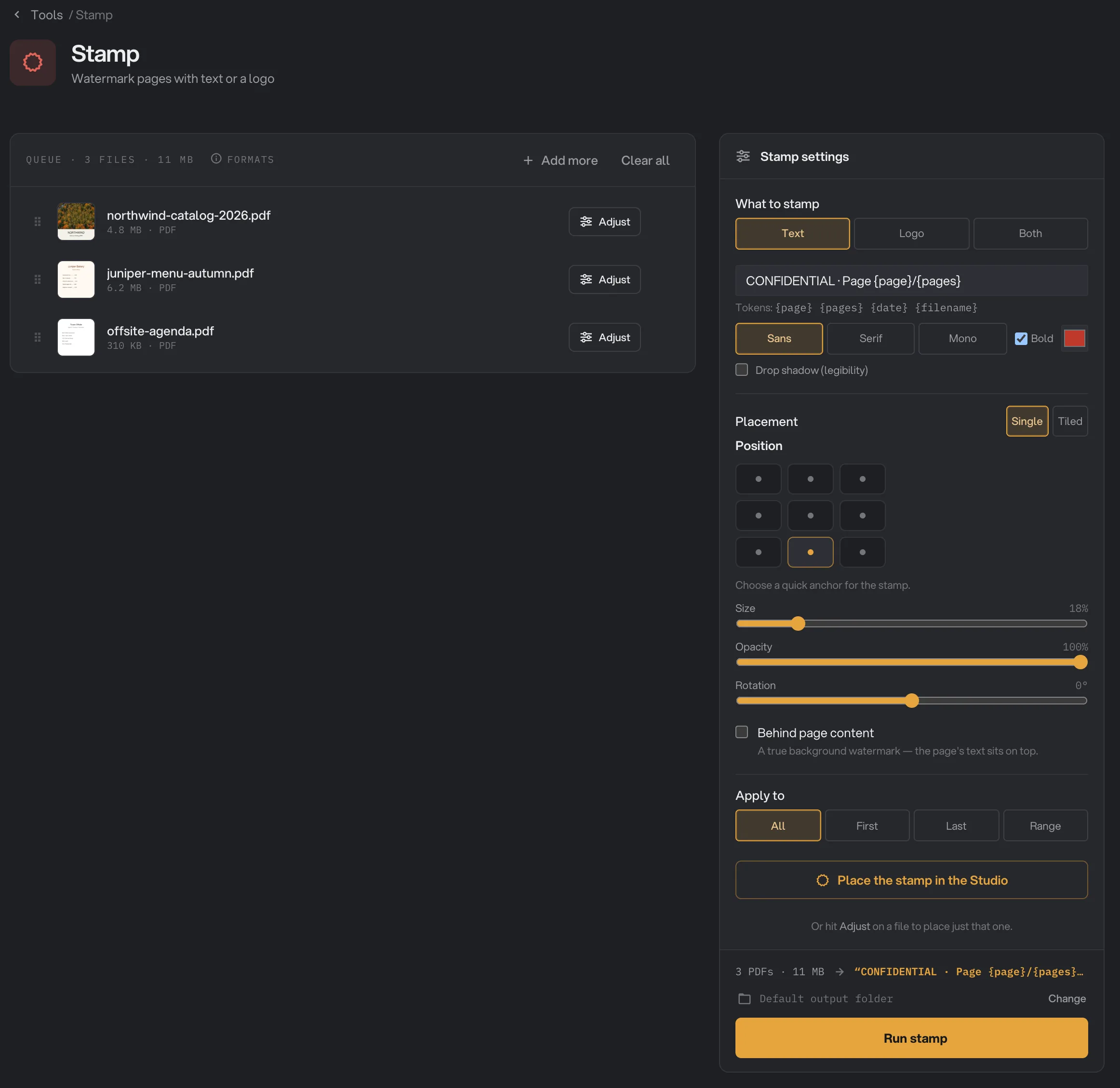
- What to stamp
- Stamp text
- Single or Tile
- Position
- Apply to
- Place the stamp in the Studio
- Run stamp
Step 2: Choose what to stamp
Under What to stamp, pick Text, Logo or Both. A new stamp starts as the word DRAFT in red.
- Text: type the words in the text box. Choose Sans, Serif or Mono, tick Bold if you want, and click the color swatch to change the color. Drop shadow (legibility) adds a soft dark shadow that helps light text stand out on busy pages.
- Logo: click Import… and pick an image of your logo. PNG, JPG, WebP, BMP and SVG files work. Imported logos stay in the list for next time, so you only import them once.
- Both: the logo sits on top with your text centered under it.
Text can include tokens that Hangar fills in for each page: {page} (the page number), {pages} (the total number of pages), {date} (today’s date, written like 2026-10-15) and {filename} (the file name without .pdf). For example, Page {page} of {pages} becomes "Page 3 of 12" on page 3.
Step 3: Place it on the page
Under Placement, keep Single for one stamp per page, or choose Tiled to repeat it across the whole page like a watermark.
For a single stamp, click one of the nine squares under Position, such as Bottom for a footer or Top right for a status mark. Then set Size, Opacity and Rotation with the sliders. Size is measured against the longest side of the page, so the stamp keeps the same proportions on Letter, A4 or slides.
To place it by eye, click Place the stamp in the Studio. The Studio shows each page with the stamp on it, exactly as it will be saved. Drag on the page to move the stamp, use the arrows next to Page to check other pages, and the arrows at the top right to switch files. Click Done when it looks right.
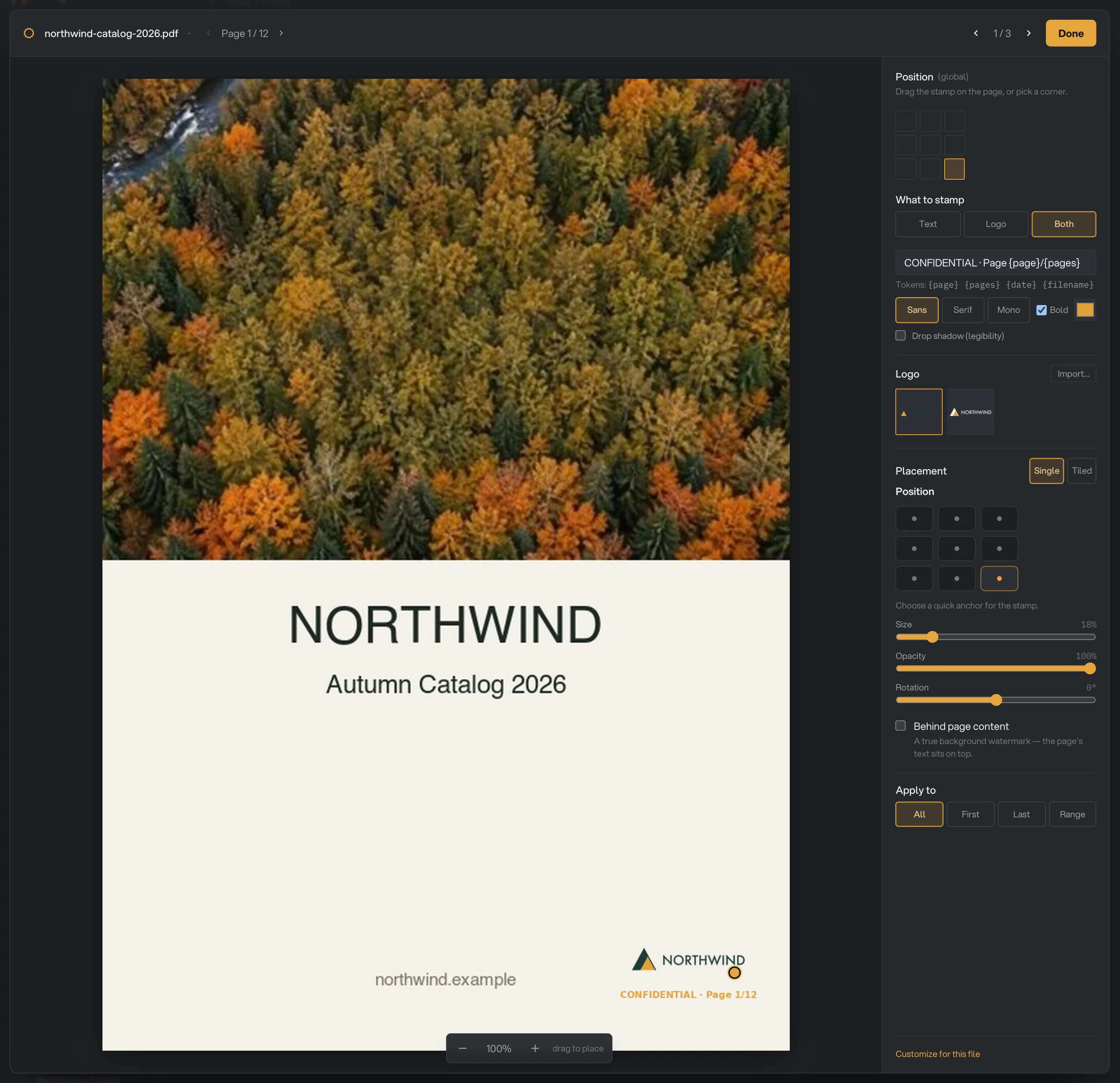
- Next page
- Next file
- Drag the stamp
- Corner anchor
- Customize for this file
- Done
Changes in the Studio apply to every file, unless you click Customize for this file first. From then on the Studio edits only the file you are looking at, and the button in the panel shows how many files have their own stamp. Click Use global settings to undo that. You can also click Adjust on a file in the queue to open the Studio on that file.
Step 4: Choose the pages
Under Apply to, pick All, First, Last or Range. For a range, type page numbers and spans separated by commas, such as 1-3, 7. Each file uses its own page count, so "Last" is the last page of every PDF, however long it is.
Step 5: Run, then check the result
The line above the button sums up your stamp, for example "“CONFIDENTIAL” · single · all pages". Check where the files will go: Default output folder saves them in your workspace’s output folder, in a stamp folder with a subfolder for today’s date, such as 10-15. Click Change to pick another folder for this run. Then click Run stamp.
When the run ends, each stamped file shows Done. Click View on a file to page through it, and Open folder to go to the stamped copies. Each one has -stamped added to its name, for example proposal-stamped.pdf. See See and compare your results and Where your files are saved.
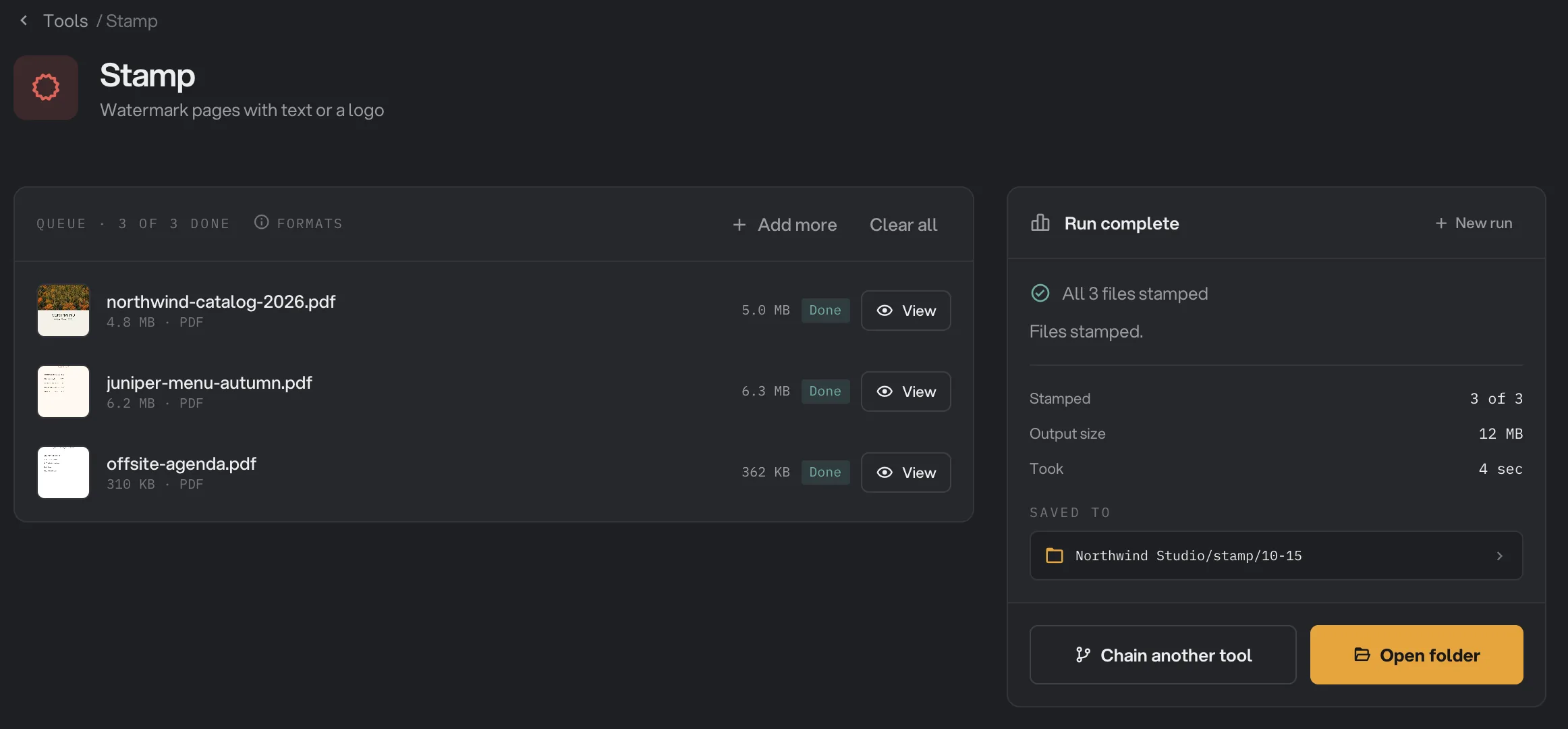
- Done
- View
- Saved to
- Open folder
Every setting, and when to change it
The panel and the Studio show the same settings. Some only appear when they apply: the text settings for Text and Both, the logo list for Logo and Both, Position for Single, and Tile gap for Tiled.
- What to stamp
Whether the stamp is words, your logo, or your logo with the words under it.
- RangeText, Logo, Both
- DefaultText
- Text
The words to stamp. Can include {page}, {pages}, {date} and {filename}, which are filled in for each page.
- DefaultDRAFT
- Font
The typeface of the text.
- RangeSans, Serif, Mono
- DefaultSans
- Bold
Makes the text heavier, which reads better when the stamp is small or faded.
- DefaultOff
- Text color
The color of the text. The logo keeps its own colors.
- RangeAny color
- DefaultRed, or your workspace accent color once you open the Studio
- Drop shadow (legibility)
Adds a soft dark shadow behind the text so it stands out on photos and busy pages.
- DefaultOff
- Logo
The logo image to stamp. Import… adds a new one; imported logos are kept for next time.
- DefaultNone
- Placement
One stamp per page, or the stamp repeated across the whole page.
- RangeSingle, Tiled
- DefaultSingle
- Position
Where a single stamp sits. It always stays fully on the page, a small distance from the edge.
- Range9 positions, or anywhere in the Studio
- DefaultBottom
- Size
How big the stamp is, measured against the longest side of the page.
- Range2% to 100%
- Default18%
- Opacity
How see-through the stamp is. Lower it for a watermark.
- Range0% to 100%
- Default100%
- Rotation
Turns the stamp. With Tiled, it turns the whole pattern.
- Range-180° to 180°, in 5° steps
- Default0°
- Tile gap
With Tiled, the space between copies, compared with the size of the stamp.
- Range0% to 300%
- Default60%
- Behind page content
Blends the stamp into the page so dark text reads on top of it, like a background watermark.
- DefaultOff
- Apply to
Which pages get the stamp. Range takes page numbers and spans, such as 1-3, 7.
- RangeAll, First, Last, Range
- DefaultAll
How do I make a good watermark?
- Set What to stamp to Text and type the word, for example DRAFT or a client name. Turn on Bold.
- Choose Tiled, set Opacity to about 20% and Rotation to about -30°. Raise Tile gap if the pattern feels crowded.
- Turn on Behind page content so the page’s text stays dark and easy to read on top of the watermark.
- Open the Studio and look at a page with a photo or a colored area as well as a text page, then run it.
For a single large watermark instead of a pattern, keep Single, pick the center square under Position and raise Size to 60% or more.
Use your workspace logo and color
If your workspace has a brand kit, Stamp can use it. The first time you open the Stamp Studio after starting Hangar, and only if you have not picked a logo yet, Hangar fills in two things. If the workspace has a Logo, it is picked and What to stamp switches to Both. If it has Brand colors, the text takes the color with the Accent role, or the second color in the list when none has that role (the first, if there is only one). You can change any of it before you run.
If you stay in the settings panel without opening the Studio, the color stays as you set it. When you choose Both and type text without picking a logo, Hangar uses the workspace logo when it runs. To set up a brand kit, see Workspaces and brand defaults.
Why is a file marked Kept?
Kept means there was nothing to stamp on that file, so Hangar saved an exact copy of the original in the output folder. It happens when:
- Apply to is set to Range and none of the pages exist in that file, for example "12" on a 4-page PDF, or the range box is empty.
- The file has its own settings from the Studio, and its stamp is empty: no text with Text, or no logo with Logo.
Check the range, or click Adjust on the file to see what the Studio shows for it.
Troubleshooting
- Run stamp is grayed out and the panel says "Add stamp text or pick a logo first." Type some text, or import and pick a logo.
- Every file failed with a message about choosing a logo. What to stamp is set to Both but no logo is picked, and your workspace has no logo either. Pick a logo, or switch to Text.
- A file failed because the selected logo is no longer available. The logo was removed from Hangar’s list. Import it again and pick it.
- A file failed with a message that it is password-protected. Remove the password with Unlock PDF, then stamp the unlocked copy.
- A file failed because Hangar couldn’t read it. Hangar already tries to repair damaged PDFs. If it still fails, open the file in another app and save or export it as a new PDF.
- The stamp is hard to see. Raise Opacity, turn on Bold, or add Drop shadow (legibility). If Behind page content is on, use a darker color.
- The stamp is not where I put it. A single stamp is kept fully inside the page, a small distance from each edge, so a large stamp moved to a corner stops at the margin.
For other errors, see A file failed: what to check.
Limits
- Stamp accepts PDF files only. To mark photos, use Watermark.
- The stamp is added as a picture on top of the page, drawn at print quality. Its text cannot be selected or searched, and zooming in very far shows slightly soft edges.
- The stamp is an added layer, not a security feature. Someone with a PDF editor could remove it. To stop casual changes, protect the stamped copy with Encrypt PDF.
- The file gets a little bigger. It grows more when the text uses
{page}or{filename}, because every page then gets its own stamp. - Fonts are limited to Sans, Serif and Mono. To use your own typeface, stamp a logo image of the text instead.
- PDFs that need a password to open must be unlocked first.
- Everything runs on your computer. Nothing is uploaded.
Common questions
Can I put the page number or today’s date in a stamp?
Yes. Type {page} for the page number, {pages} for the total number of pages, {date} for today’s date and {filename} for the file name. Hangar fills them in on every page, so "Page {page} of {pages}" becomes "Page 3 of 12" on page 3.
How do I make a faded watermark across the whole page?
Choose Tiled under Placement, lower Opacity to about 20%, turn the Rotation slider to about -30° and turn on Behind page content. Check the result in the Studio before you run it.
Is the text of the stamp searchable?
No. Hangar adds the stamp to each page as a picture, so its words cannot be selected or found with search. The page’s own text is not changed and stays selectable and searchable.
Can I stamp one file differently from the rest?
Yes. Click Adjust on that file, then click Customize for this file in the Studio. Changes you make after that apply only to that file. Use global settings puts it back in line with the rest of the batch.
Is my original PDF changed?
No. Hangar saves a stamped copy in your output folder, with -stamped added to the name, and leaves the original where it was.
Still stuck?
One person reads every message, usually with a reply within a day.