 Agencies and studios
 Photographers
 Podcasters
 Video and social creators
 Marketers and content teams
What does Split PDF do?
Split PDF breaks a PDF into several smaller PDFs on your own computer. You can cut it into single pages, into groups of the same number of pages, or into the exact page ranges you type. Your original PDF is not changed.
It works on many files at once: every PDF in the queue is split with the same settings. Use it to separate a week of invoices exported as one file, to cut a long report into chapters, or to send one section of a catalog on its own.
Step 1: Add your PDFs
Click Tools in the sidebar, open the PDF tab and click Split PDF. You can also type "split pdf" in the search box at the top.
Drop your PDFs on the queue, or click it to pick files. To add more later, use Add more. Files that are not PDFs are set aside under Not applicable, and folders are not accepted, so select the files inside a folder instead.
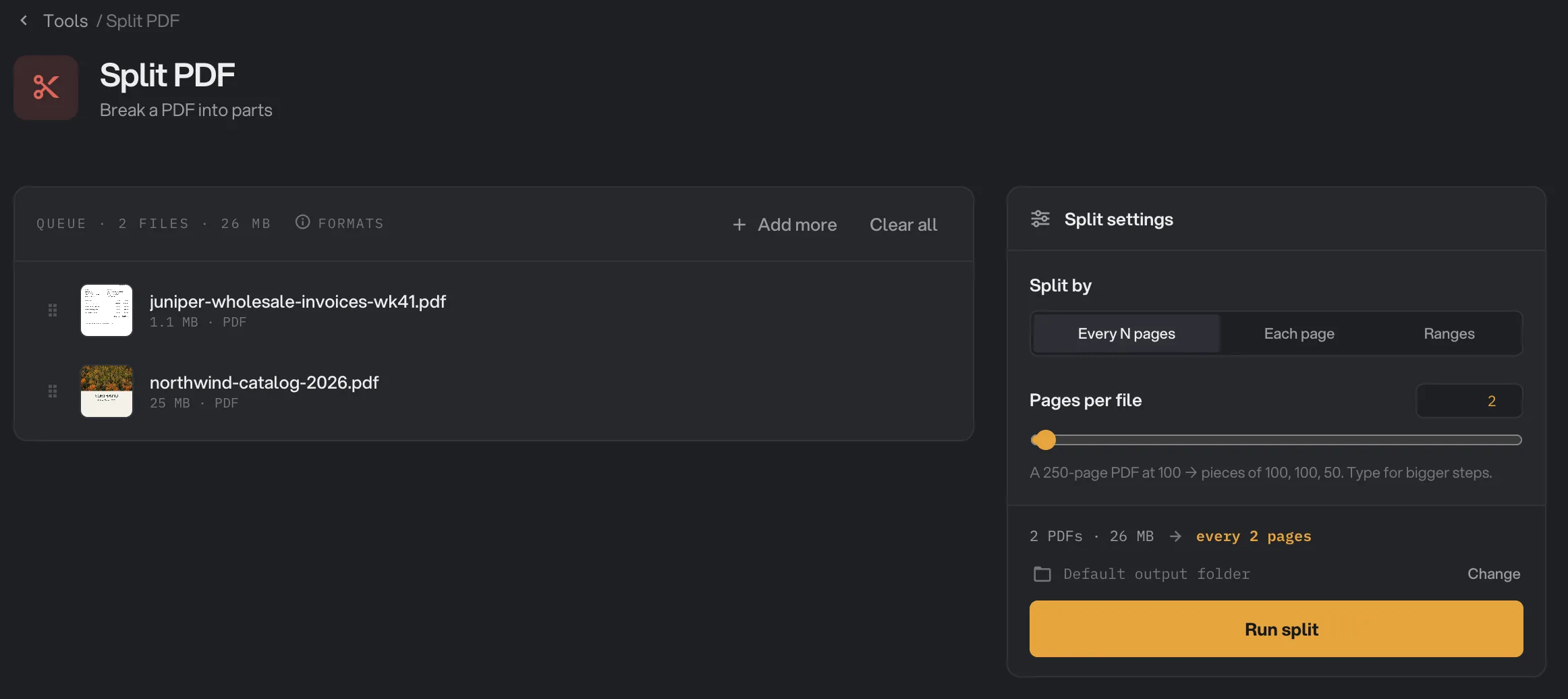
- Split by
- Pages per file
- Output folder
- Run split
Step 2: Choose how to split
Under Split by, pick one of three ways:
- Every N pages cuts the PDF into groups of the same size. Set the size with Pages per file: drag the slider up to 100, or type any number up to 10,000 in the box. The last file holds whatever is left, so a 250-page PDF at 100 gives files of 100, 100 and 50 pages. This is selected when you open the tool, with 1 page per file.
- Each page makes a one-page PDF from every page.
- Ranges makes one PDF for each range you type in Page ranges, such as
1-2, 3-8, 9-12. Separate ranges with commas. A single number, such as12, makes a one-page file.
The line above Run split sums up what will happen, for example "every 2 pages" or "pieces: 1-2, 3-8, 9-12".
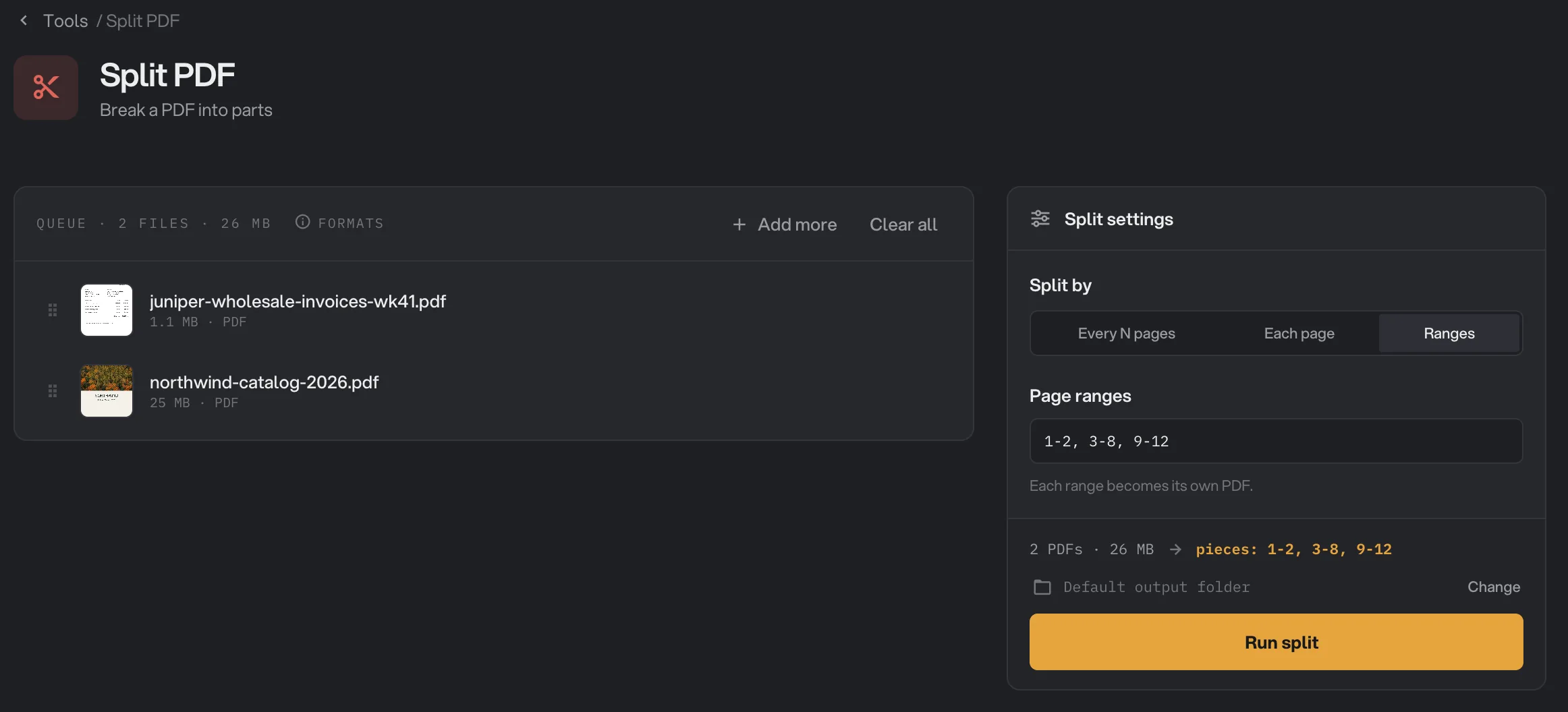
- Ranges
- Page ranges
- Each range becomes its own PDF
Hangar checks your ranges as you type and explains any problem in red under the field, for example that a range is reversed, like 8-3, or that pages are numbered from 1. Run split stays unavailable until the ranges are valid.
Step 3: Run, then check the pieces
Check where the files will go: Default output folder saves them in your workspace's output folder, in a split folder with a subfolder for today's date, such as 10-15. Click Change to pick another folder for this run. Then click Run split.
Pieces appear while each file is being split. When the run ends, each row shows Done and a count such as "6 files". Click the count to see every piece with its size, and hover a piece and click View to check its pages. Open folder takes you to the new files. All pieces from all your PDFs are saved together in the same folder.
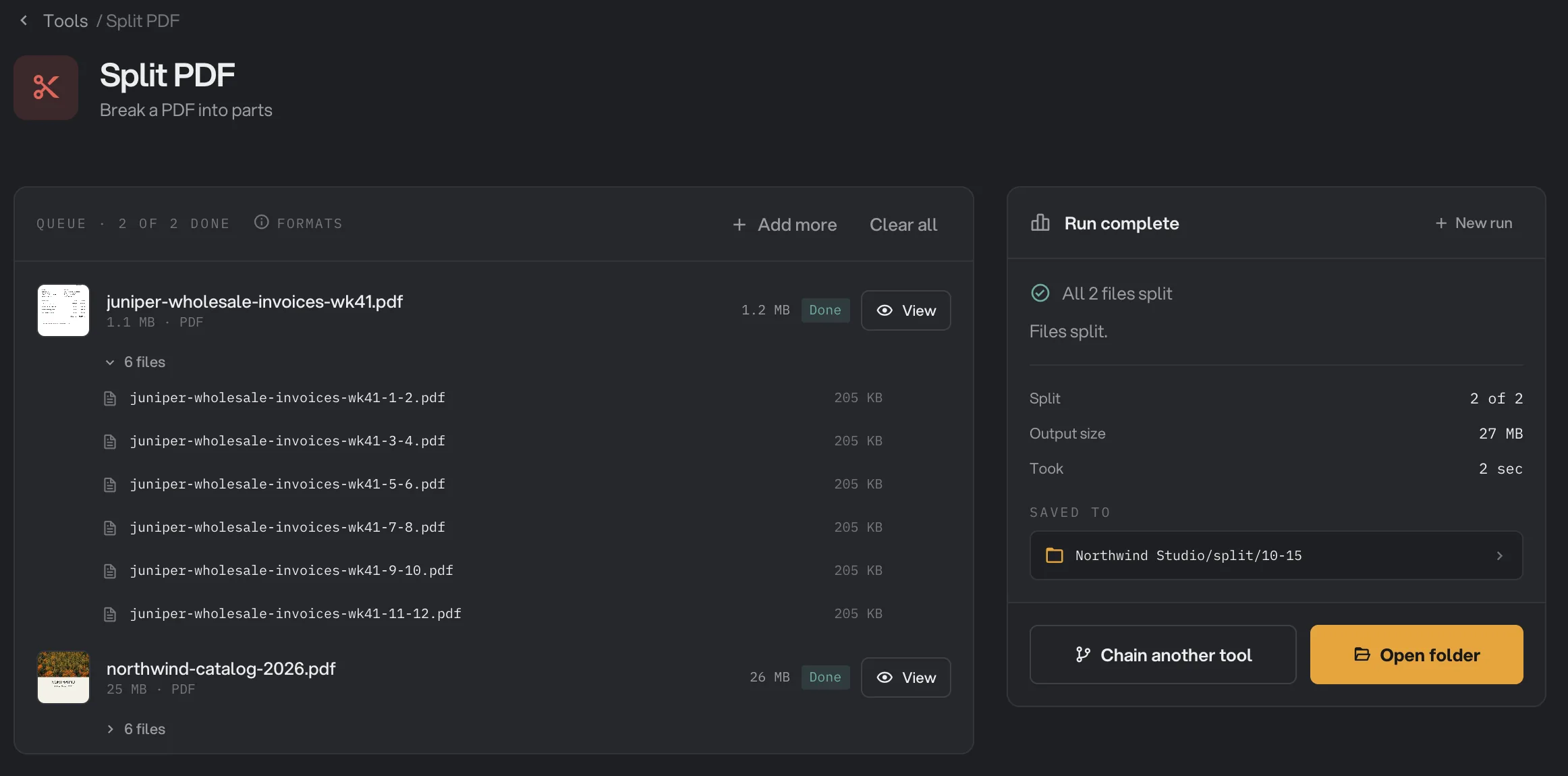
- 6 files
- A piece's name
- Output size
- Saved to
- Open folder
For more on reading results, see See and compare your results.
Every setting
- Split by
How the PDF is cut: into groups of the same size, into single pages, or into the ranges you type.
- RangeEvery N pages, Each page, Ranges
- DefaultEvery N pages
- Pages per file
With Every N pages, how many pages go into each new PDF. The last one holds what is left.
- Range1 to 10,000 (the slider goes to 100)
- Default1
- Page ranges
With Ranges, each entry becomes its own PDF. Pages you leave out are not saved.
- RangePages and ranges separated by commas, such as 1-3, 4-8, 12
- DefaultEmpty
Get the split you want
- Documents of the same length, such as two-page invoices or one-page certificates: use Every N pages with that length. Check the page count first, because one document with an extra page shifts every file after it.
- Documents of different lengths: use Ranges and type each document's pages. The same ranges apply to every PDF in the queue, so split PDFs with different layouts in separate runs.
- Only a few pages: if you want some pages in one file rather than many files, use Extract Pages instead.
- Pages in a new order: Split keeps the original page order inside each piece. To reorder, rotate or delete pages, use Organize Pages.
Why did a file fail or look wrong?
If a PDF can't be split, its row shows Failed with the reason, and the other files in the queue still finish. Any pieces of the failed file are removed, so you never get half a set.
- "Range goes up to page 9, but this PDF has 5 pages": one of your ranges goes past the end of that file. The same ranges are used for every PDF, so a shorter file fails. Fix the range, or split that file on its own.
- "This file is password-protected": the PDF needs a password to open. Remove it with the Unlock tool, then split the unlocked copy.
- "Couldn't read this PDF": Hangar already tried to repair the file and could not. Open it in another app and export it again as PDF.
If the pieces look different from the original, it is usually one of these:
- No bookmarks: bookmarks are not carried into the pieces.
- Page numbers in the reader's sidebar changed: custom numbering such as i, ii, iii is not kept, so every piece starts again at page 1.
- A form can't be filled in any more: fillable fields may stop being fillable in the pieces. What was typed stays visible. Fill in forms before splitting.
- A link does nothing: links that jump to a page now in another piece stop working.
- The pieces add up to more than the original: each piece carries its own copy of the fonts and pictures it uses. This is normal.
For other errors, see A file failed: what to check.
Limits
- Split PDF accepts PDF files only.
- Every PDF in a run is split with the same settings. To split files differently, run them separately.
- Pages stay in their original order inside each piece, and you can't choose your own file names in this tool. To rename the pieces afterwards, use Batch Rename.
- PDFs that need a password to open can't be split until the password is removed.
- Everything runs on your computer and nothing is uploaded. Very large files take as long as your computer needs.
Keep going after a split
Split PDF is not a chain step. When a run finishes, click Chain another tool and pick the next tool, for example Compress or Page Numbers. Hangar loads all the pieces into the queue and opens that tool.
Common questions
How do I split a PDF into single pages?
Choose Each page under Split by. The default setting, Every N pages with 1 page per file, does the same thing: every page becomes its own PDF.
What are the new files called?
Each file keeps the original name and adds its pages: report-p5.pdf for a single page, report-1-3.pdf for pages 1 to 3. If a file with that name is already in the folder, Hangar adds (2), (3) and so on.
Can my ranges leave pages out or overlap?
Yes. Each range you type becomes one PDF, so pages you leave out are simply not saved, and a page that appears in two ranges ends up in both files. To keep only some pages in one file, Extract Pages is quicker.
Are bookmarks and form fields kept?
Highlights, notes and stamps stay on their pages. Bookmarks are not carried into the new files, and fillable form fields may no longer be fillable, although what was typed in them stays visible.
Can I split several PDFs at once?
Yes. Add them all to the queue and every PDF is split with the same settings, one after another.
Still stuck?
One person reads every message, usually with a reply within a day.