 Agencies and studios
 Photographers
 Podcasters
 Video and social creators
 Marketers and content teams
What does Page numbers do?
Page numbers adds a number to every page of a PDF, on your own computer. You choose the format, such as "3" or "Page 3 of 10", one of nine places on the page, and the style: plain numbers, Roman numerals or letters. It can also add Bates-style labels such as "NW-000001". In the app the tool is called Page Numbers.
The numbers are added as real text, so they stay sharp and can be searched. You get one new PDF for each file you add.
Step 1: Add your PDFs
Click Tools in the sidebar, open the PDF tab and click Page Numbers. You can also type "page numbers" in the search box at the top.
Drop your PDFs on the queue, or click it to pick files. Every file gets the same settings. To add more later, use Add more. Folders are not accepted, so select the files inside a folder instead.
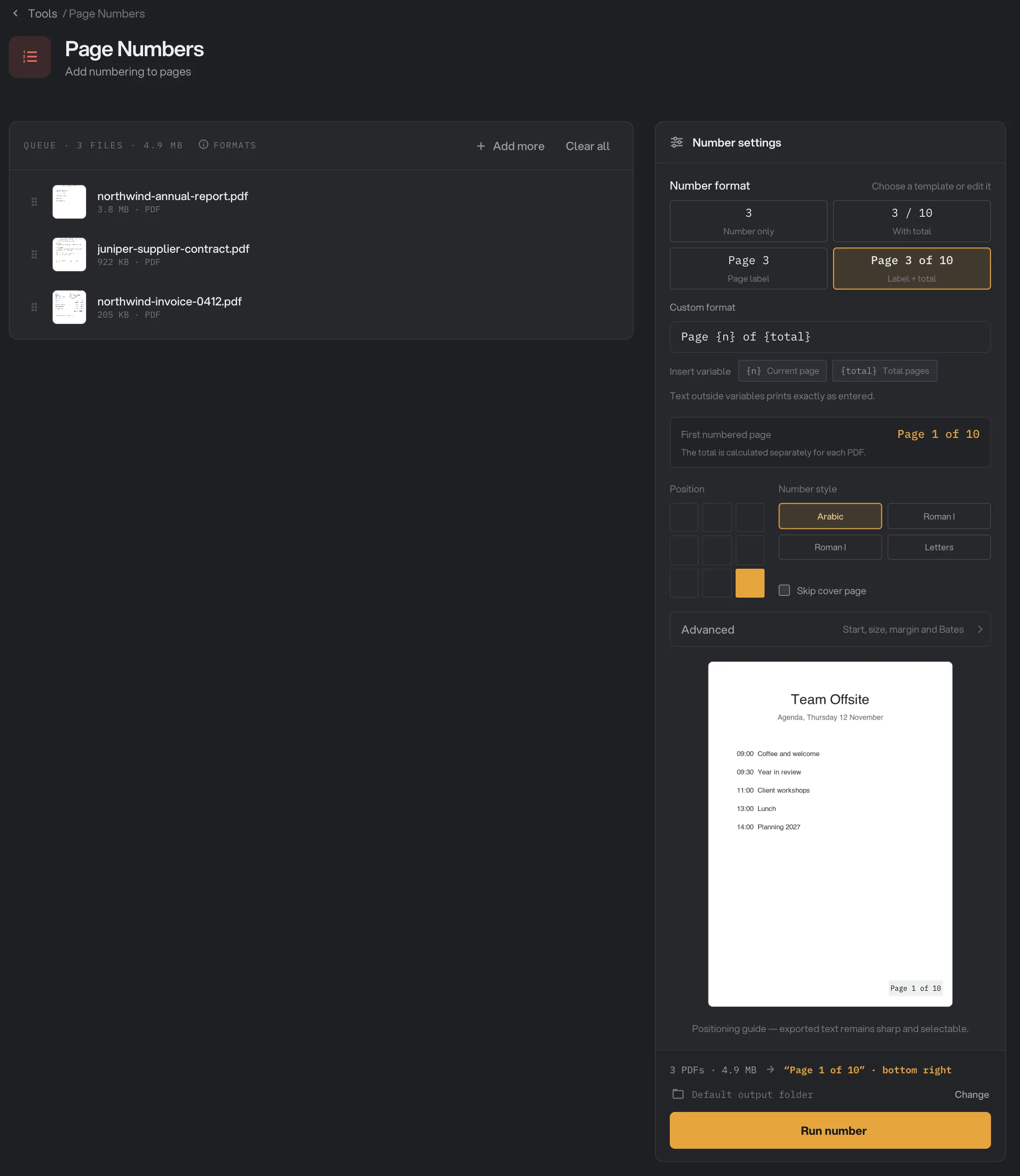
- Number format
- Custom format
- How the first numbered page reads
- Position
- Number style
- Skip cover page
- Advanced
- Run number
Step 2: Choose the format
Under Number format, pick one of the four ready-made formats:
- Number only: 3
- With total: 3 / 10
- Page label: Page 3
- Label + total: Page 3 of 10
To write your own, type in Custom format. Use {n} for the page number and {total} for the total, or click the Insert variable buttons to add them where your cursor is. Everything else prints exactly as you type it, for example Northwind report · {n}. If you type a variable Hangar does not know, a warning says it will print as typed.
The box under the format shows how the first numbered page will read. When the format uses the total, it reminds you that the total is worked out separately for each PDF.
Step 3: Pick the position and style
Click a square in the Position grid to place the number: top, middle or bottom, and left, center or right. Bottom center is selected when you open the tool.
Under Number style, pick Arabic (1, 2, 3), Roman i (i, ii, iii), Roman I (I, II, III) or Letters (a, b, c). Tick Skip cover page to leave page 1 without a number.
The preview at the bottom of the panel shows the label on the first page of the selected file. It is a guide for placement: it always shows page 1, and it assumes a US Letter page, so on other sizes check the result with View after the run.
Step 4: Fine-tune in Advanced (optional)
Click Advanced to set where counting starts, the size of the numbers, their distance from the edge, and Bates-style labels.
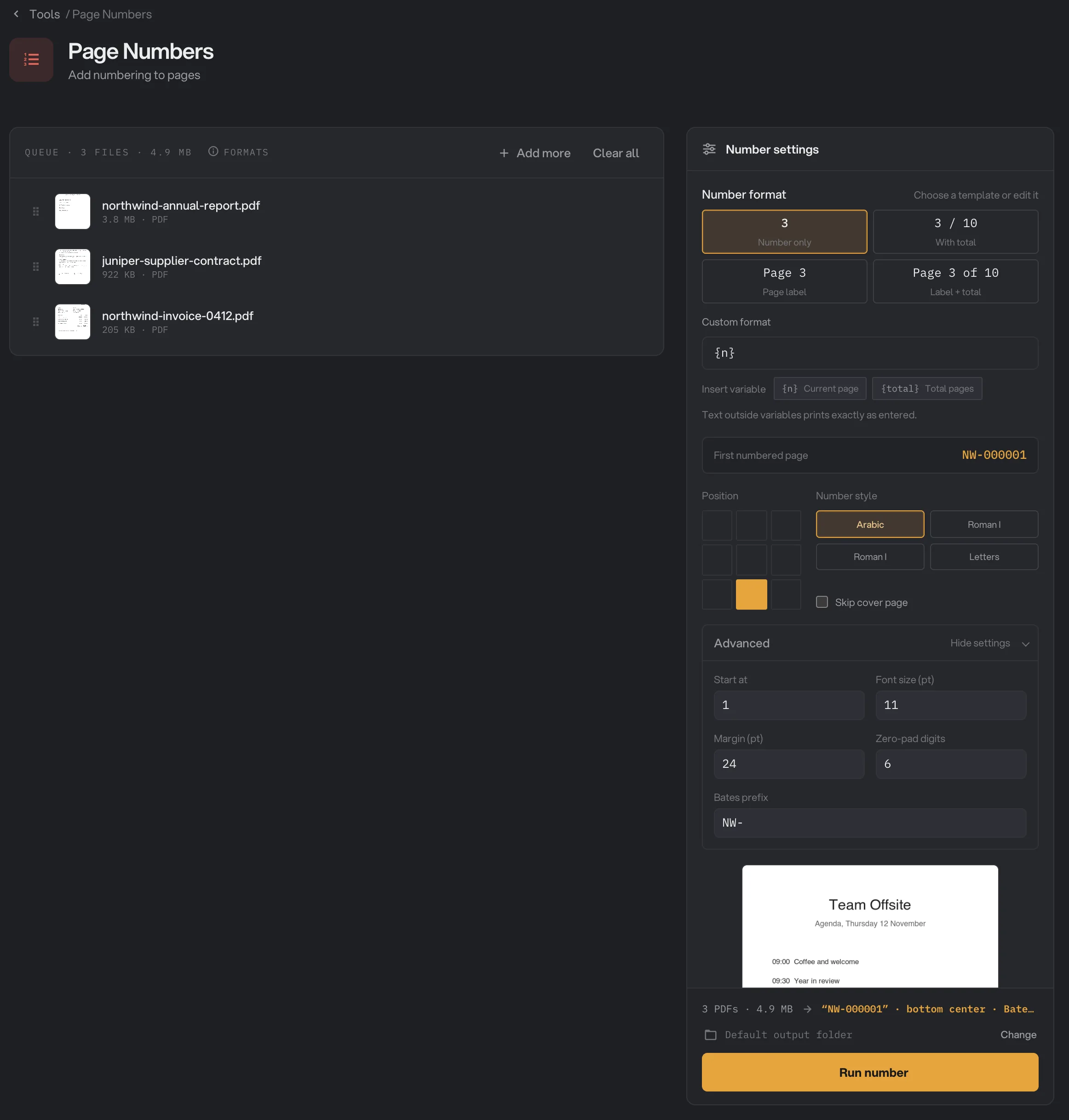
- Start at
- Font size (pt)
- Margin (pt)
- Zero-pad digits
- Bates prefix
- How the first numbered page reads
Step 5: Run, then check the result
Check where the files will go: Default output folder saves them in your workspace's output folder, in a page_numbers folder with a subfolder for today's date, such as 10-15. Click Change to pick another folder for this run. Then click Run number.
Each file is saved as a new PDF with -numbered added to its name. When the run ends, each file shows Done. Click View to page through a result and check that the numbers do not sit on top of anything. Open folder takes you to the files. For more on reading results, see See and compare your results.
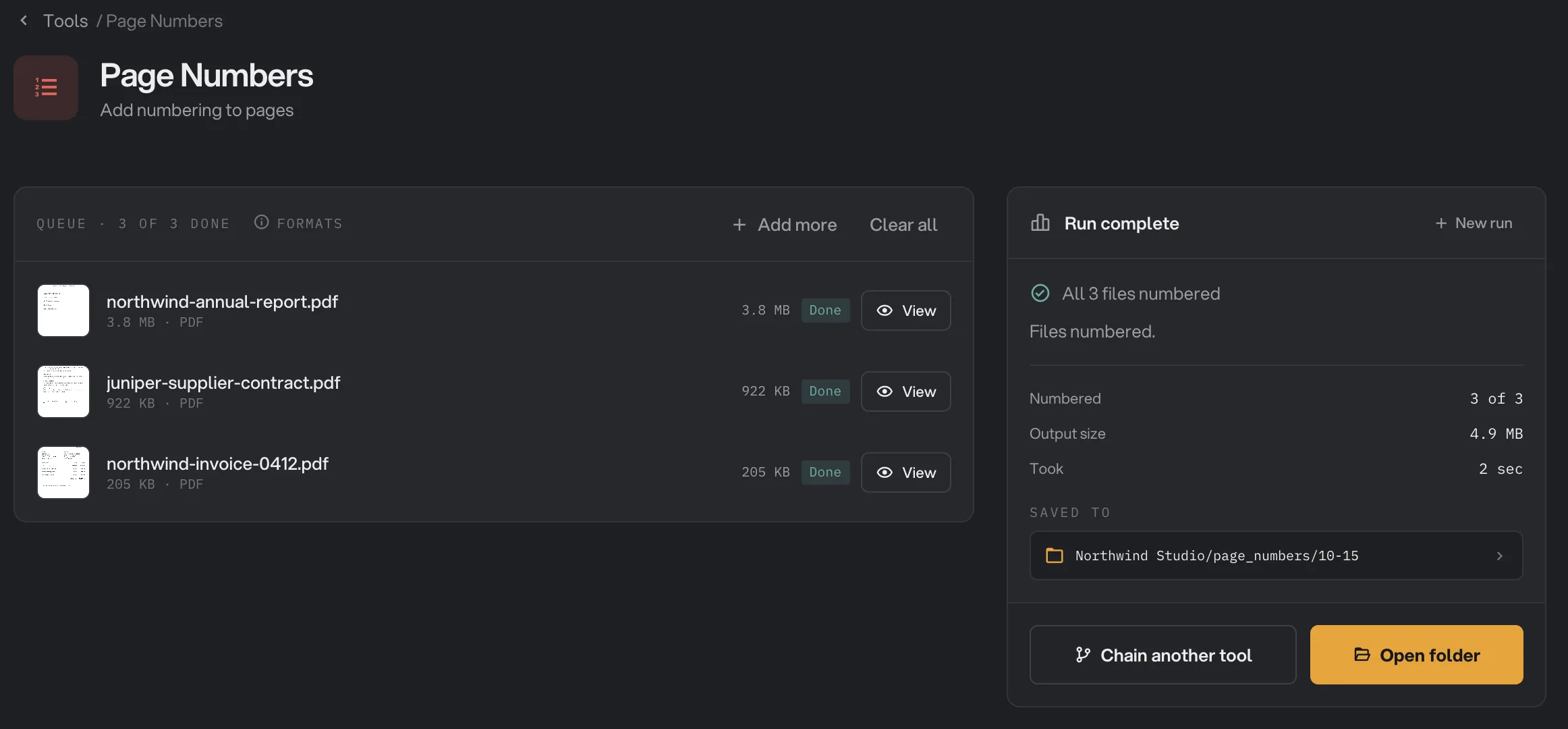
- Done
- View
- Saved to
- Open folder
Every setting
- Number format
A ready-made format. Picking one fills in Custom format.
- RangeNumber only, With total, Page label, Label + total
- DefaultNumber only
- Custom format
What each label reads. {n} is the page number and {total} is the total. Other text prints as typed.
- RangeAny text with {n} and {total}
- Default{n}
- Position
Where the number sits, measured from the edges of the page as it is shown.
- Range9 places on the page
- DefaultBottom center
- Number style
How numbers are written. Roman numerals work up to 3999; beyond that, plain numbers are used.
- RangeArabic, Roman i, Roman I, Letters
- DefaultArabic
- Skip cover page
Leaves page 1 without a number. Numbering starts on page 2.
- RangeOn or off
- DefaultOff
- Start at
The number printed on the first numbered page.
- Range0 or more
- Default1
- Font size (pt)
The size of the numbers, in points.
- Range8 to 48
- Default11
- Margin (pt)
The distance from the page edge to the number, in points. 72 points make an inch.
- Range0 to 144
- Default24
- Zero-pad digits
Pads the page number with leading zeros to this many digits, so 6 turns 1 into 000001. Arabic style only.
- Range0 to 12
- Default0 (off)
- Bates prefix
Text put in front of the whole label, such as NW-.
- RangeAny text
- DefaultEmpty
If Font size, Margin or Zero-pad digits is outside its range, the panel shows the allowed range in red and Run number stays off until you fix it.
Totals, starting numbers and Bates labels
- The total is the last number printed. With Start at 1 and no skipped cover, it equals the number of pages. Skip the cover on a 10-page PDF and you get "Page 1 of 9". Start at 5 and you get "Page 5 of 14".
- Each PDF starts again. In a batch, every file is numbered from Start at and gets its own total.
- The Bates prefix goes in front of everything. For a classic Bates label, choose Number only, set Zero-pad digits to 6 and type a prefix such as
NW-: the pages read NW-000001, NW-000002 and so on. With a format like "Page {n}", the label reads "NW-Page 1". - A legal production that runs across many documents needs the count to continue from file to file. Run the files one at a time and set Start at to the next number for each one.
Why does my result look wrong?
- The number overlaps text or a footer. Numbers are printed on top of the page, with no background. Pick another position, or raise Margin (pt) to move the number away from the edge.
- The pages now have two numbers. Page Numbers does not remove numbers that are already on the page. Choose a different position, or number a version of the document without them.
- A letter or symbol prints wrong. Stick to plain English letters, digits and common punctuation in the format and the Bates prefix. Accented letters and other symbols may not print correctly.
- The number is not where the preview showed it. The preview assumes a US Letter page. On A4 or other sizes the position is right, but the distance from the edge looks slightly different in the preview.
- Sideways pages. The number is placed and turned to read upright on the page as you see it.
Limits
- Page Numbers accepts PDF files only.
- Numbers are always black and always in the same clean sans-serif font. Only the size can change.
- Every file in a run gets the same settings. To number one file differently, run it on its own.
- Password-protected PDFs, including ones that open freely but block printing or editing, stop with a message that the file is password-protected. Remove the password with Unlock PDF first.
- Damaged PDFs are repaired automatically when possible. If a file cannot be read at all, it fails with a message that it may be damaged or not a real PDF.
If a file fails, its row shows the reason. A file failed: what to check lists the common causes and fixes.
Use Page numbers in a chain
Page Numbers is available as a step in chains, under the PDF steps, with the same settings as the tool. The step has no page preview, so try your settings on the tool first, then copy them into the step.
A common chain numbers each PDF, compresses it with Compress PDF and then protects it with a password, so every file is ready to send. Put Page Numbers before Encrypt, because a locked PDF cannot be numbered. To run the same chain on new files each week, see Run a chain on many files.
Common questions
How do I leave the cover page without a number?
Tick Skip cover page. Page 1 stays blank and numbering starts on page 2, with the number set in Start at under Advanced.
Why does "Page 1 of 9" show 9 when my PDF has 10 pages?
The total counts the pages that get a number. With Skip cover page on, the cover is not counted. If you change Start at, the total is the last number printed, so starting at 5 on 10 pages gives "Page 5 of 14".
Are the page numbers real text?
Yes. They are added as text, so they stay sharp at any zoom and can be selected, copied and searched.
Can I continue the numbering across several PDFs?
Not in one run. Every PDF starts again at the Start at number. To continue the count, run the files one at a time and set Start at to the next number each time.
Can I change the font or color of the numbers?
Not in the current version. Numbers are always printed in black, in a clean sans-serif font. You can change their size, position and distance from the edge.
Still stuck?
One person reads every message, usually with a reply within a day.