 Agencies and studios
 Photographers
 Podcasters
 Video and social creators
 Marketers and content teams
What does Unlock PDF do?
Unlock PDF removes the password from PDFs when you know it, so you no longer have to type it every time you open the file. It works on your own computer and gives back one unlocked copy of each PDF you add. In the app the tool is called Unlock.
The unlocked copy opens without a password and has no limits on printing, copying or editing. Use it for files you own or are allowed to change, such as your own bank statements, or a document a colleague protected for you.
Step 1: Add your PDFs
Click Tools in the sidebar, open the PDF tab and click Unlock in the Protect section. You can also type "remove pdf password" in the search box at the top.
Drop your PDFs on the queue, or click it to pick files. You can add a whole batch, for example a year of statements protected with the same password. Files that ask for a password may show a plain icon instead of a page preview until they are unlocked.
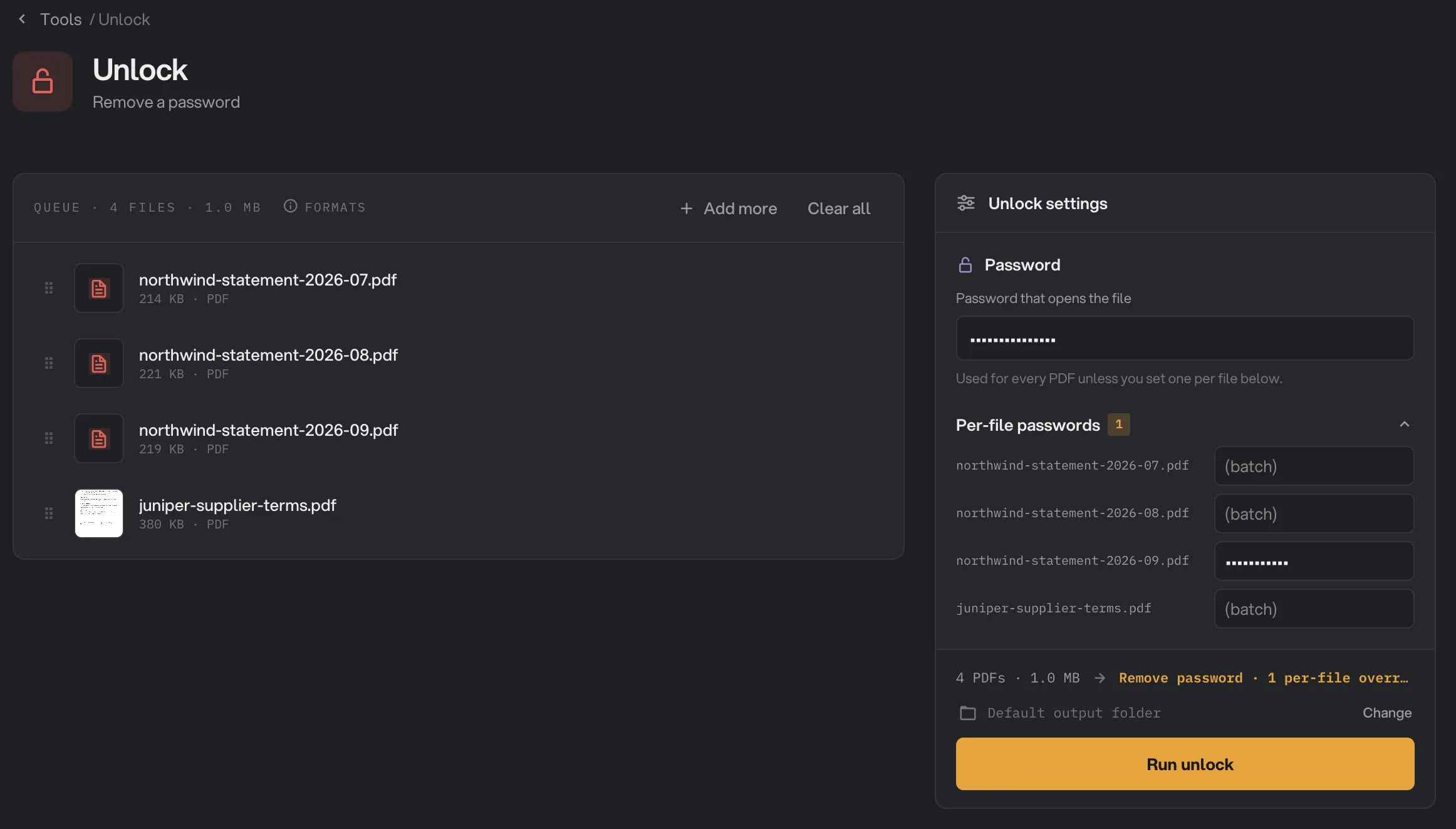
- Password that opens the file
- Per-file passwords
- A file's own password
- Run unlock
Step 2: Type the password
Under Password, type it in Password that opens the file. This is the password you type when you open the PDF. The owner password works too, if you have it. Either one is enough to remove all of the protection.
Hangar tries this password on every PDF in the queue. Files that open without a password but block printing, copying or editing are unlocked without it, so you can leave the field blank if all your files are like that.
Step 3: Give some files their own password (optional)
If a few files use a different password, click Per-file passwords. Every PDF in the queue is listed with its own field. Type a password next to any file that needs one. Fields you leave empty show "(batch)" and use the main password. The number next to the heading shows how many files have their own password, and the line above Run unlock reads, for example, "Remove password · 1 per-file override".
Per-file passwords are kept only until you close Hangar. They are never saved with your files.
Step 4: Run, then check the result
Check where the files will go: Default output folder saves them in your workspace's output folder, in an unlock folder with a subfolder for today's date, such as 10-15. Click Change to pick another folder for this run. Then click Run unlock.
Each copy ends in -unlocked, so statement-july.pdf becomes statement-july-unlocked.pdf. Unlocked files show Done, and you can click View to page through them. A file that could not be unlocked shows Failed with the reason under its name, and the panel on the right lists it under What failed.
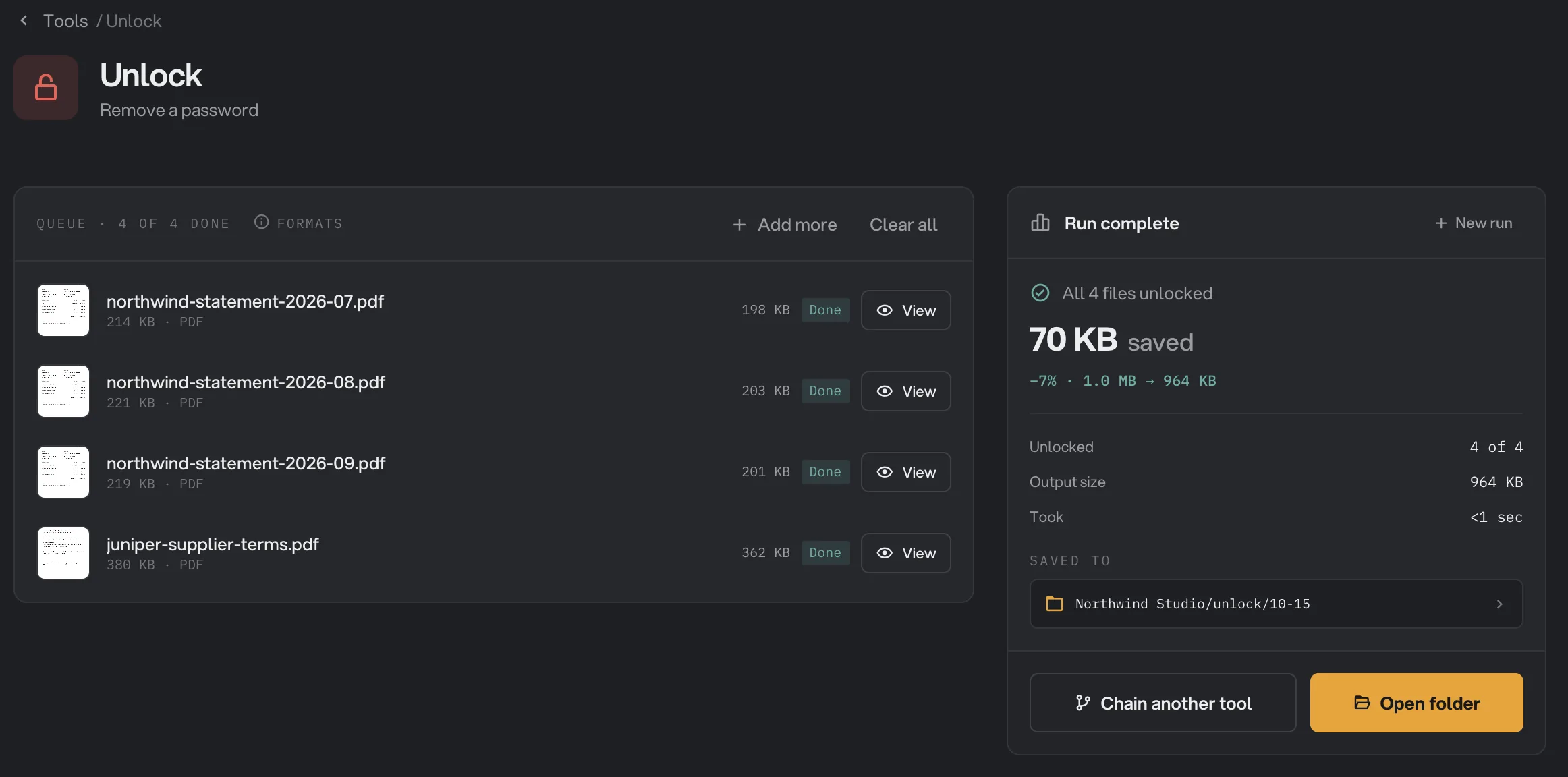
- Done
- View
- Saved to
- Open folder
To retry a failed file, click New run, remove the files that worked from the queue, fix the password under Per-file passwords and run again. Files you leave in the queue are unlocked again as extra copies. For more on reading results, see See and compare your results.
Every setting
- Password that opens the file
The password tried on every PDF that has no password of its own below. The open password or the owner password both work.
- DefaultEmpty
- Per-file passwords
A separate password for individual files, for batches that mix passwords. Kept only until you close Hangar.
- DefaultEmpty, so each file uses the main password
Which PDFs can you unlock?
PDFs are protected in two different ways, and Unlock PDF treats them differently:
- A PDF that asks for a password to open. Unlock PDF needs the password. With the right one, it saves a copy that opens freely and has no restrictions. With a wrong or empty one, the file fails and nothing is saved.
- A PDF that opens freely but blocks printing, copying or editing. These limits are set by whoever made the file. Unlock PDF removes them without any password.
A PDF with no password and no restrictions fails with a message that there is nothing to unlock. That is expected: the original is already open.
If a file fails
- "Wrong password": the password does not open this file, so it was not unlocked. Check for typing mistakes, capital letters and spaces, then try again with a per-file password. Passwords are case-sensitive.
- "This PDF isn't password-protected": the message ends with "nothing to unlock". The file has no protection. Use the original.
- "Couldn't read the PDF": the file is damaged or is not really a PDF. Open it in your PDF reader to check.
The app shows these messages with a short prefix such as "Invalid tool config" or "Format error". A file failed: what to check lists more causes and fixes.
Limits
- Unlock PDF accepts PDF files only.
- It cannot find, guess or recover a forgotten password.
- Per-file passwords are not saved. They are empty again each time you open Hangar.
- Everything runs on your computer. Your files and passwords are not sent anywhere.
Unlocking is often the first step before other PDF tools. Compress PDF, for example, refuses protected files, so unlock them first and compress the unlocked copies.
Use Unlock in a chain
Unlock is available as a step in chains, under the PDF steps. Its password is not saved with the chain: you type it on the Run screen each time the chain runs, and it is used for every file. Leave it blank there for PDFs that only restrict printing or copying. Per-file passwords are not available in a chain, so use a chain for batches that share one password.
Put Unlock first, so the steps after it can work on the unlocked copy, for example Unlock, then Compress. Every PDF in the run needs protection: a file without any fails at the Unlock step with "nothing to unlock" and skips the rest of the chain. To run the same chain on new files each month, see Run a chain on many files.
Common questions
Do I need the password?
For a PDF that asks for a password when you open it, yes. Type that password, or the owner password if you have it. A PDF that opens without a password but blocks printing, copying or editing needs no password at all.
Can Hangar unlock a PDF if I forgot the password?
No. Unlock PDF does not guess or recover passwords. A file that asks for a password to open is only unlocked with the right one, otherwise it fails with a wrong password message.
Why does a file say there is nothing to unlock?
That PDF has no password and no restrictions, so there is nothing to remove. You can use the original as it is. The other files in the batch are not affected.
Can I unlock files that have different passwords in one run?
Yes. Type the most common password in the main field, then open Per-file passwords and give the other files their own password.
Is my original PDF changed?
No. Hangar saves an unlocked copy in your output folder. The original keeps its password.
Still stuck?
One person reads every message, usually with a reply within a day.