 Agencies and studios
 Photographers
 Podcasters
 Video and social creators
 Marketers and content teams
What does Encrypt PDF do?
Encrypt PDF puts a password on your PDFs on your own computer, so only the people you choose can open them. It can also limit what readers may do once a file is open, such as printing or copying text. In the app the tool is called Encrypt.
It takes PDF files and gives back one protected copy of each. Every file in a batch gets the same passwords and the same permissions. Your originals are left untouched.
Step 1: Add your PDFs
Click Tools in the sidebar, open the PDF tab and click Encrypt in the Protect section. You can also type "encrypt pdf" or "password protect" in the search box at the top.
Drop your PDFs on the queue, or click it to pick files. Add as many as you like: every file is protected with the same settings, one after another. To add more later, use Add more. Files that are not PDFs are set aside and skipped.
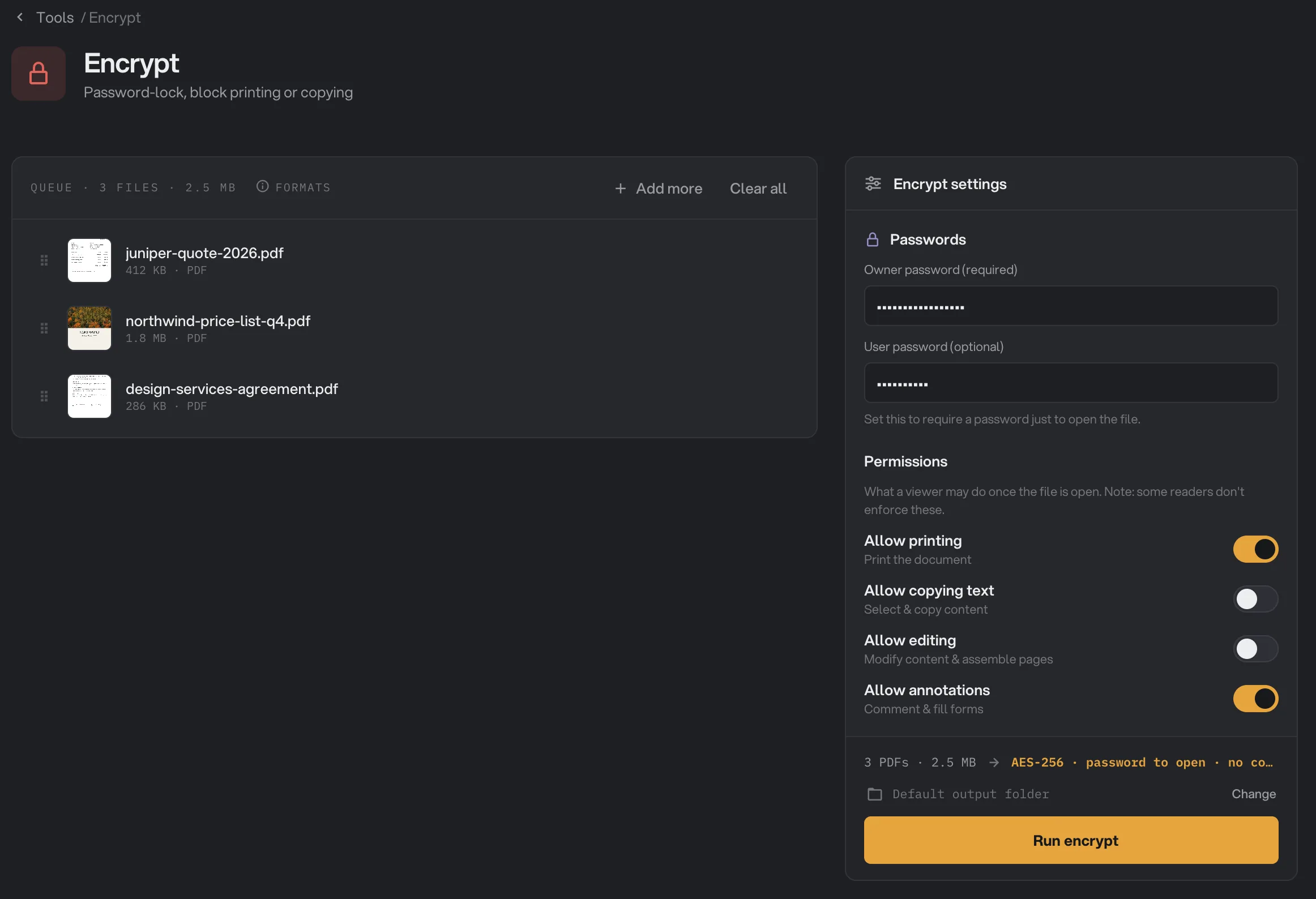
- Owner password
- User password
- Permissions
- Run encrypt
Step 2: Set the passwords
Under Passwords, type an Owner password (required). It protects the permission settings. Until you fill it in, Run encrypt stays off and the panel says "Set an owner password first."
To make people type a password just to open the file, also fill in User password (optional). Leave it blank and the file opens for anyone, with only the permissions below applied.
The fields hide what you type and there is no second box to confirm it, so type carefully. Either password opens the protected copy. Use two different passwords, and give the owner password only to people who should be able to change the settings.
Step 3: Choose what readers may do
Under Permissions, each switch is on when you open the tool, which means "allowed". Turn one off to block it:
- Allow printing: printing the document.
- Allow copying text: selecting and copying text and images.
- Allow editing: changing the content, and adding, removing or rotating pages.
- Allow annotations: adding comments and filling in forms.
The line above Run encrypt sums up the result: whether a password is needed to open the file, and what is blocked, for example "no copy, no edit". Screen readers can always read the text, so the file stays accessible even with copying turned off.
Step 4: Run, then check the result
Check where the files will go: Default output folder saves them in your workspace's output folder, in an encrypt folder with a subfolder for today's date, such as 10-15. Click Change to pick another folder for this run. Then click Run encrypt.
Each protected copy ends in -protected, so price-list.pdf becomes price-list-protected.pdf. When the run ends, every row shows Done, and Open folder takes you to the copies.
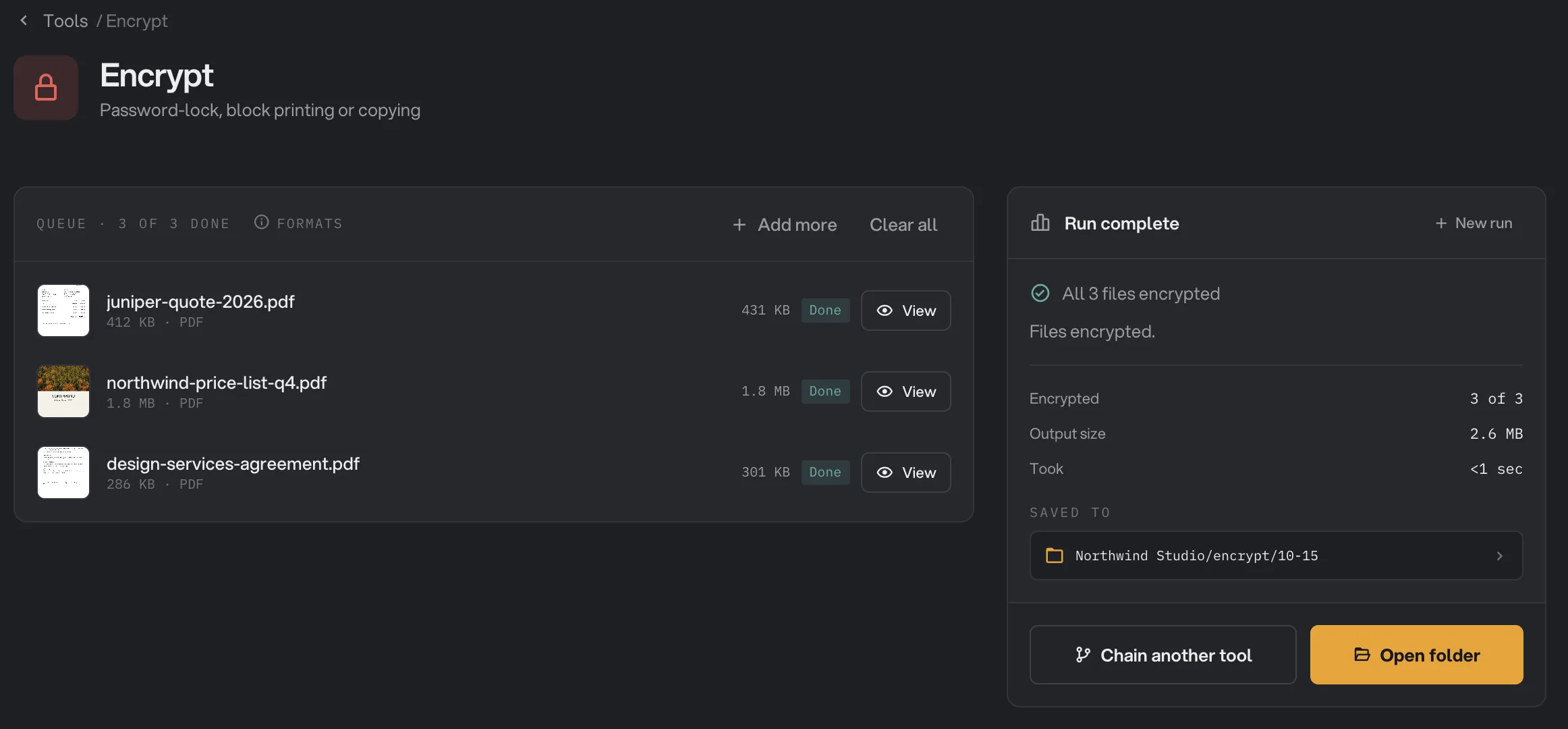
- Done
- View
- Saved to
- Open folder
Before you send anything, open one copy in your usual PDF reader and type the password, so you know it works. Hangar's View cannot show a copy that needs a password to open. For more on reading results, see See and compare your results.
Every setting
All settings are in the Encrypt settings panel. There are no presets.
- Owner password (required)
Protects the permission settings. Needed to run. Also opens the file.
- DefaultEmpty
- User password (optional)
The password people type to open the file. Leave it blank to let anyone open it.
- DefaultEmpty (opens without a password)
- Allow printing
Lets readers print the document. Turn it off to block printing.
- DefaultOn
- Allow copying text
Lets readers select and copy text and images. Screen readers can always read the text.
- DefaultOn
- Allow editing
Lets readers change the content and add, remove or rotate pages.
- DefaultOn
- Allow annotations
Lets readers add comments and fill in forms.
- DefaultOn
Which protection do I need?
There are two kinds of protection, and they are not equally strong.
- A user password keeps people out. Without it, nobody can open the file or read its contents. Use one for anything private, such as contracts, statements or personal data.
- Permissions are a request, not a lock. When the user password is blank, the file opens for anyone and the permission switches ask the reader app to block printing, copying or editing. Most PDF readers respect them, but the panel itself warns that some readers don't, and they can be removed without any password, for example with Unlock PDF. Use permissions to discourage casual copying, not to protect secrets.
A good password is long and hard to guess. A short phrase of three or four unrelated words is easier to remember than a jumble of symbols and much harder to guess than a single word. Send the password separately from the file, for example by text message if you emailed the PDF.
If a file fails
A file that fails shows the reason under its row and in the What failed box. The usual messages are:
- "This file is password-protected": the PDF already asks for a password to open. Remove it with Unlock PDF, then encrypt the unlocked copy.
- "Couldn't read the PDF": the file is damaged or is not really a PDF. Open it in your PDF reader to check, or export it again from the app that made it.
- "Owner password is required": the owner password was empty. Fill it in and run again. In a chain, the Run screen asks for it before the chain can start.
If Run encrypt stays grayed out, fill in the owner password. A file failed: what to check lists more causes and fixes.
Limits
- Encrypt PDF accepts PDF files only.
- PDFs that already need a password to open are refused. A PDF that opens freely but has its own restrictions is accepted, and your new passwords and permissions replace the old ones.
- All files in a run share the same passwords and permissions.
- Permissions without a user password can be ignored by some apps, as explained above.
- Once a copy is encrypted, other PDF tools in Hangar, such as Compress PDF, refuse it. Do all your other changes first and encrypt last.
- Everything runs on your computer. Nothing is uploaded.
Use Encrypt in a chain
Encrypt is available as a step in chains, under the PDF steps, with the same permission switches as the tool. A common chain adds page numbers, compresses each PDF and then encrypts it, so every file is ready to send.
Always put Encrypt last, because the steps after it cannot open a locked file. Passwords are not saved with the chain: the step shows them as asked at run. Each time the chain runs, you type them on the Run screen, under the Encrypt step. Run chain stays grayed out until the owner password is filled in, and the hint names the step, for example "Enter the owner password for step 3 to run." Leave the user password blank there and the PDF opens without one. To run the same chain on new files each week, see Run a chain on many files.
Common questions
What is the difference between the owner password and the user password?
The user password is the one people type to open the file. The owner password protects the permission settings, such as whether the file can be printed. Hangar needs an owner password to run. The user password is optional: leave it blank and anyone can open the file.
I forgot the password. Can Hangar open the file?
No. Hangar has no way to recover a lost password. If you set a user password, you need it, or the owner password, to open or unlock the file again, so keep it somewhere safe before you send the file.
Can I let people open a PDF but stop them printing it?
Yes. Leave the user password blank and turn off Allow printing. Most PDF readers then open the file but block printing. Some apps ignore these settings, so use a user password for anything that must stay private.
Can I encrypt a PDF that already has a password?
Not if it asks for a password to open. Hangar stops with a message that the file is password-protected. Remove the password with Unlock PDF first, then encrypt the unlocked copy with your new settings.
Is my original PDF replaced?
No. Hangar saves a protected copy in your output folder and leaves the original where it was, unchanged and without a password.
Still stuck?
One person reads every message, usually with a reply within a day.