 Agencies and studios
 Photographers
 Podcasters
 Video and social creators
 Marketers and content teams
What does PDF to Images do?
PDF to Images turns the pages of a PDF into image files on your own computer, one image for each page. Use it to put slides on a website, send a page as a picture, or make a preview of a document. In the app the tool is called PDF to Images.
You choose the image format, PNG or JPEG, and the resolution. Each image shows the page as it looks in a PDF viewer. Add several PDFs and they are all exported with the same settings, one after another.
Step 1: Add your PDFs
Click Tools in the sidebar, open the PDF tab and click PDF to Images. You can also type "pdf to images" in the search box at the top.
Drop your PDFs on the queue, or click it to pick files. To add more later, use Add more. Folders are not accepted, so select the files inside a folder instead. Any file that is not a PDF is marked Not applicable and skipped.
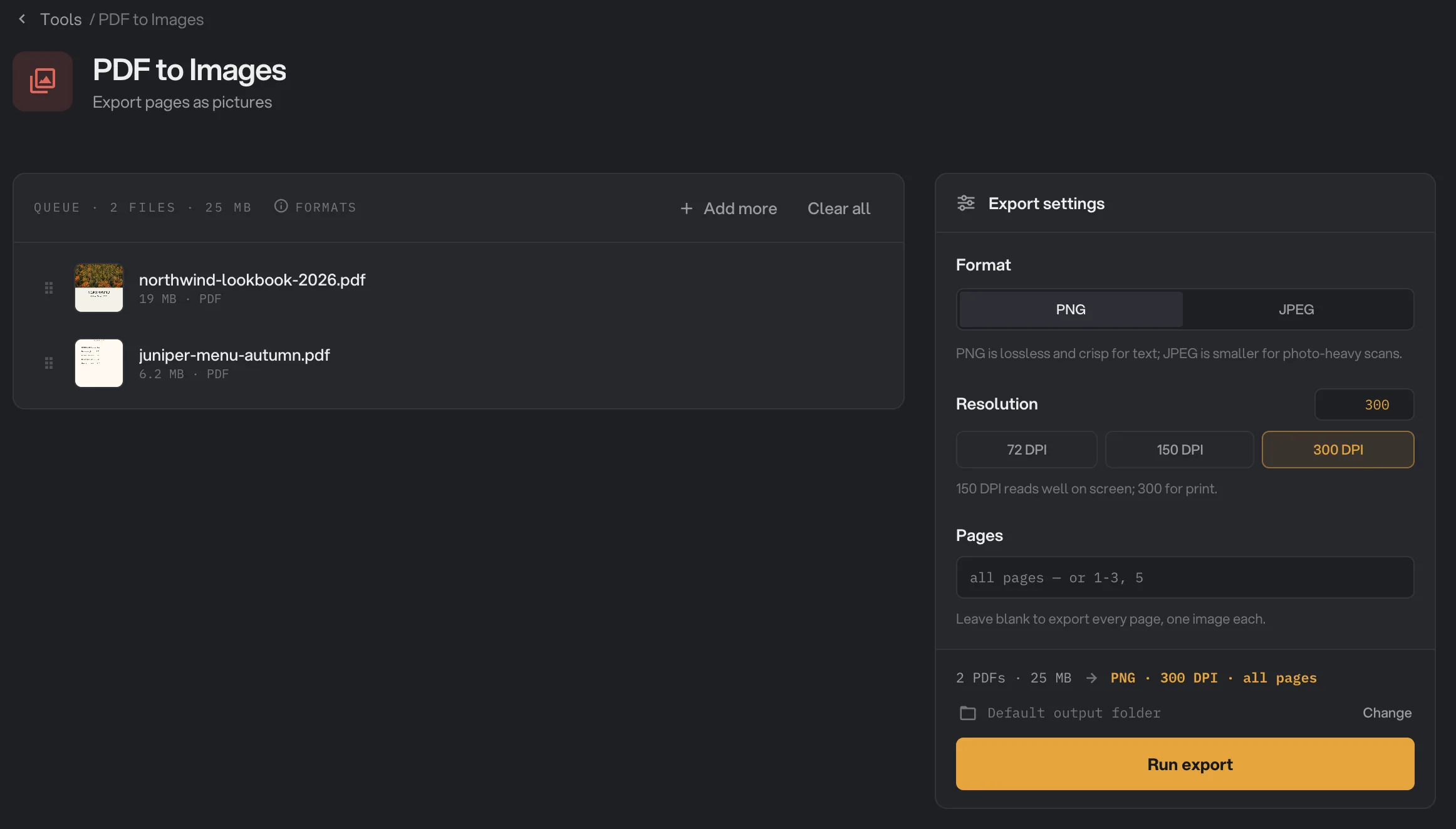
- Format
- Resolution
- Pages
- Run export
Step 2: Choose the format and the resolution
Under Format, pick PNG or JPEG. PNG is selected when you open the tool. PNG keeps text and line drawings perfectly crisp. JPEG makes smaller files and suits photo-heavy pages. When you pick JPEG, a JPEG quality slider appears.
Under Resolution, click 72 DPI, 150 DPI or 300 DPI, or type any value from 36 to 600 in the box. The higher the number, the more pixels each image has. 150 DPI is selected when you open the tool. See which resolution to pick for the image sizes each one gives.
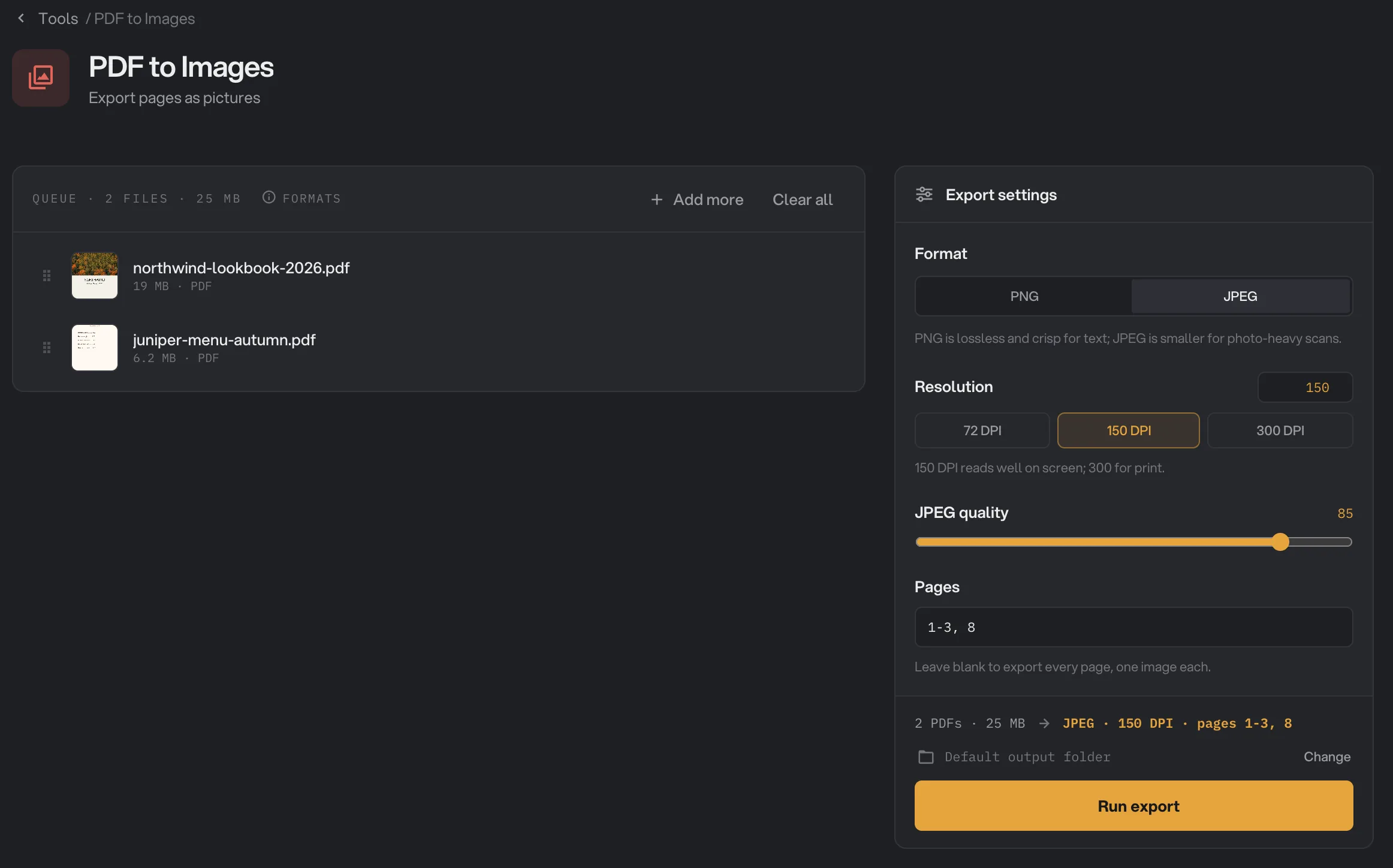
- JPEG
- JPEG quality
- Pages
Step 3: Choose pages (optional)
Leave Pages blank to export every page. To export only some, type page numbers and ranges separated by commas, such as 1-3, 8. If what you typed cannot be read, for example a range written backwards like 5-3, the box turns red and says what is wrong.
The same pages are used for every PDF in the run. If a PDF has fewer pages than you asked for, that file stops with a message such as "Range goes up to page 9, but this PDF has 4 pages", and the other files are still exported.
Step 4: Run, then check the images
The line above the button sums up the run, for example PNG · 300 DPI · all pages. Check where the files will go: Default output folder saves them in your workspace's output folder, in a to_images folder with a subfolder for today's date, such as 10-15. Click Change to pick another folder for this run. Then click Run export.
When the run ends, each PDF shows Done and the total size of its images. Click the files count under a PDF to list every image, then View to look at one at full size. Open folder takes you to the images.
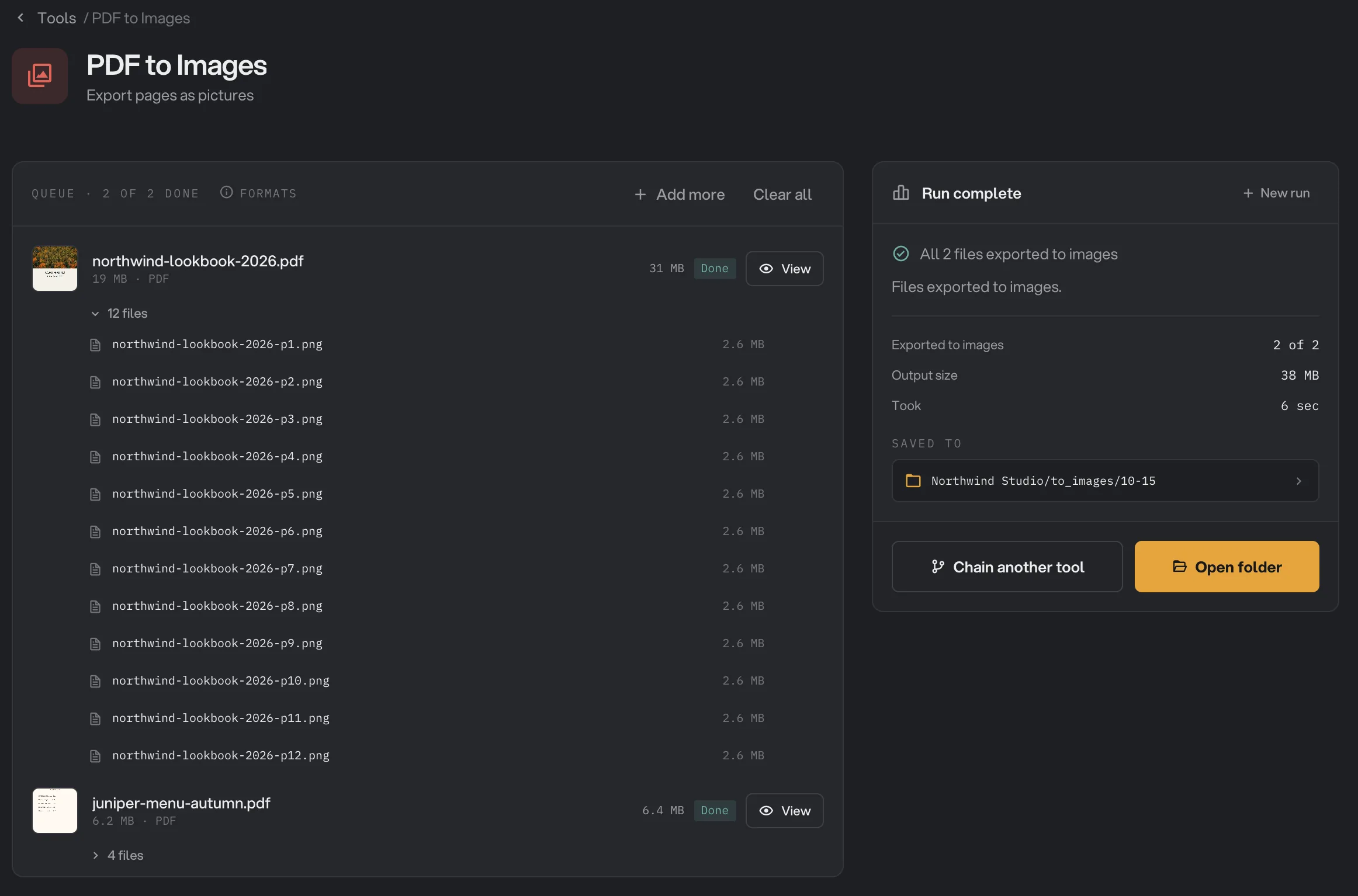
- 12 files
- One image per page
- Output size
- Saved to
- Open folder
Each image is named after its PDF and its page number, such as northwind-lookbook-2026-p3.png. Images from every PDF in the run go into the same folder. For more on reading results, see See and compare your results.
Want to do more with the images? Click Chain another tool and pick an image tool, such as Compress or Resize, to open it with the new images already added.
Every setting, and when to change it
PDF to Images has no presets. These four settings are all there is, and the defaults suit pages that will be read on a screen.
- Format
The type of image file. PNG keeps text and lines perfectly sharp. JPEG gives smaller files and suits photos.
- RangePNG or JPEG
- DefaultPNG
- Resolution
How many pixels each image gets per inch of the page. Click 72, 150 or 300 DPI, or type your own value.
- Range36 to 600 DPI
- Default150 DPI
- JPEG quality
How much detail JPEG images keep. Lower means smaller files and softer edges. Only shown when Format is JPEG.
- Range1 to 100
- Default85
- Pages
Which pages to export. Each image keeps its real page number in its name.
- RangeBlank, or pages like 1-3, 8
- DefaultBlank (every page)
Which resolution should I pick?
The resolution decides how many pixels each image has. For a standard US Letter page, the images come out at about:
- 72 DPI: 612 × 792 pixels. Fine for thumbnails and quick previews, too soft to read small text.
- 150 DPI: 1275 × 1650 pixels. Sharp on a laptop screen, on a website or in a slide.
- 300 DPI: 2550 × 3300 pixels. Print quality, and good for zooming in on fine detail.
- 600 DPI: 5100 × 6600 pixels. Only for professional printing or archiving. The files are very large and take longer to make.
An A4 page gives almost the same sizes, slightly narrower and taller. Larger pages, such as posters, give proportionally larger images.
Why do my images look wrong or come out too big?
- The text looks soft or blurry. The resolution is too low for how the image is used. Run it again at 150 DPI for screens or 300 DPI for print. With JPEG, also raise JPEG quality, or switch to PNG for text pages.
- The files are huge. PNG at 300 DPI or more makes large files, especially for photo pages. Switch to JPEG, or lower the resolution. To shrink the images afterwards, use Image Compress.
- A file failed with a page range message. The Pages box asked for a page that PDF does not have. Leave Pages blank, or run the shorter PDF on its own with its own range.
- The images are out of order in a folder list. Names use plain page numbers, so a list sorted strictly by letters can put
-p10before-p2. Finder and File Explorer sort them correctly.
Limits
- PDF to Images accepts PDF files only. To turn images into a PDF, use Images to PDF.
- PDFs that need a password to open stop with a message that the file is password-protected. Remove the password with the Unlock tool first.
- Every page becomes a flat picture. Text in the images cannot be selected or searched.
- JPEG images have no transparency.
- All PDFs in a run use the same format, resolution and pages.
- Everything runs on your computer, so a long PDF at a high resolution takes as long as your computer needs. Nothing is uploaded.
If a file fails, its row shows the reason. A file failed: what to check lists the common causes and fixes. To learn more about running many files at once, see Process many files at once.
Common questions
Should I pick PNG or JPEG?
Pick PNG for pages that are mostly text, tables or line drawings: it keeps every edge sharp. Pick JPEG for pages that are mostly photos, or when the files must stay small. JPEG quality 85, the default, looks clean on photos.
What resolution should I use?
Use 150 DPI for images that will be read on a screen, such as a website or a slide. Use 300 DPI for anything that will be printed. 72 DPI is only right for small previews and thumbnails.
Can I export only some pages?
Yes. Type the pages in the Pages box, for example 1-3, 8. Leave it blank to export every page. The same pages are used for every PDF in the run, and each image keeps its real page number in its name.
Can I convert a password-protected PDF?
Not directly. Hangar stops with a message that the file is password-protected. Remove the password with the Unlock tool first, then export the unlocked copy.
Is my PDF changed?
No. Hangar saves new image files in your output folder and leaves the PDF where it was, untouched.
Still stuck?
One person reads every message, usually with a reply within a day.