 Agencies and studios
 Photographers
 Podcasters
 Video and social creators
 Marketers and content teams
What does Ebook to PDF do?
Ebook to PDF turns ebooks into PDF files on your own computer, so you can print them, mark them up or keep them in a standard format. It reads EPUB, MOBI, AZW, AZW3, FB2 and plain-text (TXT) books and gives back one PDF for each book you add.
Hangar does not take pictures of pages. It lays the book out again as a clean print edition: you choose the page size, the style and size of the text, and the margins, and the words stay real, searchable text. Chapters, headings, lists, quotes, links to websites and pictures come along. The book's own fonts and page design do not.
Step 1: Add your ebooks
Click Tools in the sidebar, open the Web & Ebook tab and click Ebook to PDF. You can also type "epub to pdf" in the search box at the top.
Drop your ebooks on the queue, or click it to pick files. You can mix formats in one batch: every book is converted with the same settings, one PDF per book. To add more later, use Add more. Files Hangar cannot read here, such as a Kindle KFX file, are listed under Not applicable and left out of the run.
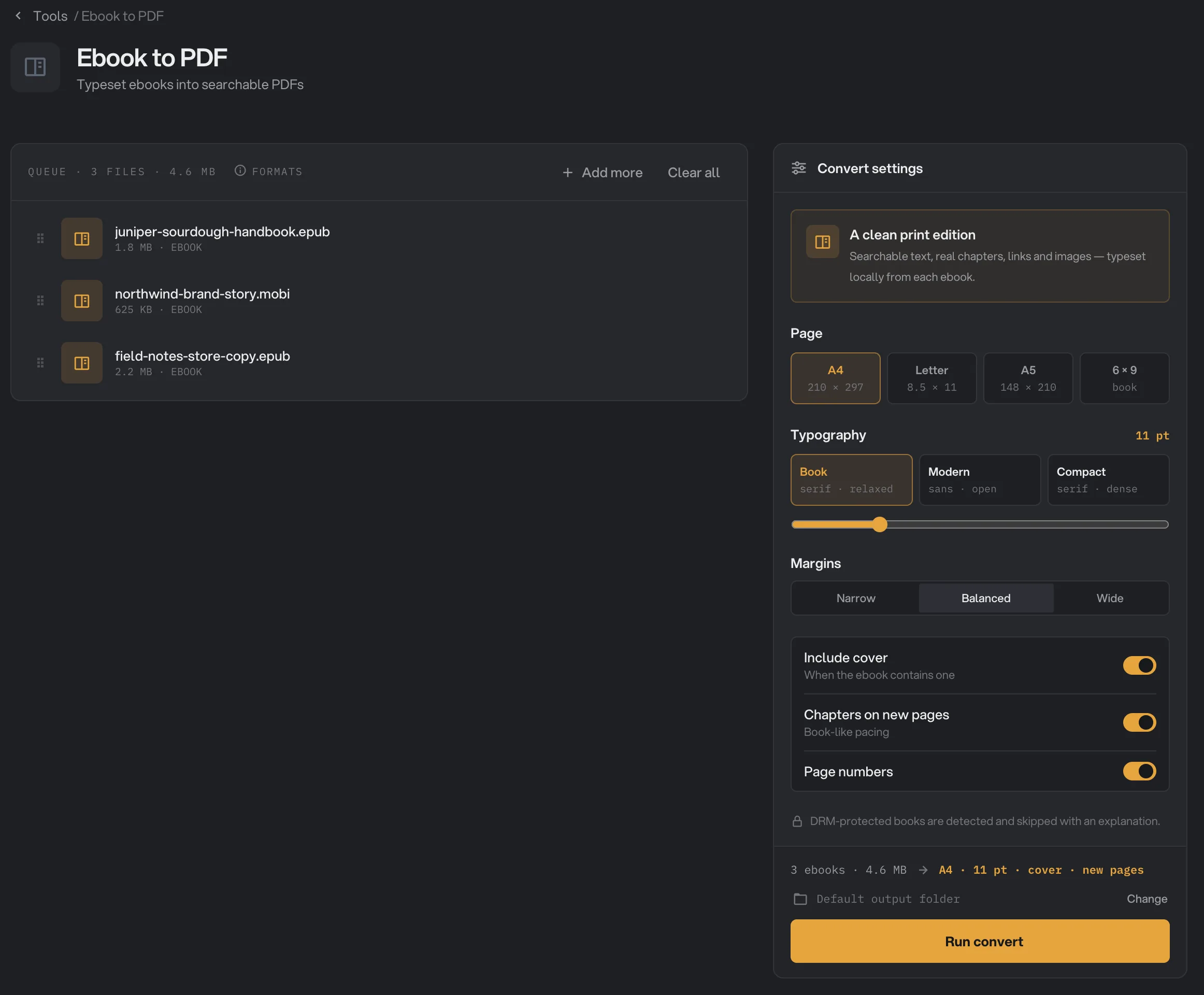
- Page
- Typography
- Text size
- Margins
- Include cover
- Run convert
Step 2: Choose the page and the text
The settings panel opens on a sensible default: an A4 page, the Book text style at 11 pt, Balanced margins, with the cover, chapter breaks and page numbers all on. For most books you only need to pick the page size.
- Page: A4 or Letter for printing at home or the office, A5 for a small booklet, and 6 × 9 for a page shaped like a paperback, which also reads well on a tablet.
- Typography: Book (classic serif text with indented paragraphs), Modern (clean sans-serif text with space between paragraphs) or Compact (serif text set tighter, to use fewer pages).
- Body text size: the slider under the Typography choices, from 9 to 18 pt. The current size shows to the right of the word Typography.
- Margins: Narrow, Balanced or Wide.
The line above the run button sums up your choices, for example "A4 · 11 pt · cover · new pages". The settings apply to every book in the batch.
Step 3: Run, then check the PDFs
Check where the files will go: Default output folder saves them in your workspace's output folder, in a to_pdf folder with a subfolder for today's date, such as 10-15. Click Change to pick another folder for this run. Then click Run convert.
When the run ends, each book shows Done and the size of its PDF. Click View on a book to page through the PDF before you print or share it. A book that could not be converted shows Failed with the reason under its name, and the panel lists it under What failed. Open folder takes you to the PDFs.
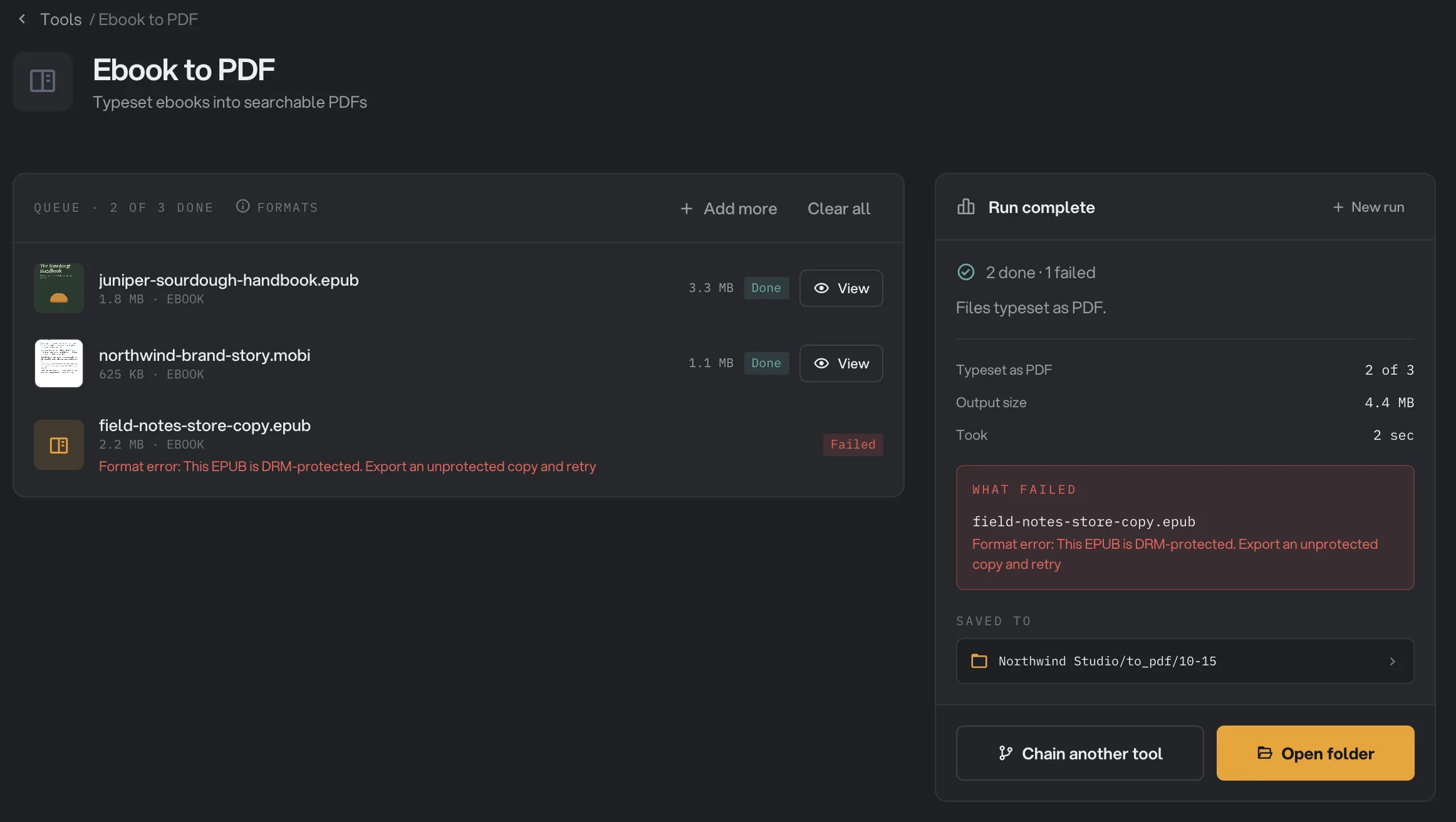
- View
- Failed
- What failed
- Saved to
- Open folder
Each PDF has the same name as its ebook, for example sourdough-handbook.epub becomes sourdough-handbook.pdf. If two books in the same folder share a name, the second gets a number, such as sourdough-handbook (2).pdf. For more on reading results, see See and compare your results.
Every setting, and when to change it
There are no presets: each setting is one click, and they all apply to the whole batch.
- Page
The size of each PDF page. 6 × 9 is 6 by 9 inches, the size of a trade paperback.
- RangeA4, Letter, A5, 6 × 9
- DefaultA4
- Typography
The look of the text. Book uses a serif font with indented paragraphs, Modern a sans-serif font with a gap between paragraphs, and Compact a tighter serif layout that fits more on each page. Headings always use a bold sans-serif font.
- RangeBook, Modern, Compact
- DefaultBook
- Body text size
The size of the main text. Headings and the title grow with it.
- Range9 to 18 pt
- Default11 pt
- Margins
The white space around the text. Narrow is about 14 mm at the sides, Balanced about 20 mm and Wide about 27 mm, with a little more at the top and bottom.
- RangeNarrow, Balanced, Wide
- DefaultBalanced
- Include cover
Puts the book cover on its own first page, when the ebook has one. The cover page has no page number.
- DefaultOn
- Chapters on new pages
Starts each chapter on a fresh page, like a printed book. Turn it off for a continuous document that uses fewer pages.
- DefaultOn
- Page numbers
Adds a number at the foot of each page, starting at 1 after the cover.
- DefaultOn
How do I get a good-looking PDF?
- Pick the page for where the PDF will be read. Use A4 or Letter to print on standard paper, and 6 × 9 or A5 for reading on a tablet or printing a small book.
- On a small page, lower the text size to 10 pt or pick Compact, so lines don't break after a few words. On a large page, 12 pt is easier to read.
- Leave Chapters on new pages on for novels and long books. Turn it off for short guides and notes, where a new page for every section wastes paper.
- Convert one book first and open it with View. When it looks right, add the rest of the batch.
EPUB books give the best results, because they are divided into chapters and carry a proper cover. MOBI, AZW and plain-text files work too, but they come through as one long chapter, so Chapters on new pages has nothing to split.
What changes from the original book
Ebook to PDF keeps the content and reading order and gives every book the same tidy design. That is what makes the PDFs print well, but it also means some things look different:
- Fonts, colors and page design. The publisher's fonts, colors, centered text and decorations are replaced by Hangar's layout, with justified text.
- The title page. Hangar adds the book's title and authors at the start, taken from the book's details or, if it has none, from the file name.
- Tables. Each table row becomes one line of text, with the cells separated by dots.
- Links inside the book. Links to websites and email addresses stay clickable. Links that jump to another place in the book, such as footnote numbers or the book's own table of contents, become plain text. Use the PDF bookmarks to jump between chapters instead.
- Pictures. Pictures are scaled to fit the page width, at most about two thirds of the page tall. A picture in a format Hangar cannot read is left out.
- Audio, video and interactive parts are left out, and any scripts in the book are never run.
- The cover of a MOBI or AZW book is the first picture in the file. If that picture is not the cover, turn off Include cover.
Why did my ebook fail?
The reason is shown under the file name. The usual ones are:
- The book is DRM-protected. The message says the EPUB, or the Kindle/MOBI ebook, is DRM-protected and asks for an unprotected copy. Most books bought from a store are locked to the store's own app. Hangar does not remove that protection. Use a DRM-free copy, for example one sold DRM-free or one you made yourself.
- It is a newer Kindle format. A message that newer KF8/KFX-only files are not supported, or that the Kindle file has no MOBI compatibility content, means the file is an AZW3 or KFX book without the older MOBI part Hangar can read. Ask the source for an EPUB instead.
- No readable book content was found. The file is empty, or holds only things Hangar leaves out, such as audio or scripts.
- The file could not be read. A message that Hangar could not read the EPUB, MOBI or FictionBook file usually means it is damaged or is not really that format. Try opening it in an ebook reader, or download it again.
- The book is too large. Hangar stops books over 512 MB, and books with an extremely large amount of text or pictures, so your computer stays responsive.
A plain-text file that was not saved as UTF-8 or UTF-16 still converts, but accented letters can come out garbled. Save it again as UTF-8 in a text editor and run it again. More fixes are in A file failed: what to check.
Limits
- Ebook to PDF accepts EPUB, MOBI, AZW, AZW3, FB2 and TXT files. Kindle KFX, Microsoft LIT, Sony LRF and comic archives are not supported.
- DRM-protected books cannot be converted.
- The book's own design is not kept. Every PDF uses Hangar's layout and the fonts that come with Hangar. Letters those fonts do not include, such as Chinese or Japanese characters, use a font installed on your computer, so they can look different on another computer, or appear as empty boxes if no installed font has them.
- There is no Studio or per-book setting: one set of settings applies to the whole batch.
- Everything runs on your computer. Nothing is uploaded and nothing is downloaded while the books convert.
Use Ebook to PDF in a chain
Ebook to PDF is available as a step in chains, under the PDF steps, with the same seven settings as the tool. It has to be the first step, because it takes ebooks in and gives PDFs out. After it you can add Page Numbers, Compress, Encrypt and Batch Rename, for example to turn a folder of manuals into compact, password-protected PDFs in one go.
A chain also remembers your settings, which the tool on its own does not. To run the same chain on new books later, see Run a chain on many files.
Common questions
Can Hangar convert a Kindle book I bought?
Usually not. Books bought from Kindle, Apple Books, Kobo or Google Play are almost always DRM-protected, and Hangar does not remove DRM. It converts DRM-free books, and Kindle AZW or AZW3 files only when they include the older MOBI content. KFX files are not supported.
Will the PDF look like the book did in my ebook reader?
No, and that is on purpose. Hangar lays the book out again as a clean print edition with its own fonts and spacing, so every book looks consistent and prints well. The publisher's fonts, colors and decorations are not kept.
Is the text in the PDF searchable?
Yes. The words are real text, not pictures of pages, so you can search, select and copy them. Chapter headings also show up as bookmarks in most PDF readers.
Why did the cover appear twice?
Many EPUB files carry their own cover page as the first page of the book. With Include cover on, Hangar adds a full-page cover as well. Turn off Include cover and run the book again.
Is my ebook uploaded anywhere?
No. The book is read and laid out on your own computer, and nothing is downloaded from the internet while it converts. The original file is left untouched.
Still stuck?
One person reads every message, usually with a reply within a day.