 Agencies and studios
 Photographers
 Podcasters
 Video and social creators
 Marketers and content teams
What does Color palette do?
Color palette finds the main colors in an image and saves them as a palette, on your own computer. In the app the tool is called Color Palette. Point it at a photo, a screenshot, a logo, an SVG file or a camera RAW file, choose how many colors you want, and it gives you back a swatch card image and, if you like, the same colors as CSS variables and as a JSON file. Each image you add gets its own palette.
The colors are sorted by how much of the image they cover, largest first. The card shows each color's hex code, its share of the image and the nearest basic color name, such as tan or navy.
Step 1: Open Color Palette and add your images
Click Tools in the sidebar, open the Create tab and click Color Palette in the From your media section. It also appears in the Image tab, under Also works with images. You can also type "palette" in the search box at the top.
Drop your images on the queue, or click it to pick files. JPG, PNG, WebP, AVIF, HEIC, TIFF, GIF, BMP, SVG and camera RAW files (CR2, CR3, NEF, ARW, DNG) all work. To add more later, use Add more. Every image in the queue gets the same settings.
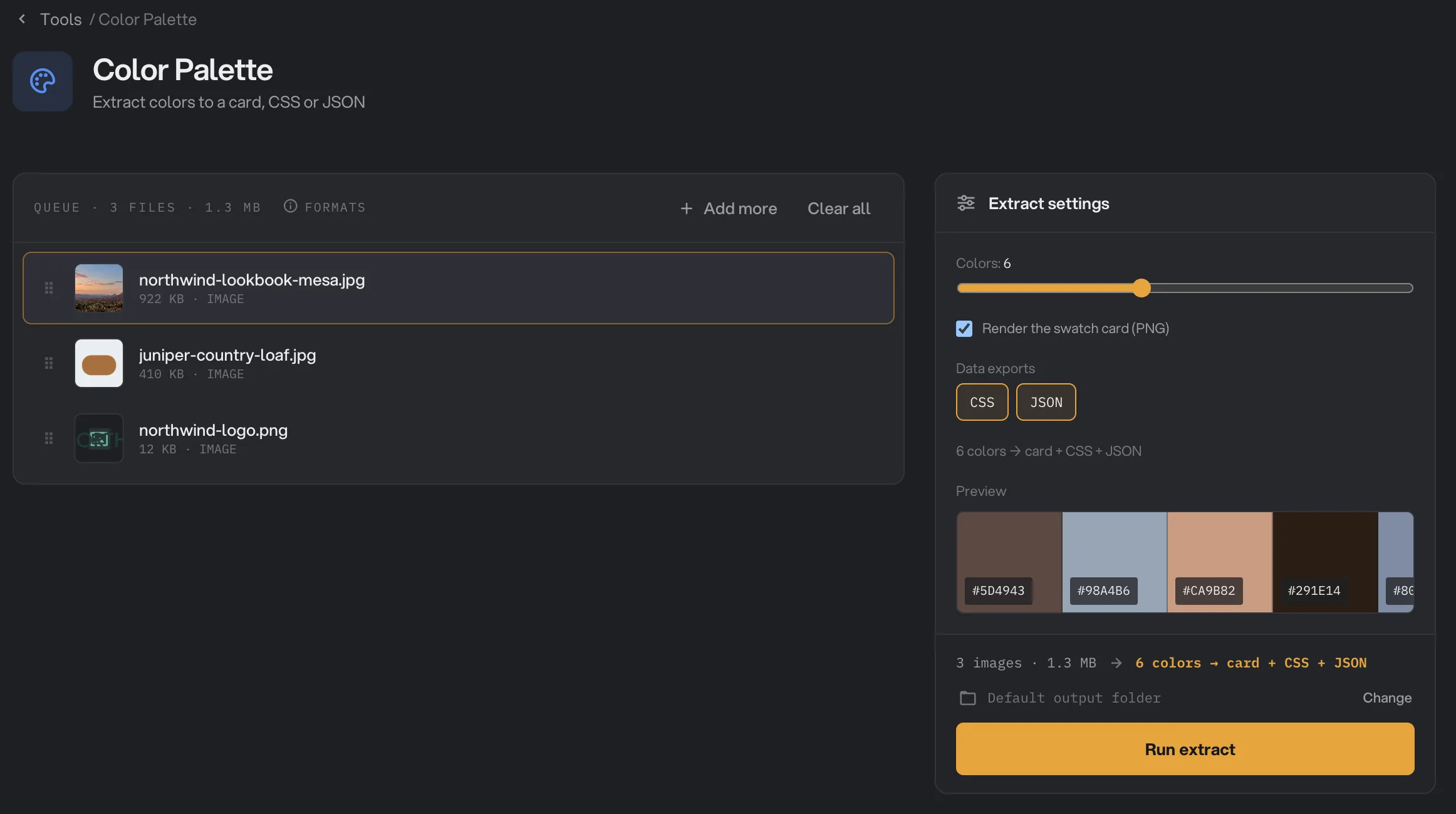
- The selected image
- Colors
- Render the swatch card (PNG)
- Data exports
- Preview
- Run extract
Step 2: Choose how many colors
Drag the Colors slider to pick between 2 and 12 colors. It starts at 6. The Preview under the settings updates as you drag and shows the colors you will get, largest share first.
The preview reads one image at a time. Click a file in the queue to preview its colors instead. Click a swatch in the preview to copy its hex code.
Step 3: Choose the files you want
Render the swatch card (PNG) is on when you open the tool. It saves a picture of the palette you can share or drop into a moodboard. Under Data exports, CSS is also on at the start. Click CSS or JSON to turn each one on or off:
- CSS saves the colors as variables named
--color-1,--color-2and so on, in the same order as the card. Paste them into a stylesheet. - JSON saves each color with its hex code, its RGB values, its share of the image and its basic color name, for your own scripts or tools.
You need at least one of the three. If you turn them all off, the panel says "Turn on the card or pick an export" and Run extract stays grayed out.
Step 4: Run, then check the palettes
The line above the button sums up the run, for example 6 colors → card + CSS + JSON. Check where the files will go: Default output folder saves them in your workspace's output folder, in a palette folder with a subfolder for today's date, such as 10-15. Click Change to pick another folder for this run. Then click Run extract.
When the run ends, each image shows Done and a count such as 3 files. Click the count to list the card, the CSS file and the JSON file. Each is named after the image, with -palette added: northwind-lookbook-mesa-palette.png, .css and .json.
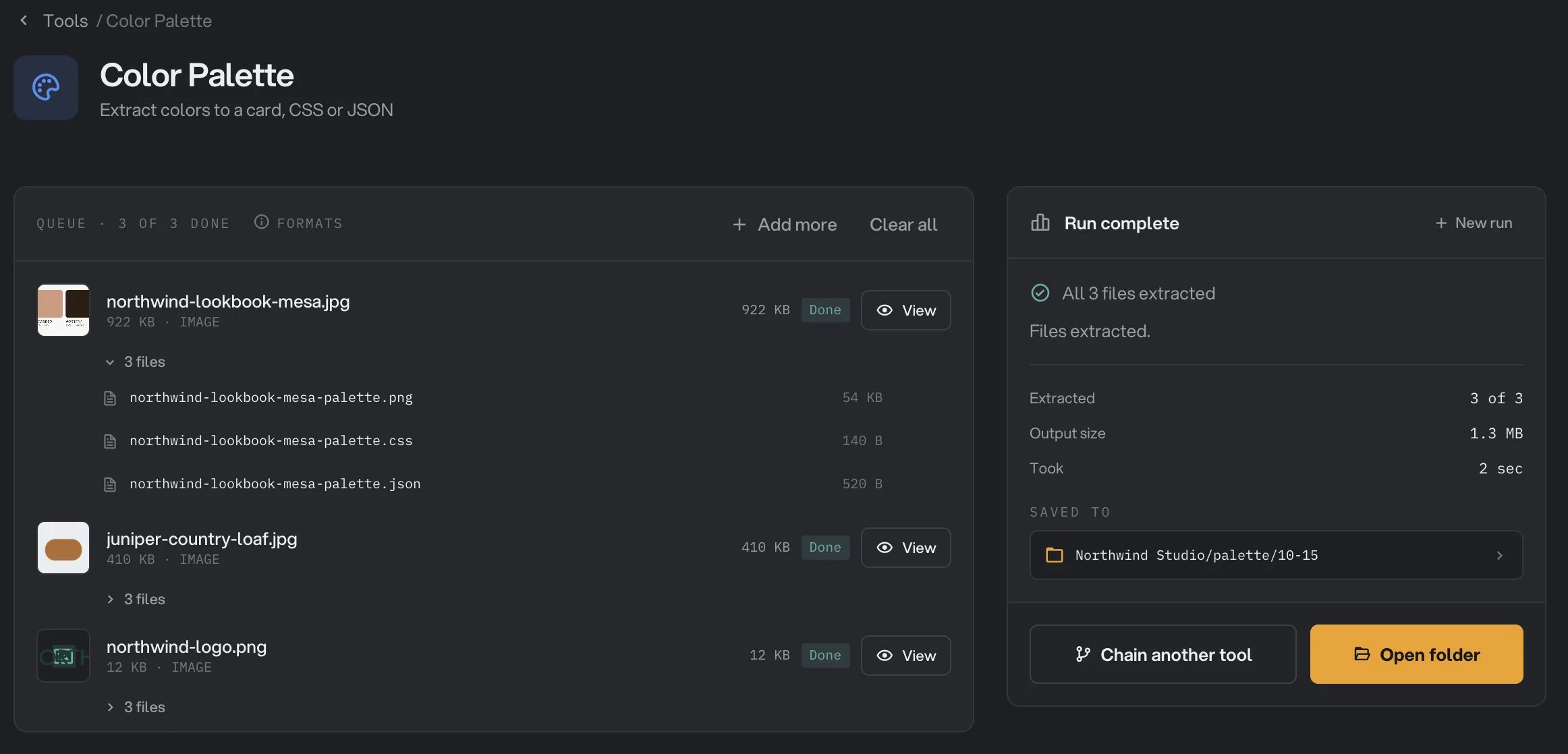
- 3 files
- The CSS file
- Saved to
- Open folder
Click View to open the card. Use the arrows at the top to step to the CSS and JSON files of the same image. They open as a row of color swatches; click one to copy its hex code, or switch to Raw to see the file's text and copy all of it. Open folder takes you to the files. For more on the results window, see See and compare your results.
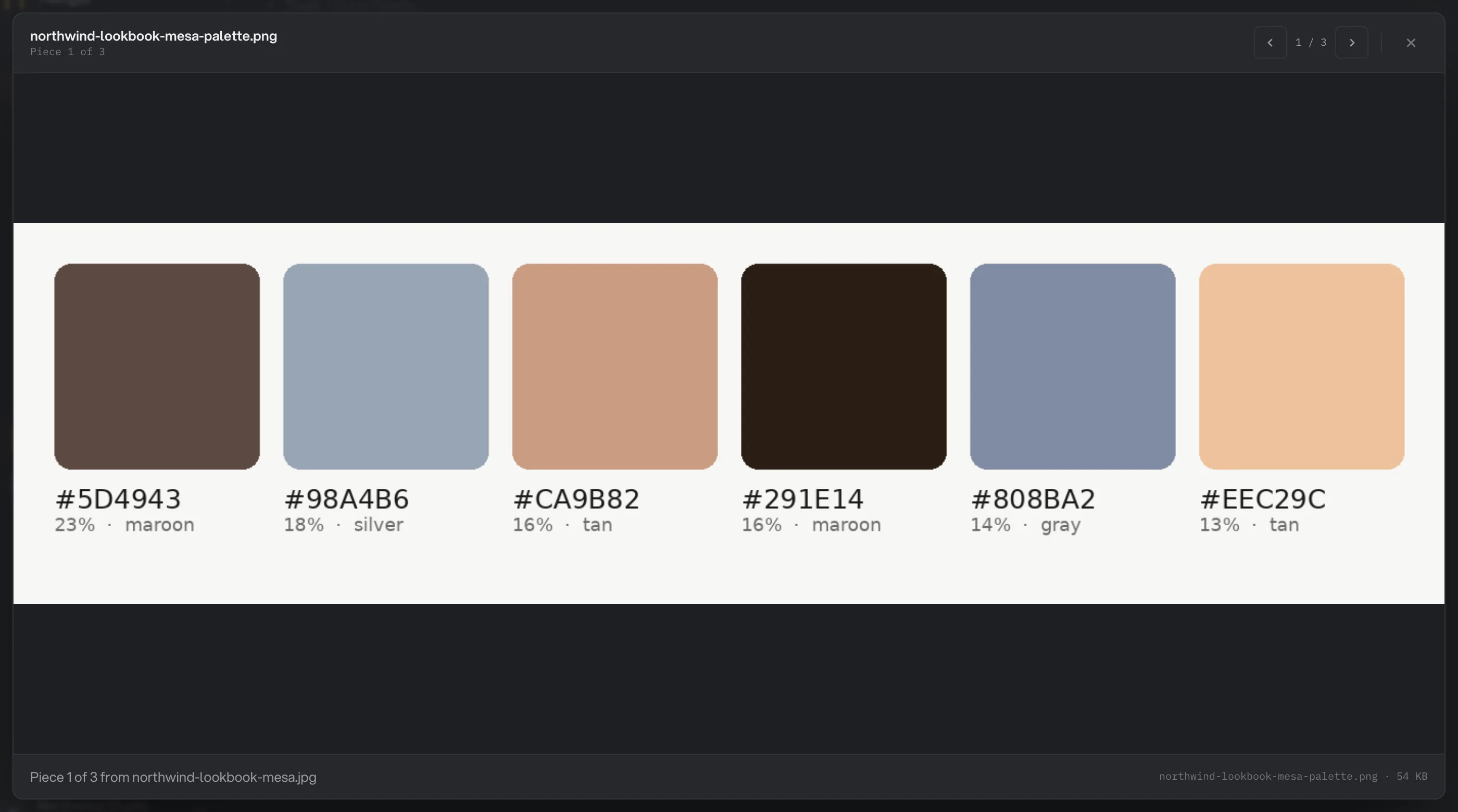
- Piece 1 of 3
- Next piece
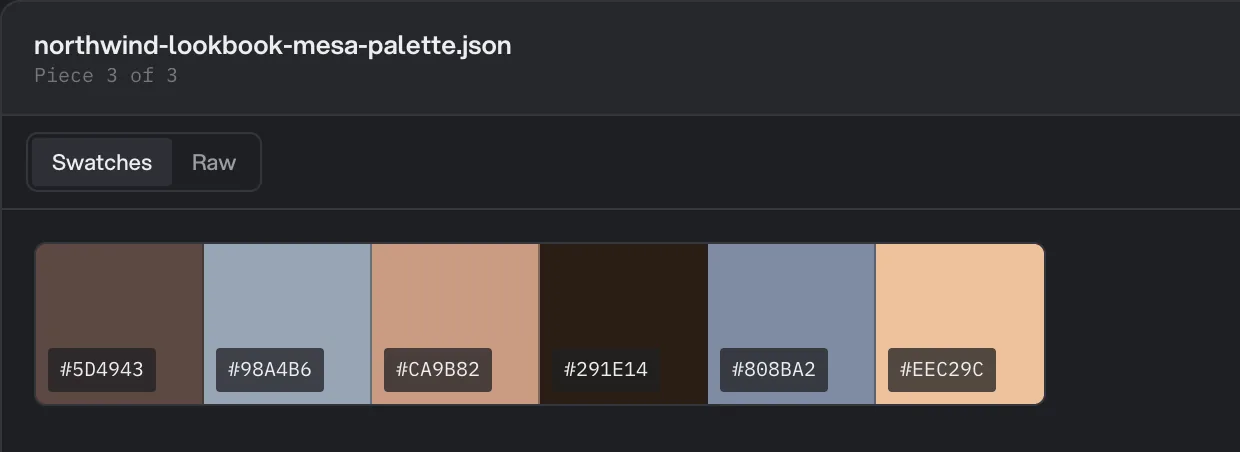
- Raw
- Click a tile to copy its hex code
Every setting, and when to change it
Color Palette has no presets. The same settings apply to every image in the queue.
- Colors
How many colors to find in each image. You may get fewer when the image has fewer distinct colors.
- Range2 to 12
- Default6
- Render the swatch card (PNG)
Saves a card image with one swatch per color, its hex code, its share of the image and its nearest basic color name.
- RangeOn or off
- DefaultOn
- Data exports
Also saves the colors as CSS variables, as a JSON file, or both. At least one of the card, CSS or JSON must be on.
- RangeCSS, JSON, both or none
- DefaultCSS
How do I get a palette I can use?
- Crop to what matters. Every visible pixel counts, so a plain backdrop or a big sky can take most of the palette. Crop the image to the product or the area you care about first, for example with Crop image.
- Use a transparent background for logos. See-through pixels are skipped, so a logo saved as a PNG or SVG on transparency gives only the logo's own colors. A logo on white adds white to the palette.
- Set the number of colors on purpose: close to the real count for logos and flat artwork, 5 to 8 for photos.
- Watch the preview while you drag the slider, then run. The card has the same colors as the preview.
Why does my palette look wrong?
- The top color is the background. Colors are ranked by how much of the image they cover. Crop away the backdrop, or simply ignore that swatch.
- There are several shades of almost the same color. You asked for more colors than the image really has, so Hangar split one color into close shades. Lower Colors.
- A small accent color is missing. A color that covers only a tiny part of the image can be merged into a bigger one. Raise Colors, or crop closer to the accent.
- Two swatches have the same name. The name is only the nearest of a short list of basic colors, such as tan, maroon or navy. Use the hex codes, which are exact.
- The preview stays empty or does not change. The preview cannot read every format. SVG files, and some camera RAW files, may show no preview of their own, but the run still reads them and saves the palette.
- A file failed with a message that the image has no opaque pixels to sample. The image is completely transparent, so there is no color to read.
For other errors, see A file failed: what to check.
Limits
- Between 2 and 12 colors per image.
- The outputs are a PNG card, a CSS file and a JSON file. There is no swatch file format for design apps.
- Each image gets its own palette. There is no combined palette for a whole batch.
- An animated GIF or WebP is read as a single still frame.
- Everything runs on your computer. Nothing is uploaded.
Common questions
How many colors can it find?
From 2 to 12, set with the Colors slider. If the image has fewer distinct colors than you ask for, you can get fewer swatches back.
Will I get the same palette if I run it again?
Yes. The same image with the same number of colors always gives the same palette, so you can rerun a batch without the colors shifting.
Can I use the palette in my design app?
Copy any hex code from the preview or from the results window by clicking its swatch. The CSS file holds the colors as CSS variables for the web, and the JSON file holds each color with its hex code, its RGB values, how much of the image it covers and a basic color name. Color Palette does not save swatch files for design apps.
Does a transparent background count as a color?
No. Fully or almost fully see-through pixels are skipped, so a logo saved on a transparent background gives the colors of the logo only.
Is my image changed or uploaded?
No. The colors are worked out on your computer, and Hangar only writes new files next to your other results. The original image is not touched.
Still stuck?
One person reads every message, usually with a reply within a day.