 Agencies and studios
 Photographers
 Podcasters
 Video and social creators
 Marketers and content teams
What does Vectorize image do?
Vectorize image traces your pictures into SVG files made of editable shapes, on your own computer. In the app the tool is called Vectorize Image. Use it to rescue a logo you only have as a small PNG, to turn a sketch into clean lines, or to make an icon that stays sharp at any size. You get one SVG for each image.
The tool opens as a Studio with a live before and after view. Hangar picks settings for each image on its own, and you can fine-tune any of them before you export.
Step 1: Add your images
Click Tools in the sidebar, open the Image tab and click Vectorize Image in the Convert section. You can also type "vectorize" in the search box at the top.
Drop your images on the Studio, or click it to pick files. PNG, JPG, WebP and BMP files work. Your images appear in the strip of thumbnails. Use Add files or Add a folder to add more, and click a thumbnail to work on that image.
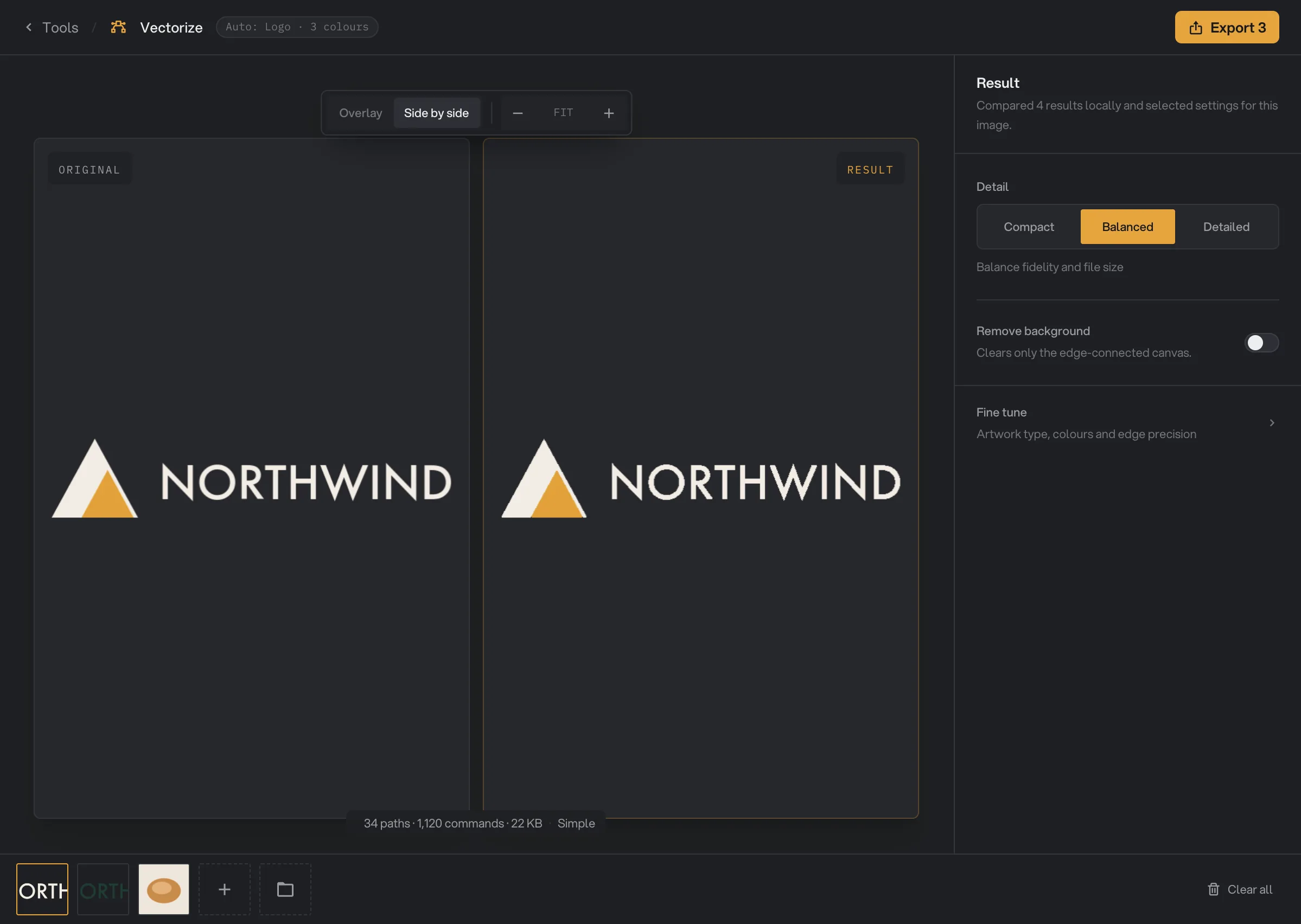
- Add files
- Original
- 34 paths
- Result
- Detail
- Remove background
- Export 3
Step 2: Check the automatic result
When you select an image, the Result panel shows "Comparing results against your original image…" while Hangar tries a few settings. It then picks the best one for that image and says how many results it compared. The header at the top shows what it chose, for example "Auto: Logo" and the number of colors.
Compare ORIGINAL and RESULT on the stage. Switch between Overlay and Side by side, and zoom in on edges and small text. The line under the stage counts the shapes and shows the file size, and rates the file Simple, Detailed or Very complex.
Each image keeps its own settings. Once you change one, the header says "Custom". Click Reset to automatic to go back to Hangar’s pick.
Step 3: Adjust detail and background
Under Detail, pick Compact for a smaller SVG that is easier to edit, Balanced, or Detailed to keep the most shapes.
Turn on Remove background to clear the solid color around the artwork, such as the white page behind a scanned logo. It only clears color that touches the edge of the image. If a noisy or soft edge is left behind, raise Edge tolerance a little.
Step 4: Fine-tune shapes and colors
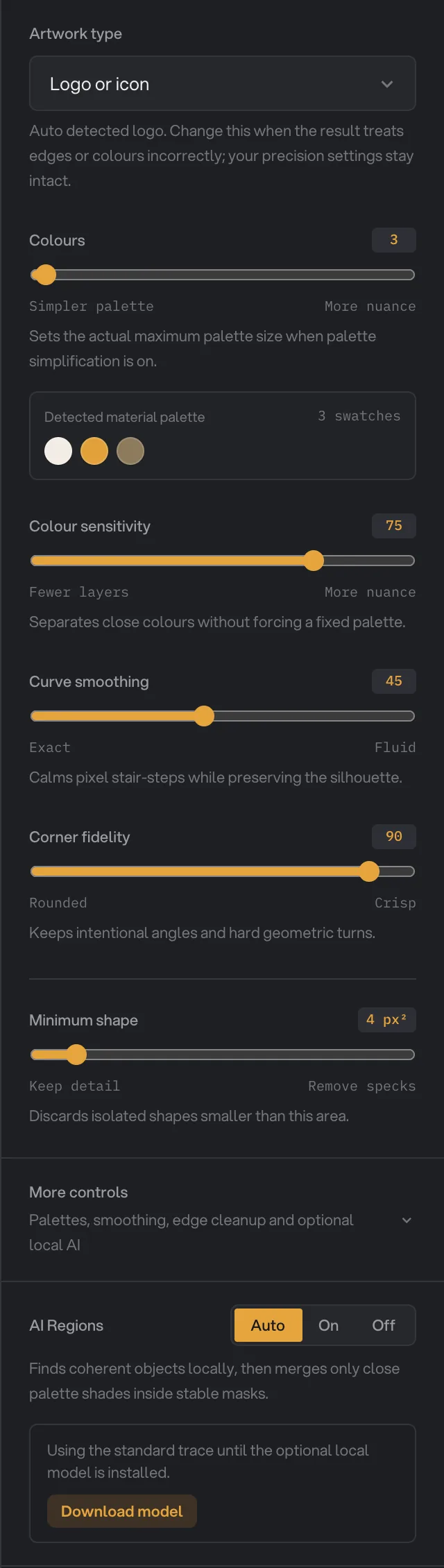
Click Fine tune to see how Hangar reads the image:
- Artwork type: Logo or icon, Line art or sketch, Illustration or poster or Photo. Change it when edges or colors are handled the wrong way. Your other settings stay as they are.
- Colours: the most colors the SVG can use, from 2 to 64. The swatches under it show the colors Hangar found.
- Colour sensitivity, Curve smoothing and Corner fidelity control how close colors are split, how smooth curves are, and how crisp corners stay.
- Minimum shape removes specks smaller than the size you set.
Click More controls for the rest: AI Regions, AI boundary cleanup, Palette simplification, Editable gradients, Edge cleanup, Pre-trace upscale and Pixel smoothing. They are described under Every setting.
- Artwork type
- Colours
- Corner fidelity
- Minimum shape
- AI Regions
- Download model
Step 5: Export, then check the files
Click Export, which shows how many images will be saved, for example Export 3. Hangar first makes sure every image has its settings ("Preparing images…"), then traces each one with its own settings.
When it finishes, a card shows "Exported 3 images" with a thumbnail, the size and the time it took. Click Open folder to go to the files, or the close button to put the card away. The SVGs are saved in your workspace’s output folder, in a vectorize folder with a subfolder for today’s date, such as 10-15. Each one has -vector added to its name, for example northwind-logo-vector.svg. See Studios: tools with a hands-on editor and Where Hangar saves your files.
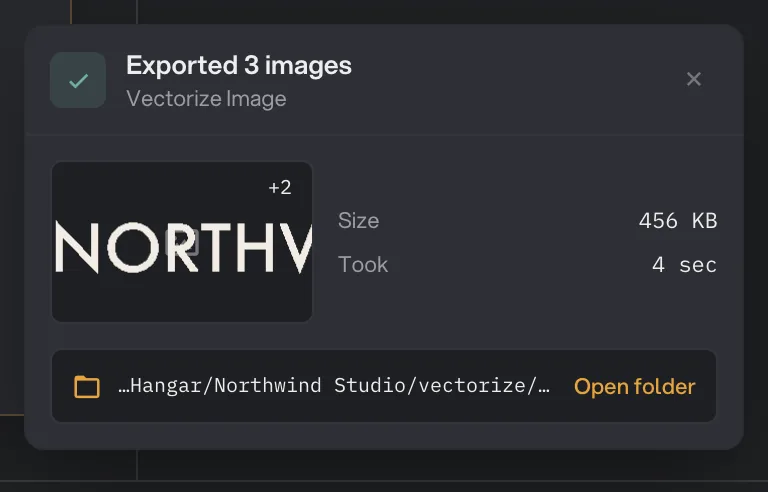
- Exported 3 images
- Folder
- Open folder
Every setting, and when to change it
Settings belong to the selected image. The defaults below are what you see before Hangar makes its pick for an image. After that, the values are the ones it chose.
- Detail
Fewer, simpler shapes and a smaller file, or more shapes and a closer match.
- RangeCompact, Balanced, Detailed
- DefaultBalanced
- Remove background
Clears the solid color that surrounds the artwork and touches the edge of the image.
- DefaultOff
- Edge tolerance
With Remove background, how different a color can be and still count as background. Raise it only for a noisy or soft edge.
- Range0 to 100
- Default24
- Artwork type
How Hangar reads edges and colors.
- RangeLogo or icon, Line art or sketch, Illustration or poster, Photo
- DefaultChosen for each image
- Colours
The most colors the SVG can use, while Palette simplification is on.
- Range2 to 64
- Default32
- Colour sensitivity
Higher keeps close colors apart. Lower merges them into fewer layers.
- Range0 to 100
- Default75
- Curve smoothing
Higher gives smoother curves. Lower follows the pixels more exactly.
- Range0 to 100
- Default45
- Corner fidelity
Higher keeps sharp corners. Lower rounds them.
- Range0 to 100
- Default75
- Minimum shape
Removes isolated shapes smaller than this area.
- Range0 to 400 px²
- Default4 px²
- AI Regions
Finds whole objects and merges close shades inside them. Needs a one-time download of about 40 MB. On Auto, it is used for illustrations once downloaded.
- RangeAuto, On, Off
- DefaultAuto
- AI boundary cleanup
Merges stray color fragments while keeping real edges. Built in, no download.
- RangeAuto, On, Off
- DefaultAuto
- Palette simplification
Limits the SVG to the number of colors you set. The AI options only work while it is on.
- DefaultOn
- Editable gradients
Turns smooth color ramps into gradients. Leave off for the smallest, cleanest shapes.
- DefaultOff
- Edge cleanup
Absorbs the soft in-between colors along edges into the neighboring shapes.
- DefaultOff
- Pre-trace upscale
Enlarges a temporary copy of the image before the shapes are fitted. The SVG keeps the original size.
- RangeOff, 2×, 4×
- Default4×
- Pixel smoothing
Traces smooth curves over pixel-art steps. Off keeps a crisp, blocky look.
- RangeAuto, On, Off
- DefaultAuto
The optional AI Regions download
AI Regions is the only part of this tool that needs a download. Without it, Hangar uses the standard trace, and the panel says so. To add it, open More controls and click Download model under AI Regions. When it says Model ready, it is installed. If you set AI Regions to On without the download, Export is blocked until you download it or switch back to Auto or Off. See AI models: what downloads and when.
How to get the best results
- Start from the largest, cleanest copy of the artwork you have. Blurry or heavily compressed images trace into wobbly shapes.
- Logos, icons, line art and flat illustrations work best. Photos give large files with many shapes.
- Check the automatic result first. Change one setting at a time and compare.
- For a logo with a few brand colors, set Colours to that number so stray shades do not become extra shapes.
- If small specks appear, raise Minimum shape. If thin details disappear, lower it.
Why a result disappoints
- Corners look rounded. Raise Corner fidelity. For a logo, check that Artwork type is Logo or icon.
- Curves look jagged. Raise Curve smoothing.
- Pixel art came out rounded. Set Pixel smoothing to Off. The stage shows a note when smoothing was applied.
- Colors are missing or merged. Raise Colours or Colour sensitivity.
- The SVG is too large. The stage warns about a large SVG. Pick Compact, or lower Colours. A file over 20 MB fails.
- The background was not removed. At least three corners must share the same color. Raise Edge tolerance for a soft or noisy edge.
- An image failed with a message that it is not supported. Convert HEIC, AVIF, TIFF and GIF files to PNG first with Convert images.
- The header says "Setup failed". Hangar could not pick settings. Click Try automatic settings again, or set them yourself.
For other errors, see A file failed: what to check.
Limits
- Reads PNG, JPG, WebP and BMP files. HEIC, AVIF, TIFF, GIF and animated WebP files fail.
- Images over 24 megapixels are scaled down before tracing.
- An SVG over 20 MB is refused. Use fewer colors or less detail.
- Files are always saved in the default output folder.
- AI Regions needs a one-time download of about 40 MB. Everything else is built in.
- Everything runs on your computer. Nothing is uploaded.
Common questions
What is an SVG, and why would I want one?
An SVG is a vector file: shapes and colors instead of pixels. It stays sharp at any size, from a favicon to a banner, and you can edit its shapes and colors in a design app. Vectorize Image turns a PNG or JPG into one.
Do I have to choose settings for every image?
No. When you select an image, Hangar compares a few results against the original and picks settings for that image. You can export right away, or adjust any image first. Reset to automatic undoes your changes.
Will it keep my transparent background?
Yes. Fully transparent areas stay transparent in the SVG. Soft, partly see-through edges are blended onto white first, so a logo on a transparent background can show a very thin light edge.
How do I remove a white background from my logo?
Turn on Remove background. It clears the solid color that surrounds the artwork, as long as at least three of the four corners share that color. White areas inside the artwork, such as the inside of an O, are kept.
Does it work on photos?
It works, but a photo turns into many small shapes and a large file. Vectorizing is best for logos, icons, line art and flat illustrations.
Is my original image changed?
No. Hangar saves a new SVG with -vector added to the name and leaves the original where it was.
Still stuck?
One person reads every message, usually with a reply within a day.