 Agencies and studios
 Photographers
 Podcasters
 Video and social creators
 Marketers and content teams
What does Convert images do?
Convert images changes pictures from one format to another, on your own computer. Turn iPhone HEIC photos into JPG, make small WebP or AVIF files for a website, or save a PNG, TIFF, GIF, BMP or ICO icon. On a Mac you can also save HEIC. In the app the tool is called Image Convert.
Image Convert also opens camera RAW files (CR2, CR3, NEF, ARW and DNG) and SVG drawings. It gives back one new file for each image you add, and can make large images smaller and remove hidden photo details on the way.
Step 1: Add your images
Click Tools in the sidebar, open the Image tab and click Image Convert in the Convert section. You can also type "convert" in the search box at the top.
Drop your images on the queue, or click it to pick files. Image Convert takes JPG (including .jfif files), PNG, WebP, AVIF, HEIC, HEIF, TIFF, GIF and BMP photos, ICO icons, TGA, QOI, DDS and Netpbm (PPM, PGM, PBM, PAM, PNM) images, SVG drawings and RAW files from your camera. To convert a folder of images, open it, select all the images and drop them together. Use Add more to add files later.
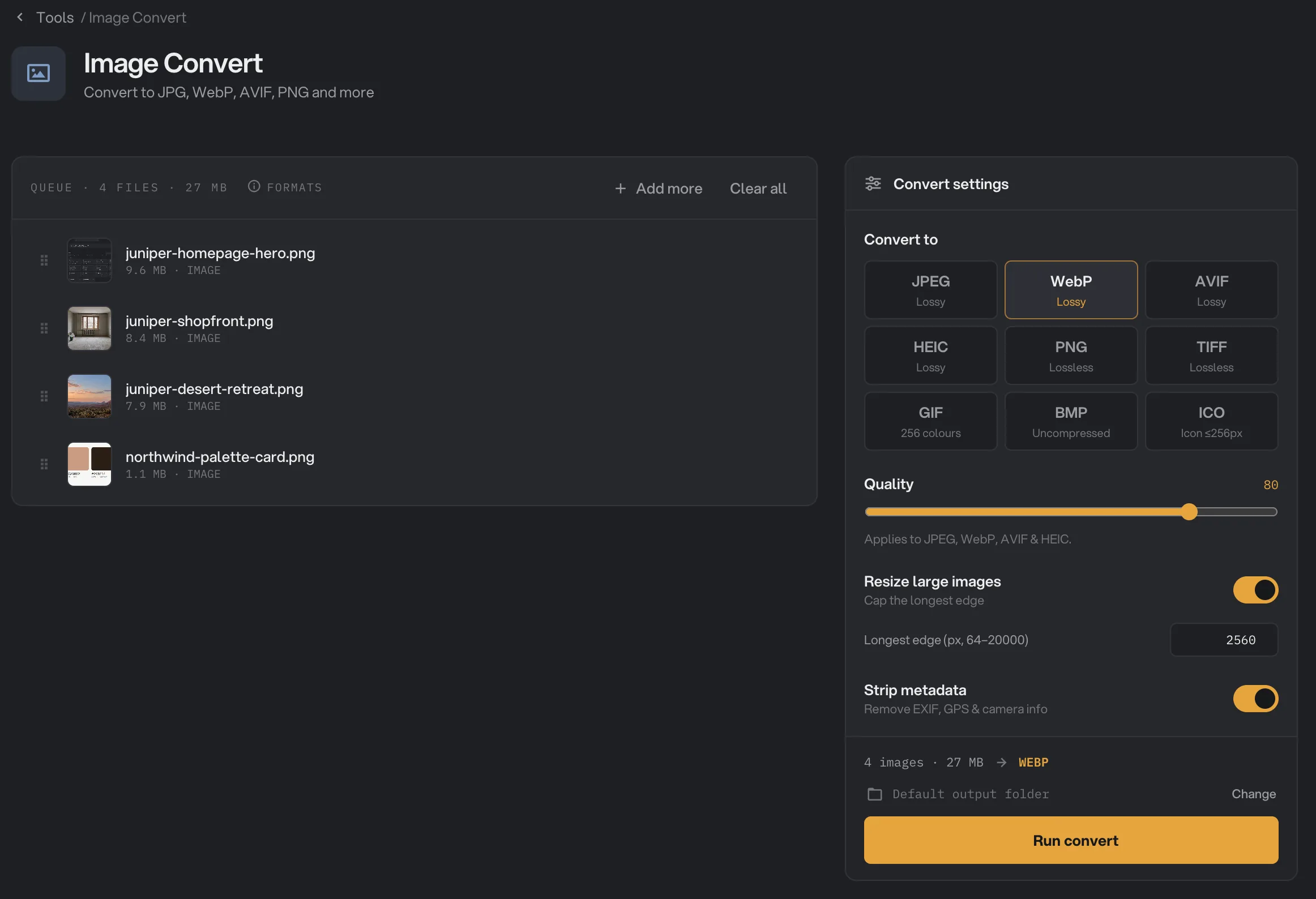
- Add more
- Convert to
- Quality
- Resize large images
- Strip metadata
- Run convert
Step 2: Choose the new format
Under Convert to, click the format you want. Each tile says what kind of format it is:
- JPEG, WebP and AVIF are Lossy: they make small files by dropping detail you rarely notice. Use them for photos. WebP and AVIF are smaller than JPEG at the same look, and every modern browser shows them. JPEG opens everywhere.
- HEIC (Mac only) is also Lossy. It is the iPhone's own photo format: about half the size of a JPEG and opens on every Apple device, but many Windows apps and websites can't open it.
- PNG and TIFF are Lossless: they keep every pixel, so files are larger. Use PNG for logos, screenshots and graphics with sharp edges or a transparent background.
- GIF keeps only 256 colors. It suits simple graphics, not photos.
- BMP is Uncompressed and makes very large files. Pick it only when another program asks for it.
- ICO makes an icon, such as a website favicon, at 256 pixels or smaller.
Step 3: Set quality, size and photo details
Quality sets how much detail JPEG, WebP, AVIF and HEIC keep, from 1 to 100. The default, 80, is a good balance for most photos. Lower it for smaller files, raise it for print. For the other formats the slider is grayed out and has no effect.
Turn on Resize large images to make big images smaller as they convert. Type the longest side you want, in pixels, in the box under it. Only images larger than that are reduced; smaller ones keep their size.
Strip metadata is on by default. It leaves out hidden details such as the camera, the date and the GPS location. Turn it off to copy them into the new file. Some formats cannot hold these details, so they may still be missing.
Step 4: Run, then check the result
The line above the button shows how many images you are converting, their total size and the new format. Check where the files will go: Default output folder saves them in your workspace’s output folder, in a convert folder with a subfolder for today’s date, such as 10-15. Click Change to pick another folder for this run. Then click Run convert.
When the run ends, each file shows Done and the panel sums up the run. Click View on a file to compare it with the original, and Open folder to go to the new files. Each one keeps its name and gets the new extension, for example juniper-shopfront.webp. See See and compare your results and Where your files are saved.
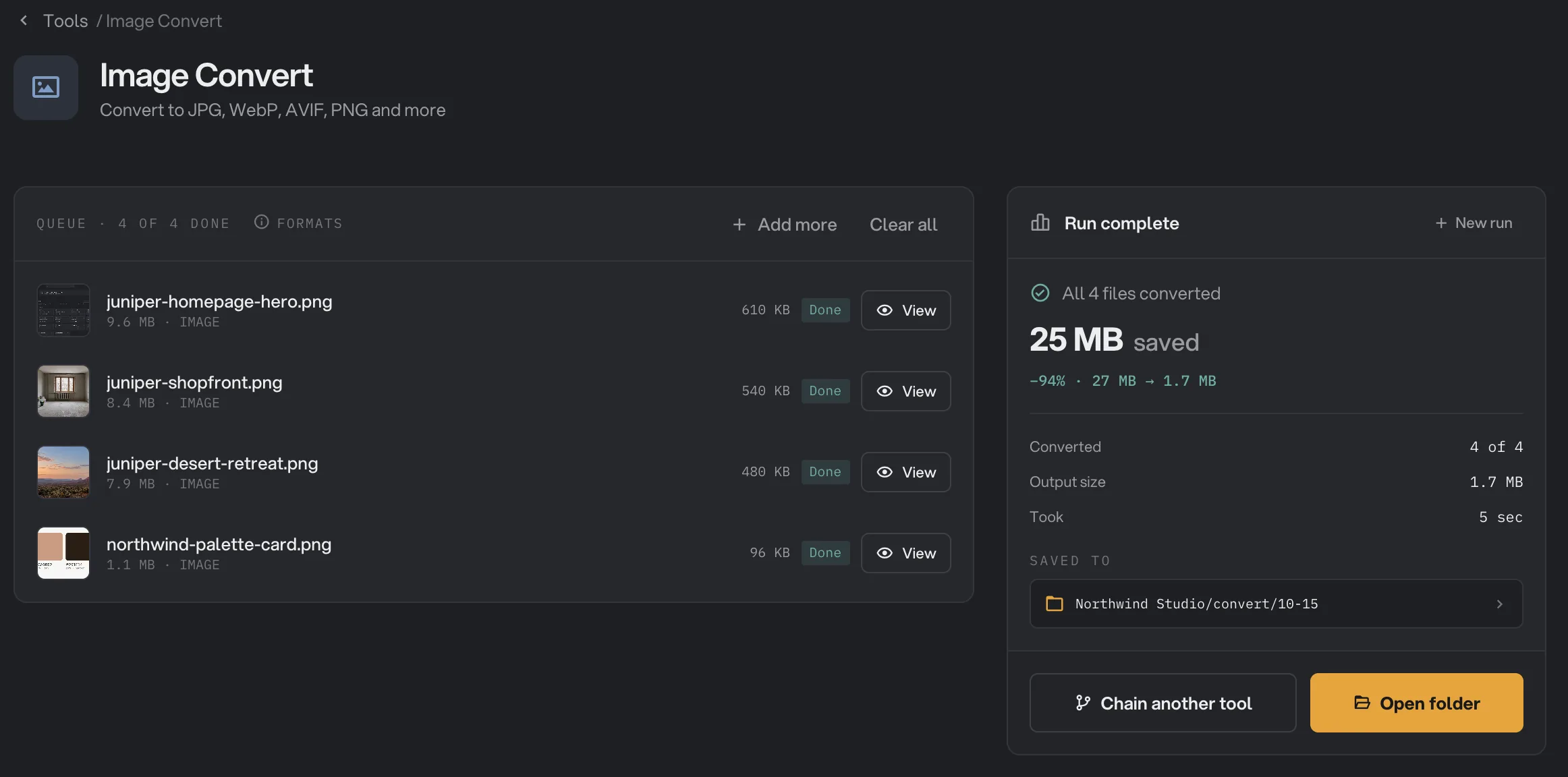
- Done
- View
- Saved to
- Open folder
Every setting, and when to change it
- Convert to
The format of the new files.
- RangeJPEG, WebP, AVIF, HEIC (Mac only), PNG, TIFF, GIF, BMP, ICO
- DefaultWebP
- Quality
How much detail JPEG, WebP, AVIF and HEIC keep. Lower means a smaller file and a softer picture. Has no effect on the other formats.
- Range1 to 100
- Default80
- Resize large images
Makes images smaller when their longest side is bigger than the limit below. It never makes an image bigger.
- DefaultOff
- Longest edge (px, 64–20000)
The longest side an image may have when Resize large images is on.
- Range64 to 20,000 pixels
- Default2560
- Strip metadata
Leaves hidden details such as the camera, date and GPS location out of the new file.
- DefaultOn
How do I get the best results?
- Photos for a website: pick WebP at Quality 75 to 85 and turn on Resize large images at 2560 or lower.
- Smallest photos: try AVIF. It often makes the smallest files of the three lossy formats.
- Photos to send to anyone: pick JPEG. Every phone, computer and app opens it.
- Logos and screenshots: pick PNG, or WebP if the file must be small. Lossy formats can blur sharp text and edges at low Quality.
- Keep your source files. Converting a JPEG to PNG does not bring back detail the JPEG already lost. Start from the best original you have.
HEIC, RAW, SVG and other special files
- HEIC and HEIF photos from an iPhone convert like any other photo. JPEG is the safest choice to share them. On a Mac you can also go the other way and save any image as HEIC.
- RAW files from your camera: Hangar uses the full-size picture your camera saved inside the RAW file when there is one, so colors look like the camera’s own preview. If there is none, Hangar develops the RAW with neutral settings. For full control over color and exposure, edit the RAW in your photo editor first.
- JFIF files are ordinary JPEG photos with a
.jfifname, which some browsers give images you save from the web. They convert like any JPEG. - Icon, game and graphics files (ICO, TGA, QOI, DDS and Netpbm files such as PPM) convert like any other image, and keep their transparent areas when you pick PNG, WebP or AVIF. Tools that keep the original format, such as Compress and Resize, cannot save these files, so convert them to PNG or JPEG first. DDS game textures open only when they use the common DXT1, DXT3 or DXT5 compression.
- SVG drawings are turned into pixels at their own size, made at least 1,024 and at most 8,192 pixels on the longest side. Turn on Resize large images to get a smaller picture.
Animated GIF and WebP
Convert an animated GIF to WebP, or an animated WebP to GIF, and it stays animated. Hangar keeps every frame, how long each one shows, and how many times the animation loops. A WebP animation is often several times smaller than the same GIF.
- Quality applies to every frame of a WebP animation. It has no effect on GIF.
- Resize large images makes every frame smaller by the same amount.
- Animations are saved without hidden photo details, even when Strip metadata is off.
- GIF has no partly see-through pixels. Each pixel is either fully see-through or fully solid, so soft edges can look rough after converting a WebP to GIF.
- Pick any other format and you get a still image of the first frame. The panel tells you when this happens.
Why does a result look wrong?
- The file is bigger than the original. PNG, TIFF and BMP keep every pixel, so they are large for photos. Image Convert always saves the format you chose; it never keeps the original instead. Pick WebP, AVIF or JPEG, or shrink the result with Compress images.
- The picture looks soft or blocky. Raise Quality. Lower values make smaller files with more visible smudges, most of all on text and sharp edges.
- A transparent background turned solid. JPEG and BMP cannot store transparency. Pick PNG, WebP or AVIF.
- A GIF lost its colors. GIF holds only 256 colors. Use PNG or WebP for photos.
- An animation became a still image. Only GIF and WebP keep animation. Pick one of them under Convert to.
- An animation failed as too large. Very long or very large animations need too much memory. Turn on Resize large images, or shorten the animation first.
- A JPEG photo from a phone or camera comes out sideways. Image Convert does not turn photos upright by their rotation setting. Run Rotate & flip first with Auto-fix orientation on, then convert the result.
- A file failed with a message that Hangar couldn’t read it. The file may be damaged or not really an image. Open it in another app and save it again. For other errors, see A file failed: what to check.
Limits
- Image Convert writes JPEG, WebP, AVIF, PNG, TIFF, GIF, BMP and ICO, plus HEIC on a Mac. It reads RAW, SVG, TGA, QOI, DDS and Netpbm files but cannot save in those formats.
- Animations stay animated only when saved as GIF or WebP. Very long or very large animations cannot be converted.
- ICO icons are at most 256 pixels on their longest side.
- SVG drawings are made between 1,024 and 8,192 pixels on their longest side.
- Add image files, not folders.
- Everything runs on your computer. Nothing is uploaded.
Use Image Convert in a chain
Convert is available as a step in chains, under the Image steps, with the same settings as the tool. The starter chain Social export resizes each image and then converts it.
Put Convert last when you change to WebP, AVIF or JPEG, and run steps such as Resize before it, so each image is saved once in its final format. Resize, Rotate / Flip and Watermark steps cannot open AVIF files, so never put them after a Convert to AVIF. To run the same chain on new files each week, see Run a chain on many files.
Common questions
Can I turn iPhone HEIC photos into JPG?
Yes. Add the HEIC photos, pick JPEG under Convert to and run. Anyone can open the JPG copies.
Can I save photos as HEIC?
Yes, on a Mac. Pick HEIC under Convert to. HEIC files are about half the size of a JPEG that looks the same, and every iPhone, iPad and Mac opens them. Windows does not have a free HEIC encoder, so the HEIC tile only appears on a Mac.
Why is my converted file bigger than the original?
Image Convert always saves the format you asked for, even when that format makes a bigger file. PNG, TIFF and BMP keep every pixel, so a photo saved in one of them is usually much larger. Pick WebP, AVIF or JPEG for small files.
Does the Quality slider change PNG files?
No. Quality only applies to JPEG, WebP, AVIF and HEIC. For PNG, TIFF, GIF, BMP and ICO the slider is grayed out and has no effect.
Can I make a favicon?
Yes. Pick ICO under Convert to. Hangar fits the image within 256 pixels, the largest size an icon can hold. Start from a square image. Hangar keeps the shape of the picture, so a wide image makes a wide, short icon.
Does it keep the animation in a GIF?
Yes, when you convert it to GIF or WebP. Every frame, its timing and the number of loops are kept. Pick any other format and you get a still image of the first frame.
Is my original file changed?
No. Hangar saves a new file with the same name and the new extension in your output folder, and leaves the original where it was.
Still stuck?
One person reads every message, usually with a reply within a day.