 Agencies and studios
 Photographers
 Podcasters
 Video and social creators
 Marketers and content teams
What does Remove background do?
Remove background finds the main subject of each photo and erases everything around it, on your own computer. In the app the tool is called Remove BG. Use it for product photos, profile pictures, logos and anything you want to place on a new background. You get one cutout for each photo, at the same size as the original, with a transparent, white or colored background.
Every photo in the queue gets the same settings, so you can cut out a whole product shoot in one run.
Step 1: Add your photos
Click Tools in the sidebar, open the Image tab and click Remove BG in the Edit section. You can also type "background" in the search box at the top.
Drop your photos on the queue, or click it to pick files. JPG, PNG, WebP, HEIC and the other common image types work. To add more later, use Add more.
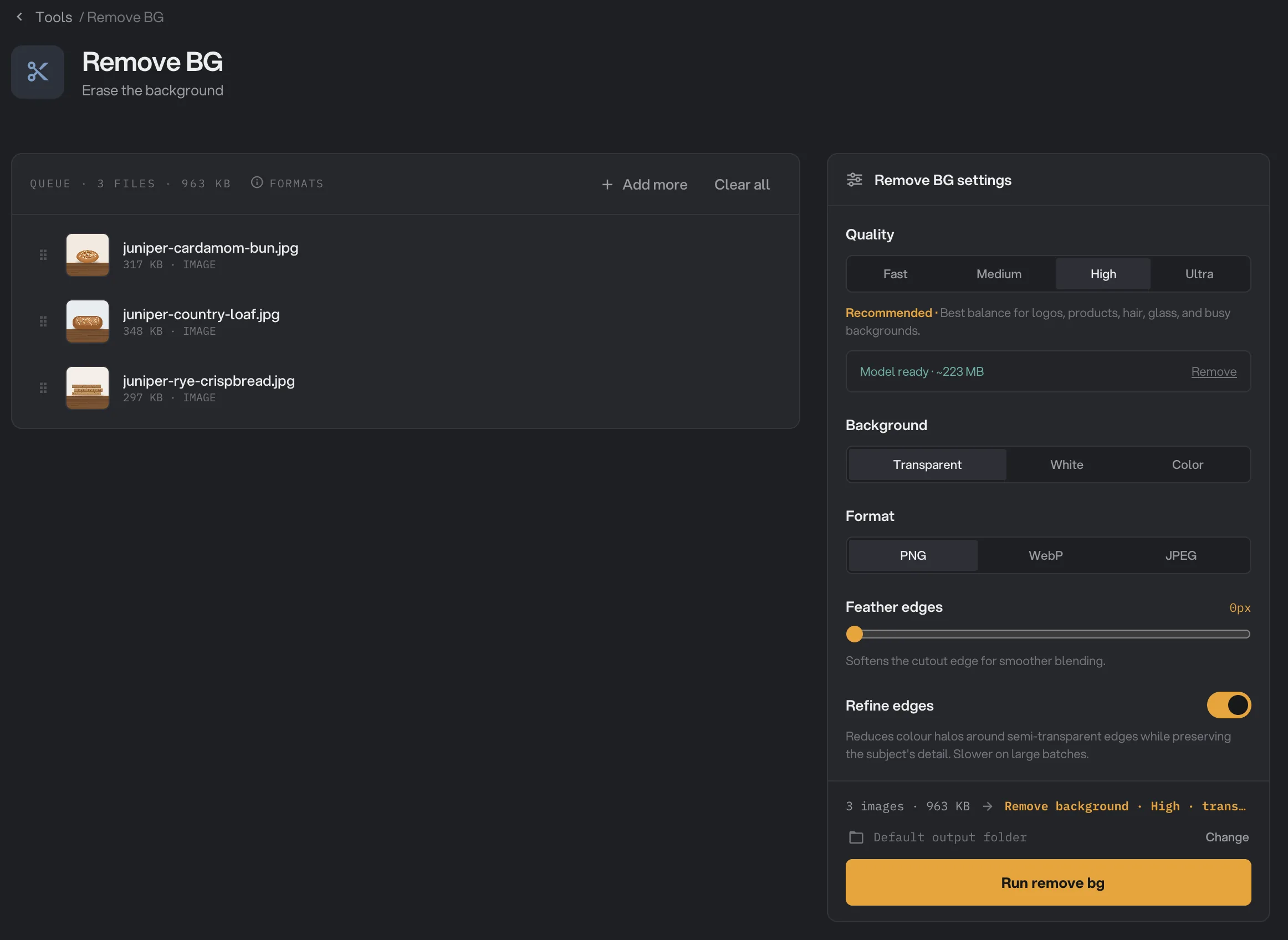
- Quality
- Model ready
- Background
- Format
- Feather edges
- Refine edges
- Run remove bg
Step 2: Choose the quality
Under Quality, pick Fast, Medium, High or Ultra. A new setup starts on High, marked Recommended. The line under the buttons says what each one is good at.
- Fast is built in and works right away. It suits one large, simple subject on a plain background.
- Medium is quicker than High and fine for one clear subject.
- High is the best balance for products, logos, hair, glass and busy backgrounds.
- Ultra keeps the most edge detail, but it is much slower and more likely to keep nearby objects that look like part of the subject.
Medium, High and Ultra each need a one-time download the first time you use them. The panel shows the size, for example "This tier needs a ~223 MB model (one-time download)." Click Download model and wait for Model ready. Cancel stops the download. After that the tier works offline. See AI models: what downloads and when.
Step 3: Choose the background and format
Under Background, keep Transparent to place the cutout on your own designs later. Choose White for store listings, or Color and pick a color with the swatch that appears.
Under Format, pick PNG (keeps transparency, no quality loss), WebP (keeps transparency, usually a smaller file) or JPEG (no transparency). With JPEG and Transparent, the panel reminds you that the cutout will be placed on white.
Leave Refine edges on. It cleans the colored fringe that the old background leaves around soft edges such as hair or fur. Raise Feather edges by 1 or 2 px only if the outline looks too hard on its new background.
Step 4: Run, then check the result
The line above the button sums up your choices, for example "Remove background · High · transparent · refined". Check where the files will go: Default output folder saves them in your workspace’s output folder, in a remove_bg folder with a subfolder for today’s date, such as 10-15. Click Change to pick another folder for this run. Then click Run remove bg.
When the run ends, each photo shows Done. Click View on a photo to compare it with the original, and Open folder to go to the cutouts. Each one has -nobg added to its name, for example juniper-cardamom-bun-nobg.png. See See and compare your results and Where Hangar saves your files.
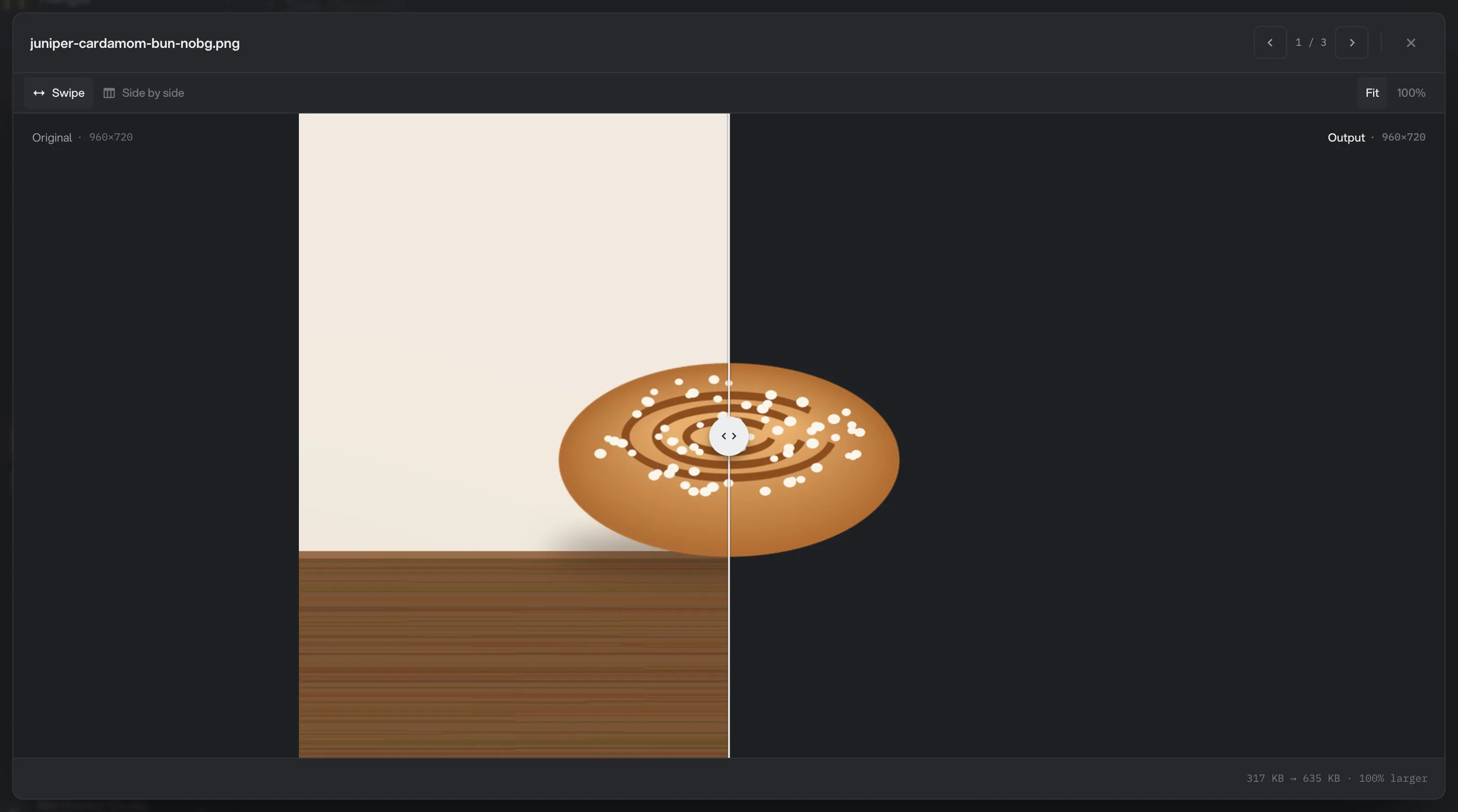
- Original
- Swipe handle
- Output
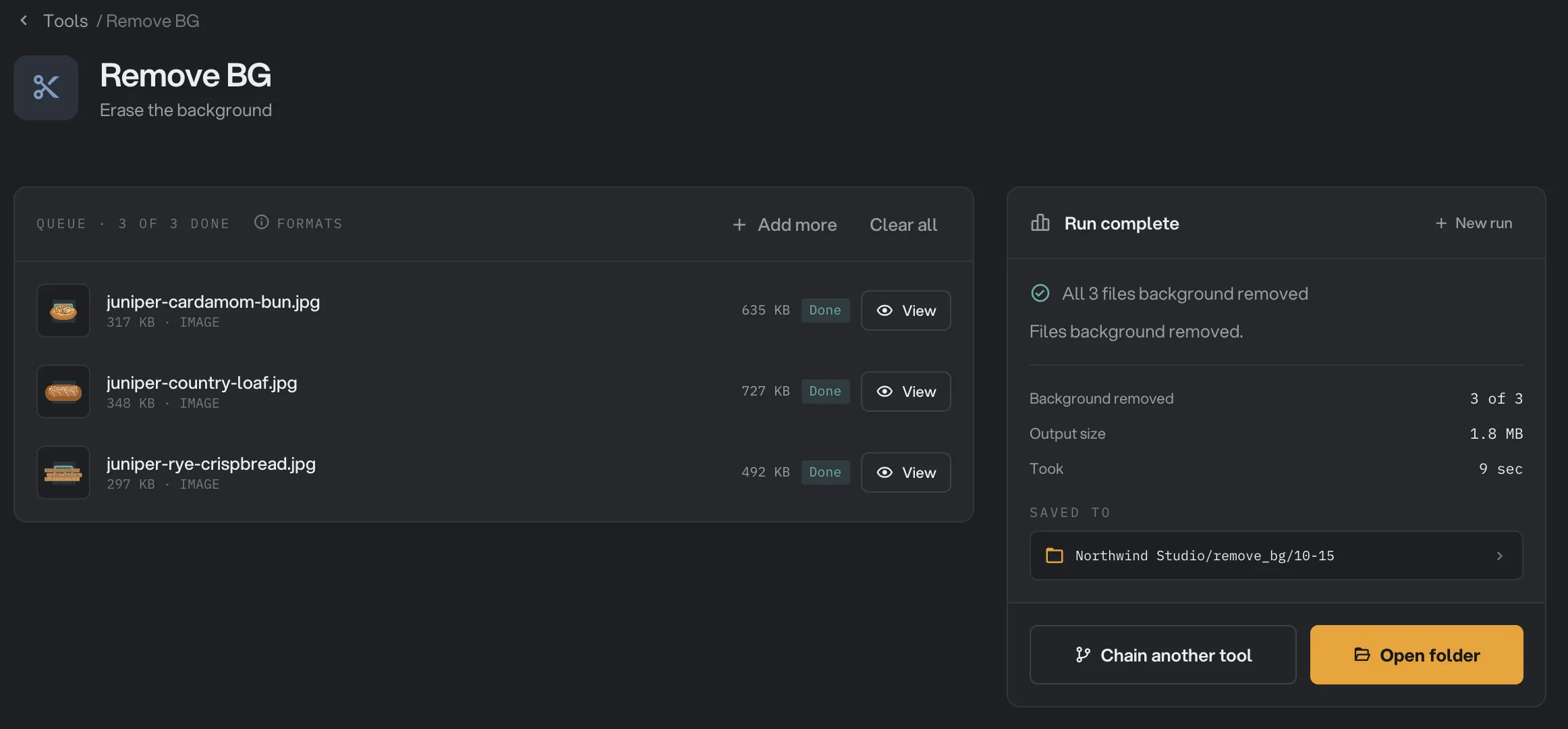
- Done
- View
- Saved to
- Open folder
Every setting, and when to change it
Every photo in the run gets the same settings.
- Quality
How carefully the subject is found. Fast is built in. The others need a one-time download: about 170 MB for Medium, 223 MB for High and 930 MB for Ultra.
- RangeFast, Medium, High, Ultra
- DefaultHigh
- Background
What goes behind the subject. Color shows a swatch to pick any color, starting on white.
- RangeTransparent, White, Color
- DefaultTransparent
- Format
The file type of the cutout. PNG and WebP keep transparency. JPEG places the cutout on white.
- RangePNG, WebP, JPEG
- DefaultPNG
- Feather edges
Softens the outline so the cutout blends into a new background.
- Range0 to 10 px
- Default0
- Refine edges
Removes the color halo the old background leaves on soft, see-through edges. Slower on large batches.
- DefaultOn
How to get the best cutouts
- Use photos where the subject stands out clearly from the background, in focus and well lit.
- Start with High. Move to Ultra for hair, fur or fine detail that High misses, and check that nearby objects did not stay in.
- One subject per photo works best. Hangar always keeps the largest subject, keeps other parts it is sure about, and drops faint stray specks.
- Keep Transparent and PNG if you will reuse the cutout in other designs. Pick the final background later.
- Try a few photos first, check them with View, then run the whole batch.
Why a cutout disappoints
- Parts of the subject are missing, or bits of background stayed. Use a higher Quality. Fast is meant for simple subjects on plain backgrounds.
- A nearby object stayed in the cutout. Ultra keeps more things that look like part of the subject. Try High.
- The edges have a colored rim. Turn on Refine edges. A light Feather edges setting can also help.
- The edges look blurry. Set Feather edges back to 0.
- The background is white instead of transparent. The Format is JPEG. Pick PNG or WebP.
- A photo failed because Hangar couldn’t find a clear subject. Try a higher Quality, or a photo where the subject is larger and stands apart from the background.
- A photo failed because it is too large. Photos over 100 megapixels are refused. Make it smaller with Resize images first.
For other errors, see A file failed: what to check.
Use it in a chain
Remove background is also a chain step, so you can, for example, cut out product photos and then resize or convert them in one run. The step has the same settings as the tool, including the Quality download. Download the model for the quality you pick in the step before you run the chain: if it is missing, the chain still starts, but every photo fails at that step. See Build your first chain.
Limits
- Photos over 100 megapixels are refused.
- Animated GIF and WebP files give a still cutout of the first frame.
- The cutout keeps the size of the original. To make it smaller, use Resize images.
- Medium, High and Ultra need a one-time download before first use. Fast is built in.
- On Windows, very old processors cannot run this tool.
- Everything runs on your computer. Nothing is uploaded.
Common questions
Are my photos uploaded to remove the background?
No. The cutout is made on your computer and your photos are not sent anywhere. Medium, High and Ultra only need a one-time download before you use them the first time.
Which Quality should I pick?
Start with High. It is the recommended choice and handles products, logos, hair, glass and busy backgrounds well. Use Fast for a quick test on a simple subject, and Ultra only when High misses fine edge detail.
How do I get a white background for a store listing?
Choose White under Background. For another color, choose Color and pick it with the color swatch that appears. Keep PNG or pick JPEG under Format.
Why does my JPEG cutout have a white background?
JPEG files cannot be transparent, so Hangar places the cutout on white. Pick PNG or WebP under Format to keep the background transparent.
Does it make the image smaller?
No. The cutout keeps the full size of the original photo. A PNG with transparency is usually a larger file than the original JPEG.
Is my original photo changed?
No. Hangar saves a new file with -nobg added to the name and leaves the original where it was.
Still stuck?
One person reads every message, usually with a reply within a day.