 Agencies and studios
 Photographers
 Podcasters
 Video and social creators
 Marketers and content teams
What does AI Upscale do?
AI Upscale makes images 2 or 4 times larger, or up to an exact size, and rebuilds fine detail as it goes, on your own computer. Use it for small product photos, old web images, scans and logos that look soft or blocky when you enlarge them. You get one larger copy of each image.
It offers three treatments: one for clean photos, one for damaged or compressed photos, and one for artwork and text. By default it picks the right one for each image on its own.
Step 1: Add your images
Click Tools in the sidebar, open the Image tab and click AI Upscale in the Edit section. You can also type "upscale" in the search box at the top.
Drop your images on the queue, or click it to pick files. Use JPG, PNG, WebP or BMP files. Click a file in the queue to see it in the preview.
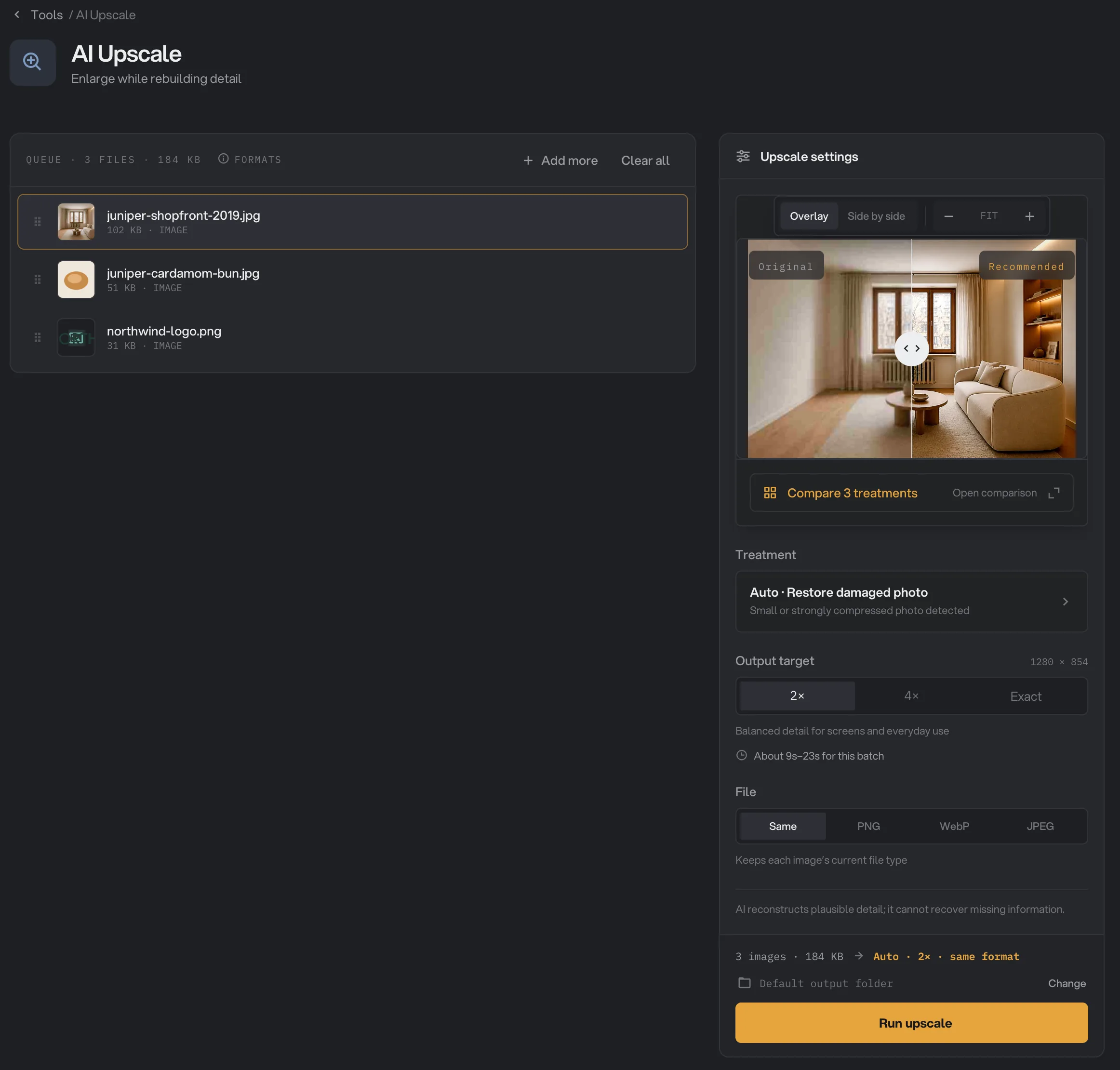
- Original
- Compare 3 treatments
- Treatment
- Output target
- File
- Run upscale
Step 2: Choose the treatment
The preview at the top of the panel shows a close-up of the selected image: Original and Recommended. Switch between Overlay and Side by side, and zoom in to judge fine detail. The preview does not start the run.
Under Treatment, the button shows what Auto picked for that image and why, for example "Small or strongly compressed photo detected". Click it to choose another option:
- Auto for each image reads every image and picks the safest treatment for it. This is the default.
- Preserve photo keeps clean photos natural without adding texture.
- Restore damaged photo is for blurry, compressed or very small photos. It cleans up blocky artifacts and rebuilds detail more strongly.
- Artwork & text is for illustrations, logos and screenshots. It keeps lines, flat color and letter edges crisp.
Each treatment needs a one-time download the first time. If one is missing, the panel shows Enable Auto treatment (or the treatment’s name), its size and a Download button. Auto needs all three treatments, about 26 MB in total. The run button stays grayed out until the download is done. See AI models: what downloads and when.
Step 3: Compare the treatments
Not sure which treatment is best? Click Compare 3 treatments. The Compare treatments window shows the original and all three results side by side, and the one Auto would choose has an Auto pick badge. Zoom or drag any view and the others follow, so you compare the same spot.
Click a result to select it, then click Use treatment to apply it to the whole batch. Close the window to keep Auto.
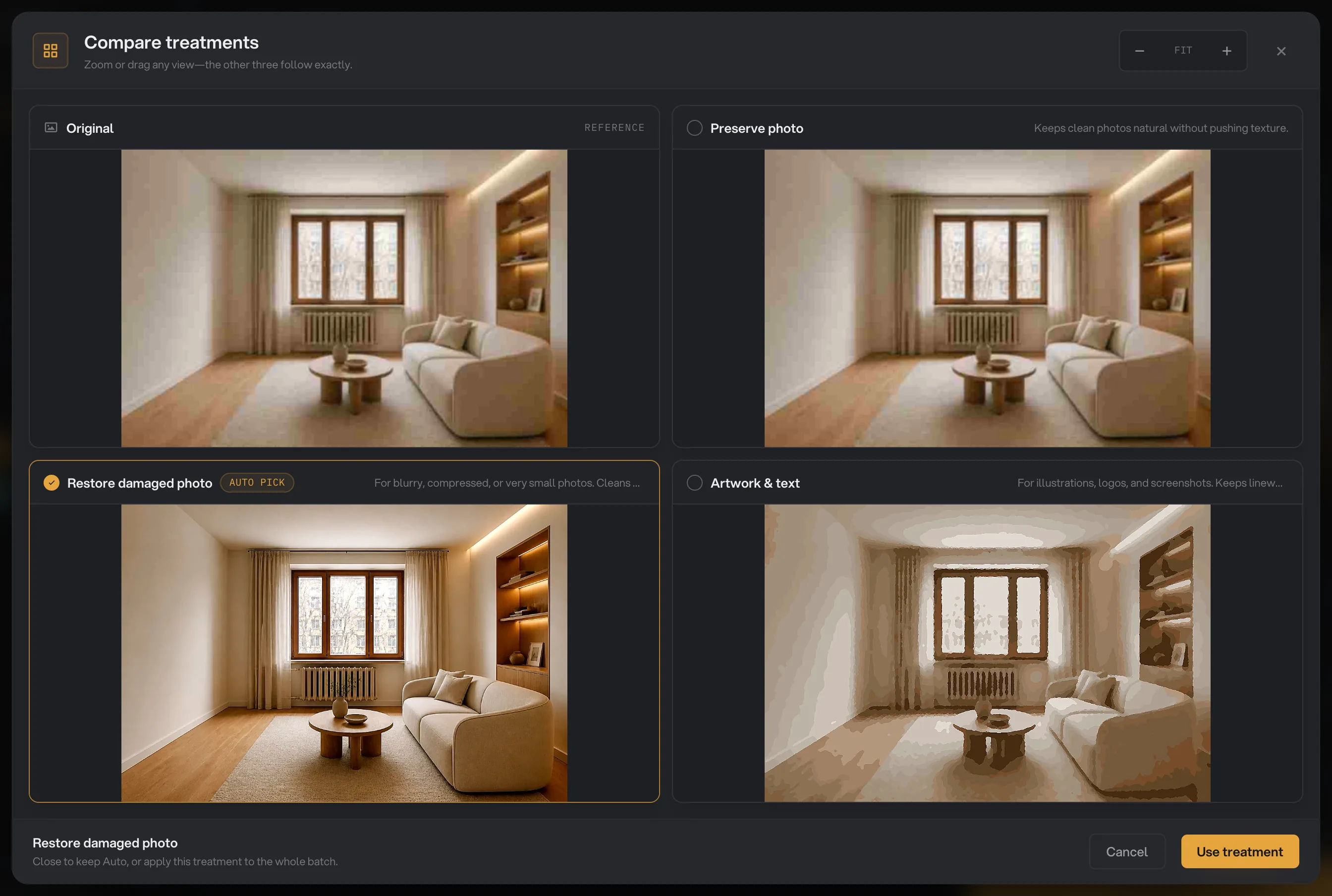
- Original
- Auto pick
- Zoom
- Use treatment
Step 4: Choose the size and file type
Under Output target, pick 2× for screens and everyday use, 4× for small originals, or Exact to type the Longest edge in pixels. The panel shows the size you will get. Exact keeps the shape of the image and must be larger than the original and no more than 4 times its size.
Under File, Same keeps each image’s file type. You can also pick PNG (best quality, keeps transparency), WebP (smaller file) or JPEG, which adds a JPEG quality slider.
Step 5: Run, then check the result
The line above the button sums up your choices, for example "Auto · 2× · same format", and the panel estimates how long the batch will take. Check where the files will go: Default output folder saves them in your workspace’s output folder, in an upscale folder with a subfolder for today’s date, such as 10-15. Click Change to pick another folder for this run. Then click Run upscale.
When the run ends, each image shows Done. Click View to compare it with the original, and Open folder to go to the files. Each one has -upscaled added to its name, for example juniper-shopfront-2019-upscaled.jpg. See See and compare your results and Where Hangar saves your files.
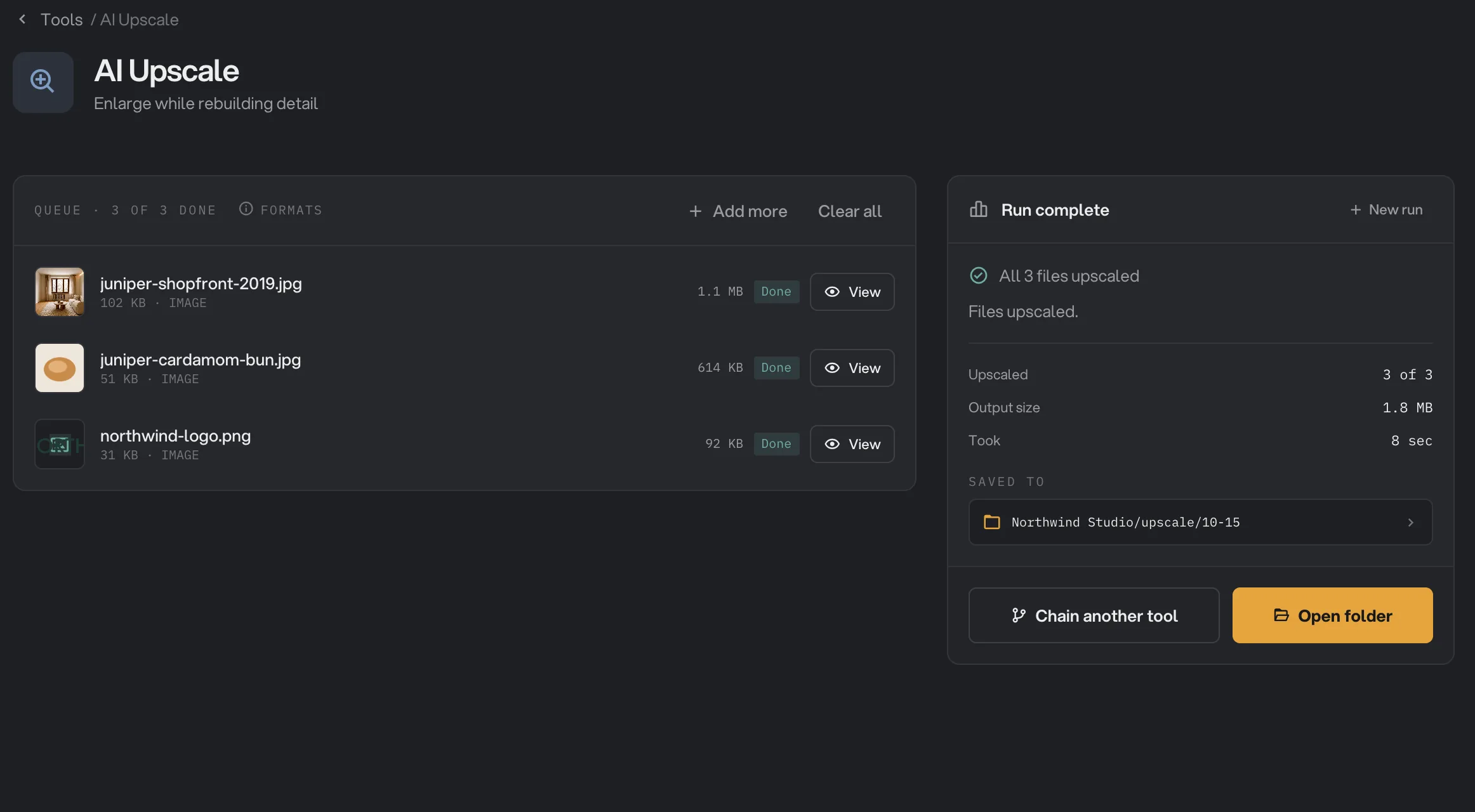
- Done
- View
- Saved to
- Open folder
Every setting, and when to change it
Every image in the run gets the same settings. With Auto, each image still gets its own treatment.
- Treatment
How detail is rebuilt. Auto picks one of the three for each image.
- RangeAuto for each image, Preserve photo, Restore damaged photo, Artwork & text
- DefaultAuto for each image
- Output target
How much larger the result is.
- Range2×, 4×, Exact
- Default2×
- Longest edge
With Exact, the length of the longest side. It must be larger than the original and no more than 4 times its size.
- Range256 to 16,384 px
- Default2,400 px
- File
The file type of the result. Same keeps JPG, WebP and BMP as they are and saves other types as PNG.
- RangeSame, PNG, WebP, JPEG
- DefaultSame
- JPEG quality
With JPEG, higher means better quality and a bigger file.
- Range70 to 100
- Default95
How to get the best results
- Start from the best copy you have. The less an image has been compressed or resized, the better the result.
- Keep Auto for each image for mixed batches. Photos, logos and screenshots each get the treatment that suits them.
- Use Compare 3 treatments on one typical image before a large batch, then apply the best one with Use treatment if Auto’s pick is not the one you like.
- Use 2× for most images, and save 4× for small originals that need the most enlargement.
- For logos and artwork with a transparent background, keep Same or pick PNG. JPEG places the image on white.
Images with small text
When an image has small, sharp text or interface edges, such as a screenshot, the panel shows "Small text detected" with an Open Resize button. Rebuilt letters can come out slightly different from the original. If the text must stay exact, enlarge the image with Resize images instead.
Why a result disappoints
- The result looks painted or too smooth. Try Preserve photo, which adds less.
- The result is still soft or blocky. Try Restore damaged photo.
- Letters or lines look wobbly. Use Artwork & text, or Resize images for exact text.
- Faces or small details look invented. AI adds believable detail but cannot recover what the original never showed. Use a larger original if you have one.
- A transparent logo came back on white. The File is JPEG. Pick PNG or Same.
- Run upscale is grayed out. A treatment still needs its download, or the size is too big. The panel says which one.
- A GIF, TIFF, AVIF or HEIC file failed. AI Upscale does not read these. Convert them to JPG or PNG with Convert images first.
- A file failed because the output would be too large. Pick a smaller Output target for that image.
For other errors, see A file failed: what to check.
Use it in a chain
AI Upscale is also a chain step, with the same Treatment, Output target and File settings. Download the treatments in the step first: a chain with an AI Upscale step will not start until they are on your computer. With Auto, that means all three. See Build your first chain.
Limits
- Reads JPG, PNG, WebP and BMP files. GIF, TIFF, AVIF and HEIC files and animated WebP files fail.
- The result is at most 4 times the original size, 64 megapixels in total and 16,384 pixels on the longest side.
- The result must be larger than the original. To shrink images, use Resize images.
- Each treatment needs a one-time download before first use.
- Everything runs on your computer. Nothing is uploaded.
Common questions
Can AI Upscale fix a blurry photo?
It can make a soft or heavily compressed photo look cleaner and sharper with Restore damaged photo. It adds believable detail, but it cannot bring back detail that was never captured, such as a face that is only a few pixels wide.
Which treatment should I use?
Keep Auto for each image. It looks at every image and picks Preserve photo, Restore damaged photo or Artwork & text for it. If you disagree with its pick, click Compare 3 treatments and choose another one.
How big can the result be?
Up to 4 times the original size, 64 megapixels in total and 16,384 pixels on the longest side. Choose Exact to set the longest side yourself.
Can I make an image smaller with AI Upscale?
No. The result must be larger than the original. To make images smaller, use Resize images.
Are my images uploaded?
No. Upscaling runs on your computer. Each treatment needs a one-time download before first use, and after that it works offline.
Is my original image changed?
No. Hangar saves a new file with -upscaled added to the name and leaves the original where it was.
Still stuck?
One person reads every message, usually with a reply within a day.