 Agencies and studios
 Photographers
 Podcasters
 Video and social creators
 Marketers and content teams
What does Rotate & flip do?
Rotate & flip turns your images in quarter turns and mirrors them, on your own computer. In the app the tool is called Rotate / Flip. Use it to fix photos that come out sideways or upside down, or to mirror an image for a layout. It takes JPG, PNG, WebP and BMP images and gives back one turned copy of each, in the same format.
It also sets phone photos upright for good, so they look the same in every app and on every website.
Step 1: Open Rotate / Flip and add your images
Click Tools in the sidebar, open the Image tab and click Rotate / Flip in the Edit section. You can also type "rotate" in the search box at the top.
Drop your images on the queue, or click it to pick files. Every image in the queue gets the same settings, so add only the images that need the same turn.
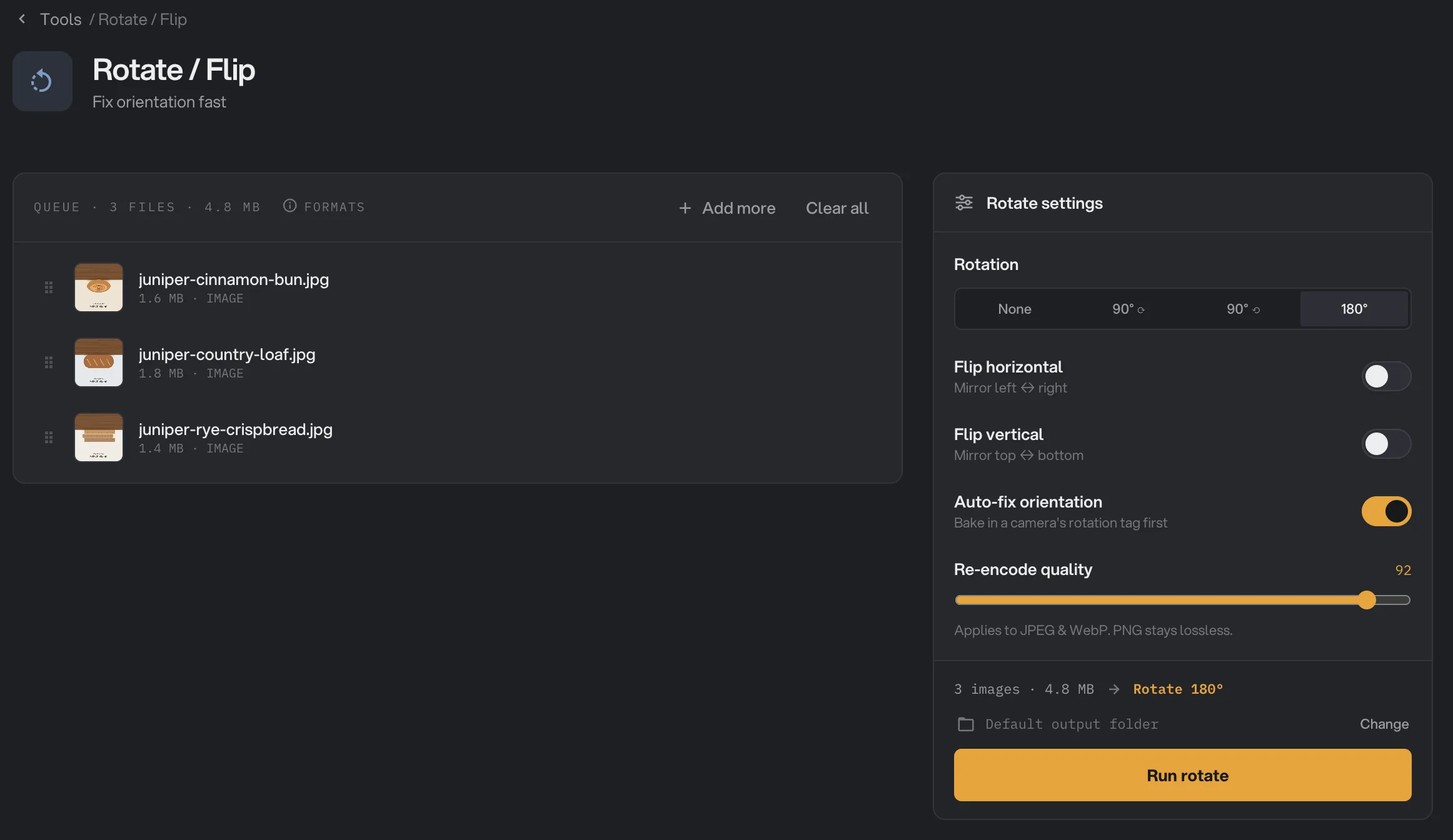
- Rotation
- Flip horizontal
- Auto-fix orientation
- Re-encode quality
- Run rotate
Step 2: Choose the turn
- Under Rotation, pick 90° ⟳ to turn clockwise, 90° ⟲ to turn counterclockwise, or 180° to turn upside down. None leaves the turn alone.
- Turn on Flip horizontal to mirror left and right, or Flip vertical to mirror top and bottom. You can combine a flip with a rotation.
- Keep Auto-fix orientation on. It sets phone photos upright before your turn is added, so you turn the photo as you see it.
The line above the button sums up your choice, for example "Rotate 180°". There is no preview, so if you are unsure, try one image first and check it with View.
Step 3: Run, then check the result
Check where the files will go: Default output folder saves them in your workspace’s output folder, in a rotate folder with a subfolder for today’s date, such as 10-15. Click Change to pick another folder for this run. Then click Run rotate.
Each turned image shows Done. Click View to see the original and the result, and Open folder to go to the copies. They keep their original names. To keep going, for example to compress the turned photos, click Chain another tool. See See and compare your results and Where your files are saved.
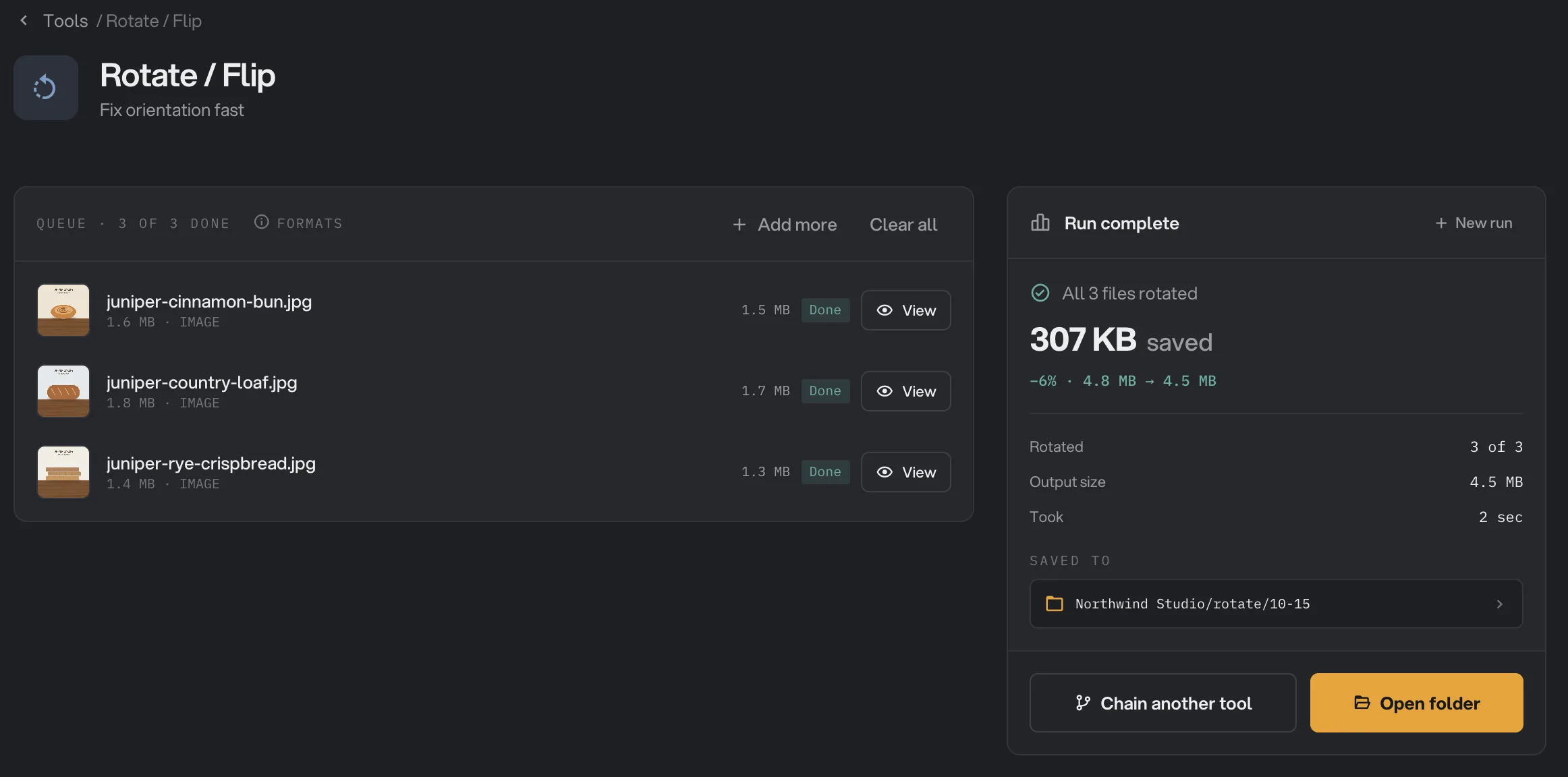
- Done
- View
- Saved to
- Open folder
Every setting, and when to change it
- Rotation
Turns every image by a quarter turn, or upside down.
- RangeNone, 90° ⟳ (clockwise), 90° ⟲ (counterclockwise), 180°
- DefaultNone
- Flip horizontal
Mirrors the image left to right, after the rotation.
- DefaultOff
- Flip vertical
Mirrors the image top to bottom, after the rotation.
- DefaultOff
- Auto-fix orientation
Sets phone and camera photos upright first, using the rotation the camera recorded, so they look the same in every app.
- DefaultOn
- Re-encode quality
How carefully JPEG and WebP files are saved again. Higher keeps more detail and makes larger files. PNG and BMP are not affected.
- Range1 to 100
- Default92
How do I get the best result?
- Sort before you run. All images get the same turn. Run the sideways ones and the upside-down ones separately.
- Phone photos that look sideways only on some websites need no rotation at all. Leave Rotation on None with Auto-fix orientation on, and Hangar sets them upright for good.
- Keep Re-encode quality at 92 or above for photos you will edit or print. Lower it only if you also want smaller files.
- Mirror with care. A flip also mirrors any text or logo in the picture.
Why does a result look wrong?
- A file is marked Kept. There was nothing to change: no rotation or flip was picked, and the photo had no camera rotation to fix. Hangar saved an exact copy.
- A phone photo ended up turned the wrong way. Auto-fix orientation was off, so the photo was turned from the way the camera stored it, not the way you saw it. Turn it back on and run the original again.
- The photo turned the opposite way. Use the other 90° button: 90° ⟳ is clockwise, 90° ⟲ is counterclockwise.
- A file failed because its format is not supported yet. HEIC, AVIF, GIF and TIFF images cannot be rotated yet. Convert them with Image Convert first. Animated WebP files are refused too, so they do not lose their animation.
For other errors, see A file failed: what to check.
Limits
- Rotate / Flip accepts JPG, PNG, WebP and BMP. HEIC, AVIF, GIF, TIFF and animated WebP are not supported yet.
- Turns are in quarter turns only. There is no free angle for straightening a tilted horizon.
- One setting applies to the whole queue. There is no per-image setting and no preview.
- JPEG and WebP files are saved again, so a turn is not perfectly lossless for those formats. PNG and BMP keep every pixel.
- The copy keeps the photo’s details from the original, such as the camera and the place it was taken. To remove them, use Strip Metadata.
- Everything runs on your computer. Nothing is uploaded.
Use Rotate / Flip in a chain
Rotate / Flip is available as a step in chains, under the Image steps, with the same five settings as the tool. A saved chain keeps your settings, so you can run it again later.
To start quickly, pick the Straighten & shrink template under Start from a template. It sets photos upright, then compresses them, which suits a folder of phone photos headed for a website. To run the same chain on new files later, see Run a chain on many files.
Common questions
Will it fix sideways phone photos?
Yes. Phone cameras often save a photo sideways with a note saying how to turn it. With Auto-fix orientation on, Hangar turns the photo upright first and removes the need for that note, so it looks right in every app. You do not need to pick a rotation for this.
Can I rotate and mirror at once?
Yes. Pick a rotation and turn on Flip horizontal or Flip vertical. Hangar rotates first, then flips.
Can I rotate by a few degrees to straighten a horizon?
No. Rotate / Flip turns images in quarter turns only: 90° either way or 180°.
Does rotating lower the quality?
PNG and BMP files keep every pixel exactly. JPEG and WebP files are saved again at the Re-encode quality you choose, 92 by default, which is not noticeable in normal use.
Can I rotate only some of the images?
The settings apply to every image in the queue. Put the images that need the same turn in one run, then remove them and add the next group.
Does it work on HEIC, AVIF, GIF or TIFF images?
Not yet. Convert them to JPEG or PNG first with Image Convert, then rotate the converted copies.
Still stuck?
One person reads every message, usually with a reply within a day.