 Agencies and studios
 Photographers
 Podcasters
 Video and social creators
 Marketers and content teams
What does Stylize do?
Stylize gives a batch of images the same print-style look, on your own computer: a two-color duotone, newspaper or comic halftone dots, a four-color print screen, retro dithering or flat posterized color. Use it to give a photo series, a set of social posts or a product line one consistent style. You get one styled copy of each image, at its original size.
The tool opens as a Studio with a live preview. Pick an effect or one of the ready-made Looks, tune it, and export every image with that look.
Step 1: Add your images
Click Tools in the sidebar, open the Create tab and click Stylize in the From your media section. You can also type "stylize" or "halftone" in the search box at the top.
Drop your images on the Studio, or click it to pick files. JPG, PNG, WebP, BMP, TIFF and GIF files work. They appear in the strip of thumbnails. Use Add files or Add a folder to add more, and click a thumbnail to preview that image.
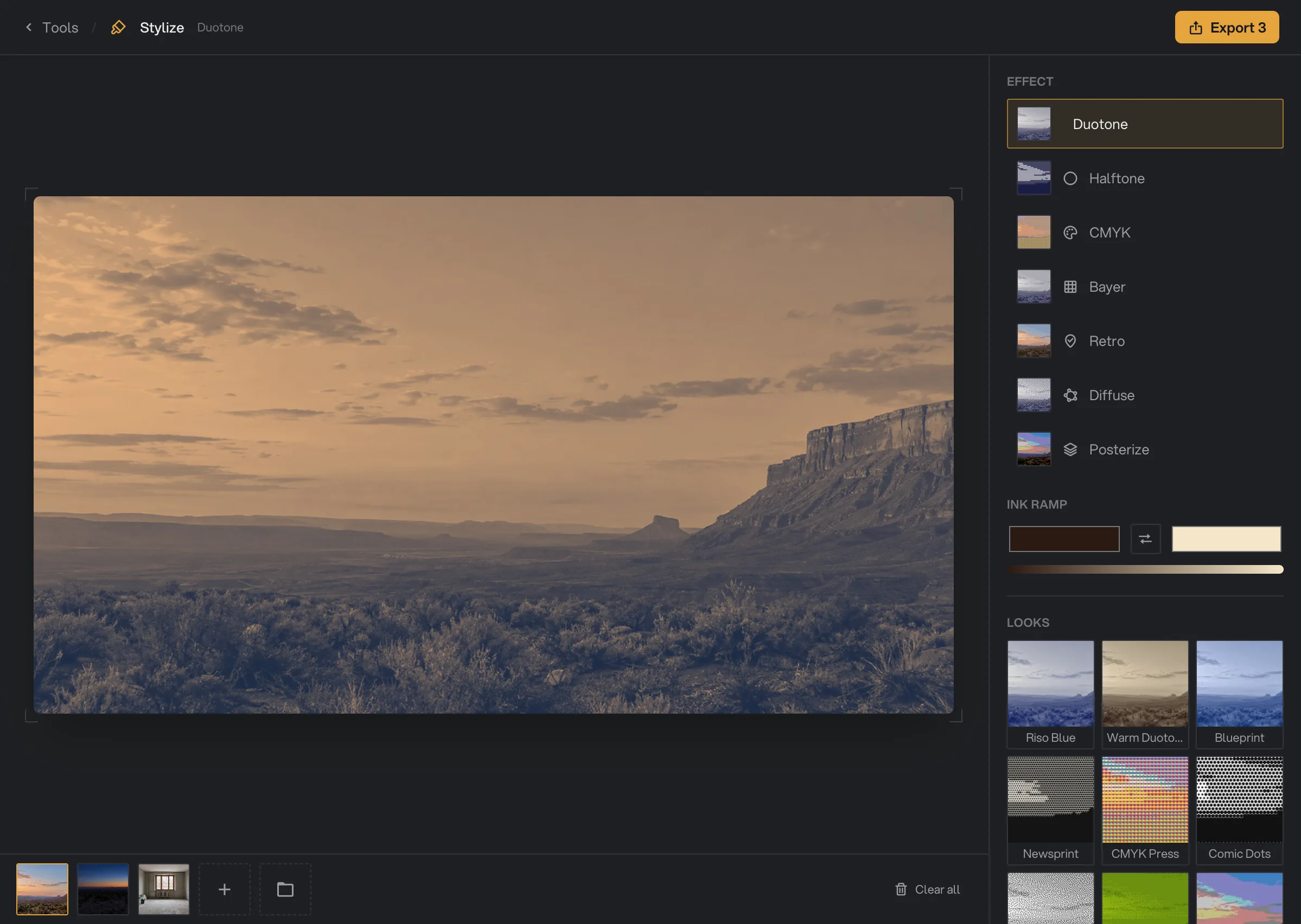
- Add files
- Preview
- Effect
- Ink ramp
- Looks
- Export 3
Step 2: Choose an effect or a look
Under Effect, pick one of seven effects. The preview updates as you go.
- Duotone: dark tones take one color and light tones another.
- Halftone: dots of one ink on a paper color, like a newspaper photo.
- CMYK: four overlapping dot screens in cyan, magenta, yellow and black, like a color print.
- Bayer: an even, regular dither pattern.
- Retro: a finer patterned dither in full color, or in gray.
- Diffuse: a grainy, scattered dither.
- Posterize: flat bands of color with hard steps.
For a quick start, click a look under Looks: Riso Blue, Warm Duotone, Blueprint, Newsprint, CMYK Press, Comic Dots, 1-bit Atkinson, Gameboy or Posterized Pop. A look sets the effect and its main settings, and you can change anything after.
Step 3: Tune the look
The controls under the effect list change with the effect. The header sums up your choice, for example "Halftone · 8px".
- Ink ramp: click the left swatch to pick the dark (shadow) color and the right swatch to pick the light (highlight) color. The button between them swaps them. It appears for Duotone and Halftone, and for Bayer and Diffuse while Monochrome is on.
- Dot size, Angle and Sharpness set the size, direction and edge of halftone dots.
- Dot scale, Channel angles and Channel gain set the CMYK dots and how strong each ink is.
- Scale makes Bayer and Retro dither cells bigger. Levels sets how many tones each color can have.
- Diffuse has two dither styles, Floyd and Atkinson. Try both and keep the grain you like.
Hover the preview to see the dots or dither up close in a magnifier.
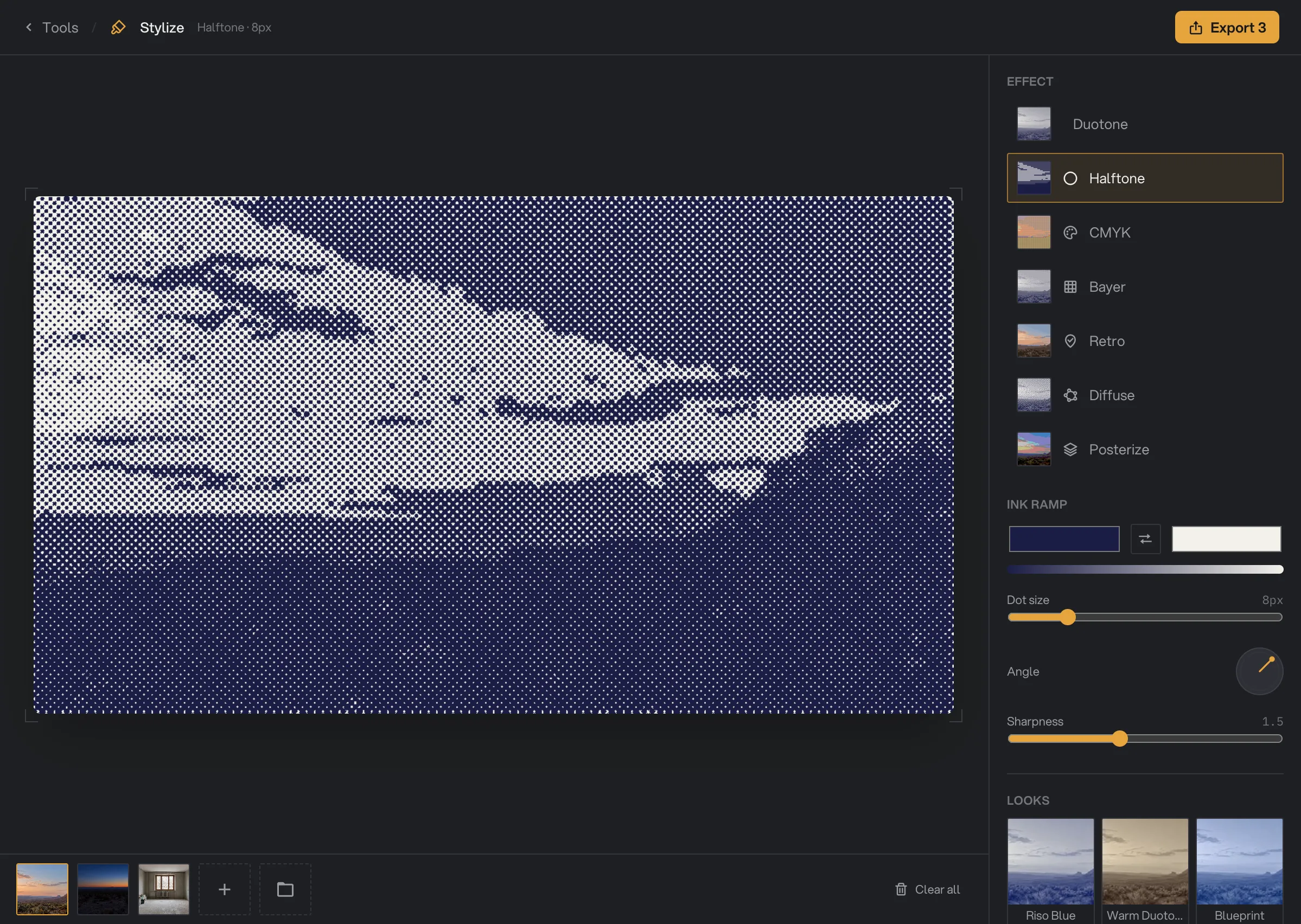
- Halftone
- Dot size
- Angle
- Sharpness
Step 4: Export, then check the files
Click Export, which shows how many images will be saved, for example Export 3. Every image gets the same look. If the button is grayed out, hover it to see which value needs fixing, such as a color that is not valid.
When it finishes, a card shows "Exported 3 images" with a thumbnail, the size and the time it took. Click Open folder to go to the files. They are saved in your workspace’s output folder, in a stylize folder with a subfolder for today’s date, such as 10-15. Each one has -styled added to its name, for example northwind-desert-shoot-01-styled.jpg. See Studios: tools with a hands-on editor and Where Hangar saves your files.
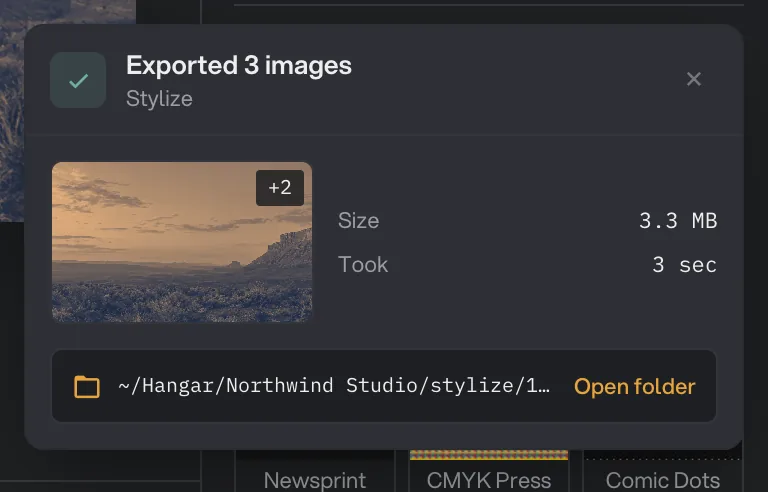
- Exported 3 images
- Folder
- Open folder
Every setting, and when to change it
Only the settings for the chosen effect are shown. One look applies to every image.
- Effect
The kind of look.
- RangeDuotone, Halftone, CMYK, Bayer, Retro, Diffuse, Posterize
- DefaultDuotone
- Ink ramp
The dark (left) and light (right) colors for Duotone, Halftone, and Bayer or Diffuse with Monochrome on.
- RangeAny two colors
- DefaultDeep navy and warm off-white
- Dot size
Halftone: how large the dots are.
- Range2 to 32 px
- Default8 px
- Angle
Halftone: the direction of the dot rows.
- Range0° to 90°
- Default45°
- Sharpness
Halftone and CMYK: soft or crisp dot edges.
- Range0.5 to 3
- Default1.5
- Dot scale
CMYK: how large the dots are.
- Range1 to 8
- Default4
- Channel angles
CMYK: the direction of each ink’s dot rows.
- Range0° to 90° for C, M, Y and K
- Default15°, 75°, 0°, 45°
- Channel gain
CMYK: makes each ink weaker or stronger.
- Range-1 to 1 for C, M, Y and K
- Default0
- Scale
Bayer and Retro: makes the dither pattern bigger.
- Range1 to 8
- Default1
- Levels
Bayer, Retro, Diffuse and Posterize: how many tones each color can have. Fewer gives a bolder look.
- Range2 to 16
- Default4
- Monochrome
Bayer and Diffuse: dither in your two Ink ramp colors. Off keeps full color.
- DefaultOn
- Grayscale
Retro: dither in shades of gray instead of color.
- DefaultOff
- Floyd, Atkinson
Diffuse: two styles of grainy dither.
- DefaultFloyd
How to get the best results
- Start with a look that is close to what you want, then change one setting at a time.
- For a brand set, use Duotone or Halftone with your two brand colors in the Ink ramp: a dark color in the left swatch and a light one in the right swatch.
- Click through a few thumbnails before you export. A look that suits a bright photo can turn a dark one muddy.
- Photos with clear contrast give the cleanest dots and dither.
- The saved file keeps the type of a JPG or WebP original. Other types are saved as PNG, which keeps transparent areas.
Why a result disappoints
- The saved dots look smaller than in the preview. The image is larger than 1,400 pixels, so the preview uses a smaller copy. Raise Dot size or Scale.
- The image looks too dark or flat. Make the light (right) color in the Ink ramp lighter, or raise Levels.
- The colors look reversed. Click the swap button in the Ink ramp.
- The dither is too busy. Raise Scale, or lower Levels for a bolder, simpler result.
- An animated GIF came out still. Stylize uses only the first frame of animated files.
- Export is grayed out. Hover it to see which value is out of range.
For other errors, see A file failed: what to check.
Limits
- One look for every image in the Studio.
- JPG images are saved as JPG, WebP as WebP, and every other type as PNG.
- Animated GIF and WebP files give a still image of the first frame.
- The live preview of a large image is made at up to 1,400 pixels. The saved file uses the full size.
- Files are always saved in the default output folder.
- Everything runs on your computer. Nothing is uploaded.
Common questions
Can I give each image a different look?
No. Every image in the Studio gets the same look when you export. To style images differently, export one group, remove those images from the strip, then set up the next look.
How do I use my brand colors?
Choose Duotone, Halftone, or Bayer or Diffuse with Monochrome on. Then, under Ink ramp, click the left swatch to pick the dark color and the right swatch to pick the light color. The button between them swaps the two.
What is the difference between Halftone and CMYK?
Halftone prints one color of dots on a paper color, like a newspaper photo. CMYK splits the image into cyan, magenta, yellow and black dot screens, like a color magazine print.
Will my PNG keep its transparent background?
Yes. A PNG or WebP keeps its transparent areas. A JPG has no transparency, so a JPG stays a JPG with a solid background.
Does Stylize change the image size?
No. Each styled image has the same width and height as the original.
Is my original image changed?
No. Hangar saves a new file with -styled added to the name and leaves the original where it was.
Still stuck?
One person reads every message, usually with a reply within a day.