 Agencies and studios
 Photographers
 Podcasters
 Video and social creators
 Marketers and content teams
What does Watermark do?
Watermark puts your name or logo on a batch of photos, on your own computer. In the app the tool is called Watermark Image. Use it to mark client proofs, previews you share online, or a gallery with your brand. It takes JPG, PNG, WebP and BMP images and gives back one marked copy of each, in the same format.
You can place one mark, for example in a corner, or repeat it across the whole photo. The settings panel shows a live preview, and the Watermark studio lets you check and adjust each photo.
Step 1: Open Watermark Image and add your photos
Click Tools in the sidebar, open the Image tab and click Watermark Image in the Edit section. You can also type "watermark" in the search box at the top.
Drop your photos on the queue, or click it to pick files. Click a photo in the queue to show it in the preview at the top of the settings panel.
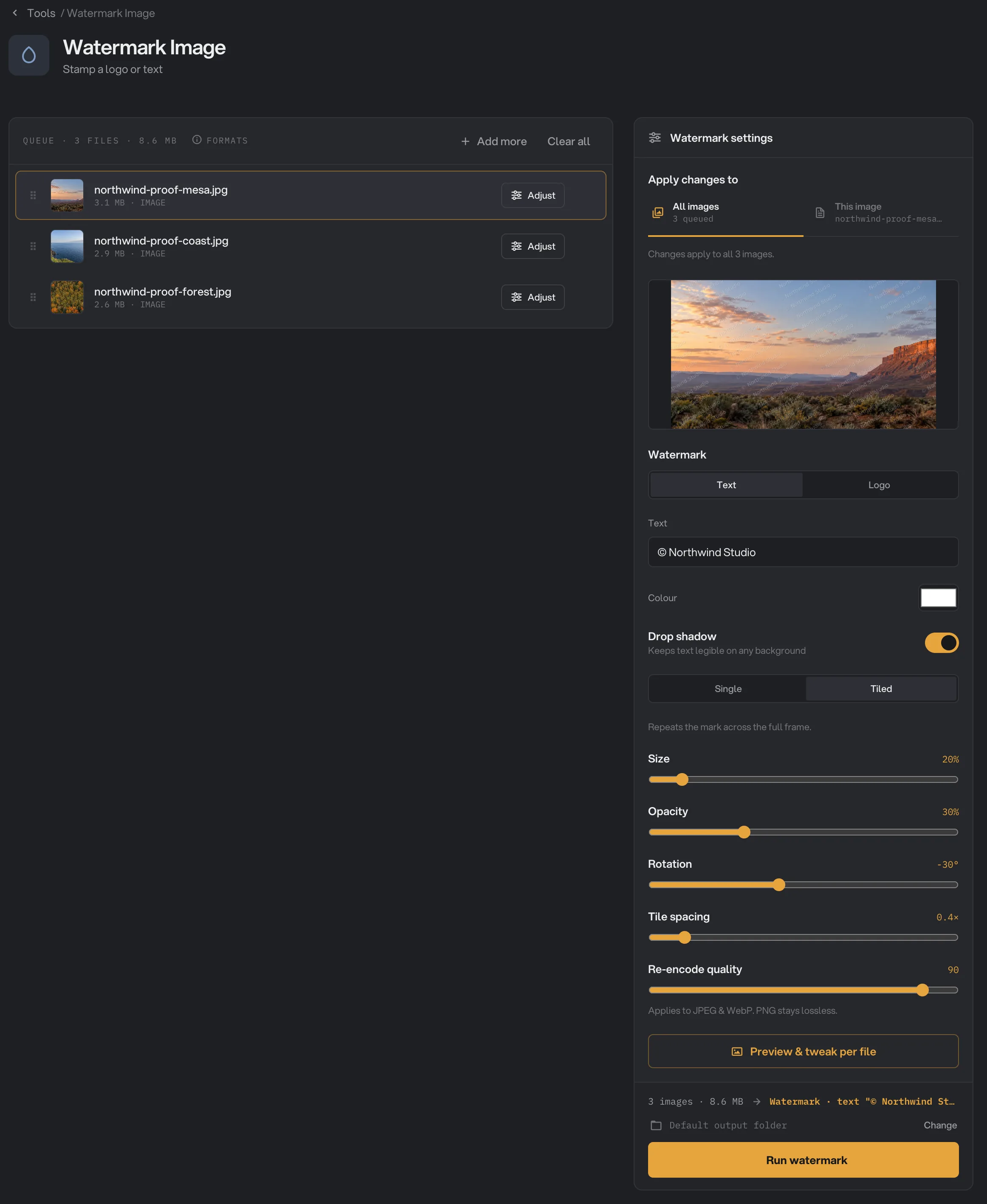
- Preview
- Watermark: Text or Logo
- Text
- Single or Tiled
- Opacity
- Rotation
- Preview & tweak per file
- Run watermark
Step 2: Choose text or a logo
Under Watermark, pick Text or Logo.
- Text: type your words in the text box. A new watermark starts as "© Hangar", so replace it with your own, such as "© Northwind Studio". Click the Colour swatch to change the color; it starts as white. Drop shadow is on by default and adds a soft dark shadow so the text reads on light and dark parts of the photo.
- Logo: click Import logo… and pick your logo. PNG, JPG, WebP, BMP and SVG files work. The new logo is picked right away, and it stays in the list for next time. Click a logo to use it. To remove one from the list, point at it and click the small ×.
Step 3: Place and style the mark
Choose Single for one mark, or Tiled to repeat it in rows across the whole photo.
- For a single mark, click one of the nine points under Position, such as Bottom right. You can also drag the mark in the preview. The mark always stays fully inside the photo.
- Size sets how big the mark is compared with the longest side of the photo. For text it is the width of the words; for a logo, its longest side.
- Opacity fades the mark. 30% to 50% lets the photo show through.
- Rotation tilts the mark. With Tiled, it tilts the whole pattern, so -30° gives rows that rise from left to right.
- Tile spacing, for Tiled only, sets the gap between copies, compared with the size of the mark.
The line above the button sums up your watermark, for example Watermark · text "© Northwind Studio" · tiled.
Step 4: Check each photo in the Watermark studio
Click Preview & tweak per file, or click Adjust on a photo in the queue. The Watermark studio shows the photo large with the mark exactly as it will be saved.
- Use the arrows at the top, the left and right arrow keys, or the thumbnails at the bottom to move between photos.
- With Single, click or drag on the photo to move the mark, for example off a face or a product.
- Under Apply changes to, choose This image to change only the photo you are looking at. Your first change gives it its own settings. All images edits the settings shared by the rest. Photos with their own settings get an amber border, and Adjust shows Custom.
Click Done, or press Esc, to go back.
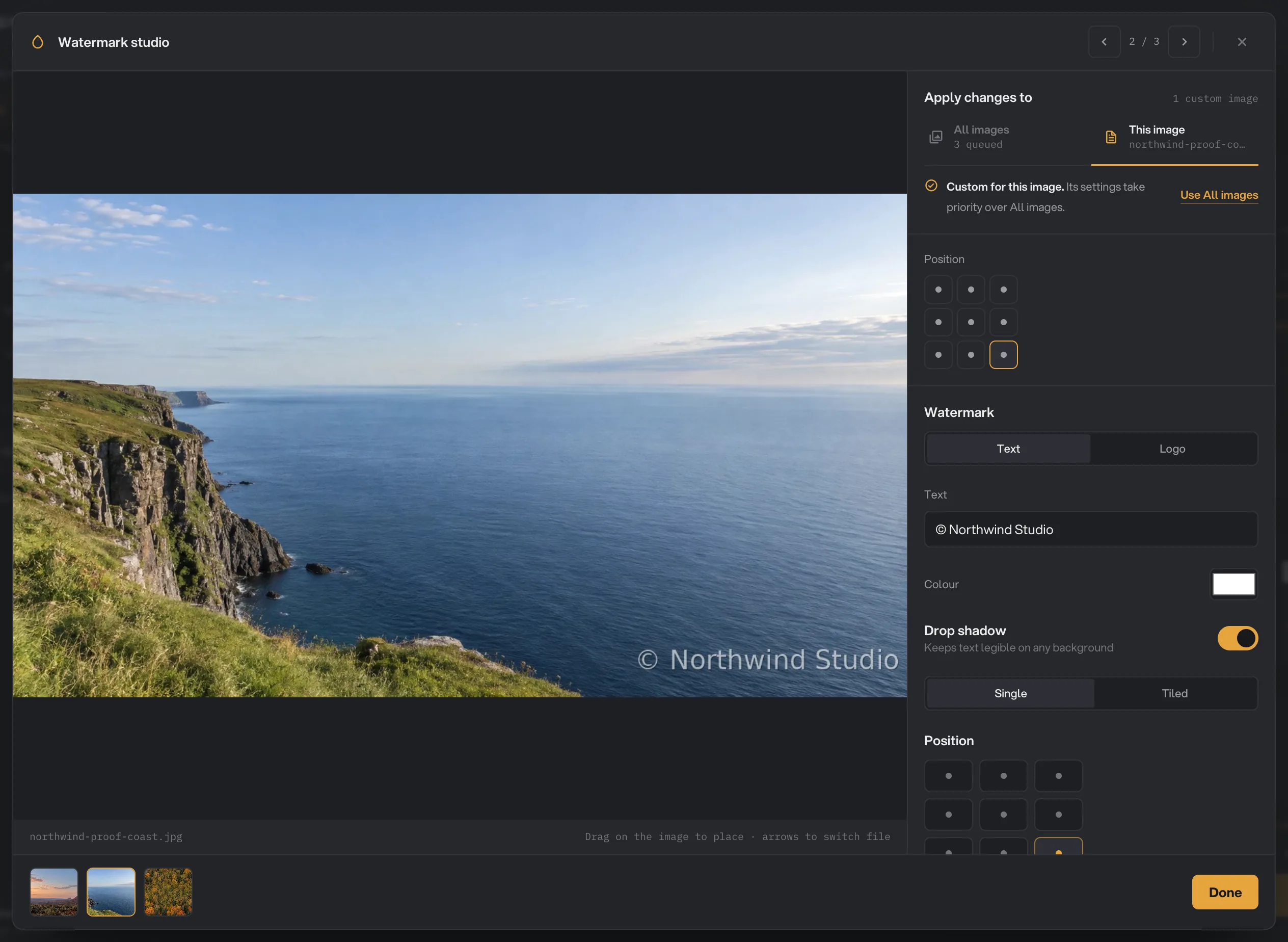
- Previous and next image
- Large preview: drag to place the mark
- This image
- Position
- Watermark settings
- Done
Step 5: Run, then check the result
Check where the files will go: Default output folder saves them in your workspace’s output folder, in a watermark folder with a subfolder for today’s date, such as 10-15. Click Change to pick another folder for this run. Then click Run watermark.
Each marked photo shows Done. Click View to compare the original and the result, and Open folder to go to the copies. They keep their original names. See See and compare your results and Where your files are saved.
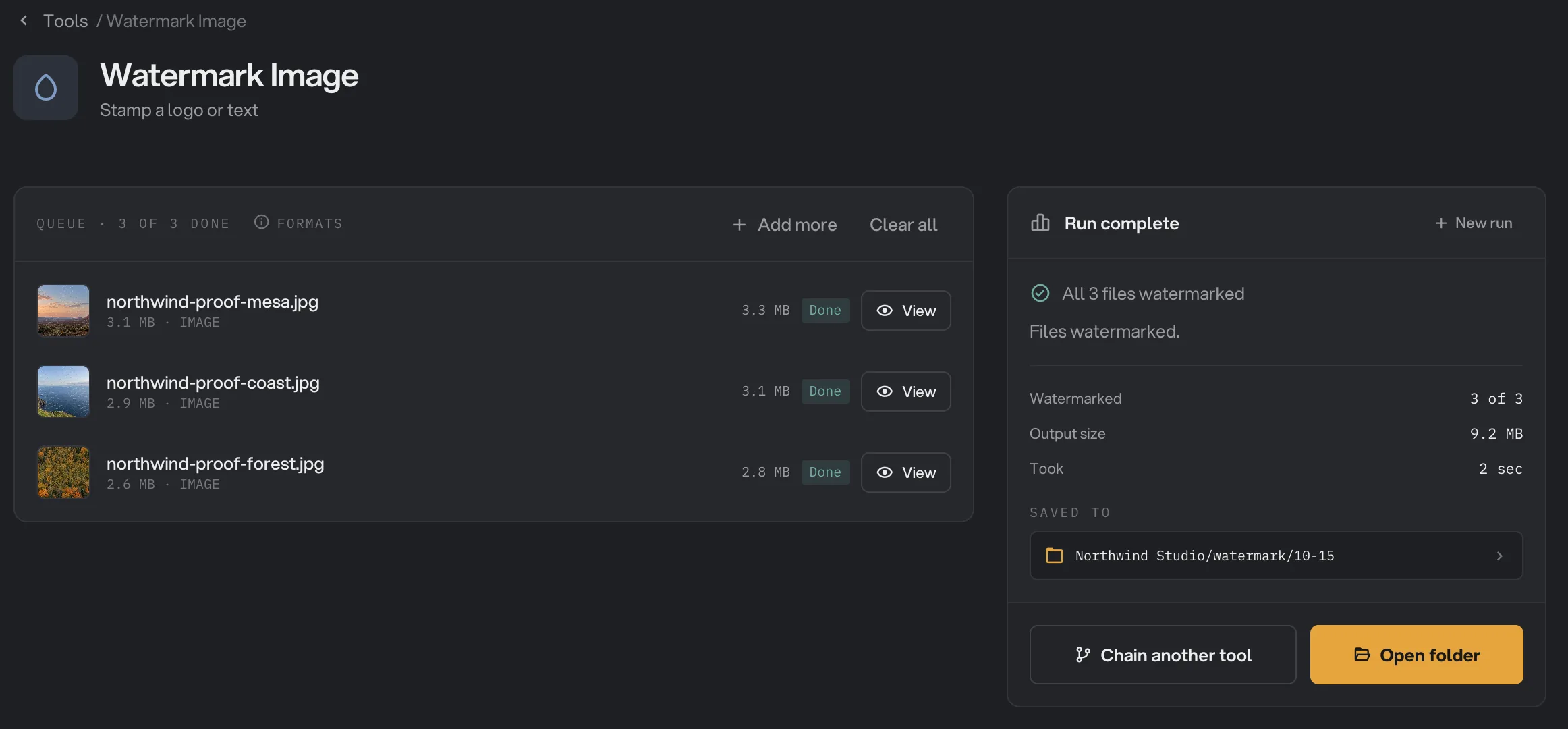
- Done
- View
- Saved to
- Open folder
Every setting, and when to change it
The panel and the Watermark studio show the same settings. The text settings appear for Text, the logo list for Logo, Position for Single and Tile spacing for Tiled.
- Apply changes to
Whether a change applies to every photo or only to the selected one. This image gives that photo its own settings, which win over the shared ones.
- RangeAll images, This image
- DefaultAll images
- Watermark
Whether the mark is words or your logo.
- RangeText, Logo
- DefaultText
- Text
The words of the mark. Type your own name or studio.
- Default© Hangar
- Colour
The color of the text. A logo keeps its own colors.
- RangeAny color
- DefaultWhite
- Drop shadow
Adds a soft dark shadow behind the text so it reads on any background.
- DefaultOn
- Logo
The logo to use. Import logo… adds one; imported logos are kept for next time and are shared with the Stamp tool.
- DefaultNone
- Single or Tiled
One mark, or the mark repeated in rows across the whole photo.
- RangeSingle, Tiled
- DefaultSingle
- Position
Where a single mark sits. It always stays fully inside the photo.
- Range9 points, or anywhere by dragging
- DefaultCenter
- Size
How big the mark is, compared with the longest side of the photo.
- Range2% to 200%
- Default25%
- Opacity
How see-through the mark is. Lower it so the photo shows through.
- Range0% to 100%
- Default50%
- Rotation
Tilts the mark. With Tiled, it tilts the whole pattern.
- Range-180° to 180°
- Default0°
- Tile spacing
With Tiled, the gap between copies, compared with the size of the mark.
- Range0.0× to 4.0×
- Default0.4×
- Re-encode quality
How carefully JPEG and WebP files are saved again. PNG and BMP are not affected.
- Range1 to 100
- Default90
How do I make a good watermark?
- For proofs you send to clients, use Tiled, Opacity about 30%, Rotation about -30° and Size about 20%. The photo stays easy to judge, and there is no clean area to crop.
- For a signature mark, use Single in a bottom corner, Size 10% to 20%, Opacity 50% to 70%.
- Keep Drop shadow on for white text. Without it, white text disappears on skies and bright walls.
- Check light and dark photos in the Watermark studio. If a mark is lost on one photo, give that photo its own color or position with This image.
- Use the same settings for a whole set. Because the mark is sized against each photo, a batch of mixed sizes looks consistent.
Why does a watermark look wrong?
- The text says "© Hangar". That is the starting text. Type your own in the text box, then run again.
- The mark is not in the corner I picked. A large mark is pushed inward so it stays fully inside the photo. Lower Size to bring it closer to the corner.
- The tiles are in straight rows, not diagonal. Set Rotation to tilt the pattern.
- The logo has a white box around it. The logo file has no transparent background. Import a PNG or SVG version.
- Every file failed with a message about choosing a logo. Logo is picked but no logo is selected. Click a logo in the list, or switch to Text.
- A file failed because the selected logo is no longer available. The logo was removed from the list, here or in Stamp. Import it again and pick it.
- A file failed because its format is not supported yet. HEIC, AVIF, GIF and TIFF images cannot be watermarked yet. Convert them with Image Convert first. Animated WebP files are refused too, so they do not lose their animation.
For other errors, see A file failed: what to check.
Limits
- Watermark Image accepts JPG, PNG, WebP and BMP. HEIC, AVIF, GIF, TIFF and animated WebP are not supported yet.
- Text uses one typeface, with no bold or font choice.
- A watermark discourages reuse but is not a lock. It is part of the picture, and a determined person with photo editing skills could remove it.
- JPEG and WebP files are saved again at the Re-encode quality you choose. PNG and BMP keep every other pixel exactly.
- The copy keeps the photo’s details from the original, such as the camera and the place it was taken. To remove them before sharing, use Strip Metadata.
- For PDFs, use Stamp. For videos, use Watermark video.
- Everything runs on your computer. Nothing is uploaded.
Use Watermark in a chain
Watermark is available as a step in chains, under the Image steps, with the same settings as the tool. The step has no preview and no Studio, so place a single mark with the nine points, and try your settings on a few photos in the tool first. Every photo in a chain gets the same watermark.
A common chain resizes photos for the web, adds the watermark and then compresses them, so each one is ready to post. Put Watermark after Resize, so the mark is drawn on the final photo and stays sharp. A chain also remembers your settings. To run it on new photos later, see Run a chain on many files.
Common questions
Can I use text or a logo?
Either one. Choose Text and type your words, or choose Logo and import your logo image once. Imported logos stay in the list for next time.
How do I make a watermark that is hard to crop out?
Choose Tiled. The mark repeats in rows across the whole photo, so there is no clean corner to crop. Set Rotation to about -30° for a diagonal pattern and Opacity to about 30% so the photo still shows through.
Will the watermark look the same on photos of different sizes?
Yes. Size is measured against the longest side of each photo, so the mark takes up the same share of a small preview and of a full-size photo.
Can I give one photo a different watermark?
Yes. Click Adjust on that photo, or open the Watermark studio and choose This image. Changes then apply only to that photo. Use All images puts it back on the shared settings.
Can I choose the font?
No. Text watermarks use one clean sans-serif typeface. To use your own typeface, save your text as a PNG with a transparent background and use it as a logo.
Is my original photo changed?
No. Hangar saves a watermarked copy with the same name in your output folder and leaves the original where it was.
Still stuck?
One person reads every message, usually with a reply within a day.