 Agencies and studios
 Photographers
 Podcasters
 Video and social creators
 Marketers and content teams
What does Strip metadata do?
Strip metadata removes the hidden details that phones and cameras save inside a photo, on your own computer. These EXIF details can include where the photo was taken, the camera and lens, the date and time, and the editing software. Remove them before you post photos online or send them to someone you do not know. In the app the tool is called Strip Metadata.
The picture itself is not touched: Hangar copies it exactly and only removes the EXIF details, so quality stays the same. Some other notes can stay in the file; see What stays in the file. It gives back one cleaned copy for each image you add.
Step 1: Add your images
Click Tools in the sidebar, open the Image tab and click Strip Metadata in the Protect section. You can also type "metadata" in the search box at the top.
Drop your images on the queue, or click it to pick files. Strip Metadata takes JPG, PNG, WebP and TIFF files. HEIC, HEIF, AVIF, GIF and BMP files are listed under Not applicable and skipped. Use Add more to add files later.
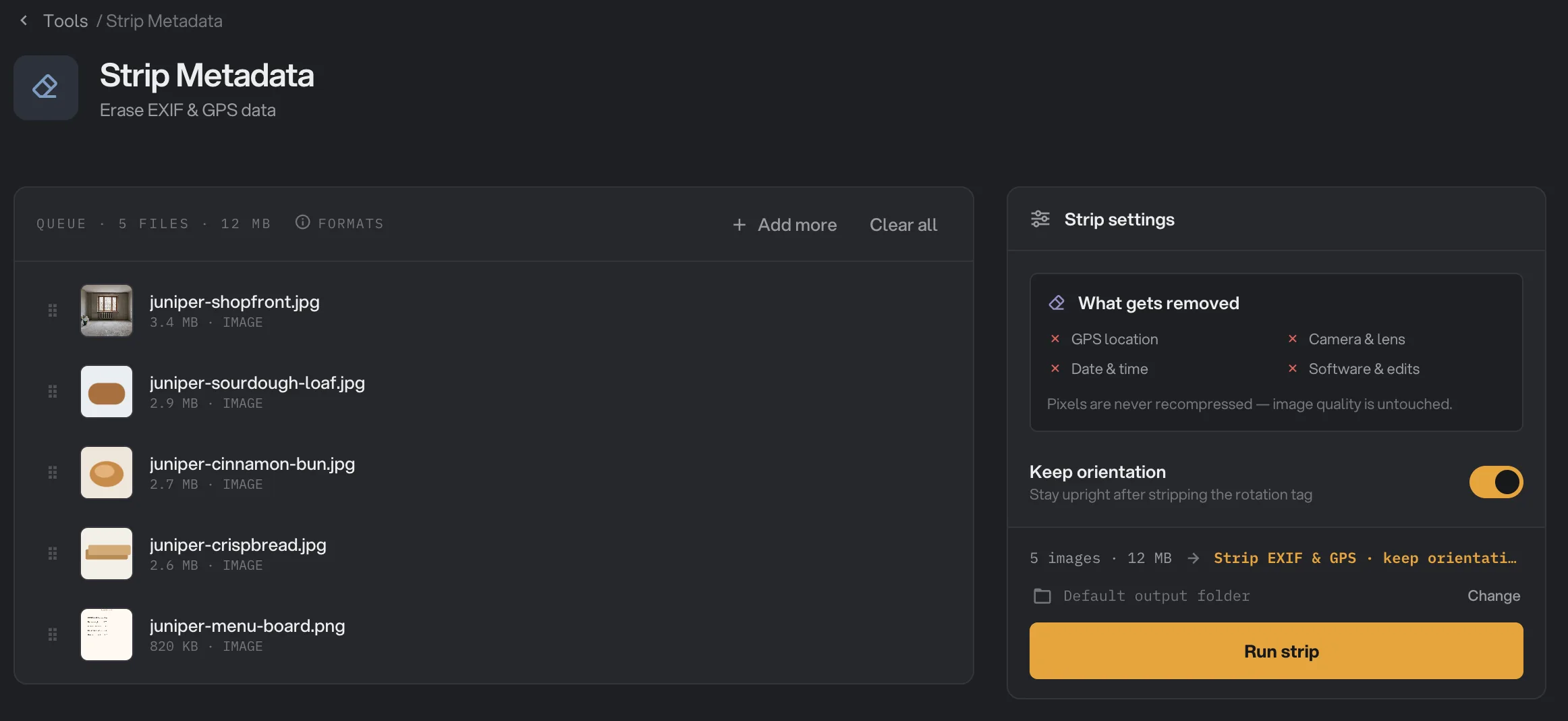
- Add more
- What gets removed
- Keep orientation
- Run strip
Step 2: Check Keep orientation
The panel lists What gets removed: GPS location, Camera & lens, Date & time and Software & edits. There is one setting:
- Keep orientation (on by default) keeps photos upright. Phones often save a photo turned and add a note telling apps to rotate it. With this on, Hangar keeps only that note, so the photo still shows the right way up. Turn it off only if you want that note removed too. Photos that were stored turned may then show sideways.
Step 3: Run, then check the result
Check where the files will go: Default output folder saves them in your workspace’s output folder, in a strip_exif folder with a subfolder for today’s date, such as 10-15. Click Change to pick another folder for this run. Then click Run strip.
When the run ends, each cleaned file shows Done and is a little smaller than before. A file marked Kept had nothing to remove. Click Open folder to go to the cleaned copies, which keep their names. See Where your files are saved.
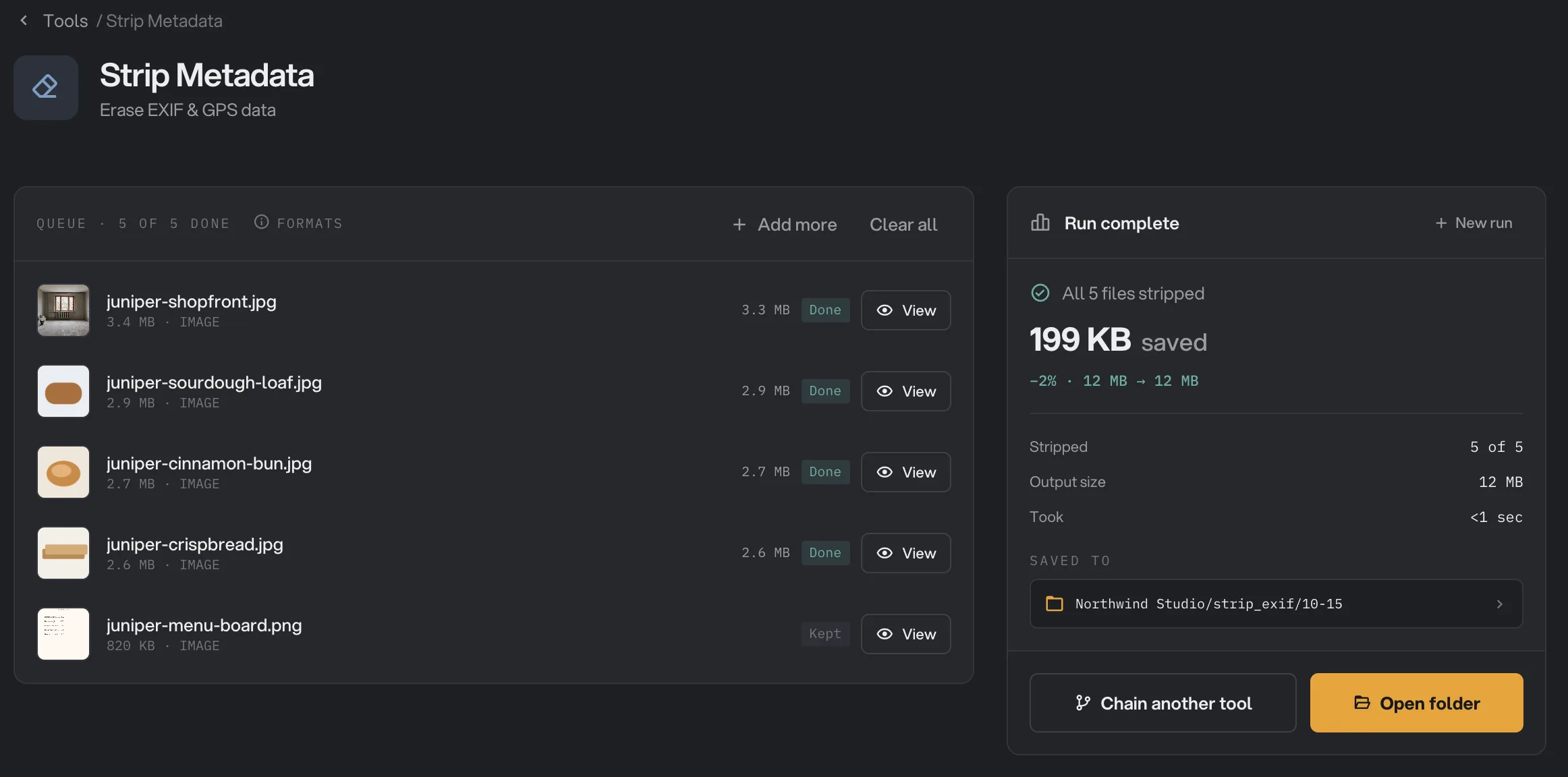
- Done
- View
- Saved to
- Open folder
- Kept
Every setting, and when to change it
- Keep orientation
Keeps the one detail that tells apps to show a turned photo upright. Everything else in the EXIF details is removed.
- DefaultOn
What stays in the file?
Strip Metadata removes the EXIF details, which is where phones and cameras store location, camera, date and software. Some details stored in other ways can stay:
- JPEG and WebP files keep captions, keywords, copyright notes, edit history and other notes added by editing apps. Some editing apps store a copy of the camera, date or location there too, and that copy stays.
- PNG files keep text notes, such as a title, a comment or the name of the app that made them. Inside editing-app notes, Hangar removes the EXIF copy, but other details, such as a date, can stay.
- The color profile of JPEG, PNG and WebP files stays, so colors look the same.
- The orientation stays when Keep orientation is on and the photo was stored turned.
For photos that went through an editing app, the cleanest option is Image Convert with Strip metadata on. It saves a brand-new file from the pixels alone, so no hidden details are carried over. The picture is saved again, so pick a high Quality for JPEG or WebP. If a phone photo comes out sideways, run Rotate & flip with Auto-fix orientation on first.
Why is a file marked Kept?
Kept means the file did not get smaller, so Hangar saved an exact copy of the original. Usually the file had no EXIF details to remove: screenshots, graphics and images already cleaned by a website often have none.
If a photo you know has location details comes back Kept, Hangar could not read its details, and the copy still contains them. Convert it with Image Convert with Strip metadata on instead.
How do I get the best results?
- Strip as the last step before sharing. Some apps add details again when you edit or export a photo.
- Keep Keep orientation on for phone photos, or some of them may show sideways.
- Check a result in an app that shows photo details, to confirm the location is gone.
- Resizing or compressing anyway? Image Convert and the Extreme and Balanced presets of Image Compress also leave these details out, with their Strip metadata setting, so you may not need a separate step. A file Image Compress marks Kept is an exact copy of the original, though, so its details stay. Resize Image keeps them.
Limits
- Strip Metadata takes JPG, PNG, WebP and TIFF files. For HEIC, HEIF and AVIF photos, use Image Convert with Strip metadata on. GIF and BMP files have no EXIF details to remove.
- Only the EXIF details are removed. Other notes in JPEG, WebP and PNG files can stay. See What stays in the file.
- The originals are not changed. Delete them yourself if you no longer need them.
- Add image files, not folders.
- Everything runs on your computer. Nothing is uploaded.
Use Strip Metadata in a chain
Strip metadata is available as a step in chains, under the Image steps, with the same Keep orientation setting. A Kept file passes to the next step unchanged.
Compress and Convert steps already leave the details out when their Strip metadata setting is on, except for a file Compress keeps as an exact copy. A Resize step keeps them. Add a Strip metadata step when no later step removes them, for example after Resize. To run the same chain on new files each week, see Run a chain on many files.
Common questions
Does it remove the GPS location from my photos?
Yes. Phones and cameras store the location in the photo’s EXIF details, and Strip Metadata removes them: location, camera and lens, date and time, and editing software. If an editing app also copied the location into its own notes in a JPEG or WebP file, that copy stays. See What stays in the file.
Does it lower the image quality?
No. Hangar copies the picture exactly and only removes the hidden details, so the pixels are identical to the original.
Will my photos still be the right way up?
Yes, with Keep orientation on, which is the default. If a photo was stored turned, Hangar puts back the one setting that tells apps to show it upright. Nothing else from the EXIF details is kept.
Can I remove metadata from iPhone HEIC photos?
Not with Strip Metadata. Convert them to JPEG with Image Convert and keep its Strip metadata setting on. The new JPEG has no location or camera details.
Is my original changed?
No. Hangar saves a cleaned copy with the same name in your output folder. The original keeps its details, so delete it yourself if you no longer need it.
Still stuck?
One person reads every message, usually with a reply within a day.