 Agencies and studios
 Photographers
 Podcasters
 Video and social creators
 Marketers and content teams
What does Icon pack do?
Icon pack turns one logo into the set of icons a website needs, on your own computer: a favicon.ico for the browser tab, PNG icons for phones and home screens, and, if you want them, Android and Windows icons. In the app the tool is called Icon Pack. By default it also writes two small text files that tell browsers where the icons are.
It works with PNG, JPG, WebP and SVG logos. You see a live preview of the browser tab, an iPhone home screen and an Android icon while you choose the settings.
Step 1: Open Icon Pack and add your logo
Click Tools in the sidebar, open the Create tab and click Icon Pack in the From your media section. You can also find it on the Image tab under Also works with images, or type "icon" in the search box.
Drop your logo on the screen, or click Choose files. Use a square logo or mark if you have one, saved as SVG or as a PNG at least 256 pixels wide, with a transparent background. If the logo is too small, a warning appears above the previews.
Step 2: Choose the preset, background and padding
- Under Preset, pick Web, Extended or All. The line under the chips says what each one adds.
- Under Background, pick None for a transparent background, White, or Color and then click the swatch to choose your brand color.
- Under Padding, drag Inset to set how much space surrounds the logo. 10% suits most logos. Raise it if the logo touches the edges in the previews.
- Keep Emit manifest + <head> snippet ticked to get the two text files for your website. Untick it if you only need the images.
The previews update as you go. Browser tab shows the tiny favicon, iOS home screen the Apple touch icon, Android maskable the icon as Android crops it, and Size ladder every size side by side. Check that the logo is still clear at 16 and 32.
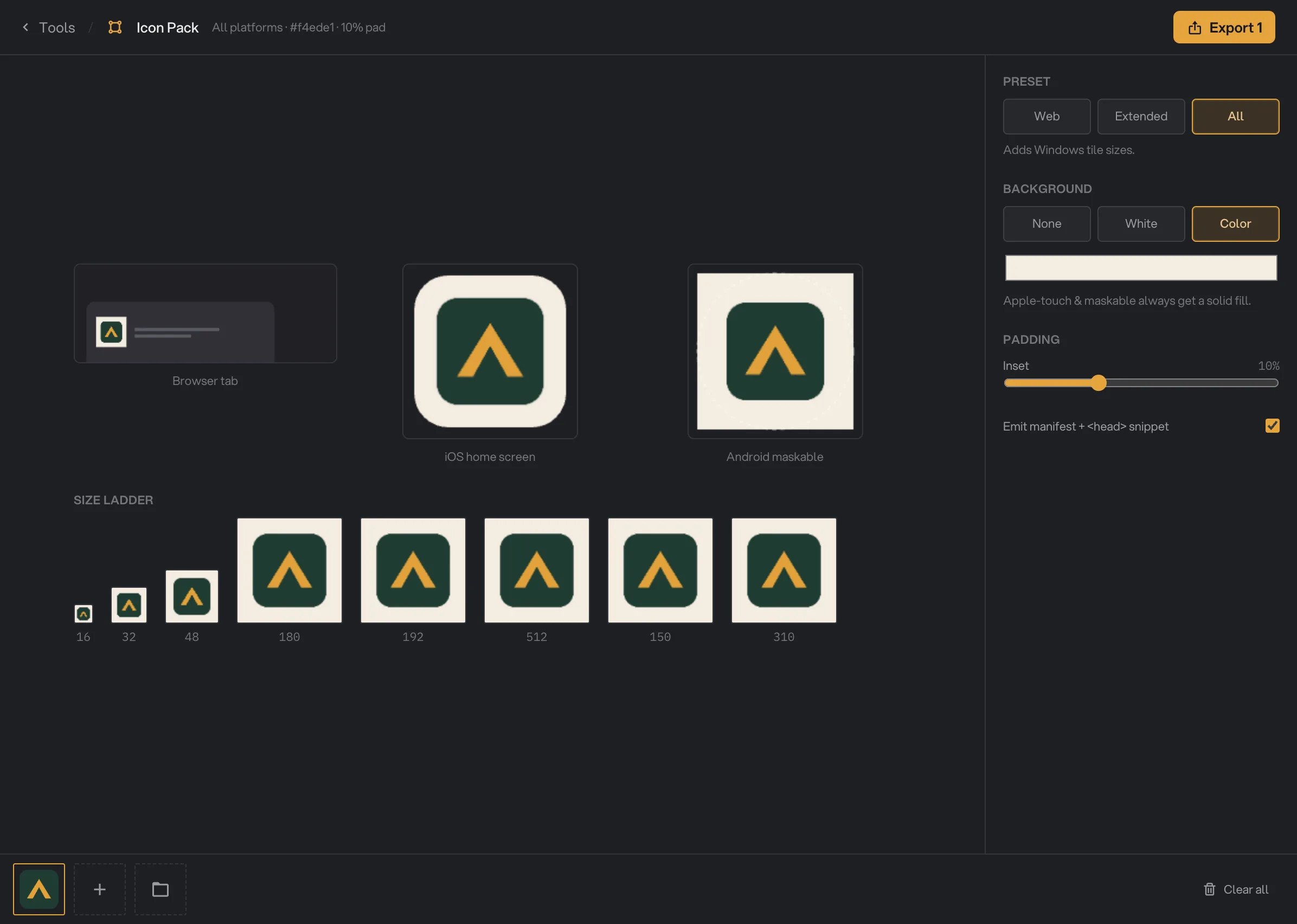
- Preset
- Background
- Inset
- Emit manifest + <head> snippet
- Android maskable preview
- Size ladder
- Export
Step 3: Export, then check the files
Click Export 1 at the top right. The number is how many logos are in the queue. When it finishes, Icon Pack shows a tile for every file it made. Click Open folder to go to them, or Make another to go back and change the settings.
The files are saved in your workspace’s output folder, in an icon_pack folder with a subfolder for today’s date, such as 10-15. They go straight into that folder. Move them to your website project right after each export, because a second export on the same day adds (2) to the new names, and those names no longer match the links in the snippet. See Where your files are saved.
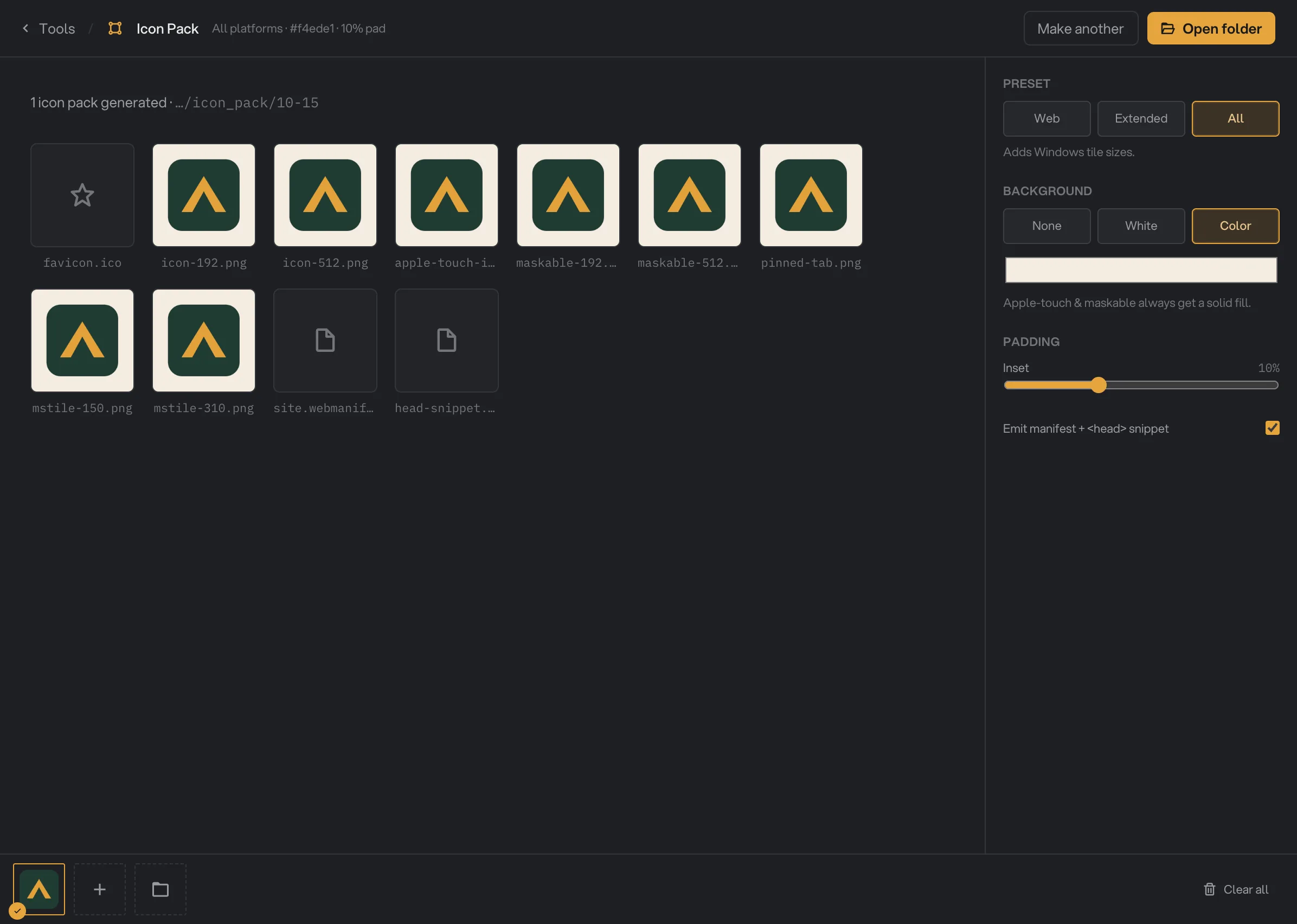
- PNG icons
- head-snippet.txt
- Output folder
- Make another
- Open folder
What files do I get?
Each preset includes everything in the presets before it.
- Web:
favicon.ico(with 16, 32 and 48 pixel versions inside),icon-192.png,icon-512.pngandapple-touch-icon.png(180 pixels). - Extended adds
maskable-192.pngandmaskable-512.png, with extra space around the logo so Android can crop them into circles or rounded squares, andpinned-tab.png(512 pixels). - All adds the Windows tiles
mstile-150.pngandmstile-310.png. - With Emit manifest + <head> snippet ticked, every preset also gets
site.webmanifest, which lists the icons for phones that install your site, andhead-snippet.txt, the lines to paste into your page.
That makes 6 files for Web, 9 for Extended and 11 for All.
Every setting, and when to change it
- Preset
Which icon files are made. Web covers most websites; Extended adds Android maskable icons and a pinned-tab image; All adds Windows tiles.
- RangeWeb, Extended, All
- DefaultWeb
- Background
What sits behind the logo. None keeps it transparent where possible; the Apple touch, maskable and Windows tile icons always get a solid fill, white when None is picked.
- RangeNone, White, Color
- DefaultWhite
- Inset
Space between the logo and the edge of each icon. Maskable icons get 10% more, up to 40%, so Android’s crop does not cut the logo.
- Range0% to 30%
- Default10%
- Emit manifest + <head> snippet
Adds site.webmanifest and head-snippet.txt next to the icons.
- DefaultOn
How do I get crisp icons?
- Start from an SVG if you have one. It is drawn fresh at every size, so even the 16 pixel favicon stays sharp.
- Use a square mark, not a wide wordmark. A long logo is shrunk to fit the square and becomes a thin line at small sizes. If your logo is wide, use its symbol or first letter.
- Use a transparent background in the source, so the Background setting decides the color, not leftover white around the logo.
- Pick Color for a branded look. A colored background makes the icon stand out on phone home screens, and it also replaces the white fill on the Apple touch and maskable icons.
- Check the Size ladder at 16 and 32. Thin lines and small text vanish there. Raise Inset a little if the logo feels cramped.
Why do my icons look wrong?
- The logo looks tiny with a lot of empty space. Your logo file has empty space around it already. Crop it tight first with Crop image, or lower Inset.
- The favicon is blurry. The source is too small or a wide wordmark. Use an SVG or a larger square mark.
- Some icons are white behind the logo though I chose None. Those icons always need a solid background. Choose Color to pick it yourself.
- A file name ends in (2). A set with the same names was already in the folder, from an earlier export today or from another logo in the same export. Move the earlier files away and export again, one logo at a time.
- The export failed with a message that the source is smaller than 256px. Use a larger image or an SVG. Hangar does not enlarge small logos.
- The export failed because Hangar couldn’t read the image or SVG. Open the file in another app and save it again as PNG or SVG.
For other errors, see A file failed: what to check.
Limits
- Raster logos need at least 256 pixels on their longest side. SVG has no minimum.
- Animated GIF and WebP logos use a single still frame.
- One set of settings applies to every logo in the queue.
- All files from an export go into the same dated folder, without a separate folder per logo.
- The manifest lists the icons only, without an app name or colors.
- Everything runs on your computer. Nothing is uploaded.
Common questions
What size should my logo be?
At least 256 pixels on its longest side for a PNG, JPG or WebP, and ideally 1024 pixels or more. Hangar never enlarges a small logo, so a smaller file is refused. An SVG has no minimum, because it stays sharp at every size.
Which preset do I need?
Web is enough for most websites: a favicon, two app icons and an Apple touch icon. Extended adds maskable icons for Android and a pinned-tab image. All adds Windows tile images too.
How do I add the icons to my website?
Upload the files to the top folder of your website, next to your home page. Then open head-snippet.txt and paste its lines into the <head> section of your pages. The links in it expect the files at the top of the site, such as /favicon.ico.
Why do some icons have a white background when I chose None?
The Apple touch icon, the maskable icons and the Windows tiles always need a solid background, so Hangar fills them with white when Background is None. Choose Color to use your own background on them instead.
Does the manifest include my app name and colors?
No. site.webmanifest lists the icons only. If your site is an installable web app, open the file in a text editor and add your app name and colors.
Can I make icon packs for several logos at once?
Icon Pack makes a set for every image and SVG in the queue, but all the files go into the same folder, and the second set gets (2) added to its names. For clean names, export one logo at a time.
Still stuck?
One person reads every message, usually with a reply within a day.