 Agencies and studios
 Photographers
 Podcasters
 Video and social creators
 Marketers and content teams
What does Crop image do?
Crop image cuts your photos down to the part you want to keep, on your own computer. In the app the tool is called Crop Image. Use it to fit photos to a social format such as 4:5 or 9:16, to square up product shots, or to trim a messy edge. It takes JPG, PNG, WebP and BMP images and gives back one cropped copy of each, in the same format.
You can set one crop for the whole batch in the settings panel, or crop each image by eye in the Crop studio.
Step 1: Open Crop Image and add your images
Click Tools in the sidebar, open the Image tab and click Crop Image in the Edit section. You can also type "crop" in the search box at the top.
Drop your images on the queue, or click it to pick files. To add more later, use Add more. Click an image in the queue to show it in the settings panel.
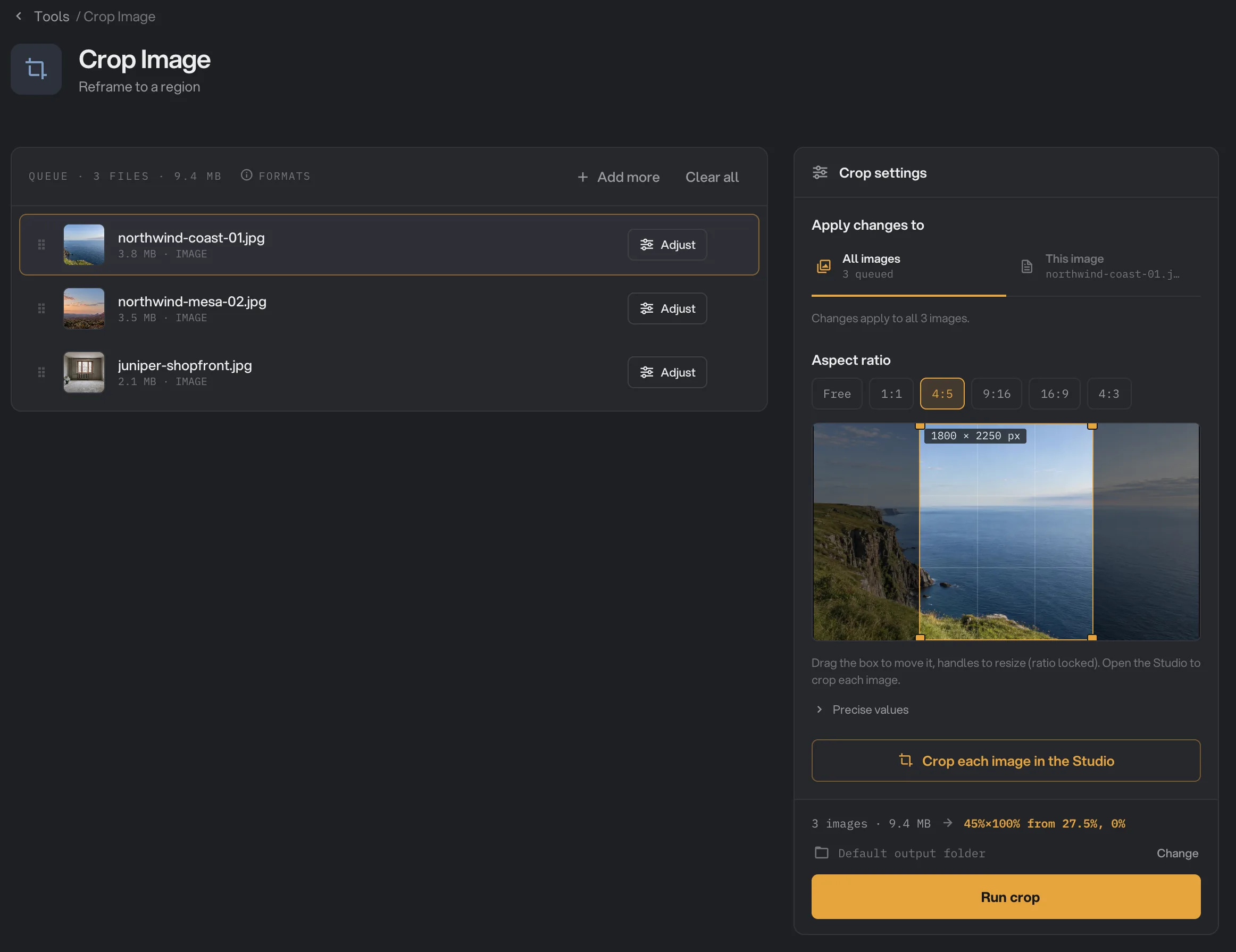
- Apply changes to
- Aspect ratio
- Crop box and its size
- Precise values
- Crop each image in the Studio
- Run crop
Step 2: Set the crop
A new crop trims a 10% border from every side. To change it:
- Pick a shape under Aspect ratio: Free, 1:1, 4:5, 9:16, 16:9 or 4:3. The box jumps to the largest centered area of that shape, and keeps that shape while you resize it.
- Drag inside the box to move it, and drag its handles to resize it. The box shows the size of the result in pixels.
- For exact numbers, open Precise values. Switch Unit between % and px, then type Left (X), Top (Y), Width and Height.
With Apply changes to set to All images, the crop is used for every image in the queue. It is kept as a share of each image, for example "45% of the width, starting 27.5% from the left", so it lands in the same place on images of different sizes.
Step 3: Crop each image in the Crop studio
Click Crop each image in the Studio, or click Adjust on an image in the queue. The Crop studio shows the image large, with the same crop box, ratios and precise values.
- Under Apply changes to, choose This image to give the image you are looking at its own crop. Your first change creates it. Choose All images to edit the crop shared by the rest of the batch.
- Use the arrows at the top, the left and right arrow keys, or the thumbnails at the bottom to move between images.
- Images with their own crop get an amber border, and Adjust shows Custom. Click Use All images to put one back on the shared crop.
Click Done, or press Esc, to go back. The button in the panel shows how many images have their own crop.
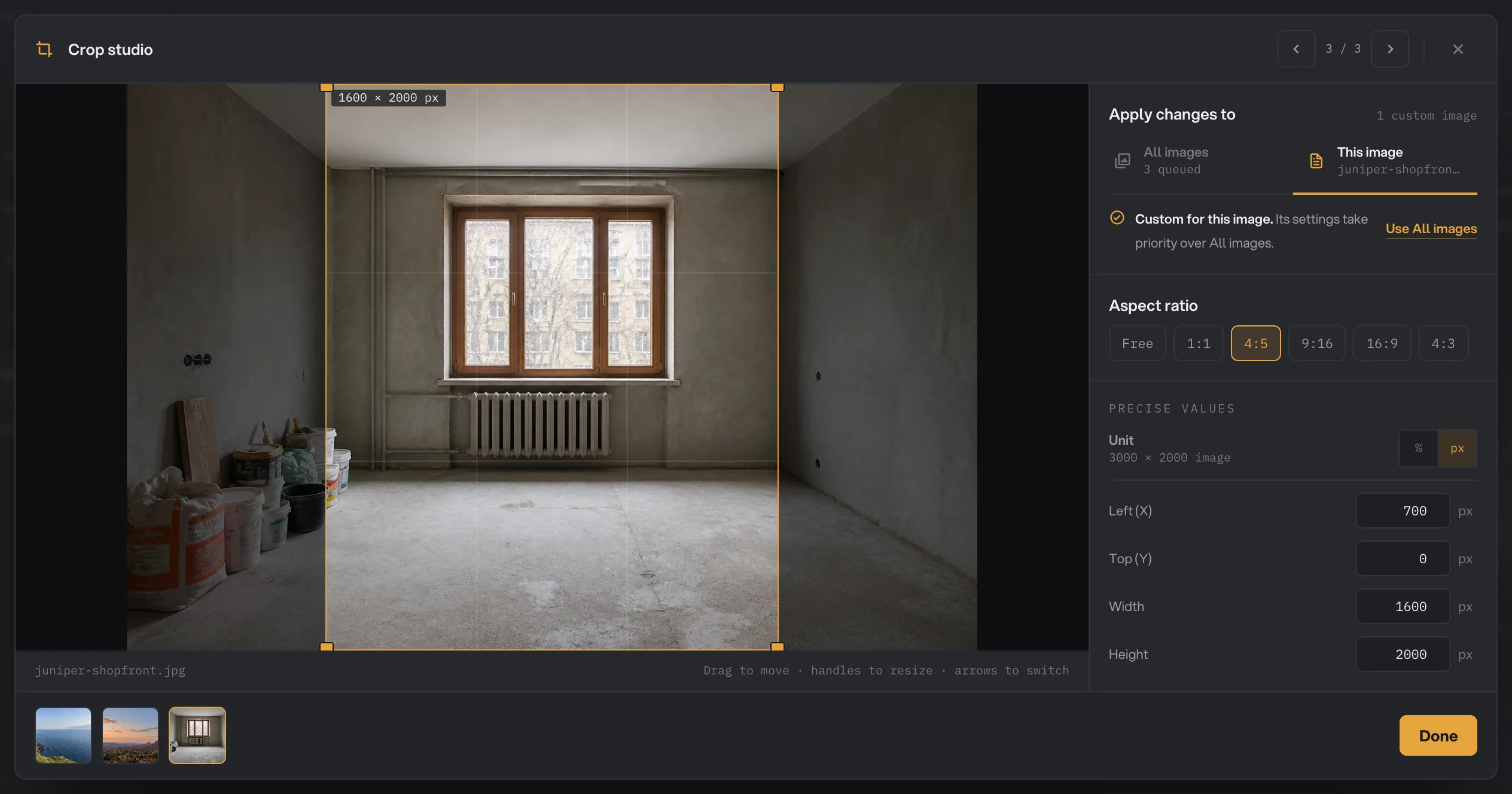
- Previous and next image
- Crop box
- This image
- Aspect ratio
- % or px
- Done
Step 4: Run, then check the result
Check where the files will go: Default output folder saves them in your workspace’s output folder, in a crop folder with a subfolder for today’s date, such as 10-15. Click Change to pick another folder for this run. Then click Run crop.
Each cropped image shows Done. Click View to see the original and the crop, and Open folder to go to the copies. They keep their original names. To keep working on them, click Chain another tool and pick the next tool, for example to resize or compress the crops. See See and compare your results and Where your files are saved.
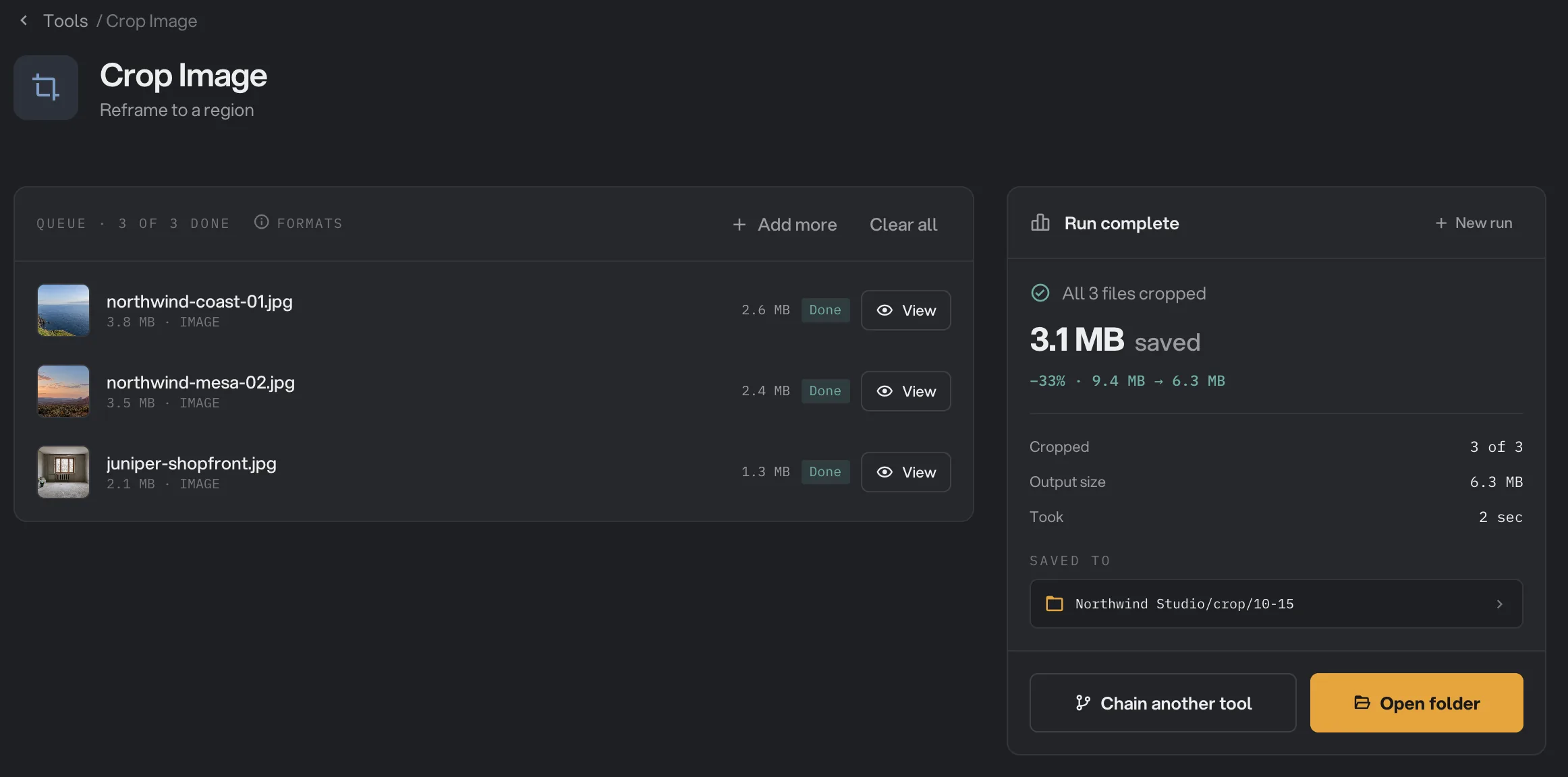
- Done
- View
- Saved to
- Open folder
Every setting, and when to change it
The panel and the Crop studio show the same settings. In the panel, Precise values is folded away; in the Studio it is always open.
- Apply changes to
Whether a change applies to the whole batch or only to the selected image. This image gives that image its own crop, which wins over the batch crop.
- RangeAll images, This image
- DefaultAll images
- Aspect ratio
Fits the box to the largest centered area of that shape and keeps the shape while you resize. Free lets you drag each side on its own.
- RangeFree, 1:1, 4:5, 9:16, 16:9, 4:3
- DefaultFree
- Crop box
The area to keep. Drag it to move, drag the handles to resize. It always stays inside the image.
- DefaultA 10% border trimmed on every side
- Unit
Shows the precise values as a share of the image or in pixels.
- Range%, px
- Default%
- Left (X), Top (Y)
Where the crop starts, measured from the left and top edges.
- Range0 to 100%, or 0 to the image size in pixels
- Default10%, 10%
- Width, Height
The size of the area you keep.
- RangeUp to 100%, or up to the image size in pixels
- Default80%, 80%
How do I get the best crop?
- Group photos by shape. Put photos with the same shape in one run and use one batch crop. Crop the others in the Crop studio, or in a second run.
- Pick the ratio first, then move the box. Choosing a ratio resets the box to the center. Drag it afterward to frame the subject.
- Check every image in the Studio. A centered crop can cut off a face or a product on one photo. Step through with the arrow keys before you run.
- Phone photos are cropped the way you see them. Hangar turns a sideways phone photo upright before cropping, so the box matches what is on screen.
- Crop before you resize. To end up at an exact size, such as 1080 × 1350 for a 4:5 post, crop to 4:5 first, then use Resize Image.
Why does a crop look wrong?
- The ratio is off on some images. Those images have a different shape from the one you set the crop on. Crop them with This image in the Crop studio.
- The subject is cut off. The batch crop is in the same place on every image. Move the box for that image in the Studio with This image selected.
- A file is marked Kept. The crop box covered the whole image and the photo did not need turning upright, so there was nothing to change and Hangar saved an exact copy.
- A file failed with a message that the crop area is too small. Width or Height is 0. Type a larger value.
- A file failed because its format is not supported yet. HEIC, AVIF, GIF and TIFF images cannot be cropped yet. Convert them with Image Convert first. Animated WebP files are refused too, so they do not lose their animation.
For other errors, see A file failed: what to check.
Limits
- Crop Image accepts JPG, PNG, WebP and BMP. HEIC, AVIF, GIF, TIFF and animated WebP are not supported yet.
- The crop is always a rectangle inside the image. It cannot add space around the image.
- JPEG and WebP files are saved again at high quality. PNG and BMP keep every pixel exactly.
- The copy keeps the photo’s details from the original, such as the camera and the place it was taken. To remove them, run the crops through Strip Metadata.
- Crops you set are kept while Hangar is open. They are not saved when you quit.
- Everything runs on your computer. Nothing is uploaded.
Common questions
Can I crop many images at once?
Yes. One crop applies to every image in the queue. It is stored as a share of each image, so it works best when the images have the same shape. For a different framing per photo, open the Crop studio, choose This image and crop each one.
Why is a batch crop not exactly 4:5 on some images?
The ratio is worked out on the image you are looking at, then the same share of the frame is used on every image. Images with a different shape, such as a portrait among landscapes, come out at a different ratio. Crop those images on their own in the Crop studio with This image selected.
Can I crop to an exact pixel size?
Yes. Open Precise values, switch Unit to px and type Left (X), Top (Y), Width and Height in pixels. Pixel values belong to one image, so set them for each image in the Crop studio when the sizes differ.
Does cropping change the file format or lower the quality?
The format stays the same: a JPEG stays a JPEG, a PNG stays a PNG. PNG and BMP keep every pixel exactly. JPEG and WebP are saved again at high quality, which is not noticeable in normal use.
Is my original photo changed?
No. Hangar saves a cropped copy with the same name in your output folder and leaves the original where it was.
Can I crop HEIC, AVIF, GIF or TIFF images?
Not yet. Convert them to JPEG or PNG first with Image Convert, then crop the converted copies.
Still stuck?
One person reads every message, usually with a reply within a day.