 Agencies and studios
 Photographers
 Podcasters
 Video and social creators
 Marketers and content teams
What does Contact sheet do?
Contact sheet lays a batch of images out on one clean, labeled sheet, on your own computer. In the app the tool is called Contact Sheet. Use it to review selects from a shoot, send a client a proof, build a mood board or print an index of a folder. It saves one file: a PDF with as many pages as the batch needs, or a single PNG or JPEG board.
Contact Sheet opens as a Studio. The sheet you see in the middle is a live preview of the export, the settings are on the right, and your images are in a strip at the bottom in reading order.
Step 1: Open the Studio and add your images
Click Tools in the sidebar, open the Create tab and click Contact Sheet in the From your media section. You can also search for "contact sheet".
Click Choose images or Choose folder, or drop files on the window. You need at least two. Photos, SVG files and camera RAW files all work. To add more later, click Add images at the top or the + at the end of the strip.
The strip at the bottom sets the reading order. Drag a thumbnail to move it, or click the A to Z button at the end of the strip to sort the images by name. Click the x on a thumbnail to remove it.
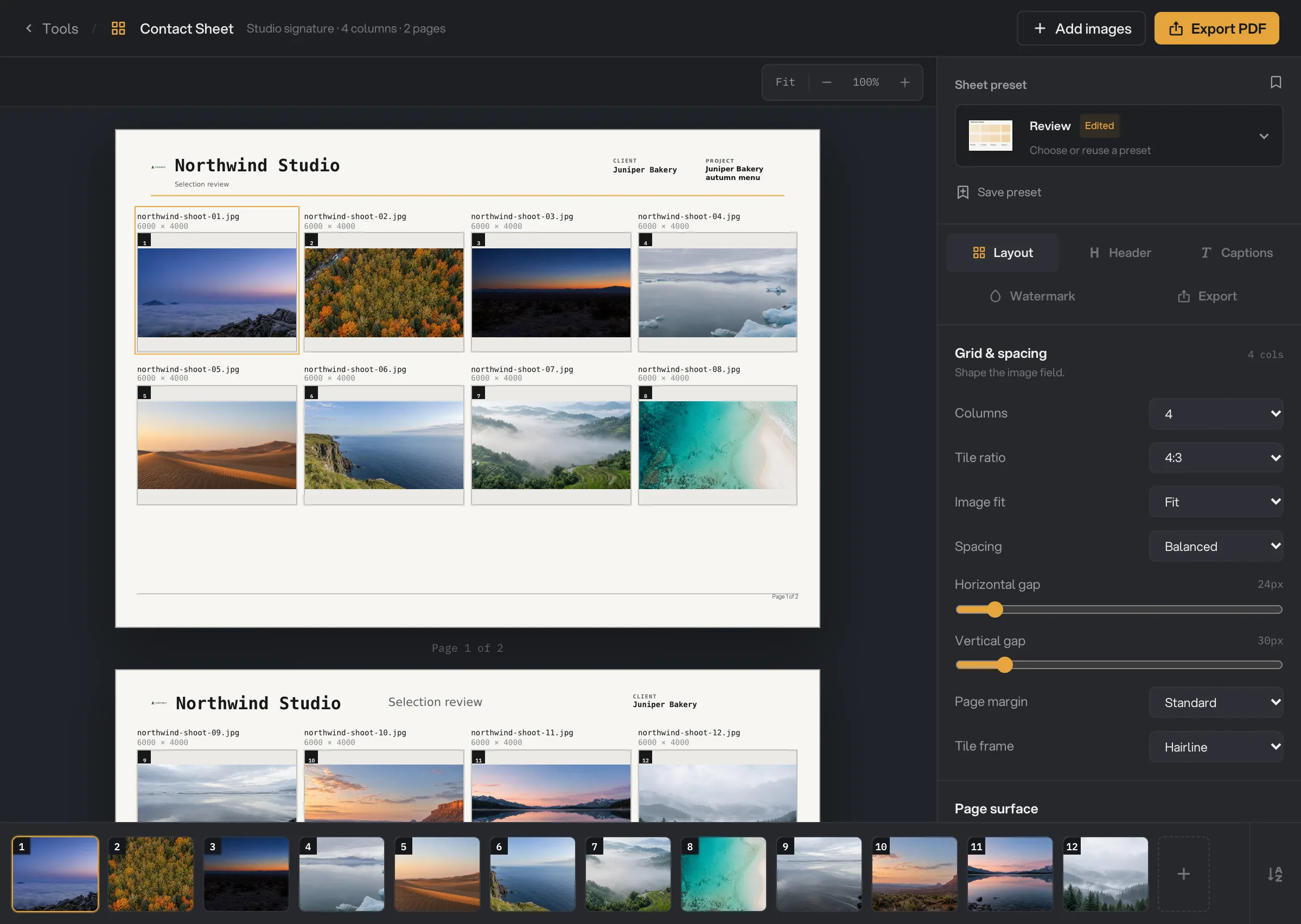
- Sheet preset
- Settings tabs
- Columns
- Live page
- Sort images by name
- Export PDF
Step 2: Pick a starting point
At the top of the panel, open Sheet preset. Under Starting points, choose the one closest to your job. The Studio always opens on Review.
- Review: a PDF with 4 columns, file names and pixel sizes above each image, and numbered tiles. Good for choosing selects.
- Client report: a PDF with numbered captions on a label bar and a header with room for client details.
- Proof: a dense PDF with 6 columns and small centered captions, for checking a whole shoot.
- Mood board: a PNG with 3 columns of square, cropped tiles on a dark page, without captions.
Applying a preset changes the design only. Your images stay where they are, and a message lets you Undo for a few seconds. Your own presets are listed under My presets.
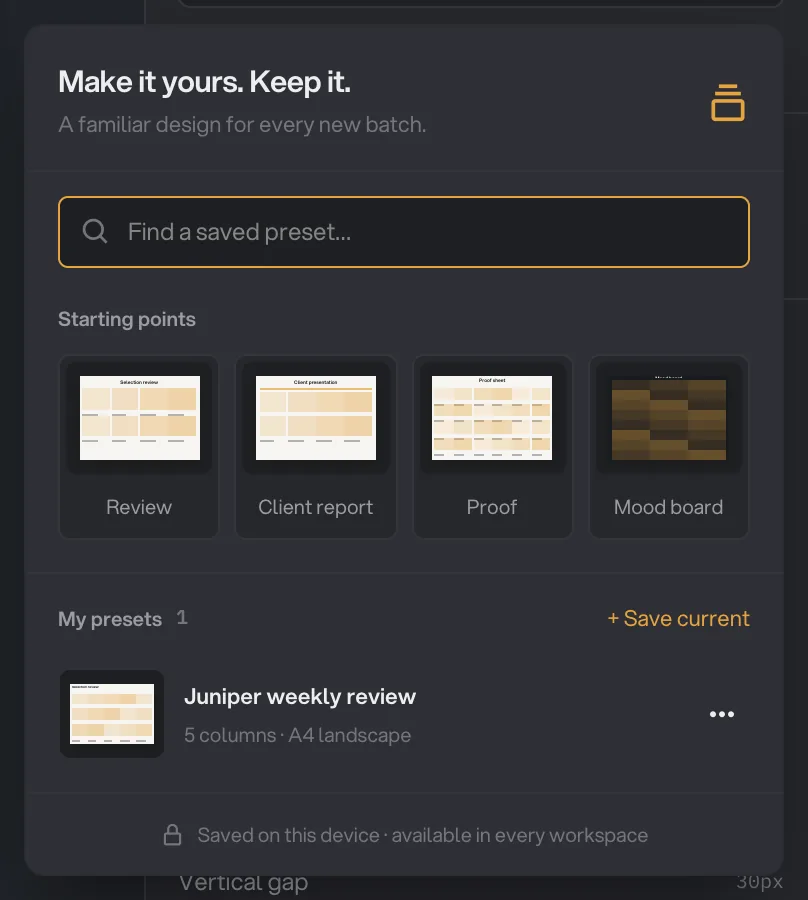
- Starting points
- My presets
- + Save current
Step 3: Set the grid
On the Layout tab, choose the number of Columns and the Tile ratio (1:1, 4:3, 3:2 or 4:5). Image fit decides how each picture sits in its tile: Fit shows the whole picture, Fill fills the tile and crops the edges. With Fill, click an image on the sheet and use Focal point to choose which part stays in view.
Spacing sets both gaps at once (Compact, Balanced or Airy); fine-tune them with Horizontal gap and Vertical gap. Page margin sets the space around the grid. Tile frame adds a thin line (Hairline), a mat border (Matte) or an instant-photo border (Polaroid). Under Page surface, choose a Light, Dark or Custom background.
Step 4: Add your header
The Header tab has three views. In Content, fill in the Header details: Company (your workspace name to start with), Sheet title, Project, Client and Date. Click the eye icon next to a field to hide it on the sheet, or Aa to change its size and style. Under Optional details you can add the Brand mark (your workspace logo), extra rows of information such as a reference or location, a project note or a badge.
In Design, pick one of the Layout recipes: Client lockup, Studio signature or Project lead (this one needs a project name). Set the space above and below the header with Top inset and Bottom inset, and choose what Later PDF pages show: First page only, Repeat full header or a Compact continuation. In Style, choose a Typography voice and a Brand accent color.
Step 5: Set captions and a watermark
On the Captions tab, Show captions turns captions on or off. Content chooses what they say: Filename, Name only, Sequence, Sequence + name, Filename + size or a Custom template built from the token buttons, such as {index:02} · {stem} for "01 · northwind-shoot-01". Add an optional Detail line, then set the size, alignment, position and treatment. Show index adds a number to each tile, and Show page numbers numbers PDF pages.
On the Watermark tab, choose where it goes under Apply to: Whole page, Each image or Both. Pick Text or Workspace logo, then set Scale, Opacity, the position, and the Layer: over the content or under it.
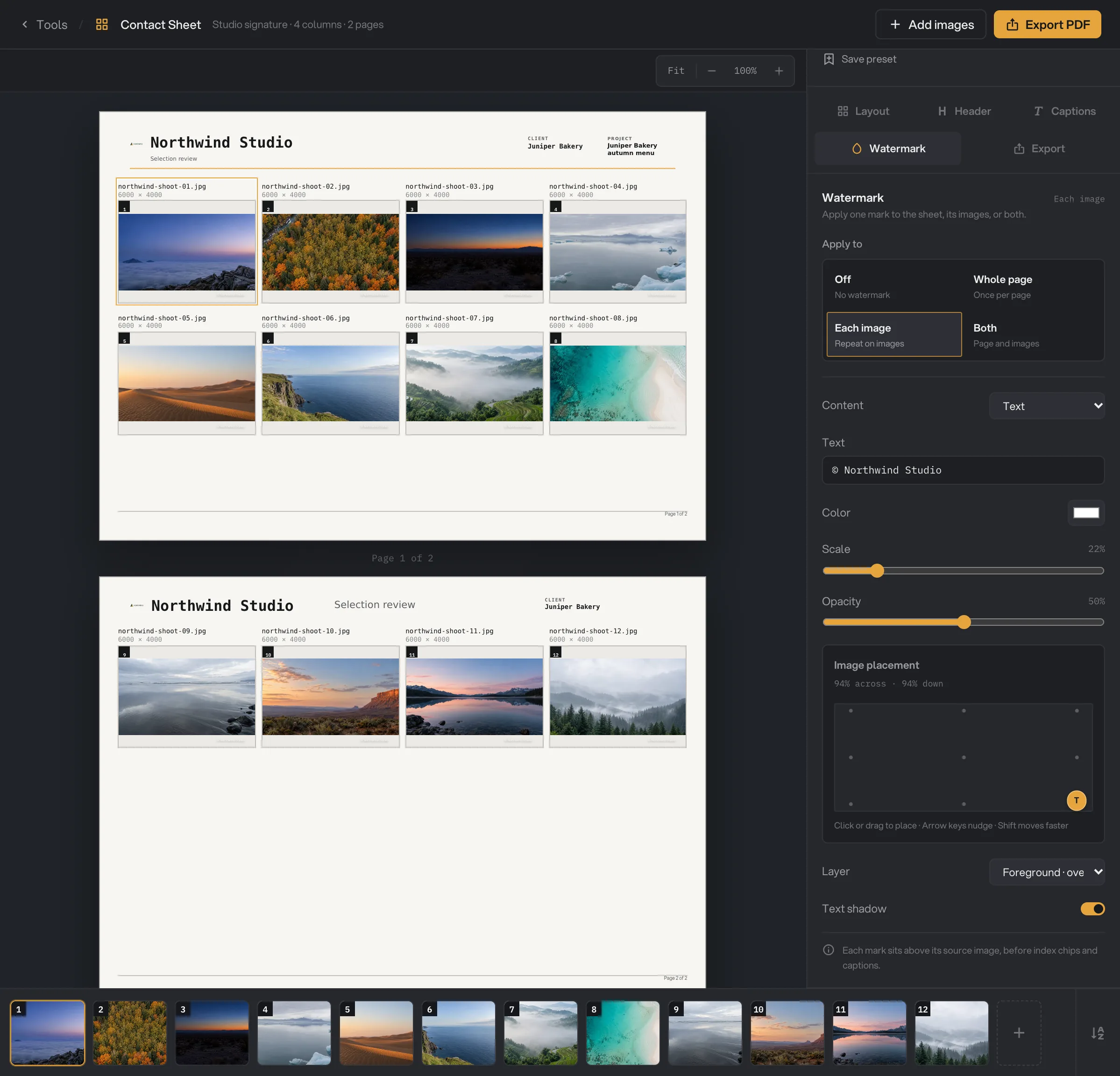
- Apply to
- Content
- Scale
- Layer
Step 6: Export, then check the sheet
On the Export tab, choose the Format. For a PDF, set the Paper size (A4 or US Letter), Orientation and Quality. For PNG or JPEG, set the Width. The line under the settings tells you what you will get, such as "2 A4 pages · up to 12 images per page".
The folder row shows Default output folder: your workspace’s output folder, in a contact_sheet folder with a subfolder for today’s date, such as 10-15. Click Change to save this sheet somewhere else. Then click Export PDF (or Export PNG, Export JPEG) at the top right.
When it finishes, the Studio shows the exported pages. Click View full size to look closely, Open folder to go to the file, or Edit sheet to change something and export again. See Where your files are saved.
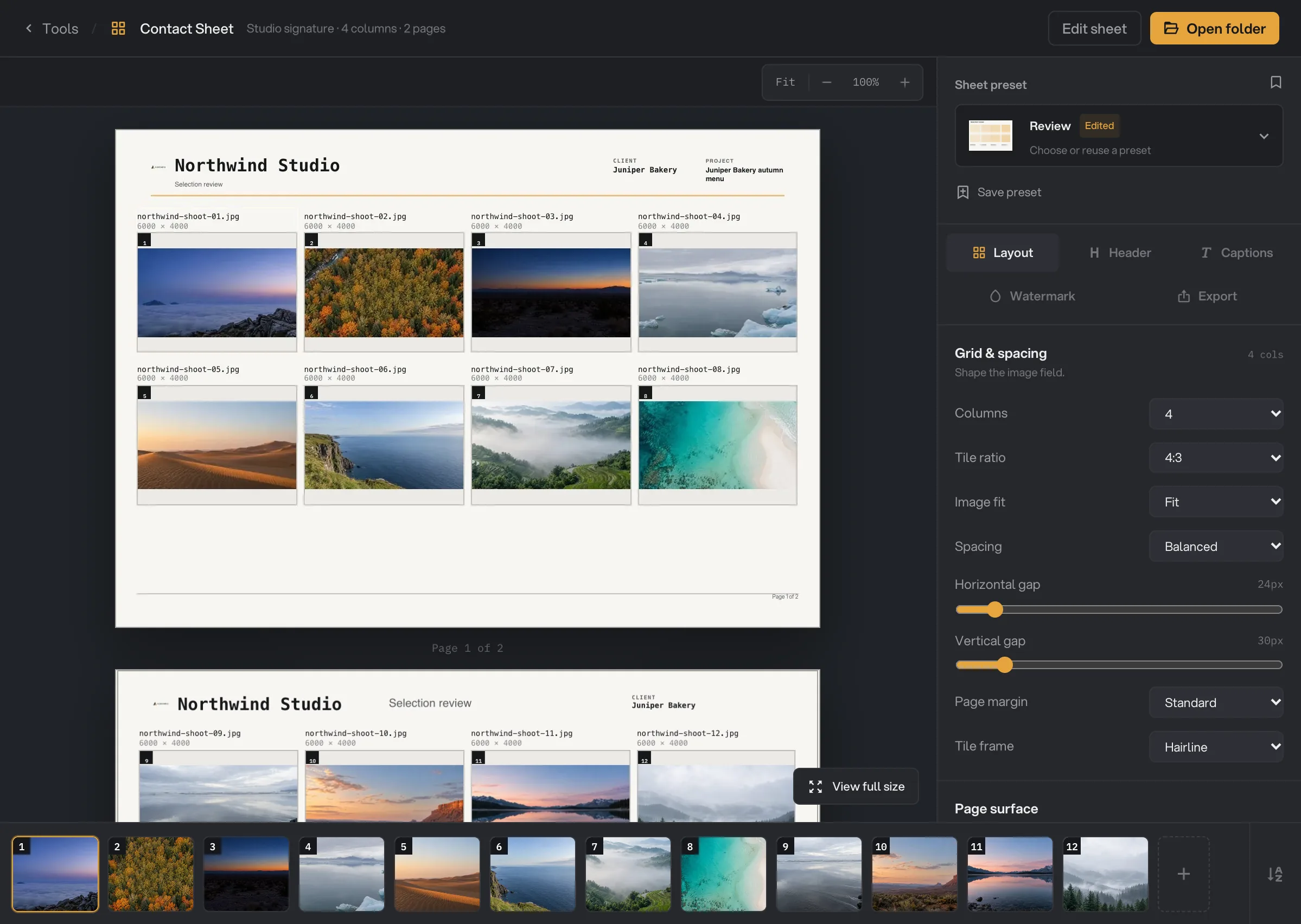
- Edit sheet
- Open folder
- View full size
Every setting, and when to change it
Defaults below are those of the Review starting point. Settings reset when you leave the Studio, so save a preset to keep a design.
- Columns
How many images sit side by side. More columns means smaller tiles and fewer pages.
- Range2, 3, 4, 5, 6, 8, 10, 12
- Default4
- Tile ratio
The shape of every tile.
- Range1:1, 4:3, 3:2, 4:5
- Default4:3
- Image fit
Fit shows the whole picture. Fill fills the tile and crops; Focal point picks what stays in view.
- RangeFit, Fill
- DefaultFit
- Spacing
Sets both gaps between tiles at once.
- RangeCompact, Balanced, Airy
- DefaultBalanced
- Horizontal gap / Vertical gap
The exact space between tiles across and down.
- Range0 to 240 px
- Default24 px / 30 px
- Page margin
The space between the grid and the edge of the page.
- RangeNarrow, Standard, Wide
- DefaultStandard
- Tile frame
A border around each image. Matte and Polaroid add Frame size (2% to 16%) and Frame color.
- RangeNone, Hairline, Matte, Polaroid
- DefaultHairline
- Background
The color of the page behind the grid.
- RangeLight, Dark, Custom
- DefaultLight
- Header details
The text at the top of the sheet. The Sheet title is also the file name.
- RangeCompany, Sheet title, Project, Client, Date
- DefaultYour workspace name and "Selection review"
- Optional details
Extra header content. Additional information holds up to 6 label and value rows.
- RangeBrand mark, Additional information, Project note, Badge
- DefaultBrand mark when your workspace has a logo
- Layout recipes
How the header is arranged.
- RangeClient lockup, Studio signature, Project lead
- DefaultStudio signature
- Top inset / Bottom inset
The space above the header and between the header and its divider.
- Range0 to 96 px
- Default22 px
- Later PDF pages
What the header looks like after page 1.
- RangeFirst page only, Repeat full header, Compact continuation
- DefaultCompact continuation
- Typography voice
The pair of fonts used in the header.
- Range9 font pairings
- DefaultClean neutral
- Show captions
Prints a caption with each image.
- DefaultOn
- Content
What each caption says. A custom template can be up to 120 characters.
- RangeFilename, Name only, Sequence, Sequence + name, Filename + size, Custom template
- DefaultFilename + size
- Detail line
An optional second line under each caption, also built from tokens.
- DefaultEmpty
- Caption size, Alignment, Position, Treatment
How captions look and where they sit.
- RangeSmall to Large; Left, Center; Above, Below image; Plain, Label bar
- DefaultMedium, Left, Above image, Plain
- Show index
A number chip on each tile.
- DefaultOn
- Show page numbers
Numbers the pages of a PDF.
- DefaultOn
- Apply to (watermark)
Where the watermark goes.
- RangeOff, Whole page, Each image, Both
- DefaultOff
- Watermark content
Your own words in a color you choose, or a logo.
- RangeText, Workspace logo
- DefaultText
- Scale / Opacity
How big and how see-through the watermark is.
- Range5% to 100% / 0% to 100%
- Default22% / 50%
- Position
Where the watermark sits on the page or on each image.
- Range9 positions, plus a fine offset
- DefaultBottom right
- Layer
Over the content, or under it.
- RangeForeground, Background
- DefaultForeground
- Text shadow
A soft shadow that helps a text watermark read on light and dark areas.
- DefaultOn
- Format
A PDF with pages, or one image board.
- RangePDF, PNG, JPEG
- DefaultPDF
- Paper size / Orientation
The PDF page.
- RangeA4, US Letter / Portrait, Landscape
- DefaultA4 / Landscape
- Quality
How sharp the PDF is. Lower quality makes a smaller file.
- RangeDraft (150 dpi), Standard (200 dpi), High (300 dpi)
- DefaultHigh (300 dpi)
- Width
The width of a PNG or JPEG board.
- Range1600, 2400, 3200, 4800 px
- Default2400 px
- JPEG quality
For JPEG boards, the balance between file size and detail.
- RangeGood (80), High (92), Maximum
- DefaultHigh (92)
How to get the best results
- Put the images in order first. The strip at the bottom is the reading order. Use Sort images by name if your files are already numbered.
- Match the tile ratio to your pictures. Use 3:2 for most camera photos and 4:5 for portrait shots, so Fit leaves little empty space.
- Choose PDF for a big batch. A PDF adds pages as needed. Keep PNG and JPEG for a single board to post or share.
- Use Draft or Standard for email. High (300 dpi) is best for print but makes larger files.
- Fill in the header. A title, client and date make the sheet easy to find later, and the title becomes the file name.
- Save your design. Once a sheet looks right, click + Save current under Sheet preset so the next batch takes one click.
Why a result disappoints
- The export button is grayed out. Add at least two images. If a watermark is on, type its text, or pick or import a logo. If the note on the Export tab says Adjust the layout to continue, the layout does not fit: see the next two points.
- A PDF layout does not fit. The margins, gaps, frames, captions or header leave too little room for the images. If the tiles are tiny, use fewer columns. Otherwise lower the gaps, choose a narrower Page margin, a smaller frame or a smaller Caption size.
- A PNG or JPEG board is too large. A board can be up to 64 megapixels and 32,768 pixels on a side. Lower the Width, use more columns so there are fewer rows, choose a wider Tile ratio such as 3:2, export fewer images, or switch to PDF. If the export stops with a message that the sheet is too large to render safely, the same fixes apply. That message also mentions columns: use more columns, not fewer, because fewer columns make the board taller.
- A header field does not fit. Shorten the text, make it smaller with Aa, or try another layout recipe.
- Faces or products are cut off. Image fit is set to Fill. Set a Focal point for those images, or switch to Fit.
- A logo used by a preset is no longer available. The logo was removed from Hangar. Import it again, or click Continue without the missing logo.
- The export failed because an image could not be read, or is over the 100 megapixel limit. Open the image in another app and save a smaller JPG or PNG copy, then add that instead.
For other errors, see A file failed: what to check.
Limits
- At least two images per sheet; each image can be up to 100 megapixels.
- PNG and JPEG boards can be up to 64 megapixels and 32,768 pixels on a side. Use PDF for larger batches.
- Each PDF page is saved as a picture, so its text cannot be selected or searched.
- Animated GIF and WebP images appear as a single still frame.
- The header can hold up to 6 rows of additional information.
- Settings reset when you leave the Studio. Save a preset to keep a design.
- Everything runs on your computer. Nothing is uploaded.
Common questions
How many images can go on one sheet?
At least two. A PDF adds pages as the batch grows, so it can hold a whole shoot. A PNG or JPEG puts every image on one board, which gets taller with every row. Past 64 megapixels the board is too large to export. Lower the Width, use more columns so there are fewer rows, or switch to PDF.
How do I change the order of the images?
Drag the thumbnails in the strip at the bottom of the Studio, or click the A to Z button at the end of the strip to sort them by name. The order in the strip is the reading order on the sheet.
Can I reuse my design for the next shoot?
Yes. Open the Sheet preset picker and click + Save current. Your preset keeps the layout, colors, captions, header and watermark, and works in every workspace. It does not keep the images, their focal points or their custom captions.
Can I rename or hide the caption of one image?
Yes. On the Captions tab, click Edit image names. For each image choose Automatic, Custom (type your own caption) or Hidden.
Can someone select or search the text in the PDF?
No. Each page of the PDF is saved as a single picture, so captions and header text cannot be selected or searched.
Does the sheet include the camera or location data from my photos?
No. The sheet is drawn from the pictures only, so camera details and GPS locations are not copied.
Still stuck?
One person reads every message, usually with a reply within a day.