 Agencies and studios
 Photographers
 Podcasters
 Video and social creators
 Marketers and content teams
What does Redact image do?
Redact image hides parts of a picture before you share it: faces, names, email addresses, card numbers, number plates. You draw a box over each part and choose how it is hidden: Blur, Pixelate or Solid. In the app the tool is called Redact Image.
Hangar saves a new copy with those pixels replaced, so what was under a box can’t be recovered. By default it also removes the photo’s hidden information, such as its location.
Step 1: Open Redact Image and add your images
Click Tools in the sidebar, open the Image tab and click Redact Image in the Protect section. You can also type "redact" in the search box at the top.
Redact Image opens as a Studio that fills the window. Drop your images on it, or click it to pick files. The strip at the bottom shows every image with the number of boxes on it. Click one to work on it, or use + to add more.
Step 2: Draw a box over each part to hide
Drag on the image to draw a box. Choose the shape first in the switcher at the top left: Rectangle, Rounded, Ellipse, or the pencil for a Lasso you trace by hand. Hold Shift while you drag for a square or a circle.
- Drag a box to move it, or drag a corner to resize it.
- The bar above the selected box changes its style, strength and shape on the spot.
- Press Delete to remove the selected box, and ⌘Z (Ctrl+Z on Windows) to undo.
- Press R, U, E or L to switch shape. Hold Space and drag to move around a zoomed image.
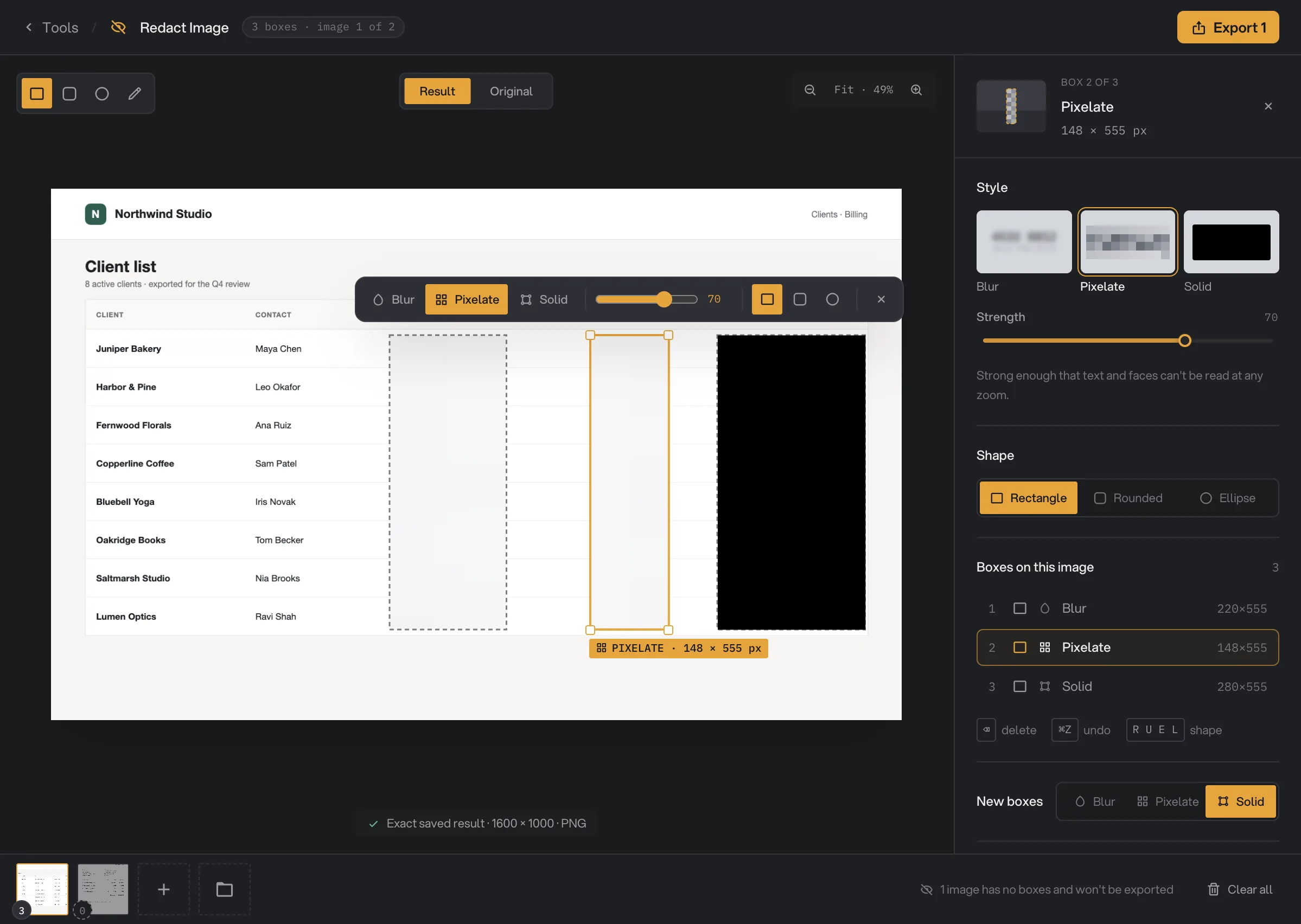
- Shape for new boxes
- Style of the selected box
- Boxes on this image
- New boxes
- Result and Original
- Export
Step 3: Choose how each box hides
Click a box, on the image or in Boxes on this image, to edit it in the panel on the right:
- Blur softens what is under the box. Strength goes from 1 to 100.
- Pixelate turns it into large squares. Strength sets their size.
- Solid paints over it in black, white, gray or a color you pick.
Under Shape, switch the box between Rectangle, Rounded and Ellipse, and set the Corner of a Rounded box. A lasso keeps its traced outline: delete it and draw again to change it. New boxes sets the style the next box starts with.
The Result view shows the exact image Hangar will save. Click Original to see the picture with the boxes as outlines, to check you covered everything.
Step 4: Check the output settings
At the bottom of the panel, Remove photo info is on. It leaves out the location, the camera details and the small hidden preview copy that many photos carry, which would show the image before redaction. Leave it on when you share the image.
The Format is the same as the original. HEIC photos are saved as JPEG. Each file’s name ends in -redacted.
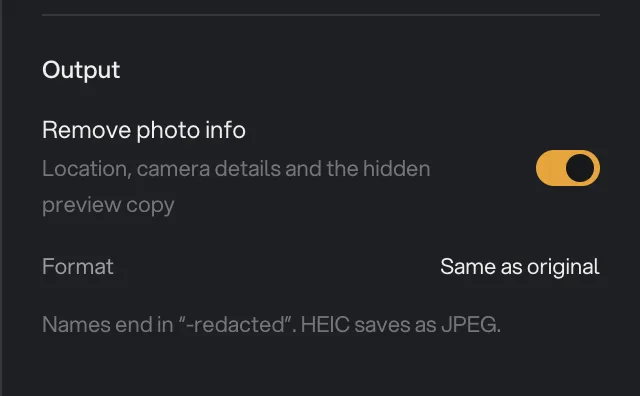
- Remove photo info
- Format
Step 5: Export
Click Export at the top right. The number on the button is how many images have boxes. Images with no boxes are skipped, and the strip at the bottom says how many.
When the export ends, a card shows the saved image, its size and the folder. The files go in your workspace’s output folder, in a redact folder with a subfolder for today’s date. Click Open folder to go to them. The card stays until you close it. See Where your files are saved.
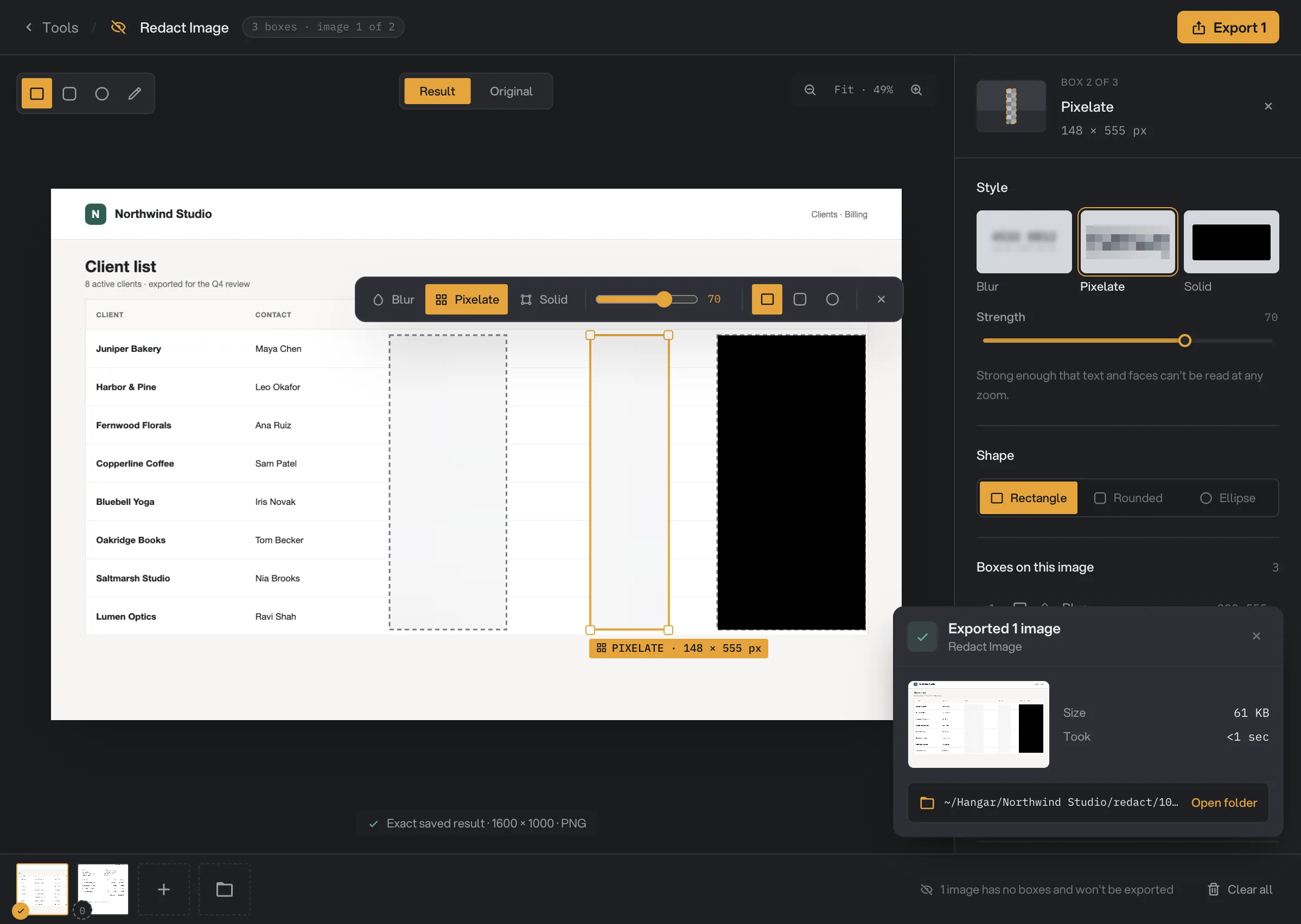
- Exported 1 image
- Open folder
Every setting, and when to change it
- Shape
The outline of the box. Use Ellipse for faces and Lasso for odd shapes.
- RangeRectangle, Rounded, Ellipse, Lasso
- DefaultRectangle
- Corner
With Rounded, how round the corners are.
- Range0 to 100
- Default40
- Style
How the box hides what is under it. Solid is the safest.
- RangeBlur, Pixelate, Solid
- DefaultBlur
- Strength
With Blur and Pixelate, how coarse the cells are. Even the lowest strength can’t be read back.
- Range1 to 100
- Default70
- Color
With Solid, the color painted over the box.
- RangeBlack, white, gray or any color
- DefaultBlack
- New boxes
The style the next box starts with. It follows the last style you picked.
- RangeBlur, Pixelate, Solid
- DefaultBlur
- Remove photo info
Leaves out the location, camera details and the hidden preview copy. Off keeps camera details and the location.
- RangeOn, off
- DefaultOn
How do I get the best results?
- Cover a little more than you need. Leave a margin around each name or number so no edge of a letter shows.
- Use Solid for numbers and text you must hide, such as card numbers and passwords. Use Blur or Pixelate for faces and backgrounds.
- Check the Original view before you export, then zoom in on the Result view.
- Leave Remove photo info on for anything you share. Turn it off only for your own archive.
- For PDFs, use Redact PDF, which removes the text itself. To clear photo info without hiding anything, use Strip Metadata.
Why does a result look wrong?
- The blur looks like flat blocks. Cells grow with the box, so a big box turns into a few soft blocks. Use smaller boxes, one per line, for a finer look.
- Export is grayed out. No image has a box yet. Draw at least one.
- An image was not saved. It had no boxes. Only images with boxes are exported.
- The file is now a JPEG. HEIC photos are saved as JPEG.
- A file failed saying the format isn't supported. Animated GIF, TIFF, AVIF and animated WebP aren’t supported. Convert the image to PNG first with Convert Images.
For other errors, see A file failed: what to check.
Limits
- Redact Image takes JPG, PNG, WebP, BMP and HEIC images. HEIC is saved as JPEG; the others keep their format.
- Up to 200 boxes per image.
- Boxes are drawn by hand. It does not find faces or text on its own.
- Boxes are per image. There is no way to copy a box to every image.
- Transparent PNG and WebP images keep their transparency.
- Everything runs on your computer. Nothing is uploaded.
Common questions
Can someone undo the blur or pixelate later?
No. Hangar saves a new image with the pixels under each box replaced, and its cells are always big enough that text and faces can’t be read back. Nothing of the original is kept inside the new file.
Which style should I use?
Solid is the safest, because it paints over everything in one color. Blur and Pixelate keep the picture looking natural while still hiding what is under the box.
Does it remove the location from photos?
Yes, by default. Remove photo info is on, so the saved copy has no location, camera details or hidden preview copy. If you turn it off, camera details and the location are kept, but the hidden preview copy never is.
Can I draw one box and use it on every image?
No. Boxes are drawn per image, because what needs hiding is in a different place on each one. Images with no boxes are not exported.
Is my original image changed?
No. Hangar saves a new file with -redacted added to the name, such as northwind-client-list-redacted.png, and leaves the original where it was.
Does Hangar keep a copy of what I hid?
No. Everything runs on your computer and nothing is uploaded. Hangar’s run history notes the position and style of each box, not what was under it.
Still stuck?
One person reads every message, usually with a reply within a day.