 Agencies and studios
 Photographers
 Podcasters
 Video and social creators
 Marketers and content teams
What does Image Comparison do?
Image Comparison turns two pictures into one before and after piece, on your own computer. Use it for a renovation, a photo retouch, a redesign or any change you want a client to see. You can export it three ways:
- HTML: an interactive slider in a single file. Drag the divider to reveal Before and After.
- GIF: an animation where the divider sweeps across the picture on its own, on a loop.
- Image: a still PNG or JPEG in one of six layouts, from a single cut to a poster with a headline.
Image Comparison opens as a Studio with a live preview, your two pictures under it and the settings on the right.
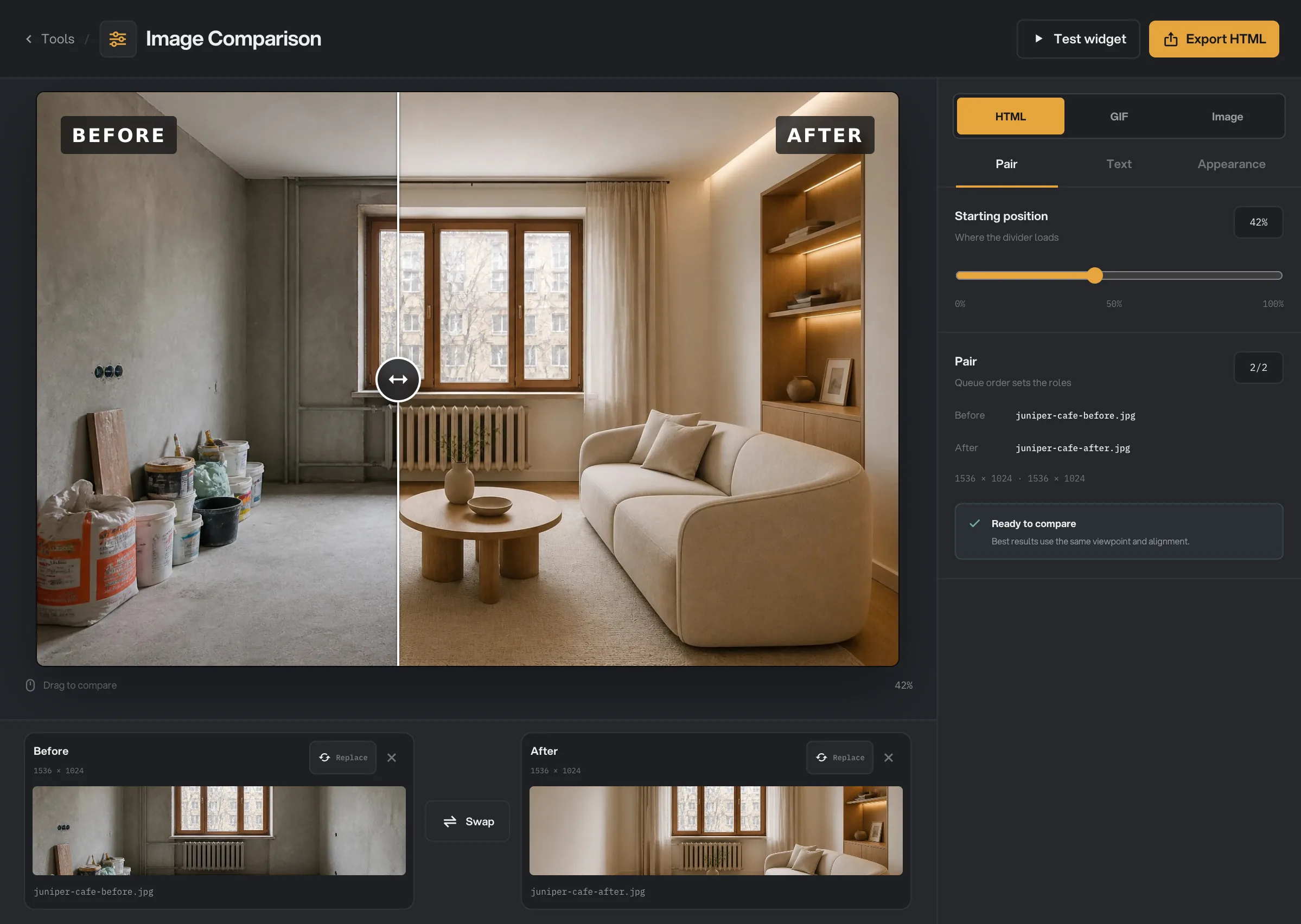
Step 1: Open the Studio and add two images
Click Tools in the sidebar, open the Create tab and click Image Comparison in the From your media section. You can also search for "before and after".
Click Choose images and pick exactly two pictures, or drop them on the window. The first becomes Before and the second After. Photos, SVG files and camera RAW files all work.
The two cards under the preview show each picture with its size. Click Swap to flip the roles, Replace to choose a different file for one side, or the x to remove it. If you add more than two, the Studio asks you to remove the extras before you can export.
- Replace
- Swap
- Output format
- Starting position
- Test widget
- Export HTML
Step 2: Choose the format
At the top of the panel, pick HTML, GIF or Image. HTML and GIF use the Seam layout: one picture with Before on one side of a cut and After on the other. For a still in another layout, choose Image.
On the Pair tab, set the Starting position, which is where the divider sits when the slider loads and where the cut falls in a still. You can also drag directly on the preview. The panel tells you if the two pictures have different shapes; see Why a result disappoints.
With HTML, click Test widget at the top to try the slider in the preview before you export. The Copy HTML button is not there yet: it appears only after the export has finished.
Step 3: Set the labels and text
On the Text tab, type the Before label and After label, for example "Empty" and "Opening day". Turn off Show labels to leave them out. Under Label style, set the Typeface, Size, Tracking (letter spacing) and Uppercase. On the Seam and Overlap layouts the labels sit on the picture, so you also get a Text color and a Plate, the small panel behind each label, with its color, opacity, padding and rounding.
Some still layouts have room for more text. When they do, a Copy section shows the fields they use: Headline, Caption and Brand line. Typography sets the font pairing; Match layout uses the one each layout was designed with.
Step 4: Choose the layout and style
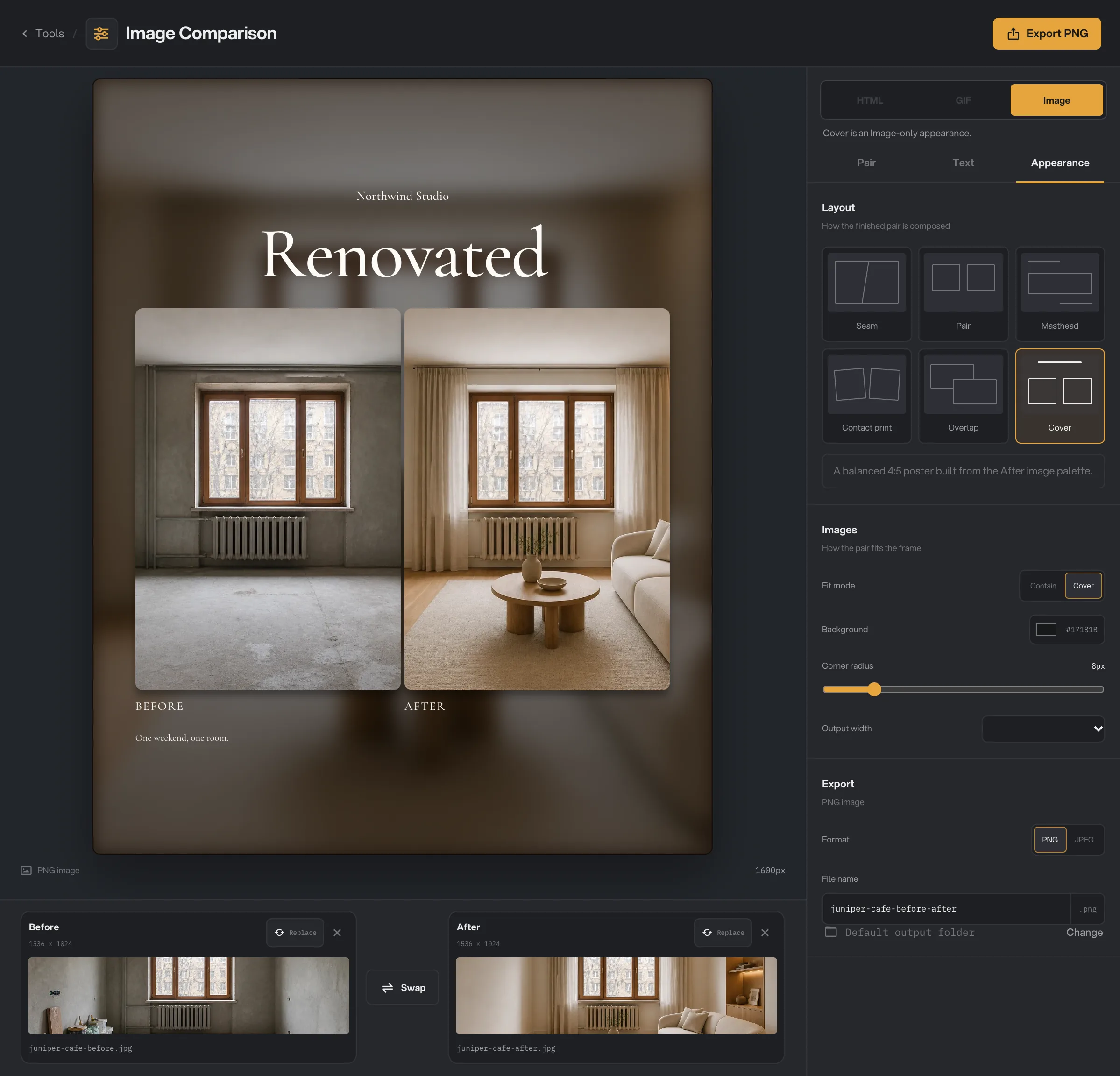
On the Appearance tab, pick a Layout. With Image output all six are available:
- Seam: one frame, one cut. Set Seam angle to tilt the cut up to 30°.
- Pair: the two pictures side by side, or stacked with Orientation set to Vertical, with a caption and brand line.
- Masthead: Before above After, under a large headline.
- Contact print: two tilted prints with bold Before and After markers. Adjust Card tilt, Card spread and Card size.
- Overlap: After in front, Before behind and dimmed. Card offset sets how far apart they sit.
- Cover: a 4:5 poster built from the colors of the After picture, with a headline.
Below the layout you set the colors it uses, such as Paper and Ink, then the Divider (color and Line width) and, for HTML, the Handle style. Under Images, Fit mode chooses Cover (fill the frame and crop) or Contain (show every edge). For Image output, you also set the Background, Corner radius and Output width. For GIF, the Animation section sets the timing and size.
- Layout
- Fit mode
- Output width
- File name
- Export PNG
Step 5: Export, then share it
At the bottom of the Appearance tab, type a File name. For Image output, choose PNG or JPEG. The folder row shows Default output folder: your workspace’s output folder, in a compare folder with a subfolder for today’s date, such as 10-15. Click Change to save this export somewhere else. Then click the export button at the top right, for example Export HTML.
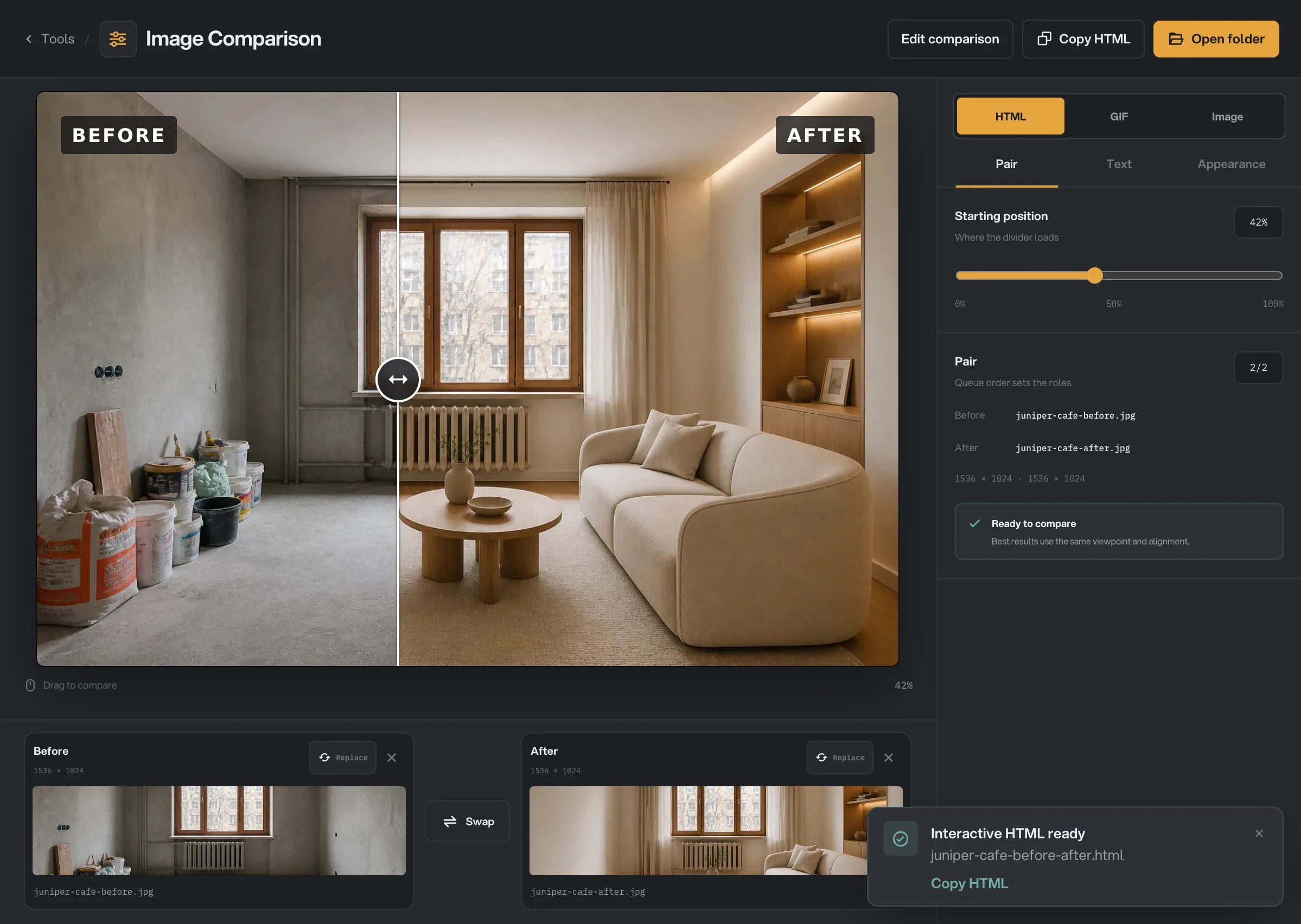
When it finishes, a message confirms the file for a few seconds. After an HTML export, a Copy HTML button appears at the top, next to Edit comparison. Click it to copy the complete code of the exported file, ready to paste where your site accepts custom HTML. Open folder shows the file, and Edit comparison takes you back to change something and export again. See Where your files are saved.
- Interactive HTML ready
- Copy HTML
- Open folder
- Edit comparison
Every setting, and when to change it
Settings only appear when the chosen format and layout use them. They reset when you leave the Studio, so export before you switch to another tool.
- Format
An interactive slider, an animated sweep, or a still picture. HTML and GIF need the Seam layout.
- RangeHTML, GIF, Image
- DefaultHTML
- Starting position
Where the divider sits when the slider loads, and where the cut falls in Seam stills.
- Range0% to 100%
- Default50%
- Before label / After label
The words on each side. They cannot be empty; turn off Show labels to hide them.
- RangeUp to 120 characters
- DefaultBefore / After
- Show labels
Draws the labels into the export.
- DefaultOn
- Typeface
The font of the labels.
- RangeMatch layout, Sans, Display, Mono
- DefaultMatch layout
- Size
How large the labels are.
- Range40% to 400%
- Default100%
- Tracking
The space between letters in the labels.
- Range0% to 40%
- Default9%
- Uppercase
Sets the labels in capitals.
- DefaultOn
- Plate
On Seam and Overlap, a panel behind each label so it reads on any picture. Plate color, Opacity, Padding and Rounding style it.
- DefaultOn
- Headline, Caption, Brand line
Extra text for the still layouts that use it. Display size (50% to 180%) scales the headline on Masthead and Cover.
- RangeUp to 120 characters each
- DefaultEmpty
- Typography
The font pairing for headlines and labels.
- RangeMatch layout, Classic, Editorial, Crafted, Bold, Modern, Neutral
- DefaultMatch layout
- Layout
How the two pictures are arranged. Only Seam works with HTML and GIF.
- RangeSeam, Pair, Masthead, Contact print, Overlap, Cover
- DefaultSeam
- Seam angle
Tilts the cut on the Seam layout.
- Range0° to 30°
- Default0°
- Card tilt, Card spread, Card size
The two prints on the Contact print layout.
- Range0° to 8°, 0 to 200 px, 70% to 130%
- Default3°, 24 px, 100%
- Card offset
How far After sits from Before on the Overlap layout.
- RangeStacked to Apart
- Default9%
- Paper, Ink, Role accent
The page and text colors of Pair, Masthead and Contact print. Role accent colors the Contact print markers.
- RangeAny color
- DefaultWarm white, near-black, red
- Orientation and Gap
On a Pair still, side by side or stacked, and the space between.
- RangeHorizontal, Vertical; 0 to 120 px
- DefaultHorizontal, 24 px
- Show divider
Draws the line between Before and After on Seam. Color and Line width (1 to 8 px) style it.
- DefaultOn
- Handle style
With HTML, the grip on the slider.
- RangeCircle, Pill, Rounded square, Diamond, Minimal, Line only
- DefaultCircle
- Fit mode
Cover fills the frame and crops what does not fit. Contain shows every edge, with background around it.
- RangeCover, Contain
- DefaultCover
- Background
For Image output, the color around and behind the pictures.
- RangeAny color
- DefaultNear-black
- Corner radius
For Image output, rounds the corners of the frame.
- Range0 to 48 px
- Default8 px
- Output width
For Image output, the width of the picture.
- Range1200, 1600, 2048, 2400 px
- Default1600 px
- Duration
For GIF, how long one sweep takes.
- Range1 to 12 s
- Default3 s
- End pause
For GIF, how long it rests on Before and After.
- Range0 to 2000 ms
- Default350 ms
- Direction
For GIF, a sweep there and back, or one way then restart.
- RangeBefore → After → Before, Before → After
- DefaultBefore → After → Before
- Width (GIF)
The width of the GIF.
- Range640, 960, 1280 px
- Default960 px
- Frame rate
For GIF, how smooth the sweep is. Higher means a larger file.
- Range10, 15, 20, 24 FPS
- Default15 FPS
- Optimization
For GIF, trades color accuracy for a smaller file.
- RangeQuality, Balanced, Small
- DefaultBalanced
- Format (Image)
The file type of a still. JPEG quality (60% to 100%, default 92%) appears for JPEG.
- RangePNG, JPEG
- DefaultPNG
- File name
The name of the exported file. Hangar adds the right extension.
- Defaultimage-comparison
How to get the best results
- Shoot both pictures from the same spot. The slider only convinces when the room, product or face lines up on both sides. Use the same position, height and zoom for both shots.
- Match the shapes. Crop both pictures to the same proportions before you add them, so Cover does not crop them differently.
- Pick the format for where it goes. HTML for a website or portfolio page, GIF for social posts and email where a slider cannot run, Image for slides, print and documents.
- Keep labels short. One or two words read best on a phone. Leave the plate on when the labels sit on busy pictures.
- Start the divider where the change is. Set Starting position so the first thing people see is the most striking part of the change.
- Match the client’s site. For HTML, choose a Handle style and divider color that suit the page it will live on.
Why a result disappoints
- The export button is grayed out. The Studio needs exactly two pictures. Add a second one, or remove the extras if you added more than two.
- HTML and GIF are grayed out. The chosen layout is a still layout. Pick Seam on the Appearance tab, or export as Image.
- The panel says the pictures have different aspect ratios. The two pictures have different shapes. With Cover, both are cropped to one frame and edges are cut off (the note calls this Fill). With Contain, every edge shows, with background around the smaller one. For the best slider, crop both to the same shape first.
- The two sides do not line up. The pictures were taken from different spots. Retake or crop them so the main lines match.
- The labels are hard to read. Turn on Plate, raise its opacity, or increase Size.
- The GIF is too large. Lower the Width, the Frame rate or the Duration, or set Optimization to Small.
- The export failed with a message that a picture is over the 100 megapixel limit. Make the picture smaller with Resize images and try again.
- The export failed because a picture could not be read. Open it in another app, save it as JPG or PNG, and use Replace to add it again.
For other errors, see A file failed: what to check.
Limits
- Exactly two pictures per comparison, each up to 100 megapixels.
- HTML and GIF work only with the Seam layout.
- The HTML slider is shown up to 1200 pixels wide, and large pictures are stored at up to 2560 pixels on their long side inside the file.
- Animated GIF and WebP pictures are used as a single still frame.
- The file names of the two pictures, without the extension, are written inside the HTML file. Camera and location data are not copied.
- Settings are not saved. They reset when you leave the Studio.
- Everything runs on your computer. Nothing is uploaded.
Common questions
How do I put the slider on my website?
Export as HTML. Upload the .html file to your site and link to it or embed it. Or, once the export has finished, click Copy HTML to copy the complete code of the file and paste it where your site builder accepts custom HTML. The file contains both images, so it needs nothing else.
Does the HTML slider need an internet connection?
No. Both images and everything the slider needs are inside the one file, so it works from a folder, an email attachment or a web page.
Why can’t I choose HTML or GIF with some layouts?
Only the Seam layout shows Before and After in one frame with a single cut that can move. The other layouts place two separate pictures side by side or stacked, so they export as a PNG or JPEG.
Which image is Before?
The first image you add is Before and the second is After. Click Swap between the two cards to flip them.
Does the result include my photos’ camera or location data?
No. The result contains only the finished pictures. The file names of your two images, without the extension, are written inside the HTML file as image descriptions, so rename the files first if the names are private.
Still stuck?
One person reads every message, usually with a reply within a day.