 Agencies and studios
 Photographers
 Podcasters
 Video and social creators
 Marketers and content teams
What does Beautify shot do?
Beautify shot turns plain screenshots into polished images for launch posts, slides and social media. In the app the tool is called Beautify Shot. It puts each screenshot on a background, rounds its corners, adds a shadow and some space around it, and saves a new PNG. Everything happens on your own computer.
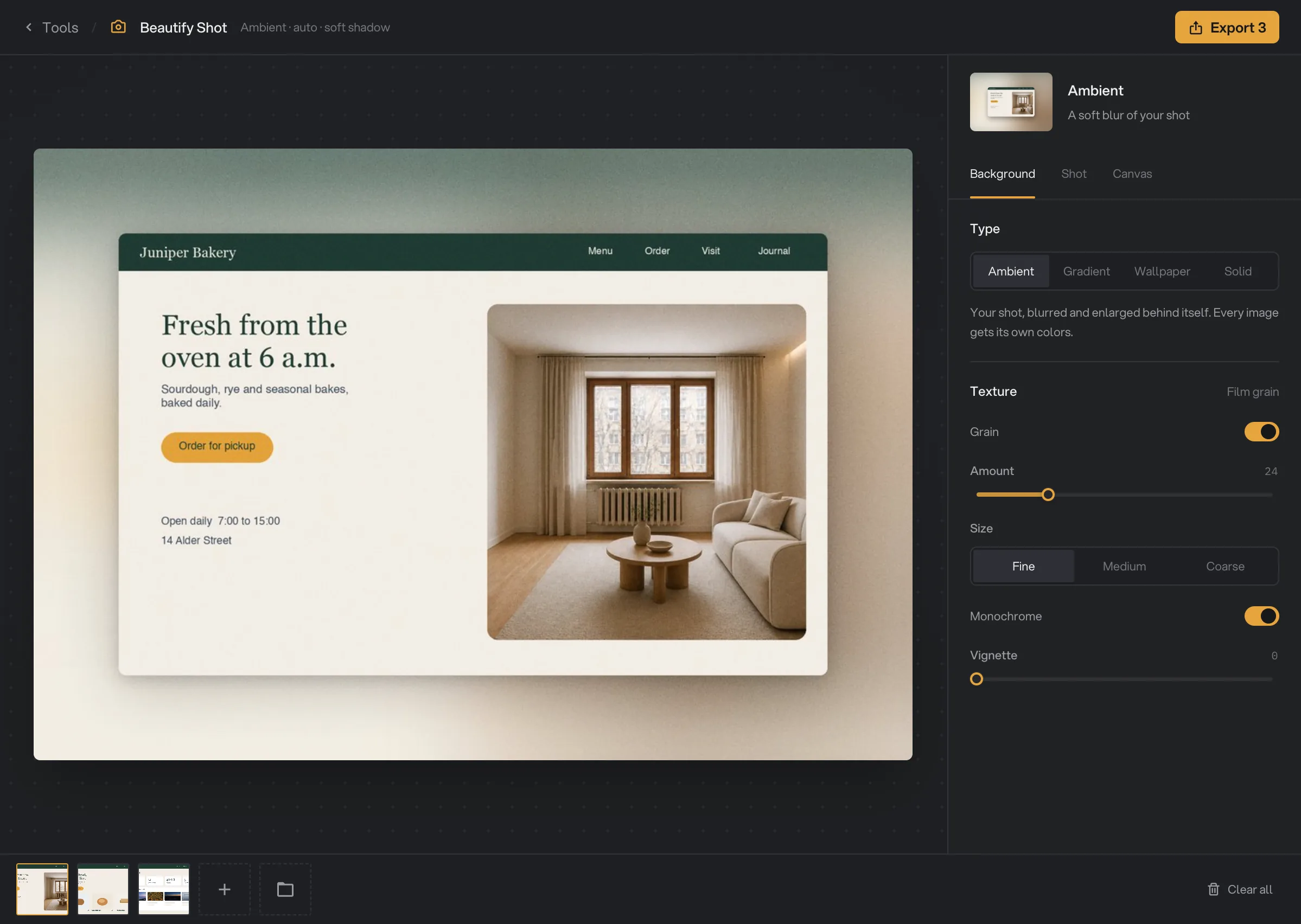
Beautify Shot opens as a Studio: a large live preview, a settings panel on the right and a strip of your images at the bottom. You set one look, check it on any image, and export the whole batch at once.
Step 1: Open the Studio and add your screenshots
Click Tools in the sidebar, open the Create tab and click Beautify Shot in the From your media section. You can also type "beautify" in the search box at the top.
Drop your screenshots on the window, or click Drop screenshots here to pick them. PNG, JPG, WebP and other common image formats work. The strip at the bottom shows every image. Click one to preview it. To add more, click the plus button (Add files) or the folder button (Add a folder) at the end of the strip. Hover a thumbnail and click its small x to remove it, or click Clear all to start over.
- Type
- Background
- Texture
- Filmstrip
- Export 3
Step 2: Choose a background
On the Background tab, pick a Type:
- Ambient (the default): your screenshot, blurred and enlarged behind itself. Every image gets its own matching colors.
- Gradient: From your shot builds a gradient from each image’s own colors, or pick one of 13 ready-made gradients under Presets.
- Wallpaper: browse collections such as Glass, Gradients, Landscapes and Materials, or type in Search wallpapers. To use your own picture, click Import your image. PNG, JPG, WebP and BMP files work, and they stay under Your images for next time.
- Solid: pick one of the swatches, or set any color with Custom color.
Under Texture, Grain adds a light film grain, on by default. Set its Amount and Size (Fine, Medium or Coarse), and turn off Monochrome for colored grain. Vignette darkens the edges of the background.
Step 3: Style the screenshot
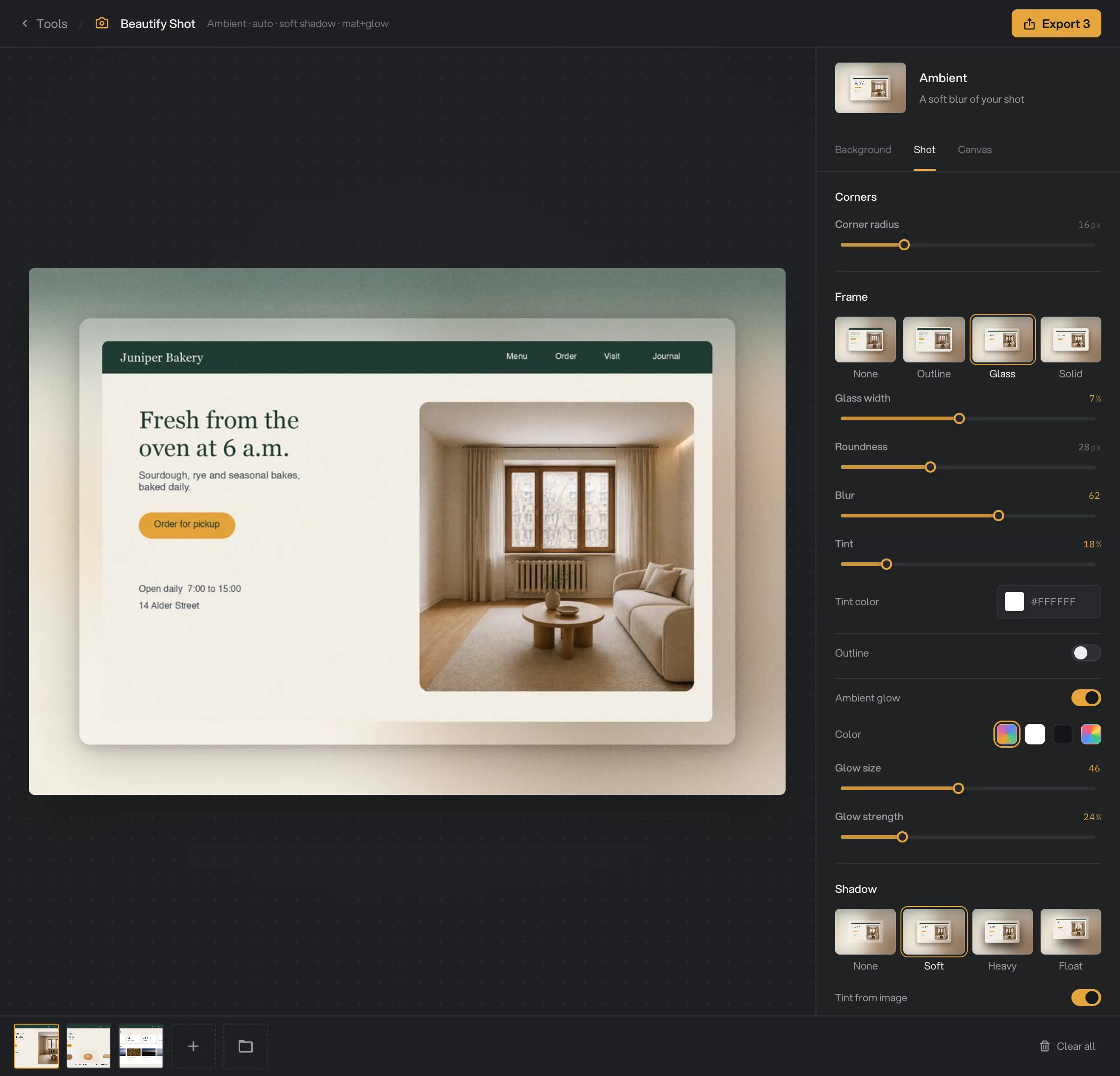
On the Shot tab, set Corner radius to round the corners of the screenshot. Then pick a Frame:
- None: just the screenshot.
- Outline: a thin white line around it. Set Outline width and its Color: white, dark, from the image or a custom color.
- Glass: a frosted glass border with a soft glow. Adjust Glass width, Roundness, Blur, Tint and Tint color.
- Solid: a cream border with a thin dark outline, like a print mount. Adjust Border width, Roundness and Border color.
Glass and Solid also have an Outline switch and an Ambient glow switch, with Glow size and Glow strength.
Under Shadow, choose None, Soft, Heavy or Float. Float lifts the screenshot off the page with a wide, faint shadow. Tint from image colors the shadow with the screenshot’s own colors instead of plain black.
- Corner radius
- Frame
- Glass width
- Shadow
Step 4: Set the shape and spacing
On the Canvas tab, choose an Aspect ratio. Auto keeps each screenshot’s own proportions. 1:1, 4:3, 16:9, 4:5 and 9:16 give every export that shape, with the screenshot centered. Hangar adds background around the screenshot to reach the shape; it never crops the screenshot.
Padding sets the space around the screenshot, as a share of its size. The default 12% suits most posts. Raise it for a smaller screenshot on a larger background.
Step 5: Export, then check the result
Click a few thumbnails in the strip to check the look on each image. The preview is a quick, smaller copy; the export is full size. Then click Export at the top right. The button shows how many images will be exported, for example Export 3.
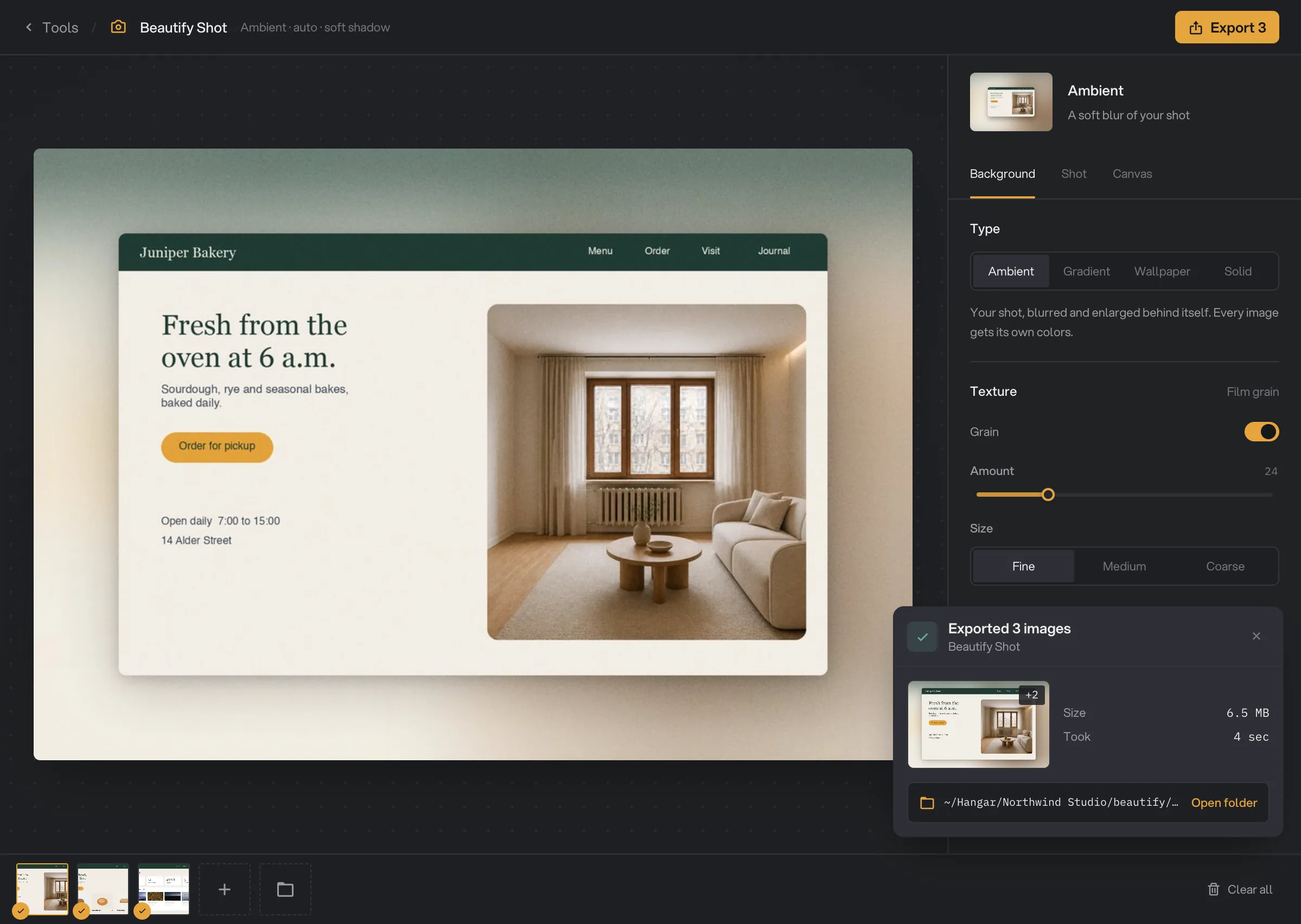
When the export ends, a card shows how many images were exported, a thumbnail of the first one, the total Size and how long it Took. Click Open folder to see the files. They are saved in your workspace’s output folder, in a beautify folder with a subfolder for today’s date, such as 10-15. Each file has -shot added to its name, for example juniper-site-home-shot.png. The card stays until you close it with the x (Dismiss). See Where your files are saved.
- Exported 3 images
- Took
- Open folder
- Dismiss
Every setting, and when to change it
One look applies to every image in the Studio. Some settings only appear when they apply, such as the presets for Gradient or the border settings for Glass and Solid.
- Type
What sits behind the screenshot.
- RangeAmbient, Gradient, Wallpaper, Solid
- DefaultAmbient
- From your shot
With Gradient, builds the gradient from each image’s own colors instead of a preset.
- Presets
With Gradient, a ready-made gradient used for every image. Dawn is selected when you first switch to Gradient.
- Range13 gradients
- DefaultDawn
- Wallpaper
A picture that fills the whole background. Imported images stay under Your images.
- RangeCollections, or Import your image
- DefaultThe first Glass wallpaper
- Custom color
With Solid, the background color.
- RangeAny color
- DefaultNear-black navy
- Grain
Adds a light film grain to the background so flat colors look less digital.
- DefaultOn
- Amount
How strong the grain is.
- Range0 to 100
- Default24
- Size
With Grain, how large the grain specks are.
- RangeFine, Medium, Coarse
- DefaultFine
- Monochrome
Gray grain. Turn it off for colored grain.
- DefaultOn
- Vignette
Darkens the edges of the background to draw the eye to the center.
- Range0 to 40
- Default0
- Corner radius
Rounds the corners of the screenshot.
- Range0 to 64 px
- Default16 px
- Frame
An outline, a frosted glass border or a solid border around the screenshot.
- RangeNone, Outline, Glass, Solid
- DefaultNone
- Outline width
With Outline, the thickness of the line. Its color can be White, Dark, From image or custom.
- Range0 to 8 px
- Default2 px
- Glass width / Border width
How wide the border is, compared with the shorter side of the screenshot.
- Range0% to 15%
- Default7% (Glass), 6% (Solid)
- Roundness
How round the outer corners of the border are.
- Range0 to 80 px
- DefaultSet by the frame
- Blur and Tint
With Glass, how frosted the border looks and how much of the Tint color shows.
- Range0 to 100, 0% to 100%
- Default62 and 18%
- Ambient glow
A soft colored glow around the frame. Glow size and Glow strength set how far it spreads and how strong it is.
- DefaultOn with Glass
- Shadow
The shadow under the screenshot.
- RangeNone, Soft, Heavy, Float
- DefaultSoft
- Tint from image
Colors the shadow with the screenshot’s colors instead of black.
- DefaultOn
- Aspect ratio
The shape of every export. Auto follows each screenshot.
- RangeAuto, 1:1, 4:3, 16:9, 4:5, 9:16
- DefaultAuto
- Padding
The space around the screenshot, as a share of its size.
- Range0% to 50%
- Default12%
How to get the best results
- Start from full-size screenshots. Beautify Shot keeps your screenshot’s own pixels, so a sharp screenshot gives a sharp result. A small or resized screenshot stays small.
- Pick the shape for where you post. Use 1:1 or 4:5 for most social feeds, 9:16 for stories and 16:9 for slides and video thumbnails.
- Let the background match the image. Ambient and From your shot give every screenshot colors that suit it, so a mixed batch still looks like a set.
- Keep it calm for busy screenshots. A dashboard full of detail reads better on a plain Solid or a soft gradient than on a busy wallpaper.
- Check two or three images before exporting. Click different thumbnails in the strip, especially very tall or very wide ones, to see how the same look fits each.
Why a result disappoints
- Export is grayed out. There are no images in the Studio yet, or a setting is not complete. In that case a message at the bottom of the settings panel says what to fix.
- The screenshot looks small on the background. Lower Padding, or switch Aspect ratio to Auto. A fixed shape that is very different from the screenshot adds a lot of background.
- The background looks muddy with Ambient. Ambient takes its colors from the screenshot, so a mostly white or gray screenshot gives a gray background. Try From your shot, a preset gradient or a wallpaper.
- The export looks blurry. The original screenshot was small. Take the screenshot again at full size. Exports larger than 8192 pixels on a side are scaled down to fit.
- An animated GIF lost its animation. Beautify Shot uses the first frame only.
- A file failed because Hangar couldn’t read it. The image may be damaged or in an unusual format. Open it in another app, save it as PNG, and add it again.
- My settings are gone. Settings last while Hangar is open. They reset after you quit and start Hangar again.
For other errors, see A file failed: what to check.
Limits
- Beautify Shot takes image files. SVG and camera RAW files are not accepted. To show a screenshot inside a laptop or phone, use Device mockup.
- Exports are always PNG files. There is no transparent background option.
- One look applies to the whole batch. To give images different looks, export them in groups.
- The largest export is 8192 pixels on its longest side. Larger results are scaled down to fit.
- Animated GIF and WebP files are exported as a single still frame.
- Files are saved in your workspace’s output folder. Beautify Shot has no option to pick another folder for one export.
- Everything runs on your computer. Nothing is uploaded.
Common questions
Can I give each screenshot a different background?
Not in one export. Beautify Shot applies one look to every image in the Studio. To mix looks, export one group, change the settings, then export the next group. With Ambient or From your shot, each image still gets its own colors.
Can I export with a transparent background?
No. Every export has a full background: Ambient, a gradient, a wallpaper, your own image or a solid color.
Can it use my brand colors?
Not automatically. Choose Solid and click the Custom color swatch to pick your brand color, or import an image in your brand colors with Import your image under Wallpaper.
Does it make my screenshot smaller or blurry?
No. Your screenshot keeps its own pixels, and the background is built around it. Only an export wider or taller than 8192 pixels is scaled down to fit.
Are my settings saved for next time?
They stay while Hangar is open, so you can come back to the Studio and export more. They reset when you quit Hangar.
Still stuck?
One person reads every message, usually with a reply within a day.