 Agencies and studios
 Photographers
 Podcasters
 Video and social creators
 Marketers and content teams
What does Resize images do?
Resize images changes the size of your pictures, on your own computer. Make a batch of photos the same width for a website, fit them to an Instagram post or a YouTube thumbnail, or scale them by a percentage. In the app the tool is called Resize Image.
You can pick a ready-made size for social media and the web, or set your own. When the photo’s shape does not match the frame, you choose whether to keep the whole photo with a fill around it, or crop it. Each image is saved again in its own format, one file for each image you add.
Step 1: Add your images
Click Tools in the sidebar, open the Image tab and click Resize Image in the Edit section. You can also type "resize" in the search box at the top.
Drop your images on the queue, or click it to pick files. Resize Image takes JPG, PNG, WebP and BMP files. Each row shows the image’s size now and the size it will have, such as "4000×2250 → 1080×1080". Use Add more to add files later.
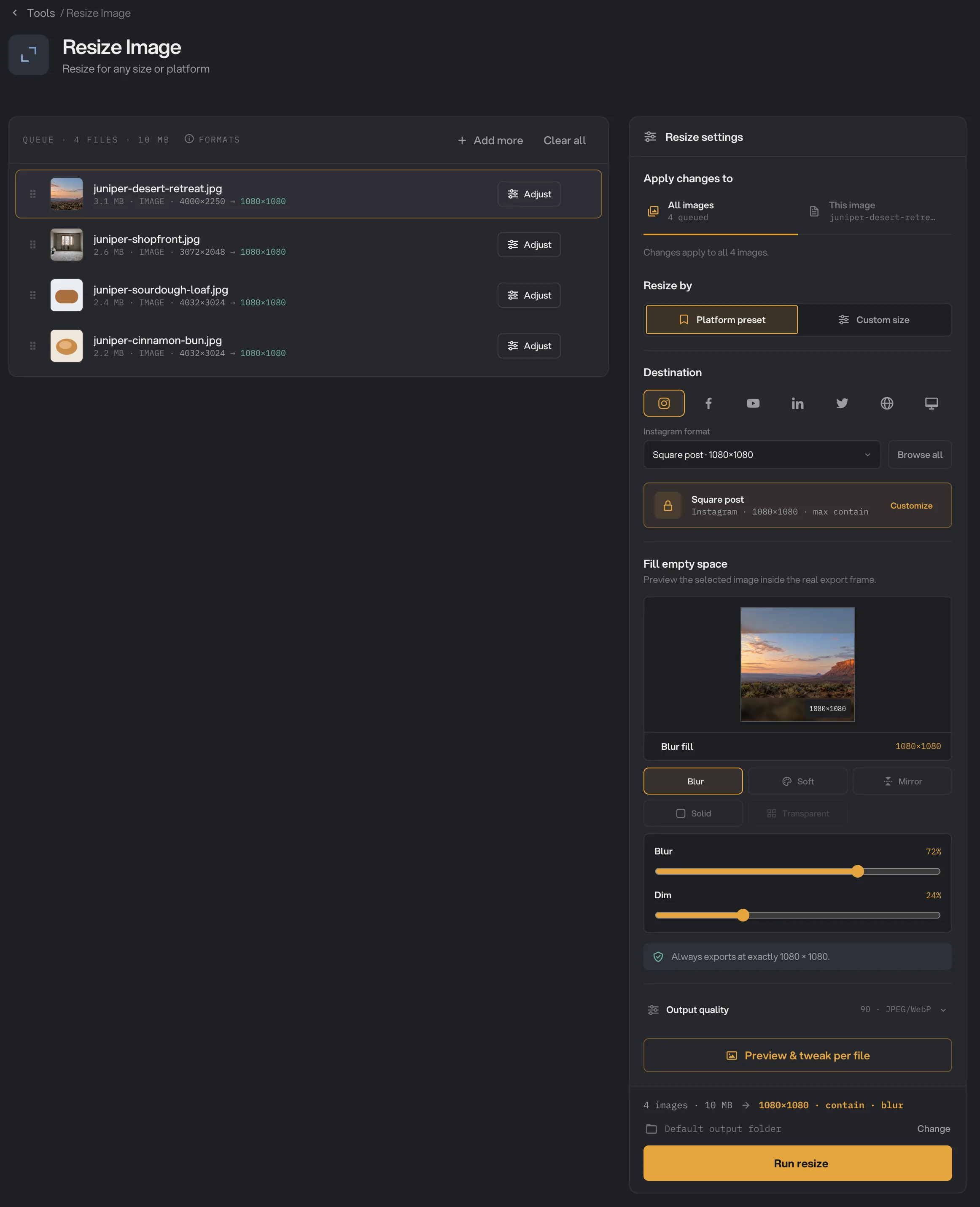
- Apply changes to
- Resize by
- Format menu
- Fill empty space
- Preview & tweak per file
- Run resize
Step 2: Choose the size
Under Resize by, pick one of two ways:
- Platform preset for a ready-made size. Click a platform icon (Instagram, Facebook, YouTube, LinkedIn, X, Web or Screen), then pick a format from the menu under it, such as Square post · 1080×1080. Click Browse all to search every format in the Resize studio. Click Customize on the chosen preset to fine-tune its size.
- Custom size to set your own. Under Size & frame, pick Longest edge to cap the longest side (click 512, 1024, 1600, 2048 or 4096, or type a number), Exact size for a set width and height, or Percentage to scale every image by the same amount.
For a website, Longest edge is usually right: each image keeps its shape and gets no larger than the number you set.
Step 3: Decide how the photo fits the frame
A platform preset or an Exact size sets both the width and the height, so a photo of another shape needs a choice. Under How should it fit?:
- Fit inside keeps the whole photo. The empty space around it is filled as you choose under Fill empty space: Blur (a soft blurred copy of the photo), Soft (a smooth color taken from the photo), Mirror (a reflected copy), Solid (one color you pick), Transparent (PNG and WebP only) or No background. The preview shows the selected image in the real frame. With No background, the image is simply made to fit inside the size and may come out smaller than it.
- Fill & crop fills the whole frame and crops what does not fit. Open Advanced to pick the Focal point, the part of the photo that stays in the frame, and Crop zoom to crop in closer.
- Stretch forces the photo to the exact size, which squeezes or widens it. Use it only for images where that does not show.
Platform presets always use Fit inside with a fill. For a cropped post instead, click Customize and choose Fill & crop.
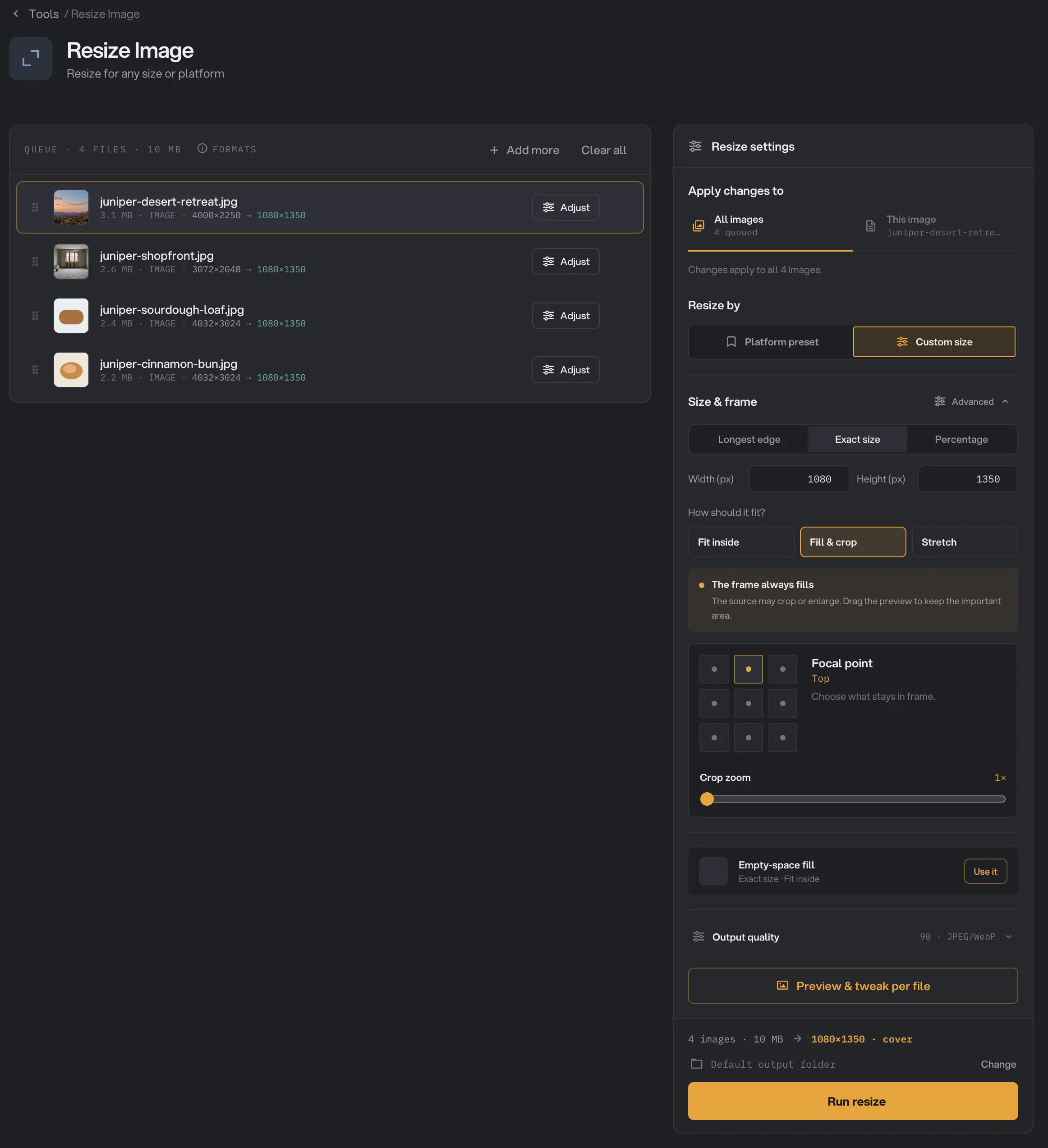
- Size & frame
- How should it fit?
- Advanced
- Focal point
- Crop zoom
Step 4: Check each image in the Resize studio
Click Preview & tweak per file to open the Resize studio. It shows each image at its new size, exactly framed. Use the arrows at the top, or the strip of images at the bottom, to move between images.
With Fill & crop, drag the photo to choose what stays in the frame, or nudge it with the arrow keys. The panel on the right has the same settings as the tool, plus a search box for platform formats. Click Done when it looks right.
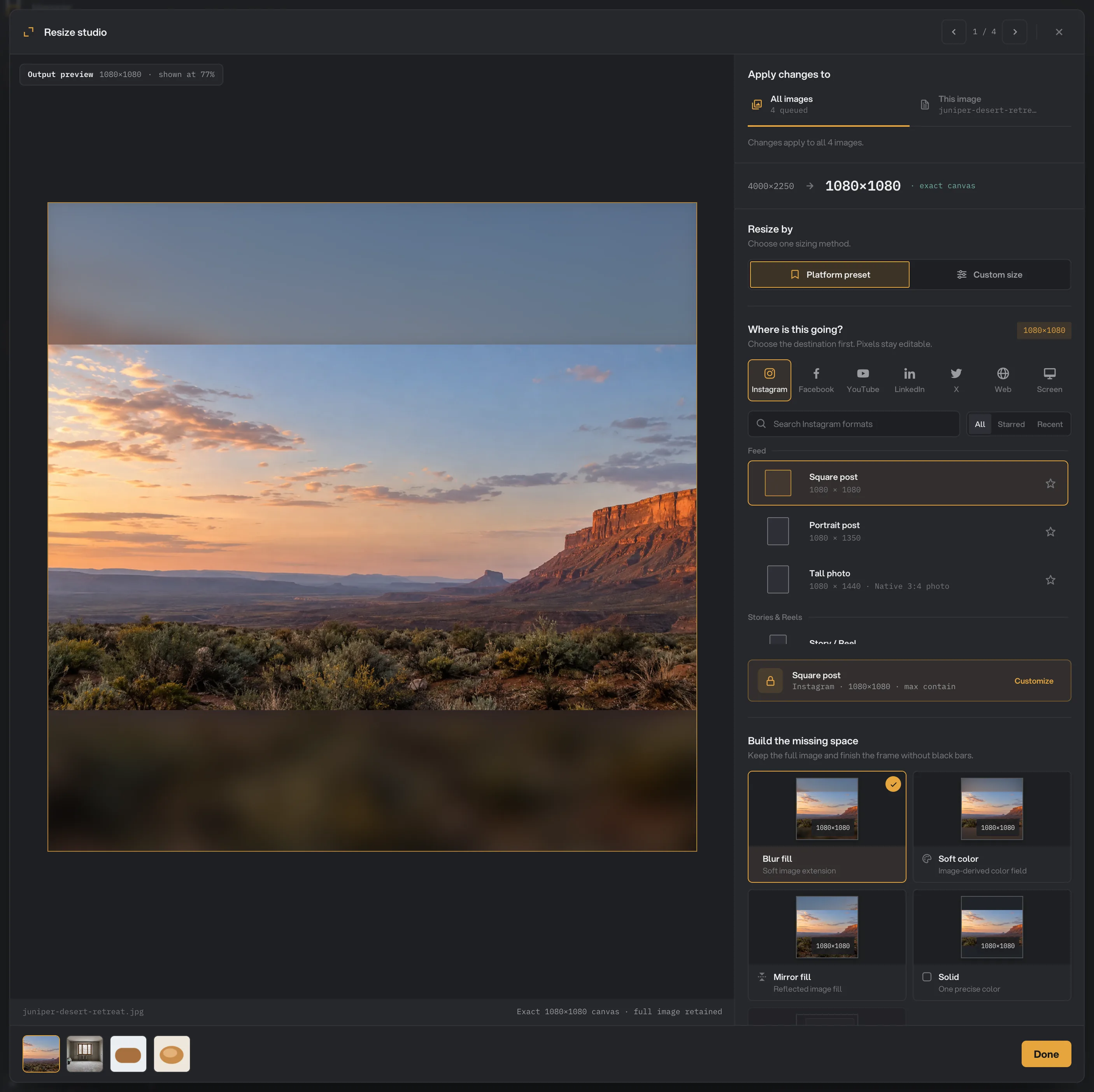
- Next image
- Output preview
- Apply changes to
- Where is this going?
- Build the missing space
- Done
Changes apply to every image while Apply changes to is set to All images. Choose This image to give only the image you are looking at its own settings, for example a different crop. It is then marked Custom in the queue, and Use All images puts it back in line with the rest. You can also click Adjust on an image in the queue to open the studio on it. Custom settings last until you close Hangar.
Step 5: Run, then check the result
Check where the files will go: Default output folder saves them in your workspace’s output folder, in a resize folder with a subfolder for today’s date, such as 10-15. Click Change to pick another folder for this run. Then click Run resize.
When the run ends, each file shows Done, or Kept if its size did not need to change. Click View on a file to compare it with the original, and Open folder to go to the resized copies. Each keeps its name and format. See See and compare your results and Where your files are saved.
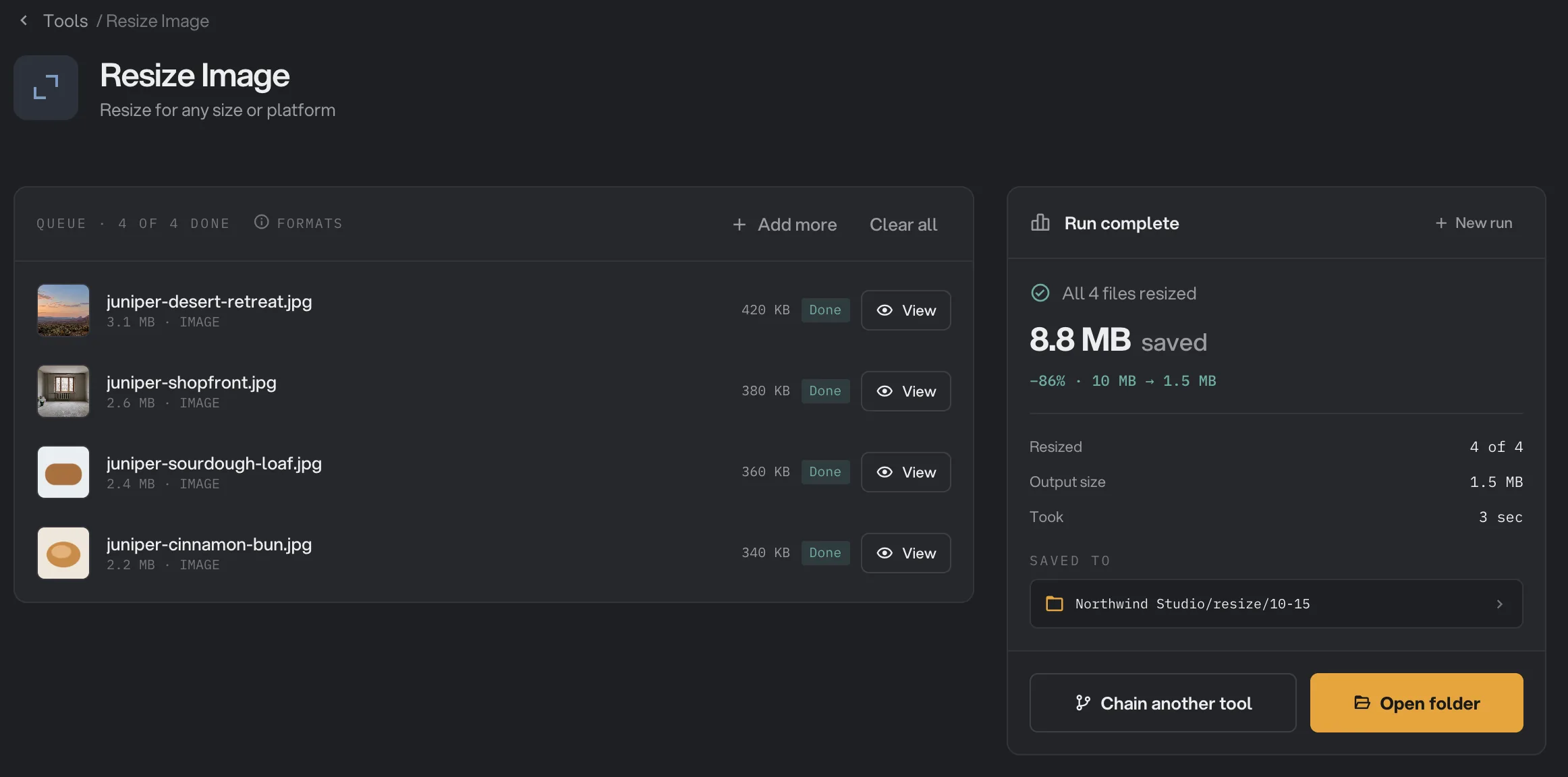
- Done
- View
- Saved to
- Open folder
Every setting, and when to change it
Some settings only appear when they apply: the size boxes for the mode you pick, the fit choices for Exact size, the fill choices for Fit inside, and the quality setting when the batch has JPEG or WebP files.
- Apply changes to
Whether a change applies to the whole batch or only to the selected image.
- RangeAll images, This image
- DefaultAll images
- Resize by
Pick a ready-made size for a platform, or set your own.
- RangePlatform preset, Custom size
- DefaultCustom size
- Platform format
The exact size to make. Presets always fill the frame around the photo instead of cropping it.
- Range28 sizes for Instagram, Facebook, YouTube, LinkedIn, X, Web and Screen
- DefaultSquare post · 1080×1080, the first time you pick Platform preset
- Size & frame
How the new size is set.
- RangeLongest edge, Exact size, Percentage
- DefaultLongest edge
- Longest edge (px)
The longest side each image may have. The other side follows, so the shape stays the same.
- Range1 to 60,000 pixels
- Default2048
- Width (px) and Height (px)
The exact size for Exact size.
- Range1 to 60,000 pixels
- Default1920 × 1080
- Scale
The percentage for Percentage.
- Range1% to 400% with the slider, up to 1000% in the box
- Default50%
- How should it fit?
What happens when the photo’s shape differs from the exact size: keep it whole, crop it, or stretch it.
- RangeFit inside, Fill & crop, Stretch
- DefaultFit inside
- Fill empty space
With Fit inside, what fills the space around the photo. Transparent works for PNG and WebP only. No background lets the image come out smaller than the frame.
- RangeBlur, Soft, Mirror, Solid, Transparent, No background
- DefaultBlur
- Blur or Softness
How soft the Blur or Soft fill is.
- Range0% to 100%
- Default72%
- Dim
Darkens the fill so the photo stands out.
- Range0% to 80%
- Default24%
- Canvas color
The color of the Solid fill.
- RangeAny color
- DefaultDark gray
- Focal point
With Fill & crop, the part of the photo kept in the frame. Under Advanced.
- Range9 positions
- DefaultCenter
- Crop zoom
With Fill & crop, crops in closer around the focal point. Under Advanced.
- Range1× to 20×
- Default1×
- Never upscale
Keeps the result no larger than the original with Longest edge, Percentage, Stretch, and Fit inside with No background. Under Advanced. Platform presets turn it off.
- DefaultOn
- Re-encode quality
How much detail JPEG and WebP files keep when saved again. PNG stays lossless. Under Output quality.
- Range1 to 100
- Default90
How do I get the best results?
- Start from the largest original you have. Making an image smaller keeps it sharp. Making it larger cannot add detail, so small images look soft when a preset enlarges them.
- For social posts, use a platform preset. If a photo has an important edge, such as a face near the top, use Fill & crop and set the focal point, or drag it in the Resize studio.
- For a website, use Longest edge at the size the image is shown, or twice that for sharp screens.
- To make files small too, run Image Compress after resizing. Resize Image saves JPEG and WebP at quality 90 by default and does not shrink PNG files further.
- For mixed batches, open the Resize studio and look through every image before you run. Give an image its own crop with This image instead of changing the whole batch.
Why does a result look wrong?
- The image came out blurry. It was smaller than the new size and was enlarged. That happens with platform presets, Fill & crop and fills, which always make the full frame. Start from a larger original.
- A file is marked Kept. Its size would not change, so Hangar saved an exact copy of the original. Usually the image is already smaller than your Longest edge and Never upscale is on.
- Part of the photo is cut off. You chose Fill & crop. Move the focal point, or switch to Fit inside to keep the whole photo.
- The photo looks squeezed. You chose Stretch. Use Fit inside or Fill & crop.
- The image is smaller than the size I asked for. You chose Fit inside with No background, which fits the image inside the size without filling the rest. Pick a fill to always get the exact size.
- A file failed with a message about transparent backgrounds. Transparent only works when every image is PNG or WebP. Pick another fill, or convert the images to PNG with Image Convert first.
- A HEIC, AVIF, GIF or TIFF file was skipped or failed. Resize Image does not support these yet. Convert them to JPEG or PNG first.
- A phone photo comes out with width and height swapped, or cropped in the wrong place. Some phone photos are saved sideways and only turned upright when you view them. Resize Image sizes them as they are saved. Run Rotate & flip first with Auto-fix orientation on, then resize the result.
For other errors, see A file failed: what to check.
Limits
- Resize Image takes JPG, PNG, WebP and BMP files. HEIC, HEIF, AVIF, GIF and TIFF are not supported yet, and animated WebP files are refused so their animation is not lost.
- Sizes go up to 60,000 pixels on a side.
- Each image keeps its format. To change formats, use Image Convert.
- Custom settings for single images last until you close Hangar.
- Add image files, not folders.
- Everything runs on your computer. Nothing is uploaded.
Use Resize Image in a chain
Resize is available as a step in chains, under the Image steps, with the same presets, sizes and fills as the tool. The Resize studio, Browse all and custom settings for single images are not available in a chain. The starter chains Web-ready photos (resize, then compress) and Social export (resize, then convert) both start with it. A Kept file passes to the next step unchanged.
Put Resize early in a chain, before Compress or Convert, so later steps work on the final size. To run the same chain on new files each week, see Run a chain on many files.
Common questions
How do I make Instagram posts without cropping my photos?
Click Platform preset, pick Instagram and choose Square post or Portrait post. Hangar makes every image exactly that size and fills the empty space around the photo with a soft blurred copy of it, so nothing is cut off. Choose Solid under Fill empty space for a plain color instead.
Will it enlarge small images?
With Longest edge, Percentage or Fit inside with No background, no: Never upscale is on and keeps each image at most its original size. Platform presets, Fill & crop and exact sizes with a background always make the full frame, so a small image is enlarged to fill it.
Can I choose where it crops?
Yes. With Fill & crop, open Advanced and pick a Focal point, or open the Resize studio and drag the photo until the important part is in the frame.
Can one image have different settings from the rest?
Yes. Click Adjust on that image, or open the Resize studio, choose This image under Apply changes to and change its settings. The image is marked Custom. Custom settings last until you close Hangar.
Does it work on HEIC or AVIF photos?
Not yet. Convert them to JPEG or PNG with Image Convert first, then resize the result.
Is my original changed?
No. Hangar saves the resized copy, with the same name and format, in your output folder and leaves the original where it was.
Still stuck?
One person reads every message, usually with a reply within a day.