 Agencies and studios
 Photographers
 Podcasters
 Video and social creators
 Marketers and content teams
What does Caption video do?
Caption video writes down what is said in your videos and puts the words on the picture as animated captions, on your own computer. Captions help people follow a clip with the sound off. In the app the tool is called Video Captions, and it opens the Caption Studio.
You can fix any word, pick a ready-made look, add motion, highlight each word as it is spoken, and crop the video to a vertical, square or wide frame. Each video you add gives back a new MP4 with the captions burned in.
Step 1: Open the Caption Studio and add videos
Click Tools in the sidebar, open the Video tab and click Video Captions in the Enhance section. You can also type "captions" in the search box at the top. The Caption Studio fills the window.
Drop your videos on it, or click Browse to pick them. MP4, MOV, WebM and MKV work, as well as other common video files. With several videos, they appear in a strip at the bottom. Click one to work on it. To add more later, click Add videos under the picture, or the add button at the end of the strip.
Step 2: Let Hangar write down the words
Hangar uses a speech recognition model that you set up once. The first time, the picture area shows a card such as Set up Best overall, with the download size, about 574 MB for Best overall. Click Set up and start. After that, captioning works offline.
When the setup is ready, Hangar transcribes each video on its own, one after another, and detects the language. The header shows how many videos are ready, such as "2/2 ready". While a video is being transcribed you can click Cancel, or Use an SRT instead to bring your own subtitles. Activity lists each step if you want to follow along.
To use another mode, click Change next to Transcription mode in the transcript panel. New videos use the new mode. To redo a video that is already done, click Retranscribe. The modes are the same as in Transcribe: see Transcribe: settings and best results.
Step 3: Check and fix the words
The transcript panel on the right lists every caption. Click a word to jump the video to it. Click Edit on a caption to change its text, then press Enter or click Save. Check names and brand words first.
- Find searches every caption. Type a replacement and click Replace all to fix a misspelled name everywhere at once. The timing stays the same.
- The timeline under the video shows each caption as a block. Select one to change its IN and OUT times or delete it, and click Add subtitle to add a caption where the video has none.
- Import SRT replaces the clip’s captions with an .srt subtitle file you already have.
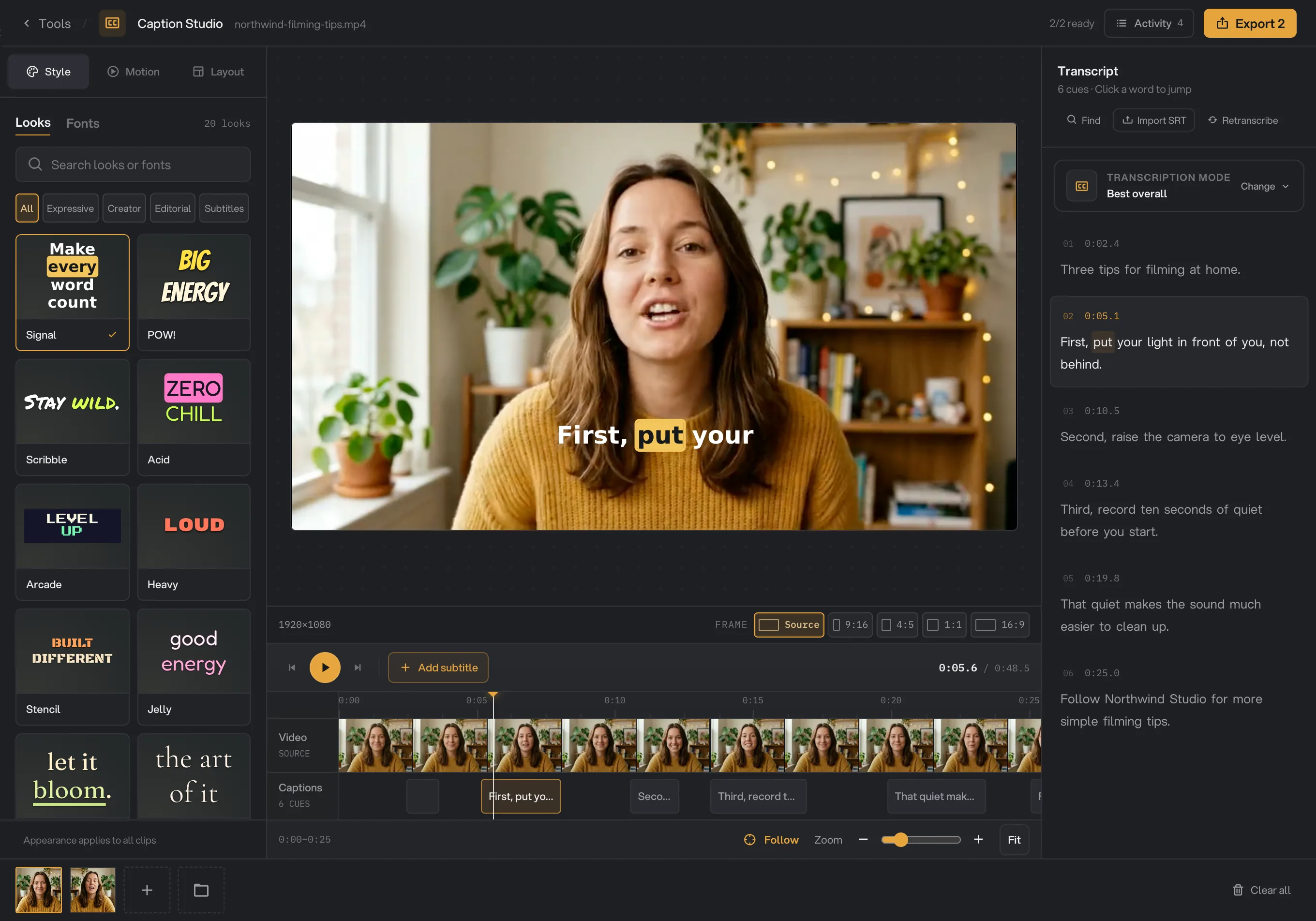
- Signal
- Caption on the picture
- Click a word to jump
- Add subtitle
Step 4: Choose a look
The Style tab on the left shows ready-made looks. Click one to apply it. The default, Signal, shows three words at a time in a clean bold type and puts the spoken word in a gold box. Use the chips (Expressive, Creator, Editorial, Subtitles) or the search box to narrow the list, and turn on Include classic looks for 16 more.
Under Make it yours, change the Typeface, the colors (Text, Active for the spoken word, Accent and Backing), the Size and the letter case. Open Outline & backing for the backing’s opacity, an outline and a shadow. Reset goes back to the look as it came.
Step 5: Add motion
In the Motion tab, pick how each phrase appears: Still, Soft fade, Rise, Scale pop, Word reveal (words appear as they are spoken) or Bounce. Play the video to see it.
Turn on Follow the speaker to make the word being spoken stand out, with a Color, a Box or an Underline.
Step 6: Frame the video and place the captions
In the Layout tab, pick a Delivery frame: Source keeps the video’s own shape, and 9:16, 4:5, 1:1 and 16:9 crop it for stories, feeds and wide screens. The shaded area is left out. Drag the picture to choose what stays in the frame. Each video keeps its own frame.
Under Caption position, pick Top, Center or Lower, or drag the captions on the picture. The Horizontal and Vertical sliders fine-tune it. Words at once sets how many words show together, from 1 to 8. Reset position puts the captions back at Lower, centered.
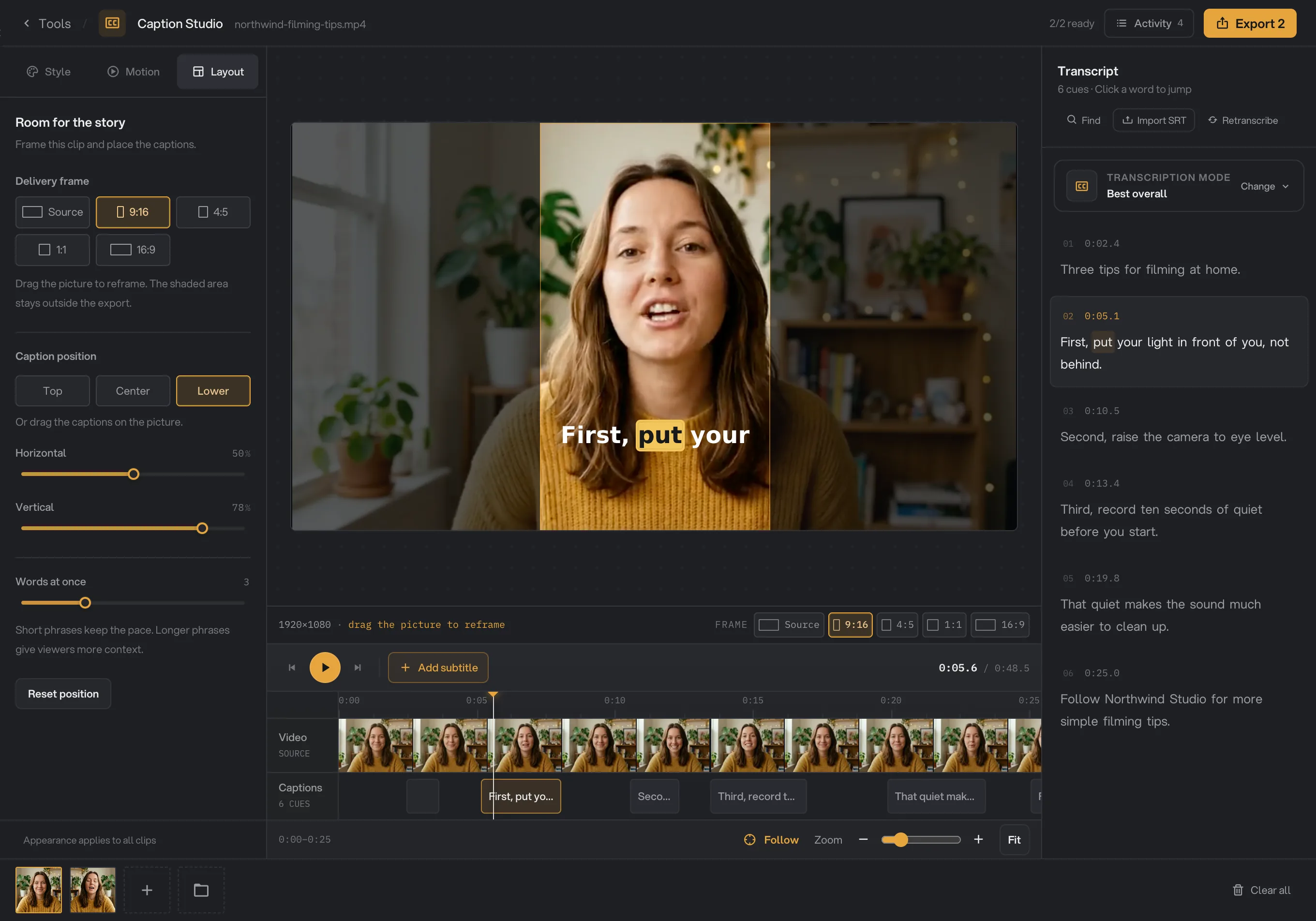
- Layout
- Delivery frame
- Crop area
- Caption position
- Words at once
The look, motion and caption position apply to every video in the Caption Studio.
Step 7: Export the captioned videos
When every video is ready, click Export in the top right. The number on it is how many videos will be exported. Hangar saves each one as a new MP4 with -captioned added to its name, such as northwind-filming-tips-captioned.mp4, in your workspace’s output folder, in a caption folder with a subfolder for today’s date, such as 10-15.
A card then shows how many videos were exported, with their size and the time it took. Click Open folder to go to them. See Where your files are saved.
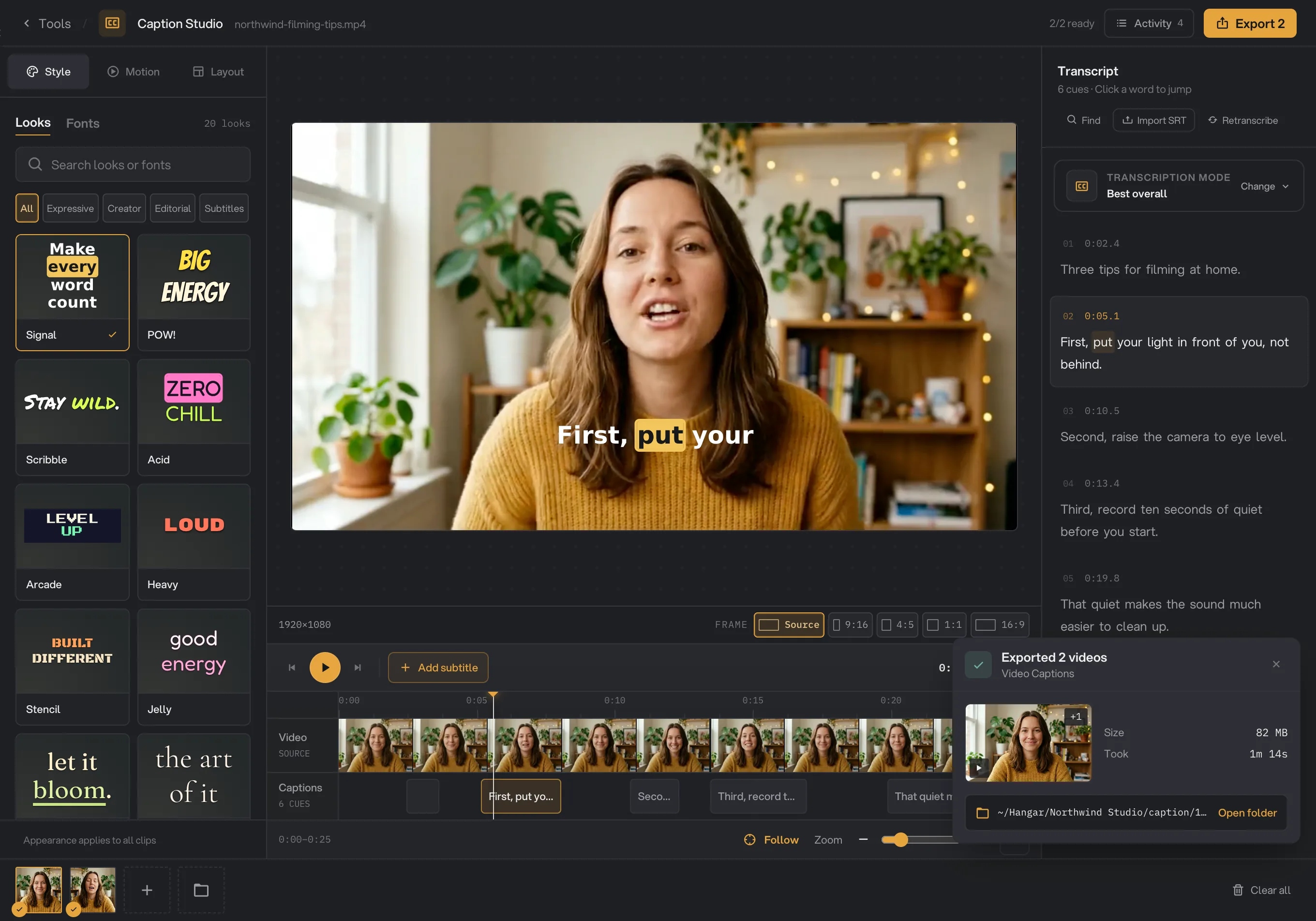
- Export 2
- Exported 2 videos
- Open folder
Every setting, and when to change it
Picking a look sets all the style settings at once. Change any of them afterward to make the look your own.
- Look
A ready-made combination of type, colors, size and motion.
- Range20 looks, 36 with Include classic looks
- DefaultSignal
- Typeface
The lettering of the captions.
- Range17 typefaces
- DefaultThe look’s typeface
- Text, Active, Accent, Backing
The color of the words, the spoken word, the highlight and the panel behind the text.
- RangeAny color
- DefaultThe look’s colors
- Size
How big the captions are.
- Range24 to 120 px
- Default64 px (Signal)
- Case
Changes the letter case of every caption.
- RangeAa (as written), AA (all capitals), aa (all lowercase)
- DefaultAa (Signal)
- Backing opacity
How solid the panel behind the text is. Under Outline & backing.
- Range0% to 100%
- DefaultThe look’s value
- Outline
A line around each letter, for busy backgrounds.
- Range0 to 8 px
- Default0 (Signal)
- Shadow
A soft shadow under the text.
- Range0 to 12 px
- Default0 (Signal)
- Motion
How each phrase appears on screen.
- RangeStill, Soft fade, Rise, Scale pop, Word reveal, Bounce
- DefaultStill (Signal)
- Follow the speaker
Makes the word being spoken stand out.
- RangeOn or off; Color, Box, Underline
- DefaultOn, Box (Signal)
- Delivery frame
The shape of the exported video. Other shapes crop the picture; nothing is stretched or padded. Set per video.
- RangeSource, 9:16, 4:5, 1:1, 16:9
- DefaultSource
- Caption position
Where the captions sit on the picture. You can also drag them.
- RangeTop, Center, Lower, or Horizontal and Vertical 5% to 95%
- DefaultLower
- Words at once
How many words show together. Fewer words feel faster; more give viewers context.
- Range1 to 8
- Default3 (Signal)
- Transcription mode
Which speech recognition writes the captions. Each mode needs a one-time setup.
- RangeBest overall, English · Quick, English · Long-form, European languages
- DefaultBest overall
How do I get the best results?
- Read every caption before you export. Fix names, brands and numbers in the transcript panel. Find and Replace all fixes a name in every caption at once.
- For phone video, choose 9:16 or 4:5, keep Words at once at 2 or 3, and use a large size so the words read on a small screen.
- Keep captions out of the way. Move them up if the app you post to puts its buttons and text at the bottom of the screen.
- On busy footage, add a backing or an outline so the words stay readable.
- Start with clear speech. A close microphone and little background music give the most accurate words.
Why does a result disappoint?
- Some words are wrong. Edit them in the transcript panel before you export. Or pick another mode under Transcription mode, such as English · Long-form for long English talks, and click Retranscribe.
- Captions appear too early or too late. Select the caption in the timeline and adjust its IN and OUT times.
- Export is blocked with a warning about Arabic or Hebrew. Right-to-left captions are not supported yet, so Hangar stops instead of showing the words backward.
- Export is blocked with a warning about a missing font. The captions contain characters that the caption fonts cannot draw. Hangar stops instead of showing empty boxes.
- The export failed because the caption track is too long. A video can have at most 2,000 caption words. Cut the video into shorter clips with Trim Video or Split Video, then caption each one.
- Transcription stopped with a message that no speech was detected. The video has no clear speech to caption. Check that it has sound, or import an SRT.
- Transcription stopped. Click View activity to see the step that failed, then Try again. If Hangar asks Use Fast Multilingual? after a graphics problem, click Download and retry. It is a one-time 190 MB download, and the retry runs on your computer.
- The edges of the picture are missing. You chose a delivery frame that crops the video. Drag the picture to choose what stays in, or pick Source.
For other errors, see A file failed: what to check.
Limits
- Each transcription mode needs a one-time download, about 190 MB to 670 MB. After that it works offline.
- A video can have up to 2,000 caption words. Split longer videos first.
- Right-to-left scripts, such as Arabic and Hebrew, cannot be exported yet.
- The look, motion and caption position are the same for every video in one export.
- Transcripts and edits last until you close Hangar.
- Export always saves to your workspace’s default output folder, and the video is saved as MP4.
- Everything runs on your computer. Nothing is uploaded.
Common questions
Does my video leave my computer?
No. Speech recognition and the export both run on your own computer. Only the one-time setup downloads files. After that, captioning works offline.
Which languages work?
With the default mode, Best overall, 99 languages, detected automatically. Arabic, Hebrew and other right-to-left scripts cannot be exported yet: the Caption Studio warns you and blocks the export so the text is not shown backward.
Can I use subtitles I already have?
Yes. Click Import SRT in the transcript panel and pick an .srt file. Its words and timing replace the clip’s transcript, and you can style them like any other captions.
Can each video have its own style?
The look, motion and caption position apply to every video in the Caption Studio. Each video keeps its own transcript and its own delivery frame, such as 9:16 for one clip and 1:1 for another.
Are my transcript edits saved?
They are kept until you close Hangar. Export your videos before you quit. If you need the text itself, run Transcribe on the video to save it as a subtitle or text file.
Is my original video changed?
No. Hangar saves a new copy with -captioned at the end of its name and leaves the original where it was.
Still stuck?
One person reads every message, usually with a reply within a day.