 Agencies and studios
 Photographers
 Podcasters
 Video and social creators
 Marketers and content teams
What does Merge audio do?
Merge audio turns several audio files into one, on your own computer. Join an intro, an interview and an outro into one podcast episode, or lay a voiceover over background music. In the app the tool is called Merge Audio.
There are two ways to merge. Concatenate plays the files one after another, with a smooth crossfade at each join if you want one. Mix plays them together, each with its own start time and volume. Either way, all the files you add become one new file.
Step 1: Add your audio files in order
Click Tools in the sidebar, open the Audio tab and click Merge Audio in the Cut & join section. You can also type "merge audio" in the search box at the top.
Drop at least two audio files on the queue, or click it to pick them. Merge Audio takes MP3, WAV, FLAC, AAC, OGG, Opus, M4A, AIFF, AIF and WMA files, and you can mix formats. Video files are listed under Not applicable.
The files are joined in queue order, top to bottom. Drag a row by its handle to move it. You can also reorder them in the Merge studio.
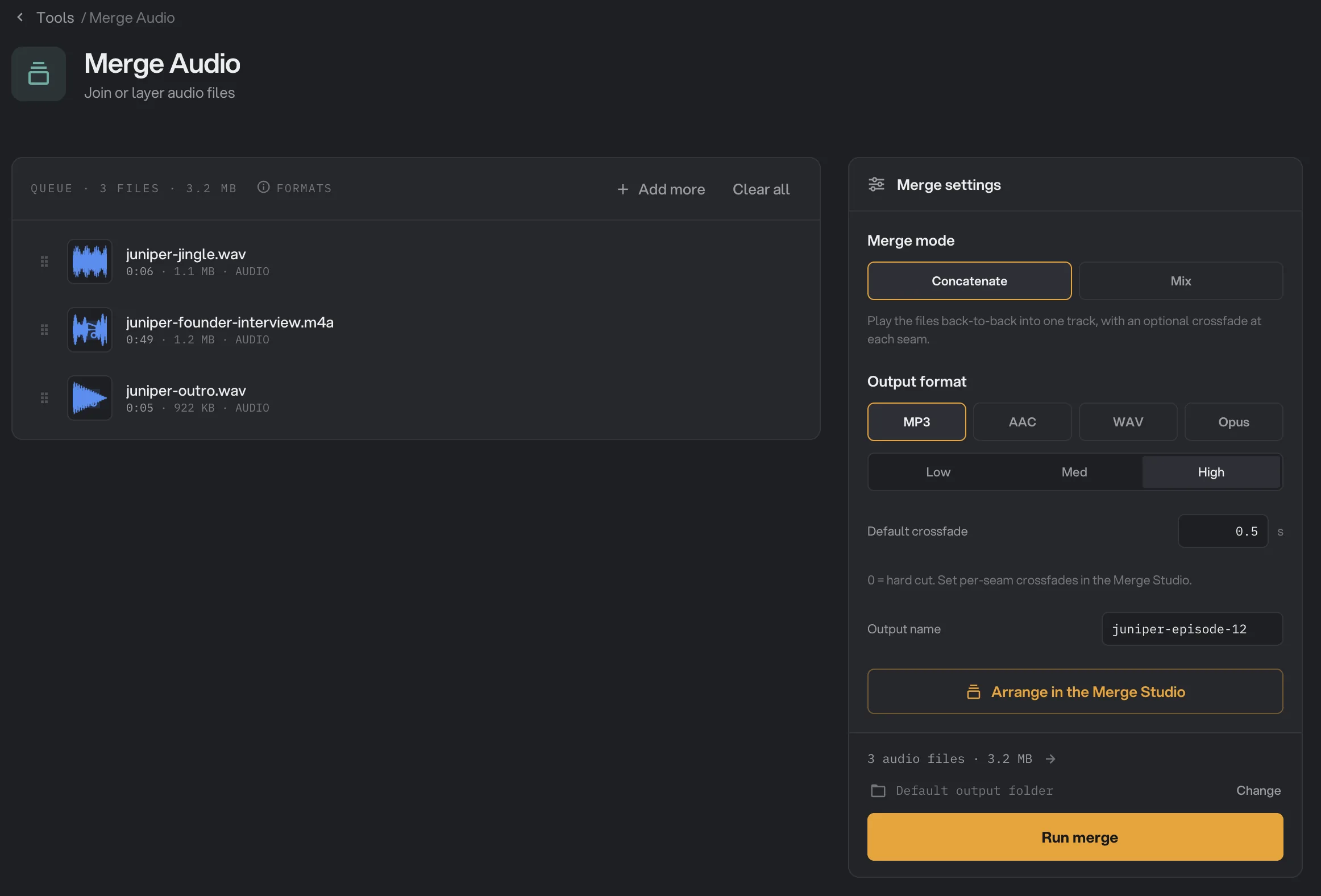
- Merge mode
- Output format
- Default crossfade
- Output name
- Arrange in the Merge Studio
- Run merge
Step 2: Choose how to merge and the format
Under Merge mode, pick Concatenate to play the files back to back, or Mix to play them at the same time.
- With Concatenate, set Default crossfade, from 0 to 5 seconds. At each join, the end of one file fades out while the next fades in. Set it to 0 for a clean cut with no gap.
- With Mix, set Output length: Longest runs until the last file ends, First stops when the first file in the queue ends, and Shortest stops when the shortest file ends.
Under Output format, pick MP3, AAC, WAV or Opus. For MP3, AAC and Opus, pick Low, Med or High quality. WAV is lossless and has no quality setting. The default is WAV.
Type a name for the new file in Output name, such as juniper-episode-12. Hangar adds the extension.
Step 3: Fine-tune in the Merge studio
Click Arrange in the Merge Studio to see every file as a waveform. The studio shows the mode you picked, and you can switch between Concatenate and Mix at the top.
- In Concatenate, each file is a block, as wide as it is long. Drag a block to change the order. Click a join between two blocks to give it its own crossfade with the slider, or set it to 0 for a hard cut. Reset to default puts that join back to the panel’s value. If you reorder the files here, every join goes back to the default.
- In Mix, each file has its own row. Drag a row sideways to choose when it starts, and use its fader to set its volume, from -60 dB to +12 dB. A white line marks where the result ends.
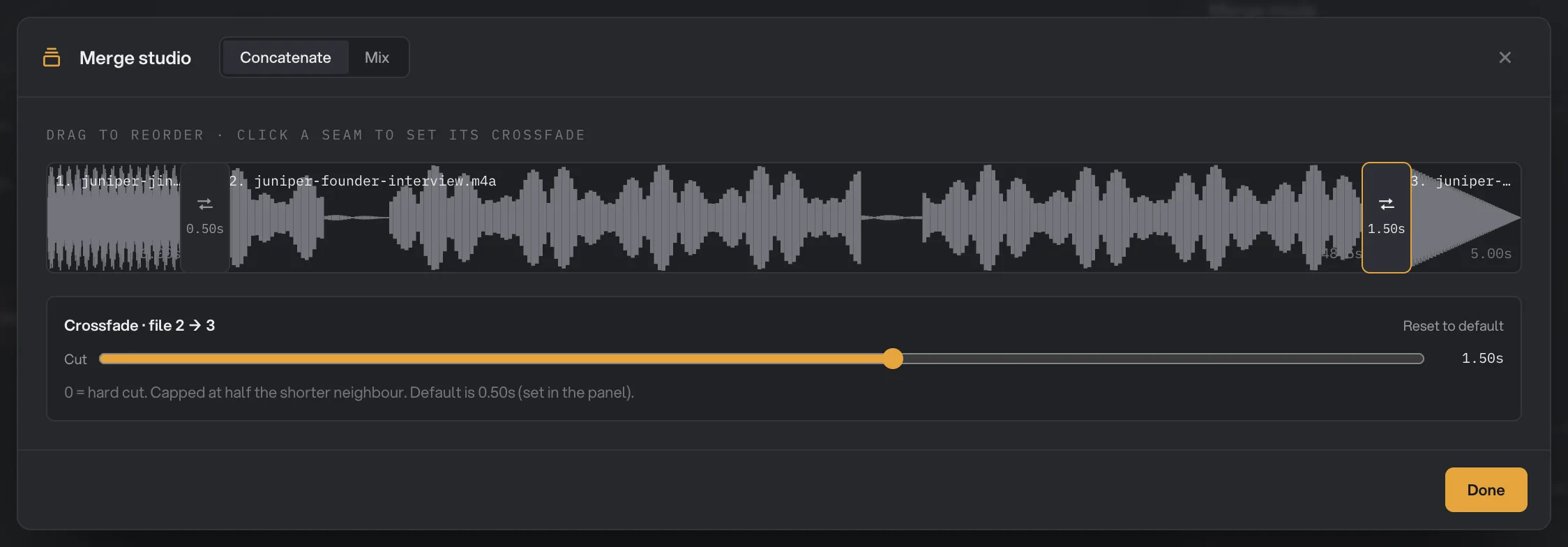
- Concatenate or Mix
- Drag to reorder
- Seam
- Reset to default
- Done
Click Done to go back to the panel. Studio changes last until you close Hangar.
Step 4: Run, then check the result
Check where the file will go: Default output folder saves it in your workspace’s output folder, in a merge folder with a subfolder for today’s date, such as 10-15. Click Change to pick another folder for this run. Then click Run merge.
When the run ends, each file in the queue shows Merged, and the panel shows the new file with its size and the number of files it was made from. Click View to listen to it, and Open folder to go to it. See Where your files are saved.
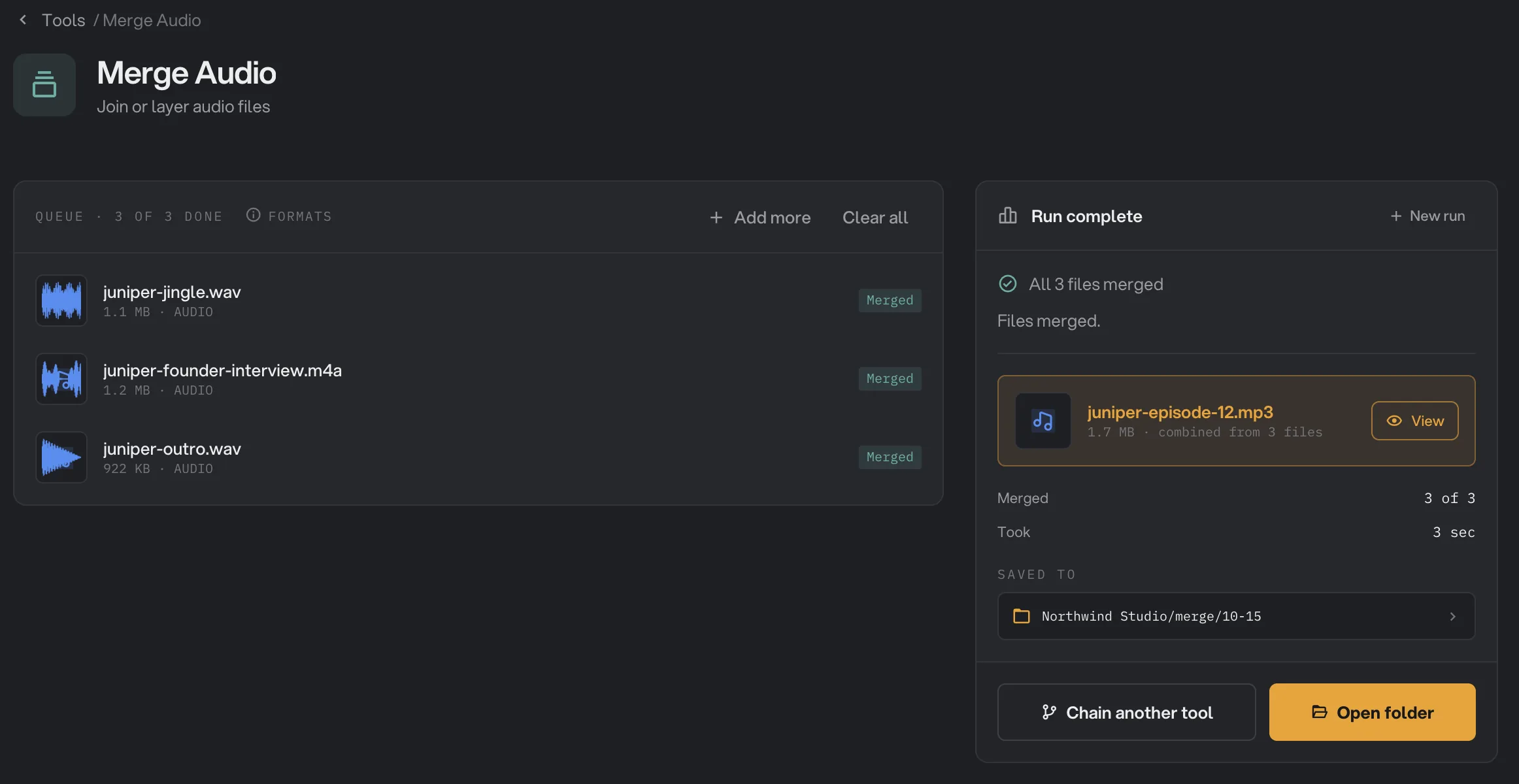
- Merged
- All 3 files merged
- Saved to
- Open folder
Every setting, and when to change it
Default crossfade only appears for Concatenate, and Output length only for Mix. Per-join crossfades, start times and volumes are set in the Merge studio.
- Merge mode
Play the files one after another, or all at the same time.
- RangeConcatenate, Mix
- DefaultConcatenate
- Output format
The format of the new file. AAC is saved as .m4a.
- RangeMP3, AAC, WAV, Opus
- DefaultWAV
- Quality
How much detail MP3, AAC and Opus keep. Higher sounds better and makes a larger file. WAV has no quality setting.
- RangeLow, Med, High
- DefaultHigh
- Default crossfade
With Concatenate, how long each join fades from one file to the next. 0 joins them with a clean cut.
- Range0 to 5 seconds
- Default0.5 seconds
- Output length
With Mix, when the result ends: with the longest file, the first file in the queue, or the shortest file.
- RangeLongest, First, Shortest
- DefaultLongest
- Output name
The name of the new file, without the extension.
- RangeAny file name
- Defaultmerged
- Join crossfade (studio)
With Concatenate, its own crossfade for one join.
- Range0 up to half the shorter of the two files
- DefaultThe Default crossfade
- Start time (studio)
With Mix, when a file starts playing. Drag its row sideways.
- Range0 or later
- Default0
- Volume (studio)
With Mix, how loud a file plays in the result.
- Range-60 dB to +12 dB
- Default0 dB
How do I get the best results?
- For spoken segments, keep crossfades short, from 0.3 to 1 second, so no words are lost. Use 0 when one file should start right where the other stops.
- For music, longer crossfades of 2 to 5 seconds sound smoother.
- For a voiceover over music, use Mix and lower the music, often by 10 to 15 dB, so the voice stays clear.
- To edit the result later, keep WAV. To publish it, pick MP3 at High.
- Trim first. Cut silence or mistakes from each file with Trim Audio before you merge.
Why does a result disappoint?
- The files are in the wrong order. They are joined in queue order. Drag the rows, or reorder them in the Merge studio, then run again.
- A crossfade is shorter than I set. A crossfade can be at most half as long as the shorter of the two files it joins, so a very short file limits it.
- My per-join crossfades disappeared. Reordering the files in the Merge studio resets every join to the default. Set them again after you reorder.
- In Mix, one file drowns out the other. Hangar keeps the volumes you set and does not balance them. Lower the louder file’s fader in the Merge studio.
- In Mix, the result cuts off early. Check Output length: First and Shortest stop before the longest file ends.
- The run failed saying it needs at least 2 audio files. Add another file. Merge Audio needs two or more.
- The run failed with a message about the output name. Remove characters a file name cannot hold, such as : ? * or ", from Output name, and don’t end it with a space or a period.
For other errors, see A file failed: what to check.
Limits
- Merge Audio takes audio files only, at least two per run, and makes one file from all of them.
- The result is stereo. Mono files are played on both sides.
- The Default crossfade goes up to 5 seconds. No crossfade can last more than half the shorter of the two files it joins.
- Settings made in the Merge studio last until you close Hangar. They belong to positions in the queue, so check them again after you add, remove or move files.
- Add audio files, not folders.
- Everything runs on your computer. Nothing is uploaded.
Common questions
What is the difference between Concatenate and Mix?
Concatenate plays the files one after another, like segments of a podcast episode. Mix plays them at the same time, like a voiceover on top of background music, and lets you set when each file starts and how loud it is.
How do I change the order of the files?
Drag the rows in the queue, or open the Merge studio in Concatenate and drag a file left or right. The files are joined in the order shown.
Can I have a different crossfade at each join?
Yes. Set Default crossfade in the panel for every join, then open the Merge studio, click a join between two files and set its own crossfade. A join with its own value is counted on the Arrange in the Merge Studio button.
How do I put music under a voiceover?
Choose Mix, add the voiceover and the music, and open the Merge studio. Lower the music’s fader, for example to around -12 dB, and drag the voiceover’s lane to start a few seconds in. Set Output length to First if the voiceover is first in the queue and the music should stop when it ends.
Can I merge the sound of video files?
Not directly. Merge Audio takes audio files only. Use Extract Audio to save each video’s sound as an audio file first.
Are my original files changed?
No. Hangar saves one new file in your output folder and leaves every original where it was.
Still stuck?
One person reads every message, usually with a reply within a day.