 Agencies and studios
 Photographers
 Podcasters
 Video and social creators
 Marketers and content teams
What does Convert audio do?
Convert audio changes audio files from one format to another on your own computer, for example WAV recordings to MP3 for a podcast host, or a DSD master to FLAC. In the app the tool is called Audio Convert.
Audio Convert writes MP3, AAC, WAV, Opus, FLAC or ALAC. Each file you add gives back one new file with the same name and the new format’s extension.
Step 1: Add your audio files
Click Tools in the sidebar, open the Audio tab and click Audio Convert in the Convert section. You can also type "convert audio" in the search box at the top.
Drop your files on the queue, or click it to pick them. Audio Convert takes audio files such as MP3, WAV, FLAC, AAC, M4A, OGG, Opus, AIFF and WMA, plus DSD files (DSF and DFF). Each row shows the file’s length and size. Video files are listed under Not applicable and are skipped. Use Add more to add files later.
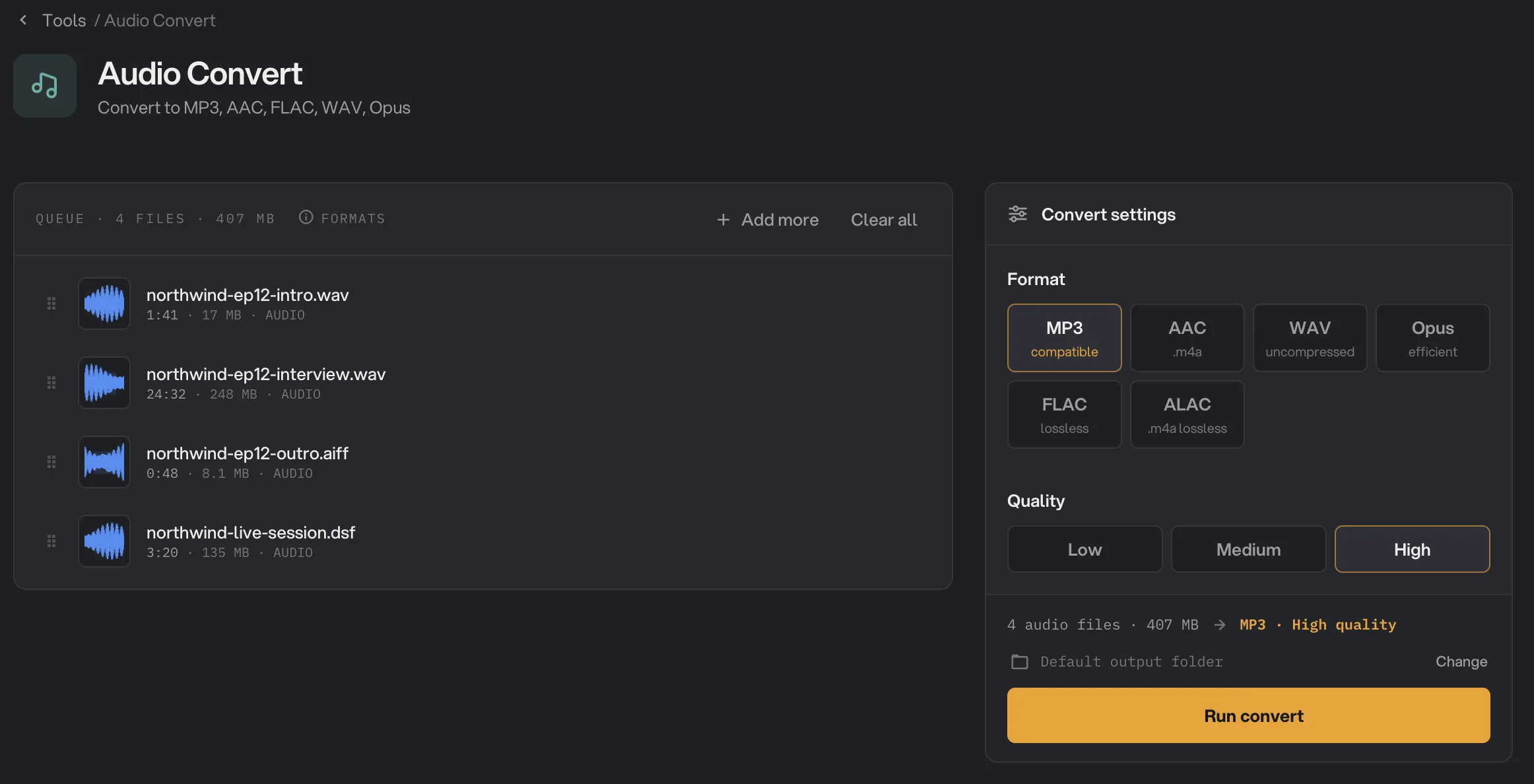
- Add more
- Format
- Quality
- Run convert
Step 2: Pick a format
Click one of the tiles under Format. The small word under each one is a reminder of what it is for.
- MP3 plays on almost anything. It is the default.
- AAC is saved as an .m4a file and suits Apple devices.
- Opus makes small files that still sound good. Check that your player supports it.
- WAV is uncompressed, so files are very large. It is saved at 16-bit.
- FLAC is lossless: smaller than WAV, with no further loss. It keeps 24-bit audio at 24 bits.
- ALAC is Apple’s lossless format, saved as an .m4a file.
MP3, AAC and Opus are lossy: they make small files by leaving out sound you are unlikely to hear. WAV, FLAC and ALAC keep everything that is in the source.
Step 3: Pick a quality
For MP3, AAC and Opus, pick Low, Medium or High under Quality. High is the default and the best choice for music. Lower quality gives smaller files, which is often fine for speech.
- AAC uses 128, 192 or 256 kbps.
- Opus uses 96, 128 or 192 kbps.
- MP3 uses a variable bitrate, so the size depends on the sound. High is the best MP3 setting.
The Quality row disappears when you pick WAV, FLAC or ALAC, because lossless formats have nothing to set.
Step 4: Turn DSD files into FLAC
DSD files (DSF or DFF) come from high-resolution music downloads and some recorders. Most players cannot open them. To keep their full quality, pick FLAC. When a DSD file is in the queue, a DSD mastering panel appears with two choices:
- Compatible (88.2 kHz) is recommended. Players are more likely to accept this rate.
- Archival (176.4 kHz) uses twice the sample rate and makes a larger file.
Both save 24-bit FLAC files. The setting only affects DSD files, not other files in the same run. You can also convert DSD files to MP3 or AAC for everyday listening.
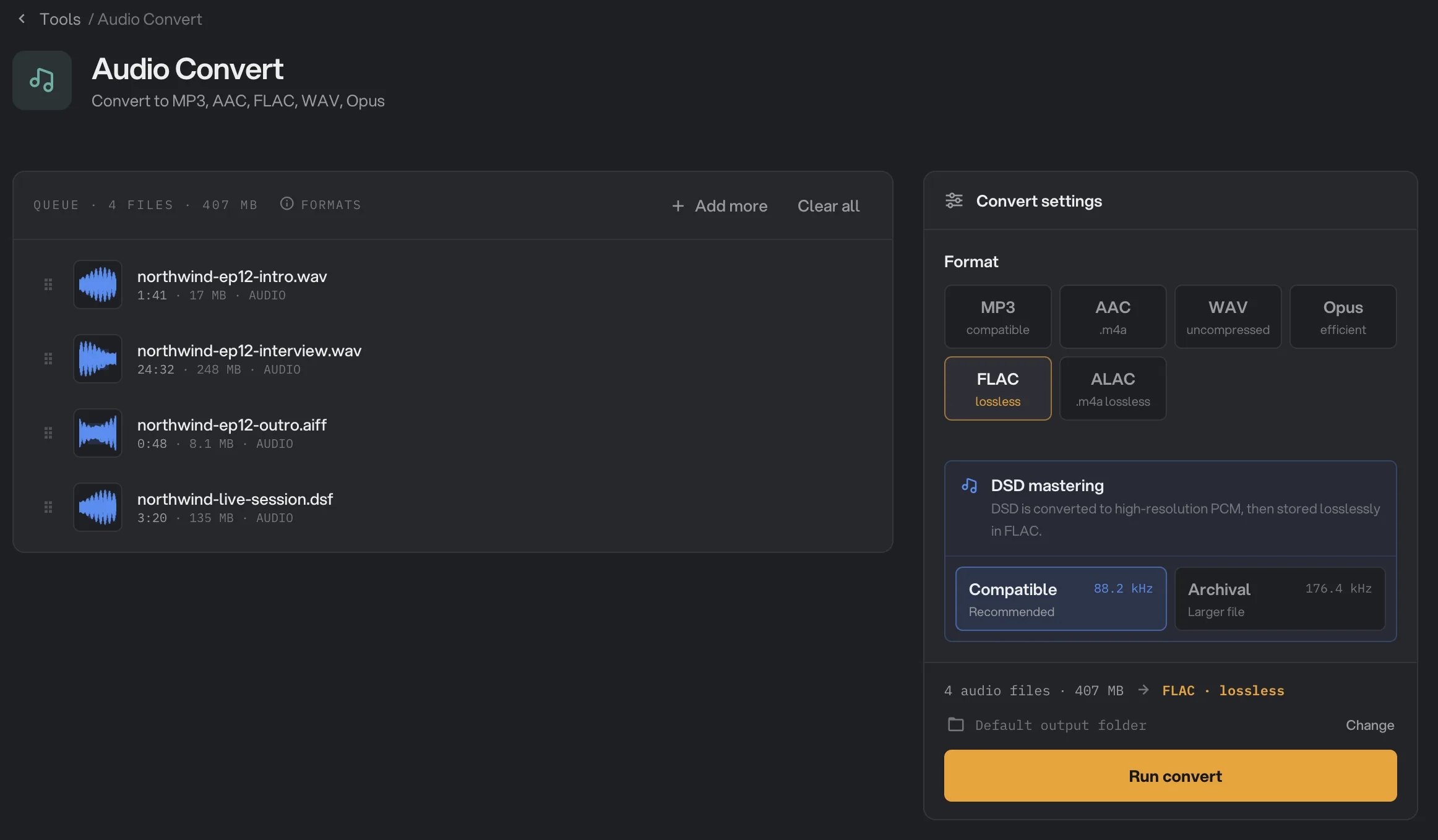
- FLAC
- Compatible
- Archival
Step 5: Run, then check the result
Check where the files will go: Default output folder saves them in your workspace’s output folder, in a convert folder with a subfolder for today’s date, such as 10-15. Click Change to pick another folder for this run. Then click Run convert.
When the run ends, each file shows Done and its new size. If the new files are smaller in total, the panel shows how much space you saved. Click View on a file to play it, and switch between Original and Output to compare. Click Open folder to go to the new files. See See and compare your results and Where your files are saved.
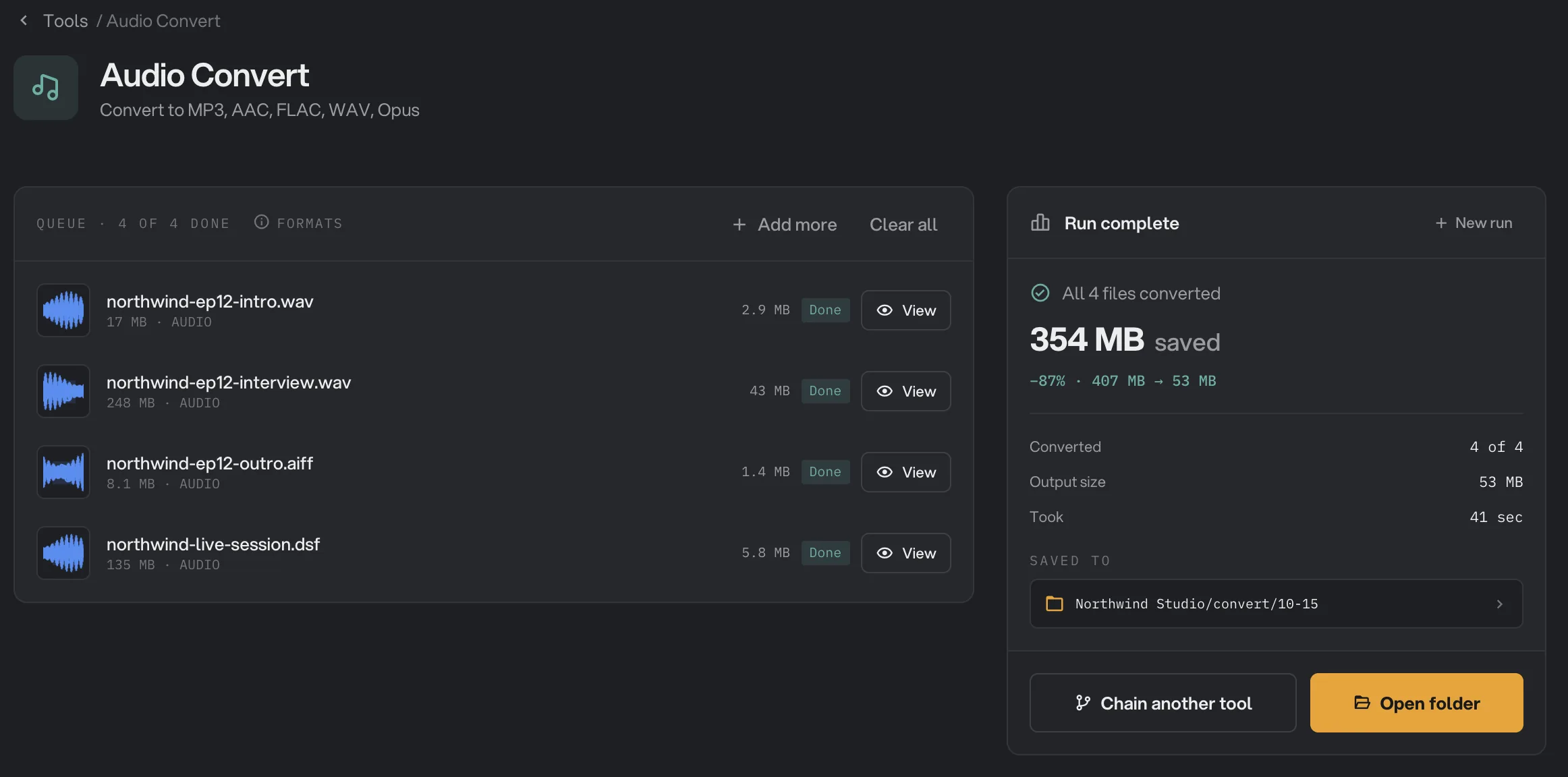
- Done
- View
- Saved to
- Open folder
Every setting, and when to change it
- Format
The format of the new files. AAC and ALAC are saved as .m4a files.
- RangeMP3, AAC, WAV, Opus, FLAC, ALAC
- DefaultMP3
- Quality
How much detail MP3, AAC and Opus files keep. Lower makes smaller files. Not shown for WAV, FLAC and ALAC.
- RangeLow, Medium, High
- DefaultHigh
- DSD mastering
The sample rate of FLAC files made from DSD files. Only shown when the format is FLAC and a DSD file is in the queue.
- RangeCompatible (88.2 kHz), Archival (176.4 kHz)
- DefaultCompatible
How do I get the best results?
- Convert from the best copy you have. Start from a WAV, FLAC or other lossless file when you can. Each lossy encode loses a little, so MP3 to AAC to MP3 sounds worse every time.
- Keep a lossless master. Archive recordings as FLAC, then make MP3 or AAC copies from it whenever you need them.
- 24-bit recordings: pick FLAC to keep the full bit depth. WAV output is 16-bit.
- Speech and podcasts: MP3 at Medium is usually plenty. To hit a size limit, use Audio Compress.
- Listen before you delete anything. Click View on a file or two and compare the Original and Output.
Why is a file bigger, or not what I expected?
- You converted to a lossless format. WAV, FLAC and ALAC keep every sample, so they are much larger than MP3 or AAC. That is expected, and the sound does not improve.
- The source was already small. A low-quality MP3 converted at High quality can come out larger without sounding better. Pick a lower quality, or keep the original.
- The cover picture is gone. Audio Convert does not keep cover art. Add it back in your music app if you need it.
- A file had more than one audio track. Only the first track is converted.
Troubleshooting
- A file failed with a message that it has no audio track. The file holds no sound Hangar can read. Check that it plays in another app.
- A file failed with a message that this version can't decode its audio, or can't read DSD audio. Update Hangar, then run the file again.
- A message says this version can't write the format you picked. Update Hangar, or pick one of the other formats the message suggests.
- A video file is listed under Not applicable. Take its sound out with Extract Audio first.
For other errors, see A file failed: what to check.
Limits
- Audio Convert takes audio files, such as MP3, WAV, FLAC, AAC, M4A, OGG, Opus, AIFF, WMA, DSF and DFF. Not video files.
- It writes MP3, AAC, WAV, Opus, FLAC and ALAC.
- Only the first audio track of a file is converted. Cover art is not kept.
- WAV output is 16-bit.
- There is no exact bitrate setting.
- Add audio files, not folders.
- Everything runs on your computer. Nothing is uploaded.
Use Audio Convert in a chain
Convert is available as a step in chains, under the Audio steps, with the same Format and Quality settings as the tool. Inside a chain, DSD files converted to FLAC always use Compatible (88.2 kHz).
Put Convert last when other steps change the sound, such as Change speed or Volume. The earlier steps then work on your original format, and each file is converted once, at the end. To run the same chain on new files each week, see Run a chain on many files.
Common questions
Which format should I pick?
MP3 for anything that has to play everywhere, such as a podcast host or a car stereo. AAC for Apple devices. Opus for the smallest files at good quality. WAV, FLAC or ALAC when you want a copy with no further loss: FLAC for most players, ALAC for Apple Music.
Will converting an MP3 to WAV or FLAC make it sound better?
No. A lossless format keeps what is in the file, but it cannot bring back detail that an earlier MP3 or AAC encode already removed. You get a bigger file that sounds the same.
Are the title, artist and other tags kept?
Yes. Audio Convert copies the tags to the new file, where the new format can hold them. Cover art pictures are not kept.
Can I set an exact bitrate?
No. MP3, AAC and Opus use the Low, Medium or High quality setting. To get a file under a set size, use Audio Compress instead.
Can it take the sound out of a video?
No. Audio Convert takes audio files only, and video files are listed under Not applicable. Use Extract Audio to save a video’s sound as an audio file, then convert that file if you need another format.
Is my original changed?
No. Hangar saves the converted copy in your output folder and leaves the original where it was.
Still stuck?
One person reads every message, usually with a reply within a day.