 Agencies and studios
 Photographers
 Podcasters
 Video and social creators
 Marketers and content teams
What does Audio speed do?
Audio speed makes audio play faster or slower on your own computer, from a quarter of the speed up to four times as fast. Use it to get through long interviews quickly, slow down a lesson, or make a slowed or sped-up version of a song. In the app the tool is called Audio Speed.
You choose whether voices keep their normal pitch or whether the pitch moves with the speed. Each file you add gives back one new file, with "-speed" added to its name.
Step 1: Add your audio files
Click Tools in the sidebar, open the Audio tab and click Audio Speed in the Edit section. You can also type "slow down a podcast" in the search box at the top.
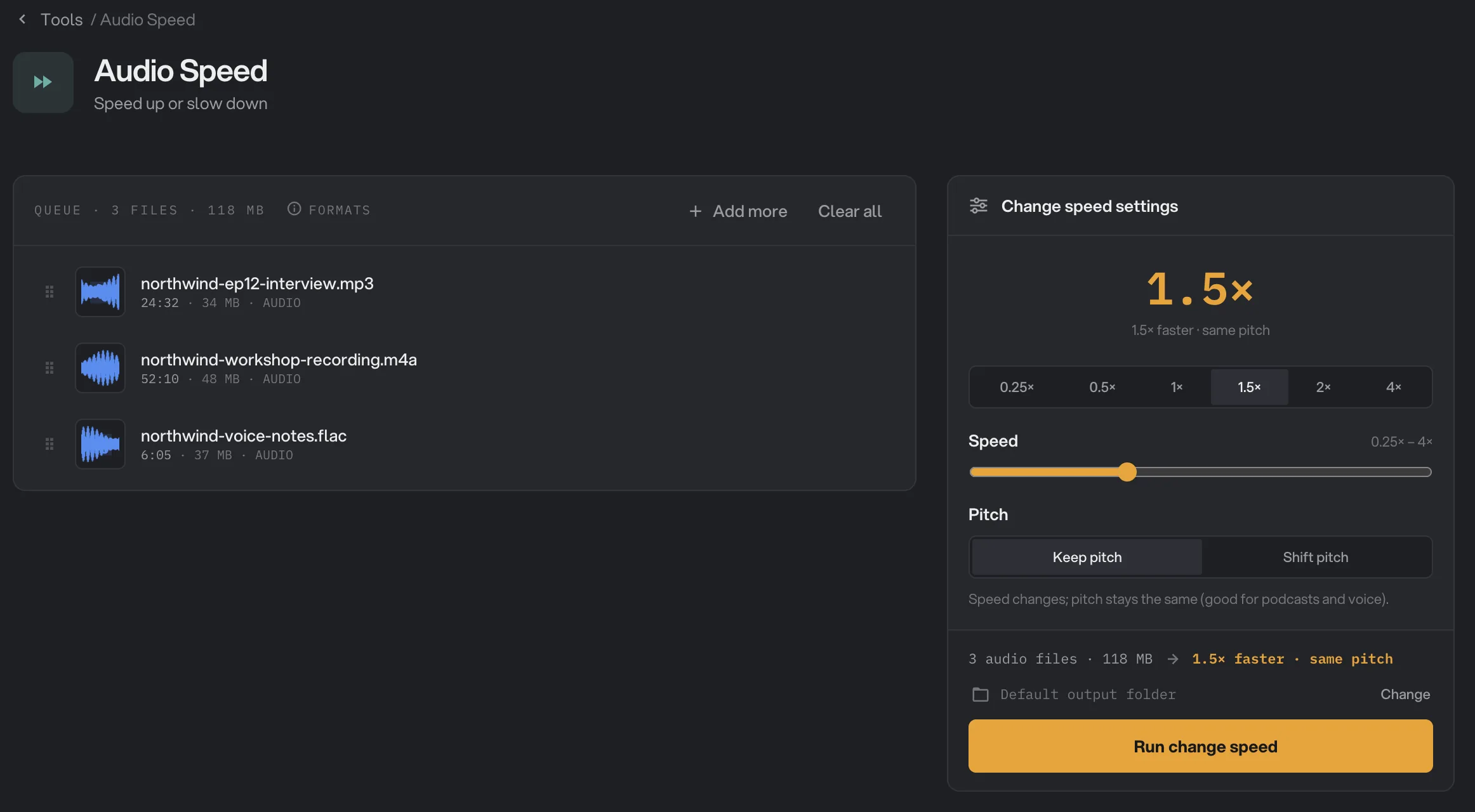
Drop your files on the queue, or click it to pick them. Audio Speed takes audio files such as MP3, WAV, FLAC, AAC, M4A, OGG, Opus, AIFF and WMA. Each row shows the file’s length and size. Video files are listed under Not applicable and are skipped. Use Add more to add files later. Every file in the run gets the same speed.
- Add more
- 0.25×
- Speed
- Keep pitch
- Run change speed
Step 2: Pick a speed
Click one of the quick picks: 0.25×, 0.5×, 1×, 1.5×, 2× or 4×. For anything in between, drag the Speed slider. It moves in steps of 0.05, from 0.25× to 4×. The default is 1.5×.
Above 1 is faster and shorter: 2× plays twice as fast and lasts half as long. Below 1 is slower and longer: 0.5× lasts twice as long. The big number at the top of the panel and the line under it show what you picked, for example "1.5× faster · same pitch".
Step 3: Keep the pitch, or let it shift
Under Pitch, pick one of two ways to change the speed:
- Keep pitch is the default. The speed changes but voices and instruments stay at their normal pitch. Use it for podcasts, lectures, interviews and voice notes.
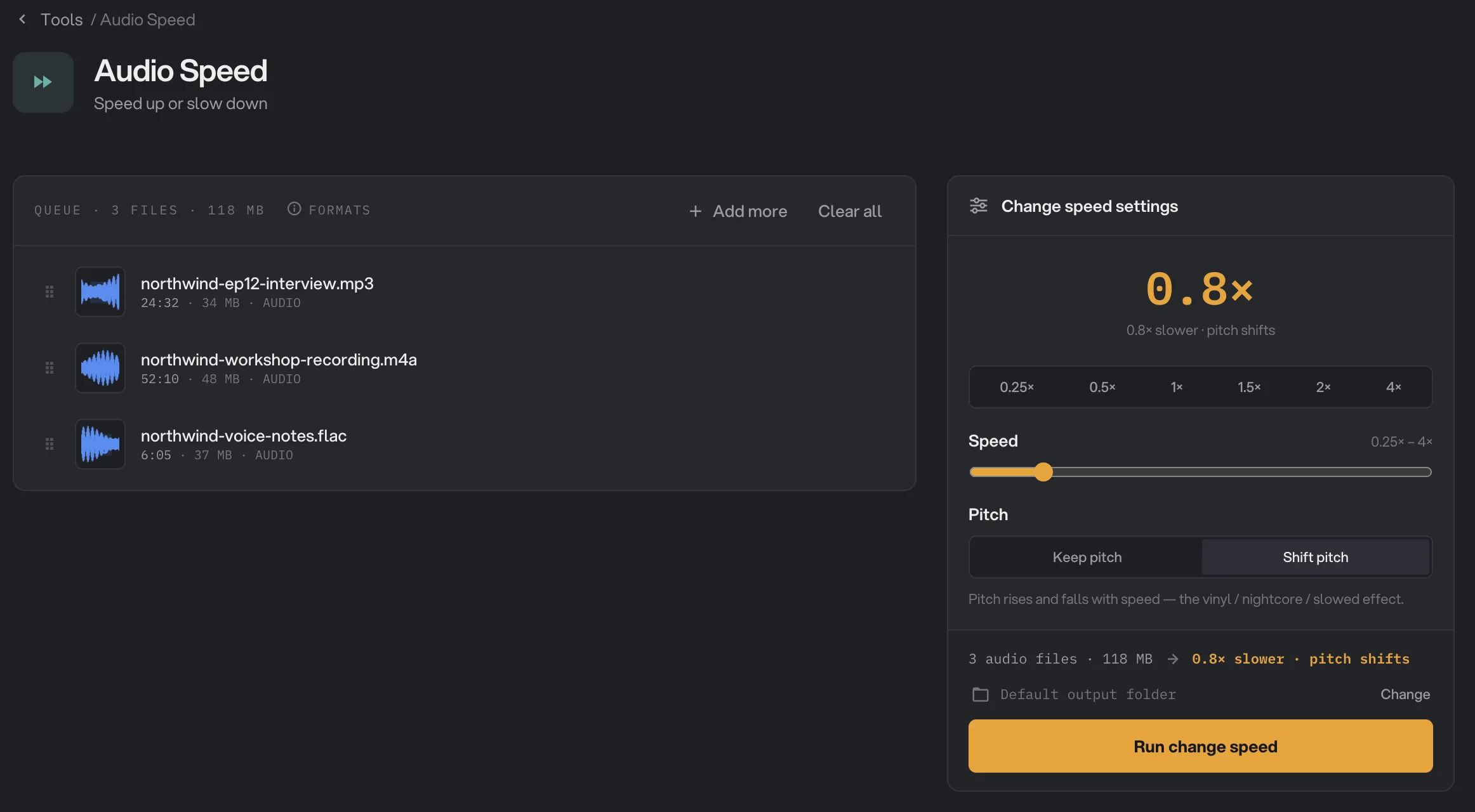
- Shift pitch works like playing a record at a different speed: faster sounds higher, slower sounds lower. Twice as fast is a full octave higher. Use it for slowed or nightcore versions of songs and other creative effects.
- 0.8×
- Speed
- Pitch
- Shift pitch
Step 4: Run, then check the result
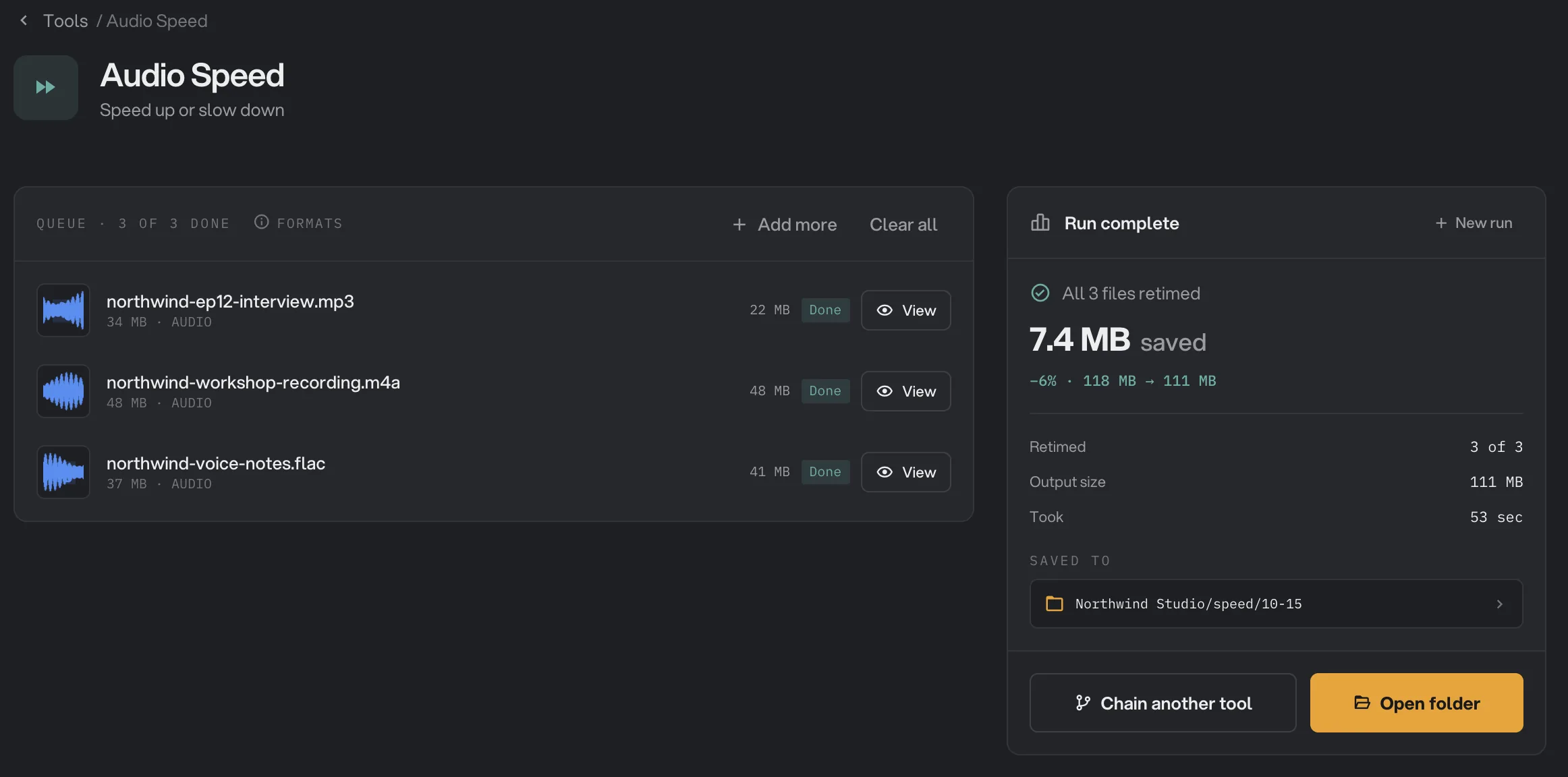
Check where the files will go: Default output folder saves them in your workspace’s output folder, in a speed folder with a subfolder for today’s date, such as 10-15. Click Change to pick another folder for this run. Then click Run change speed.
When the run ends, each file shows Done and its new size. Click View on a file to play it, and switch between Original and Output to hear the difference. Click Open folder to go to the new files. See See and compare your results and Where your files are saved.
- Done
- View
- Saved to
- Open folder
Every setting, and when to change it
- Speed
How fast the new file plays. 2× is twice as fast and half as long; 0.5× is half as fast and twice as long. The quick picks above the slider set common speeds.
- Range0.25× to 4×, in steps of 0.05
- Default1.5×
- Pitch
Keep pitch changes only the speed. Shift pitch lets the pitch rise and fall with the speed, like a record.
- RangeKeep pitch, Shift pitch
- DefaultKeep pitch
What format do the new files use?
Audio Speed rebuilds every file, so it saves a new copy in a format close to the original:
- MP3 stays MP3, Opus stays Opus, and WAV and AIFF become WAV.
- AAC and M4A files become AAC (.m4a) at 192 kbps. Lossless ALAC files in .m4a also become AAC.
- FLAC files become WAV, so they are usually larger.
- OGG, WMA and other formats become AAC (.m4a).
WAV results are 16-bit. To get FLAC or another format afterward, run the results through Audio Convert.
How do I get the best results?
- Try one file first. Run a short file, click View and listen. Then run the rest of the batch with the speed you like.
- Pick Keep pitch for anything with voices, unless you want the chipmunk or slow-motion effect.
- Start from the best copy you have. Every speed change saves the sound again, so a lossless source gives the cleanest result.
- Leave 1× alone. At 1× the file is saved again without any change in speed, which is rarely useful.
Why is the result not what I expected?
- The file is bigger than the original. The source was a small, compressed file and the new copy uses a higher quality, or a FLAC file came back as WAV. Use Audio Compress afterward if size matters.
- Voices sound higher or lower. Shift pitch was selected. Run the file again with Keep pitch.
- The cover picture is gone. Audio Speed does not keep cover art.
Troubleshooting
- A file failed with a message that it has no audio track. The file holds no sound Hangar can read. Check that it plays in another app.
- A video file is listed under Not applicable. Use Video Speed for videos, or take the sound out with Extract Audio first.
For other errors, see A file failed: what to check.
Limits
- Audio Speed takes audio files, such as MP3, WAV, FLAC, AAC, M4A, OGG, Opus, AIFF and WMA. Not video files.
- Speeds from 0.25× to 4×.
- All files in a run get the same speed and pitch setting.
- Only the first audio track of a file is used. Cover art is not kept.
- Add audio files, not folders.
- Everything runs on your computer. Nothing is uploaded.
Use Audio Speed in a chain
Change speed is available as a step in chains, under the Audio steps, with the same Speed and Pitch settings as the tool.
Put it before steps that shrink or convert the file, such as Compress or Convert, so each file is encoded to its final format at the end. To run the same chain on new files each week, see Run a chain on many files.
Common questions
Will a sped-up voice still sound natural?
With Keep pitch, the speed changes but the voice keeps its normal pitch, so people still sound like themselves. Listen to one result with View before you run a long batch, especially at very high or very low speeds.
How do I make a slowed or nightcore version of a song?
Choose Shift pitch under Pitch. Then slow it down, for example to 0.8×, for a slowed version, or speed it up for a nightcore one. Pitch moves with the speed, like a record played at the wrong speed.
How long will the new file be?
The old length divided by the speed. A 30-minute recording at 1.5× lasts 20 minutes; at 0.5× it lasts an hour.
Why did my FLAC file come back as a WAV?
Audio Speed saves FLAC results as 16-bit WAV files, which are usually larger. Convert them back to FLAC with Audio Convert if you need to.
Can I change the speed of a video?
Not with this tool. Audio Speed takes audio files only. Use Video Speed for video files.
Is my original changed?
No. Hangar saves the new file, with "-speed" added to its name, in your output folder and leaves the original where it was.
Still stuck?
One person reads every message, usually with a reply within a day.