 Agencies and studios
 Photographers
 Podcasters
 Video and social creators
 Marketers and content teams
What does Split audio do?
Split audio cuts one long recording into several shorter files, on your own computer. Cut a podcast, lecture or class at its pauses, into pieces of a set length, or into a number of equal parts. In the app the tool is called Split Audio.
Every recording in the queue is split the same way. The pieces are saved as separate files next to each other in the output folder, and every second of the recording is in one of them.
Step 1: Add your recordings
Click Tools in the sidebar, open the Audio tab and click Split Audio in the Cut & join section. You can also type "split" in the search box at the top.
Drop your audio files on the queue, or click it to pick files. Each row shows the recording’s length and size, such as "42:27 · 61 MB". Use Add more to add files later.
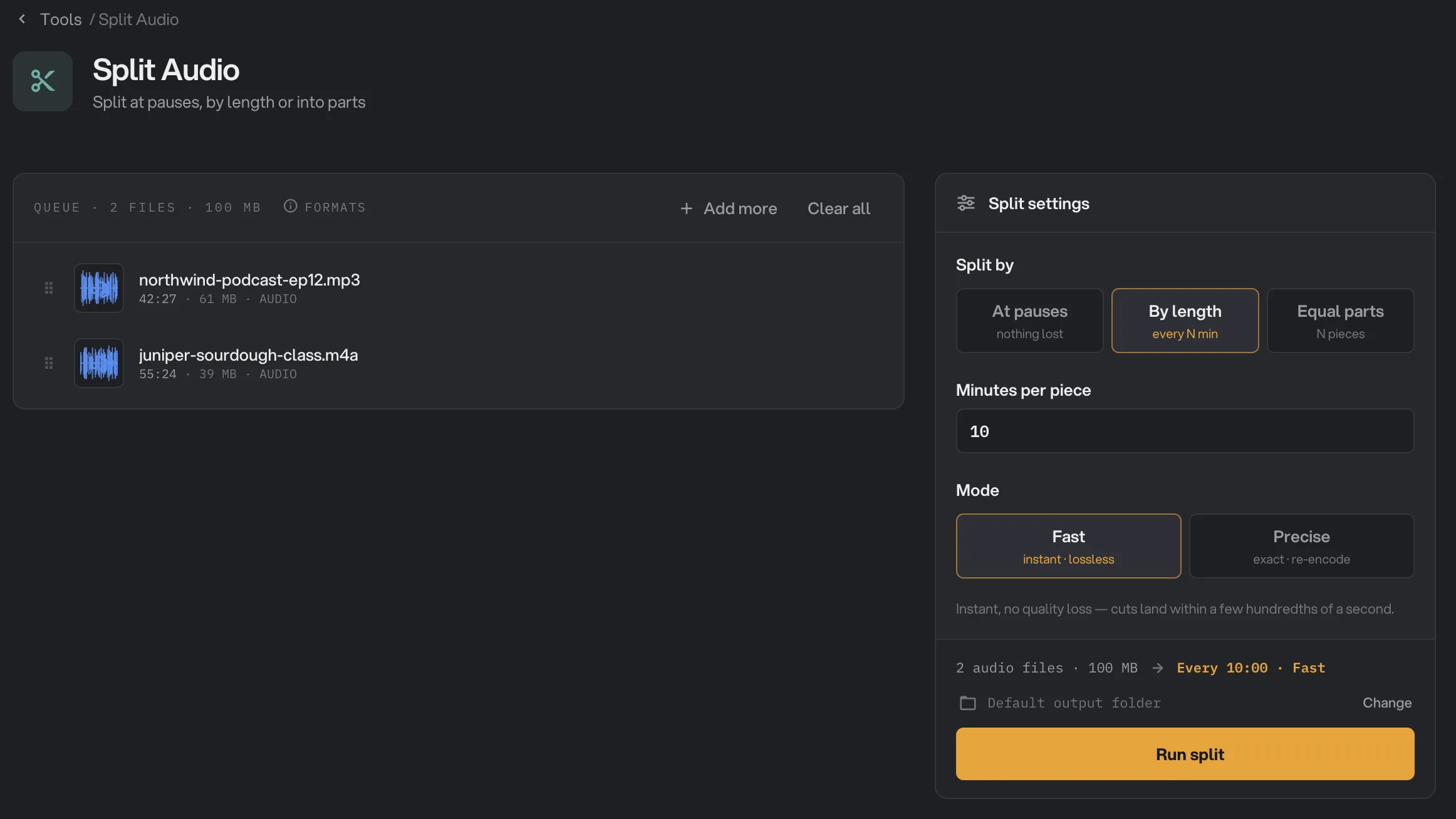
- Split by
- Minutes per piece
- Mode
- Run split
Step 2: Choose how to split
Under Split by, pick one of three ways:
- At pauses cuts in the middle of each pause, so no piece starts mid-word and nothing is lost. Set the Sensitivity and the Minimum pause that starts a new piece.
- By length cuts a piece every so many minutes. Set the Minutes per piece, such as 10. The last piece is shorter when the recording doesn’t divide evenly.
- Equal parts cuts each recording into the same number of pieces of equal length. Set the Number of parts.
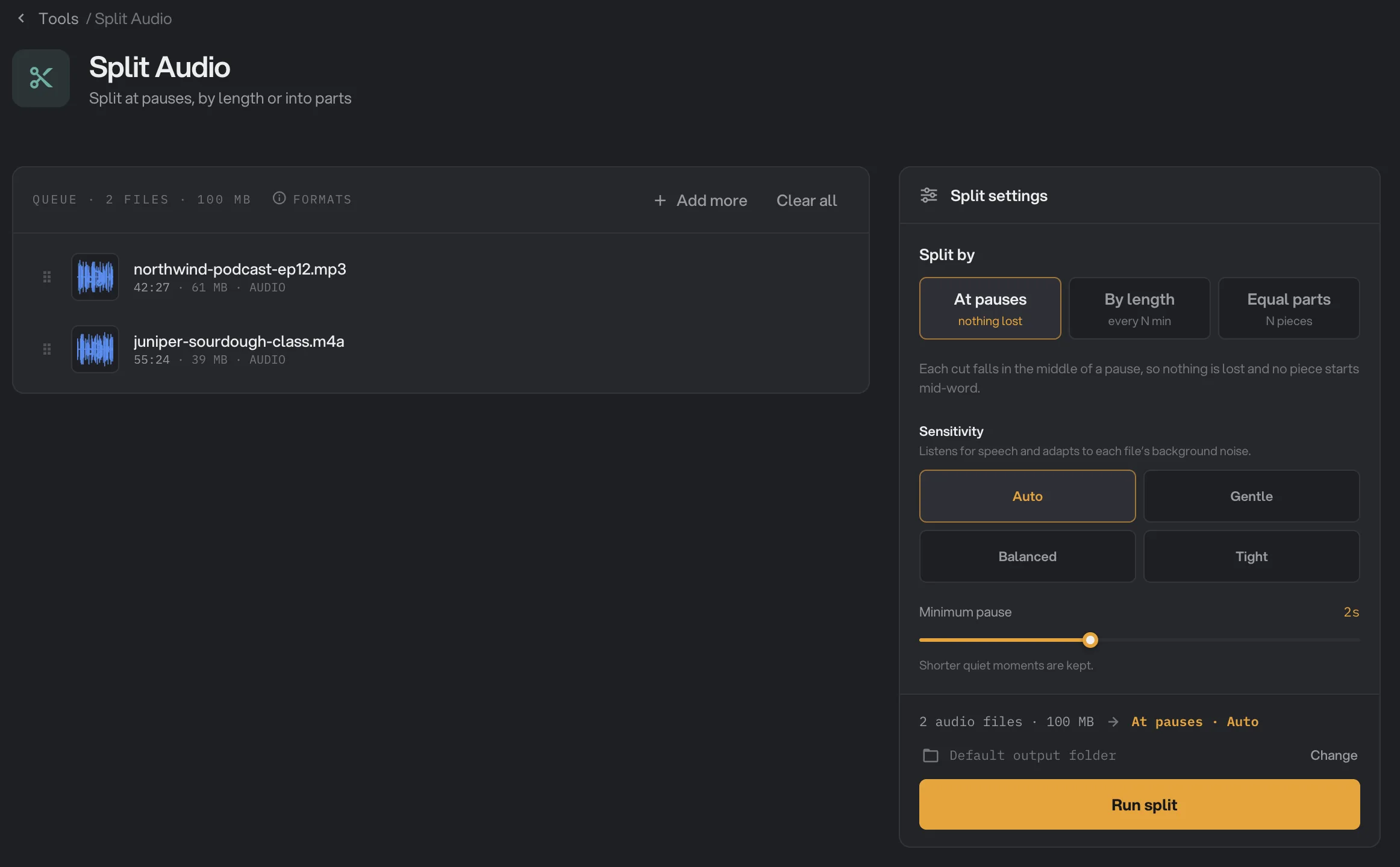
- At pauses
- Sensitivity
- Minimum pause
For By length and Equal parts, also choose the Mode:
- Fast is instant and keeps the full quality, because nothing is re-encoded. Cuts land within a few hundredths of a second of the time you set.
- Precise re-encodes each piece so it starts and ends on the exact moment. It takes longer, and some formats change (see the table below).
At pauses always uses Fast, because its cuts fall in silence where a few hundredths of a second make no difference.
Step 3: Run, then check the pieces
The line above the button sums up the run, such as "Every 10:00 · Fast" or "At pauses · Auto". Check where the files will go: Default output folder saves them in your workspace’s output folder, in a split folder with a subfolder for today’s date, such as 10-15. Click Change to pick another folder for this run. Then click Run split.
When the run ends, each recording shows Done and how many files it became. Click that count, such as "5 files", to list the pieces, and View to listen. Click Open folder to go to them. Each piece has the recording’s name with a number, such as northwind-podcast-ep12-1.mp3. See See and compare your results and Where your files are saved.
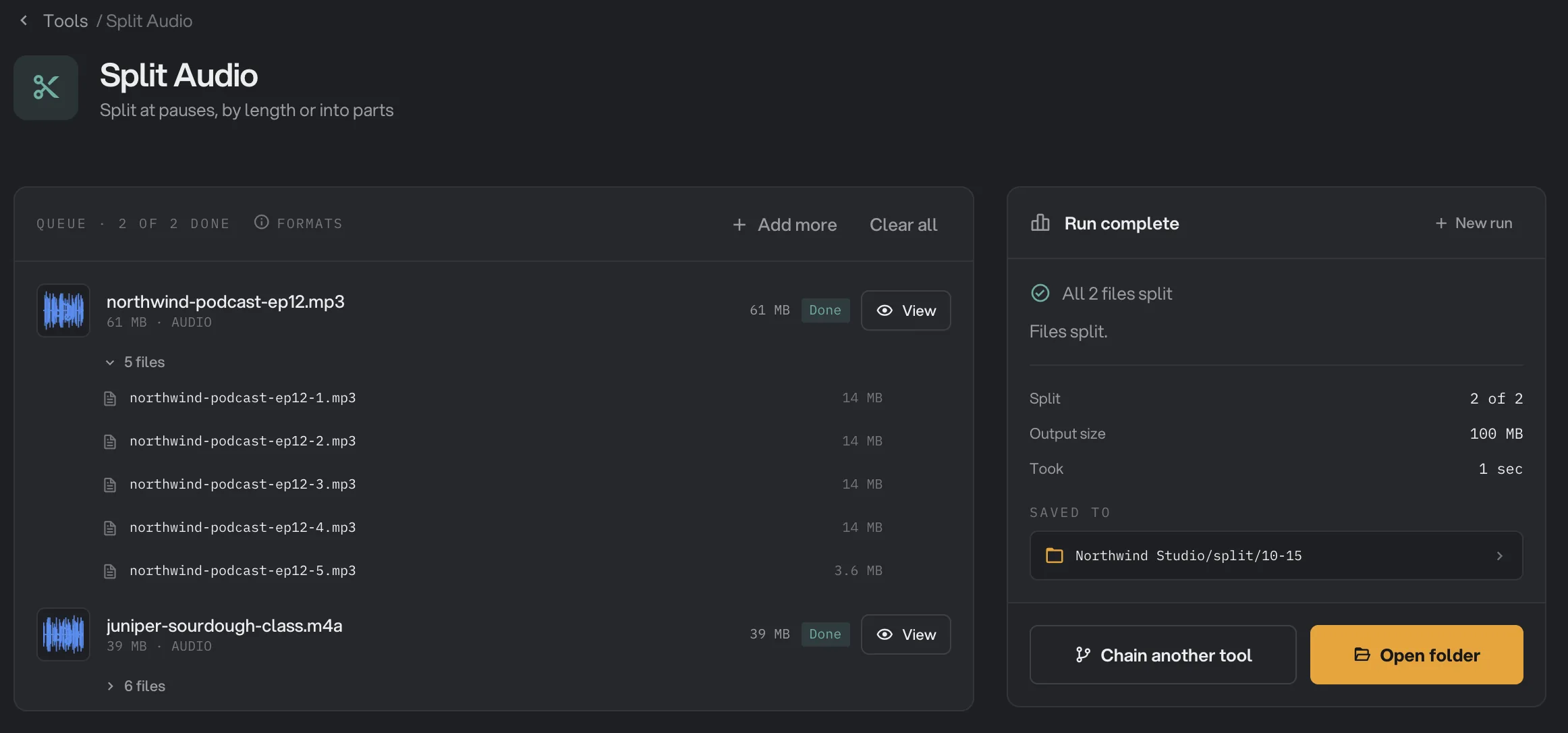
- Done
- 5 files
- northwind-podcast-ep12-1.mp3
- Saved to
- Open folder
Every setting, and when to change it
The panel shows only the settings for the Split by method you pick.
- Split by
How each recording is divided.
- RangeAt pauses, By length, Equal parts
- DefaultBy length
- Minutes per piece
With By length, the length of each piece. The last piece holds what is left.
- Range0.5 minutes and up
- Default10
- Number of parts
With Equal parts, how many pieces of equal length each recording becomes.
- Range2 to 2,000
- Default2
- Mode
Fast copies the pieces with no quality change. Precise re-encodes each piece for exact cut points. Not shown for At pauses, which always uses Fast.
- RangeFast, Precise
- DefaultFast
- Sensitivity
With At pauses. Auto listens for speech and adapts to each file’s background noise. Tight treats more of the quiet as a pause.
- RangeAuto, Gentle, Balanced, Tight
- DefaultAuto
- Minimum pause
The shortest pause that starts a new piece. Shorter quiet moments stay inside a piece.
- Range0.1 to 5 seconds
- Default2 seconds
Fast keeps each piece in the recording’s own format. Precise keeps MP3 as MP3 and Opus as Opus, saves AAC and ALAC recordings as M4A, saves FLAC and WAV as WAV, and saves other formats as M4A.
How do I get the best results?
- For podcasts, talks and classes, use At pauses with Auto. Pieces end at a natural break instead of mid-sentence.
- For pieces of a set length, such as 10-minute parts for a course, use By length with Fast. Check the last piece, which is often shorter.
- For a set number of pieces, use Equal parts. Pick Precise when each piece must be exactly the same length.
- To remove part of a recording instead of splitting it, use Trim Audio.
Why does a result look wrong?
- I got one piece instead of several. With At pauses, the recording may have no pauses as long as the Minimum pause. Lower it, or pick Tight. With By length, the minutes per piece may be longer than the recording.
- I got too many short pieces. With At pauses, raise Minimum pause so only longer breaks split the recording, or choose Gentle.
- A cut lands in the middle of a word. By length and Equal parts cut at a fixed time. Use At pauses to cut between words.
- The pieces are in a different format. Precise changes some formats, such as FLAC to WAV. Use Fast to keep the original format.
For other errors, see A file failed: what to check.
Limits
- Split Audio takes MP3, WAV, M4A, AAC, FLAC, OGG, Opus, AIFF and WMA files, plus AC3, E-AC3, DSF and DFF.
- It takes audio files only. Use Split Video for videos.
- Up to 2,000 equal parts per recording.
- At pauses never makes a piece shorter than one second.
- There is no Studio to place cuts by hand. Every recording in the queue is split with the same setting.
- All pieces are saved in one folder, named with the recording’s name and a number.
- Add audio files, not folders.
- Everything runs on your computer. Nothing is uploaded.
Common questions
Does splitting lower the quality?
Not with Fast, which copies each piece exactly as it is, with no re-encoding. At pauses also uses Fast. Precise re-encodes each piece so it starts and ends on the exact moment, which can change the quality slightly.
Is any audio lost between the pieces?
No. Every second of the recording ends up in one of the pieces. At pauses cuts in the middle of each pause, so the quiet is shared between the piece before and the piece after.
Will a piece start in the middle of a word?
Not with At pauses: each cut falls in a pause. By length and Equal parts cut at a fixed time, so a cut can land mid-sentence. Use At pauses for talks, podcasts and classes.
What are the pieces called?
Each piece keeps the recording’s name with a number added: northwind-podcast-ep12-1.mp3, northwind-podcast-ep12-2.mp3 and so on. All the pieces are saved together in the output folder.
Can I split a video’s sound with it?
Split Audio takes audio files only. To split a video, use Split Video. To split only its sound, take the audio out first with Extract Audio, then split that file.
Is my original recording changed?
No. Hangar saves the pieces as new files and leaves the original where it was.
Still stuck?
One person reads every message, usually with a reply within a day.