 Agencies and studios
 Photographers
 Podcasters
 Video and social creators
 Marketers and content teams
What does Compress audio do?
Compress audio makes audio files smaller on your own computer, so a podcast episode fits an upload limit or a voice memo fits in an email. In the app the tool is called Audio Compress.
Audio Compress saves every file as an MP3 with the same name. Pick how hard to squeeze with a preset, or give a size the file must fit under. If an MP3 cannot get smaller, Hangar keeps the original.
Step 1: Add your audio files
Click Tools in the sidebar, open the Audio tab and click Audio Compress in the Optimize section. You can also type "compress audio" in the search box at the top.
Drop your files on the queue, or click it to pick them. Audio Compress takes audio files such as MP3, WAV, FLAC, AAC, M4A, OGG, Opus, AIFF and WMA. Each row shows the file’s length and size. Video files are listed under Not applicable and are skipped. Use Add more to add files later.
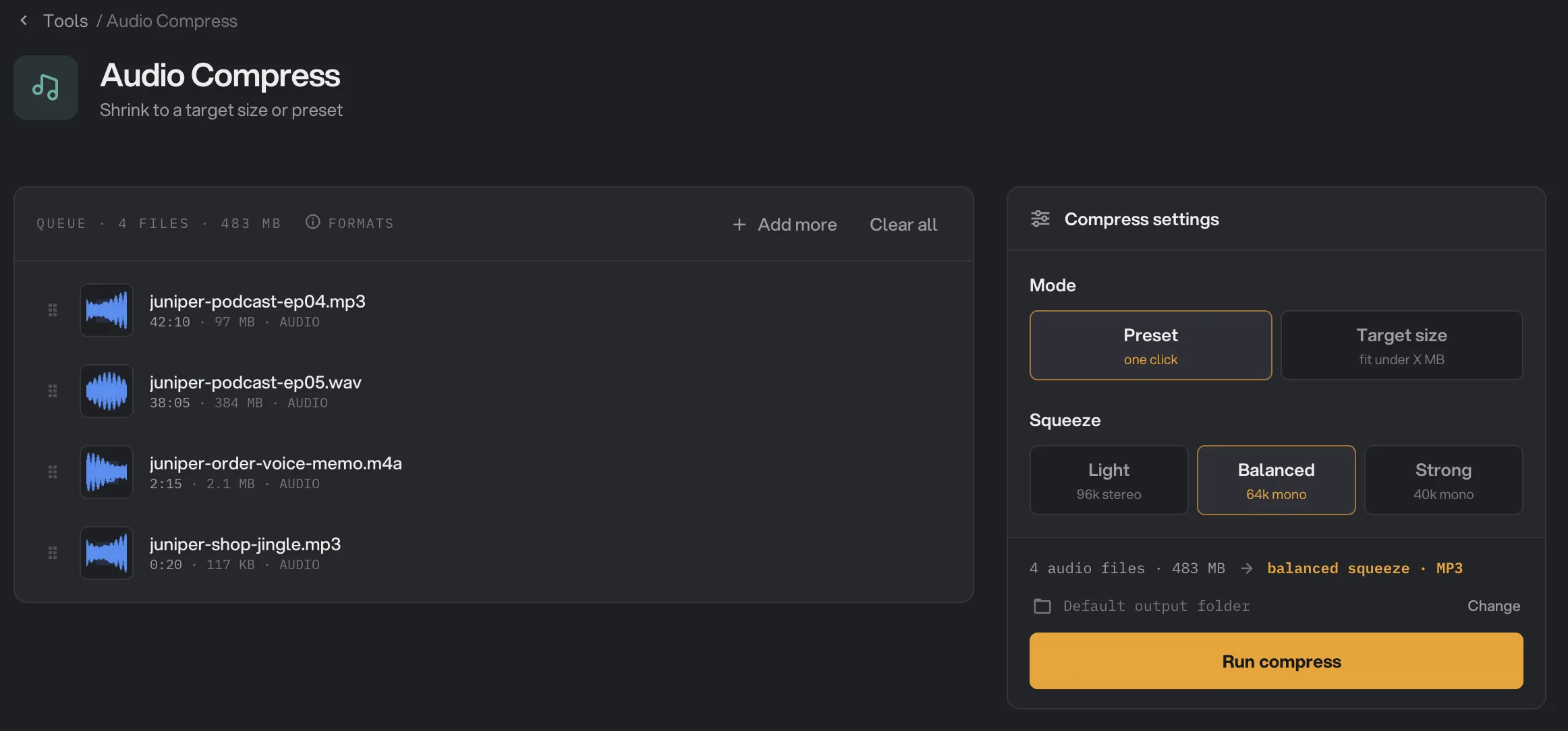
- Add more
- Mode
- Squeeze
- Run compress
Step 2: Pick a squeeze
Keep Preset selected under Mode, then pick one of the three tiles under Squeeze:
- Light (96 kbps, stereo) keeps left and right channels. The best choice for music.
- Balanced (64 kbps, mono) is the default. Voices stay clear and files get much smaller. Good for podcasts, interviews and voice memos.
- Strong (40 kbps, mono) makes the smallest files. Fine for speech you only need to understand, such as meeting recordings.
kbps is how much data each second of sound uses: the lower the number, the smaller the file. A minute of audio is about 0.7 MB with Light, 0.5 MB with Balanced and 0.3 MB with Strong.
Step 3: Or fit under a size
When a website, email or app sets a size limit, choose Target size under Mode. Under Fit under, click 3 MB, 5 MB, 10 MB or 25 MB, or type your own size in the Custom field. Each file gets the highest quality that fits, and Hangar aims a little under the limit to be safe.
Target size keeps stereo files in stereo. It never goes above 320 kbps, so a short clip can come out well under your limit.
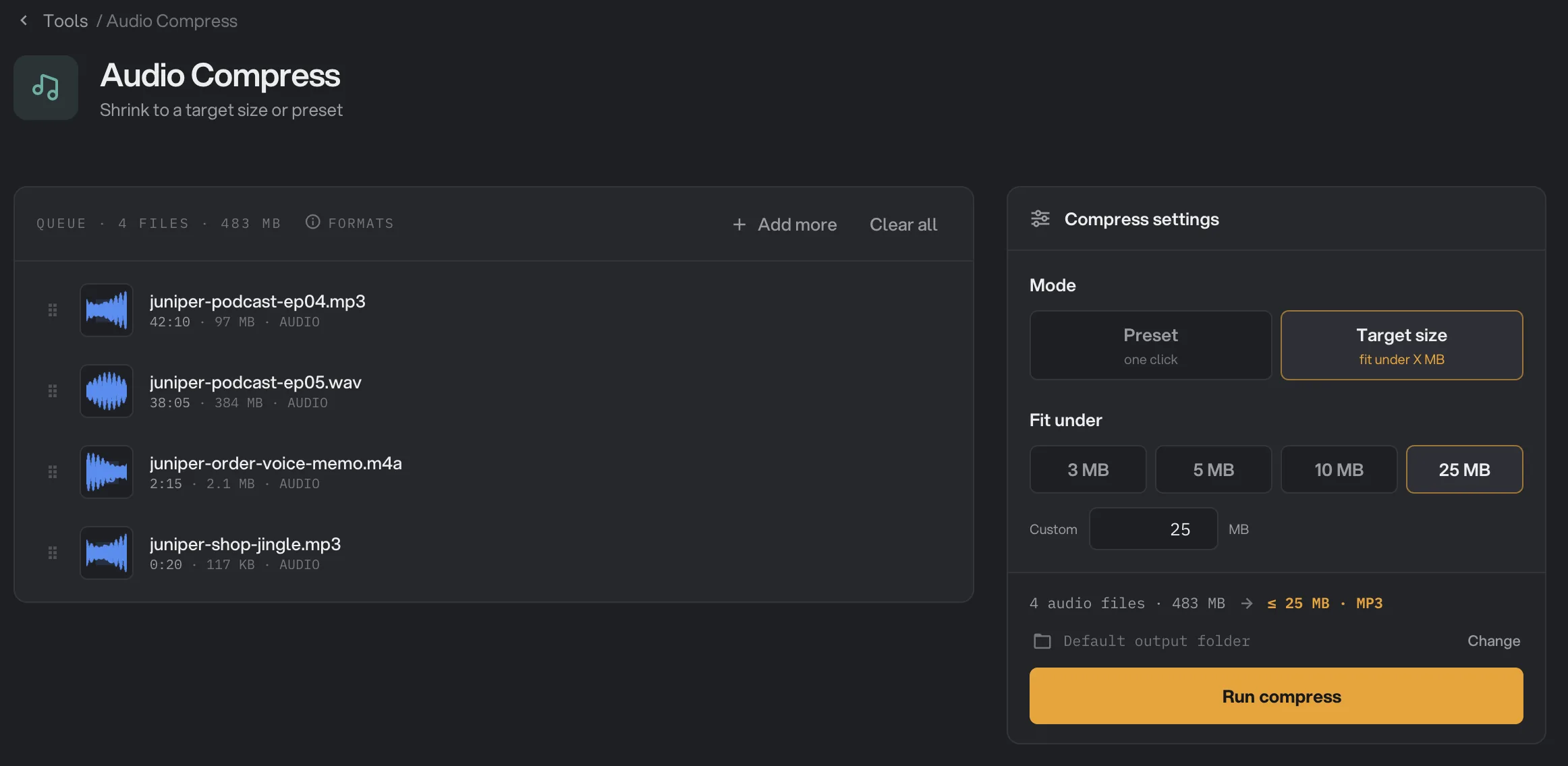
- Target size
- Fit under
- 25 MB
- Custom
Step 4: Run, then check the result
Check where the files will go: Default output folder saves them in your workspace’s output folder, in a compress folder with a subfolder for today’s date, such as 10-15. Click Change to pick another folder for this run. Then click Run compress.
When the run ends, each file shows Done with its new size, or Kept if an MP3 could not get smaller. The panel shows how much space you saved in total. Click View on a file to play it, and switch between Original and Output to compare. Click Open folder to go to the smaller files. See See and compare your results and Where your files are saved.
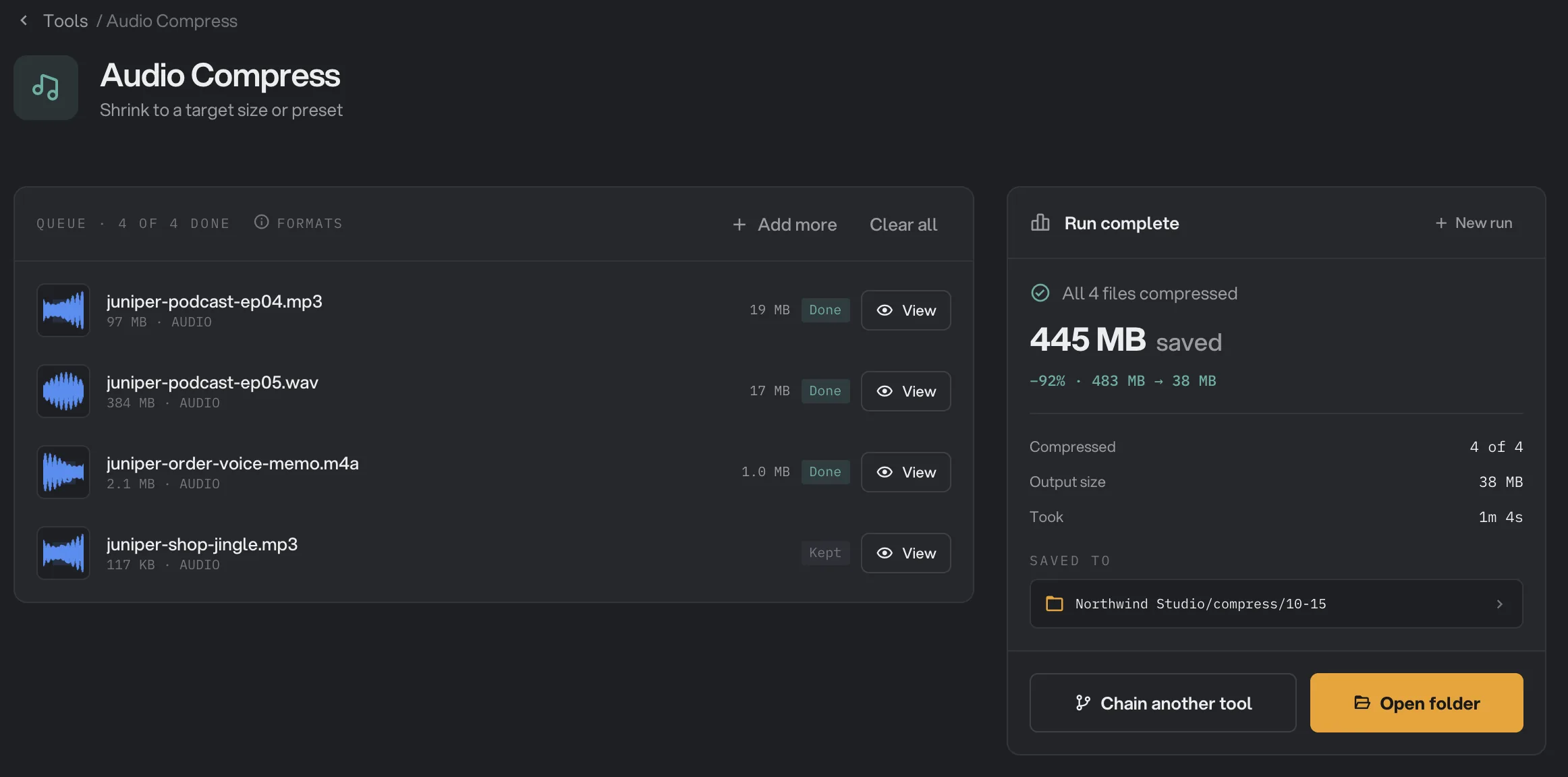
- Done
- View
- Saved to
- Open folder
- Kept
Every setting, and when to change it
- Mode
Preset uses a fixed squeeze. Target size works out the quality from the size you give.
- RangePreset, Target size
- DefaultPreset
- Squeeze
With Preset, how small the MP3 should be. Balanced and Strong mix the sound down to mono.
- RangeLight (96 kbps stereo), Balanced (64 kbps mono), Strong (40 kbps mono)
- DefaultBalanced
- Fit under
With Target size, the size each file should fit under. Stereo stays stereo, and the quality never goes above 320 kbps.
- Range3, 5, 10 or 25 MB, or Custom from 1 to 10,000 MB
- Default5 MB
How do I get the best results?
- Speech: start with Balanced. Click View and listen. If it still sounds fine, try Strong for even smaller files.
- Music: use Light, or Target size with a generous limit. Mono is easy to hear on music.
- Compress from the best copy you have. A WAV or FLAC file gives a cleaner MP3 than one that was already compressed.
- Cut first. Removing long pauses and unused parts with Trim Audio saves space without lowering quality.
- Keep your originals. Compressing loses some detail for good. Keep the master file in case you need it later.
Why did a file barely shrink, or get bigger?
- It was already a small MP3. If the new file would not be smaller, Hangar keeps the original and marks it Kept.
- It was a small AAC, M4A or Opus file. Every non-MP3 file becomes a new MP3, even when the original used less space. Keep the original if size is all you need.
- You used Target size on a short clip. The quality tops out at 320 kbps, so a big target does not make a short file any smaller, and an MP3 that is already smaller comes back Kept.
- You picked Light. It keeps stereo and more detail, so savings are smaller than with Balanced or Strong.
What does Kept mean?
Kept means Hangar could not make that MP3 any smaller, so it saved an exact copy of your original in the output folder instead. Only MP3 files can be Kept. The run summary still counts a Kept file as compressed, so look at each row to see which files were really reduced.
Troubleshooting
- A file failed with a message that the target is too small for audio this long. The message gives the smallest size that works. Raise the target, or cut the recording shorter first.
- A file failed with a message about reading its duration. Hangar needs the length of the file to work out a target size. Try Preset mode, or convert the file with Audio Convert first.
- A video file is listed under Not applicable. Take its sound out with Extract Audio first.
For other errors, see A file failed: what to check.
Limits
- Audio Compress takes audio files, such as MP3, WAV, FLAC, AAC, M4A, OGG, Opus, AIFF and WMA. Not video files.
- The result is always an MP3.
- With Target size, quality stays between 32 and 320 kbps, so a file needs at least about 0.25 MB per minute of sound.
- Only the first audio track of a file is used. Cover art is not kept.
- Add audio files, not folders.
- Everything runs on your computer. Nothing is uploaded.
Use Audio Compress in a chain
Compress is available as a step in chains, under the Audio steps, with the same Preset and Target size settings as the tool. A Kept file passes to the next step unchanged.
Put Compress last, after steps that change the sound such as Change speed or Volume, so each file is squeezed once at the end. To run the same chain on new files each week, see Run a chain on many files.
Common questions
What format do the smaller files use?
Always MP3, with the same file name. MP3 plays on almost anything. To pick another format, use Audio Convert.
Why do Balanced and Strong make the sound mono?
Mono stores one channel instead of separate left and right channels, so all the space goes to one clear signal. Voices sound almost the same, and the file gets much smaller. For music, pick Light, which keeps stereo.
Can I get a file under a size limit, like 25 MB?
Yes. Choose Target size under Mode, then pick a size under Fit under or type your own. Hangar works out the quality that fits and aims a little under the limit.
Could it make a file bigger?
Not an MP3. If an MP3 would not get smaller, Hangar saves an exact copy of the original and marks it Kept. Other formats always become a new MP3, which can be larger if the original was already very small.
Is my original changed?
No. Hangar saves the smaller copy in your output folder and leaves the original where it was.
Still stuck?
One person reads every message, usually with a reply within a day.