 Agencies and studios
 Photographers
 Podcasters
 Video and social creators
 Marketers and content teams
What does Insert clips do?
Insert clips adds your own saved video clips to every video in the queue, on your own computer. Put an intro at the start, a short break in the first pause, and an outro at the end. In the app the tool is called Insert Clips.
You save each clip once. It stays in the list for every later run, so a weekly show gets the same intro and outro with a few clicks.
Step 1: Add your videos
Click Tools in the sidebar, open the Video tab and click Insert Clips in the Enhance section. You can also type "insert" in the search box at the top.
Drop your videos on the queue, or click it to pick files. Use Add more to add files later.
Step 2: Choose where the clips go
Where the clips go shows the order the result will play in: At the start, your recording, In the first pause, the rest of your recording, and At the end. Fill one, two or all three spots.
- Click Add a clip in a spot. The list of your saved clips opens. Click a clip to put it there.
- To save a new clip, click Save a clip… (or Save another clip…) and pick an MP4, MOV, M4V, WebM or MKV file. Hangar keeps its own copy, so the clip still works if you move the original.
- Click a chosen clip’s name to swap it, or × to empty the spot. The bin next to a clip in the list removes it from your saved clips.
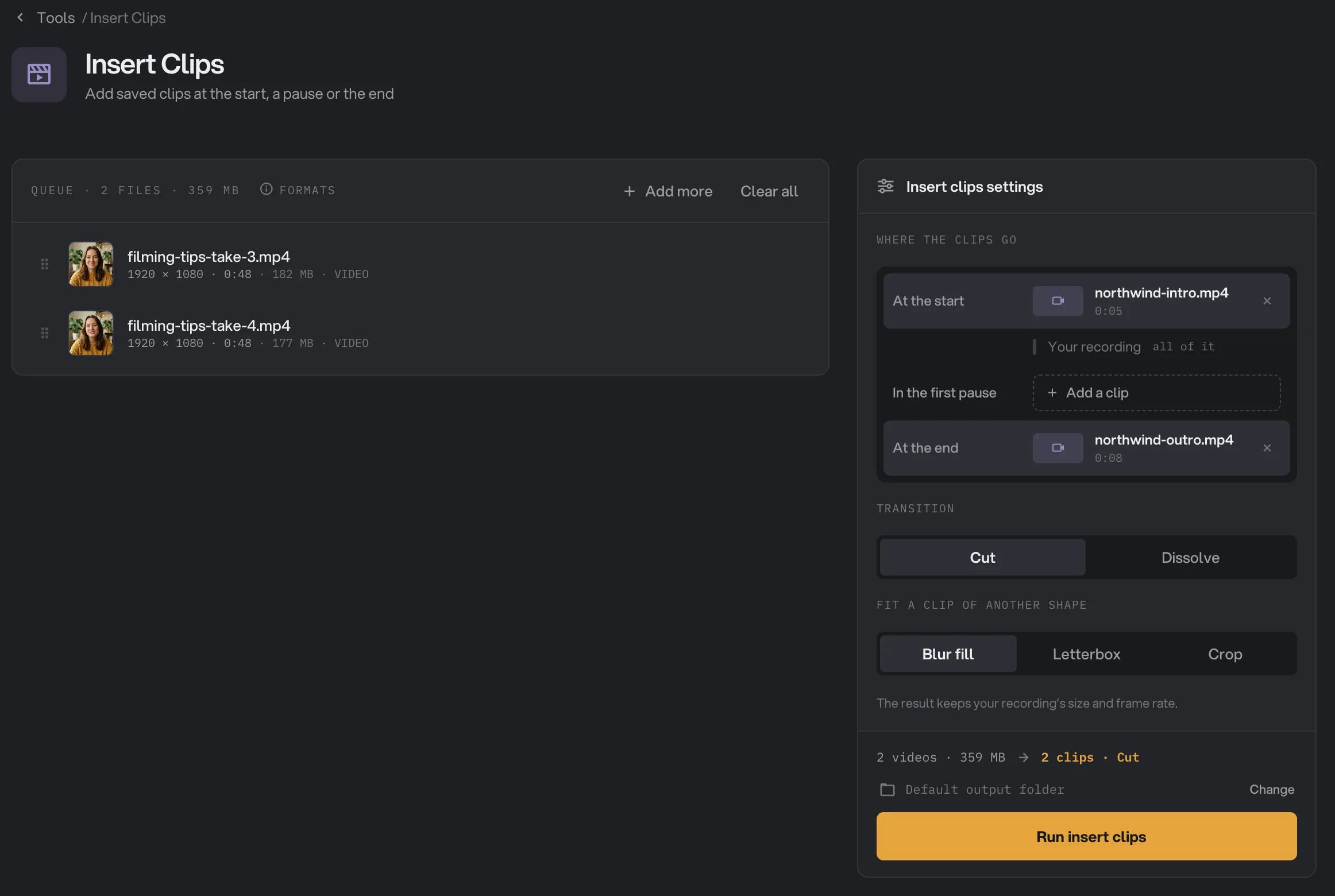
- Where the clips go
- A saved clip at the start
- In the first pause
- Transition
- Fit a clip of another shape
Step 3: Set where the pause clip goes
When you fill In the first pause, Find the pause appears. Hangar places the clip in the middle of the first pause after the time in Look after, such as 0:05. Type minutes and seconds, or just seconds.
Sensitivity sets how loud the room can be and still count as a pause. If a video fails with "No pause found", move the slider to the right, toward −10 dB, so a quiet room is read as a pause.
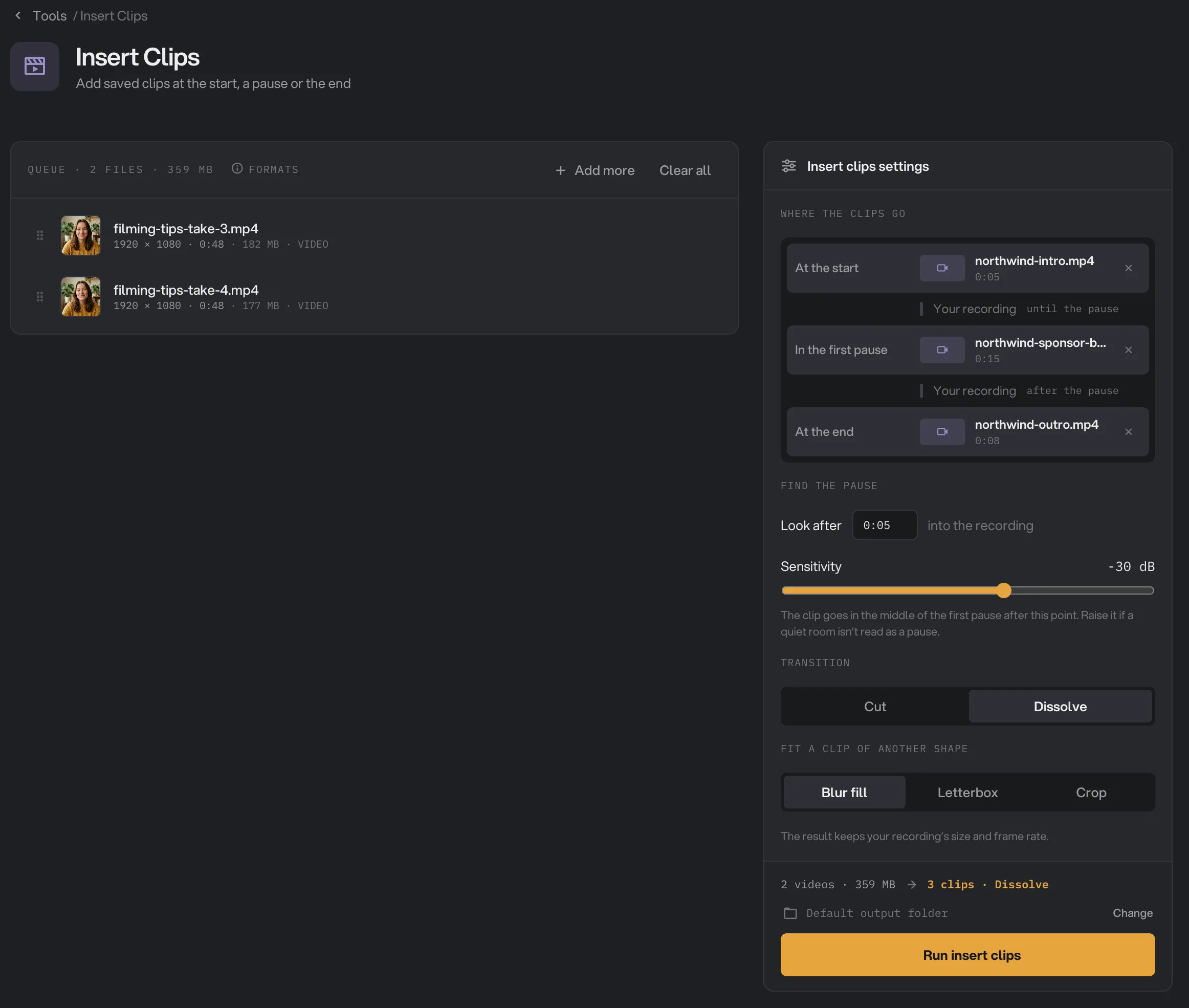
- Clip in the first pause
- Look after
- Sensitivity
- Dissolve
Step 4: Pick the transition and the fit
Under Transition, Cut goes straight from one part to the next. Dissolve fades each part into the next over half a second.
Under Fit a clip of another shape, choose what happens when a clip is not the same shape as your recording, such as a vertical clip in a wide video:
- Blur fill shows the whole clip over a blurred copy of itself.
- Letterbox shows the whole clip with black bars.
- Crop fills the frame and trims the edges of the clip.
The result always keeps your recording’s size and frame rate.
Step 5: Run, then check the videos
The line above the button sums up the run, such as "2 clips · Cut". Check where the files will go: Default output folder saves them in your workspace’s output folder, in an insert_clips folder with a subfolder for today’s date. Click Change to pick another folder. Then click Run insert clips.
When the run ends, each video shows Done. Click View to watch one, or Open folder to go to them. Each result is an MP4 named like filming-tips-take-3-clips.mp4. See See and compare your results and Where your files are saved.
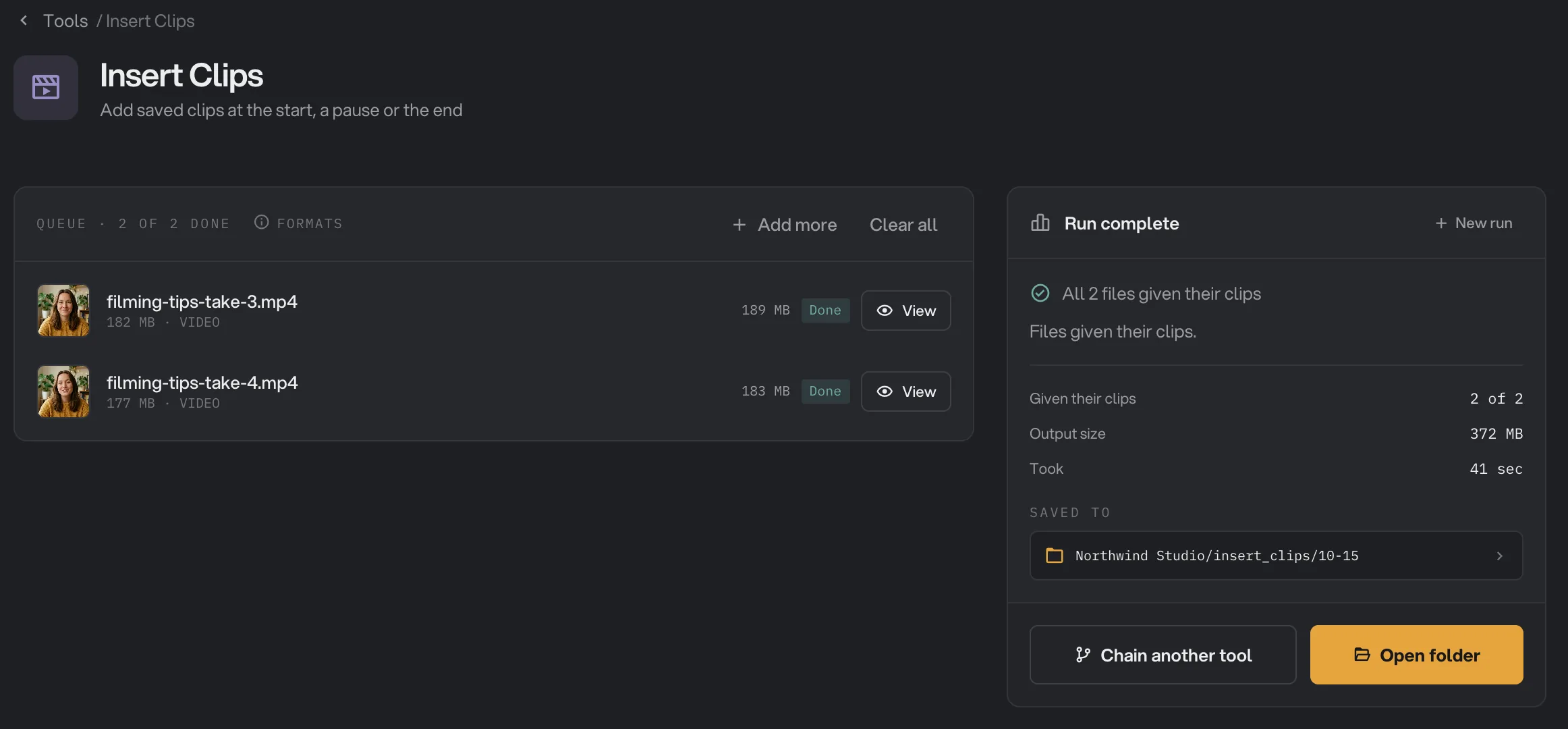
- Done
- View
- Saved to
- Open folder
Every setting, and when to change it
- At the start
Plays before your recording. Use it for an intro or a title.
- RangeA saved clip, or empty
- DefaultEmpty
- In the first pause
Plays in the middle of the first pause after Look after. Use it for a sponsor message or a short break.
- RangeA saved clip, or empty
- DefaultEmpty
- At the end
Plays after your recording. Use it for an outro or a call to action.
- RangeA saved clip, or empty
- DefaultEmpty
- Look after
Only shown with a pause clip. The pause clip goes in the first pause after this point.
- Range0:00 to 10:00
- Default0:05
- Sensitivity
Only shown with a pause clip. How loud a stretch can be and still count as a pause. Raise it if a quiet room isn’t read as a pause.
- Range−60 to −10 dB
- Default−30 dB
- Transition
How each part meets the next. Dissolve fades over half a second.
- RangeCut, Dissolve
- DefaultCut
- Fit a clip of another shape
How a clip of another shape fills your recording’s frame.
- RangeBlur fill, Letterbox, Crop
- DefaultBlur fill
How do I get the best results?
- Make your clips the same shape as your videos, such as 16:9 for YouTube or 9:16 for Reels, so they fill the frame without bars, blur or cropping.
- Use Look after to skip your opening line, so the break doesn’t land in the first breath of the video.
- Cut first, then insert. Trim the start and end of your takes with Trim Video before you add the intro and outro. In a chain, Insert Clips can run right after the trim.
- To join many videos into one, use Join Videos instead.
Why does a result look wrong?
- A video failed with "No pause found". No quiet stretch of at least half a second came after Look after, or the video has no sound. Raise Sensitivity or set an earlier Look after.
- A clip has black bars or a blurred background. It is not the same shape as your recording. Pick Crop to fill the frame, or make the clip in the same shape.
- "A chosen clip is no longer available". The saved clip was removed. Choose it again, or save it again.
- The button says to choose a clip first. Fill at least one of the three spots.
For other errors, see A file failed: what to check.
Limits
- Up to three clips per video: one at the start, one in the first pause and one at the end.
- The same clips go into every video in the queue. There is no per-video choice.
- Only the first pause after Look after gets a clip.
- Saved clips can be MP4, MOV, M4V, WebM or MKV files.
- The result is always an MP4 at your recording’s size and frame rate, so the whole video is re-encoded.
- Add video files, not folders.
- Everything runs on your computer. Nothing is uploaded.
Common questions
How do I add the same intro and outro to many videos?
Save your intro and outro once in Insert Clips, put them in At the start and At the end, then drop all your videos on the queue and run. Every video gets the same clips, and your saved clips are still there next time.
Where does the clip in the pause go?
In the middle of the first pause that starts after the time you set in Look after, such as 0:05 into the recording. A pause is a quiet stretch of at least half a second.
What if my intro is vertical and my video is wide?
The result always keeps your recording’s size and frame rate. Pick how a clip of another shape fits: Blur fill shows it whole over a blurred copy of itself, Letterbox adds black bars, and Crop fills the frame and trims the edges.
What if a clip has no sound?
Hangar adds silence for the length of that clip, so the sound of your recording stays in step with the picture.
What is the result called?
Each video keeps its name with -clips added and is saved as an MP4, such as filming-tips-take-3-clips.mp4. Your original video is not changed.
Still stuck?
One person reads every message, usually with a reply within a day.