 Agencies and studios
 Photographers
 Podcasters
 Video and social creators
 Marketers and content teams
What does Change speed do?
Change speed makes videos play faster or slower, on your own computer. In the app the tool is called Video Speed. Use it to tighten a slow tutorial, turn a long screen recording into a quick demo, or slow down a moment for effect.
The sound changes speed with the picture and keeps its natural pitch, so voices still sound like the same person. Every clip in the batch gets the same speed, and each one is saved as a new MP4.
Step 1: Open Video Speed and add your videos
Click Tools in the sidebar, open the Video tab and click Video Speed in the Edit section. You can also type "speed" in the search box at the top. Make sure you pick Video Speed, not Audio Speed.
Drop your videos on the queue, or click it to pick files. MP4, MOV, MKV, WebM, AVI and other common video files work.
Step 2: Choose the speed
The panel is called Change speed settings. Click one of the quick choices, 0.25×, 0.5×, 1×, 1.5×, 2× or 4×, or drag the Speed slider for anything in between, in steps of 0.05. The tool starts at 2×.
- Above 1× the video plays faster and gets shorter. 2× takes half as long.
- Below 1× it plays slower and gets longer. 0.5× takes twice as long.
The large number at the top shows your choice, with a short line under it such as "1.5× faster". For a slow-down it shows the speed itself, so half speed reads "0.5× slower".
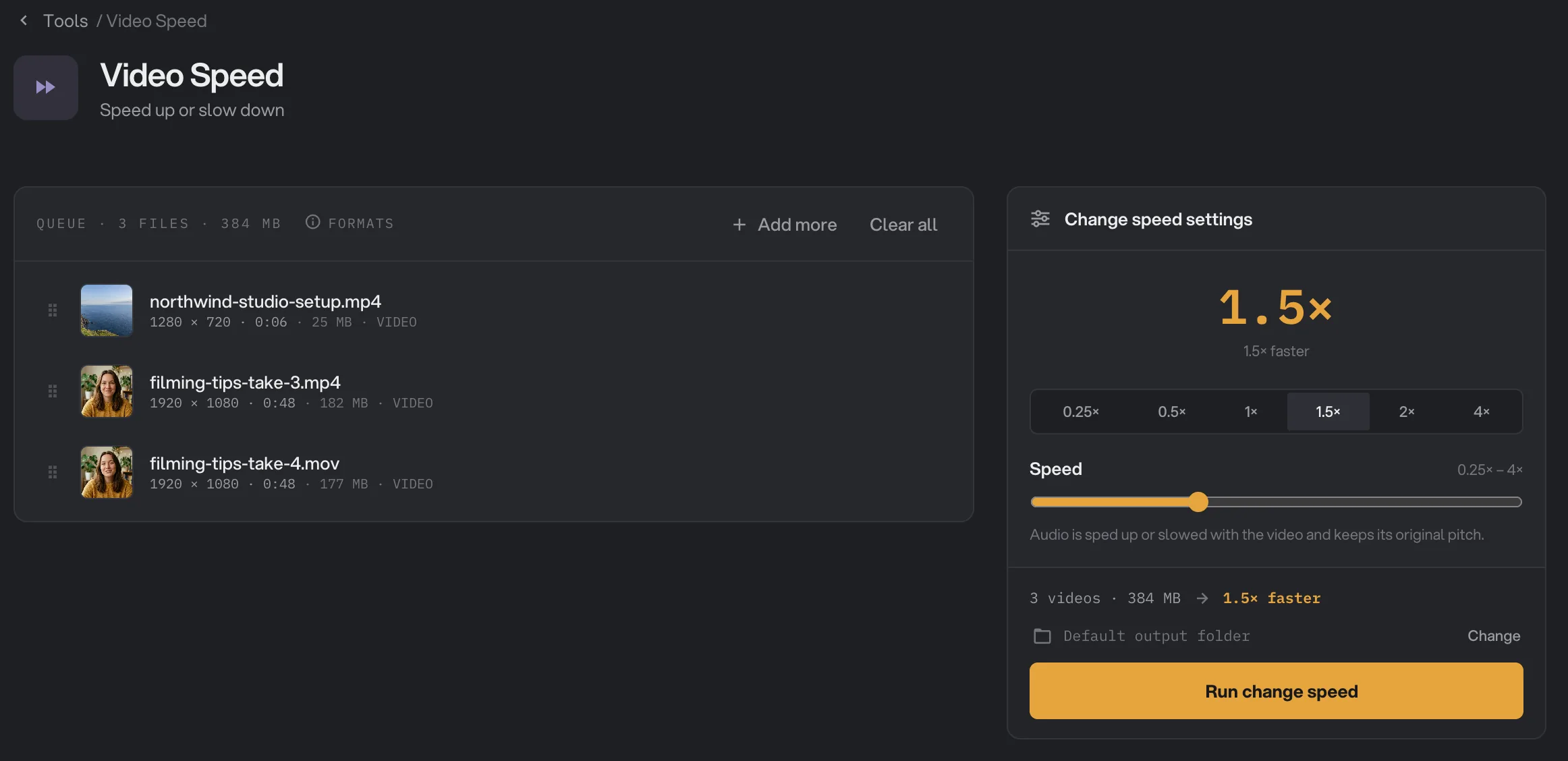
- 1.5×
- 0.25×
- Speed
- Audio is sped up or slowed
- Run change speed
Step 3: Run, then check the result
Check where the files will go: Default output folder saves them in your workspace’s output folder, in a speed folder with a subfolder for today’s date, such as 10-15. Click Change to pick another folder for this run. Then click Run change speed.
Each video shows Done when it is ready. Click View to check a result, and Open folder to go to the copies. They keep their original names and end in .mp4. See See and compare your results and Where your files are saved.
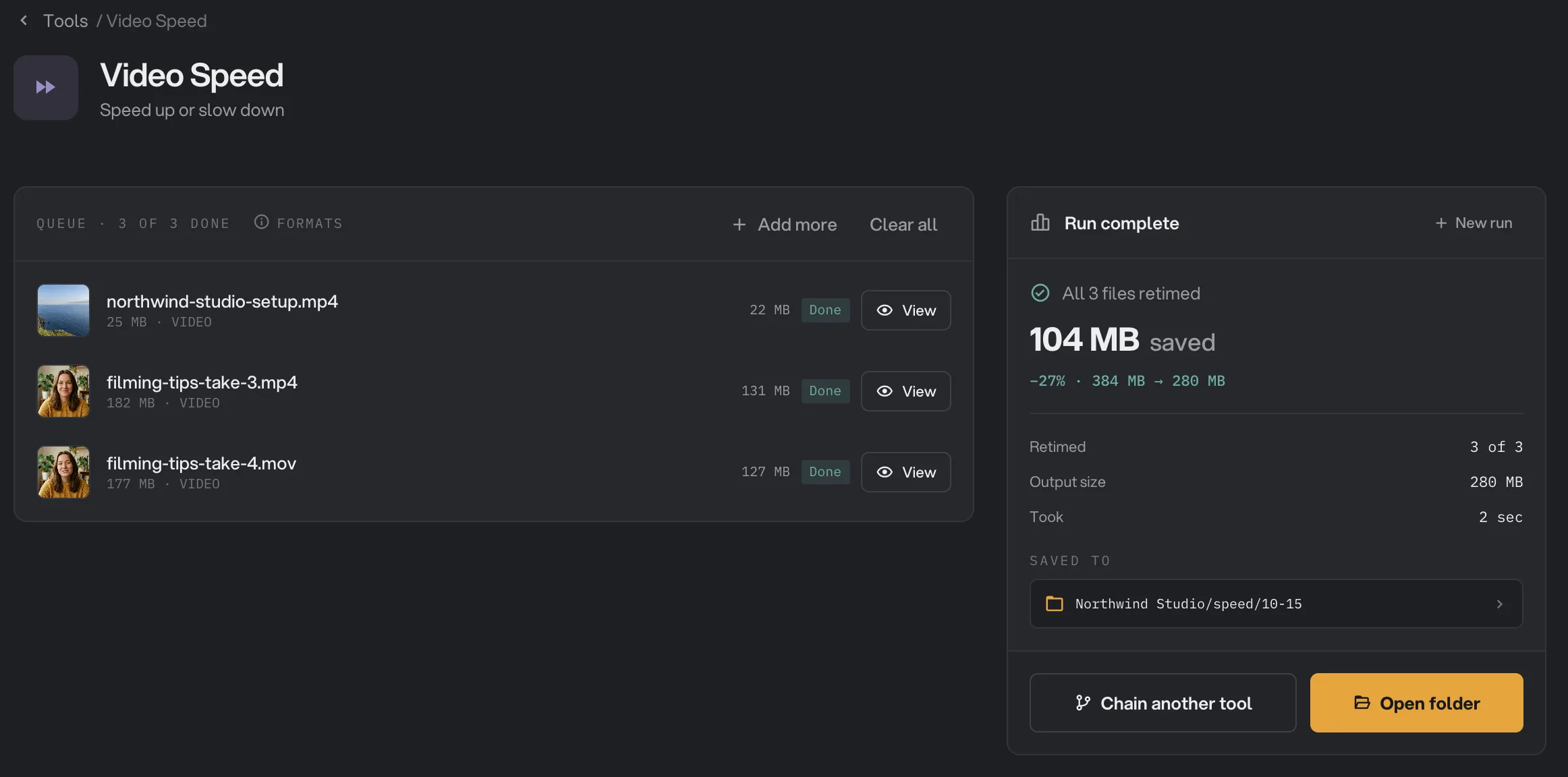
- Done
- View
- Saved to
- Open folder
Every setting, and when to change it
Video Speed has one setting. The quick choices and the slider set the same value.
- Speed
How fast the video plays. Above 1× it gets faster and shorter; below 1× slower and longer. The sound follows and keeps its pitch.
- Range0.25× to 4×, in steps of 0.05
- Default2×
How do I get a good result?
- For talking tutorials, try 1.25× to 1.5×. Speech stays easy to follow and the video feels tighter.
- For screen recordings and timelapse-style clips, use 2× or 4×. Speech is hard to follow at these speeds, so they suit clips where the picture matters more than the words.
- For slow motion, start from footage filmed at a high frame rate, such as 60 or 120 frames per second. Ordinary 30 fps footage looks steppy at 0.5× and below.
- Trim first. To speed up only one part, cut it out with Trim video, then change its speed.
- Try one clip first when you are unsure of the speed. Run a single video, watch it, then run the rest with the same setting.
Why does a result disappoint?
- Slow motion looks choppy. Hangar shows each frame for longer; it does not create new in-between frames. Use footage filmed at a higher frame rate, or a smaller slow-down such as 0.75×.
- Voices are hard to follow. Keep talking videos at 1.5× or below. The pitch stays natural, but very fast speech is still hard to understand.
- The file is bigger than expected. Every video is saved again as a new MP4 at high quality, and a sped-up video keeps every frame, so its size can change a lot. Shrink it afterwards with Compress video.
- The result is an MP4, not my original format. Video Speed always saves MP4. To get another format, use Convert video on the result.
- A video failed. The file may be damaged or use a format Hangar cannot read. Check that it plays in another app. See A file failed: what to check.
Limits
- Speeds from 0.25× to 4×.
- The whole clip changes speed. There is no start and end point.
- The sound always keeps its pitch. There is no option for the higher or lower voice you get from playing a tape faster or slower.
- The result is always an MP4. The picture and the sound are both saved again, even at 1×.
- For audio files, use Audio speed.
- Everything runs on your computer. Nothing is uploaded.
Use Change speed in a chain
Change speed is available as a step in chains, under the Video steps, with the same quick choices and slider as the tool. Every video in a chain gets the same speed.
Put Change speed before Add Audio in a chain. If you add music first, the music is sped up along with the video. A common chain resizes videos for social media, speeds them up and then compresses them. A chain also remembers your settings; see Run a chain on many files.
Common questions
Do voices sound natural when I speed up a video?
Yes. The sound is sped up with the picture and keeps its original pitch, so a voice at 1.5× sounds like the same person talking faster, not like a cartoon.
How fast or slow can a video go?
From 0.25× (four times slower) to 4× (four times faster). At 2× a clip takes half as long; at 0.5× it takes twice as long.
Can I speed up only part of a clip?
No. Video Speed changes the whole clip. Cut out the part you want with Trim video first, then change its speed.
Why is my MOV file now an MP4?
Video Speed always saves an MP4, whatever the original format. MP4 plays almost everywhere.
Does slow motion look smooth?
Only up to a point. Hangar shows each frame for longer to fill the time; it does not invent new frames. Footage filmed at 60 frames per second or more slows down more smoothly than ordinary 30 fps video.
Is my original video changed?
No. Hangar saves a new copy in your output folder and leaves the original where it was.
Still stuck?
One person reads every message, usually with a reply within a day.