 Agencies and studios
 Photographers
 Podcasters
 Video and social creators
 Marketers and content teams
What does Join videos do?
Join videos puts several clips together into one video, on your own computer, with a transition between each pair. Combine an opener, an interview and a phone clip into one reel, or stitch the parts of a recording back together. In the app the tool is called Join Videos.
Clips of different sizes and shapes are fitted to one frame, so a vertical phone clip and a widescreen clip can sit in the same video. The result is one MP4 file.
Step 1: Add your clips in order
Click Tools in the sidebar, open the Video tab and click Join Videos in the Cut & join section. You can also type "join" in the search box at the top.
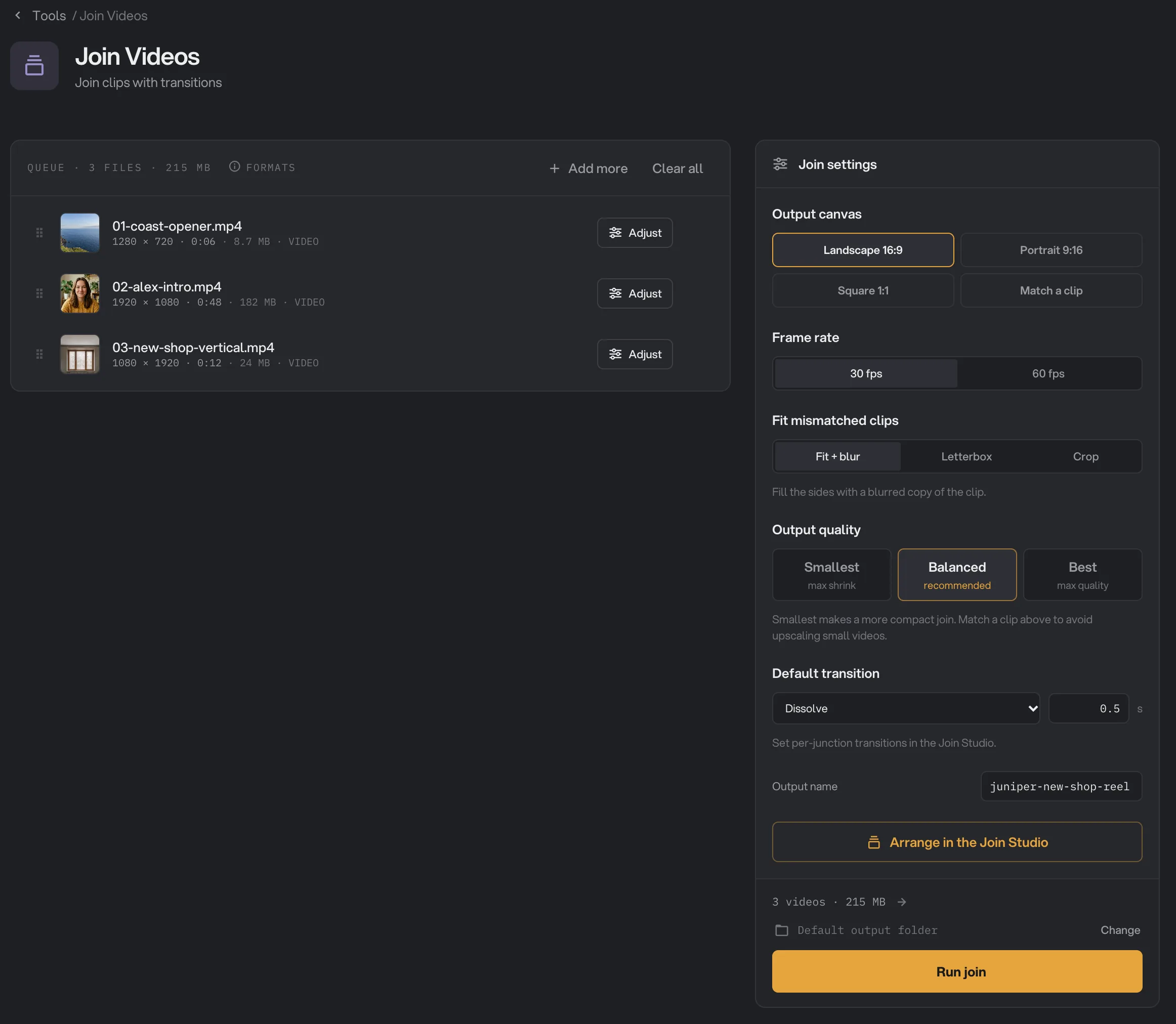
Drop at least two videos on the queue, or click it to pick files. They are joined from top to bottom. Drag a row by its handle to change the order. Each row shows the clip’s size and length, such as "1080 × 1920 · 0:12" for a vertical phone clip.
- Output canvas
- Fit mismatched clips
- Output quality
- Default transition
- Arrange in the Join Studio
- Run join
Step 2: Choose the frame and the look
- Output canvas sets the shape of the joined video: Landscape 16:9 (1920 × 1080) for YouTube and the web, Portrait 9:16 (1080 × 1920) for Reels, Shorts and stories, Square 1:1 (1080 × 1080), or Match a clip to use the size of one of your clips. Type that clip’s number in the Match clip # box under the buttons.
- Frame rate is 30 fps or 60 fps. Choose 60 fps only when your clips were filmed at 60.
- Fit mismatched clips decides what happens when a clip’s shape differs from the canvas. Fit + blur shows the whole clip with a blurred copy behind it, Letterbox adds black bars, and Crop fills the frame and cuts off the edges.
- Output quality: Balanced is right for most videos. Smallest makes a smaller file, and Best keeps the most detail.
Step 3: Pick the transitions
Under Default transition, pick the transition used between every pair of clips, and its length in seconds (0.1 to 2). The choices are Cut, Dissolve, Fade · black, Fade · white, four slides (Slide ←, Slide →, Slide ↑, Slide ↓), Circle open and Circle close.
Type a name under Output name, such as "juniper-new-shop-reel". The file is saved as an MP4 with that name.
Step 4: Arrange clips in the Join studio
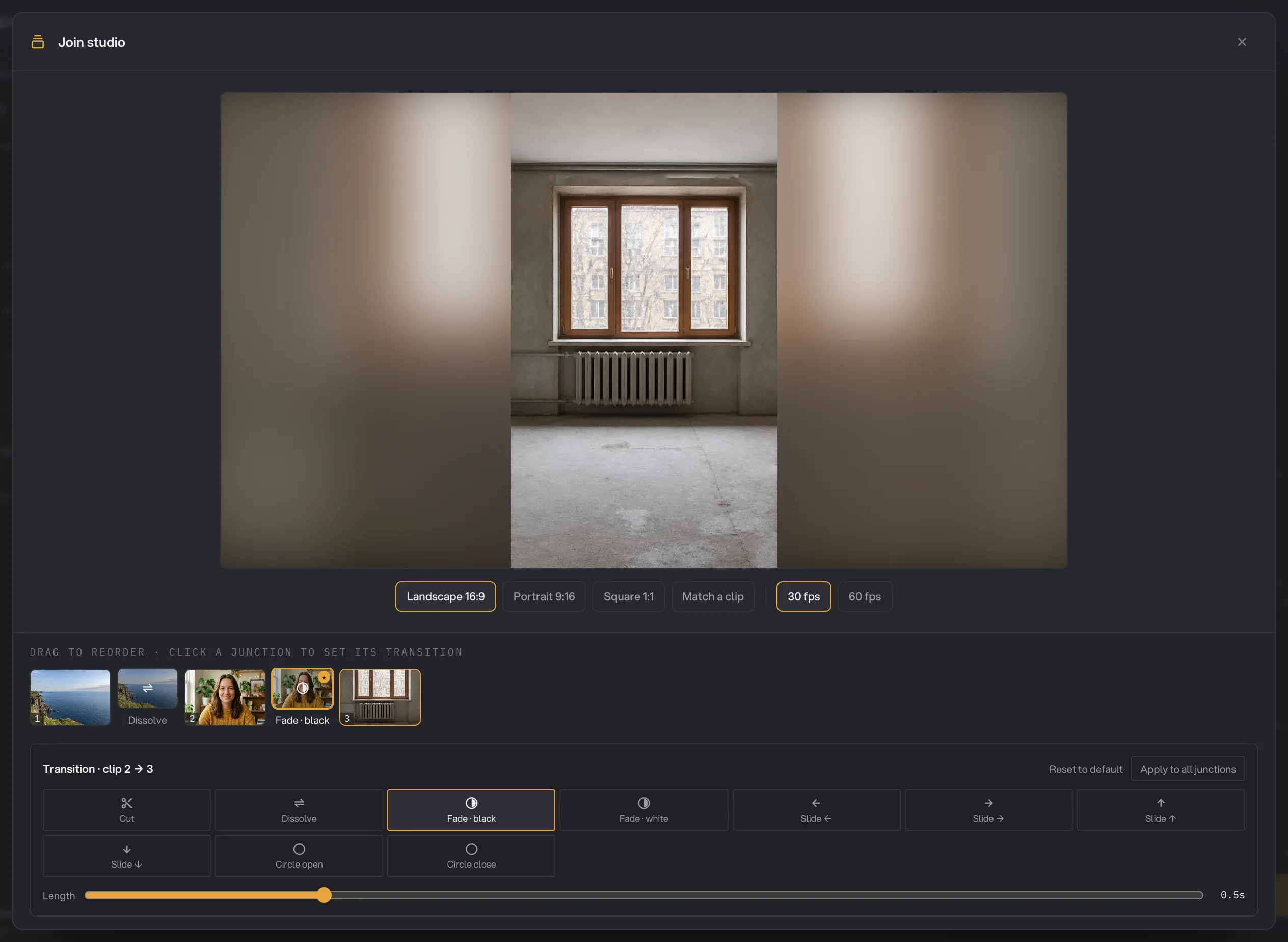
Click Arrange in the Join Studio, or Adjust on a clip in the queue. The Join studio shows your clips as a numbered strip, with a junction between each pair.
- Click a clip to see how it fits the canvas. Change the canvas shape and frame rate with the buttons under the preview.
- Drag a clip along the strip to change the order.
- Click a junction to give it its own transition and Length. Reset to default puts it back on the Default transition. Apply to all junctions makes this transition the default for every junction.
Changing the order clears the transitions you set for single junctions, so set the order first. Close the Studio when you are done; your changes are kept until you close Hangar.
- Join studio
- Landscape 16:9
- Clip 3
- Transition · clip 2 → 3
- Apply to all junctions
- Length
Step 5: Run, then watch the result
Check where the file will go: Default output folder saves it in your workspace’s output folder, in a join folder with a subfolder for today’s date, such as 10-15. Click Change to pick another folder for this run. Then click Run join.
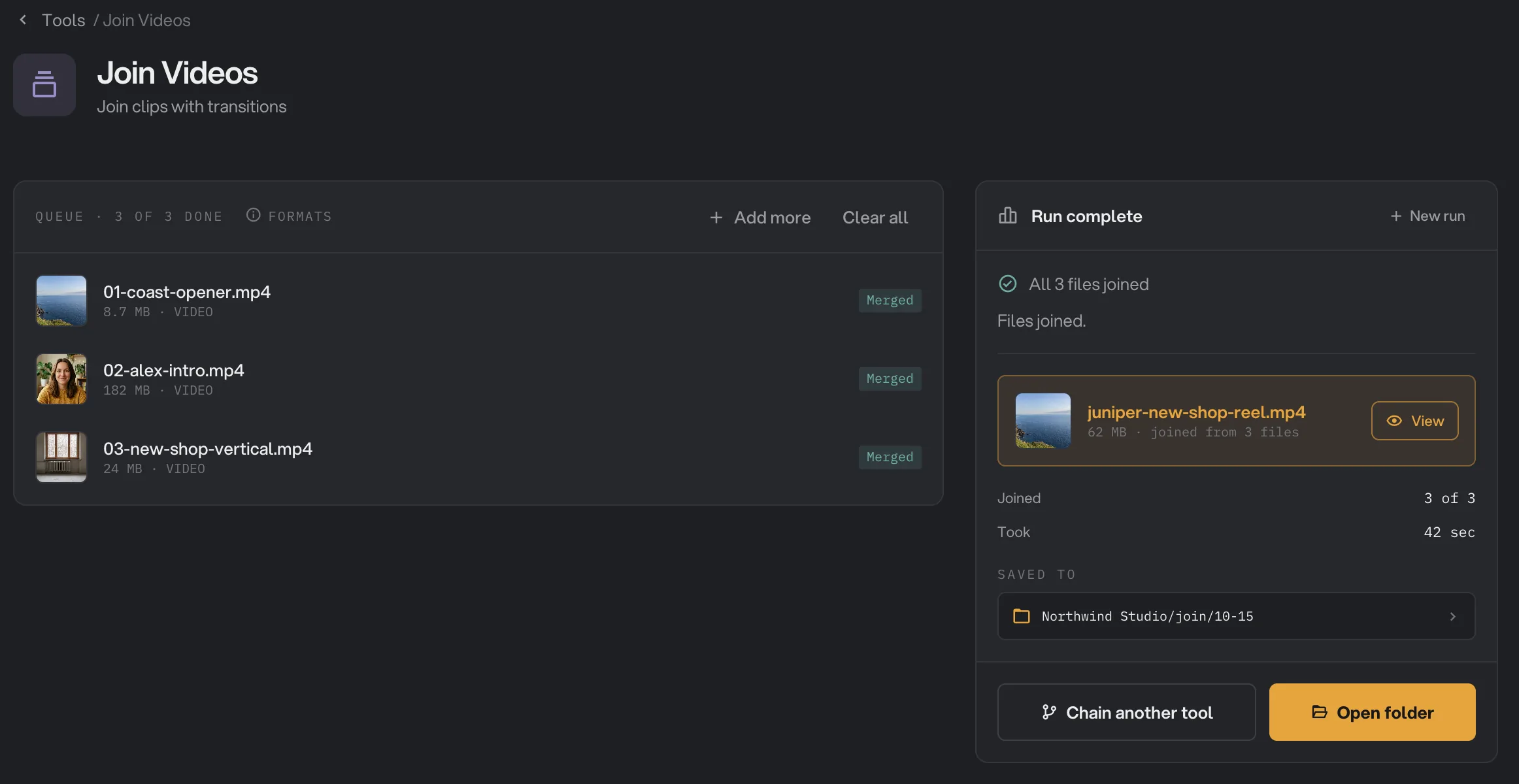
When the run ends, the clips show Merged. In the Run complete panel, a card shows the new video’s name, its size and how many clips it joined, such as "joined from 3 files". Click View to watch it, and Open folder to go to it. See See and compare your results and Where your files are saved.
- Merged
- juniper-new-shop-reel.mp4
- View
- Saved to
- Open folder
Every setting, and when to change it
These settings apply to the whole join. The Join studio adds a transition and length for each junction.
- Output canvas
The size and shape of the joined video. Match a clip uses the size of the clip whose number you type.
- RangeLandscape 16:9, Portrait 9:16, Square 1:1, Match a clip
- DefaultLandscape 16:9
- Frame rate
Frames per second of the joined video. Every clip is converted to it.
- Range30 fps, 60 fps
- Default30 fps
- Fit mismatched clips
How a clip of another shape fills the canvas: whole with a blurred copy behind, whole with black bars, or cropped to fill.
- RangeFit + blur, Letterbox, Crop
- DefaultFit + blur
- Output quality
The balance between file size and detail.
- RangeSmallest, Balanced, Best
- DefaultBalanced
- Default transition
The transition used at every junction you have not changed in the Join studio.
- RangeCut, Dissolve, Fade · black, Fade · white, 4 slides, Circle open, Circle close
- DefaultDissolve
- Transition length
How long each transition lasts. It can be no longer than half of the shorter clip next to it.
- Range0.1 to 2 seconds
- Default0.5 seconds
- Output name
The name of the joined video. It is always saved as an MP4.
- RangeAny name
- Defaultjoined
How do I get the best results?
- Pick the canvas for where the video goes. Portrait 9:16 for Reels, Shorts and stories, Landscape 16:9 for YouTube and the web.
- Avoid enlarging small clips. If all your clips are smaller than 1080p, choose Match a clip and pick one of them, so nothing is blown up.
- Trim first. Cut the slate and dead air from each clip with Trim Video, then join the trimmed copies.
- Keep transitions short. 0.3 to 0.7 seconds feels natural. Use Cut between clips that already flow.
- Set the order before the junctions. Reordering in the Join studio resets the transitions you set for single junctions.
Why does a result look wrong?
- The run failed saying it needs at least 2 videos. Add another clip. Join Videos needs two or more.
- Some clips look soft. They were smaller than the canvas and were enlarged. Choose Match a clip, or use larger originals.
- Heads or edges are cut off. You chose Crop. Use Fit + blur or Letterbox to keep the whole picture.
- The clips are in the wrong order. The join follows the queue from top to bottom. Drag the rows into place and run again.
- A transition is shorter than I set. A transition can last at most half of the shorter clip next to it, so very short clips get short transitions.
- The video is shorter than expected. Each transition overlaps two clips. Use Cut, or shorter transitions, to keep more of each clip.
For other errors, see A file failed: what to check.
Limits
- Join Videos takes MP4, MOV, MKV, WebM, AVI, M4V, MPG, MPEG, TS, MTS, M2TS, 3GP and WMV files.
- It needs at least two clips, and makes one MP4 file from the whole queue.
- The frame is 1920 × 1080, 1080 × 1920, 1080 × 1080 or the size of one of your clips, at 30 or 60 fps.
- The Join studio preview is a still frame of each clip, not playback. Watch the result with View.
- Transitions you set in the Join studio last until you close Hangar.
- Add video files, not folders.
- Everything runs on your computer. Nothing is uploaded.
Common questions
How do I change the order of the clips?
The clips are joined in the order of the queue, top to bottom. Drag a row by its handle to move it, or drag the thumbnails in the Join studio.
Can I join a vertical phone clip with landscape videos?
Yes. Every clip is fitted to one Output canvas. With Fit + blur, a vertical clip in a landscape video sits in the middle with a blurred copy of itself on both sides. Choose Letterbox for black bars, or Crop to fill the frame.
Can I use a different transition between two clips?
Yes. Click Arrange in the Join Studio, click the junction between the two clips, and pick a transition and its length. Other junctions keep the Default transition.
Why is the joined video shorter than my clips added together?
Each transition overlaps the end of one clip with the start of the next. With a 0.5 second Dissolve, every junction takes off about half a second. Choose Cut for almost no overlap.
What format is the joined video?
Always an MP4 file, with the name you type under Output name. The sound of each clip is kept and blends across each transition. A clip with no sound is silent in the result.
Are my original clips changed?
No. Hangar saves one new video in your output folder and leaves the clips where they were.
Still stuck?
One person reads every message, usually with a reply within a day.