 Agencies and studios
 Photographers
 Podcasters
 Video and social creators
 Marketers and content teams
What does Video to GIF do?
Video to GIF turns videos into animated GIFs, on your own computer. Use it for a looping product shot, a quick how-to for a help page or newsletter, or a short moment to share in a chat.
Each video becomes one GIF. By default Hangar uses the first 5 seconds of each video, 480 pixels wide, so the GIFs stay small enough to share. The GIF Studio lets you pick the exact moment for each video and see the real GIF before you run.
Step 1: Open Video to GIF and add your videos
Click Tools in the sidebar, open the Video tab and click Video to GIF in the Convert section. You can also type "gif" in the search box at the top.
Drop your videos on the queue, or click it to pick files. MP4, MOV, MKV, WebM, AVI and other common video files work.
Step 2: Choose the length and size
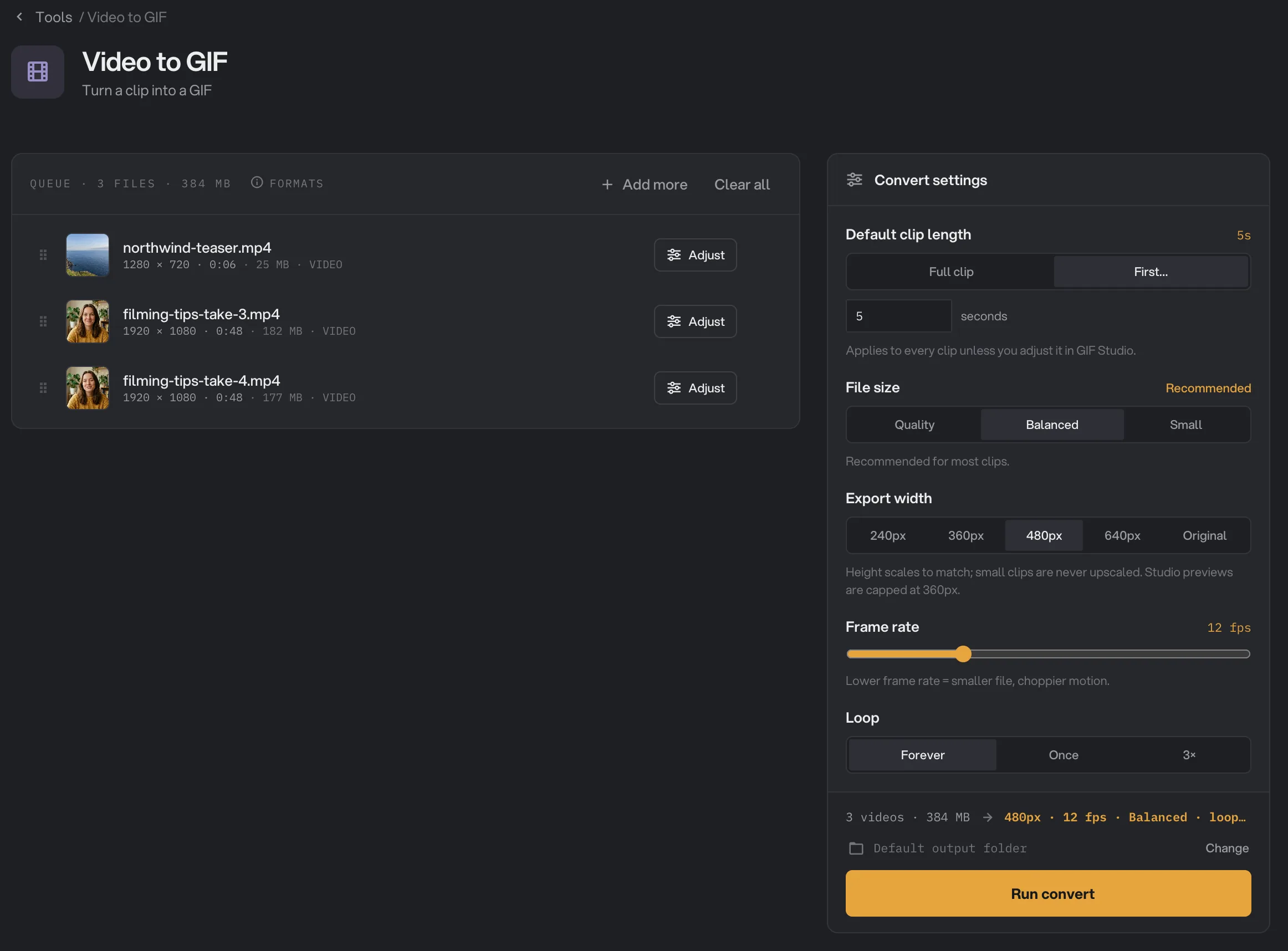
The panel is called Convert settings. These settings apply to every video.
- Default clip length: First… uses the first few seconds of each video, 5 seconds to start with. Type another number in the box, or choose Full clip to use whole videos.
- File size: Balanced, marked Recommended, suits most clips. Quality gives the smoothest color and a larger file. Small uses fewer colors, so smooth areas such as skies may show bands.
- Export width: 240px, 360px, 480px, 640px or Original. The height follows, and a video narrower than your choice keeps its own width.
- Frame rate: from 5 to 30 frames per second, 12 to start with. Lower numbers make smaller files with choppier motion.
- Loop: Forever, Once or 3×.
When your choices are likely to make a heavy GIF, such as a full clip, 640px or more than 15 frames per second, the panel shows a reminder that length, size and frame rate matter most. The line above the button sums up your settings, for example 480px · 12 fps · Balanced · loops · first 5s.
- Default clip length
- File size
- Export width
- Frame rate
- Loop
- Adjust
- Run convert
Step 3: Pick the moment in the GIF Studio
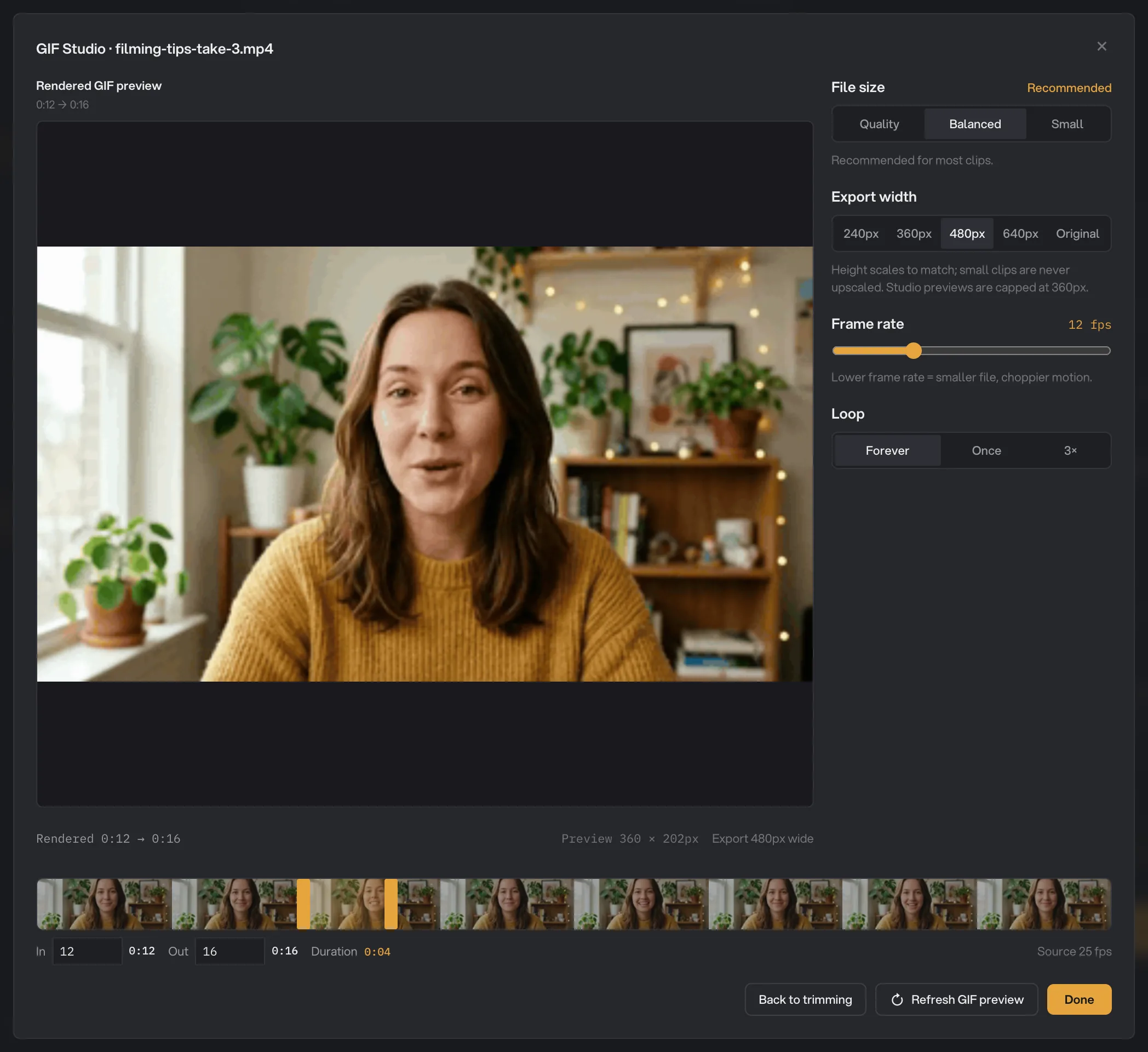
Click Adjust on a video in the queue. The GIF Studio opens on that video.
- Drag the two handles on the strip under the video to choose the part to keep, or type the times in the In and Out boxes, in seconds. Duration shows how long the GIF will be.
- On the right, change File size, Export width, Frame rate or Loop for this video only.
- Click Preview selected GIF to see the real GIF, made by Hangar from your selection. Previews are at most 360 pixels wide, so they load quickly; the line under the preview shows the width you will export. After a change, the preview says it is out of date: click Refresh GIF preview, or Back to trimming to adjust the handles again.
Click Done to keep your changes. The video then shows a ★ on Adjust. Pressing Esc or clicking × closes the GIF Studio without saving.
- Rendered GIF preview
- Trim range
- Duration
- File size
- Refresh GIF preview
Step 4: Run, then check the result
Check where the files will go: Default output folder saves them in your workspace’s output folder, in a to_gif folder with a subfolder for today’s date, such as 10-15. Click Change to pick another folder for this run. Then click Run convert.
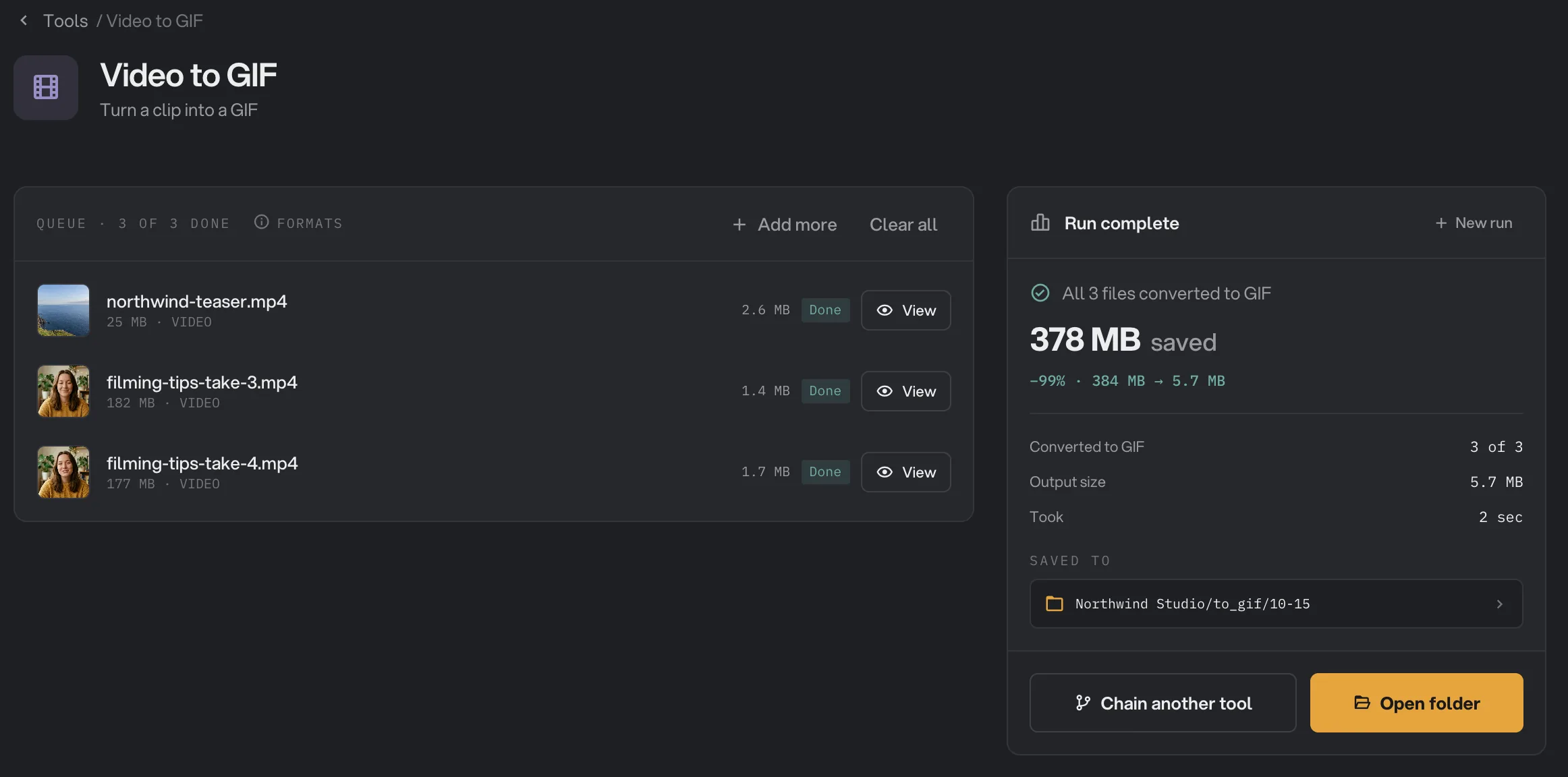
Each video shows Done when its GIF is ready. Click View to check a result, and Open folder to go to the GIFs. Each one has the name of its video, ending in .gif. See See and compare your results and Where your files are saved.
- Done
- View
- Saved to
- Open folder
Every setting, and when to change it
The panel sets the defaults for every video. The GIF Studio has the same settings except Default clip length, plus the trim handles for one video.
- Default clip length
How much of each video becomes the GIF, unless you pick a moment in the GIF Studio.
- RangeFull clip, or the first 0.5 to 3600 seconds
- DefaultFirst 5 seconds
- In and Out
In the GIF Studio only. The start and end of this video’s GIF.
- RangeAny part of the video, in steps of 0.1 second
- DefaultThe default clip length
- File size
How colors are packed. Quality is smoothest and largest; Small is smallest and may show bands.
- RangeQuality, Balanced, Small
- DefaultBalanced
- Export width
The width of the GIF. The height follows, and small videos are never enlarged.
- Range240px, 360px, 480px, 640px, Original
- Default480px
- Frame rate
Pictures per second. Lower is smaller and choppier.
- Range5 to 30 fps
- Default12 fps
- Loop
Forever repeats without end. Once plays the GIF one time. 3× repeats it a few times, then stops.
- RangeForever, Once, 3×
- DefaultForever
How do I make a good GIF?
- Keep it short. 2 to 6 seconds is plenty for a loop. Length has the biggest effect on file size.
- For email and chat, use 360px or 480px and 10 to 12 fps. For a page where motion matters, try 15 fps.
- Pick a moment that loops well. In the GIF Studio, choose a start and end where the picture looks alike, so the jump back to the start is hard to see.
- Choose Quality for smooth color, such as skin tones, skies or soft light, if the file can be a bit larger.
- Preview before you run. The GIF Studio preview is the real GIF, so what you see is what you get, only smaller.
Why does a GIF disappoint?
- The file is huge. Shorten the clip, lower Export width and Frame rate, then try Small. A GIF is often several times larger than the video it came from.
- The GIF only shows the start of my video. Default clip length is set to the first 5 seconds. Choose Full clip, or pick the moment in the GIF Studio.
- Colors look blotchy or banded. GIFs can only hold a limited set of colors. Choose Quality.
- Motion looks jerky. Raise Frame rate to 15 or more, and keep the clip short to balance the size.
- The GIF is smaller than the width I chose. Hangar never enlarges a video, so a narrow video keeps its own width.
- My GIF Studio changes are gone. They are only kept when you click Done. Esc and × close without saving.
For other errors, see A file failed: what to check.
Limits
- Frame rate from 5 to 30 fps; widths 240, 360, 480 and 640 pixels, or the video’s own width.
- Loop offers Forever, Once and 3×. No other count.
- GIFs have no sound.
- One GIF per video, from one continuous part of it.
- Settings made in the GIF Studio are not kept after you close Hangar.
- Everything runs on your computer. Nothing is uploaded.
Common questions
Can I turn just part of a video into a GIF?
Yes. By default every GIF is made from the first 5 seconds of its video. To pick a different moment, click Adjust on the video and move the trim handles in the GIF Studio.
How do I make a GIF smaller?
Shorten it first, then lower the width and the frame rate. A 3 second GIF at 360px and 10 fps is far smaller than a 10 second one at 640px and 20 fps. File size set to Small helps a little more.
Will the GIF be bigger than my video?
Often, yes. GIFs store moving pictures far less efficiently than video files, so a GIF can be several times larger than its video. That is why short clips and small widths matter.
Does the GIF have sound?
No. GIFs cannot carry sound, so the audio of the video is left out.
Can I make a GIF loop a set number of times?
Choose Forever, Once or 3×. Other counts are not available.
Is my original video changed?
No. Hangar saves a new GIF in your output folder and leaves the video where it was.
Still stuck?
One person reads every message, usually with a reply within a day.