 Agencies and studios
 Photographers
 Podcasters
 Video and social creators
 Marketers and content teams
What does Extract audio do?
Extract audio saves the sound from a video as its own audio file, on your own computer. Use it to turn a recorded interview into a podcast file, keep the music from a clip, or get a talk ready to edit. In the app the tool is called Extract Audio.
You can copy the sound out exactly as it is, which is lossless and near instant, or turn it into MP3, AAC or WAV. Each video you add gives back one audio file with the same name.
Step 1: Add your videos
Click Tools in the sidebar, open the Video tab and click Extract Audio in the Convert section. You can also type "extract audio" in the search box at the top.
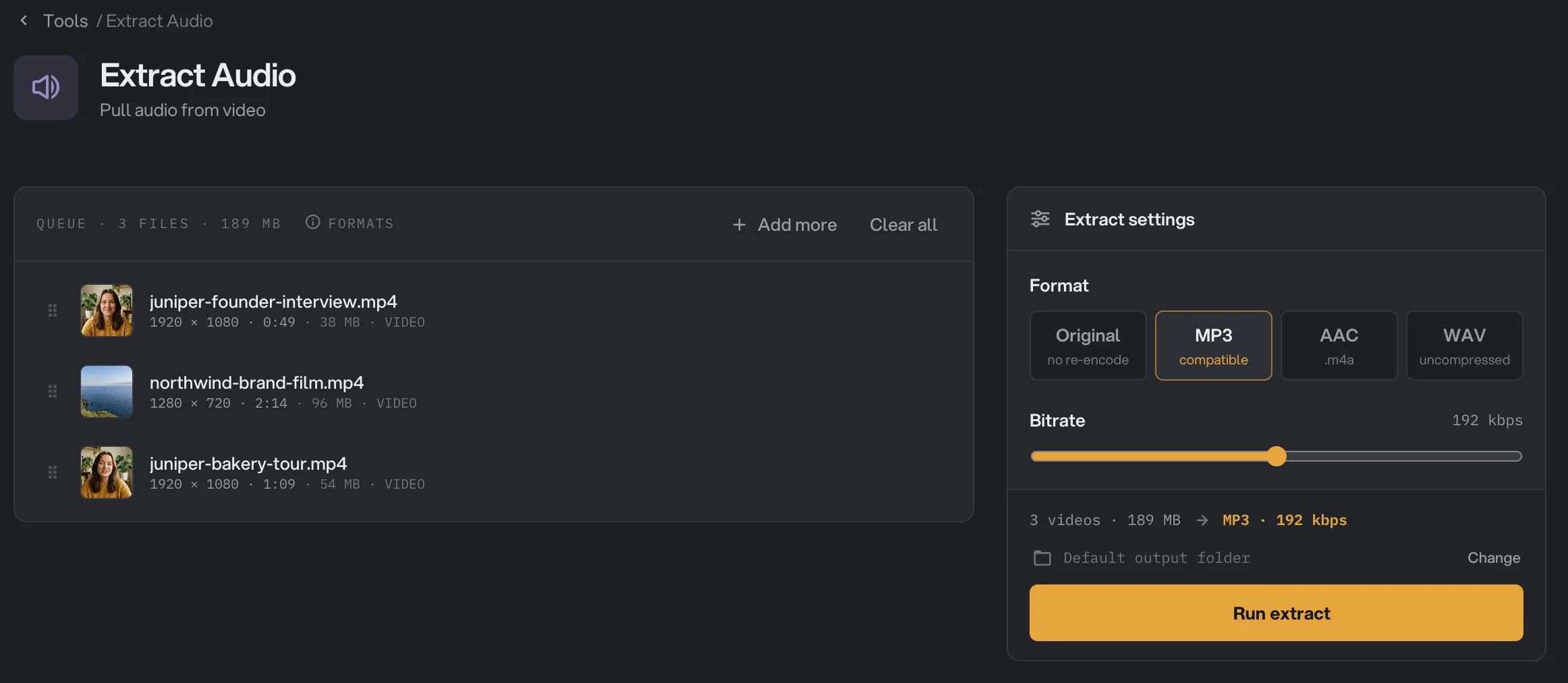
Drop your video files on the queue, or click it to pick them. Extract Audio takes MP4, MOV, MKV, WebM, AVI, M4V, MPG, MPEG, TS, MTS, M2TS, 3GP and WMV files. Each row shows the video’s size and length. Audio files are listed under Not applicable and are skipped. Use Add more to add files later.
- Format
- MP3
- Bitrate
- Run extract
Step 2: Pick a format
Click one of the four tiles under Format:
- Original copies the sound exactly as it is in the video. Nothing is converted, so there is no loss and it is very fast. The file type follows the video: most phone and camera videos give an .m4a file. This is the default.
- MP3 plays on almost anything. Use it for podcast hosts, voice notes and sharing.
- AAC is saved as an .m4a file, which most phones and music apps open.
- WAV is uncompressed sound. Files are large, but editing apps open them easily.
For MP3 and AAC, set the Bitrate with the slider, from 64 to 320 kbps. The default, 192 kbps, sounds good for speech and music. Use 128 kbps for small voice files, and 256 or 320 kbps for music you care about.
Step 3: Run, then check the result
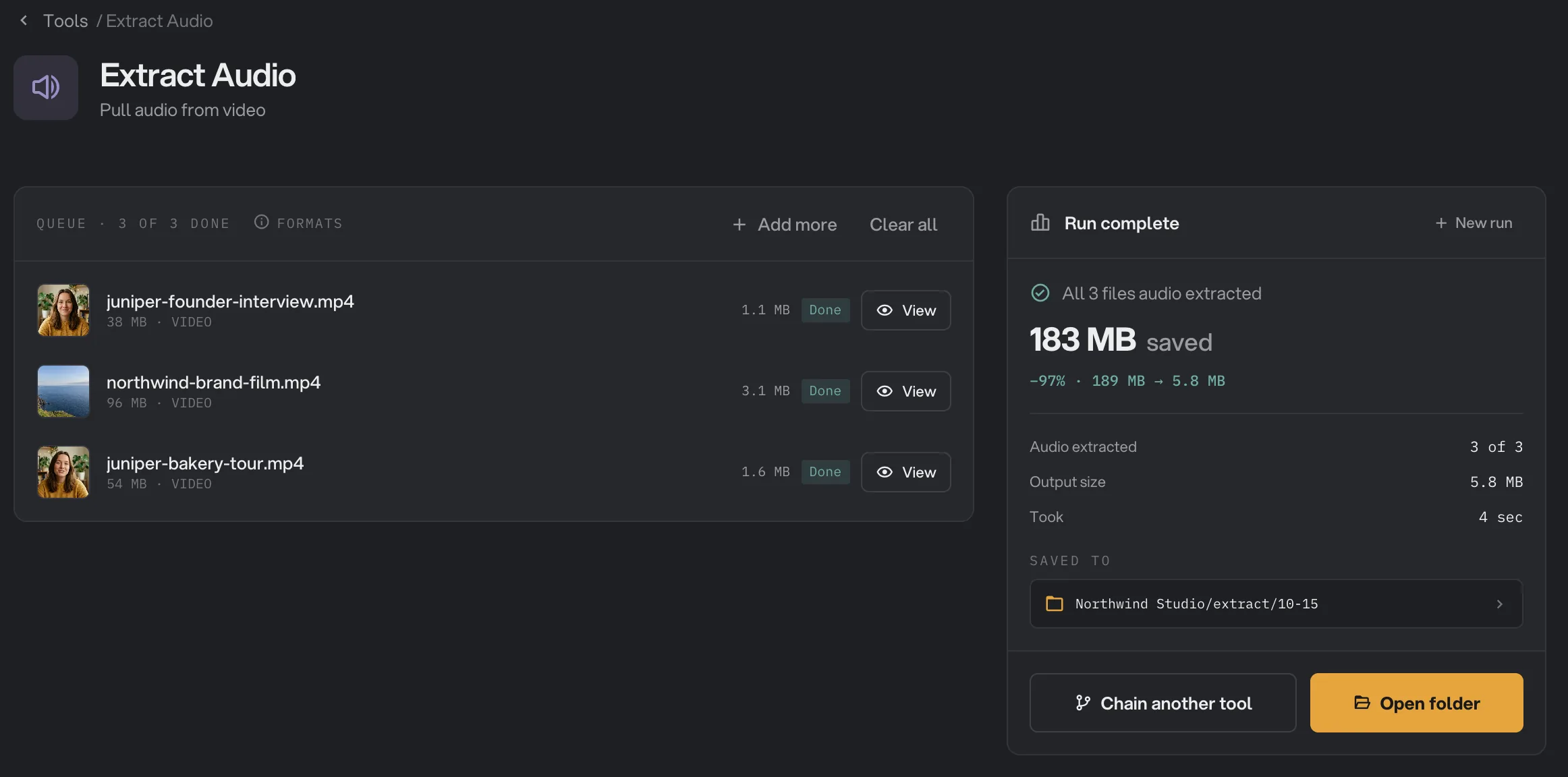
Check where the files will go: Default output folder saves them in your workspace’s output folder, in an extract folder with a subfolder for today’s date, such as 10-15. Click Change to pick another folder for this run. Then click Run extract.
When the run ends, each video shows Done and the panel says how many files were extracted. Click View on a row to play the result, and Open folder to go to the audio files. See See and compare your results and Where your files are saved.
- Done
- View
- Saved to
- Open folder
Every setting, and when to change it
- Format
Copy the sound as it is, or turn it into MP3, AAC (.m4a) or WAV. With Original, the file type follows the sound inside the video.
- RangeOriginal, MP3, AAC, WAV
- DefaultOriginal
- Bitrate
How much detail MP3 and AAC files keep. Higher sounds better and makes larger files. Shown for MP3 and AAC only.
- Range64 to 320 kbps
- Default192 kbps
How do I get the best results?
- To edit or keep the sound, use Original. It is a perfect copy, so later edits start from the best quality there is.
- To share or upload, use MP3 at 192 kbps. Most podcast hosts and players accept it.
- For an editing app that wants uncompressed sound, use WAV.
- To change the sound afterward, open the new audio files in Audio Convert or Volume / Normalize.
Why does a result disappoint?
- A video failed with a message that it has no audio track. The video has no sound to take. Screen recordings and some exported clips are silent.
- A video failed with a message that its audio can’t be converted. The sound uses a kind that Hangar can copy but not convert. Choose Original for that video. You get an exact copy, often as an .mka file.
- I can’t open the .mka file. Some players do not support it. Try a player that handles many formats, or run the video again with MP3 if Hangar can convert its sound.
- The MP3 sounds worse than the video. Raise the Bitrate, or use Original to keep the sound exactly as it was.
- The language or commentary track is wrong. Extract Audio takes only the first audio track in each video.
For other errors, see A file failed: what to check.
Limits
- Extract Audio takes video files only. To change an audio file’s format, use Audio Convert.
- Only the first audio track in each video is saved.
- MP3, AAC and WAV work when the video’s sound is AAC, MP3, Opus, Vorbis or FLAC, which covers most videos. Other kinds can only be copied with Original.
- Add video files, not folders.
- Everything runs on your computer. Nothing is uploaded.
Common questions
Can I get the sound with no loss in quality?
Yes. Leave Format on Original. Extract Audio copies the sound out of the video exactly as it is, without converting it, so nothing is lost and it takes only a moment.
Why did I get an .m4a file instead of an MP3?
With Original, the file type follows the sound inside the video. Most phone and camera videos hold AAC sound, which is saved as .m4a. Pick MP3 under Format if you need an MP3.
What is an .mka file?
Original saves some less common kinds of sound in an .mka file so they stay exactly as they were. Some players cannot open it. Choose MP3, AAC or WAV instead to get a file that plays everywhere.
My video has several audio tracks. Which one do I get?
The first one. Extract Audio takes the first audio track in each video and leaves the others out.
Can I extract audio from many videos at once?
Yes. Add all the videos to the queue. Each one gives back its own audio file with the same name.
Is my video changed?
No. Hangar saves the audio as a new file in your output folder and leaves the video where it was.
Still stuck?
One person reads every message, usually with a reply within a day.